
Messages
Show all hidden content
Messages help you keep track of correspondence with your tax professional. This article gives a brief introduction to the messages feature.
TaxCaddy.com on PC, Mac, or tablet
This article covers Messages when using TaxCaddy.com on a PC, Mac, or tablet.
You can select
Messages
to go to the Messages
screen to view and send messages to your tax professional.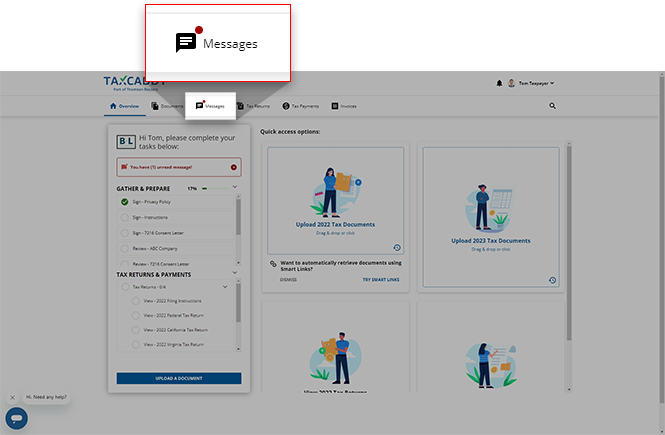
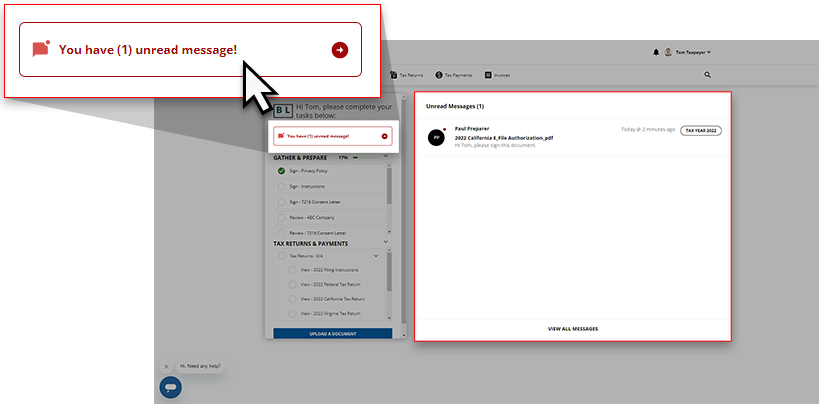
If you have any unread messages from your tax professional, you'll notice an alert appears in the task panel of the screen. You can select this notification to open the
Unread Messages
screen of your Task List
.
You can select
VIEW ALL MESSAGES
to go to the Messages
screen where all of your existing message threads will appear, not only those with unread messages.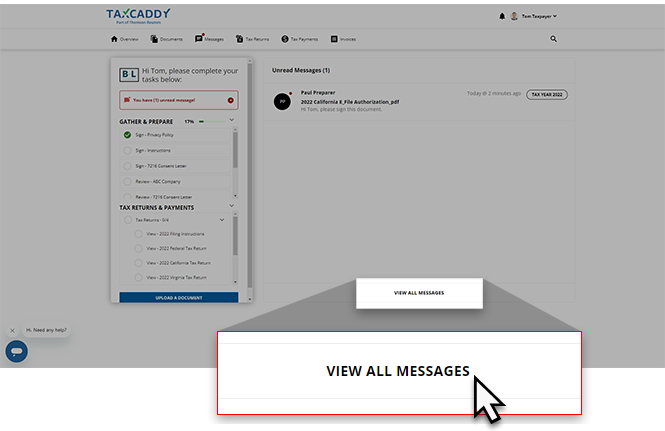
Once on the
Messages
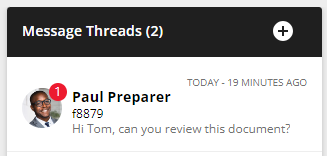
screen, you can select a thread listed in the Message Threads
panel to view the messages in that thread, or you can select New Message
to create a new thread. When you open or create a thread, it appears in the panel. 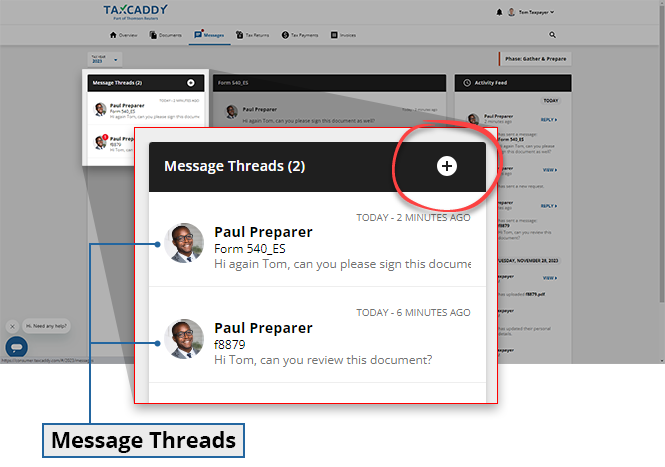
The red badge indicates the number of unread messages in each thread.
Associate messages with specific documents by messaging from the document's message panel. There are
Message
panels on the questionnaire, each document, and on each version of your tax return. 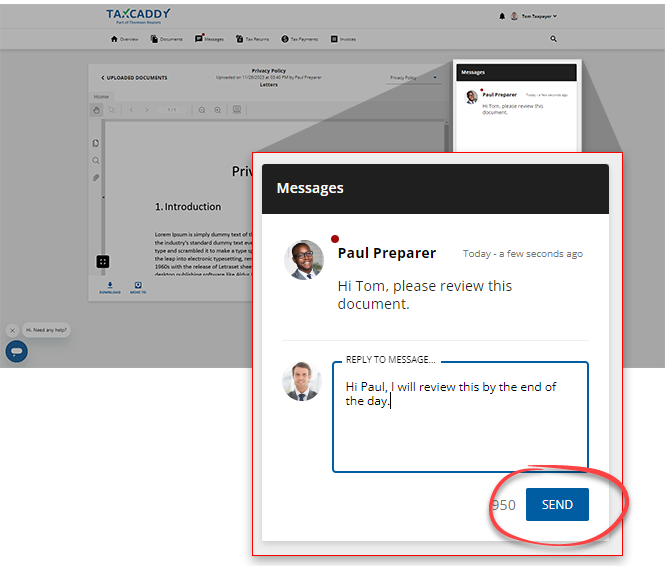
iOS mobile app
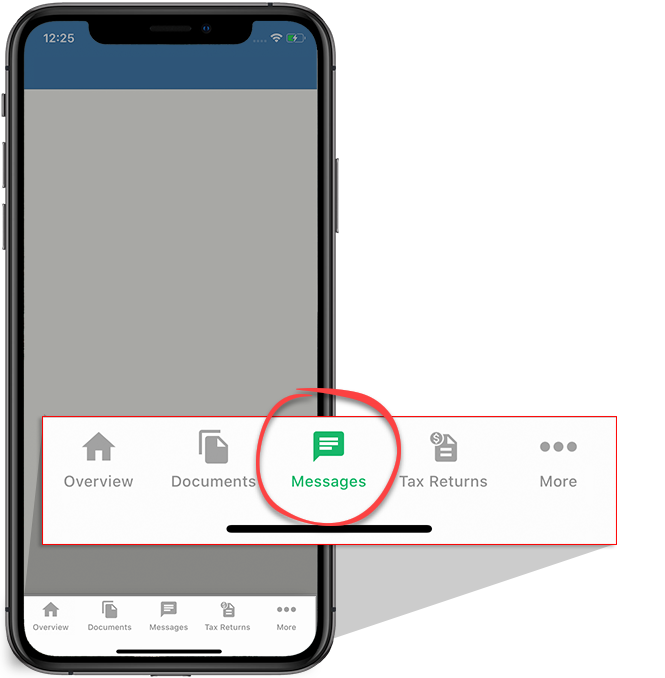
Sign in to the TaxCaddy mobile app and tap
Messages
.
If you have any unread messages from your tax professional, you'll notice an alert appears at the beginning of your
Task List
. You can tap this notification to be taken directly to your unread messages.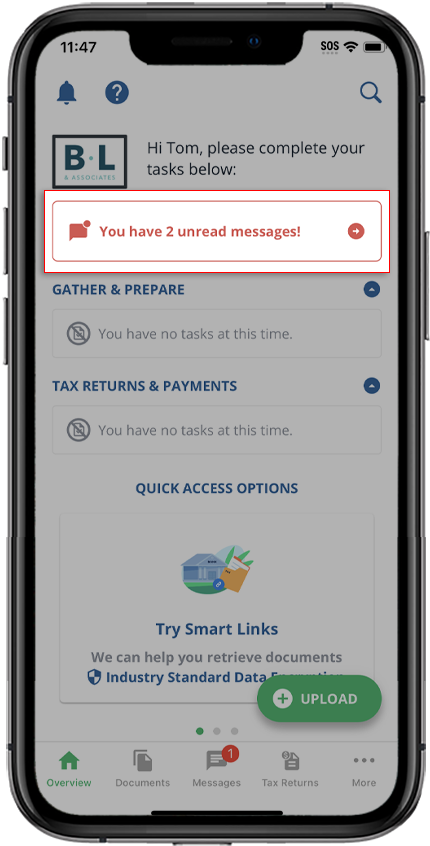
Tap a thread to view messages or tap the floating icon to create a new thread. The red badge shown in a thread indicates the number of unread messages in that thread.
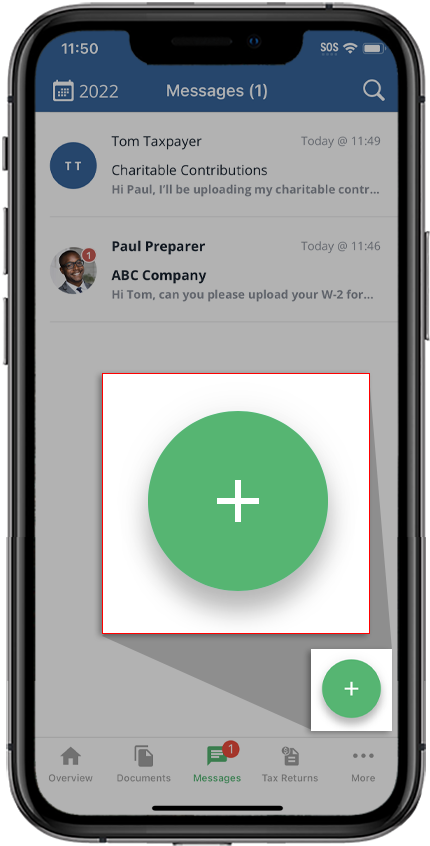
Opening a message thread will let you view messages sent by you and your tax professional. Tap
Reply to message...
, type a message, then tap the Send
icon to send a new message to your tax professional.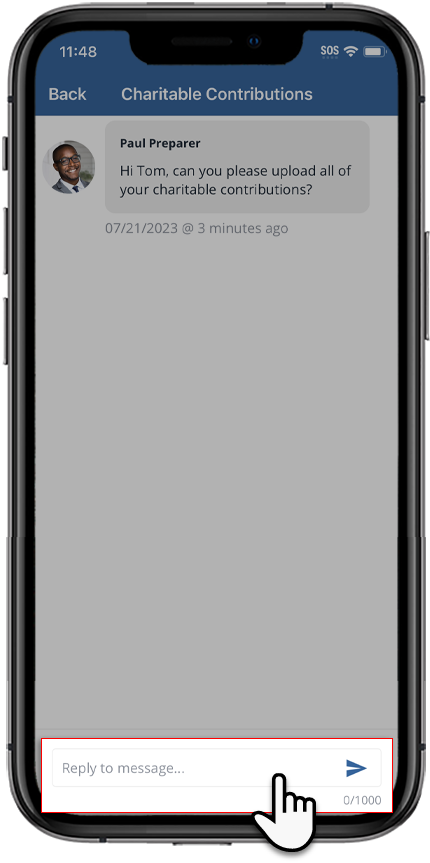
Associate messages with specific documents by messaging from the document's message panel -- tap the
Messages
icon from the Document Viewer panel. There are message panels on the questionnaire, each document, tax payments, invoices, and each version of your tax return. 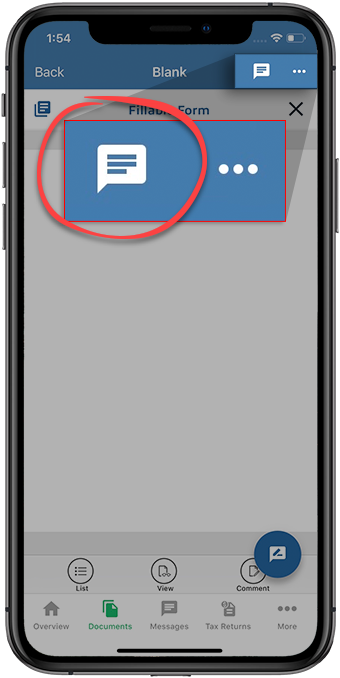
Android mobile App
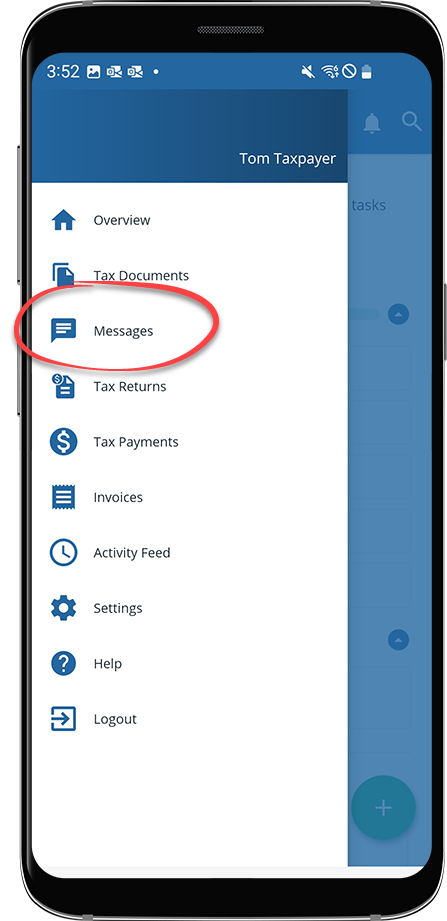
Sign in to the TaxCaddy mobile app, tap the
Menu
icon, then tap Messages
.
If you have any unread messages from your tax professional, you'll notice an alert appears at the beginning of your
Task List
. You can tap this notification to be taken directly to your unread messages.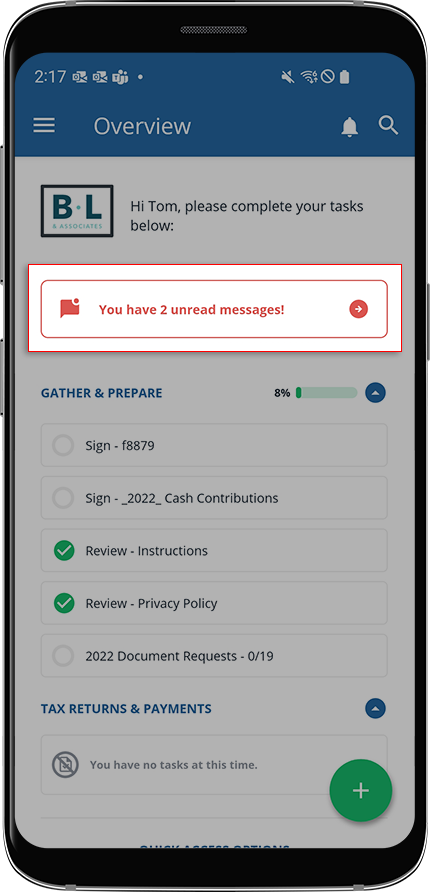
Tap a thread to view messages or tap the floating
icon
to create a new thread. A red badge indicates the number of unread messages in its thread.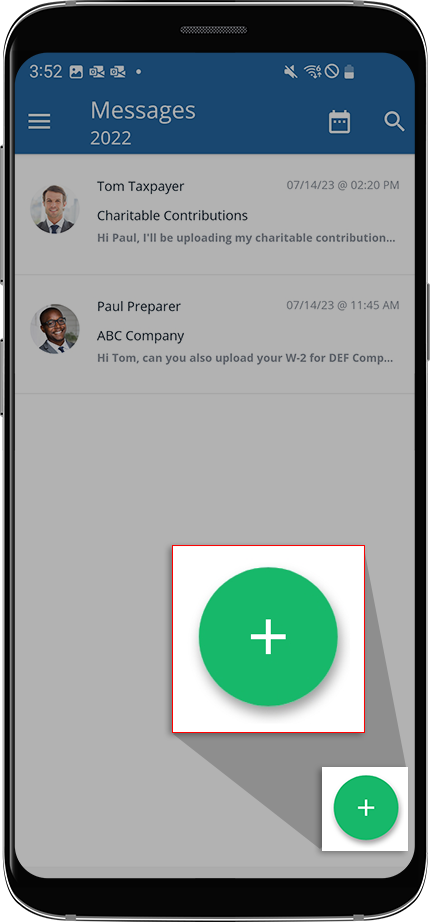
Opening a message thread will let you view messages sent by you and your tax professional. Tap
Reply to message...
, enter a message then tap the Send
icon to send a new message to your tax professional.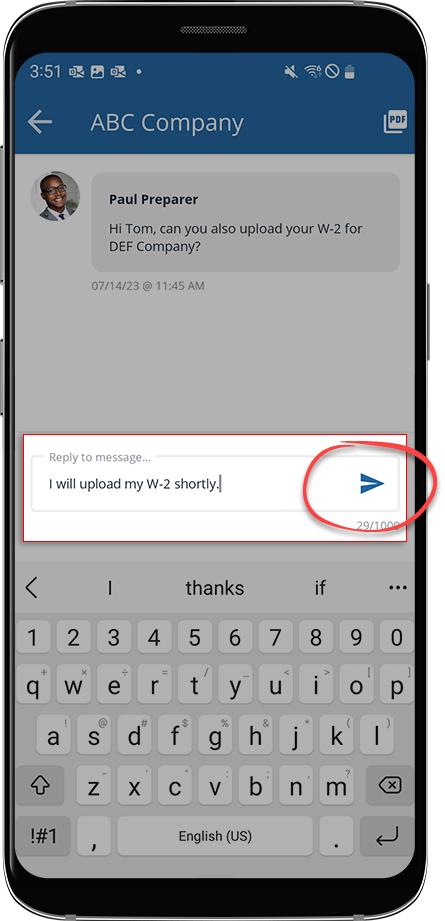
Associate messages with specific documents by messaging from the document's message panel. To do this, tap the
Messages
icon from document view. There are message panels on the questionnaire, each document, and on each version of your tax return. 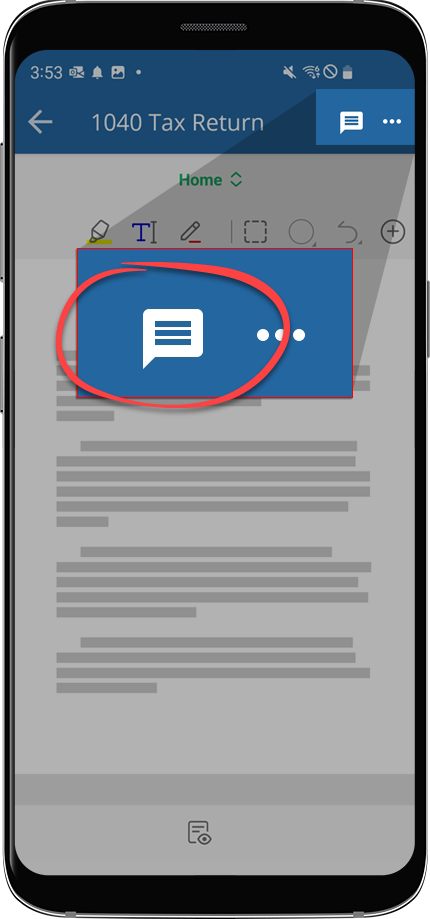
Related Content
-
About TaxCaddy
Format: Article,
4 min read
Article,
4 min read

