
Overview
Show all hidden content
When you sign in to TaxCaddy, the 1st thing you see is the
Overview
screen. You get a brief snapshot of everything in your account in 1 place. Requests from your tax professional will appear in a task list. You can select each task to view the screen that will help you complete that task. You will also see Quick Access Options that will help you quickly upload documents to the relevant tax year, view tax payments that are due, and access tax returns.TaxCaddy.com on PC, Mac, or tablet
Introducing TaxCaddy's Overview screen
This article covers the screen when using TaxCaddy.com on a PC, Mac, or tablet.
Overview
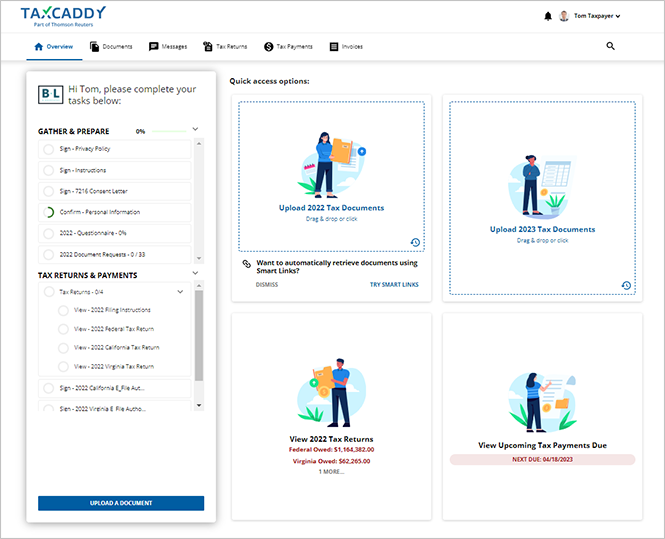
The
Overview
screen is primarily divided into a header, Task List, and Quick Access Options.Header
: Lets you go to different screens in TaxCaddy, use the search feature, go to user settings, activity feed, switch accounts (administrator only), and update Smart Links.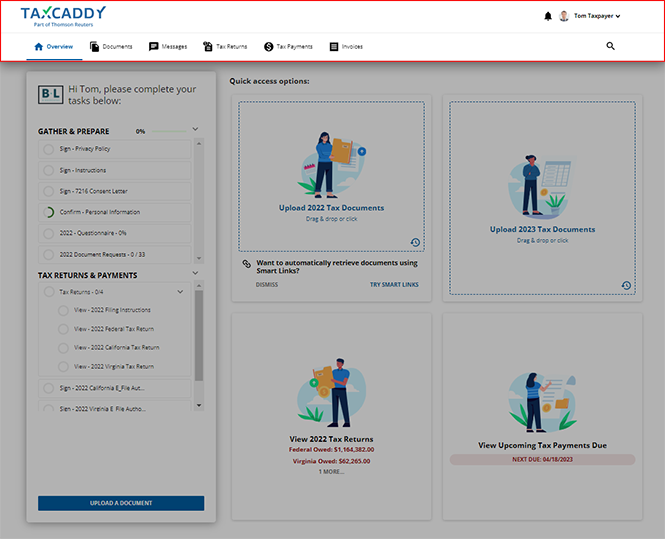
Task list
: Requests from your tax professional will appear in the new Task List. You can select each task to view the screen and complete that task.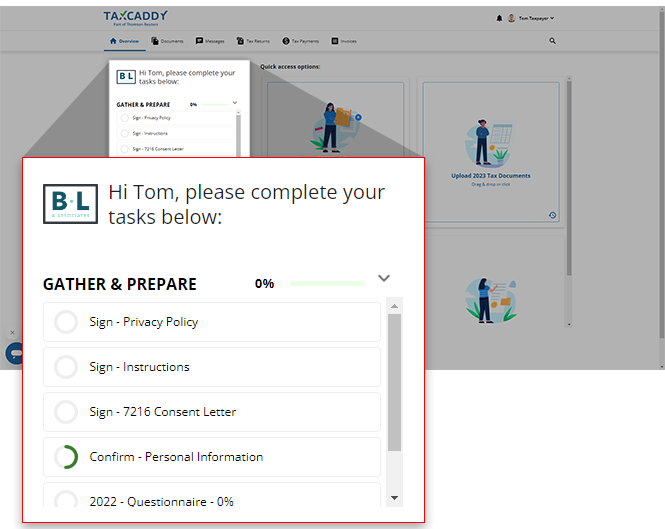
Quick access options
: Each panel is a shortcut that lets you perform an action without going away from the Overview
screen. 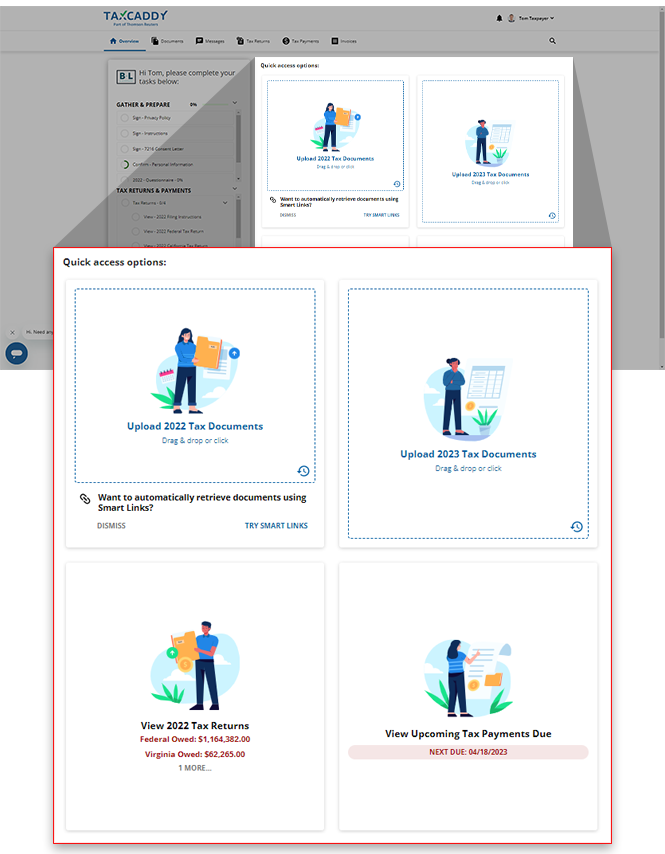
Header
The header lets you:
- See your connected tax professionals logo.
- Go to different screens in TaxCady.
- Go to your settings, switch account (administrator only) from the user menu, or view the latest activity on your account.
- See notifications.
- Search in your TaxCaddy account.
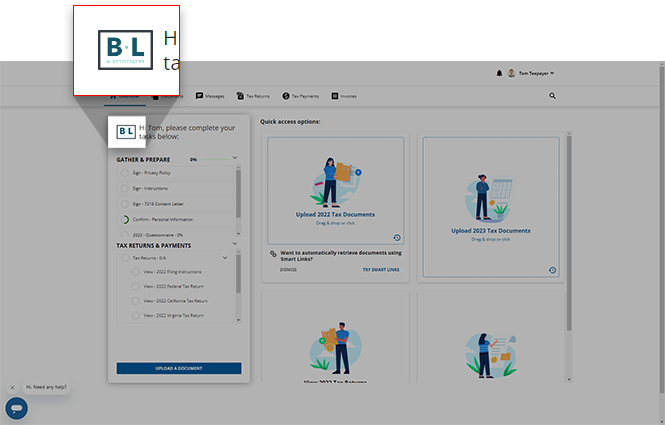
Firm logo
If your account is connected with your tax professional, then your tax professional's logo appears.
Navigation menu
Overview
, Documents
, Messages
, Tax Returns
, Tax Payments
, and Invoices
appear on the bar. Each link will take you to a new TaxCaddy screen.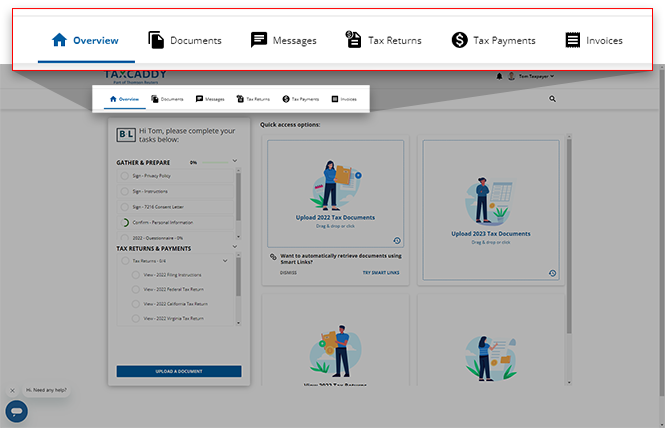
User menu
You can select your user profile to expand the
User menu.
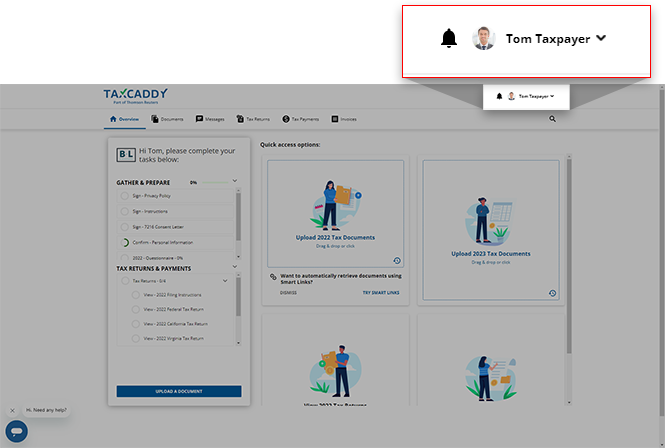
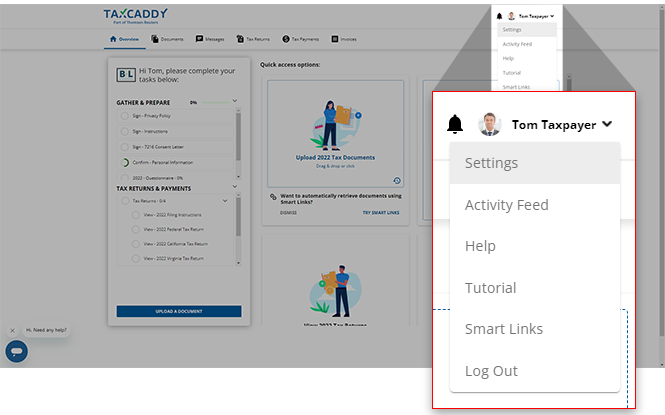
You can access
Settings
, Activity Feed
, Help
, Tutorials
, and Smart Links
. You can also Log Out.
If another user has added you as an additional user to their account, then you can select
Switch Account
to switch between their account and yours.note
Spouse users don't see
Switch Account
since their accounts are already connected to the taxpayer's account.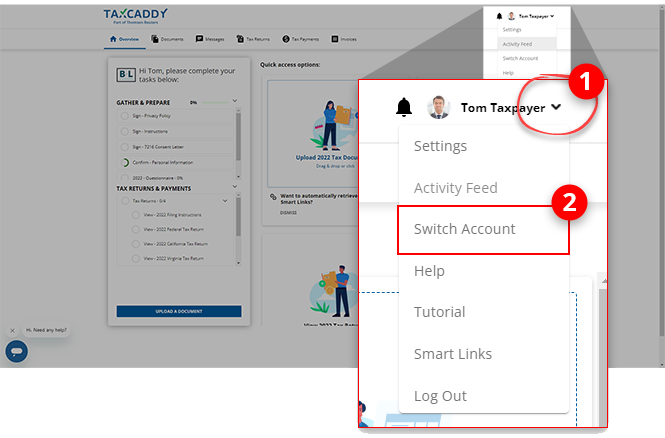
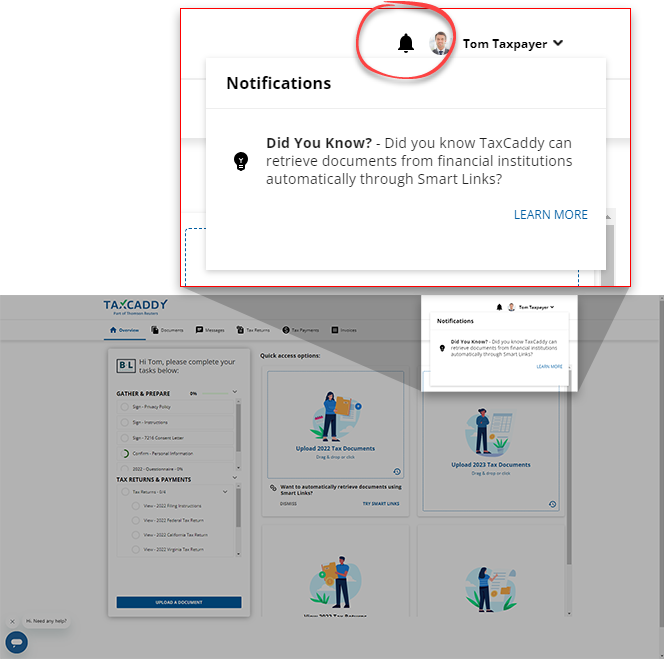
Notifications
The notification menu will show announcements and tips. A red badge indicates new notifications.
Search
You can use the search feature to search for documents, tax payment vouchers. To search, select
Search
.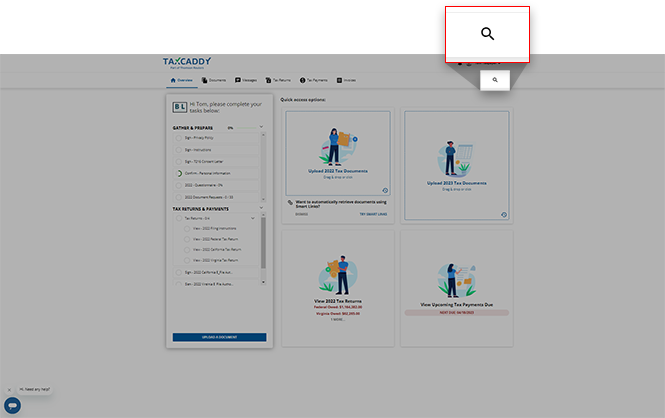
Search results will auto-populate as you enter text. You can quickly search for documents, tax returns, tax payment vouchers, and questions from the questionnaire.
Task list
Each item in the Task List is an action for you to perform requested by your tax professional. When your tax professional needs you to review, sign, or upload a specific document, you will see the task appear in the list.
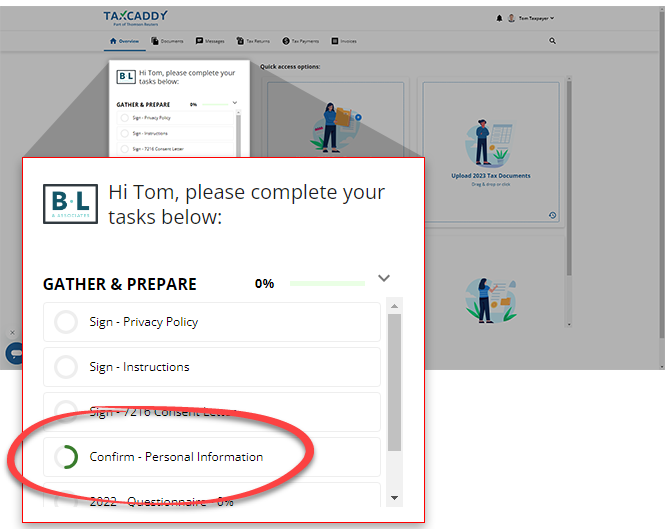
You can select each item listed to list the task on your screen near your task list:
Your pending
Sign
requests that your tax professional has sent you will appear near your Task List. From here you can review the document requiring your signature, and fulfill this pending Sign
request.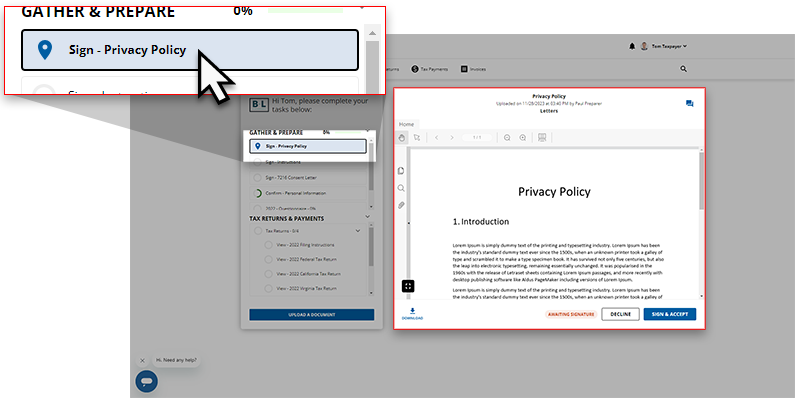
When selected, your
Document Request
task will open a list of documents that your tax professional has requested that you upload. You can address each of these requests, and your progress will be denoted in your Task List.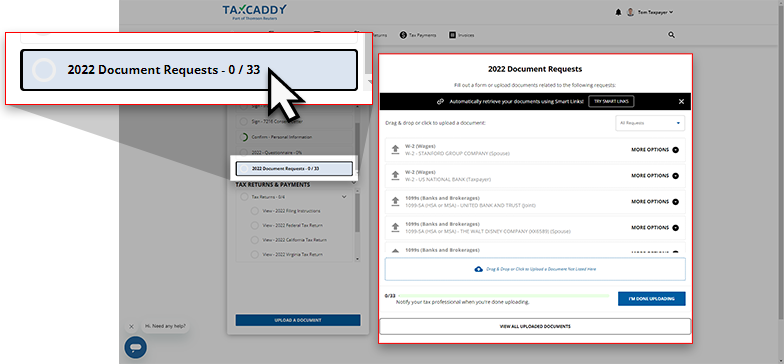
Your
Questionnaire
task will open your firm's questionnaire near your Task List. Help your tax professional get information regarding life events this past calendar year that could impact your tax returns.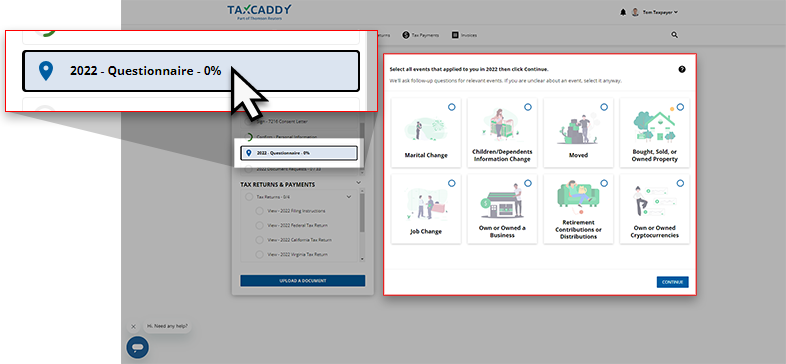
You're able to fulfill
Tax Payments
from the Overview
screen. Once selected, a list of both PAID
and UNPAID
tax payments will be listed. You can select a tax payment to review the document attached.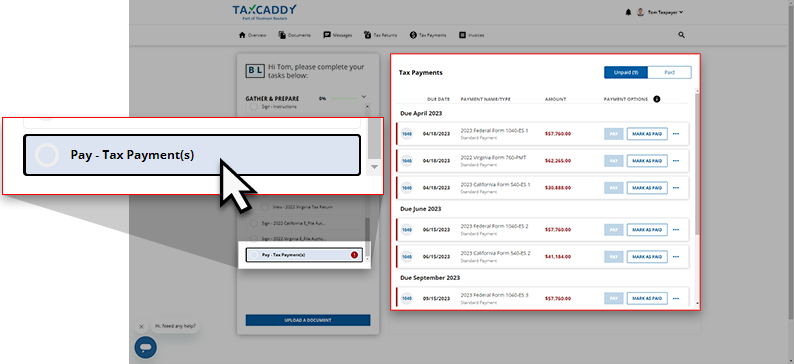
In addition to the task types listed previous, you will also be able to fulfill these tasks all from the
Overview
screen as well:- Review documents to fulfill yourReviewtasks.
- View task return documents to fulfillTax Returnstasks.
- Pay pending invoices to complete yourInvoicetasks.
Once you complete a task, a green checkmark will appear next to the name of the item in your task list.
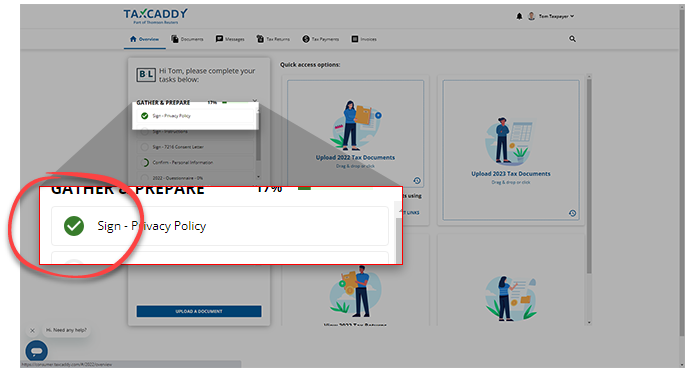
Your overall progress in the completion of your tax professional's requests for your current phase will appear at the top of your task list.
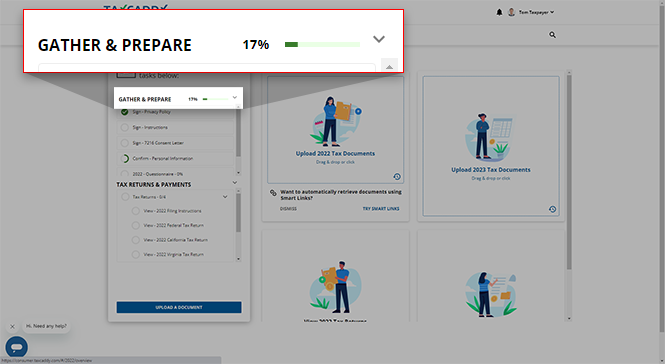
Annual task list reset
To keep your
Task List
to the current tax year, TaxCaddy will annually remove some pending tasks from your Task List
. These tasks include:- Upload, Review, and non-KBA Sign requests
- Questionnaire and Confirm Personal Information
- Tax Returns
The following tasks will remain on your
Task List
after the annual reset:- Sign requests with Knowledge-Based Authentication
- Tax payments
- Invoices
note
Pending tasks removed from the
Task List
can still be viewed and fulfilled from their respective section of your TaxCaddy account (for example Sign
, Upload
, and Review
requests will be found in the Requested Items
section of your account).Quick access options
Each panel lets you quickly perform an action. You can upload tax documents, add your first financial institution via Smart Links, view tax payments that are due, and view your tax return summary when your tax professional prepares your return. You can select each panel to perform the action or view additional details.
The top panels let you upload documents directly into your tax year. You can drag and drop a file inside the panel or select the panel then upload the document from there.
You also select
Try Smart Link
to connect to your financial institutions for automatic retrieval of your documents. note
If you don't see
Try Smart Link
, then you can access Add Smart Links
from the user menu. Select your name, then select Smart Links
.You will see a
Tax Returns
panel to view your tax returns summary. Select the panel to go directly to the Tax Returns screen where you can select the tax return. The tax return values will only appear when updated by your tax professional.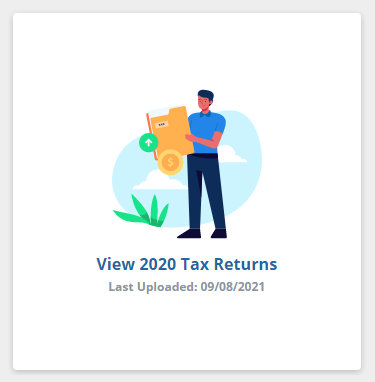
You can view your upcoming tax payments that are due. Select the panel to view the tax payment voucher in TaxCaddy's Document Viewer panel.
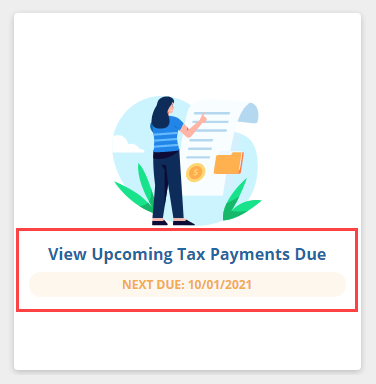
If the tax payment hasn’t been marked as paid and the due date has passed, then the status color will change to red.

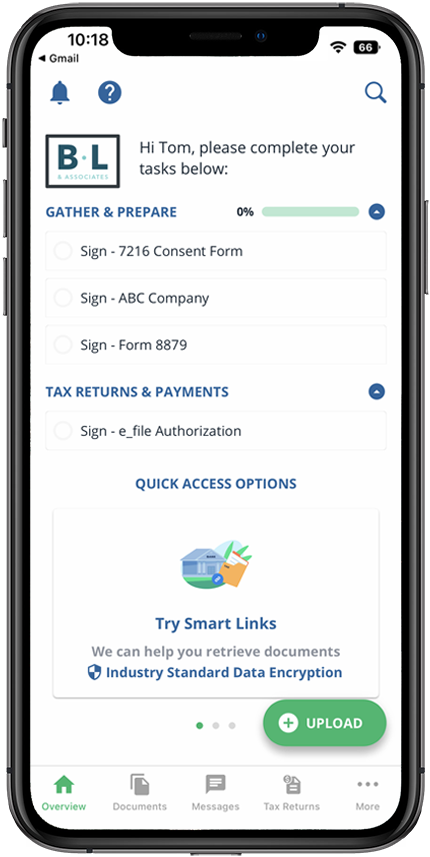
iOS mobile app
The screen gives you a brief look at requests from your tax professional and the ability to upload documents.
Overview
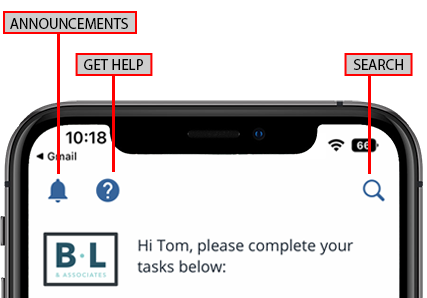
Header
Icon | Feature | Details |
|---|---|---|
 | Unread messages | Appears when there are unread messages. Select the icon to view the Messages screen. |
 | Announcement | Shows announcements or tips from TaxCaddy. |
 | Search | Searches documents, tax payment vouchers, and more. To search, select Search . |
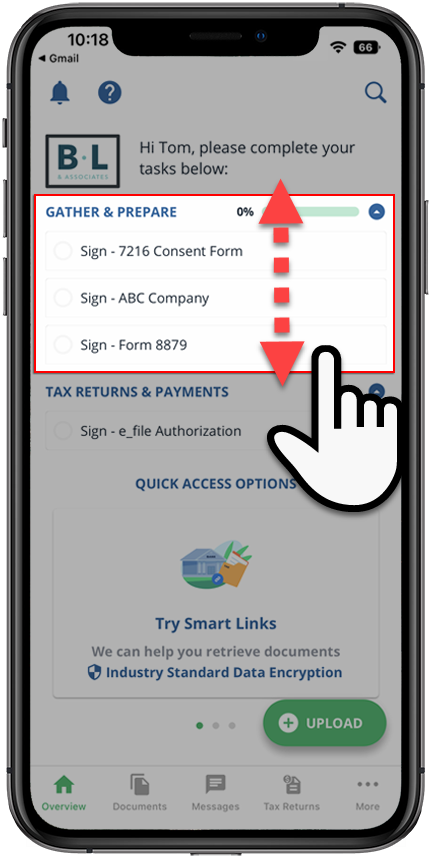
Requests from your tax professional will appear in the Task List. You can select each task to view the screen and complete that task.
Select
+UPLOAD
to snap a photo of your tax document or upload a document from your device.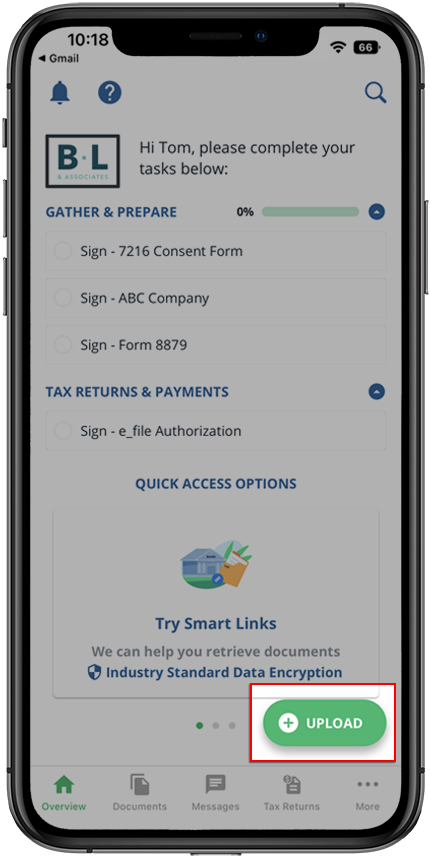
Select
Take a Photo
to take a photo of your document using your device or select Upload Files
to upload a document from your device.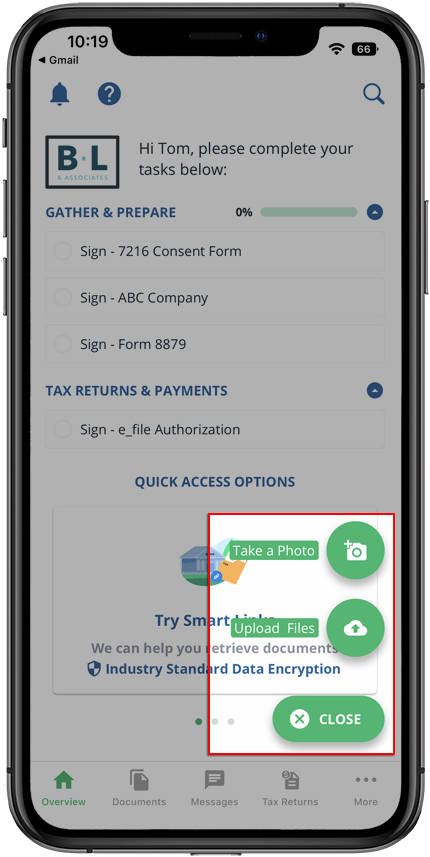
Select the
Questionnaire
request in Tax Pro Requests
to access your questionnaire. 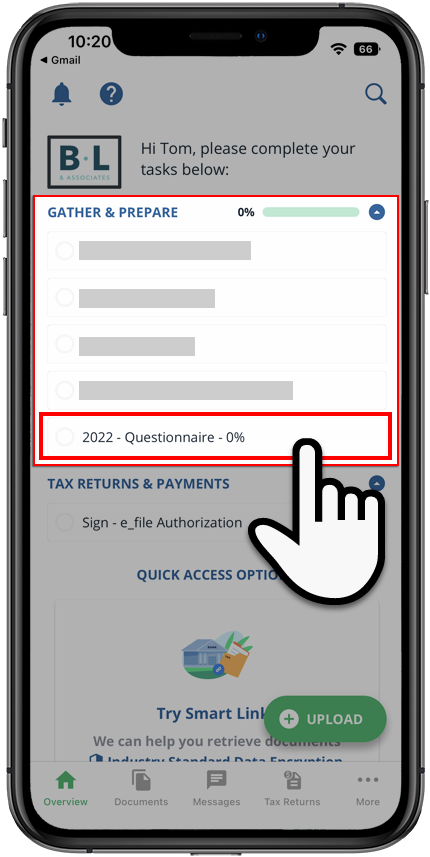
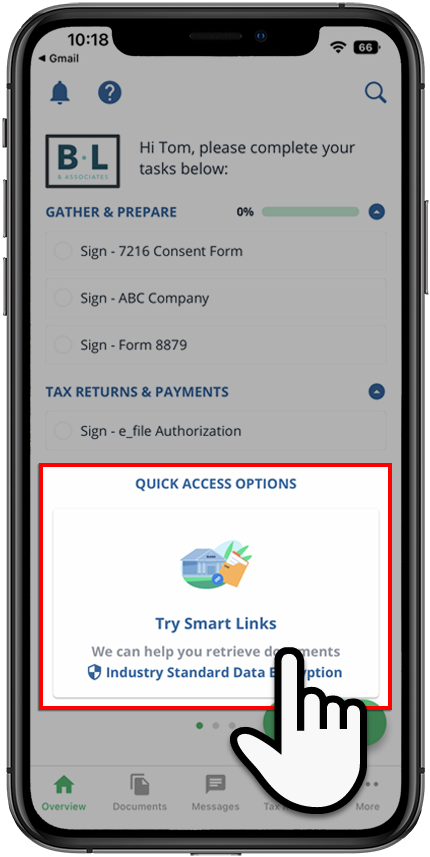
Quick Access Options
The Quick Access Options appears following your requests. You can swipe left/right to see different panels. Each panel is a shortcut that lets you perform an action.
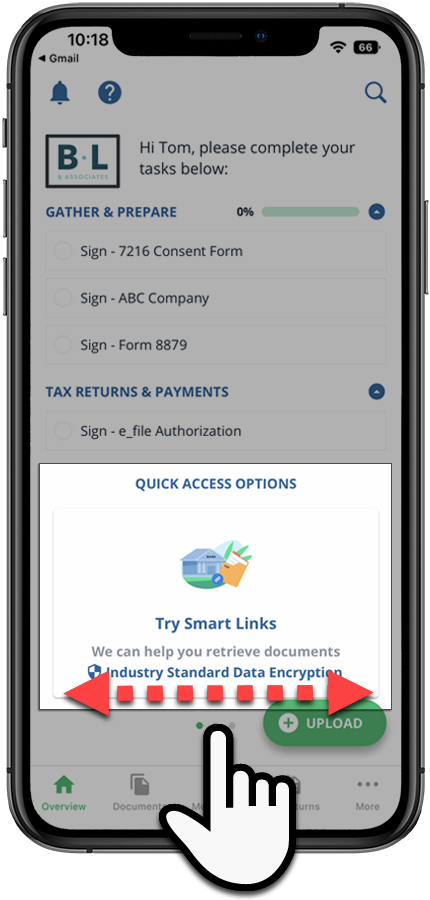
Smart Links
: The 1st panel lets you add Smart Links to connect with your financial institution. Connected Smart Links will automatically retrieve documents from your financial institutions.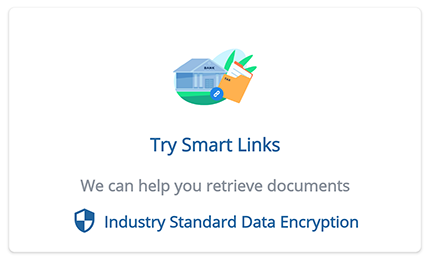
View Tax Returns
: Lets you view your tax returns summary. You can select the panel to go directly to the Tax Returns screen where you can select the tax return. The tax return values will only appear when updated by your tax professional.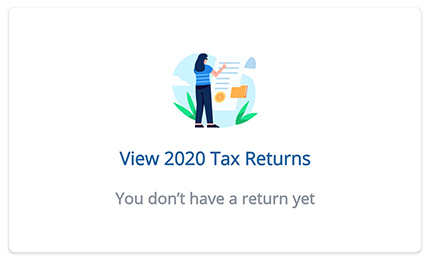
View Upcoming Tax Payments
: You can view your upcoming tax payments that are due. Select the panel to view the tax payment voucher in the Document Viewer window.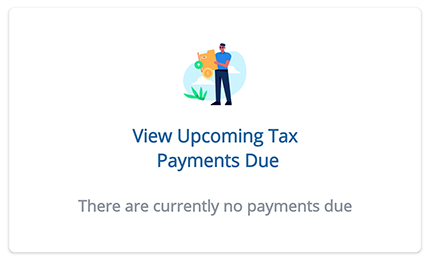
You can select the panel you want to access.
Navigation to
Overview
, Documents
, Messages
, Tax Returns
, and Settings
can be found on your screen. 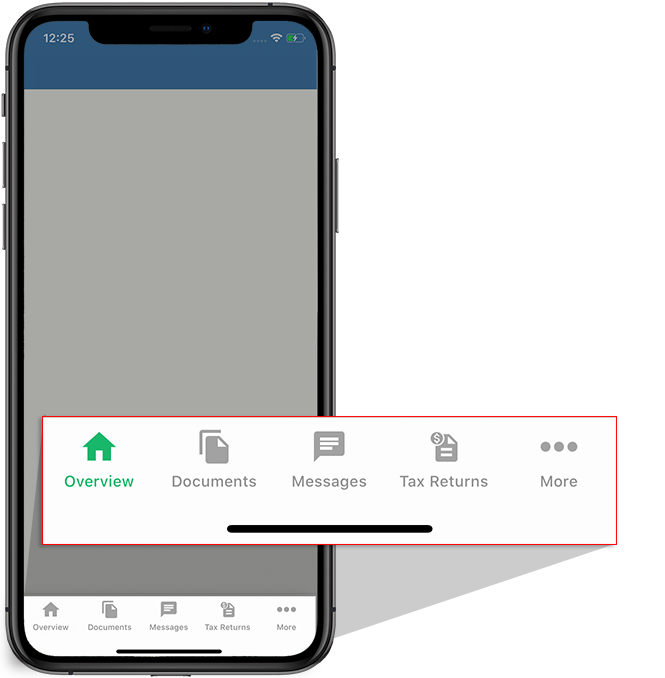
Android mobile app
The
Overview
screen gives you a brief look at requests from your tax professional and the ability to upload documents.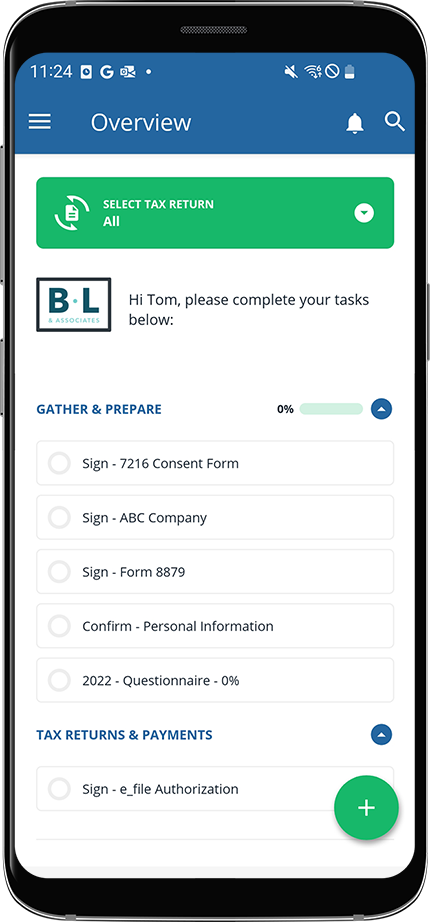
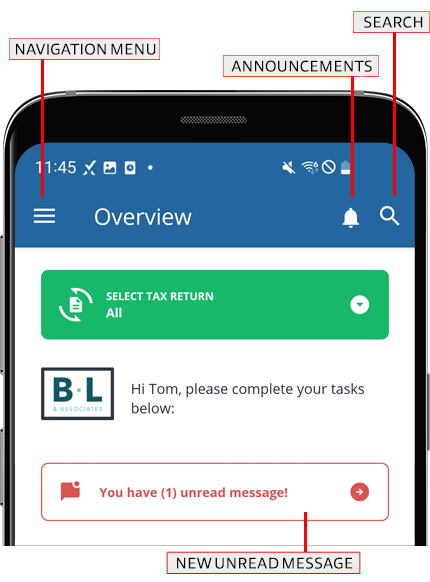
Header
Icon | Feature | Details |
|---|---|---|
 | Menu | Goes to different screens in TaxCaddy. You can go to Overview , Tax Documents , Messages , Tax Returns , Settings , Help , and the ability to Log . |
| Unread messages | Appears when there are unread messages. Select the icon to view the Messages screen. |
| Announcement | Shows announcements or tips from TaxCaddy. |
| Search | Searches documents, tax payment vouchers, and more. To search, select Search . |
Requests from your tax professional will appear in the
Task List
. You can select each task to view the screen and complete that task.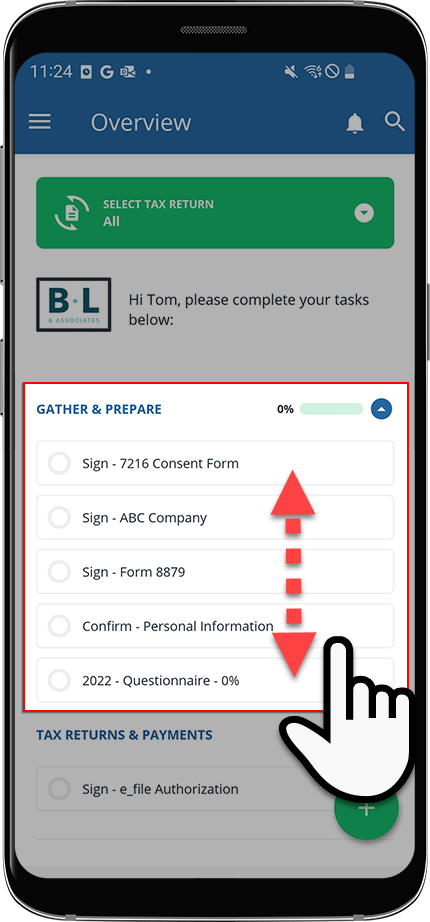
Select
Upload
to snap a photo of your tax document or upload a document from your device.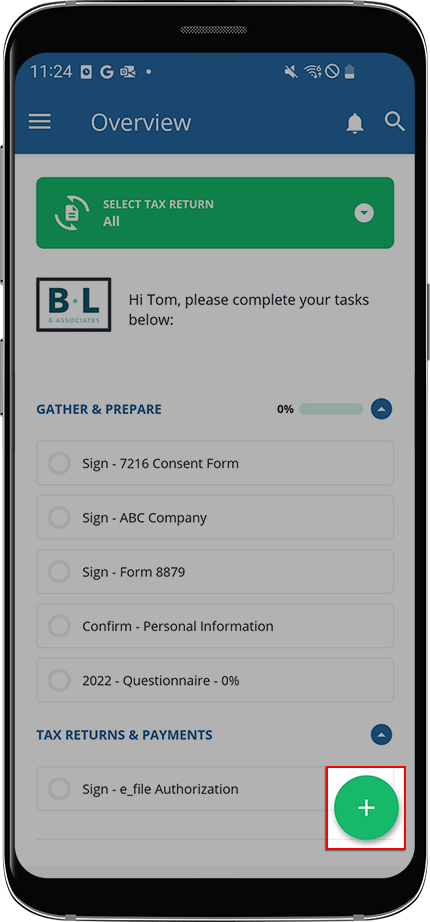
Select
Take a Photo
to take a photo of your document using your device or select Upload Files
to upload a document from your device.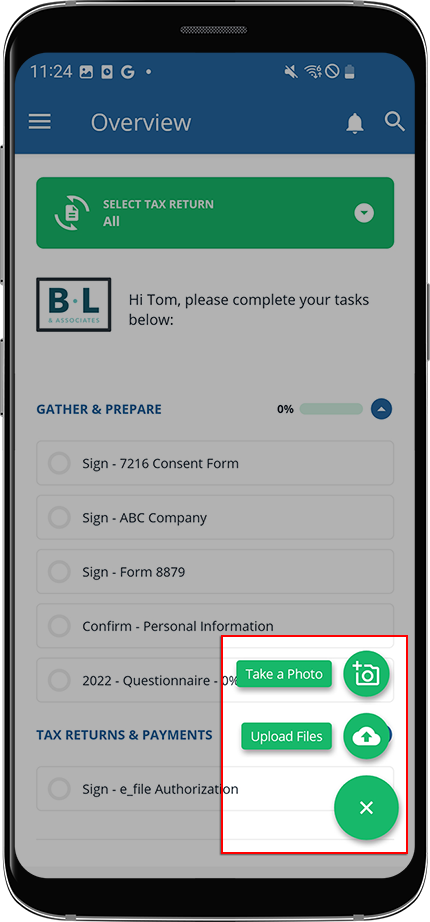
Select the
Questionnaire
request in Tax Pro Requests
to access your questionnaire. 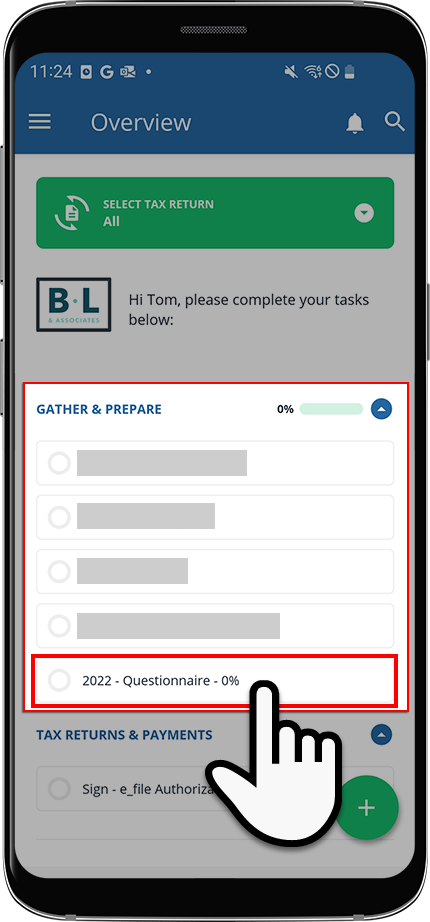
Quick access options
The
Quick Access Options
appear near your requests. You can swipe left/right to see different panels. Each panel is a shortcut that lets you perform an action.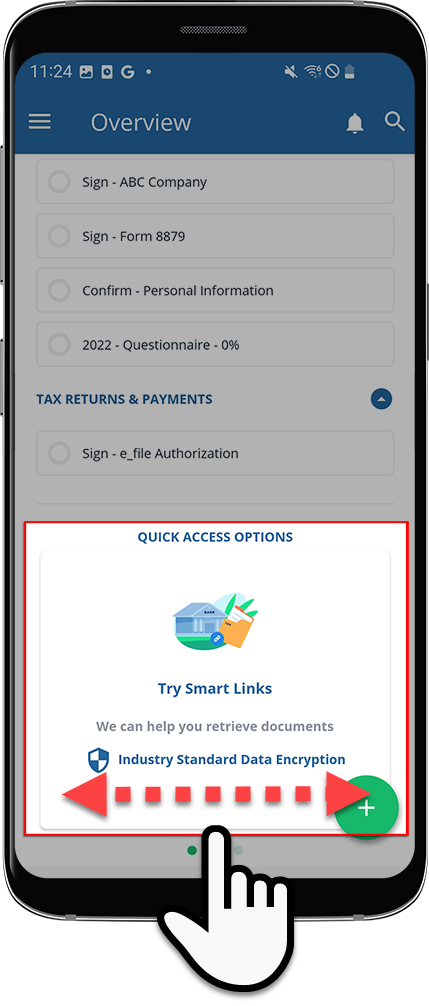
Smart Links
: The 1st panel lets you add Smart Links to connect with your financial institution. Connected Smart Links will automatically retrieve documents from your financial institutions.View Tax Returns
panel lets you view your tax returns summary. You can select the panel to go directly to the Tax Returns screen where you can select the tax return. The tax return values will only appear when updated by your tax professional.View Upcoming Tax Payments Due
: You can view your upcoming tax payments that are due. Select the panel to view the tax payment voucher in the Document Viewer window.You can select the panel you want to access.

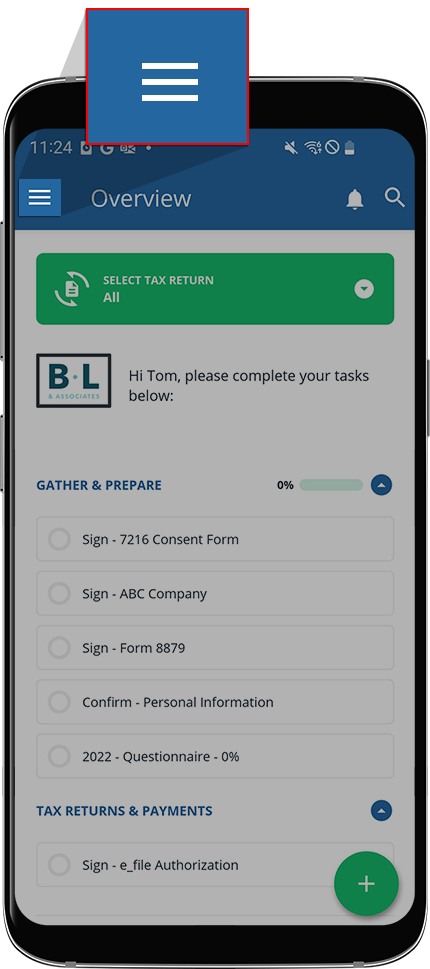
Select the menu on the upper left to go to
Overview
, Tax Documents
, Messages
, Tax Returns
, Settings
, Help
, and the ability to Log Out
.
Related Content
-
About TaxCaddy
Format: Article,
4 min read
Article,
4 min read

