
Settings
Show all hidden content
Manage your personal information, account security, Smart Links, payment accounts, and additional user accounts in Settings.
TaxCaddy.com on PC, Mac, or tablet
Settings
On the
SETTINGS
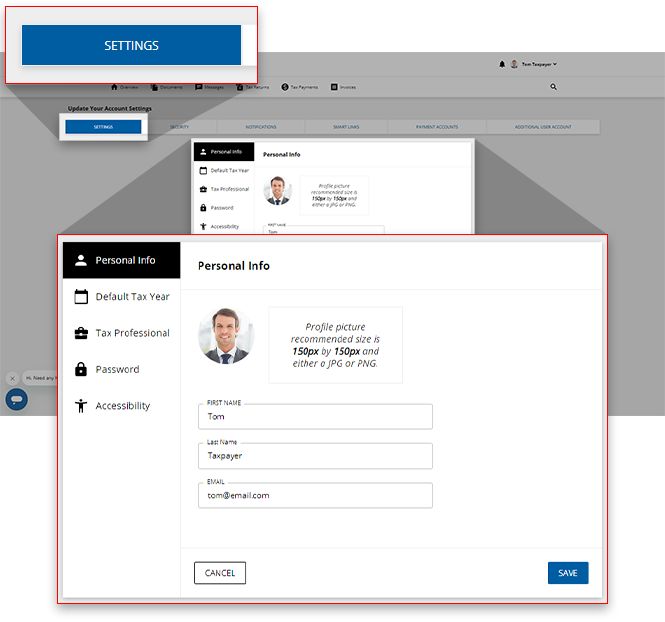
tab, you can change your default tax year, view your personal information, and update your password.note
You may need to scroll down to view all
Settings
.
Name | Description |
|---|---|
Personal Info | Update the name and email attached to your account. |
Default Tax Year | Select the tax year that your TaxCaddy account will display by default. |
Tax Professional | Update the tax firm you're connected with. |
Password | Update your account password. |
Accessibility | Turn on color blind mode and dark mode. |
Security
Two-factor authentication helps keep your account secure by prompting you to enter a security code each time you log in. You can also update your security questions.

When signing in, you can select
Don't ask again on this device
to have TaxCaddy remember this device to avoid entering the code when logging in on this device in the future.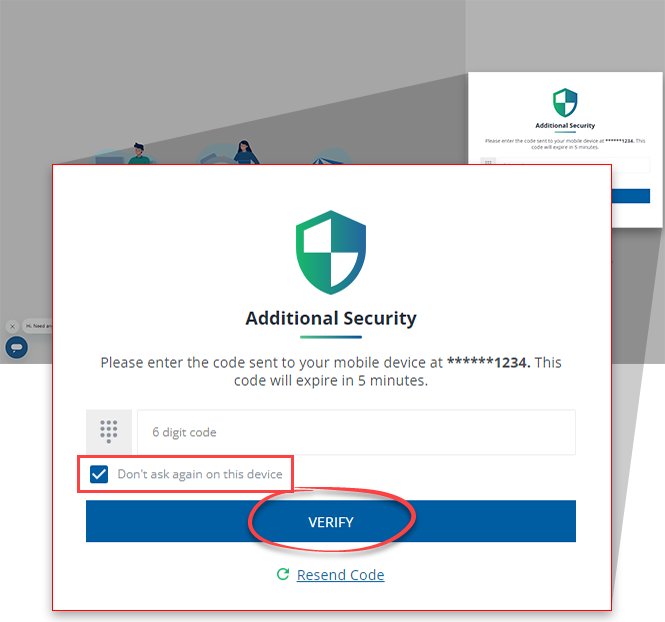
Notifications
On the
NOTIFICATIONS
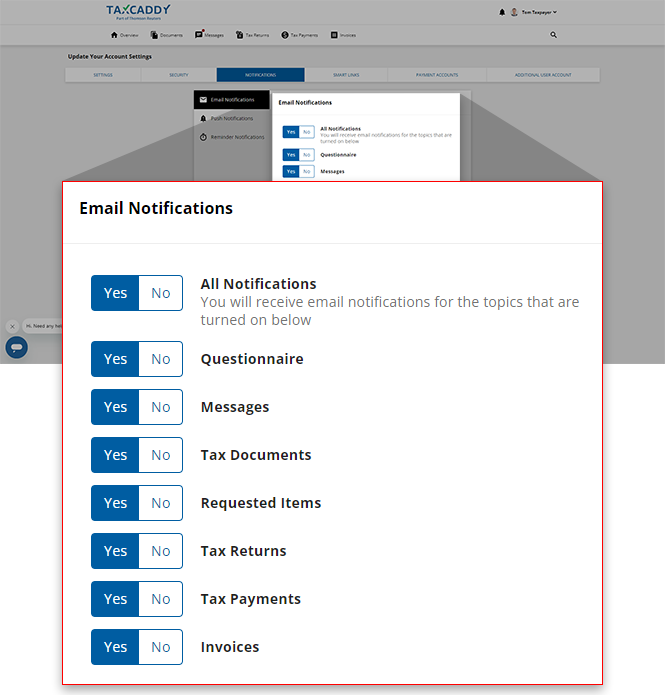
tab, you can subscribe to or unsubscribe from Notifications.note
Lower priority notifications are summarized and collected into a single email sent once per day (maximum).
Smart Links
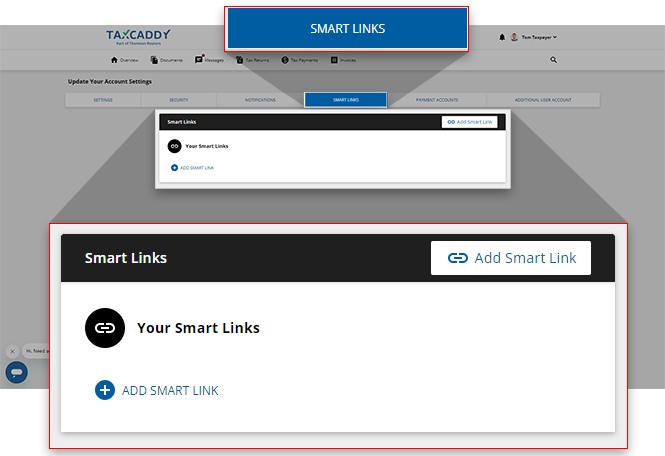
Smart Links between TaxCaddy and financial institutions let TaxCaddy get documents directly from the financial institution.
Payment accounts
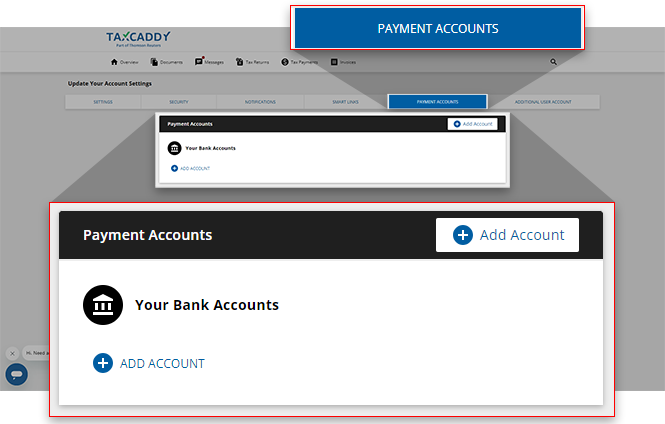
Your tax professional can charge you fees for their service by creating an invoice. These invoices can be paid using a credit card or directly through a bank account. To make payments from a bank account, you'll need to add and verify the bank account.
To add a bank account, select
Add Account
.
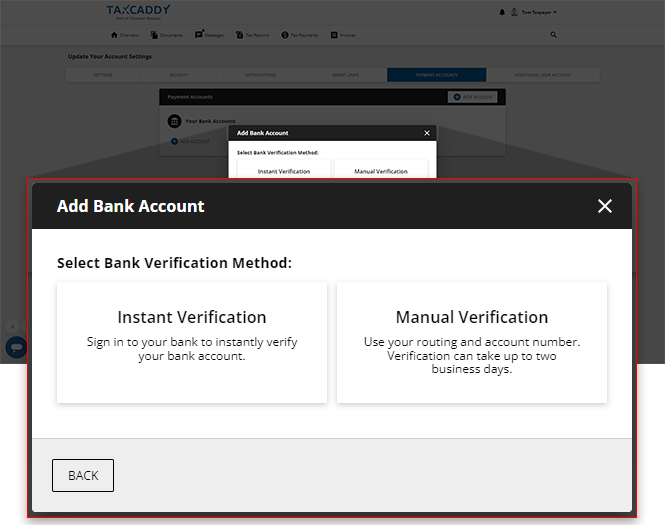
There are 2 methods of adding a bank account:
- Instant Verification- Requires you to sign in to your bank account to verify your bank account.
- Manual Verification- Requires you to add your addRouting Number,Account Number,Account Owner's Name, andAccount Type. Once the bank account has been added, you will receive micro-deposits in 2 business days. Enter the amounts to complete your account verification.
Additional user account
If you need to grant access to your TaxCaddy account to your spouse or another individual, you can invite them to be an additional user on your account.
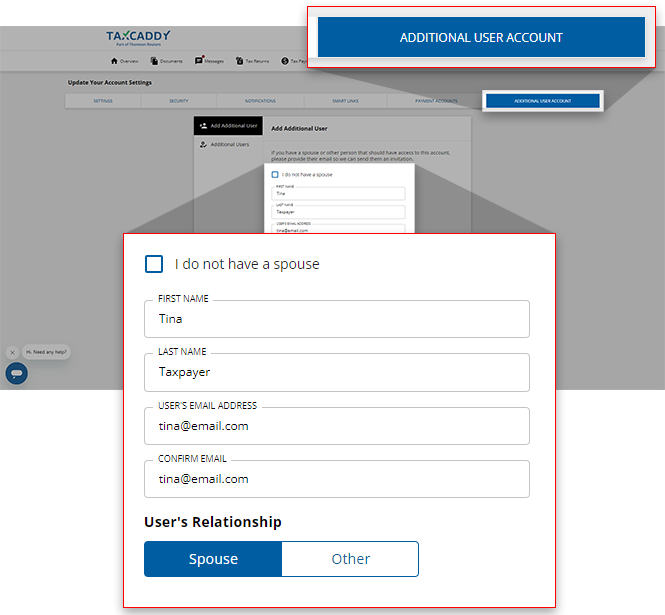
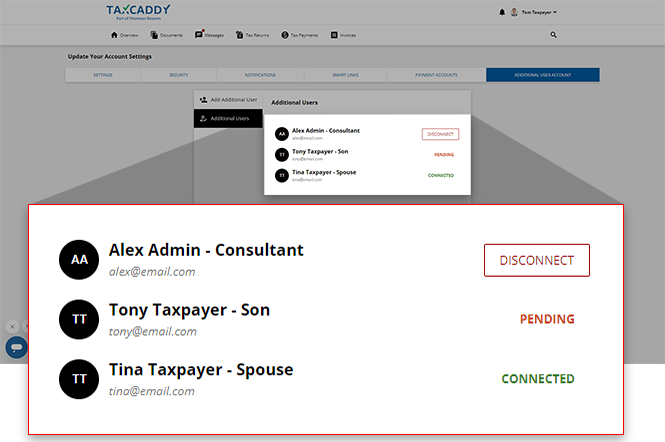
Additional users can upload documents and view the tax documents you upload, as well as review and sign certain tax documents uploaded by your tax professional.
iOS mobile app
To view settings, tap the
More
icon.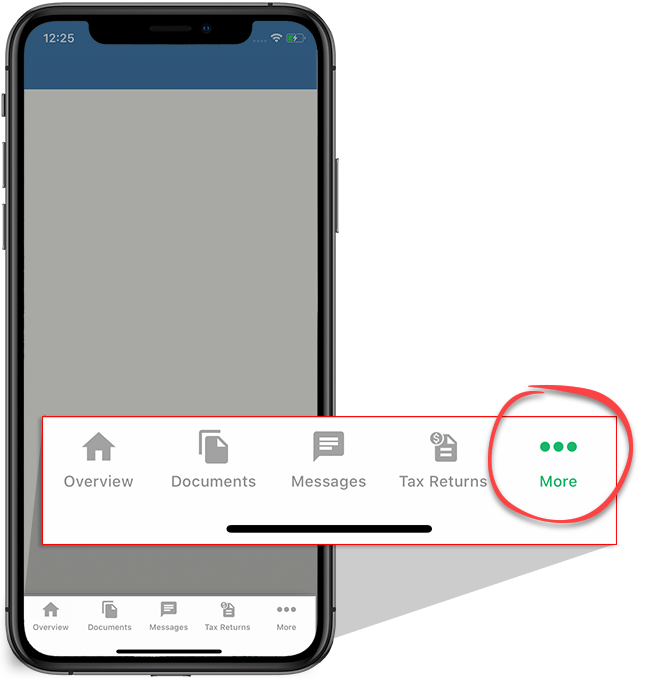
Tap
Settings
to open your account settings.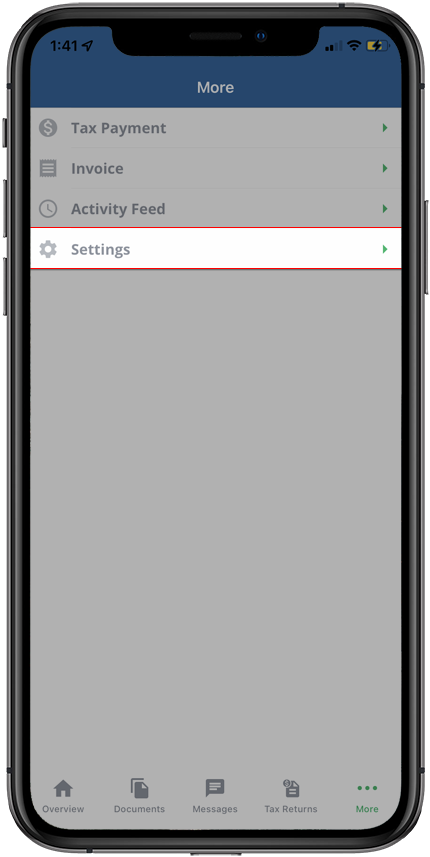
User
Lets you change your default tax year, view your personal information, update your password, and notification preferences.
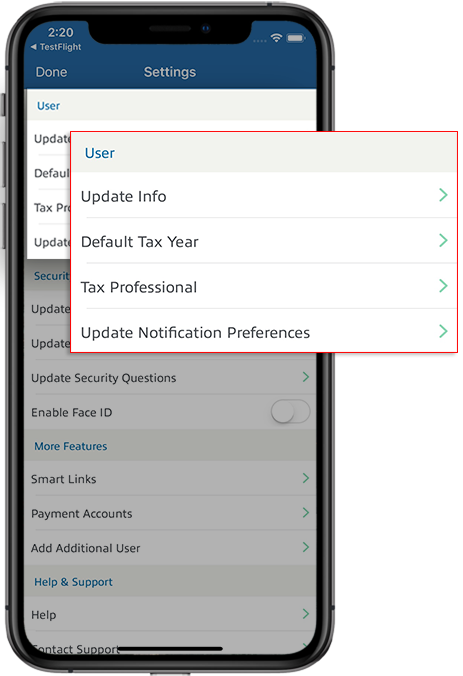
Name | Description |
|---|---|
Update Info | Update the name and email attached to your account. |
Default Tax Year | Select the tax year that your TaxCaddy account will display by default. |
Tax Professional | Update the tax firm you're connected with. |
Update Notification Preferences | Configure your notification settings to decide which emails you receive. |
Security
Two-factor authentication helps keep your account secure by prompting you to enter a security code each time you log in. You can also update your security questions here.
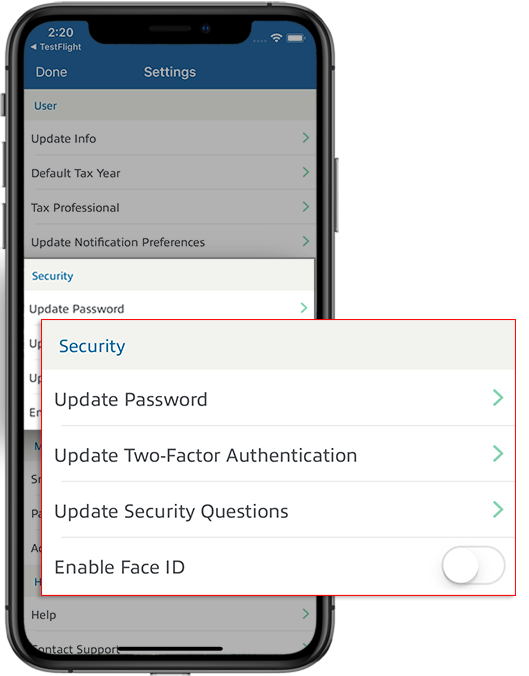
Name | Description |
|---|---|
Update Password | Update your account password. |
Update Two-Factor Authentication | Update your account's two-factor authentication preferences. |
Update Security Questions | Update your account's security questions and answers. |
Turn on Face ID | Update your account's Face ID settings. |
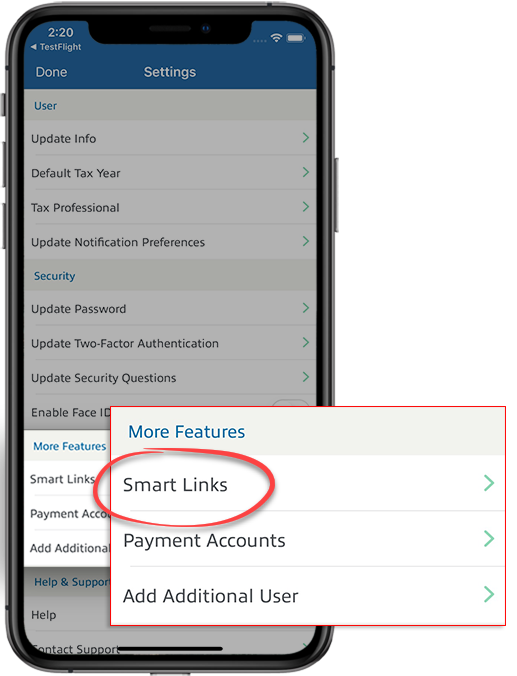
Smart Links
Smart Links between TaxCaddy and financial institutions let TaxCaddy retrieve documents directly from the financial institution.
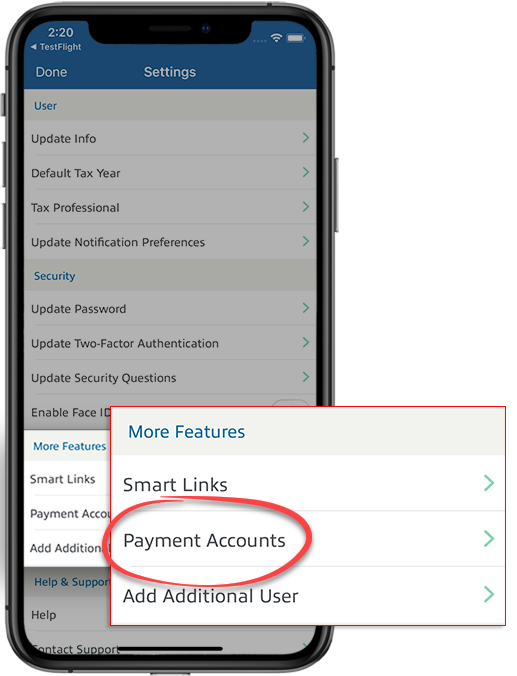
Payment accounts
Your tax professional can charge you fees for their service by creating an invoice. These invoices can be paid using a credit card or directly through a bank account. To make payments from a bank account, you'll need to add and verify the bank account.
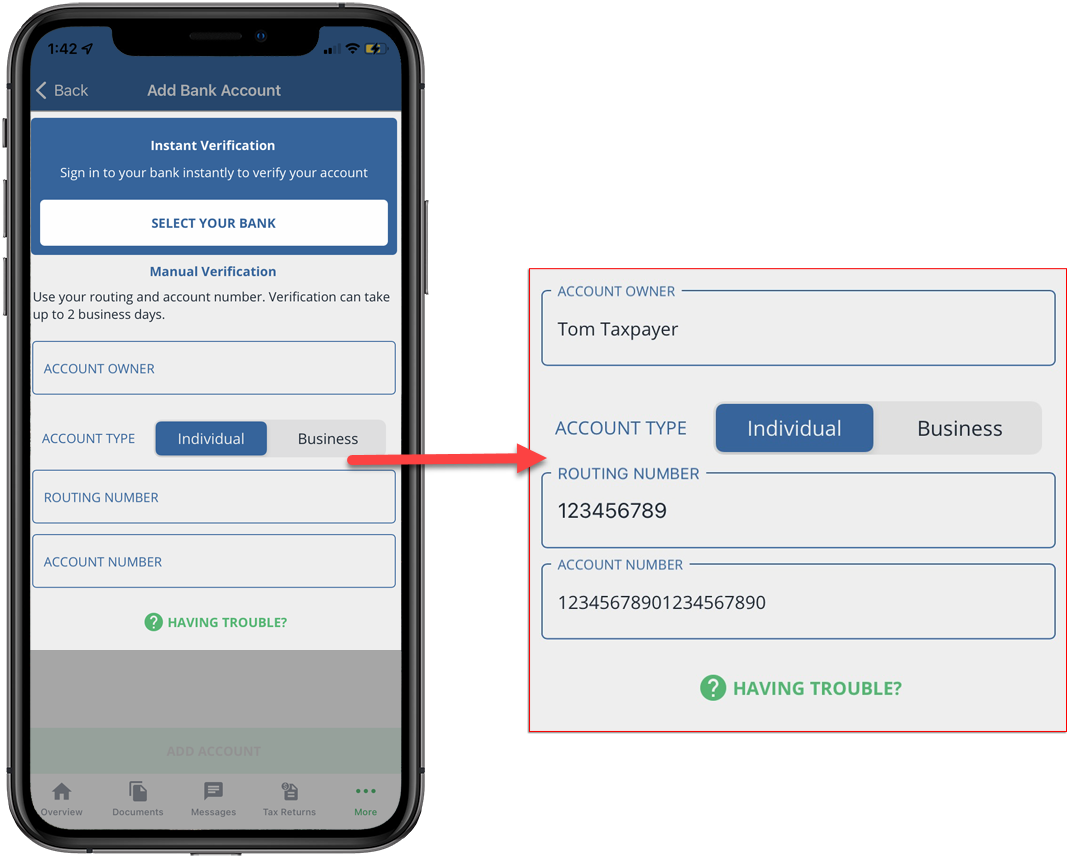
To add a bank account, select
Add Bank Account
.
There are 2 methods of adding a bank account:
- Instant Verification- Requires you to sign in to your bank account to verify your bank account.
- Manual Verification- Requires you to add yourRouting Number,Account Number,Account Owner's Name, andAccount Type. Once the bank account has been added, you will receive micro-deposits in 2 business days. Enter the amounts to complete your account verification.
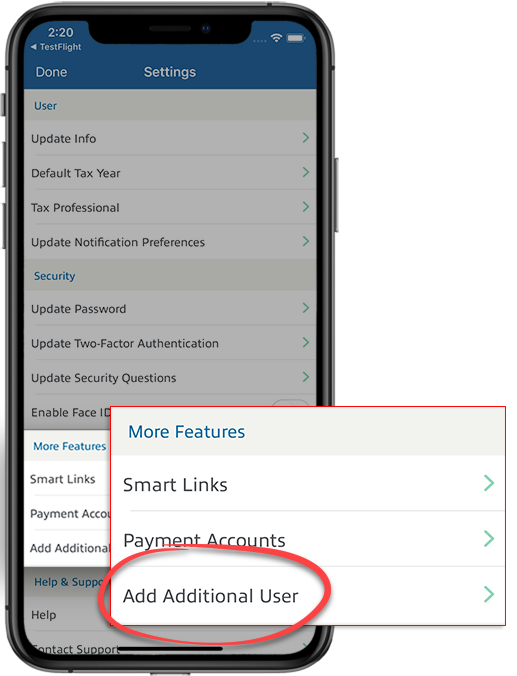
Additional user account
If you need to grant access to your TaxCaddy account to your spouse or another individual, you can invite them to be an additional user on your account. Additional users can upload documents and view the tax documents you upload, as well as review and sign certain tax documents uploaded by your tax professional.
Android mobile app
To view settings, tap the
More
icon.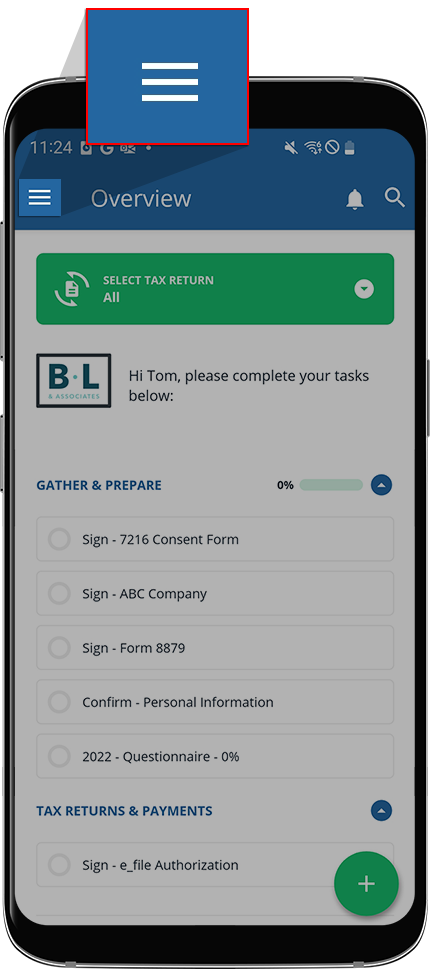
Tap
Settings
to open your account settings.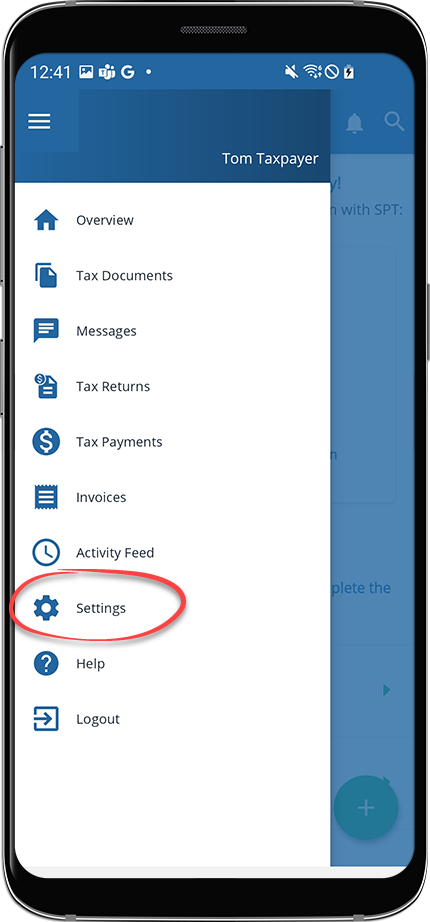
User
Lets you change your default tax year, view your personal information, update your password, and notification preferences.
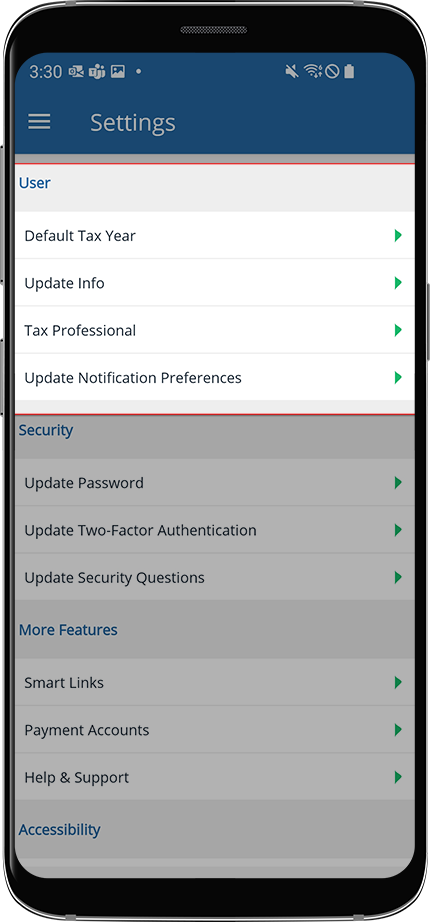
Name | Description |
|---|---|
Update Info | Update the name and email attached to your account. |
Default Tax Year | Select the tax year that your TaxCaddy account will display by default. |
Tax Professional | Update the tax firm you're connected with. |
Update Notification Preferences | Configure your notification settings to decide which emails you receive. |
Security
Two-factor authentication helps keep your account secure by prompting you to enter a security code each time you log in. You can also update your security questions here.
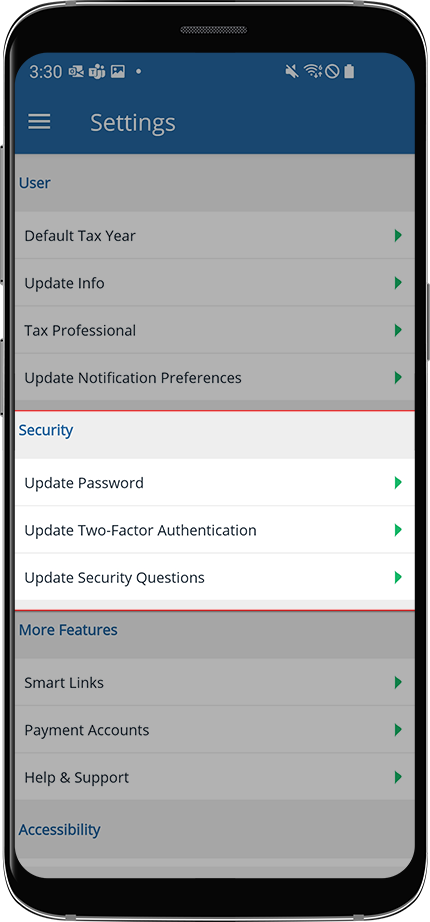
Name | Description |
|---|---|
Update Password | Update your account password. |
Update Two-Factor Authentication | Update your account's two-factor authentication preferences. |
Update Security Questions | Update your account's security questions and answers. |
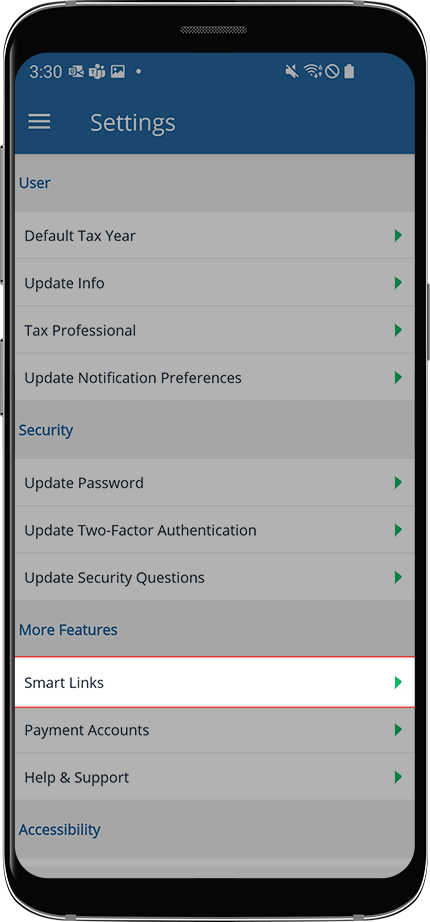
Smart Links
Smart Links between TaxCaddy and financial institutions let TaxCaddy retrieve documents directly from the financial institution.
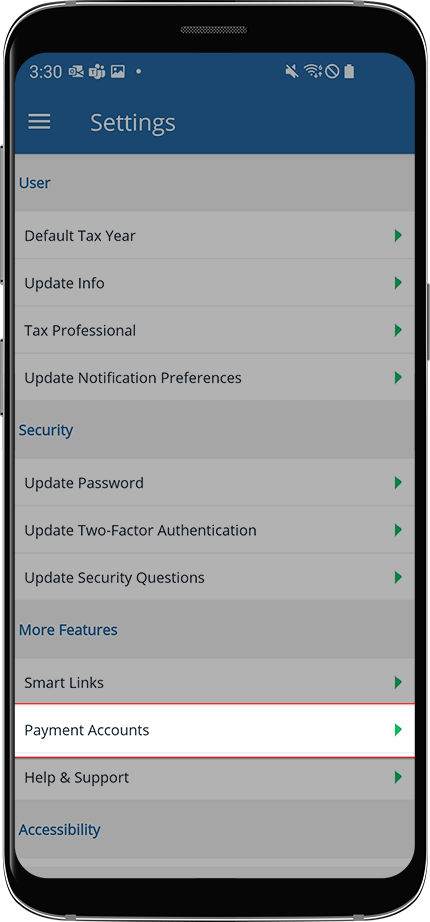
Payment accounts
Your tax professional can charge you fees for their service by creating an invoice. These invoices can be paid using a credit card or directly through a bank account. To make payments from a bank account, you'll need to add and verify the bank account.
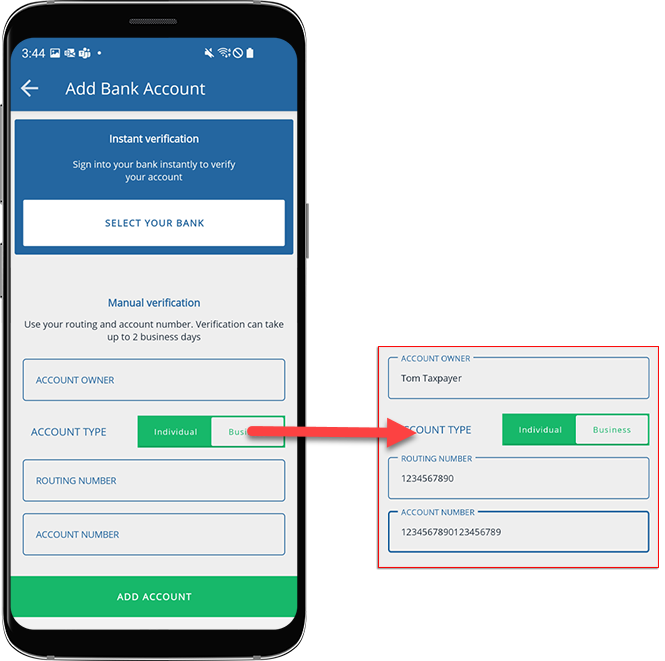
To add a bank account, select
Add Bank Account
.
There are 2 methods of adding a bank account:
- Instant Verification- Requires you to sign in to your bank account to verify your bank account.
- Manual Verification- Requires you to add your add Routing Number, Account Number, Account Owner's Name, and Account Type. Once the bank account has been added, you will receive micro-deposits in 2 business days. Enter the amounts to complete your account verification.
Additional user account
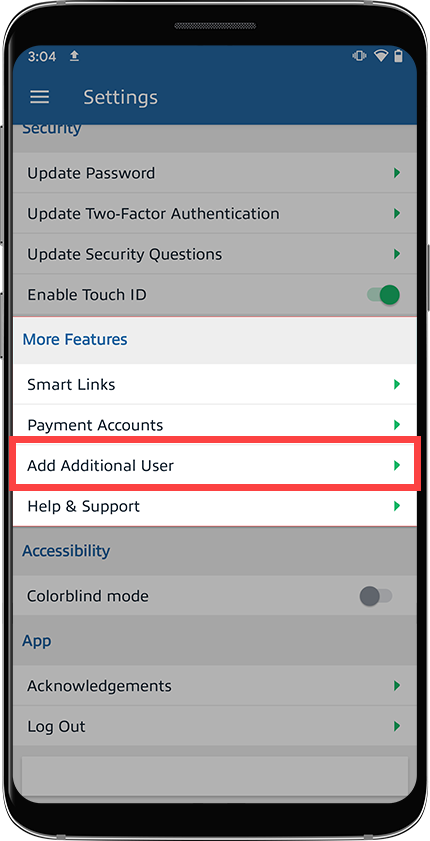
If you need to grant access to your TaxCaddy account to your spouse or another individual, you can invite them to be an additional user on your account. Additional users can upload documents.
Related Content
-
About TaxCaddy
Format: Article,
4 min read
Article,
4 min read

