
Connect with your tax professional
Show all hidden content
Your tax professional initiates a connection request to communicate with you and gain access to the tax documents in your TaxCaddy account. You can only be connected to a single tax firm or professional.
Here's what your tax professional can do once you accept their connection request:
- Send you messages and requests through TaxCaddy
- See documents uploaded to TaxCaddy by you or an additional user
- See documents retrieved from financial institutions you authorize
- Upload documents to your TaxCaddy account
TaxCaddy.com on PC, Mac, or tablet
Follow these steps to connect with your tax professional on TaxCaddy.com on your PC, Mac, or tablet.
- Sign in to taxcaddy.com. If you were already logged in, ensure you are on theOverviewscreen. To view theOverviewscreen, selectOverviewon the main navigation bar.
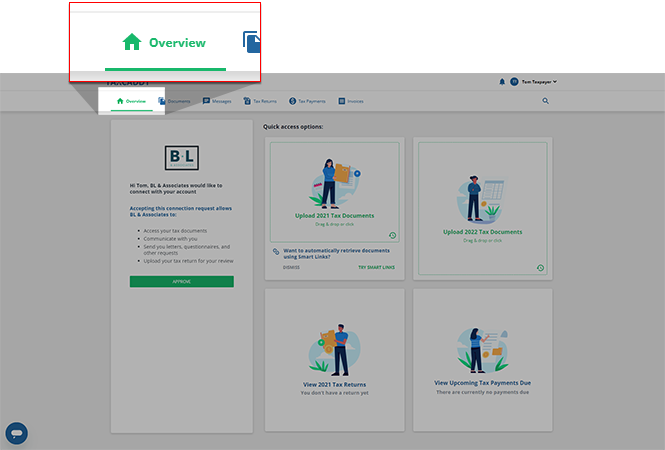
- A connection request from your tax professional firm will appear in the panel to the left. SelectAPPROVEto accept this connection request.tipIf you don't see a connection request from your tax professional, submit a support ticket or email taxcaddy.support@thomsonreuters.com for help.
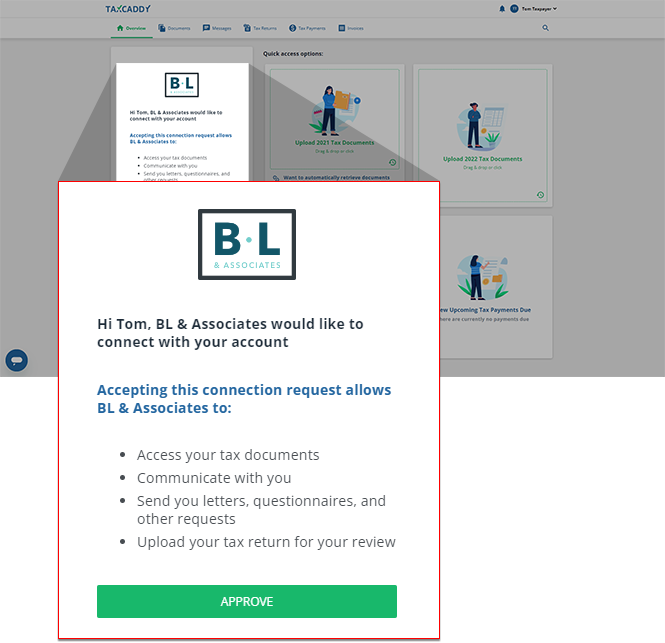
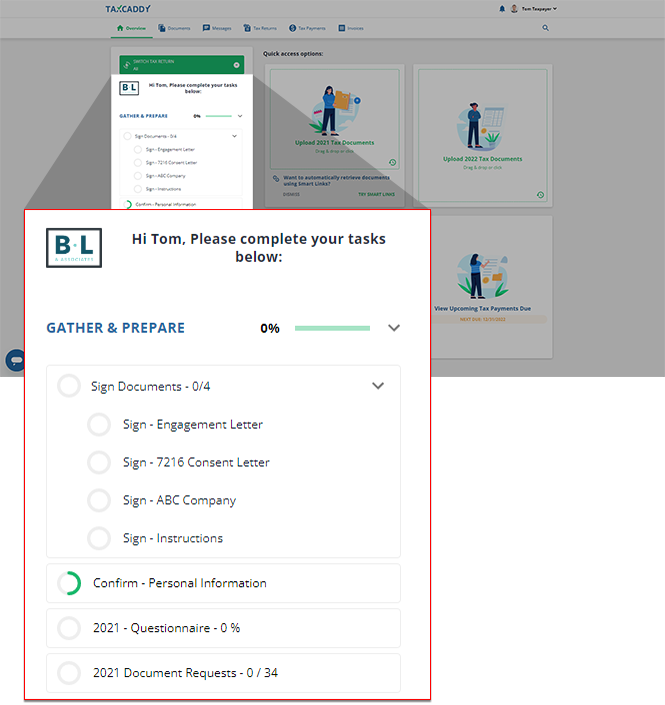
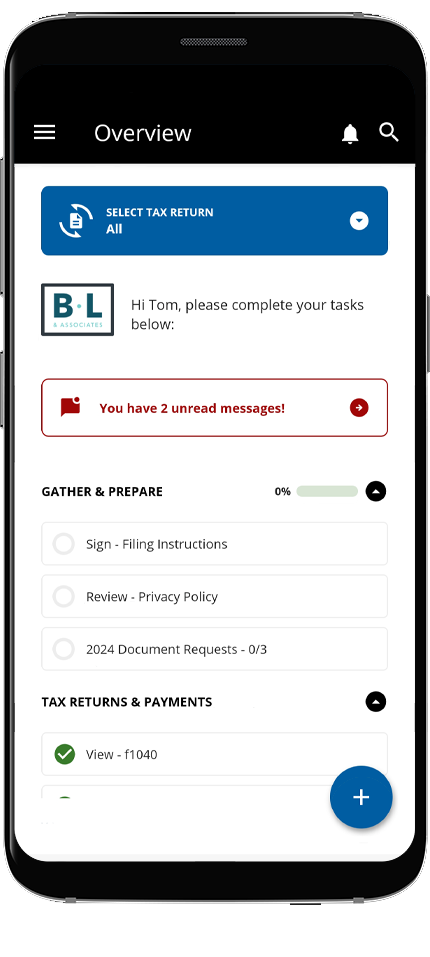
- Your tax professional is now connected to your TaxCaddy account. You'll receive requests from your tax professional in theTask Listwhen they issue a questionnaire or requested items.
 You can disconnect from your tax professional at any time.
Connection Request when logging in
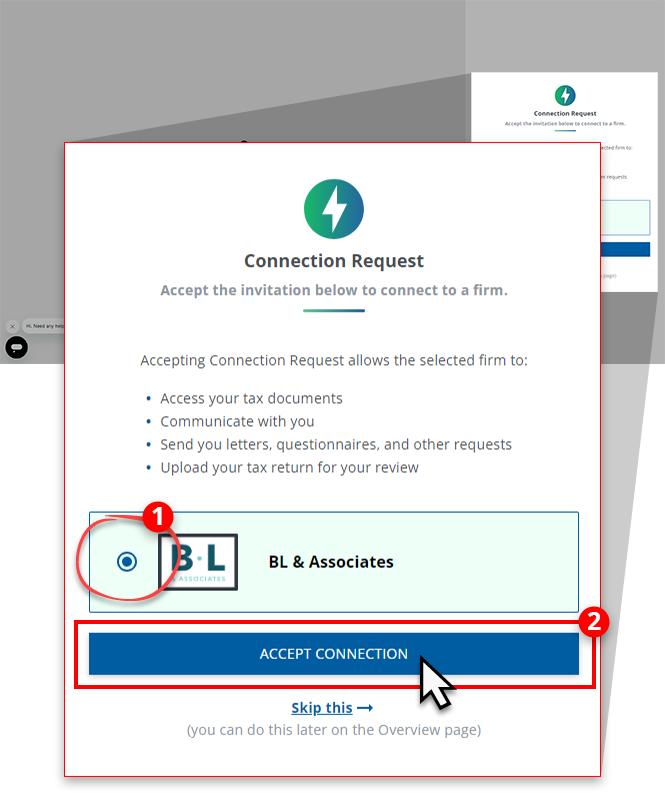
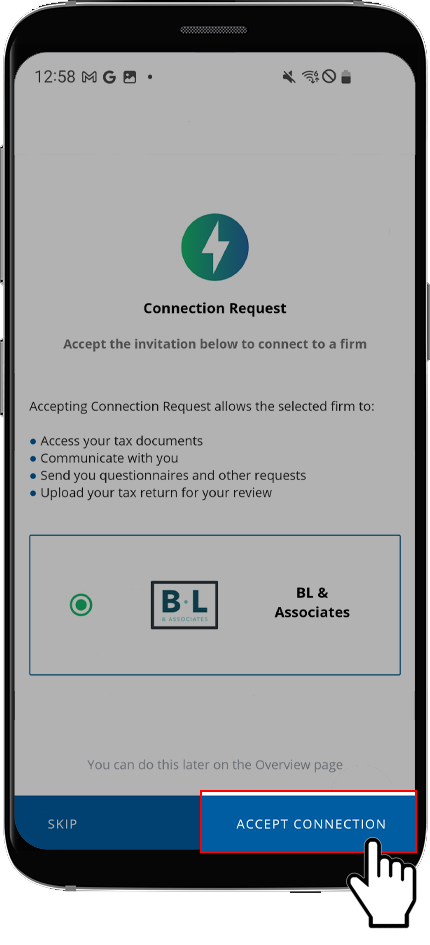
You may also see a connection request from your tax professional when you sign in to TaxCaddy for the 1st time. Select the tax professional firm, then select
ACCEPT CONNECTION
.
iOS mobile app
Follow these steps to connect with your tax professional on your iOS mobile phone app.
- Sign in to the TaxCaddy mobile app. If you are already signed in, make sure you are on theOverviewscreen. You can tapOverviewon the navigation tab to view theOverviewscreen.noteYou can also accept your tax professional's connection request when creating your account.
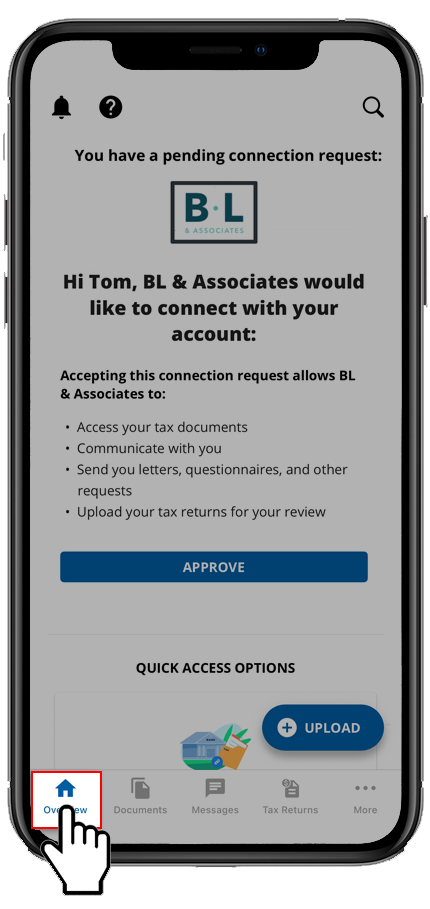
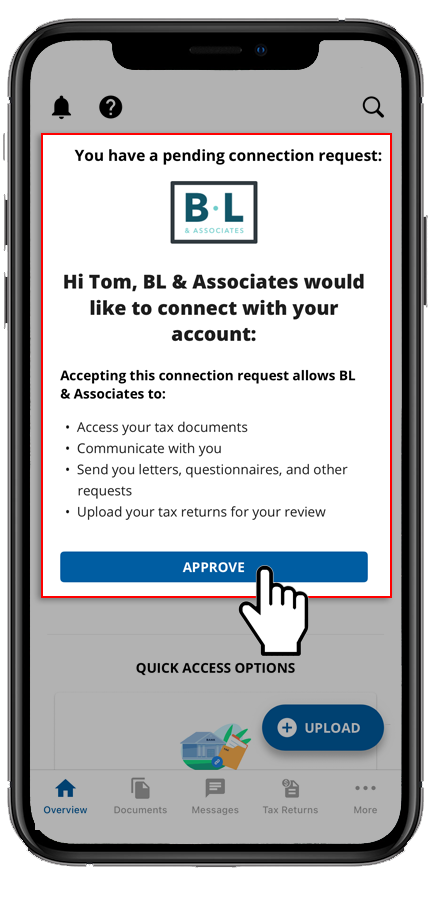
- A pending connection request will appear at the top of theOverviewscreen. SelectAPPROVE.tipIf you don't see a connection request from your tax professional, submit a request or contact taxcaddy.support@thomsonreuters.com for help.
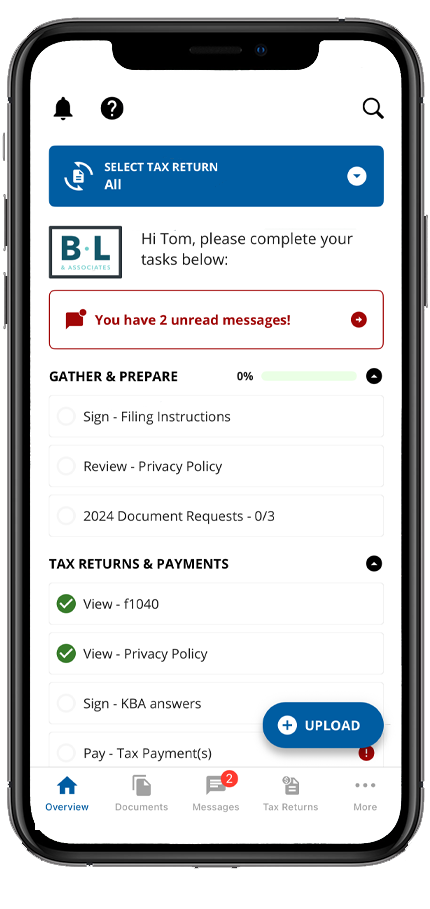
- After connecting with your tax professional, you will see requests from your tax professional in the task list. Scroll up/down to see all the requests/tasks. You can select each item for additional information.
Android mobile app
Follow these steps to connect with your tax professional on your Android mobile phone app.
- Sign in to the TaxCaddy mobile app and navigate to theOverviewscreen.
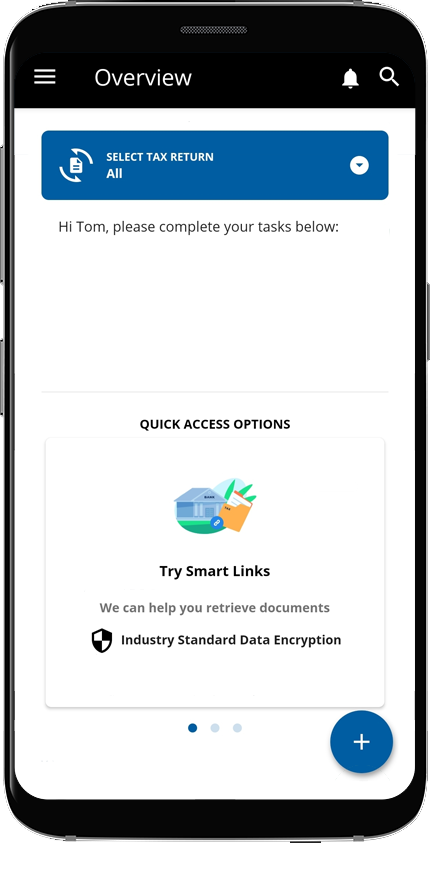
- A pending connection request will appear. SelectACCEPT CONNECTIONto connect to the firm specified in the request.tipIf you don't see a connection request from your tax professional, submit a request or contact taxcaddy.support@thomsonreuters.com for help.
- After connecting with your tax professional, you will see requests from your tax professional in the task list. Scroll up/down to see all the requests/tasks. You can select each item for additional information.
Related Content
-
Set up your TaxCaddy account
Format: Article

