
Log in through your firm's portal
Show all hidden content
Some tax professional firms may require users to sign in to TaxCaddy directly through their firm's online portal. With this method of logging in, you bypass registering your TaxCaddy account using an email address and password.
If you were previously logging in to TaxCaddy using an email address and password, then you will now be instructed to sign in from inside your tax professional's firm's portal when attempting to log in.
TaxCaddy.com on PC, Mac, or tablet
Follow these steps to access TaxCaddy through your firm's portal:
- Sign in to your firm's portal then, select TaxCaddy on your firm's portal.
- You will be taken to the authentication screen so that TaxCaddy can authenticate your account. This lets TaxCaddy authenticate using information from your tax professional that you would have had to provide in ordinary account registration.Once your account's been authenticated, you will be automatically brought to TaxCaddy for further action.

- If this is your first attempt at logging in from your firm's portal, accept the terms of use. After reviewing information regarding your tax firm at the top, selectTerms of Useto read the end-user license agreement. If you accept the terms and conditions, select the checkbox to agree, then selectCONTINUE.

- You will be prompted to provide information about a spouse. If you do not have a spouse, selectI do not have a spouse.
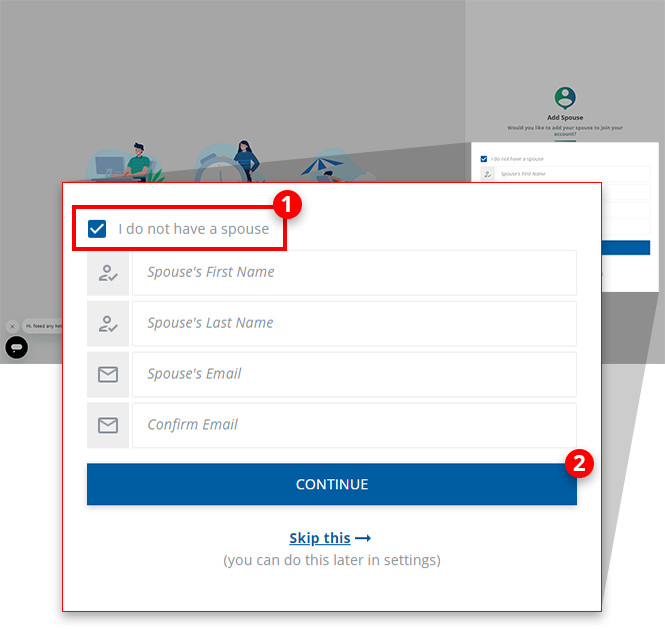 .If you have a spouse and want to include their information, complete the required fields and selectSEND INVITATIONnoteAny Spouse and/or additional users you've added will need to sign in to TaxCaddy by setting up their email address and password.Alternatively, you can select
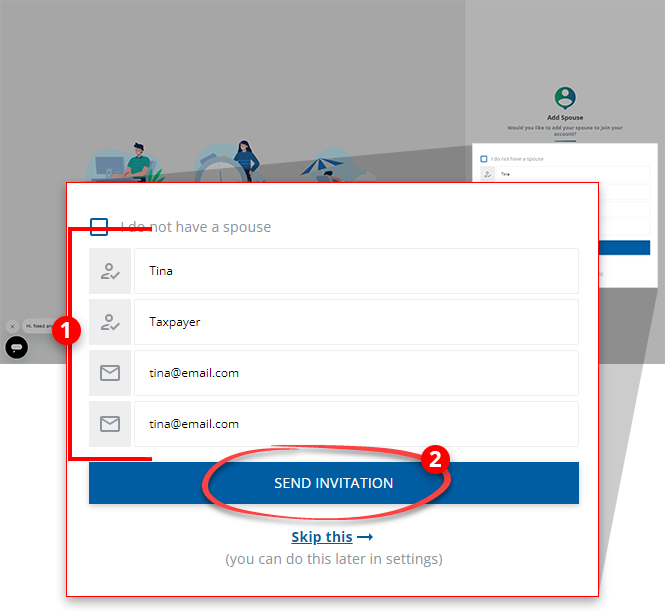 Skip thisto add your spouse's records later in settings.
 - You will now be taken to the TaxCaddy Overview screen once you've completed the registration process.

Changes for existing user
If your tax professional's firm had recently implemented the new sign in method, you will no longer need to access TaxCaddy using your email address and password. When attempting to sign in with your email address and password, you will see a notification indicating that your firm's sign-in method has changed. Select
GO TO SSO FIRM PORTAL
to be redirected to your firm's portal where you can sign in.
Unavailable settings
You can access TaxCaddy's account settings at any time to update your personal information. However, certain settings can only be updated by your tax professional.
- Select theUser Menuand then selectSettings.

- On the settings screen, you will notice that some fields of data are grayed out.
 While you yourself can't update these fields, you can contact your tax professional for assistance in keeping these records up to date. A notification will also appear to alert you.
iOS mobile app
If you don't have a password and sign in to TaxCaddy through your firm's portal then you can use the TaxCaddy mobile app by pairing/linking your device to your TaxCaddy account.
- Install the TaxCaddy mobile app from the App Store.
- Sign in to TaxCaddy on the web through your firm's portal. Switch to theWebinformation to learn more about logging in through your firm portal.
- Review the Mobile Settings article in the Related Content for further steps.
Android mobile app
If you don't have a password and sign in to TaxCaddy through your firm's portal then you can use the TaxCaddy mobile app by pairing/linking your device to your TaxCaddy account.
- Install the TaxCaddy mobile app from the App Store.
- Sign in to TaxCaddy on the web through your firm's portal. Switch to theWebinformation to learn more about logging in through your firm portal.
- Review the Mobile Settings article in the Related Content for further steps.
Related Content
-
Set up your TaxCaddy account
Format: Article

