
Log in with a password
Show all hidden content
This article shows you how to sign in to TaxCaddy as a returning user who has previously set a permanent password.
note
If your attempt to log failed 3 times, your account will be locked for 2 hours.
TaxCaddy.com on PC, Mac, or tablet
Follow these steps to log in to TaxCaddy.com on your PC, Mac, or tablet.
- Go to taxcaddy.com and selectLOG IN.

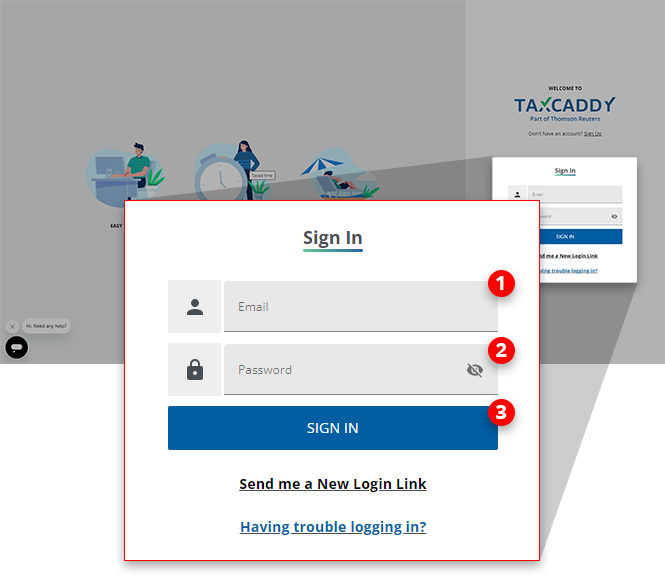
- Enter your email address into the topEmailfield and your password in the bottomPasswordfield. Then, selectSIGN IN.
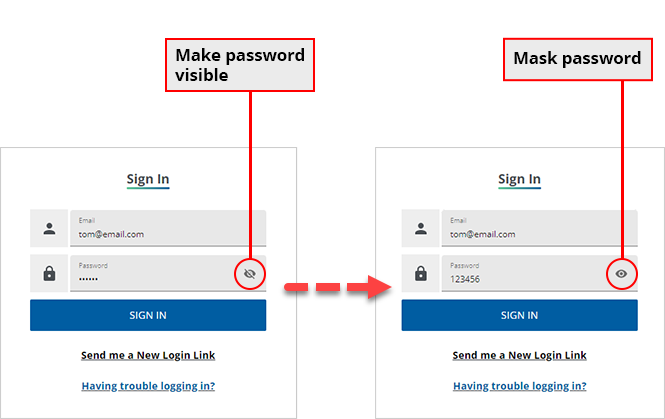
 You can selectUnmaskto view the password you've entered. Similarly, you can select theMaskto mask (i.e. *****) the password field.
 noteIf you don't remember your password, selectHaving trouble logging in?If you access TaxCaddy through an email from your tax professional that has now expired or you can no longer find this invitation link, selectSend me a New Login Link.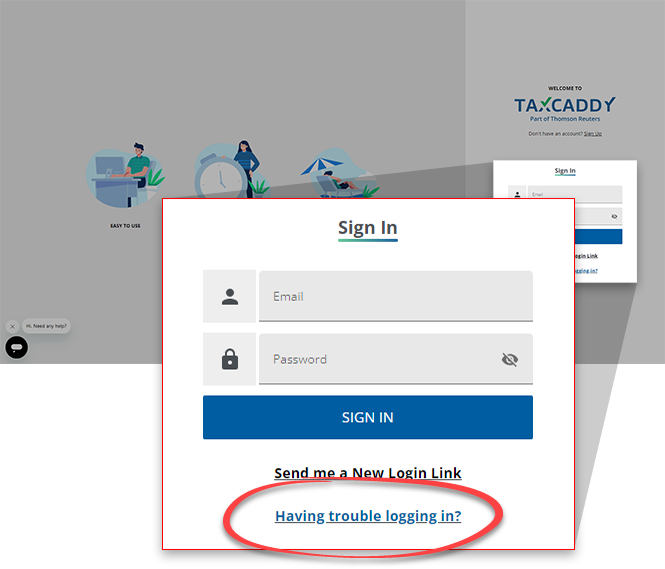
- A security code is sent via text to your mobile phone. When TaxCaddy prompts you for a security code, enter the code and then selectVerify.noteYou can selectDon't ask me for verification again on this computerto have TaxCaddy remember this device so you won't be prompted to enter the code when logging in on this device in the future. Two-factor authentication will remain enabled and you will be prompted to enter a code when logging in to TaxCaddy from another device.If you don't see the option for Don't ask me again on this computer while logging in with two-factor authentication, your browser may be in private mode or your browser may not support session storage. Update your browser and switch out of private mode to correct this issue, or submit a ticket for further assistance.Note: You can only resend a security code once every 60 seconds. During that time,
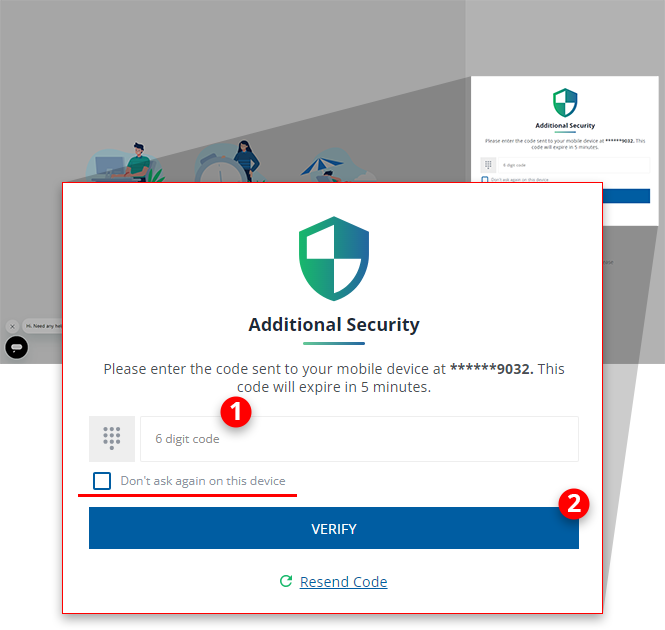 Resend Codewon’t be available until the 60-second window has passed.noteDue to local restrictions, some countries may not receive TaxCaddy verification code SMS on their mobile phone when they need to log, sign documents, etc. Contact TaxCaddy Support if you are experiencing difficulty receiving your verification code.
 - You are logged in to TaxCaddy.noteTaxCaddy logs out automatically if there hasn't been any activity for 20mins.
iOS mobile app
Follow these steps to sign in to TaxCaddy on your iPhone mobile phone app.
- Open the TaxCaddy mobile app.

- Enter your email address intoEMAILand your password intoPASSWORD. Then, tapLOG IN.noteIf you don't remember your password, tap Having trouble logging in?
 When logging in, you can selectMaskorUnmaskto view or hide the password you've entered.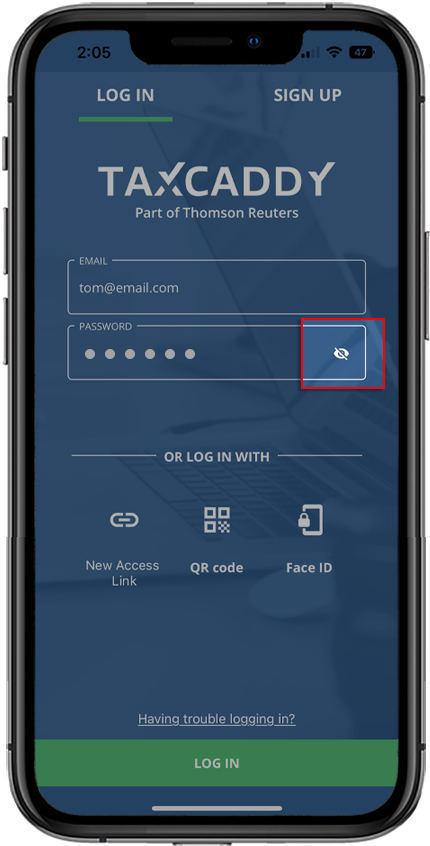
- A security code is sent viatext messageto yourphone. When TaxCaddy prompts you for a security code, enter the code and then tapSubmit.
 noteDue to local restrictions, some countries may not receive TaxCaddy verification code SMS on their mobile phone when they need to log, sign documents, etc.Contact TaxCaddy Support if you are experiencing difficulty receiving your verification code.
 - Enable Face IDmessage will appear for devices with facial recognition enabled.TapEnableto set up facial recognition for future logins.TapDON'T ASK ME AGAINto skip this step. You won’t receive any future reminders about enabling Face ID.TapNOT NOWto skip this step. You will receive a reminder next time you sign in.
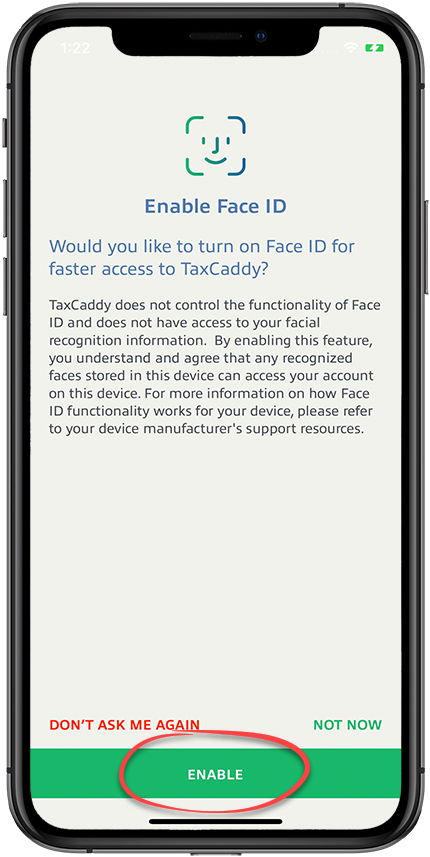
- You are now signed in to TaxCaddy.

Android mobile app
Follow these steps to sign in to TaxCaddy on your Android mobile phone app.
- Start the TaxCaddy mobile app.

- Enter your email address into theEMAILfield and your password into thePASSWORDfield. Then, tapSIGN IN.noteIf you don't remember your password, tap Having trouble logging in?
 When logging in, you can selectMaskorUnmaskto view or hide the password you've entered.
- A security code is sent via text message to your phone. When TaxCaddy prompts you for a security code, enter the code and then tapSUBMIT.
 noteDue to local restrictions, some countries may not receive TaxCaddy verification code SMS on their mobile phone when they need to log, sign documents, etc.Contact TaxCaddy Support if you are experiencing difficulty receiving your verification code.
 - If your device supports biometric sign-in, then you can tapEnableto log in without entering a password.
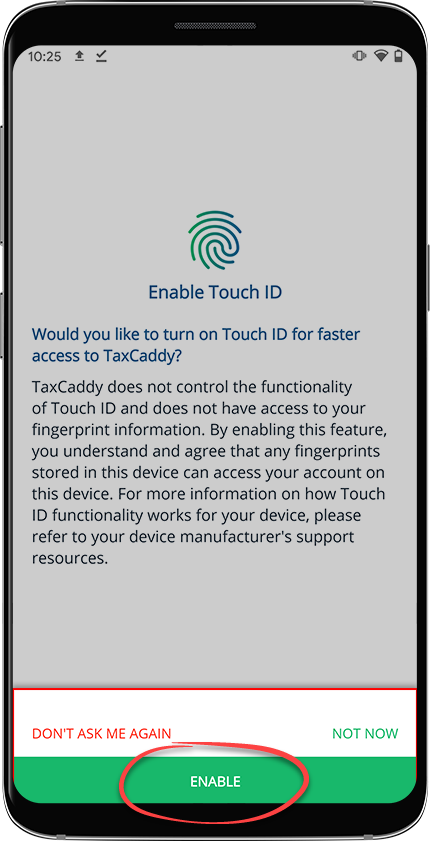
- You are signed in to TaxCaddy.

Related Content
-
Set up your TaxCaddy account
Format: Article

