
Log in with an email link (access link)
Show all hidden content
Your tax professional can use TaxCaddy to securely send you tax returns, tax payment vouchers, and document requests. If you don't have a password set up, you will receive a unique link via email that lets you to sign in using a temporary password sent to your mobile phone. This temporary password can only be used once for that session, however, the same unique link (from your email) can be used to sign in again.
Joining with an email link
Follow the steps in this article to access the documents sent by your tax professional:
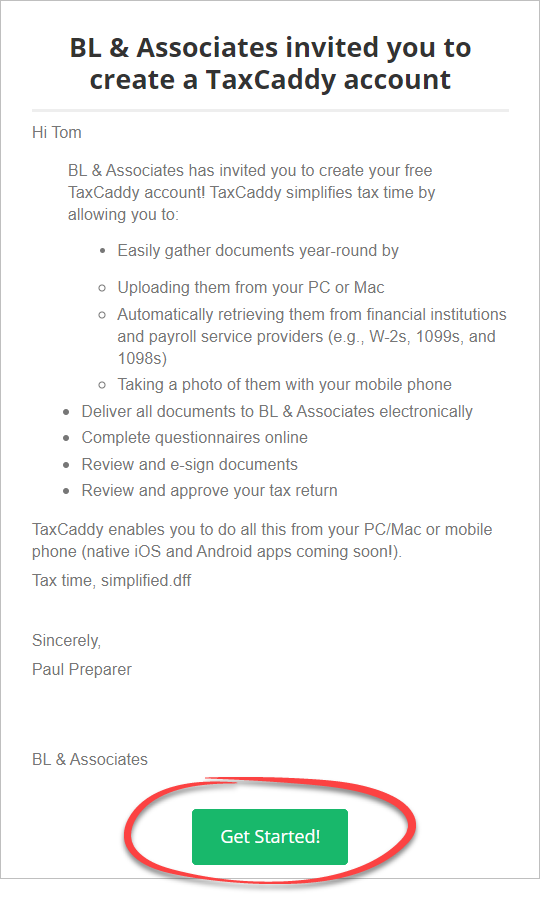
Open the invitation email, then select
Get Started
.
note
Don't delete the email. Unless you set up a password, you will only be able to access your documents/requests through this email. If you've accidently misplaced or deleted your email, then get a new link.
On the sign-in page, you may be asked to provide your mobile phone number to save to your client record (a one-time request). Select your Country (default USA), enter your mobile phone number, then select
CONTINUE
.Skip to the next step if you don’t see a request to enter your mobile phone number.
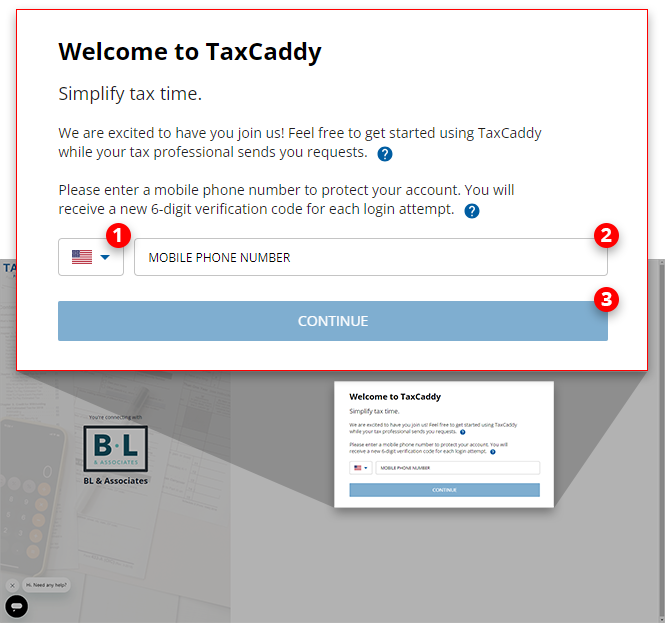
You may be asked to confirm your identity using your mobile phone number or the last 4 digits of your Social Security Number (SSN).
note
This confirmation is only required when first signing into your TaxCaddy account. Subsequent logins will only require providing a one-time password sent to your mobile number.
Mobile number for account authentication
Follow these steps to authenticate your new TaxCaddy account using your mobile number.
TaxCaddy will automatically send you an SMS message with a temporary one-time password that only works once for the current session. After you receive the verification code on your phone, enter the verification code in the
ENTER 6 DIGIT CODE
field.
note
- You will receive a new verification code each time you access your personal sign-in page.
- On the sign-in page, your tax professional's firm name will appear on the left.
tip
- The last 4 digits of your mobile phone number will appear as a hint on the sign-in screen.
- If the last 4 digits of the mobile number are incorrect, or if you'd prefer to use a different number (i.e. work phone number), clickTRY ANOTHER METHODto provide your preferred phone number.
If you didn't receive a verification code on your mobile phone, select
Resend Code
to try again.If you still do not receive a code after you select
Resend Code
, contact your tax professional to verify that they have the correct mobile number on file, or contact TaxCaddy Support.
Similarly, if the verification code expired after 5 minutes, select
Resend Code
to receive a new code.You'll see a notice indicating that by creating your TaxCaddy account, you are also agreeing to the TaxCaddy
Terms of Use
and Privacy Policy
. You can select both the Terms of Use
and Privacy Policy
to review these agreements before continuing.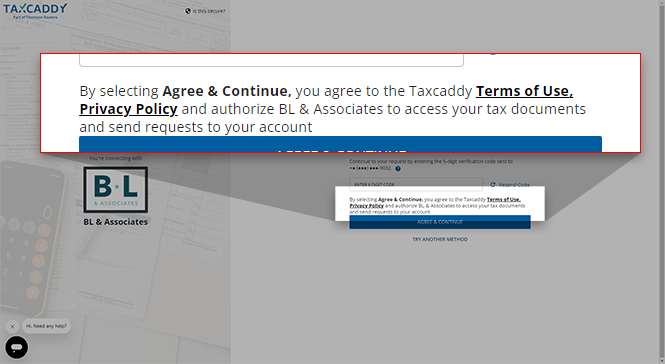
Select
AGREE & CONTINUE
to log in.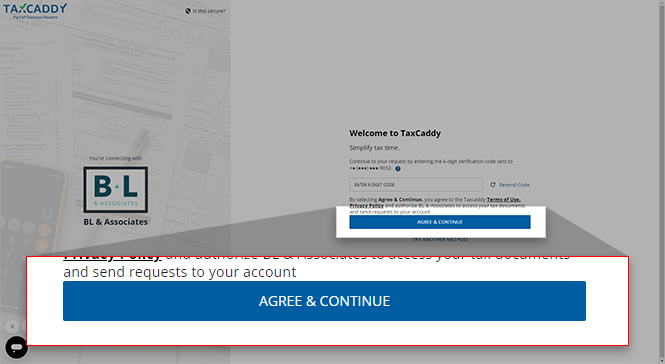
You have 3 attempts to enter the verification code correctly (i.e. temporary one-time password). Failing to enter a valid verification code in 3 attempts will result in TaxCaddy assuming the incorrect phone number was saved to your account. You will be asked for the correct phone number to save to your record. If available, you may be directed to the SSN sign-in method.
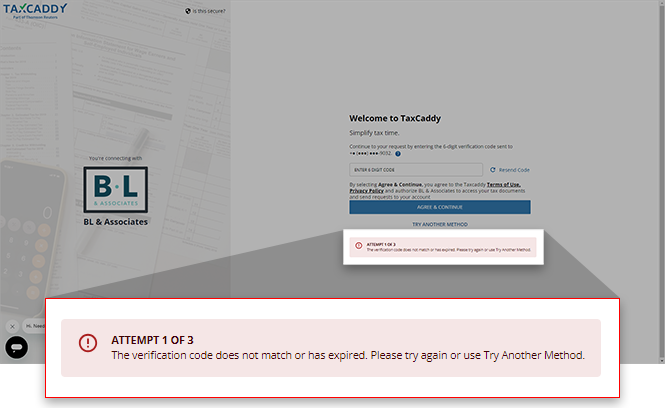
Alternatively, after at least 1 attempt to provide the one-time password, you can select
TRY ANOTHER METHOD
to either skip to the mobile number collection screen, or to try using the SSN sign-in method if it is available to you.
After providing the requested information, you will be logged in to TaxCaddy. You will see your documents and task on the left panel (i.e. Task List). You can click each item in the list to view or address the task.
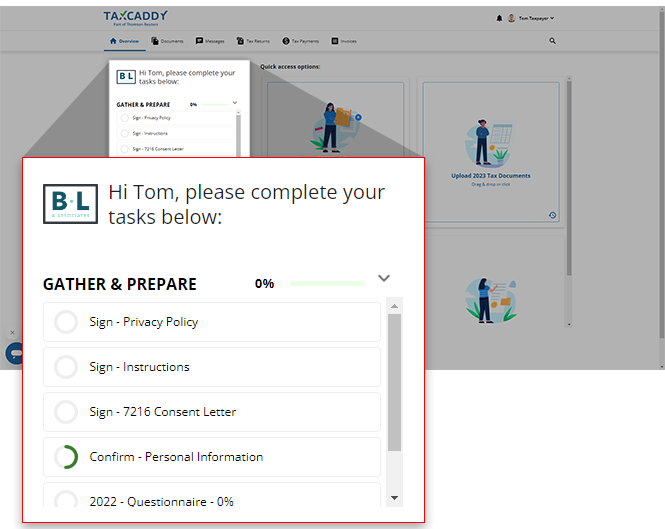
For additional benefits, you can set up a permanent password for your account. Setting a permanent password will allow you to:
- UpdatePersonal Info. Some TaxCaddy account settings require you to first set up a password (e.g. updating your name, email, phone number, and password and creating security questions).
- Sign in directly from TaxCaddy.com
- Continue using TaxCaddy after the initial login link expires after two weeks.
SSN for account authentication
Follow these steps to authenticate your new TaxCaddy account using your SSN.
On the sign-in page, you may be asked to provide the last 4 digits of your Social Security Number to verify your identity (a one-time request).
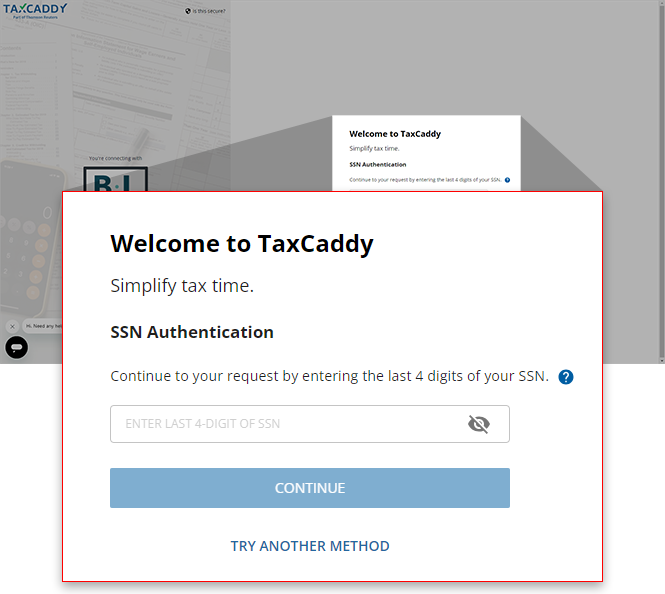
Provide the last 4 digits of your Social Security Number and select
CONTINUE
to proceed in the account creation process.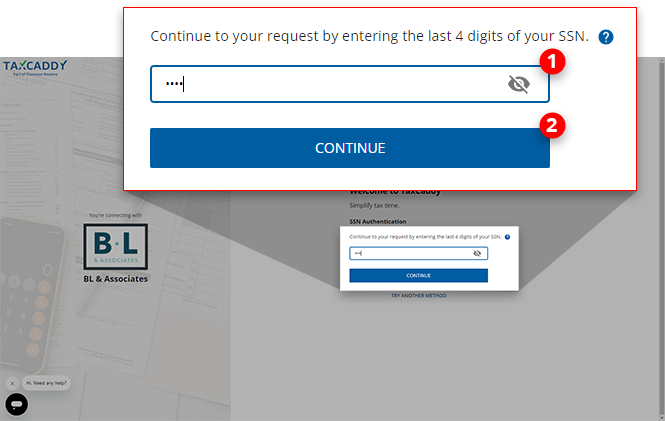
You have 3 attempts to enter the last 4 digits of your SSN correctly. If you fail to enter the correct digits, TaxCaddy will prompt you for your mobile number for future logins.
note
Alternatively, after at least 1 attempt to provide your SSN digits, you can select
TRY ANOTHER METHOD
to skip to the mobile number collection screen. 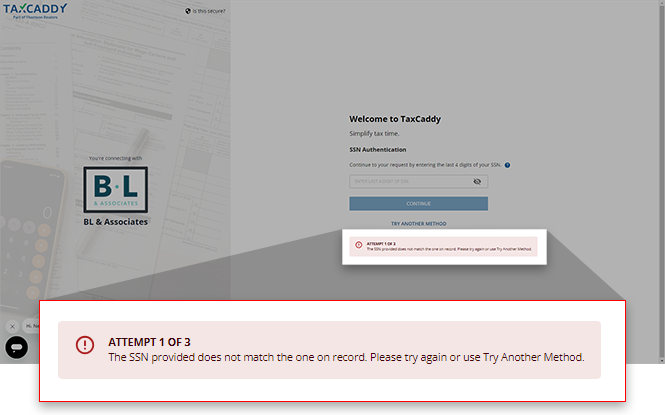
If your tax professional was unable to save a mobile number to your client record, you will be asked to provide one yourself. Enter your mobile number and select
CONTINUE
to be used for future TaxCaddy logins.TaxCaddy will automatically send you an SMS message with a temporary one-time password that only works once for the current session. After you receive the verification code on your phone, enter the verification code in the
ENTER 6 DIGIT CODE
field.Once you receive your one-time password, enter it and select
AGREE & CONTINUE
. 
note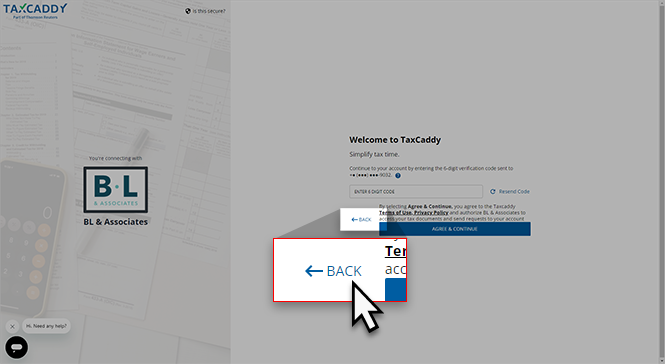
If you didn’t receive you code, this may be due to the incorrect mobile number being entered in the previous screen. You can select
BACK
to enter the correct mobile number and retry. After providing the requested information, you will be logged in to TaxCaddy. You will see your documents and task on the left panel (i.e.
Task List
). You can select each item in the list to view or address the task. For additional benefits, you can set up a permanent password for your account. Creating a permanent password will let you to:
- UpdatePersonal Info. Some TaxCaddy account settings require you to set up a password (for example, updating your name, email, phone number, and password, and creating security questions).
- Sign in directly from TaxCaddy.com
- Continue using TaxCaddy after the initial sign-in link expires after 2 weeks.
Link Expired
TaxCaddy.com on PC, Mac, or tablet
For security reasons, the access link in your email will expire after 2 weeks. If you see an expired sign-in page, select
SEND NEW LINK
to get a new access link.
If you lost the email with the access link or your link expired, then you can request a new link from the sign-in page.
iOS mobile app
For security reasons, the access link in your email will expire after 2 weeks. If you see a
Problem Logging In
window, then tap CONTINUE
to get a new link.
If you lost the email with the access link or your link expired, then you can request a new link from the sign-in screen.
Android mobile App
For security reasons, the access link in your email will expire after 2 weeks. If you see an expired sign-in page, tap
OK
.
If you lost the email with the access link or your link expired, then you can request a new link from the sign-in screen.
Getting a new sign in link
TaxCaddy.com on PC, Mac, or tablet
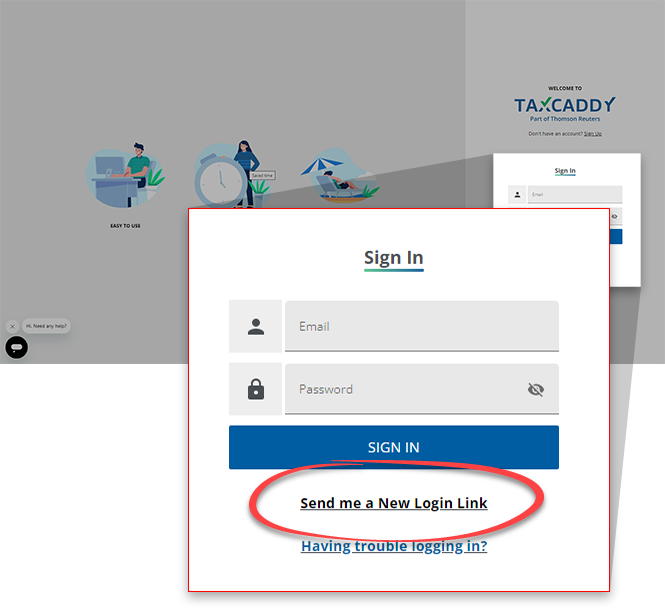
If you can no longer find the invitation link your tax professional has emailed you, or it has expired and you can no longer sign-in to TaxCaddy, you can send yourself a new link to access TaxCaddy. Go to TaxCaddy's login page and select
Send me a New Login Link
.
Enter the email associated with your TaxCaddy account and select
SEND
. If the email you enter matches our records, we’ll send you a new email with further instructions.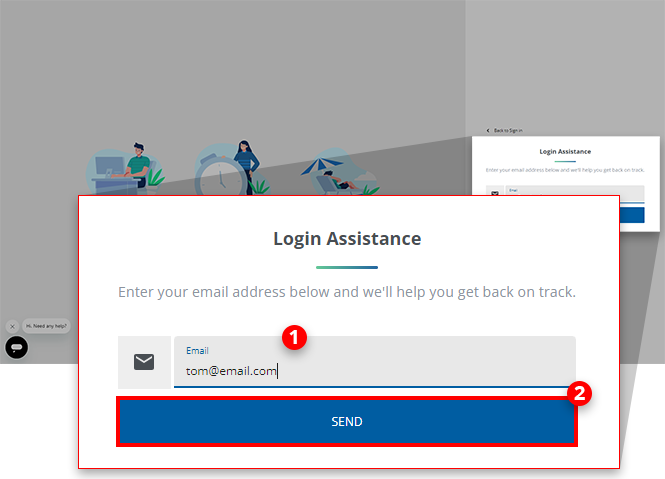
note
For security measures, only the most recent access link will be valid for accessing TaxCaddy. Any link received before the most recent will expire, however, when your current link expires you can repeat the process to be emailed another one.
If you've entered the correct email address, you will receive a new email in your inbox to access TaxCaddy. Select
Log in to TaxCaddy
to go to the TaxCaddy sign in page for your accounts.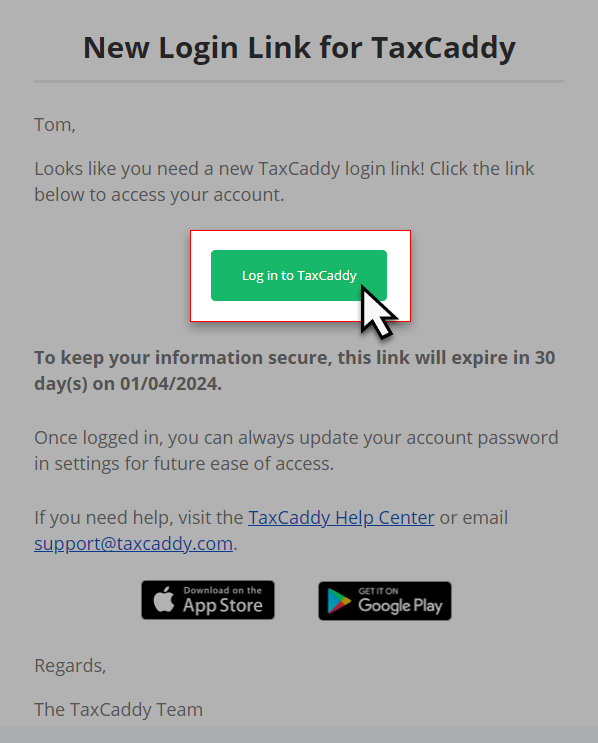
When you select
Log in to TaxCaddy
, we’ll send an SMS message containing a 6-digit verification code to the phone number associated with your TaxCaddy account. When you receive this SMS message, enter the verification code to log in.Due to local restrictions, some countries may not receive TaxCaddy verification code SMS on their mobile phone when they need to sign in, sign documents, etc.
note
If your phone number on record is incorrect, contact your tax professional to update your phone number. You will automatically receive an invite with a new link.
iOS mobile app
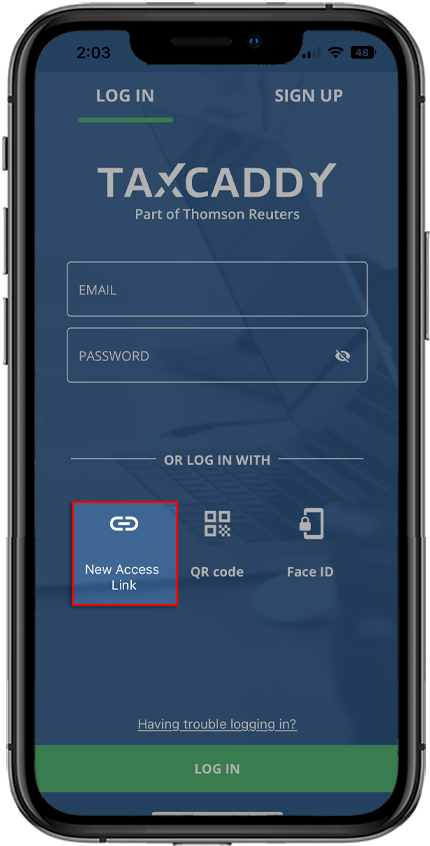
If you can no longer find the invitation link your tax professional has emailed you, or it has expired and you can no longer sign-in to TaxCaddy, then you can send yourself a new link to access TaxCaddy.
Open the TaxCaddy mobile app, then tap
New Access Link
.
Enter the email associated with your TaxCaddy account and select
SEND
. If the email you enter matches our records, we’ll send you a new email with further instructions.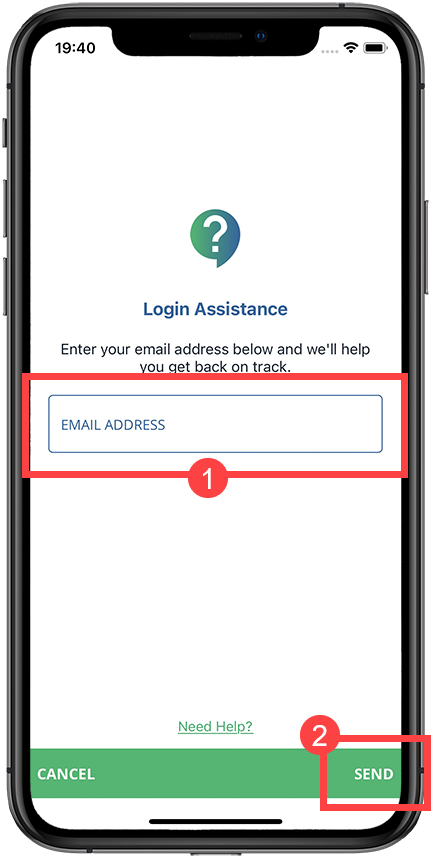
note
For security measures, only the most recent access link will be valid for accessing TaxCaddy. Any link received before the most recent will expire, however, when your current link expires you can repeat the process to be emailed another one.
If you've entered the correct email address, you will receive a new email in your inbox to access TaxCaddy. Select
Log in to TaxCaddy
to go to the TaxCaddy sign-in page for your accounts.When you select
Get Started
, we’ll send an SMS message containing a 6-digit verification code to the phone number associated with your TaxCaddy account. When you receive this SMS message, enter the verification code to log in.
Due to local restrictions, some countries may not receive TaxCaddy verification code SMS on their mobile phone when they need to sign in, sign documents, etc.
note
If your phone number on record is incorrect, contact your tax professional to update your phone number. You will automatically receive an invite with a new link.
Android mobile App
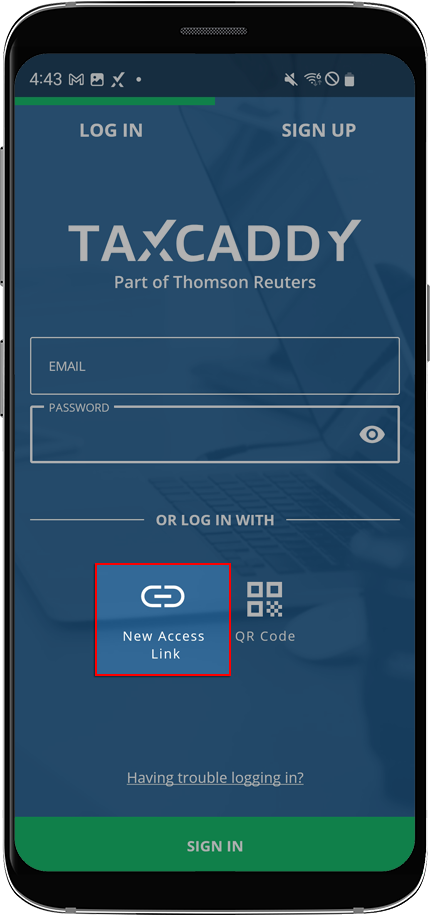
If you can no longer find the invitation link your tax professional has emailed you, or it has expired and you can no longer sign in to TaxCaddy, then you can send yourself a new link to access TaxCaddy.
Launch the TaxCaddy mobile app, then tap
New Access Link
.
Enter the email associated with your TaxCaddy account and tap
SUBMIT
. If the email you enter matches our records, we’ll send you a new email with further instructions.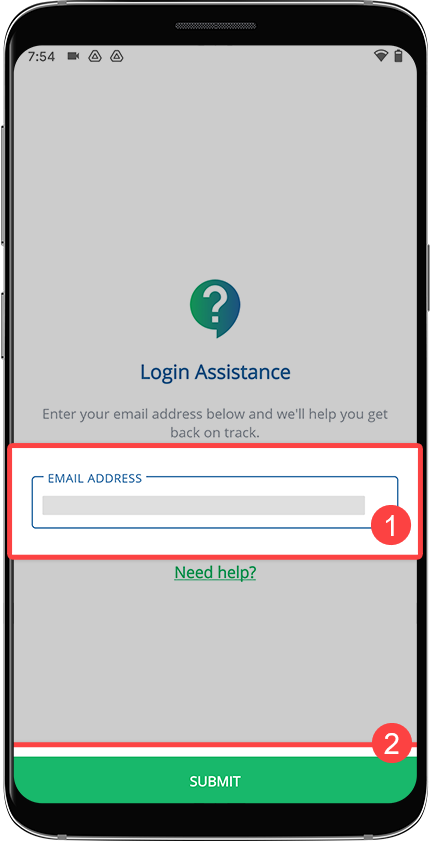
note
For security measures, only the most recent access link will be valid for accessing TaxCaddy. Any link received before the most recent will expire, however, when your current link expires you can repeat the process to be emailed another one.
If you've entered the correct email address, you will receive a new email in your inbox to access TaxCaddy. Tap
Log in to TaxCaddy
to go to the TaxCaddy sign in page for your accounts.When you tap
Get Started
, we’ll send an SMS message containing a 6-digit verification code to the phone number associated with your TaxCaddy account. Enter the verification code in the SMS message to sign in.
Due to local restrictions, some countries may not receive TaxCaddy verification code SMS on their mobile phone when they need to sign in, sign documents, etc.
note
If your phone number on record is incorrect, contact your tax professional to update your phone number. You will automatically receive an invite with a new link.
Unable to use the phone number
You may not receive a verification code on your mobile phone in the following scenarios:
- An incorrect mobile number is on record.
- An old phone number is on record - you no longer have access to the phone number.
- The phone number is not eligible to receive an SMS message (for example, landline, restricted country)
If you are experiencing difficulty receiving your verification code, contact your tax professional to update your mobile phone number. You can also contact TaxCaddy Support to update your mobile phone number with a new/correct mobile phone number, then try again.
note
Due to local restrictions, some countries may not receive TaxCaddy verification code SMS on their mobile phone when they need to sign, sign documents, etc.
Contact TaxCaddy Support if you are experiencing difficulty receiving your verification code.
Create an account with a password
The sign-in email sent to you will be valid for 2 weeks before it expires. You can continue using your TaxCaddy account by setting up a password. After creating your password, you can sign in normally using your email address and password.
Creating a password will let you to:
- Update personal info (for example, updating phone number).
- Sign into your TaxCaddy account without opening the access link through your email.
- Continue using TaxCaddy after the initial sign-in link expires after 2 weeks.
Here's how you can continue to access your TaxCaddy account:
- Once you are logged in set up a password for continued access without 2 week time limitations.
- (Get a new link with 2 more weeks of access) Send yourself a new link if the previous link already expired or you lost the previous email with the link. Learn More>
Set up password after logging in
At any time, if you decide to make an account with a password, log in to your TaxCaddy account, then select
Set up account password
to set up a permanent password.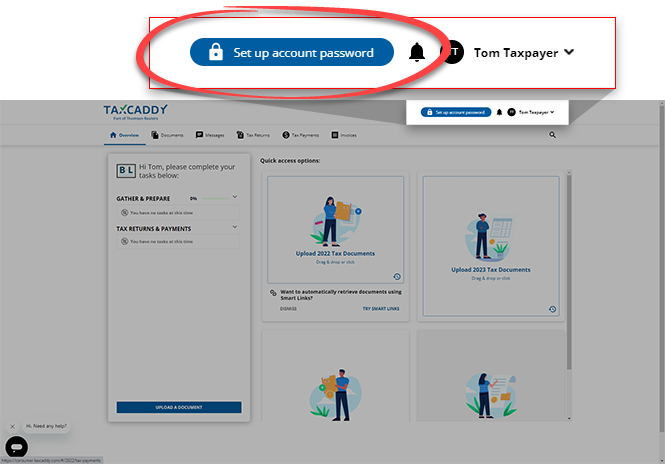
tip
If the link in your email already expired, then you can get a new sign-in link using the
Send me a New Login
Link. Learn more about getting a new sign in link sent to your email address. Once you are logged in again, you can set up select Set up account password
to set up a permanent password.On the
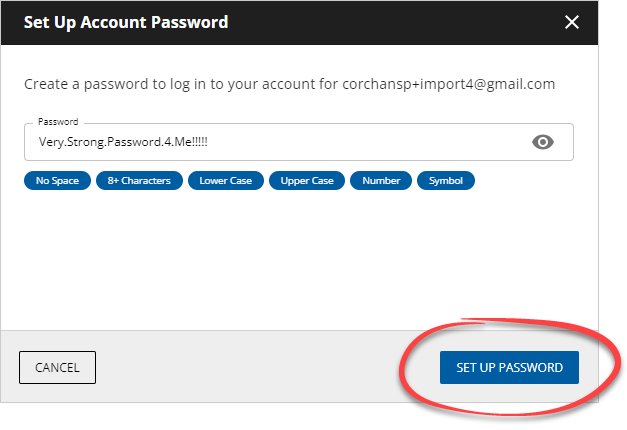
Set Up Account Password
window, enter a strong password to keep your personal info safe and protect your files. A valid password needs to have the following:- A number
- A special character (for example, !@#$%^&*(){}:?><,.)noteSpaces are not permitted
- Both upper and lower case letters
- 8 to 72 characters
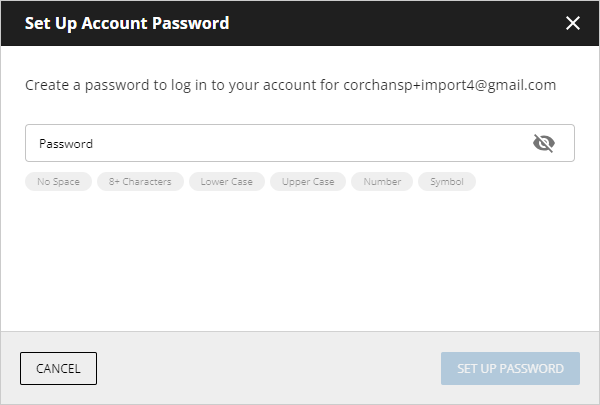
Your password needs to meet all the requirements. Each password requirement will be highlighted in green as you enter a password. You can select
Mask
to show/hide your entered password.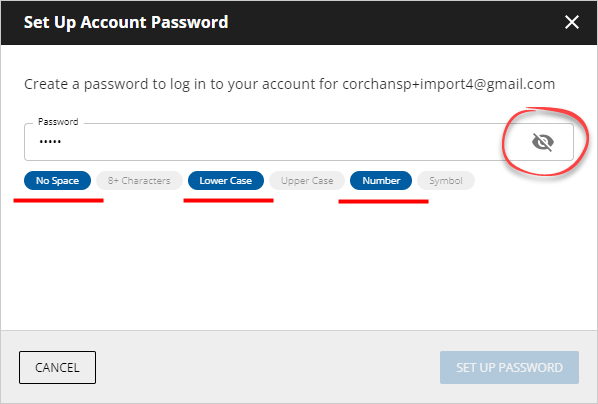
After entering a secure password, select
SET UP PASSWORD
.
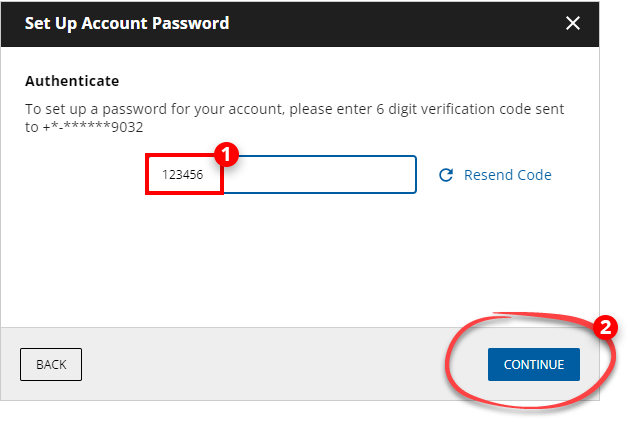
TaxCaddy will send you a verification code on your mobile phone. Enter the code, then select
CONTINUE
.
You can now sign in directly to taxcaddy.com using your password.
You can also download and sign into the TaxCaddy mobile app using your password.
Related Content
-
Set up your TaxCaddy account
Format: Article

