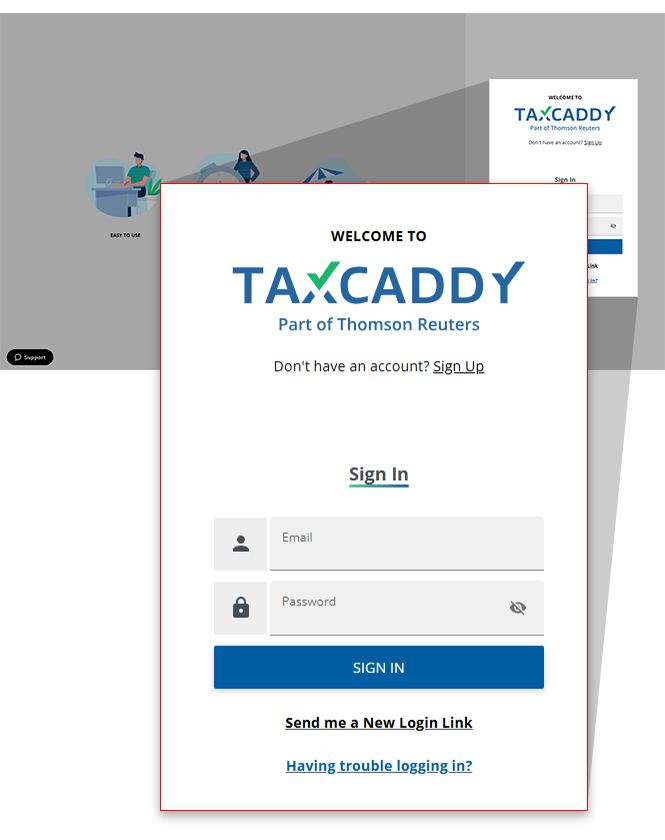
Use SafeSend Returns with TaxCaddy
Your tax professional can use SafeSend Returns to send you your tax return for review and e-file authorization for your signature. Once everything is reviewed and signed, the documents can be automatically stored in TaxCaddy.
TaxCaddy.com on PC, Mac, or tablet
Follow these steps to use SafeSend Returns with TaxCaddy:
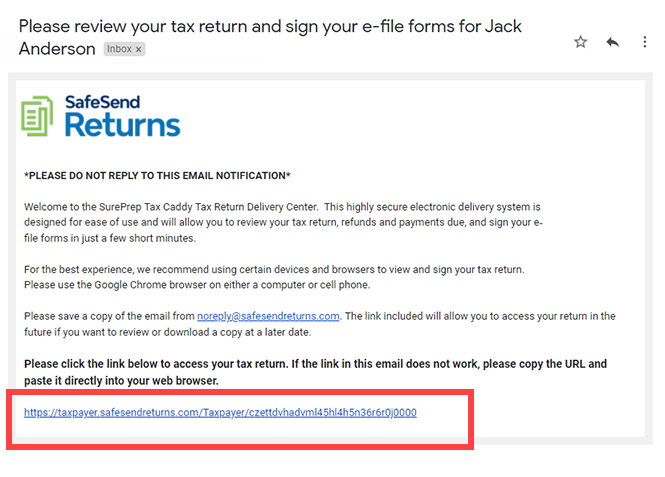
- Open the email with the subject linePlease review your tax return and sign your e-file formsand select the link in the email.
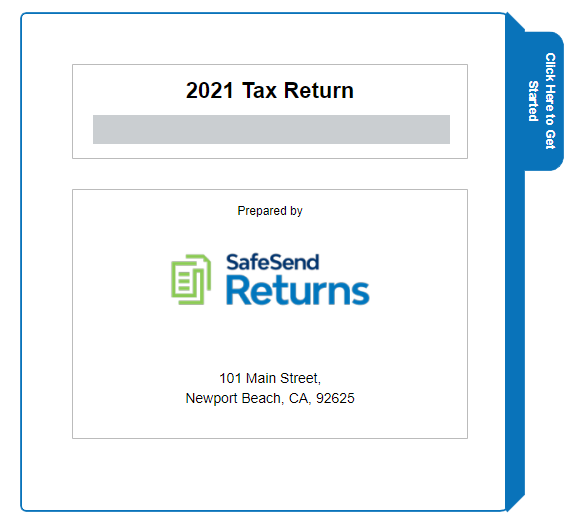
- Select the tax return folder.
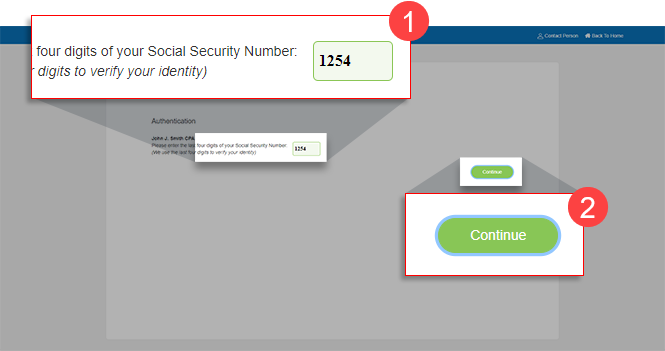
- To sign in, you must first authenticate yourself by providing the last 4 digits of your social security number, then selectContinue.
- SelectRequest Access Code. An email with the access code will be sent to your email address.
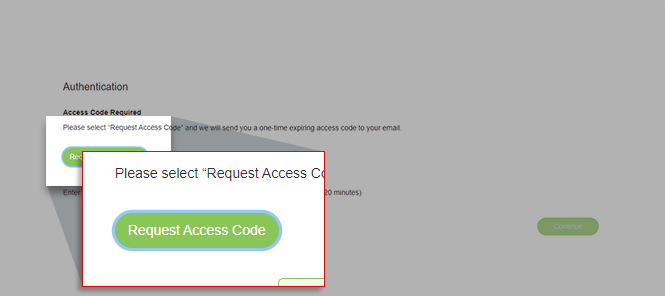
- Copy the access code sent to your email.
- Paste the access code in theAccess Code Requiredwindow, then selectContinue.
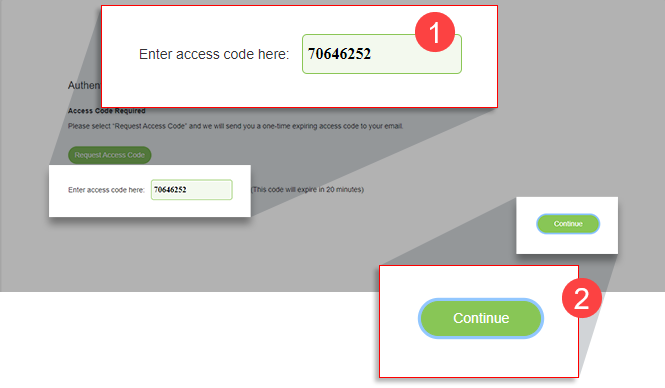
- Once you have signed in successfully, selectClick Here to Begin.
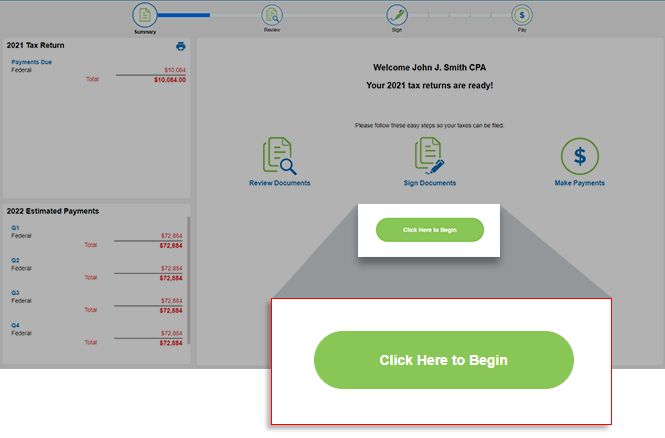
- You can view your tax return information. Your documents will be downloaded automatically to TaxCaddy. You can also selectDownload Tax Document(s)to download your tax documents.
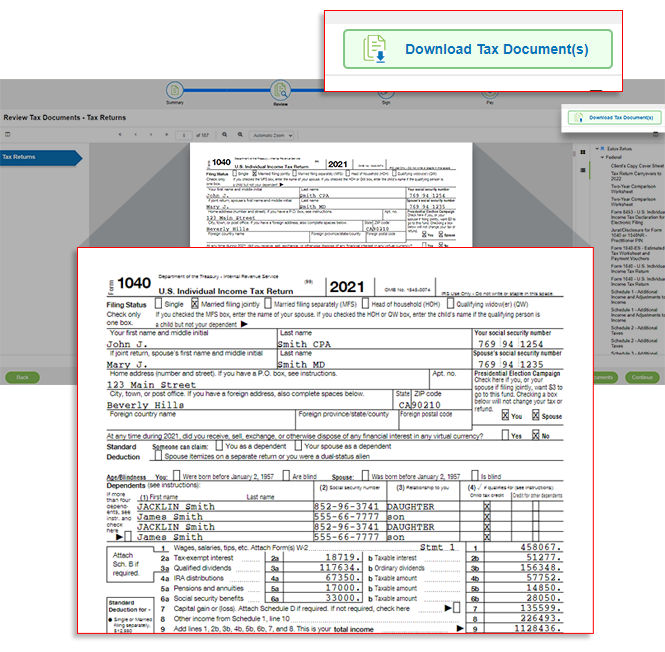
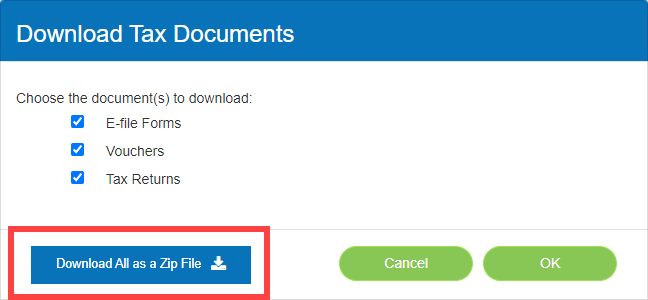
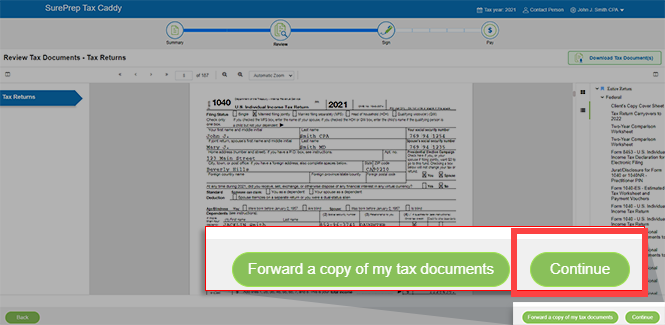
- Once you are done reviewing your tax return, selectContinueto go to the next step.
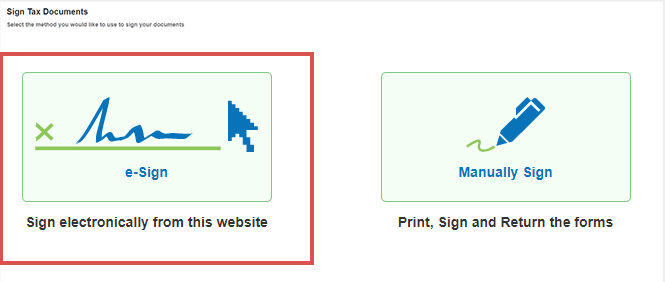
- SelectSign electronically from this websiteto begin the eSign process.
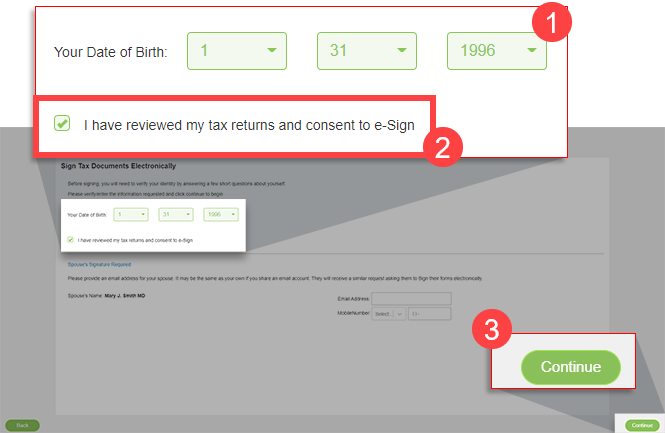
- Verify your date of birth. Mark theI have reviewed my tax return and consent to e-signcheckbox, then selectContinue.
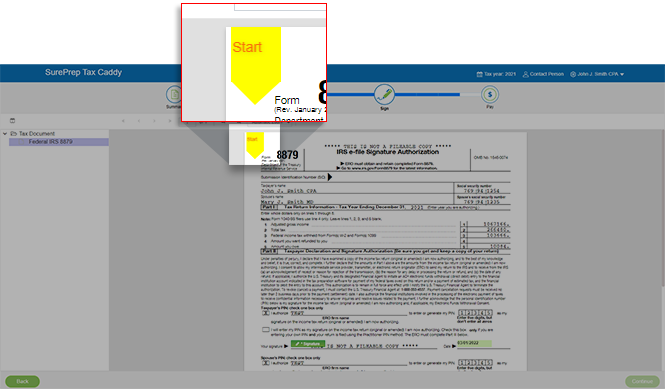
- Once the documents load, select theStarttag on top. The tag will move to where you need to sign the document.
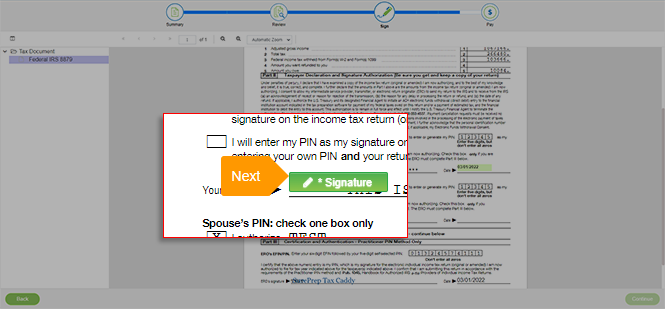
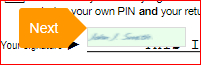
- When you see theNexttag, select theSignaturelink.
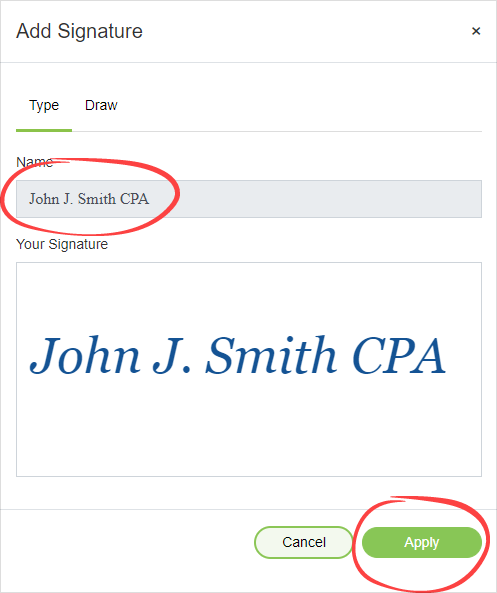
- When the eSign window appears, enter your name if it's not already there. You will see your signature appear on the bottom. If you are satisfied with the result, selectApplyto place your signature.
 Alternatively, you can also draw your signature. Select theDrawtab to draw your signature in theDraw Your Signaturefield.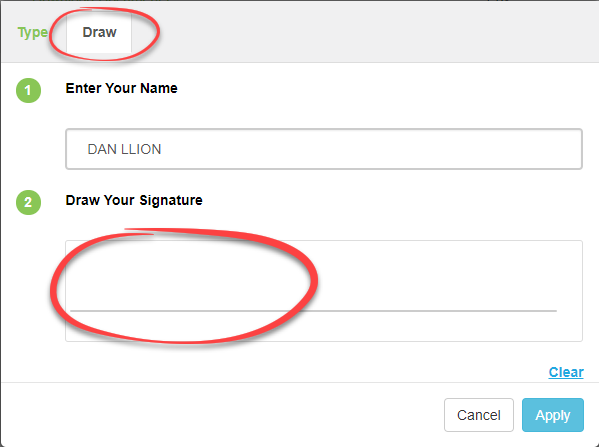
- SelectNextto go to the next signature location. Select the signature preview on each location to place the signature.
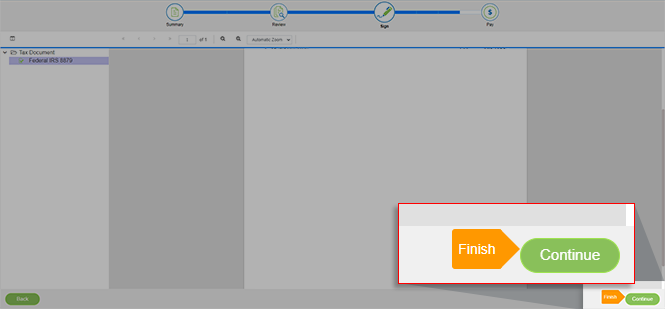
- You will see theFinishtag once you finish signing the document. SelectContinueto proceed forward.
- Once completed, you will be taken to the tax payments voucher screen. You can pay these tax payment vouchers as you normally would (for example, mailing a check). You can also set email reminders so you don't forget your due date.noteThese vouchers will also be uploaded to TaxCaddy.
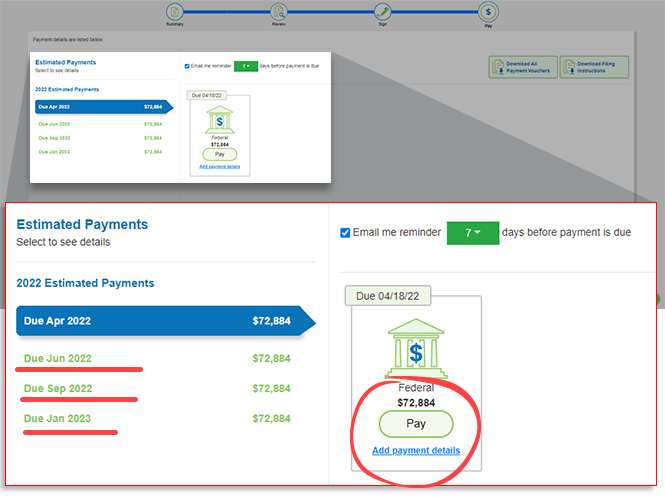 SelectPayto pay online. On the tax payment, selectAdd payment detailsto mark the tax payment as paid. Once you're finished, selectContinue.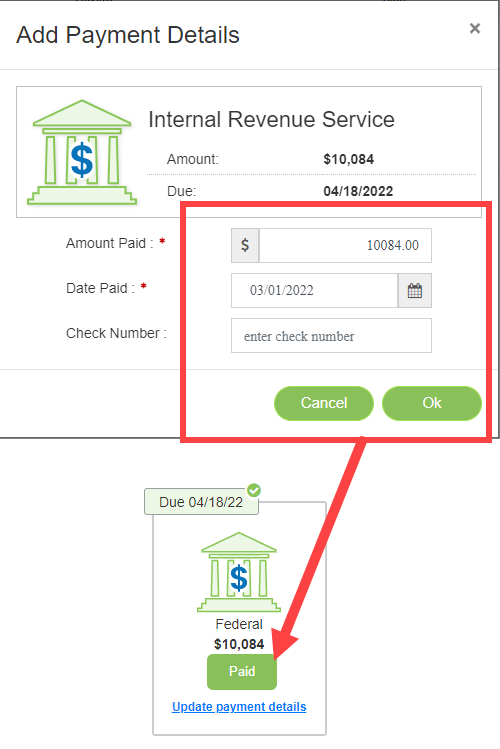
- Sign in to TaxCaddy, select the tax year to view all your uploaded documents, tax returns, and tax payment vouchers in your account.