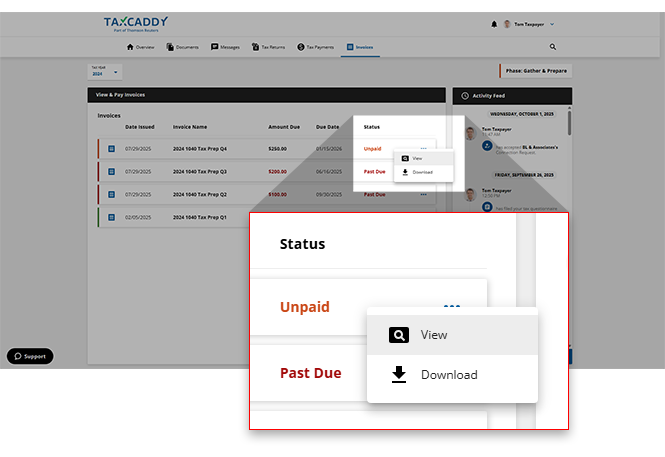
Download invoices
TaxCaddy.com on PC, Mac, or tablet
Follow these steps to download your invoices when using TaxCaddy.com on your PC, Mac, or tablet.
- Sign in to TaxCaddy.com
- Invoices uploaded to your account will be listed in theTask Listfound in theOverviewscreen underTAX RETURNS & PAYMENTS.
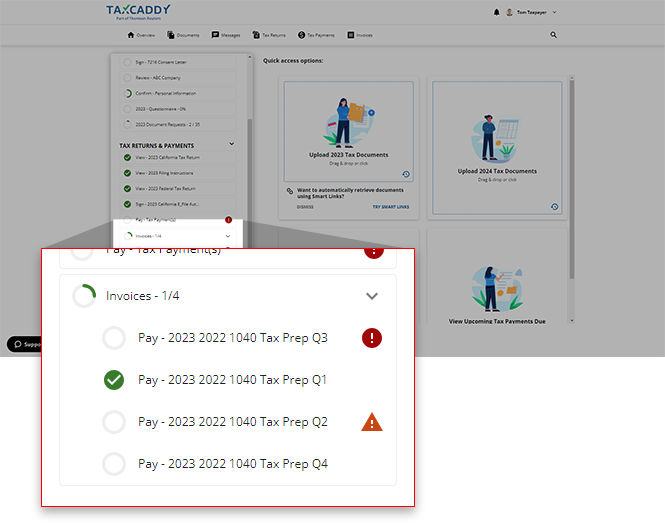 noteInvoices are only visible under the tax year they were created in by your tax professional. Your tax professional can place invoices due from a different tax year under the selected tax year. For example, your tax professional can have an invoice that was due the previous year and place it under the current year.
 - Select a tile to view the invoice.
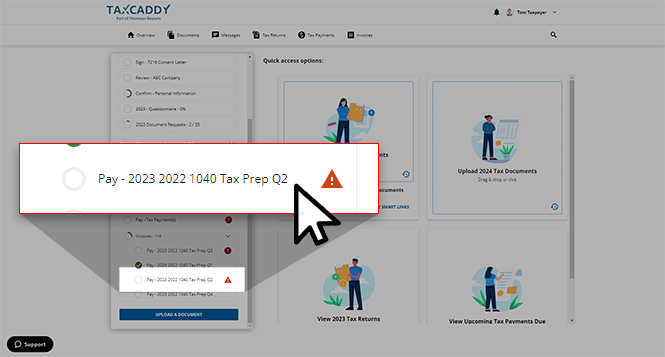
- The selected invoice will appear in theOverviewscreen's document viewer.
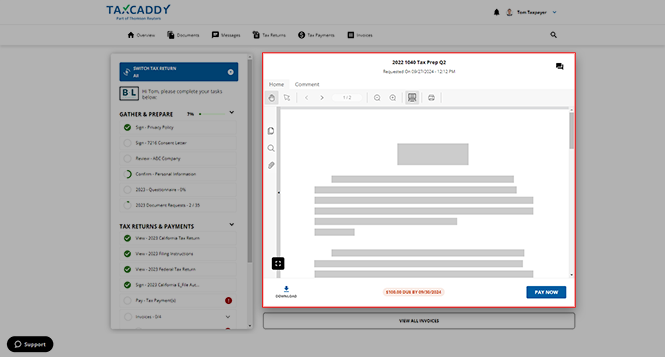
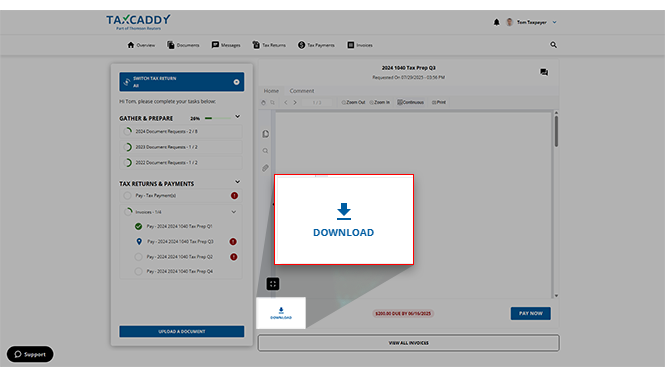
- Once you have opened the invoice in the document viewer, selectDOWNLOADto begin downloading the invoice.
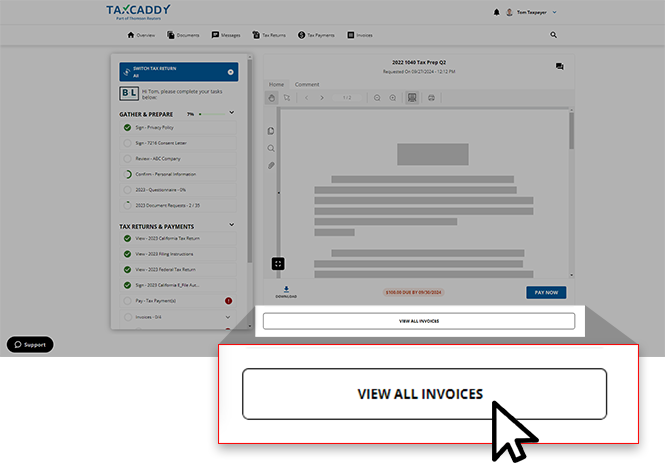
- You can selectVIEW ALL INVOICESto view a complete list of invoices your tax professional uploaded to your account.Alternatively, you can select the Invoices tab to be directed to a comprehensive list of tax returns uploaded to your account in the
 Invoicestab.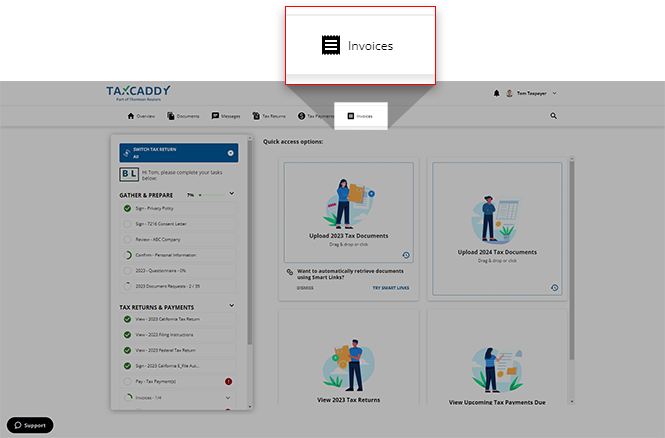
- You can download invoices from theInvoicestab as well. Select theMenuicon.
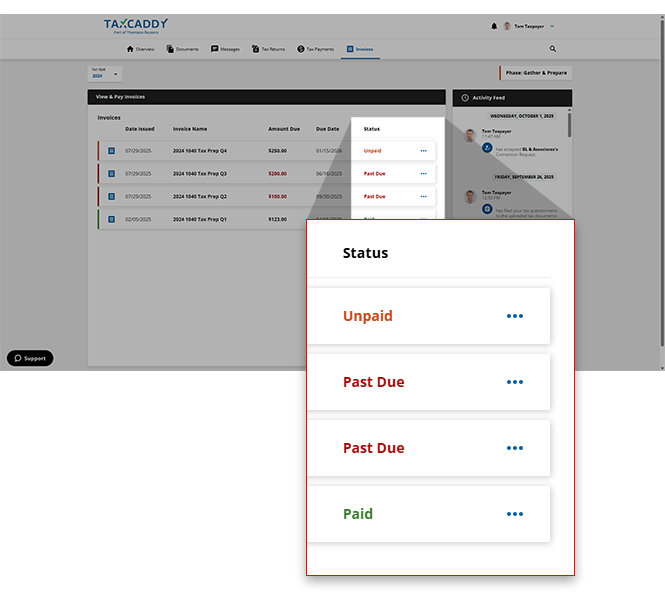
- When the options appear, selectDownload.noteThis will automatically download the selected document with any annotations placed on it by you or your tax professional.