
Message your tax professional about your invoice
Show all hidden content
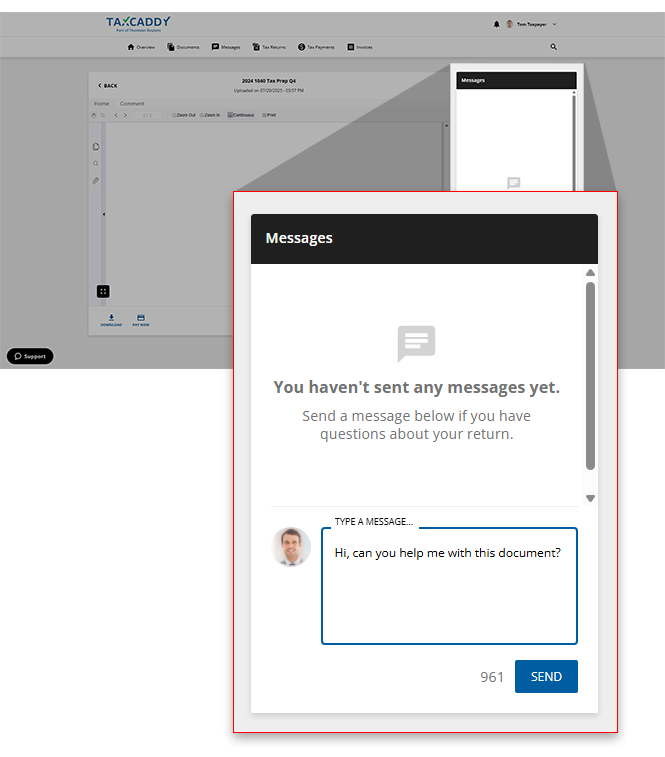
You can discuss your invoice with your tax professional by sending messages from the message panel when viewing an invoice, which creates a new thread associated with that document in Messages.
TaxCaddy.com on PC, Mac, or tablet
Follow these steps to message your tax professional regarding your invoice using TaxCaddy.com on your PC, Mac, or tablet.
- Sign in to TaxCaddy.com
- Invoices uploaded to your account will be listed in theTask Listfound in theOverviewscreen underTAX RETURNS & PAYMENTS.
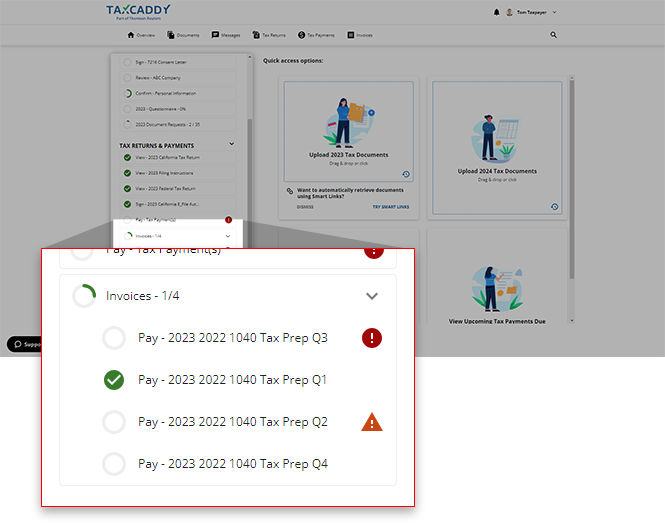
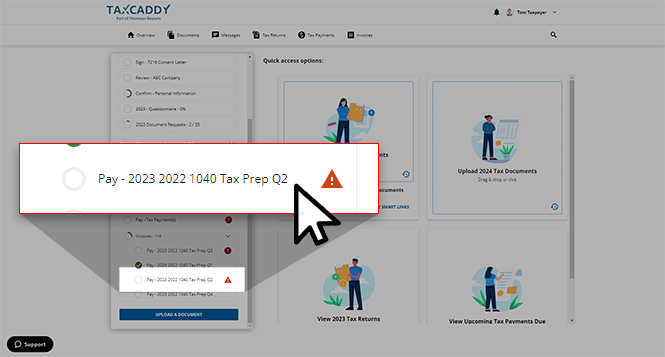
- Select a tile to view the invoice.
- The selected invoice will appear in theOverviewscreen's document viewer.
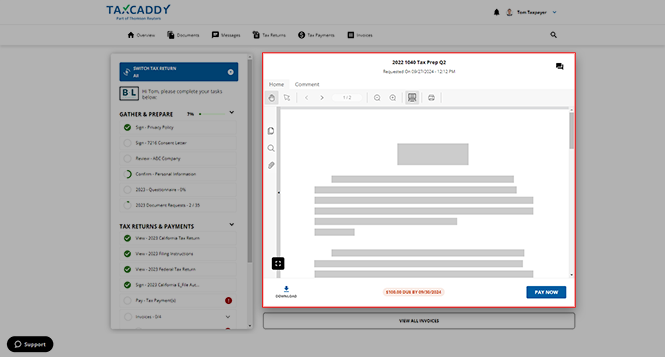
- Select theMessageicon at the top to open theMessagespanel for the selected tax payment document.noteThe title of the selected invoice will appear at the top of the panel.

- On theMessagespanel, type your message into the textbox, then selectSEND. Your tax professional's reply appears in the thread on this panel. The message thread is also accessible from theMessagespage on the navigation panel.noteThe thread will also be accessible through theMessagestab.
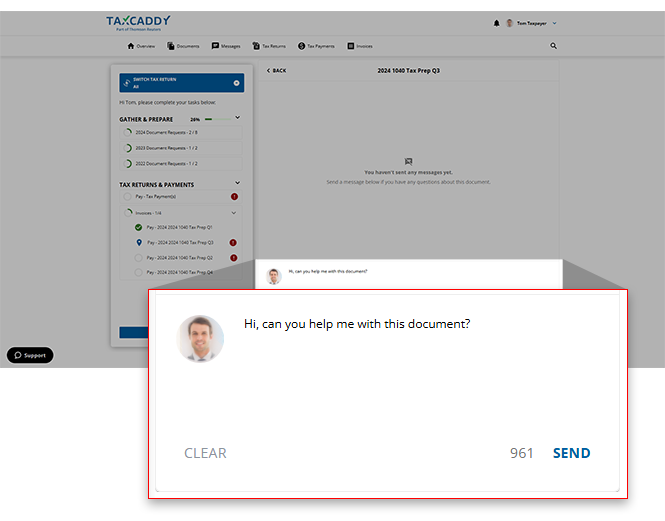
- Alternatively, when viewing an invoice in theInvoicestab you can use theMessagespanel to send a message to your tax professional.
iOS mobile app
Follow these steps to view your tax payment voucher on your iOS mobile phone app.
- Open an invoice for viewing.
- When you see the invoice open on the PDF Viewer screen, select theMessageicon.
 Your Tax Professional's reply appears in the thread section. The thread is also accessible from theMessagessection.
Android mobile app
Follow these steps to pay invoices on your Android mobile phone app.
- Open an invoice for viewing.
- Once you see the invoice open on the PDF Viewer screen, select theMessageicon.
 Your Tax Professional's reply appears in the thread section. The thread is also accessible from theMessagessection.

