
Pay invoices, Bank account
Show all hidden content
To make an invoice payment with a bank account, you must add and verify the account. There are two methods of adding a bank account:
Instant Verification
or Manual Verification
.TaxCaddy.com on PC, Mac, or tablet
Follow these steps to make a payment on your invoice with a bank account when using TaxCaddy.com on your PC, Mac, or tablet.
Follow these steps to add a bank account:
- Once you have verified the invoice amount in theOverviewscreen's document viewer window, selectPAY NOWto make a payment.
- After reviewing the invoice details, selectBank AccountunderSelect Payment Method.
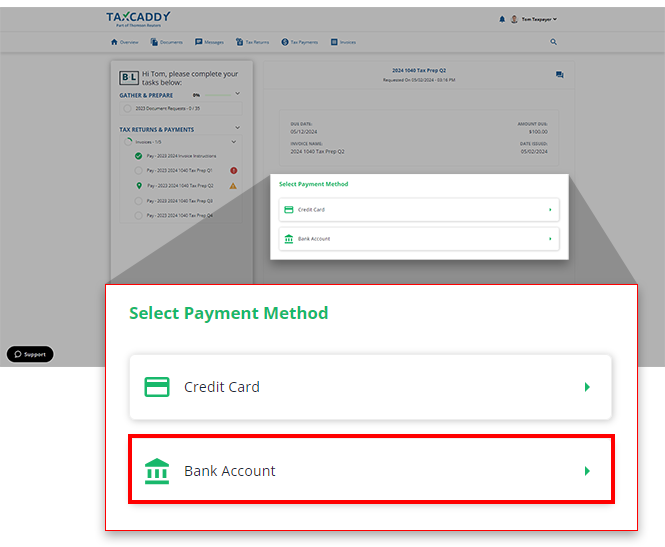 noteIf your tax professional doesn’t accept bank account payments for invoices it won’t be listed as an option.
 - On theBank Account Paymentsection, selectADD NEWto add a bank account.
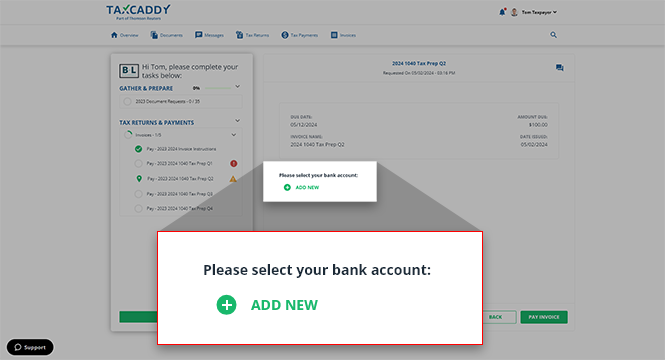
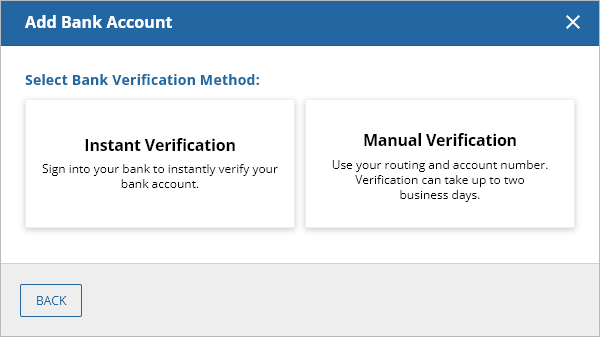
- To make a payment, you must verify your bank account. You can select betweenInstant VerificationorManual Verification.
- Instant Verification- Requires you to sign in to your bank account to verify your bank account.
- Manual Verification- Requires you to add yourRouting Number,Account Number,Account Owner's Name, andAccount Type. Once the bank account has been added, you will receive micro-deposits in two business days. Enter the amounts to complete your account verification.
- You will see your bank account appear as an option after you add and verify one. Select the bank account, then selectPAY INVOICE.
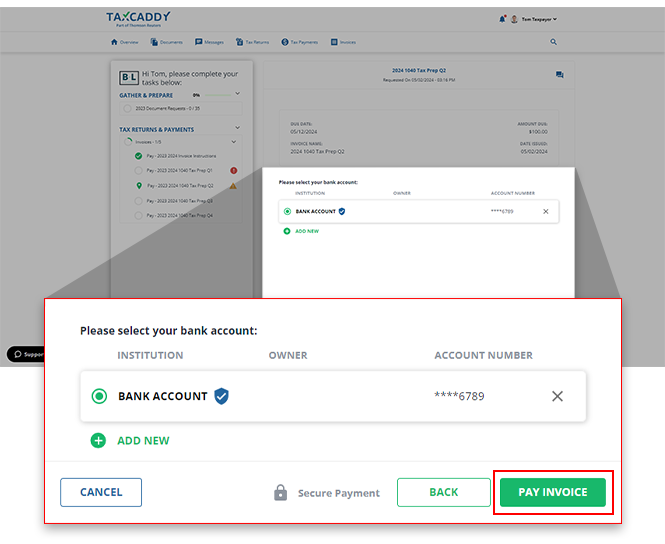 noteIf a bank account is ineligible for fulfilling invoices, it will be indicated as such. You can re-verify these accounts before proceeding with payment.If you've already verified a bank account in your TaxCaddy account, select this account, then selectPAY INVOICEto proceed.
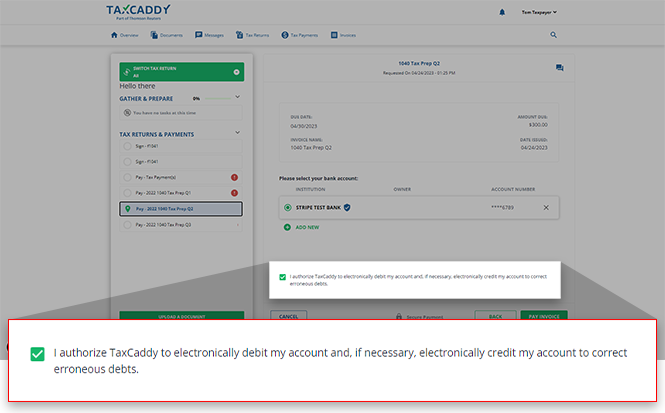
 - You will be asked to authorize this payment if this is your first time making a payment from this bank account. Select theI authorize TaxCaddy to...checkbox, then selectAuthorize Payment.
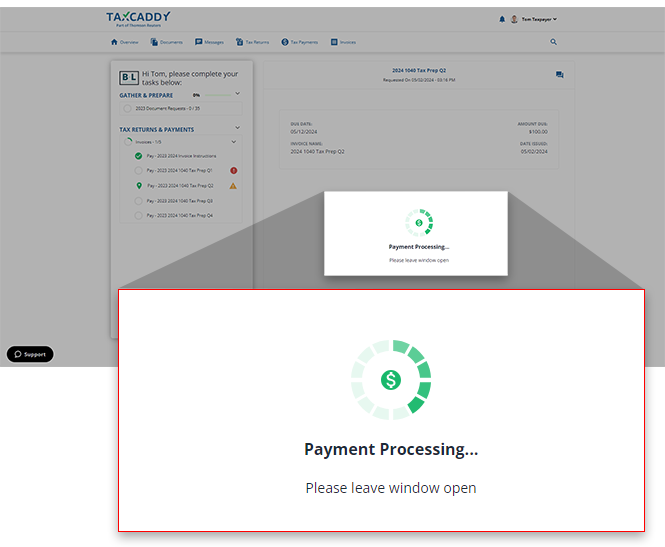
- Once the fulfillment initiates, wait for thePayment Processingto complete.
- You will seeCharge Submittedonce the payment has been submitted successfully. You can selectNEXT TASKto be automatically sent to the next pending invoice in your account.
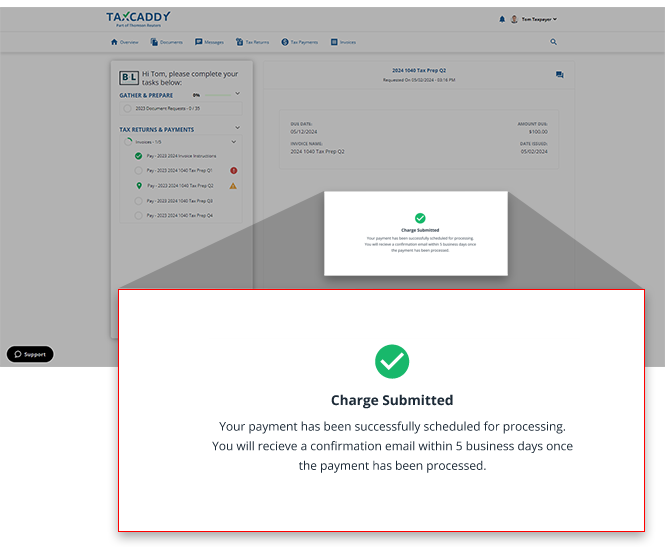 Your payment status will change toIn Processingand you will receive a confirmation email within 5 business days.
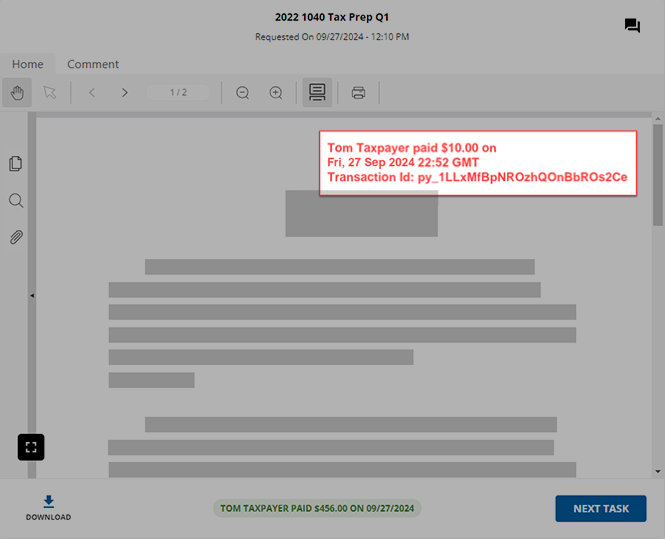
 - A stamp is placed on the invoice when you pay an invoice or the invoice has been marked as paid by your tax professional.
iOS mobile app
Follow these steps to pay invoices on your iOS mobile phone app:
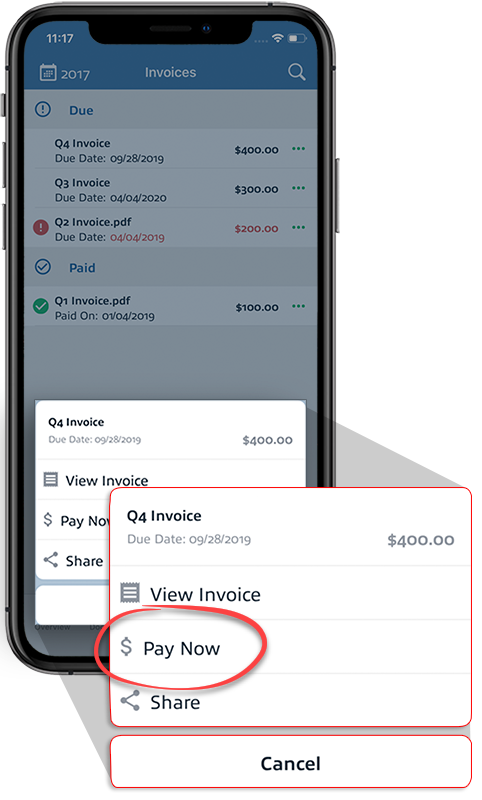
- On theInvoicesscreen, select theMenuicon, then selectPay Now.
 Alternatively, you can select to view the invoice, then selectPAY INVOICE.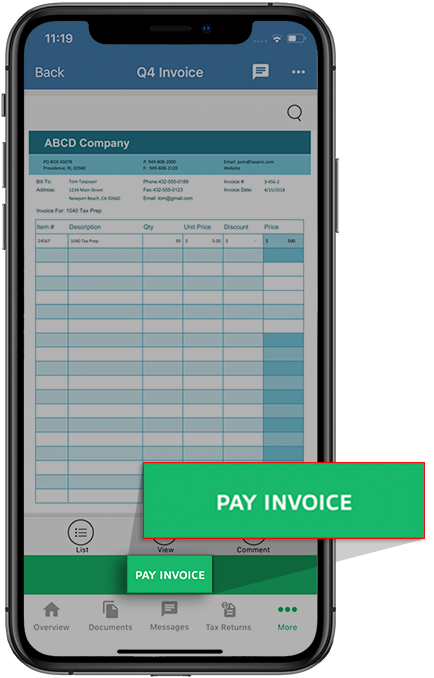
- You will see theADD BANK ACCOUNTbutton if your Tax Professional accepts Bank Account as a method of payment.If this is your first time using a bank account, selectADD BANK ACCOUNTto add a new bank account.You can also select a verified bank account if you have already added one previously.
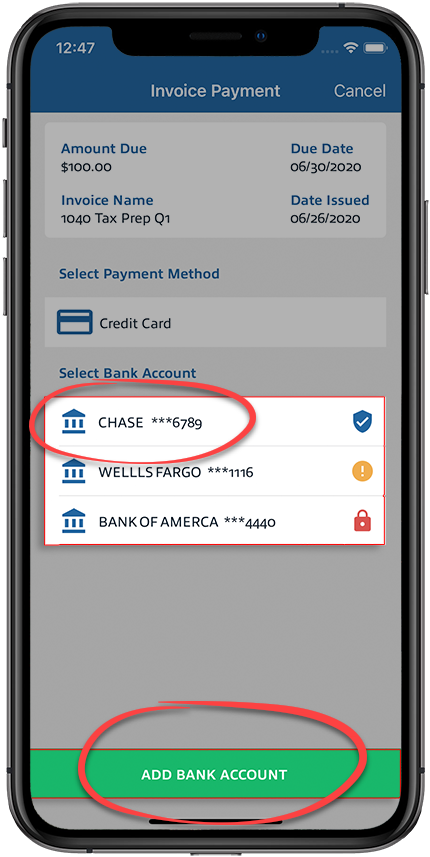
- To make a payment, you must verify your bank account. You can select betweenInstant VerificationorManual Verification.
- Instant Verification- Requires you to sign in to your bank account to verify your bank account.
- Manual Verification- Requires you to add yourRouting Number,Account Number,Account Owner's Name, andAccount Type. Once the bank account has been added, you will receive micro-deposits in two business days. Enter the amounts to complete your account verification.
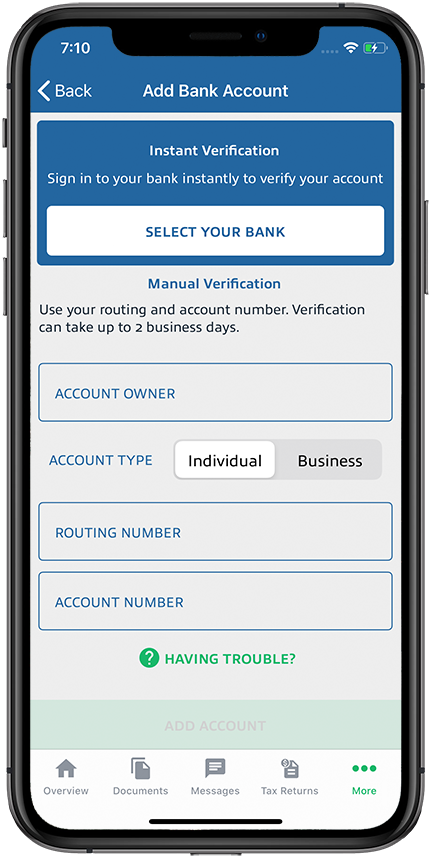 If you or your tax professional have previously provided your bank account information to TaxCaddy, we will automatically populate your records with the information we have on file. Take a moment to review the information and make any corrections you see fit before continuing.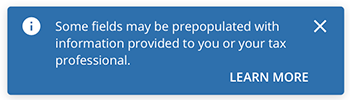
- After you add and verify your bank account, select the verified bank account to make a payment.
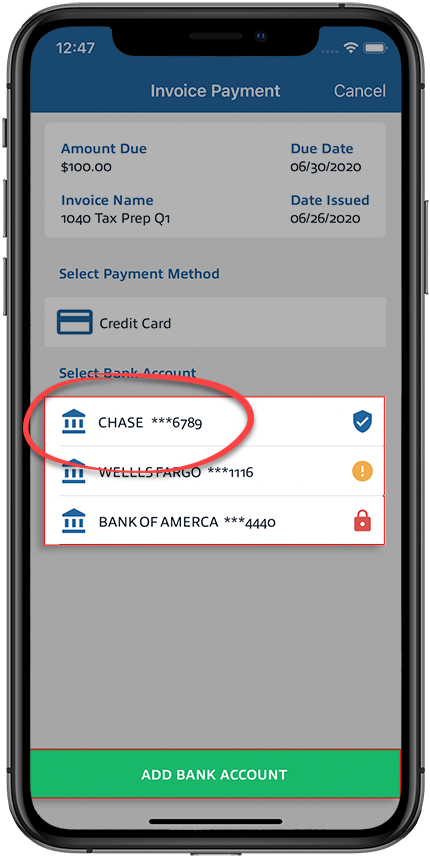
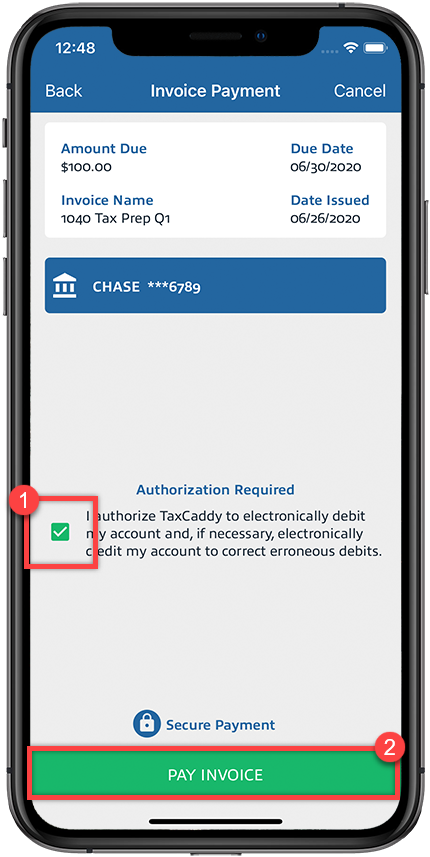
- If you see a checkbox to authorize payment from your bank account, select the checkbox, then selectPAY INVOICE.
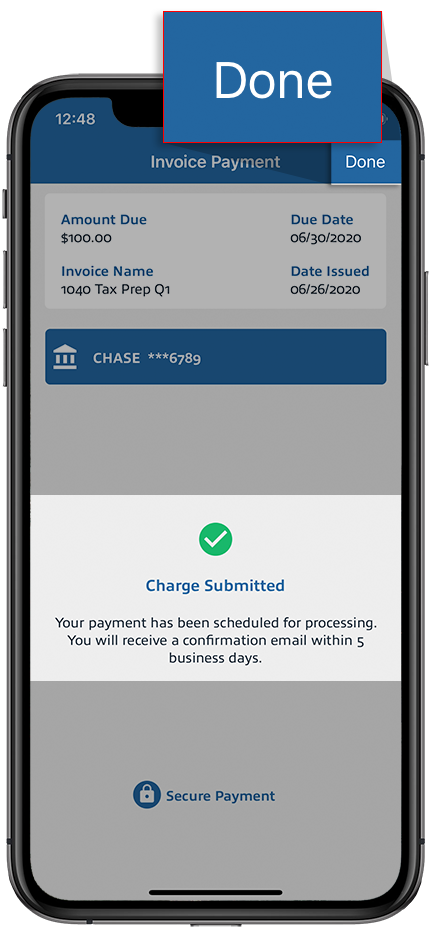
- You will seeCharge Submittednotification once the payment has been submitted successfully. selectDone toclose thePayment Duescreen. Your payment status will change toIn Processingand you will receive a confirmation email within 5 business days.
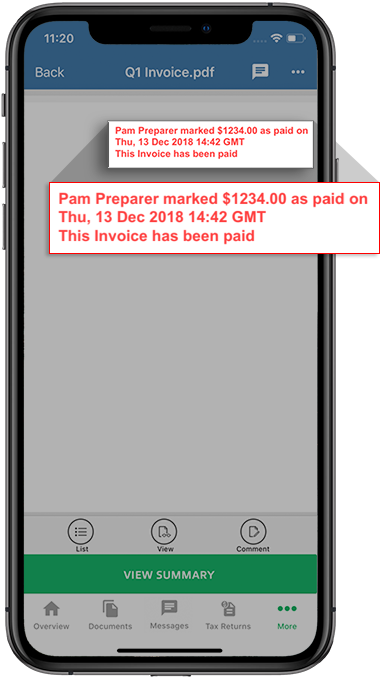
- The invoice will show a confirmation stamp after you pay the invoice. You will also see the confirmation stamp if your tax professional marked the invoice as paid.
Android mobile app
Follow these steps to pay invoices on your Android mobile phone app:
- On theInvoicesscreen, select theMenuicon, then selectPay Now.
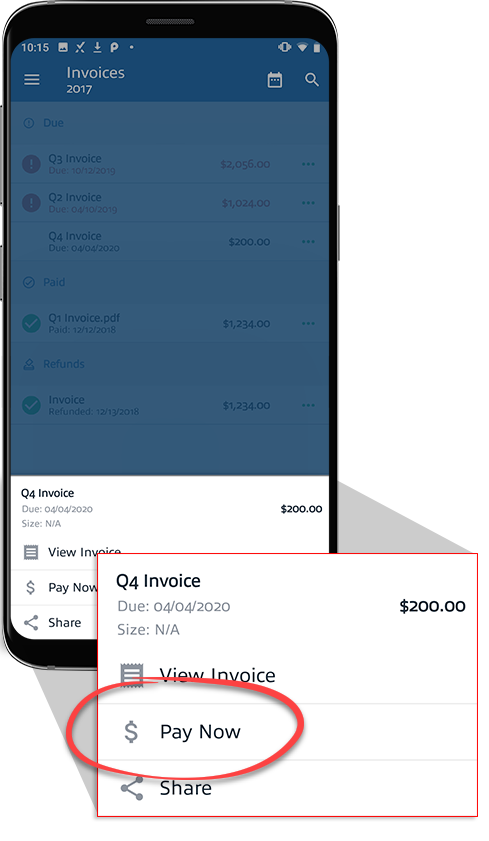 Alternatively, you can select to view the invoice, then selectPAY INVOICE.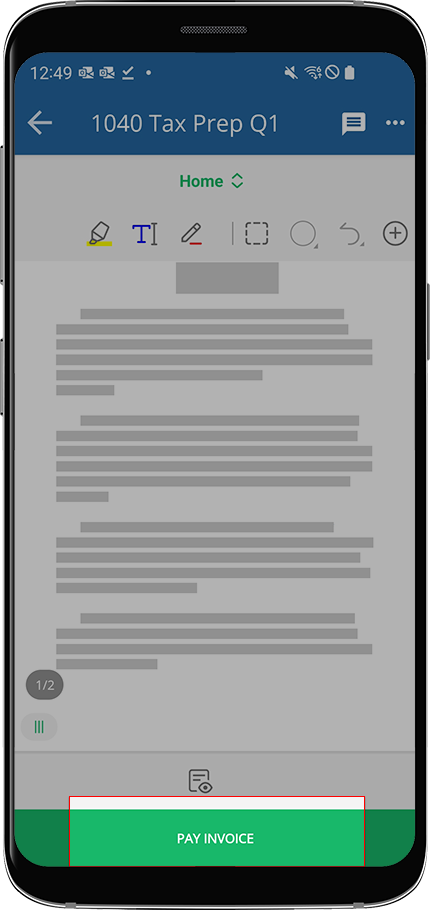
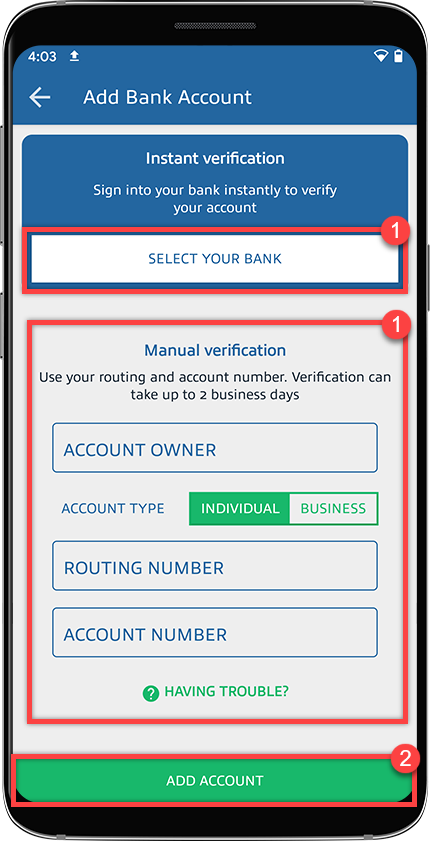
- You will see theAdd Bank Accountbutton if your tax professional accepts Bank Account as a method of payment.If this is your first time using a bank account, selectAdd Bank Accountto add a new bank account.You can also select a verified bank account if you have already added one previously.
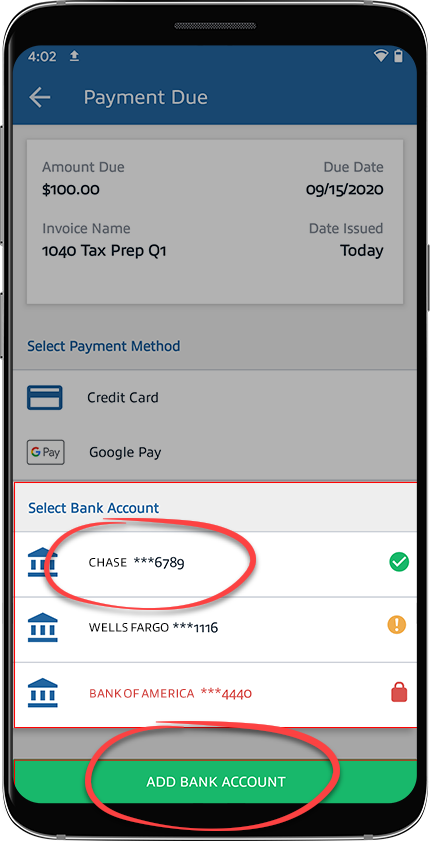
- To make a payment, you must verify your bank account. You can select betweenInstant VerificationorManual Verification.
- Instant Verification- Requires you to sign in to your bank account to verify your bank account.
- Manual Verification- Requires you to add yourRouting Number,Account Number,Account Owner's Name, andAccount Type. Once the bank account has been added, you will receive micro-deposits in two business days. Enter the amounts to complete your account verification.
 If you or your tax professional have previously provided your bank account information to TaxCaddy, we will automatically populate your records with the information we have on file. Take a moment to review the information and make any corrections you see fit before continuing.
 - After you add and verify your bank account, select the verified bank account to make a payment.
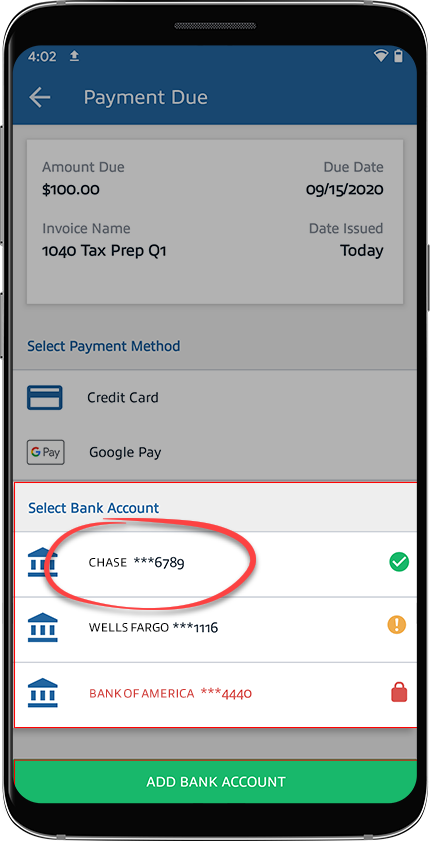
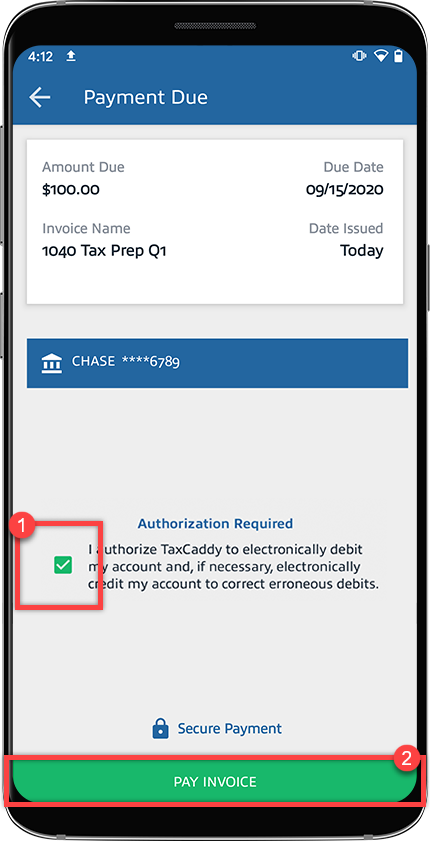
- If you see a checkbox to authorize payment from your bank account, select the checkbox, then selectPAY INVOICE.
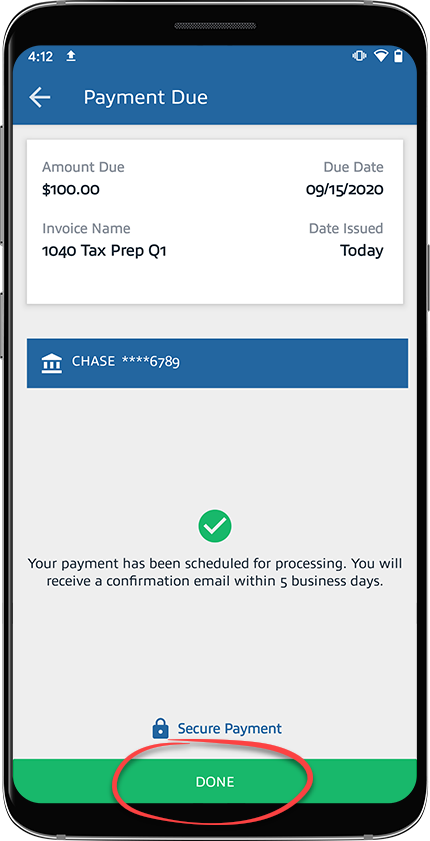
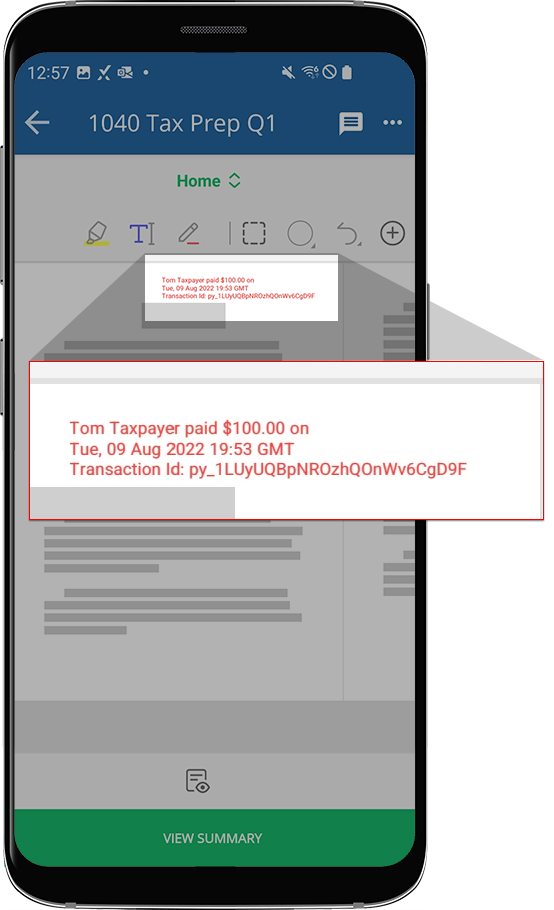
- selectDONEto close thePayment Duescreen. Your payment status will change toIn Processingand you will receive a confirmation email within 5 business days.
- The invoice will show a confirmation stamp after you pay the invoice. You will also see the confirmation stamp if your tax professional marked the invoice as paid.
Related Content
-
Pay invoices
Format: Article,
12 min read
Article,
12 min read

