
Pay invoices, Credit card
Show all hidden content
If your Tax Professional accepts Credit Card, then you can select Credit Card as a method of payment. You can also pay invoices with Apple Pay on an iOS device or Google Play on an Android device.
TaxCaddy.com on PC, Mac, or tablet
Follow these steps to make a payment on your invoice with a credit card when using TaxCaddy.com on your PC, Mac, or tablet.
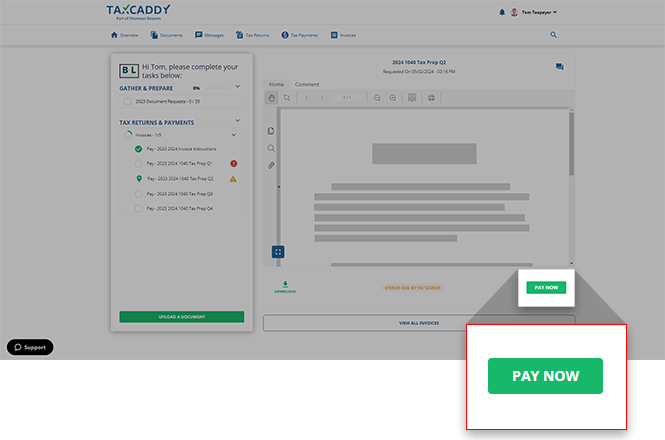
- Once you have verified the invoice amount in theOverviewscreen's document viewer window, selectPAY NOWto make a payment.
- After reviewing the invoice details, selectCredit CardunderSelect Payment Method.
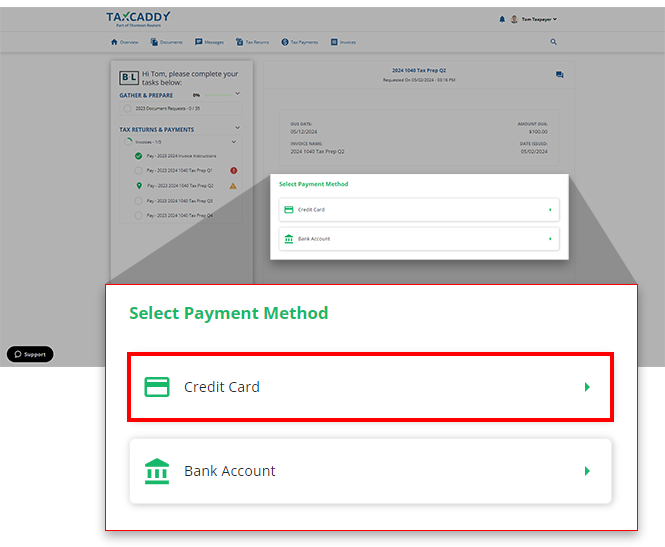 noteIf your tax professional doesn’t accept credit card payments for invoices it won’t be listed as an option.
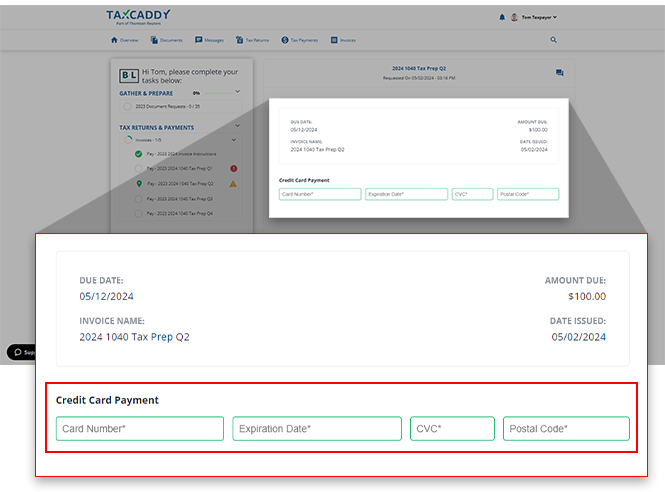
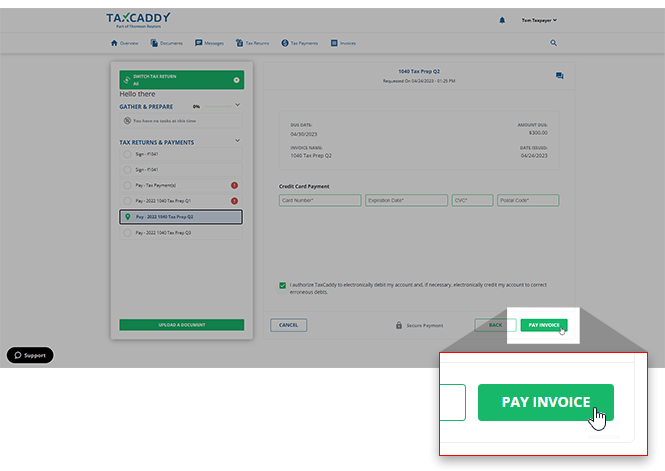
 - In theCredit Card Paymentsection, enter the requested credit card details in all the fields, then selectPAY INVOICEto process your payments.noteThe following are accepted methods of payment: Visa, Mastercard, American Express, Discover, Diners Club, and JCB.
- You will be asked to authorize this payment. SelectI authorize TaxCaddy to...if you would like to authorize this invoice payment.
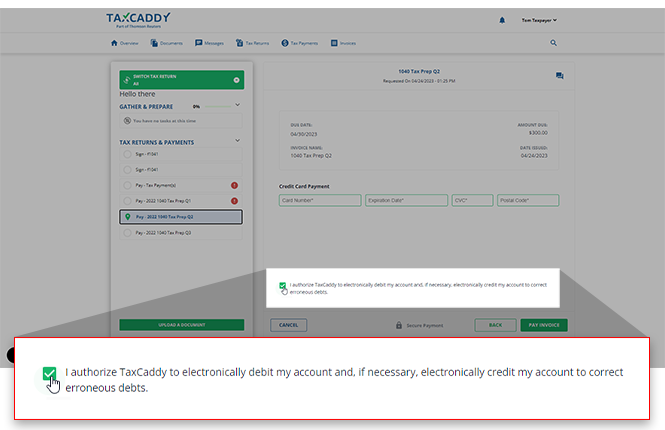
- SelectPAY INVOICE.
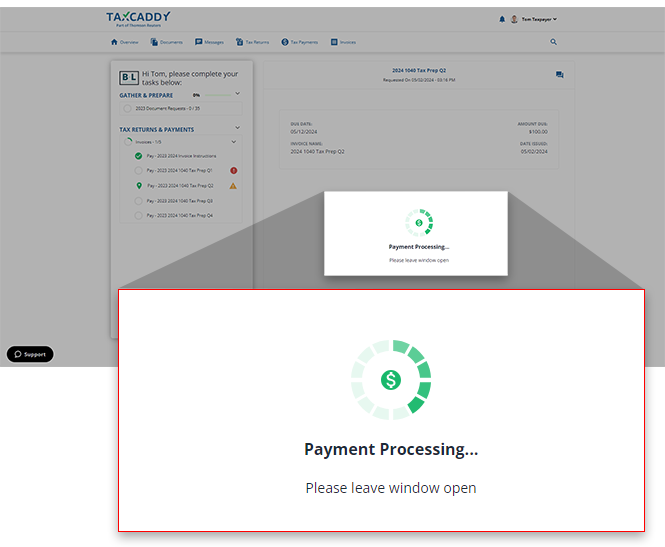
- The payment will begin processing.You will see a
 Payment Failednotification if there was an error processing payment. SelectTRY AGAINto enter new values.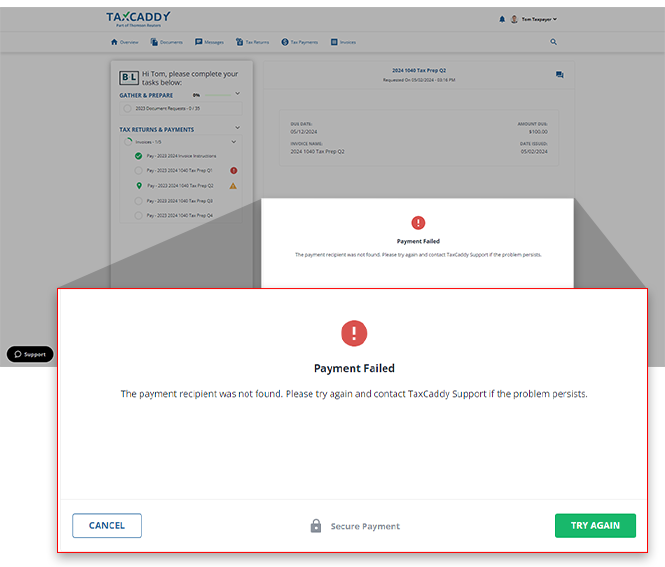
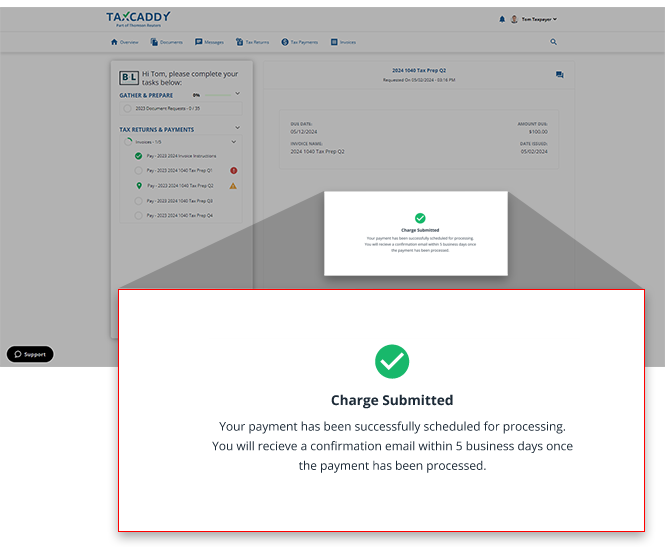
- You will see a confirmation once the payment process successfully.
iOS mobile app
Follow these steps to pay invoices with a Credit Card on your iOS mobile phone app.
- Open an invoice to make a payment.
- If your Tax Professional accepts credit cards, then you will have options to pay with Credit Card or Apple Pay.
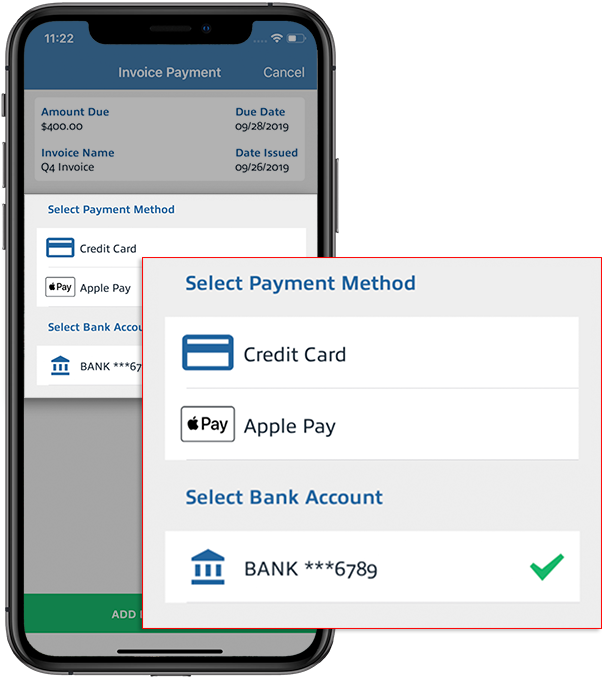
Pay with Credit Card
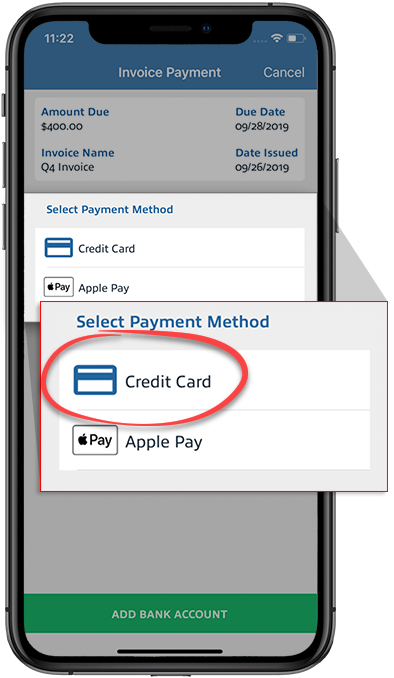
- TapCredit Cardto pay an invoice with a credit card.
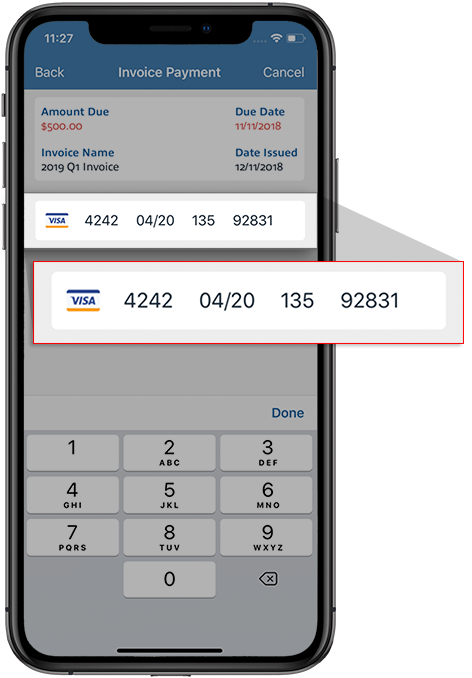
- Enter your credit card details in all the fields, then tapDoneto remove the keyboard.noteThe following are accepted methods of payment: Visa, Mastercard, American Express, Discover, Diners Club, and JCB.
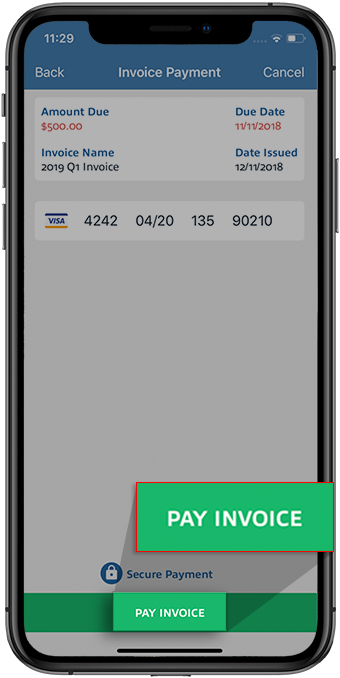
- Once you are ready to submit, tapPAY INVOICEto process your payments.
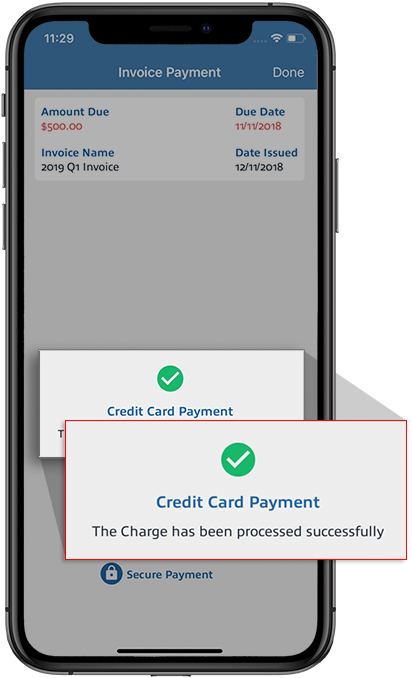
- You will see aPayment Successfulnotification if the payment was successful.You will see a
 Payment Failednotification if there was an error processing payment. Verify all fields to see if the information is correct, then tapPay Invoiceto try again.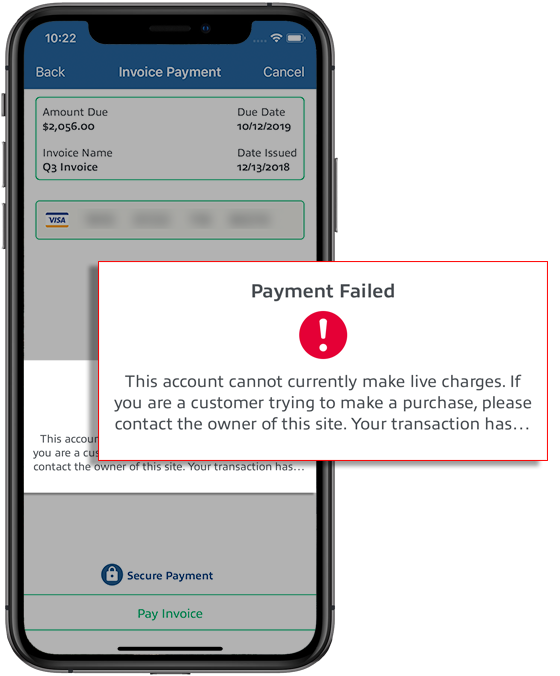
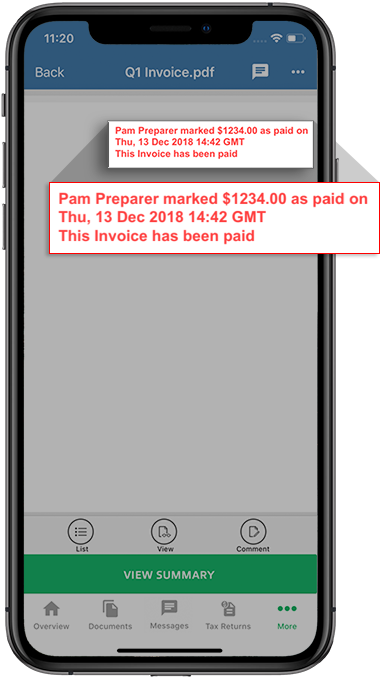
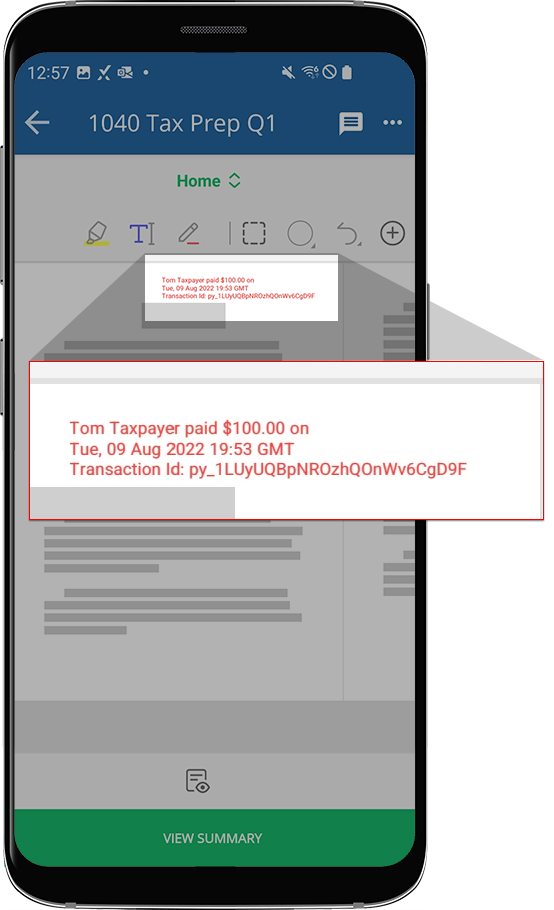
- A stamp is placed on the invoice once you make a payment on an invoice or the invoice has been marked as paid by your Tax Professional.
Pay with Apple Pay
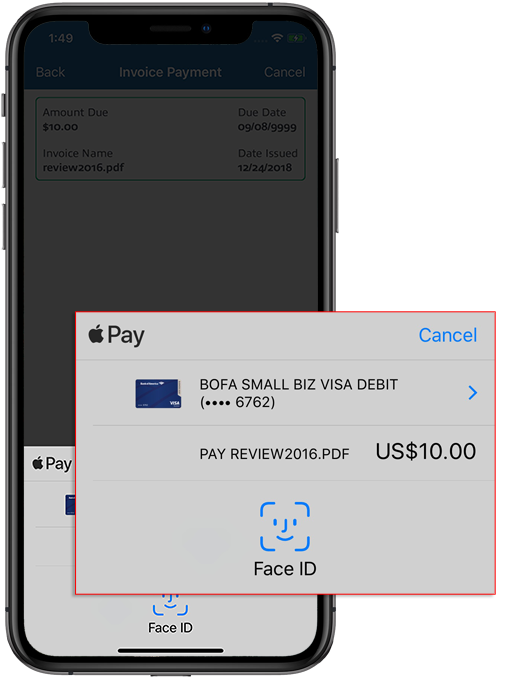
- SelectApple Payto pay an invoice with Apple Pay.
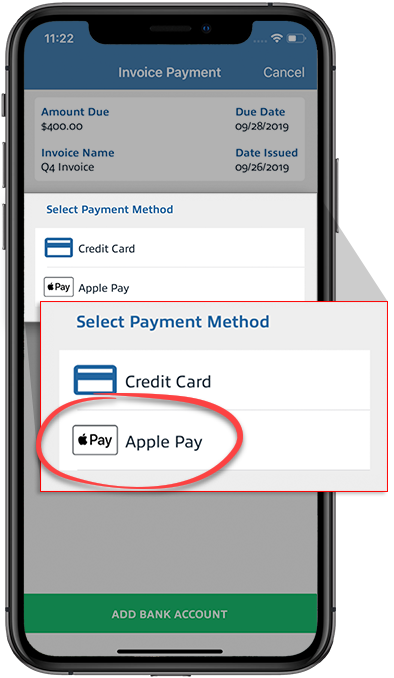
- If you selectApple Pay, you will need to verify payments using Face ID or Passcode.
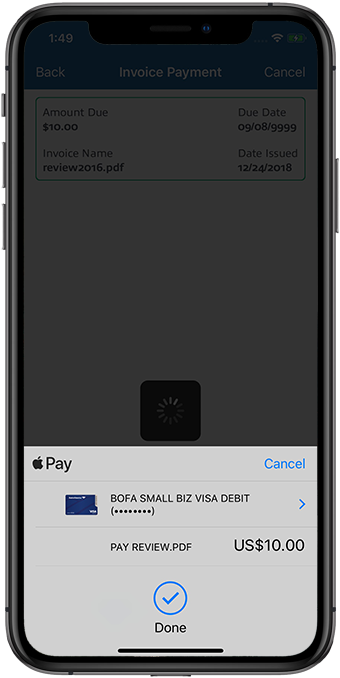
- A confirmation window appears after your payment is processed.
Android mobile app
Follow these steps to pay invoices with a Credit Card on your Android mobile phone app.
- Open an invoice to make a payment.
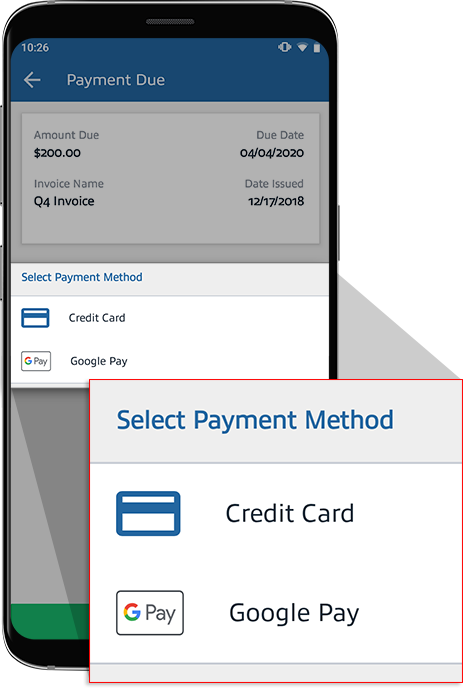
- If your Tax Professional accepts credit cards, then you will have options to pay with Credit Card or Google Pay.
Pay with Credit Card
- SelectCredit Cardto pay an invoice with a credit card.
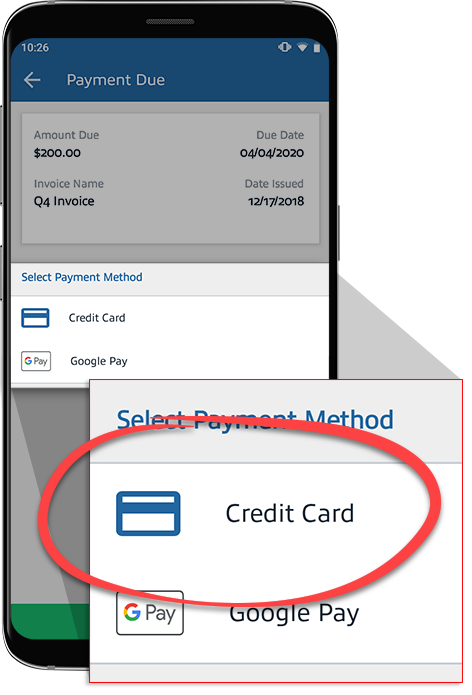
- Enter your credit card details in all the fields.noteThe following are accepted methods of payment: Visa, Mastercard, American Express, Discover, Diners Club, and JCB.
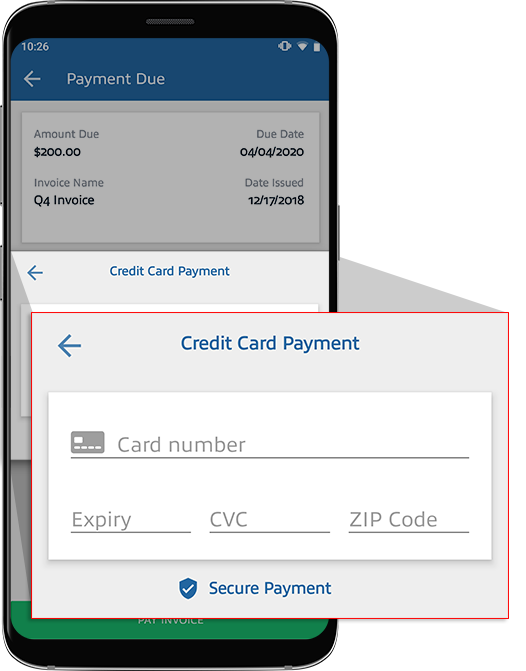
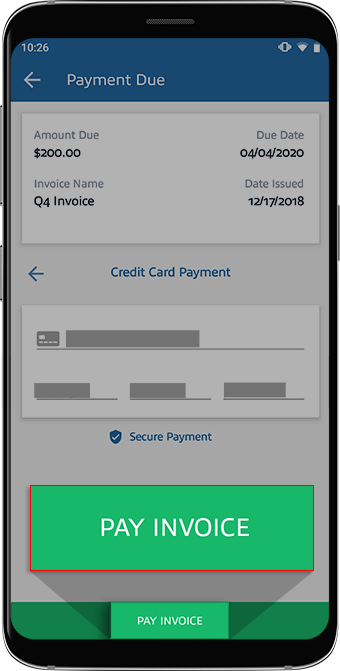
- Once you are ready to submit, selectPAY INVOICEto process your payments.
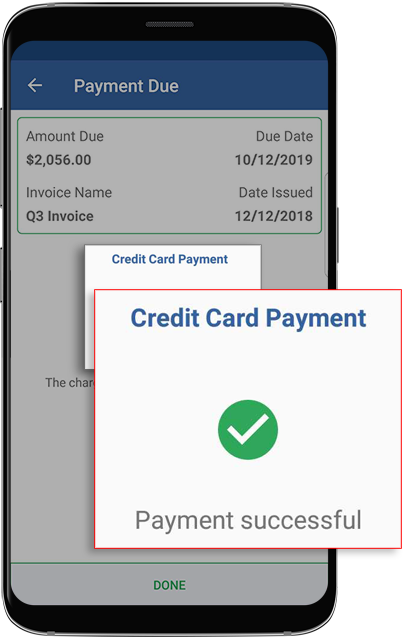
- You will see aPayment Successfulnotification if the payment was successful.You will see a
 Payment failednotification if there was an error processing payment. Verify all fields to see if the information is correct, then selectPay Invoiceto try again.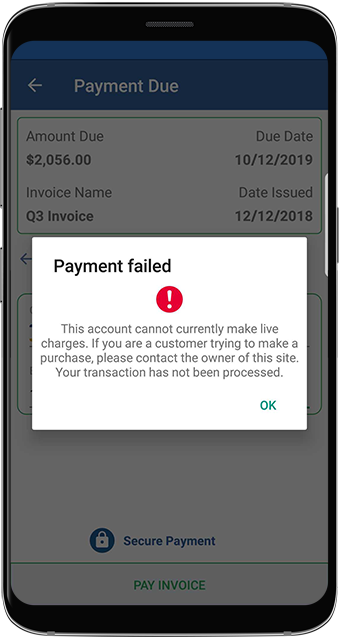
- A stamp is placed on the invoice once you make a payment on an invoice or the invoice has been marked as paid by your tax professional.
Pay with Google Pay
- SelectGoogle Payto pay an invoice with Google Pay.
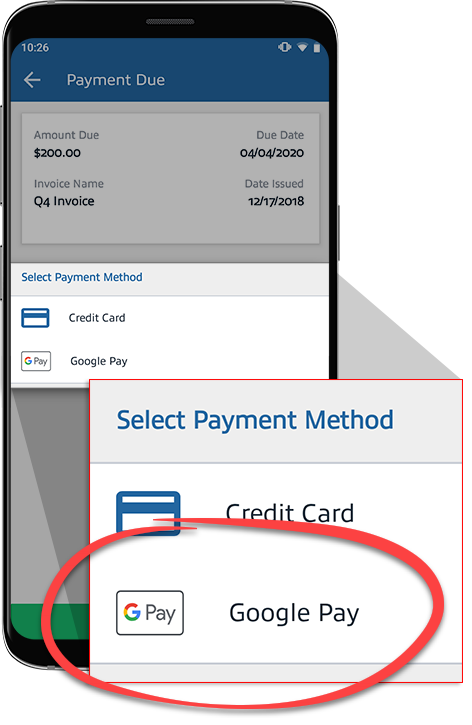
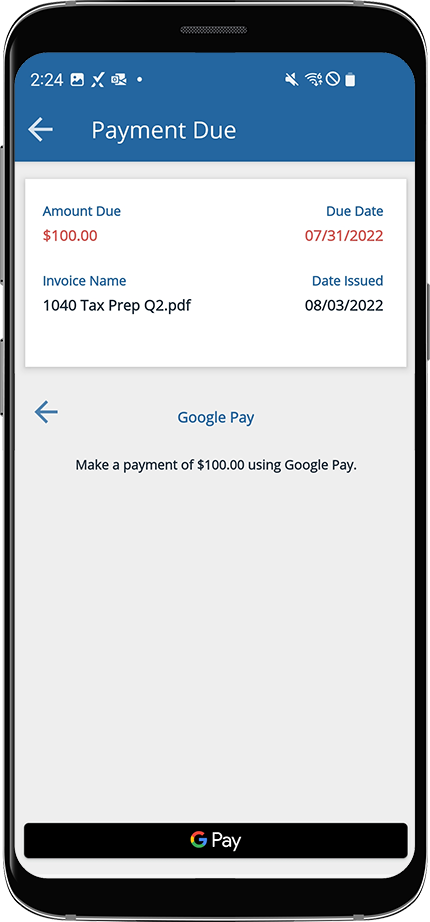
- SelectGoogle Payicon to initiate the payment process.
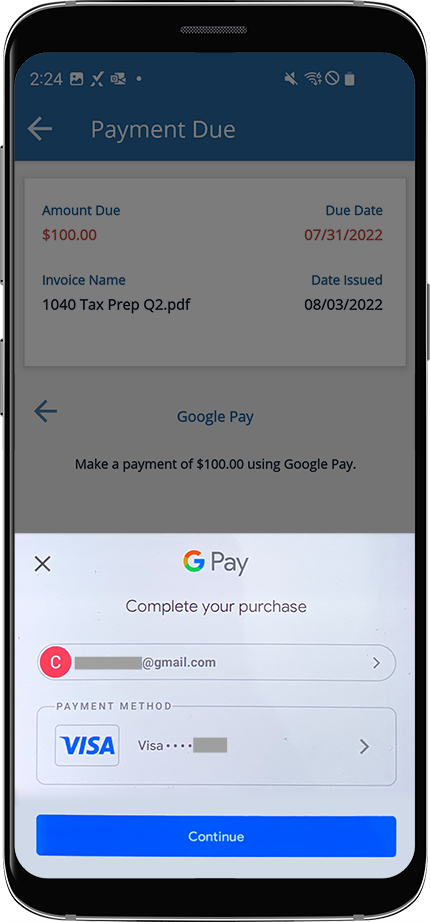
- Select your Credit Card, then SelectContinueto finish processing payments.
Related Content
-
Pay invoices
Format: Article,
12 min read
Article,
12 min read

