View invoices
Show all hidden content
Your Tax Professional can charge you for their services by creating invoices. These invoices can be viewed, paid, and downloaded.
TaxCaddy.com on PC, Mac, or tablet
- Sign in to TaxCaddy.com
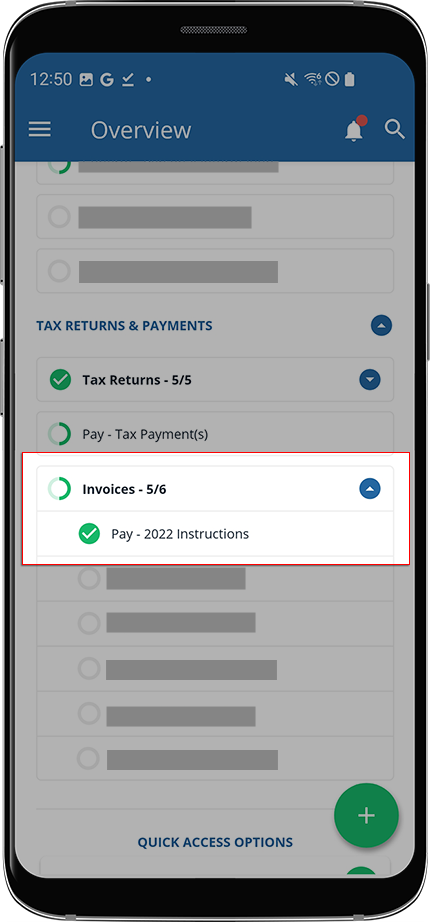
- Invoicesuploaded to your account will be listed in theTask Listfound in theOverviewscreen underTAX RETURNS & PAYMENTS.noteYour progress in fulfilling yourInvoiceswill be denoted with theProgressicon. Once you've fulfilled all yourInvoices, you will see theCompletedicon.
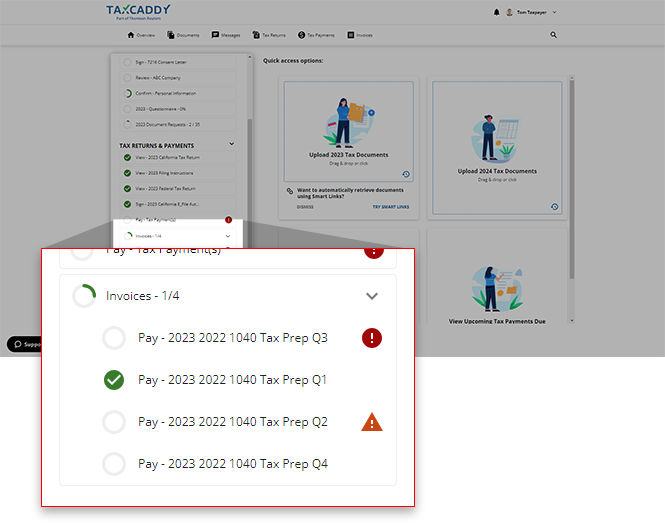
- Depending on each invoice's payment status, you may notice different icons appearing on each invoice title.IconDescription
 (Paid)This icon appears next to the listed invoice when it has already been paid.
 (Overdue)This icon appears next to a listed invoice when its due date has passed and it hasn’t yet been paid or marked as paid.
 (Upcoming)This icon appears next to a listed invoice when its due date is coming up soon. This icon first appears two weeks from the due date.No iconAn invoice without an icon means that you have two weeks or more to pay this invoice or mark it as paid. Select the invoice to view the specific due date.
 - Select a tile to view the invoice.
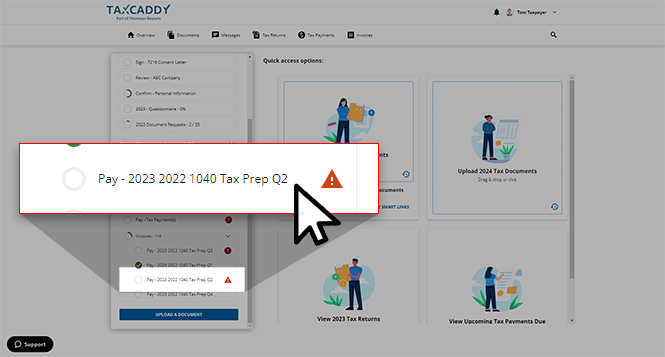
- The selected invoice will appear in theOverviewscreen's document viewer.noteYou can message your tax professional regarding this invoice using theMessageicon.
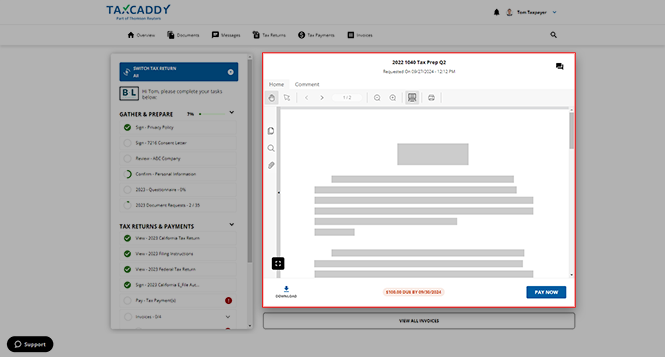
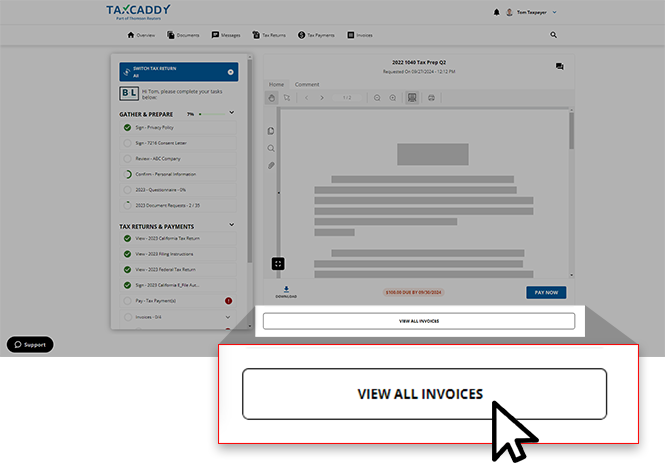
- You can selectVIEW ALL INVOICESto view a complete list of invoices your tax professional uploaded to your account.Alternatively, you can select the
 Invoicestab to be directed to a comprehensive list of invoices uploaded to your account.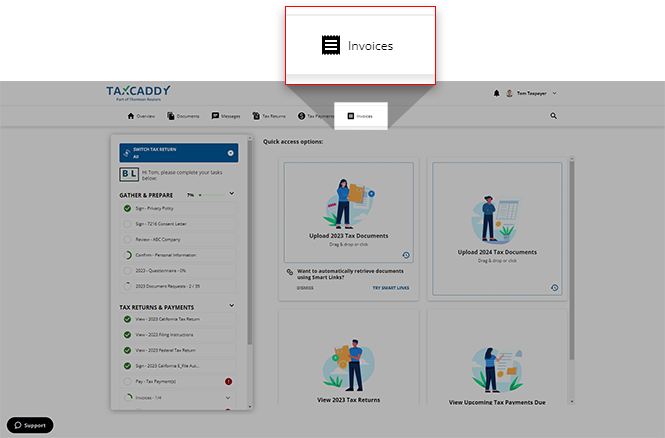
- Select theTax Year.
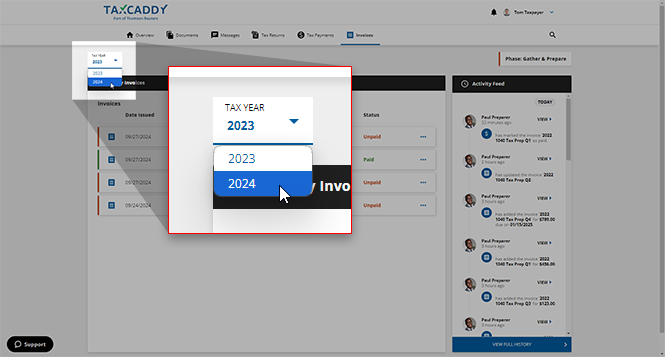 noteInvoices are only visible under the tax year they were created in by your tax professional. Your Tax Professional can place invoices due from a different tax year in under the selected tax year. For example, your Tax Professional can make an invoice due the previous year under the current year.
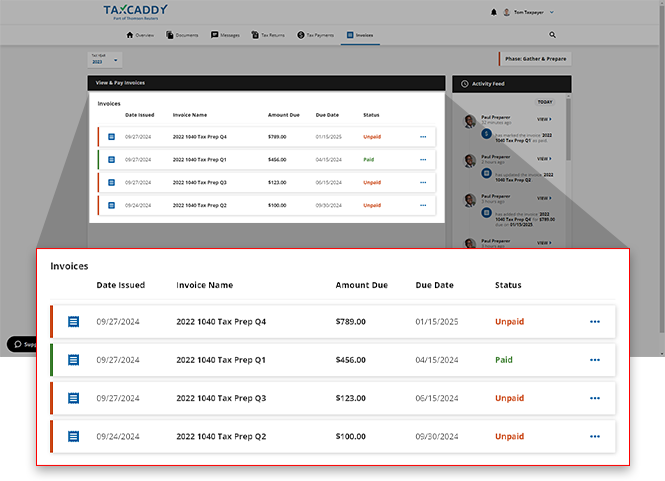
 - The list of invoices created by your tax professional will appear.
tip
You can also use the search bar on top to search for an invoice.
iOS mobile app
Follow these steps to view your tax payment voucher on your iOS mobile phone app.
- Log in to the TaxCaddy mobile app.
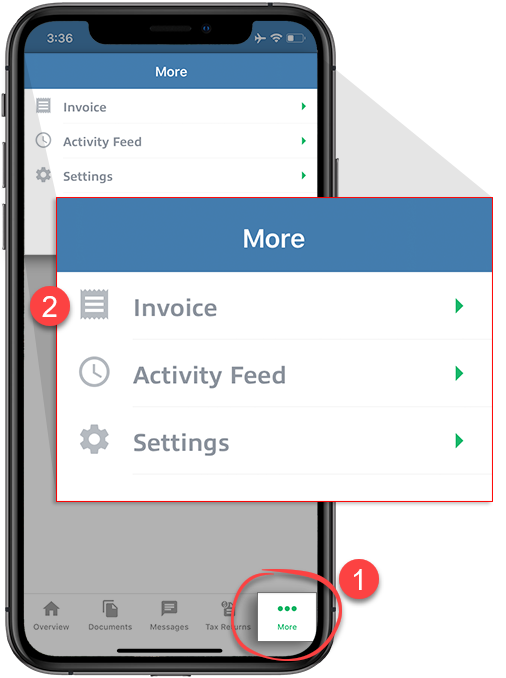
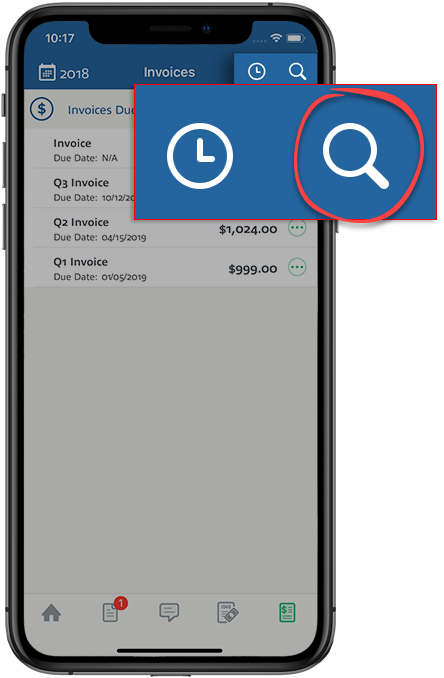
- SelectMoreon the navigation tab bar then SelectInvoice.
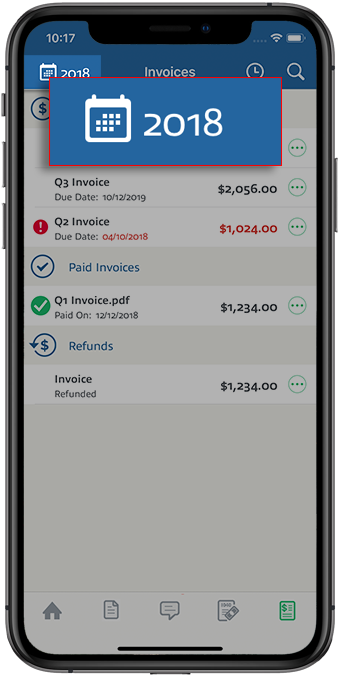
- Select the Tax Year, when the panel appears, then select theTax Year.noteInvoices are only visible under the tax year they were created in by your tax professional. Your Tax Professional can place invoices due from a different tax year in a selected tax year. For example, your Tax Professional can make an invoice due the previous year under the current year.
- The list of invoices created by your tax professional will appear for the selected tax year. Invoices can appear in three sections:
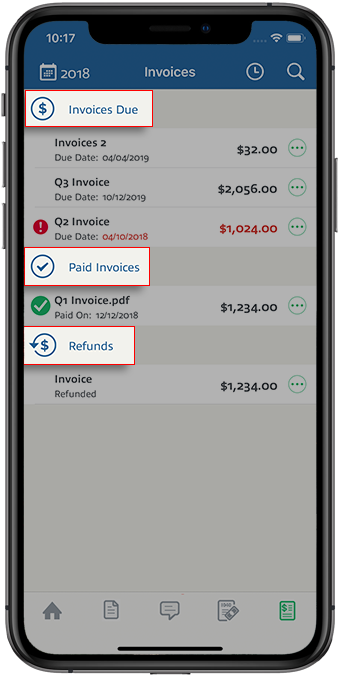
- Invoice Due
- Paid Invoices
- Refunded
- In Process
noteYou can only pay invoices under theInvoice Duesection. - Select anInvoiceto view it in the PDF Viewer.
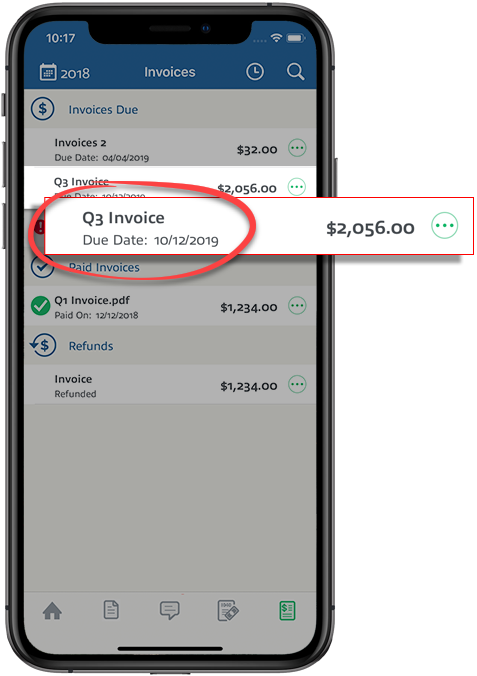
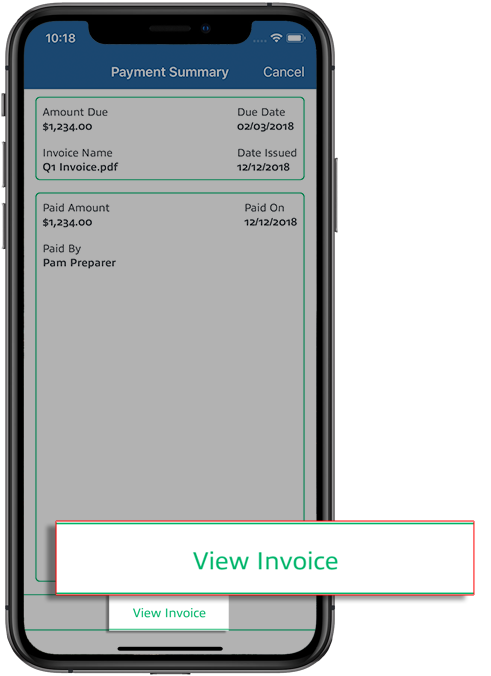
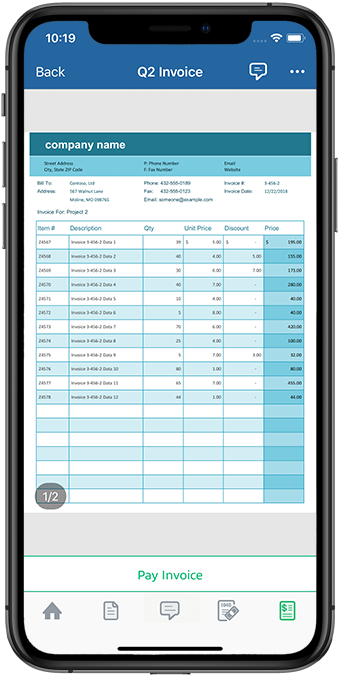
- If the document opens thePayment Summaryscreen, selectView Invoice.You will see the Invoice opens in the PDF Viewer screen.
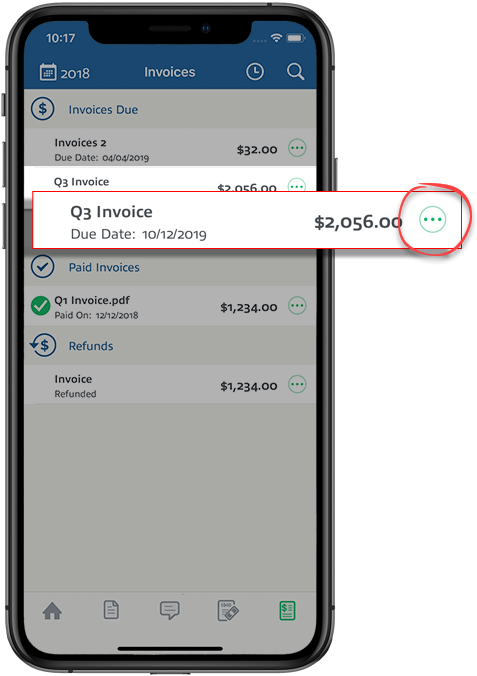
- Alternatively, you can select theMenuicon on the invoice you want to pay.When the window appears, select
 View Invoice.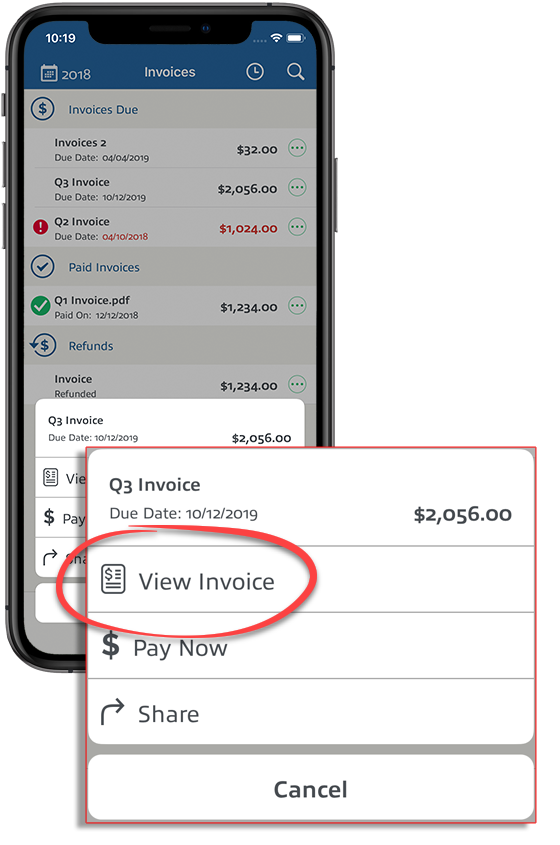
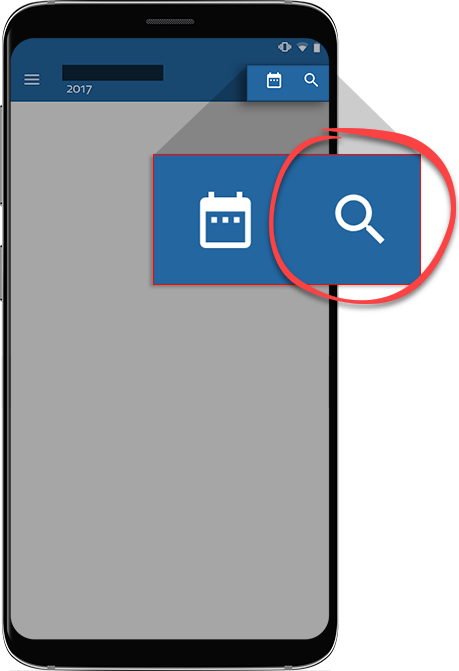
- You can also search for invoices from theOverview,Documents,Messages,Tax Returns, andInvoicesscreen.
Android mobile app
Follow these steps to pay invoices on your Android mobile phone app.
- Log in to the TaxCaddy mobile app.
- Invoices that your tax professional has uploaded to your account will appear on theOverviewscreen. Select an invoice to view it.
- Alternatively, you can Select theMenuicon.Then, select
 Invoicesto be directed to a comprehensive list of invoices uploaded to your account.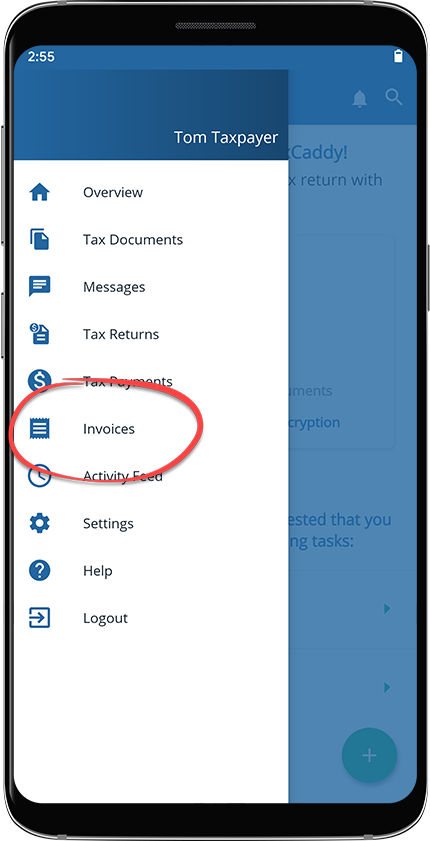
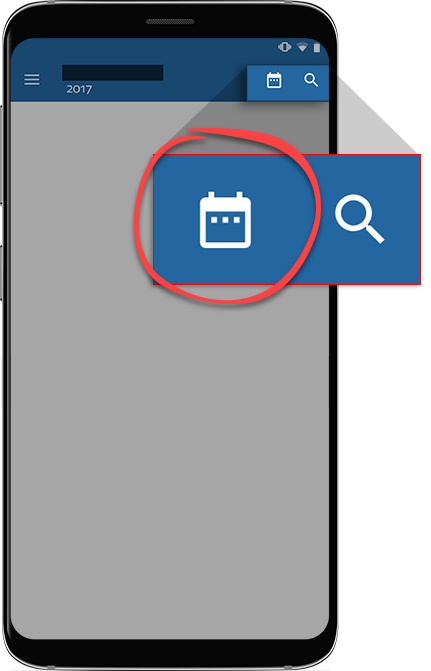
- On the Invoices screen, Select theTax Yearicon to select the applicable Tax Year.noteInvoices are only visible under the tax year they were created in by your tax professional. Your Tax Professional can place invoices due from a different tax year in a selected tax year. For example, your Tax Professional can make an invoice due the previous year under the current year.Swipe up or down to select the tax year then Select
 SELECT.
 - The list of invoices created by your tax professional will appear for the selected tax year.Invoices can appear inside three sections:
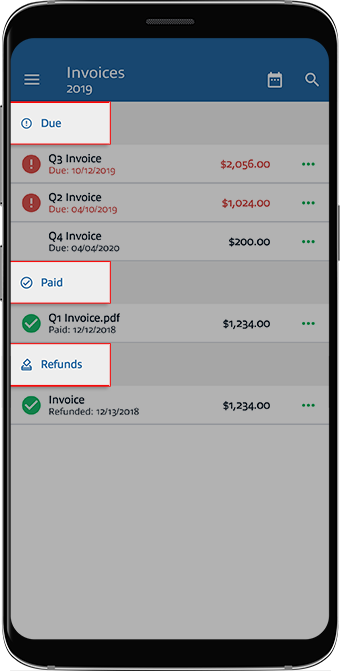
- Invoice Due
- Paid Invoices
- Refunded
- In Process
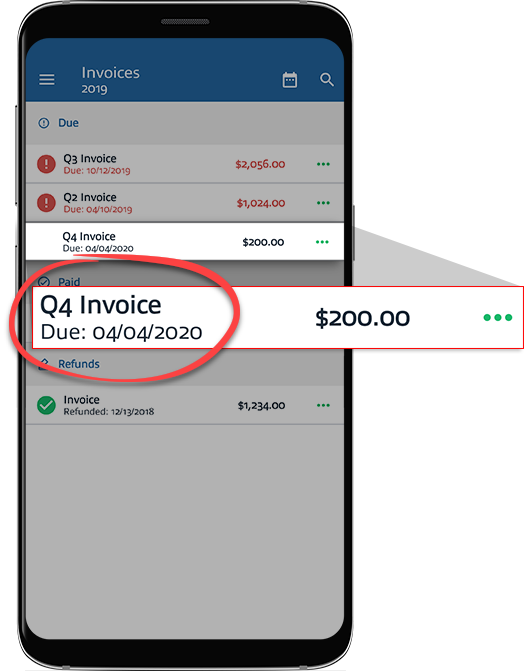
noteYou can only pay invoices under theInvoice Duesection. - Select anInvoiceto view it in the PDF Viewer.
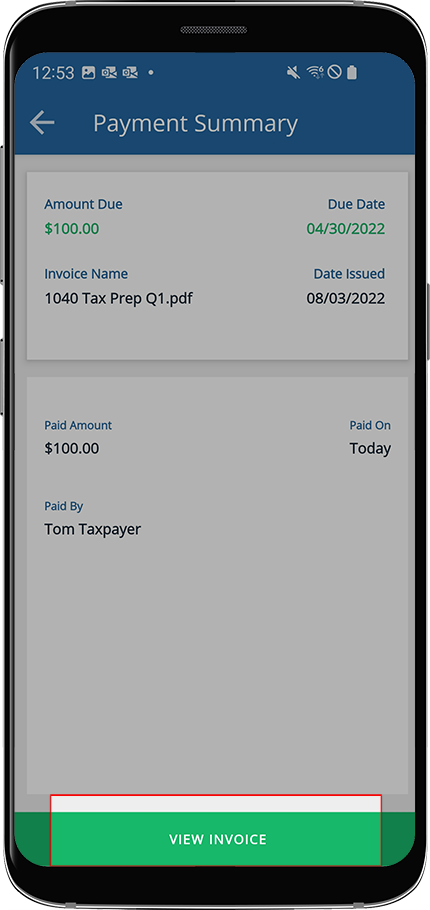
- If the document opens thePayment Summaryscreen, selectVIEW INVOICE.
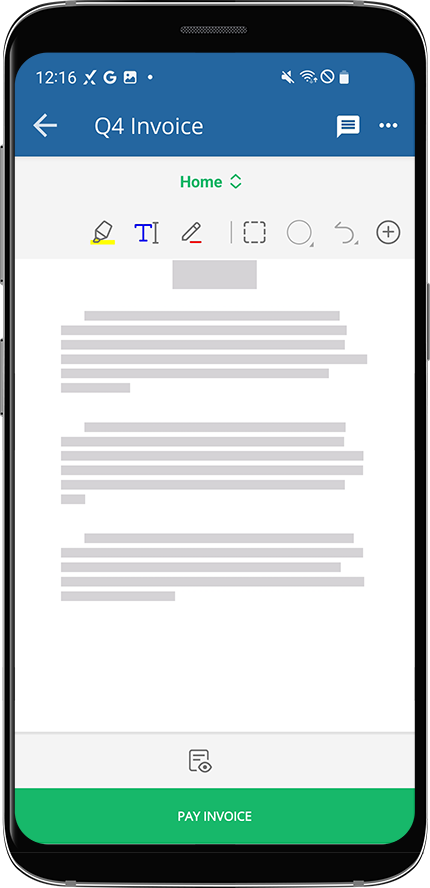
- The invoice will open in the PDF Viewer screen.
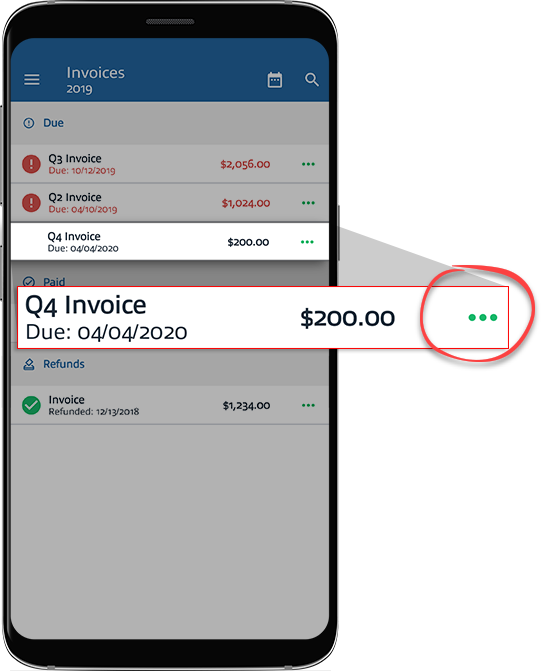
- Alternatively, you can Select theMenuicon on the invoice you want to pay.When the window appears, select
 View Invoice.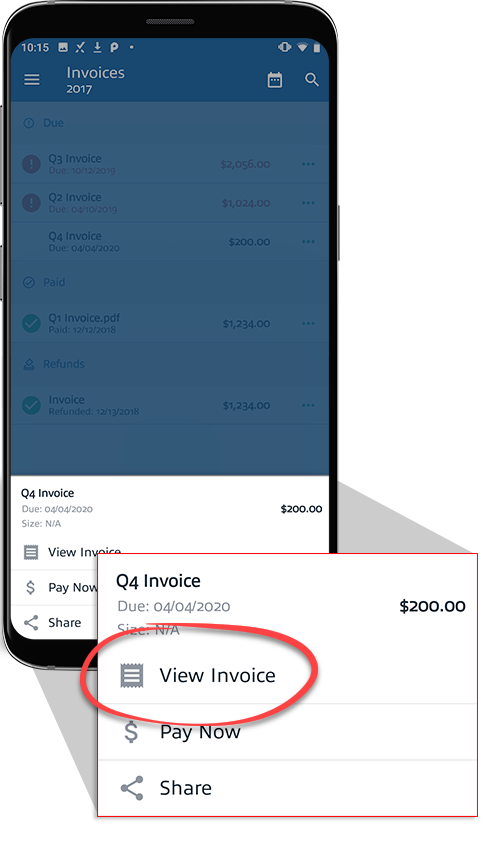
- You can also search for invoices from theOverview,Documents,Messages,Tax Returns, andInvoicesscreen.