Message from panels in document view, questionnaire, tax return, tax payments, and invoices
Show all hidden content
TaxCaddy lets you message your tax professional for each document, questionnaire, tax return, tax payment, and invoice in your account. Messages you send regarding each document will create a new thread associated with that item in
Messages
.TaxCaddy.com on PC, Mac, or tablet
Follow these steps to send messages from the document viewer panel, the questionnaire, tax payments, invoices, and your tax returns using TaxCaddy.com on your PC, Mac, or tablet.
- Sign in to TaxCaddy.com and go to the document, questionnaire, or return you want to message your tax professional regarding.
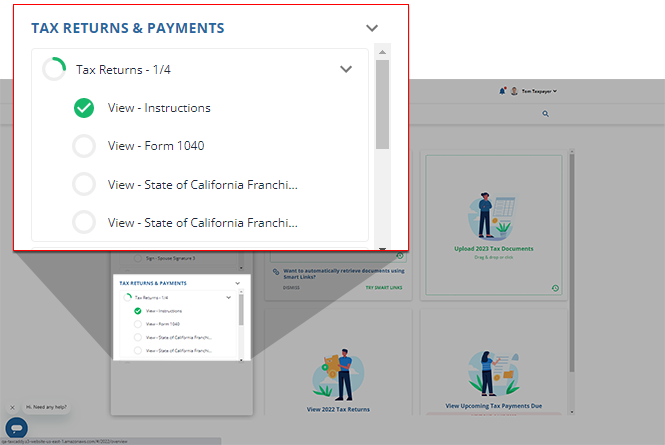
- SelectMessageto message your tax professional about the selected document.
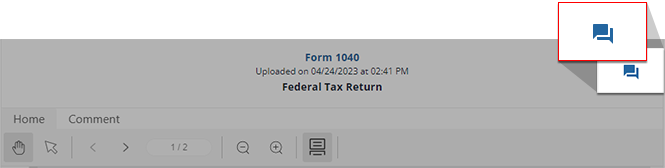
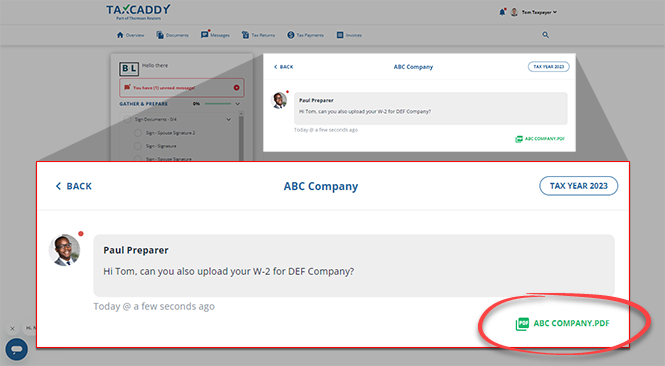
- The title of the requested item you've opened will appear at the top of theMessagepanel.
- Enter your message into the field then selectSEND. The number at the bottom indicates the number of remaining characters. Your tax professional's reply appears in this thread.
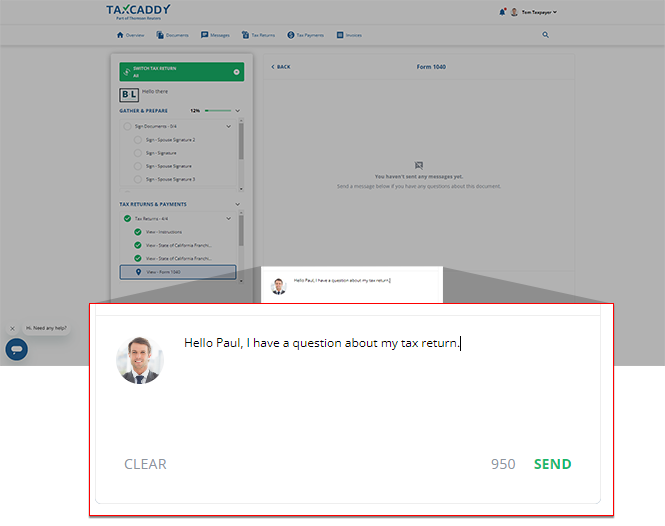
- The thread is also accessible from theMessagestab.When viewing a message thread pertaining to a document, you'll see the document title (in green) within the message thread. You can select the title to view the document.
iOS mobile app
Follow these steps to message from panels in the document view, the questionnaire, and your return using the iPhone mobile phone app.
- Sign in to the TaxCaddy mobile app and go to the document, questionnaire, or return you want to message your tax professional regarding.noteMessage panels appear for all of your documents, your returns, and the questionnaire.
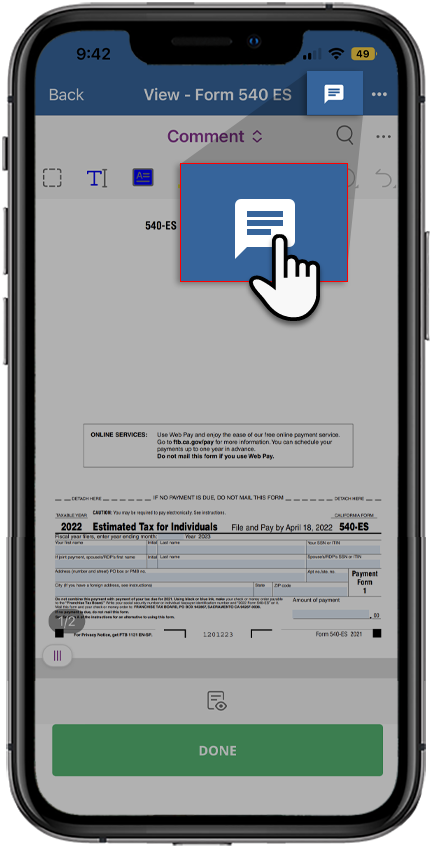
- On the top bar, tapMessage.
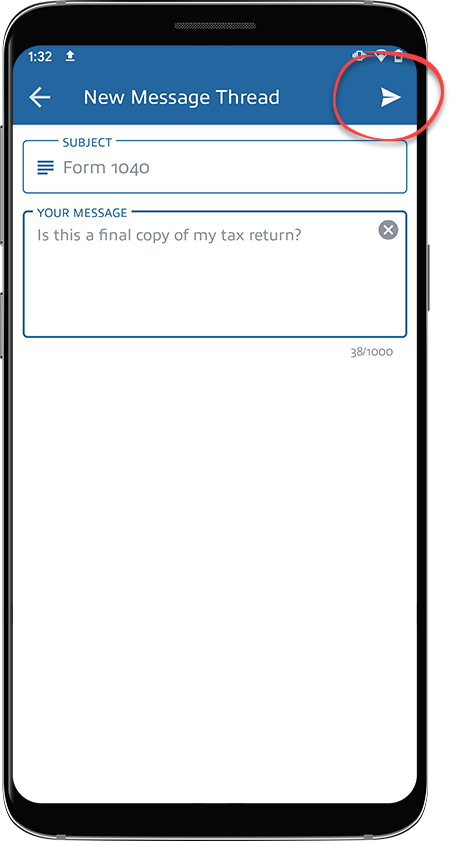
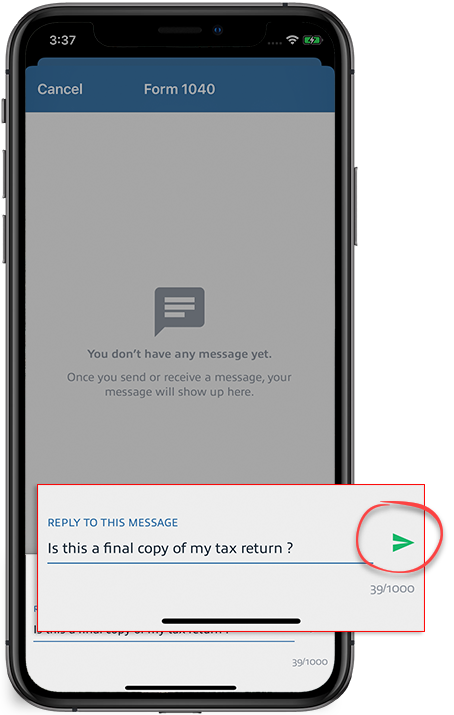
- Enter your message in the field and tapSend. Your tax professional's reply appears in this thread and is also accessible inMessages.
Android mobile app
Follow these steps to send messages from the Document Viewer, the questionnaire, and your tax return using the Android mobile phone app.
- Sign in to the TaxCaddy mobile app and go to the document, questionnaire, or return you want to message your tax professional regarding.noteMessage panels appear for all of your documents, tax returns, and the questionnaire.
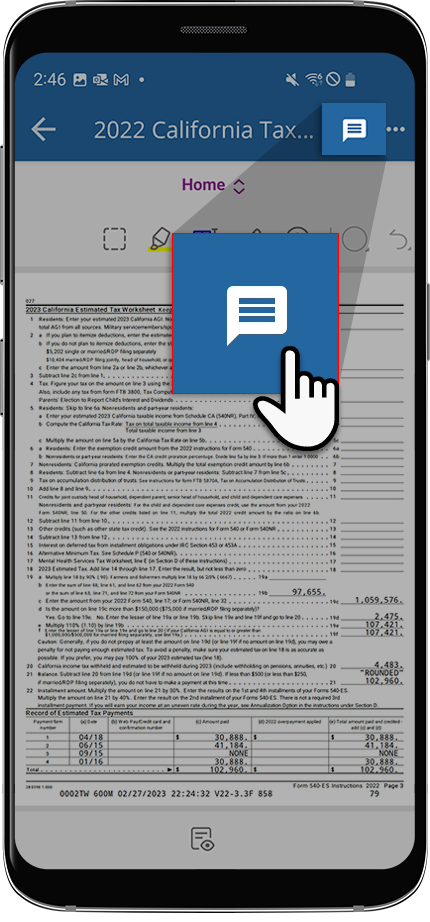
- On the top bar, tapMessage.
- Enter your message in the field then tapSend. Your tax professional's reply will appear in this thread. You can access all your messages from theMessagesscreen.