Read and reply to messages
Show all hidden content
Your correspondence with your tax professional is available in the
Task List
and on the Messages
screen.TaxCaddy.com on PC, Mac, or tablet
Follow these steps to read and reply to messages using TaxCaddy.com on your PC, Mac, or tablet.
- Sign in to TaxCaddy.com.
- If you have any unread messages from your tax professional, you'll see an alert for unread messages above yourTask List. Select the notification to open your unread messages in TaxCaddy.
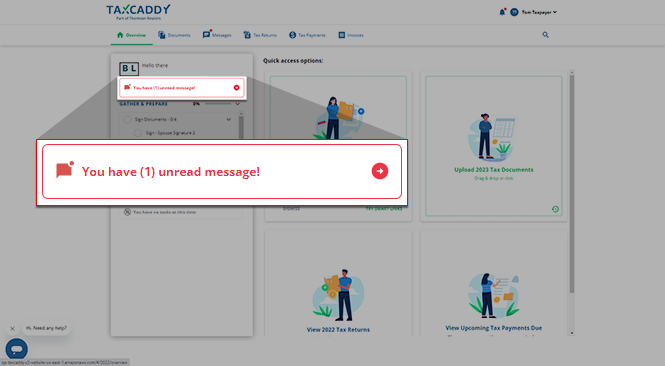
- Your unread message threads will be listed in theOverviewscreen. Select one of the listed message threads to view the conversation in its entirety.
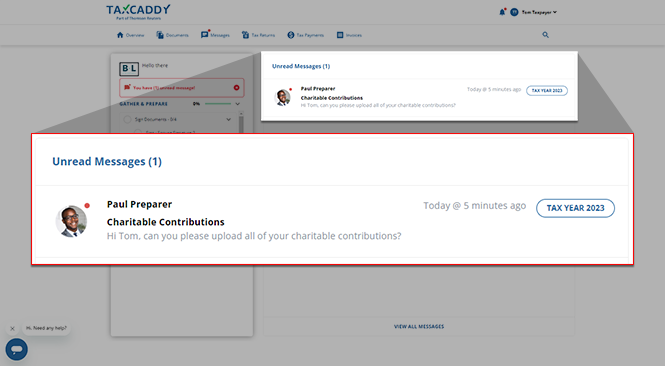
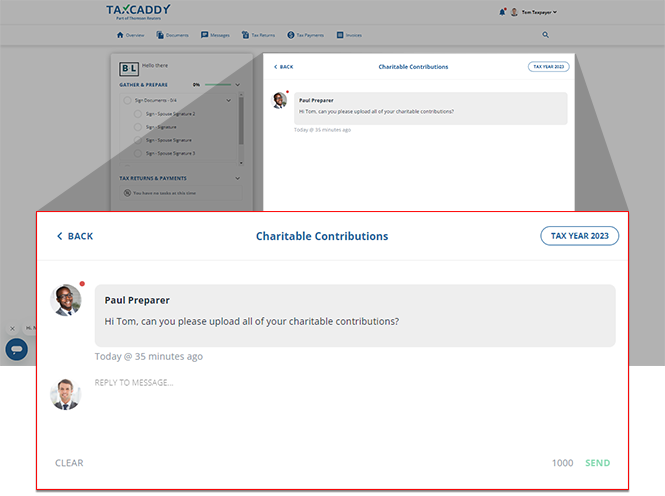
- You will see a subject line andTAX YEARappear at the top of the message thread.
 When applicable, documents to which the selected message thread pertains to will appear as well.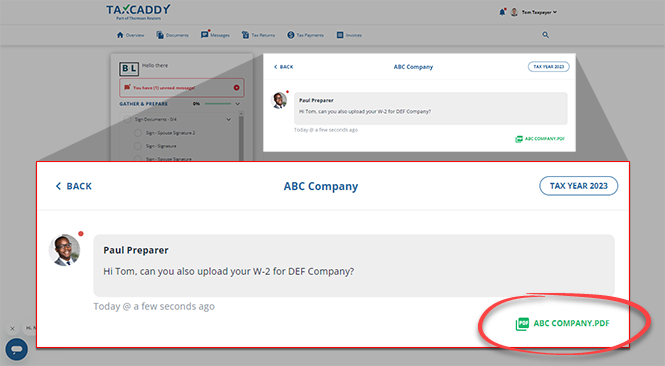
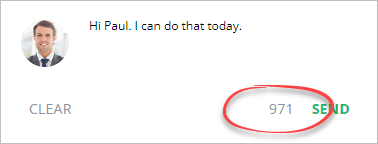
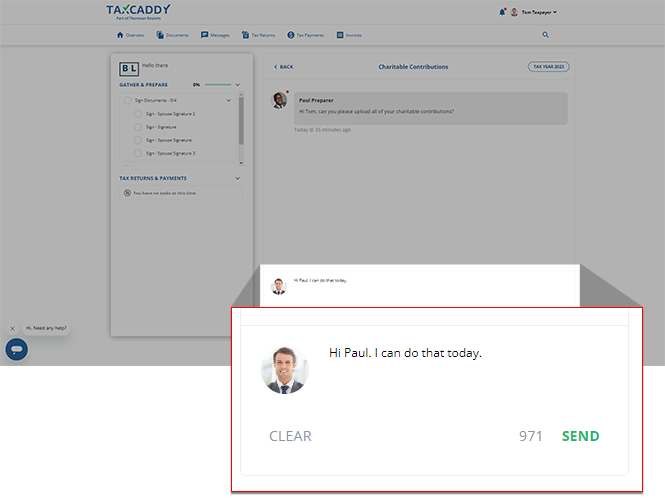
- While the message thread is open, you can enter your response in the space provided. Once you've entered your response, selectSENDto send it within the thread.noteThe number next to send denotes the number of remaining characters available in this message.
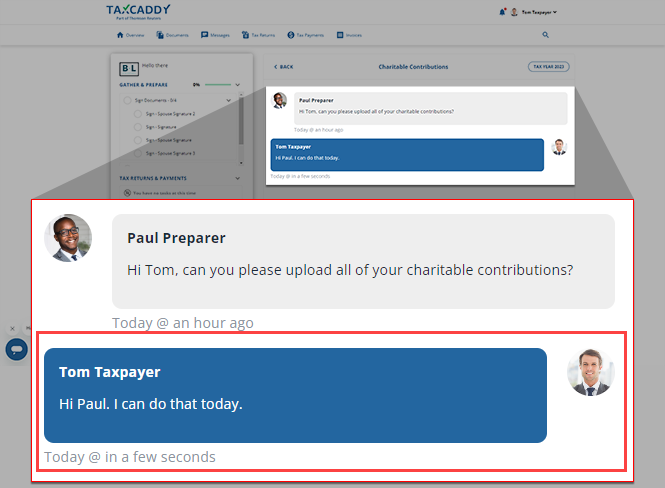
- The new message appears following the other messages in the same thread.
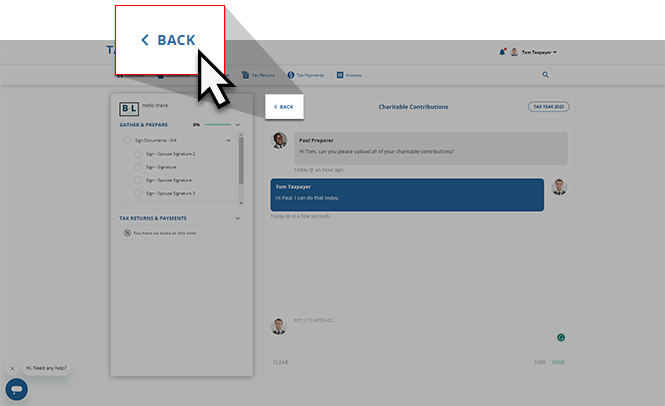
- SelectBACKto return to your unread messages once you're done in your current thread. If you don't see any other threads, this means there are no unread messages in your TaxCaddy account.
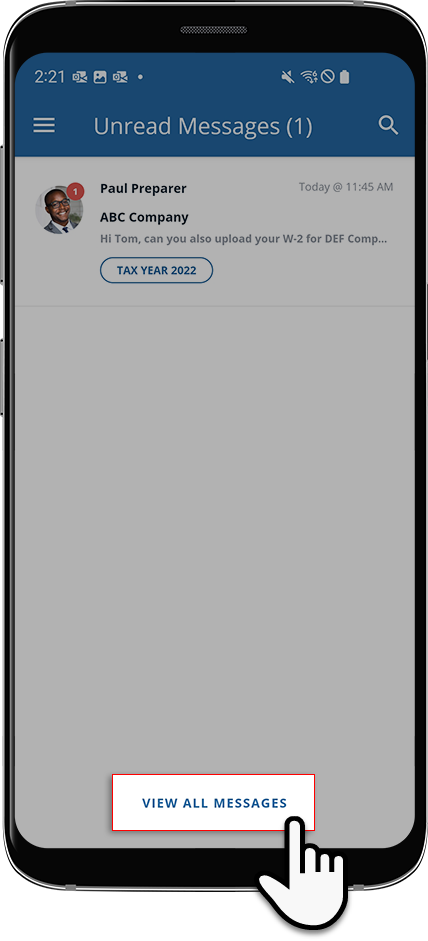
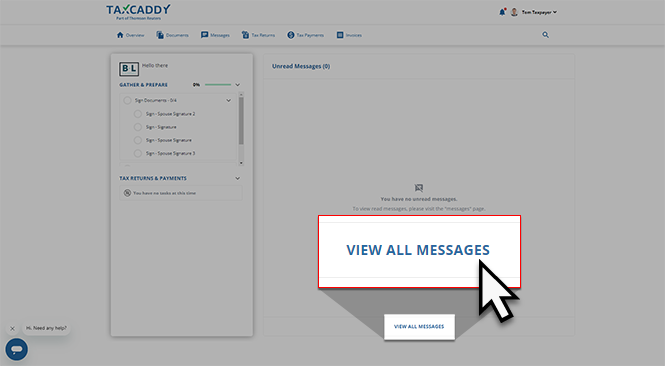
- You can selectVIEW ALL MESSAGESto view all of your TaxCaddy messages, read or unread.
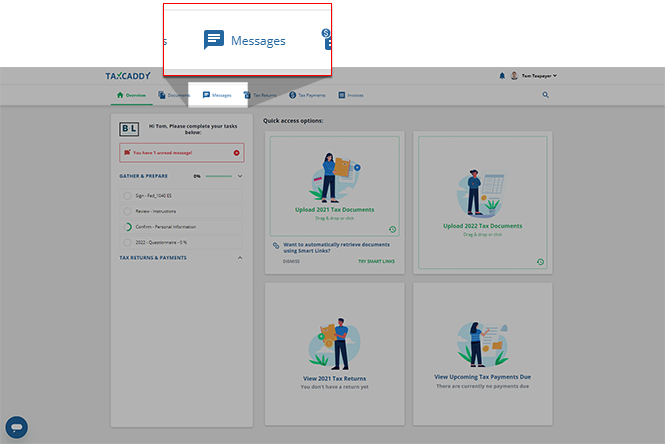
- Alternatively, you can select theMessagestab to be directed to your TaxCaddy messages as well.
 You may see a notification indicating that you have any unread messages in another tax year. SelectVIEW TAX YEAR (X)to review any unread messages in that tax year.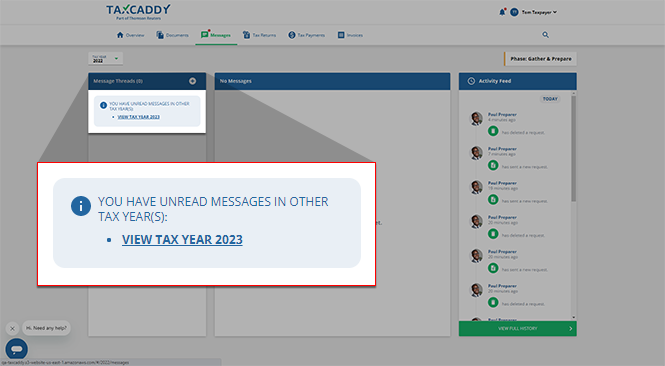
iOS mobile app
Follow these steps to read and reply to messages using the iPhone mobile phone app.
- If you have any unread messages from your tax professional, you will see an alert for unread messages appear on top of yourTask List. Select this notification to go directly to your unread messages.
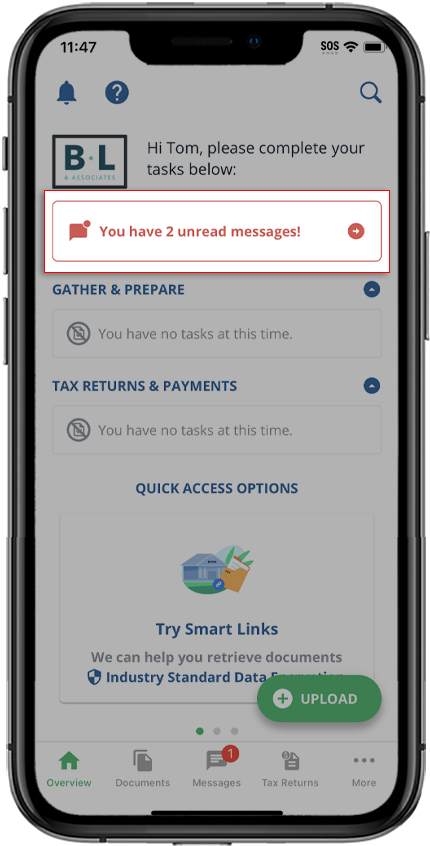 If you don’t see this alert, you can selectMessagesfrom the navigation bar.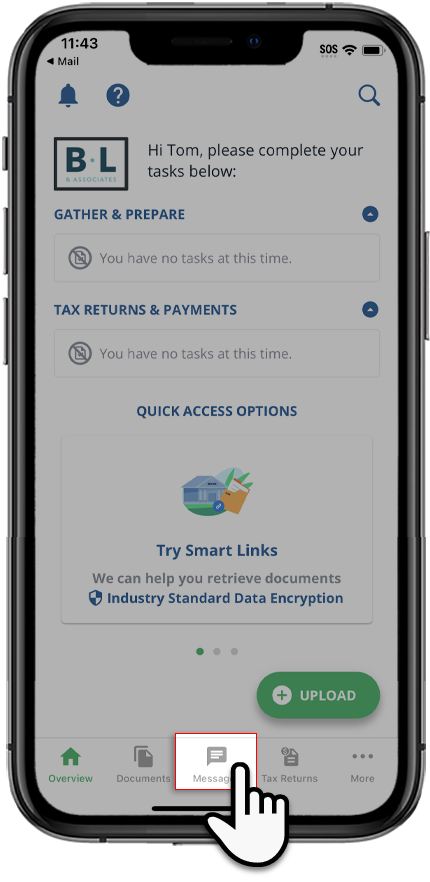
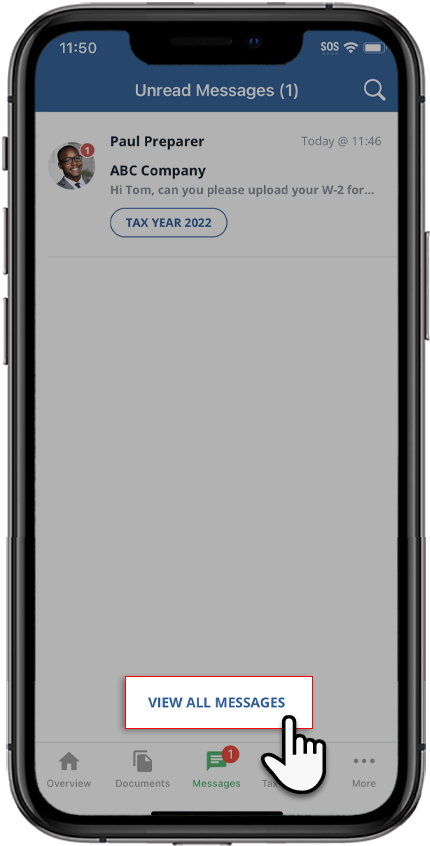
- Your unread message threads will be listed on theUnread Messagesscreen. You can select one of the listed message threads to view the conversation in its entirety.
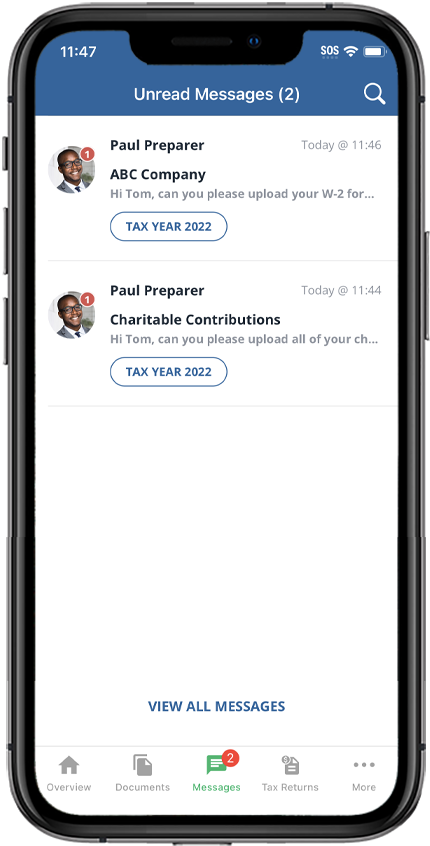 noteEach message will have a correspondingTAX YEARbadge to indicate which year the message is regarding.
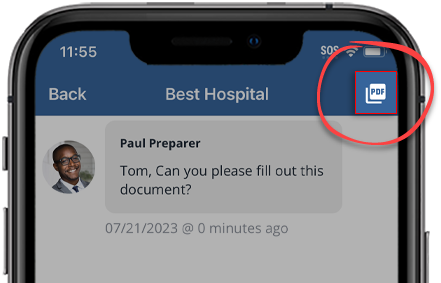
- You will see the subject line for the conversation appear at the top of the thread. When applicable, threads pertaining to a specific document will displayPDF.
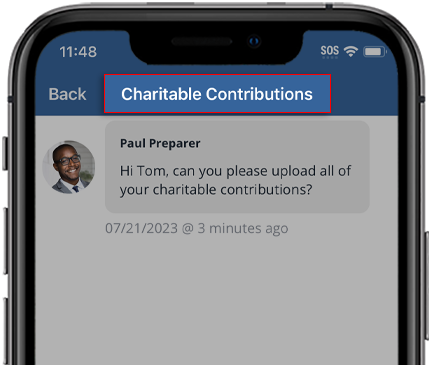
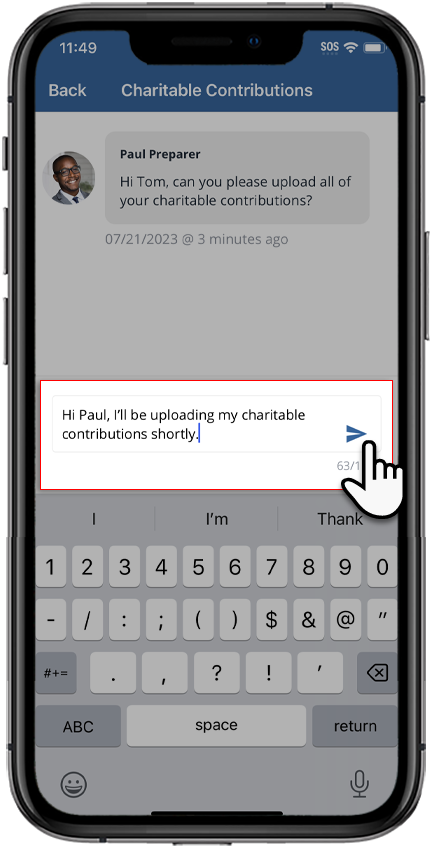
- Select inReply to message...to enter your reply.
- Enter your message, then selectSendto send your reply.
 Once sent, the new message appears following the other messages in the same thread.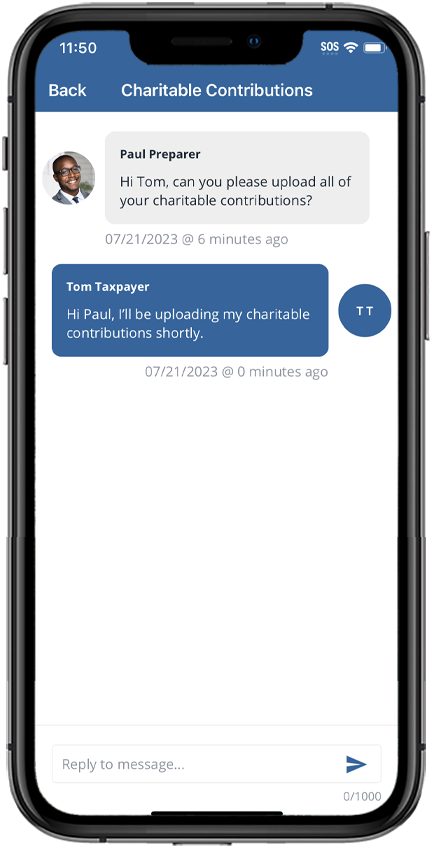
- SelectBackto return to your unread messages. If no message threads are displayed, this means there are no unread messages in your TaxCaddy account
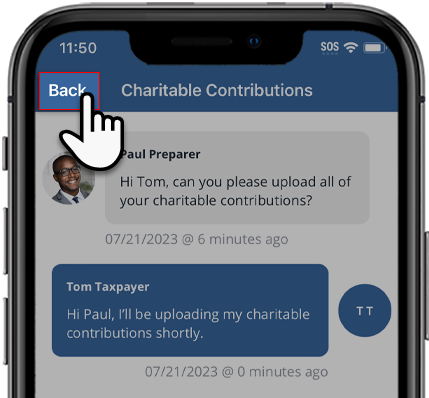
- After returning to theUnread Messagesscreen, you can open another message thread, or selectVIEW ALL MESSAGESto view all of your TaxCaddy messages, read or unread.
Android mobile app
Follow these steps to read and reply to messages using the Android mobile phone app.
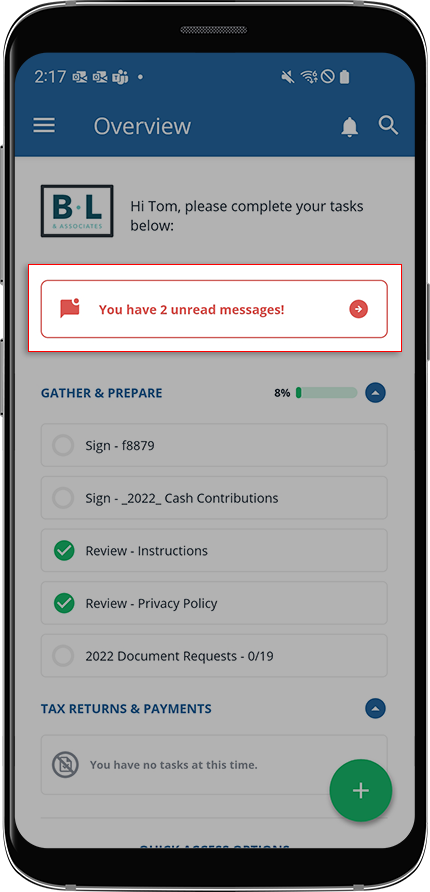
- If you have any unread messages from your tax professional, you will see an alert for unread messages appear on top of yourTask List. Select this notification to be taken directly to your unread messages.
 If you don't have any unread messages in your account, you can open theMenuon the left, then selectMessages.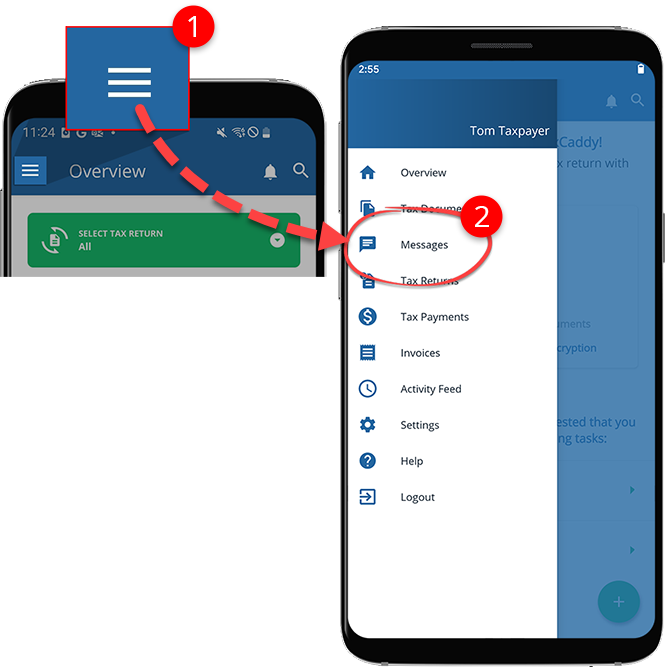
- Your unread message threads will be listed on theUnread Messagesscreen. You can select one of the listed message threads to view the conversation in its entirety.
 noteEach message will have a correspondingTAX YEARbadge to indicate which year the message is regarding.
 - You will see the subject line for the conversation appear at the top of the thread. When applicable, threads pertaining to a specific document will displayPDF.

- Select inReply to this message...and enter your message, then selectSendto send your reply.
 Once sent, the new message appears following the other messages in the same thread.
- SelectBackto return to your unread messages. If no message threads are displayed, this means there are no unread messages in your TaxCaddy account.

- After returning to theUnread Messagesscreen, you can open another message thread, or selectVIEW ALL MESSAGESto view all of your TaxCaddy messages, read or unread.