1041 tax returns for trust or estate
Show all hidden content
Any income tax liability (income, deductions, gains, losses) of the estate or trust can be reported to the taxing authority with a 1041 tax return. Your tax professional can create a new 1041 tax return profile in your TaxCaddy account, letting you upload documents for your estate or trusts.
TaxCaddy.com on PC, Mac, or tablet
View your 1041 profile
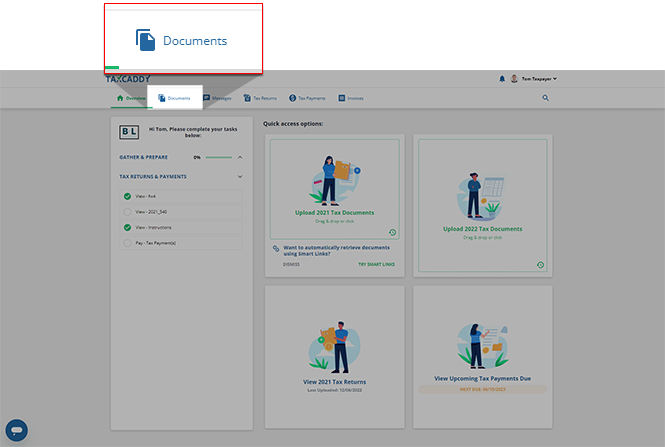
On the screen, select
Overview
Documents
.
Select
TAX YEAR
to select the tax year and TAX RETURN
to select your 1041 tax return.note
The 1041
TAX RETURN
dropdown only appears when enabled by your tax professional. Use the Messages
feature to contact your tax professional if you want to upload trust or estate documents.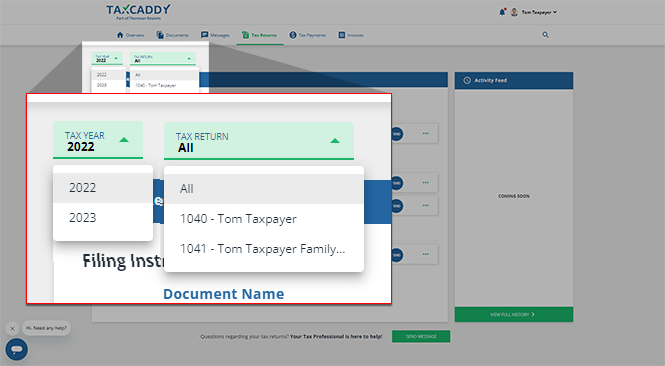
All
will be selected from the TAX RETURN
dropdown by default. When All
is selected, you will see all your documents of that tax year, regardless of the return type. The 1040
or 1041
badge indicates which tax return the document belongs to.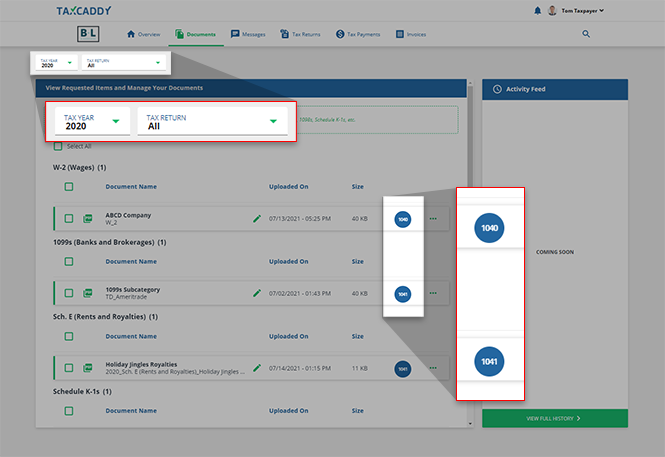
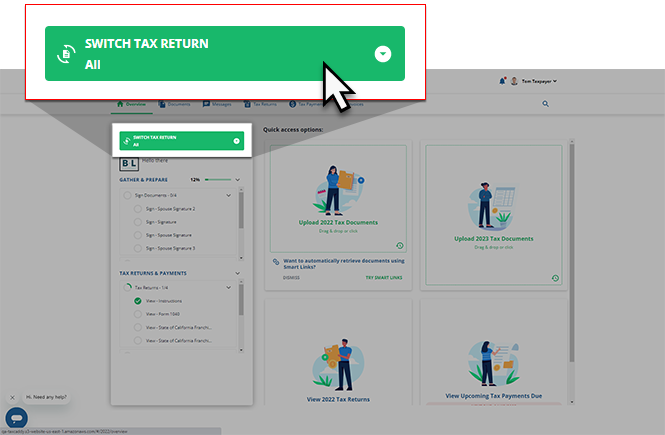
Alternatively, you can view a summary of your 1041 tasks by selecting it from the screen.
SWITCH TAX RETURN
menu in the panel next to the Overview
Upload your documents
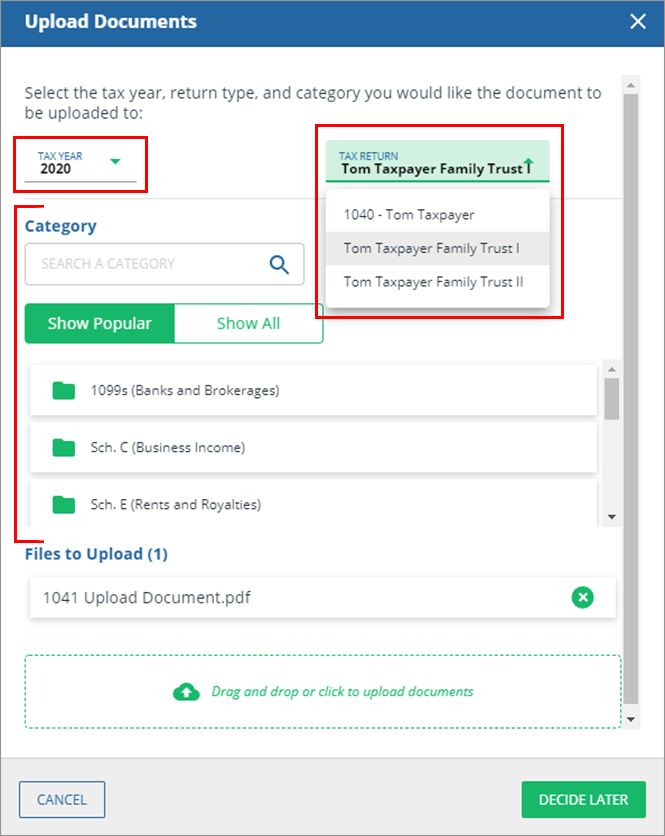
In the window, select the
Upload Documents
TAX YEAR
, TAX RETURN
, and CATEGORY
.
note
The 1041
TAX RETURN
dropdown only appears when enabled by your tax professional. Use the Messages
feature to contact your tax professional if you want to upload trust or estate documents.Select a
Subcategory
or select +Add New
to add a new subcategory.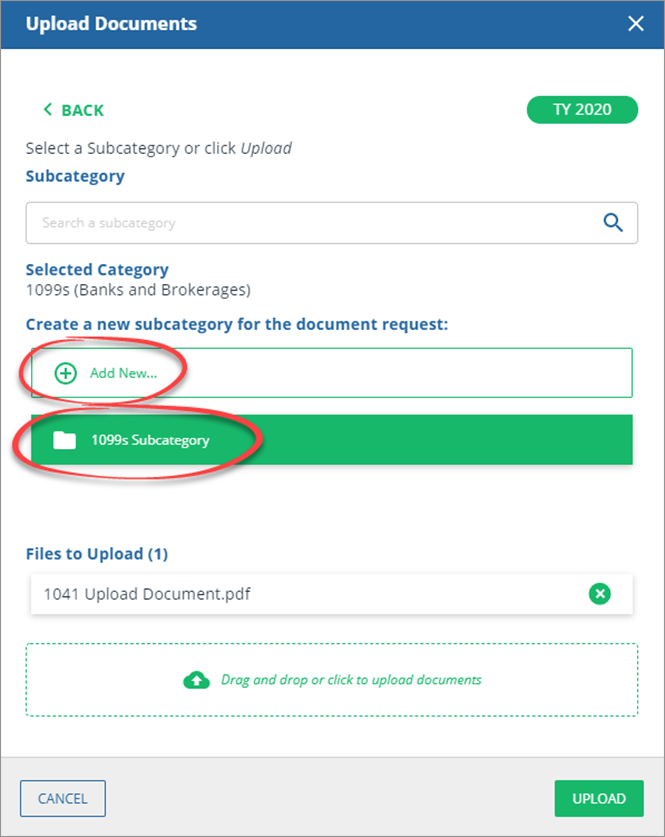
Once the document is uploaded, you can view it in the
Document Viewer
window. 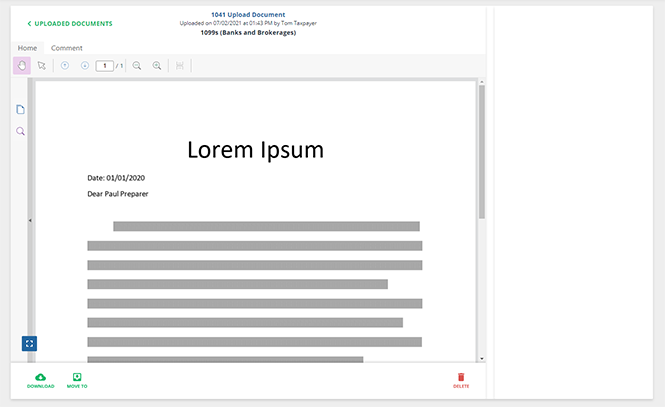
note
The
Messages
panel next to the document is coming soon.Move documents between your 1040 and 1041 tax return profiles
In the window, select the
Move Document
TAX YEAR
, TAX RETURN
, and CATEGORY
you would like to move the document you've chosen to.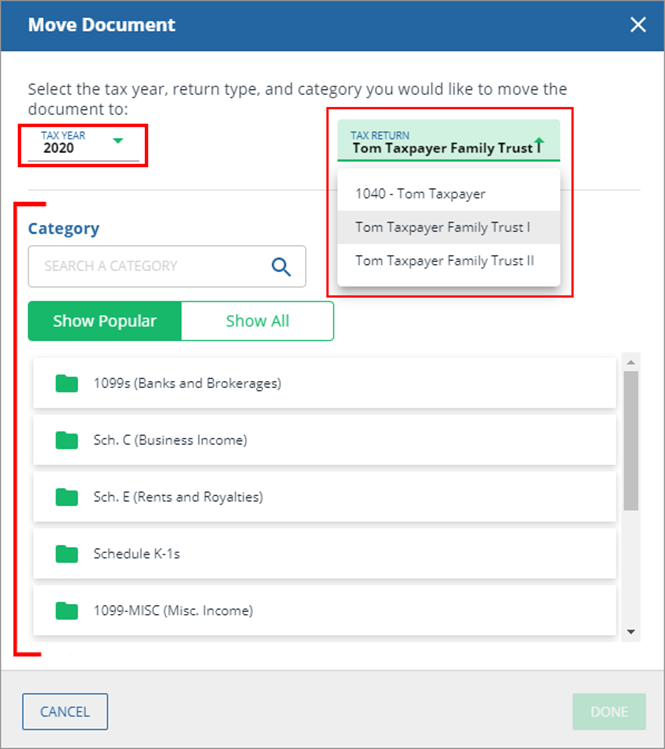
Sign documents
Any tax return uploaded to your account by your tax professional will be listed in your
Task List
under Sign
. Select a listed signature request to view it in the Overview
screen's document viewer.Alternatively, you can select the
Documents
tab and select the Requested Items
tab to view a complete list of the 1041 signature requests uploaded to your account.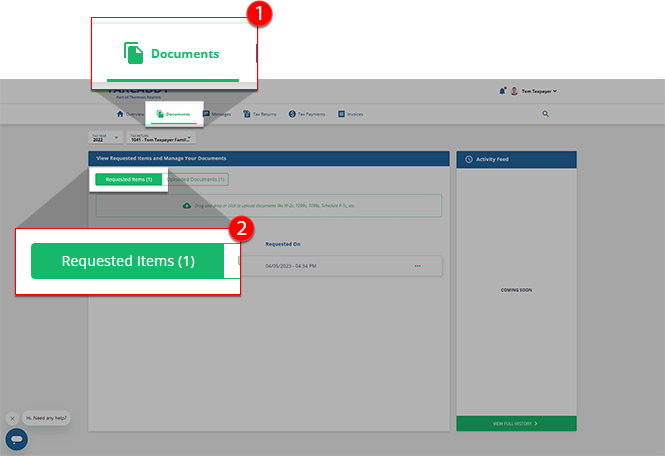
You can select your 1041 tax return profile from the
TAX RETURN
dropdown if your 1041 tax return doesn’t open by default.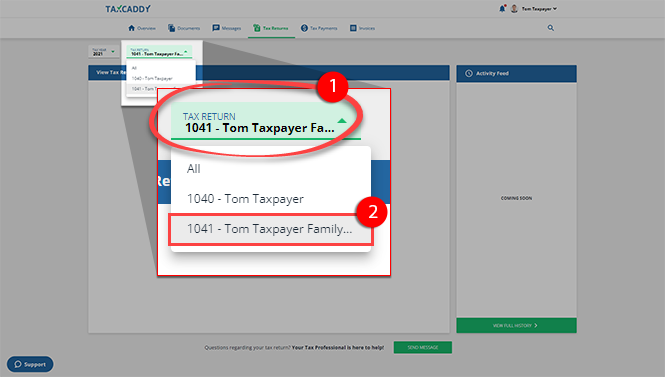
View 1041 Tax Returns
You can select your 1041 tax return profile from the
TAX RETURN
dropdown if your 1041 tax return doesn’t open by default.Any tax return uploaded to your account by your tax professional will be listed in your screen's document viewer.
Task List
under Tax Returns
. Select a listed tax return to view it in the Overview
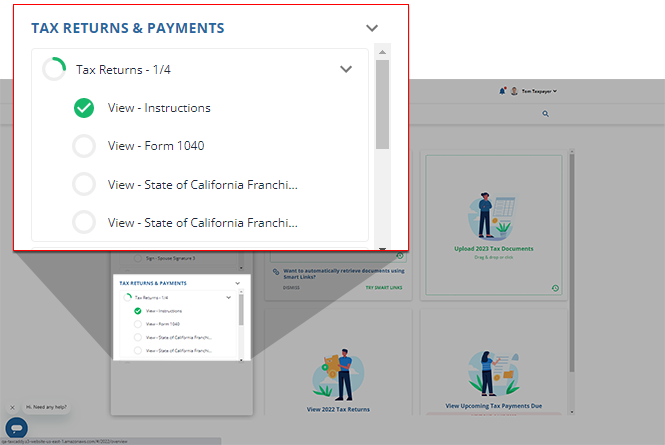
You can select
DOWNLOAD
within the document viewer window.
You can select
VIEW ALL TAX RETURNS
to view a complete list of your tax return documents uploaded to your account.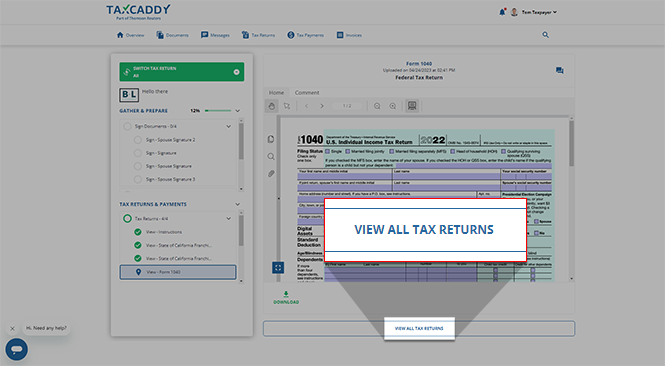
View 1041 Tax Payments
Any tax payment uploaded to your account by your tax professional will be listed in your
Task List
as Pay - Tax Payments
. Select this to open the Tax Payments
tab.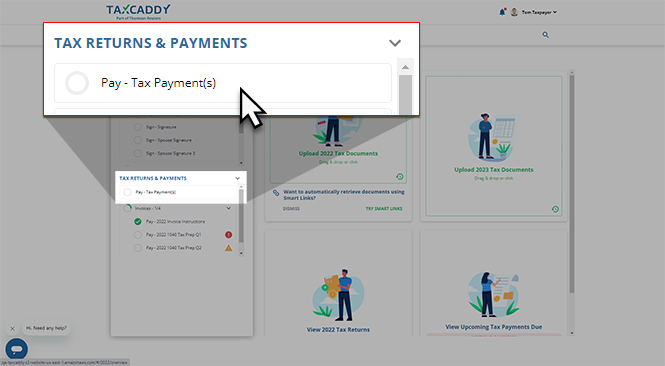
Select your 1041 tax return profile from the
TAX RETURN
dropdown if your 1041 tax return doesn’t open by default.iOS mobile app
View your 1041 profile
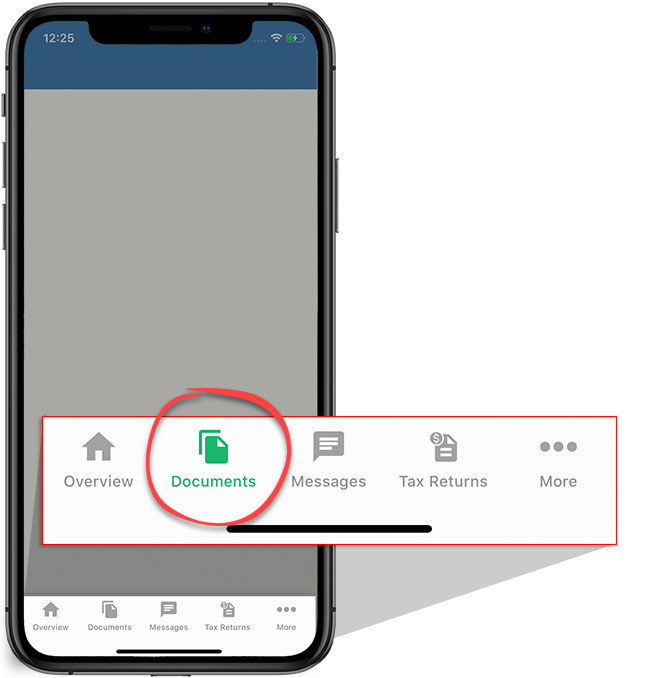
From the
Overview
screen, select Documents
.
Select the
Tax Return
dropdown to view your available tax return profiles.note
The 1041
TAX RETURN
dropdown only appears when enabled by your tax professional. Use the Messages
feature to contact your tax professional if you want to upload trust or estate documents.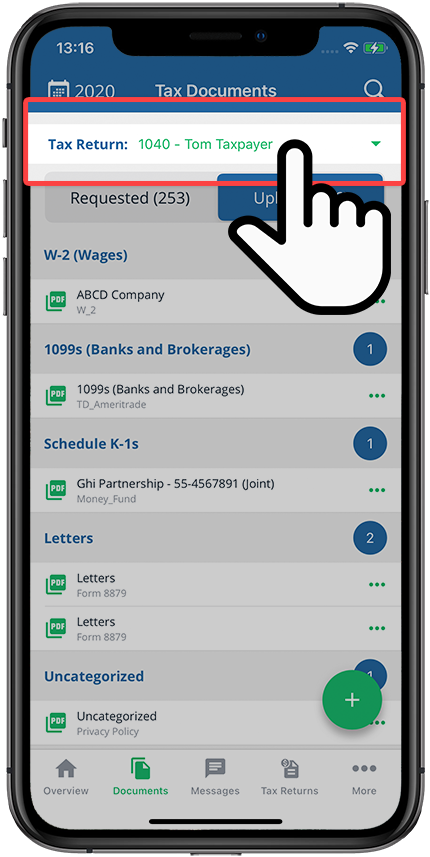
Select your 1041 tax return profile.
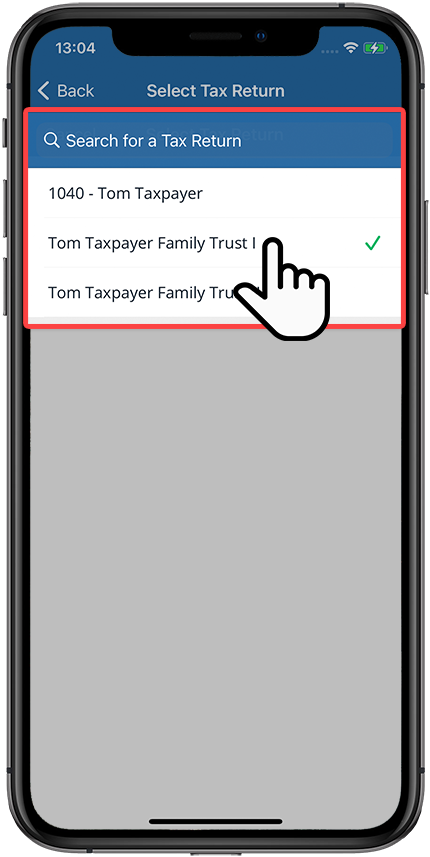
Your selected tax return profile will appear in the
Tax Return
menu.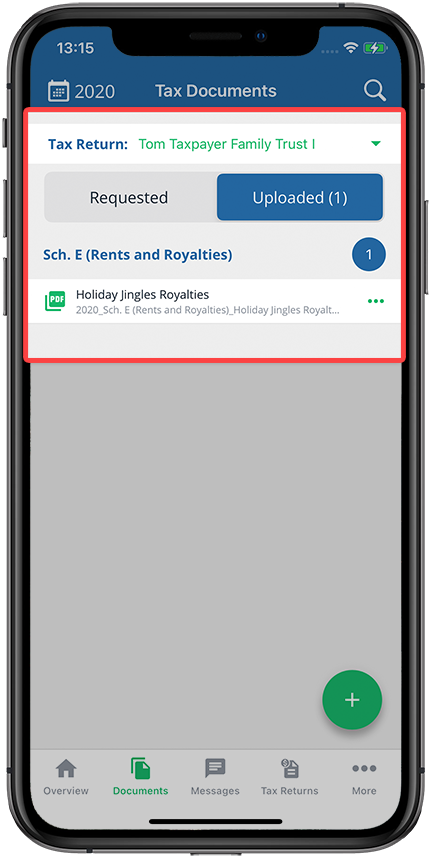
View a tax return
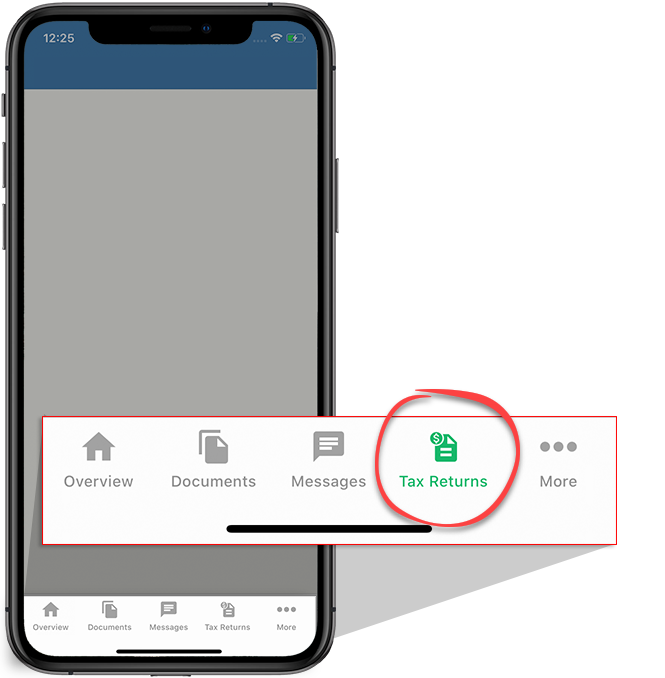
From the screen, select
Overview
Tax Returns
.
Select the tax year to view tax returns that belong to another tax year.
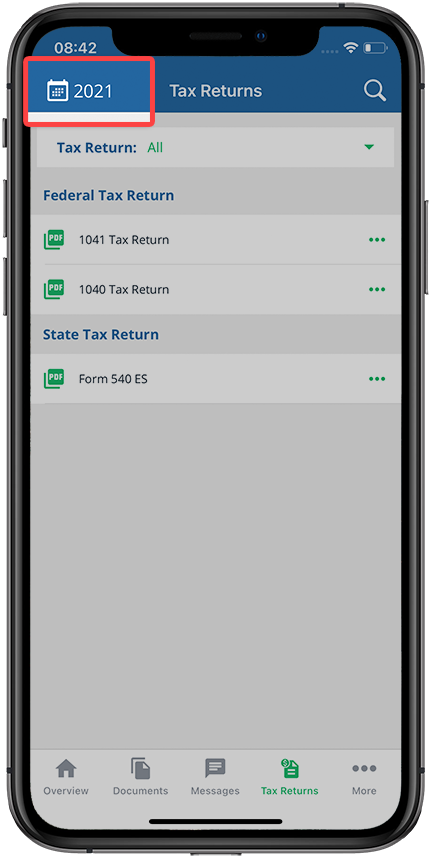
Select the
Tax Return
dropdown to view your available tax return profiles.note
The 1041
TAX RETURN
dropdown only appears when enabled by your tax professional.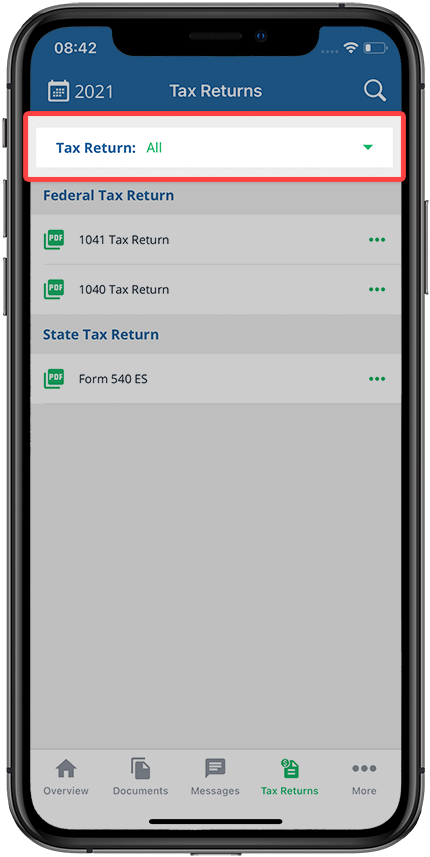
Select your 1041 tax return profile.
Upload and move your documents
Select
Tax Return
to select the tax return profile you are uploading or moving your documents to.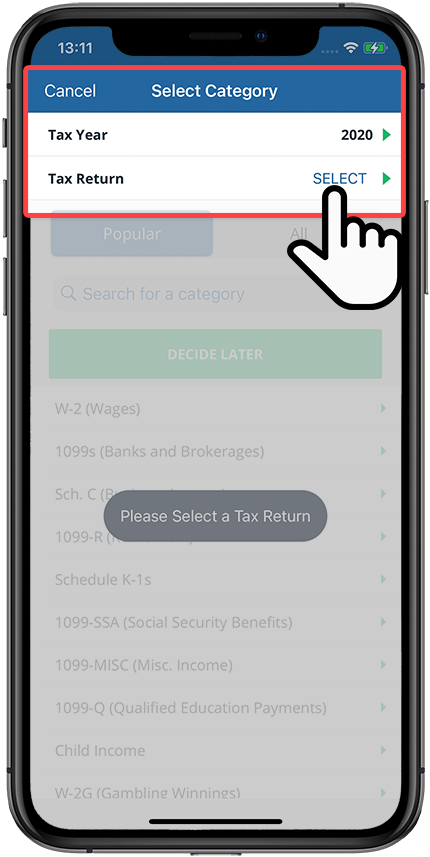
Select your 1041 tax return profile from the screen.
Select Tax Return
If necessary, select a subcategory or add a new subcategory. To add a new subcategory, select the
Add
icon.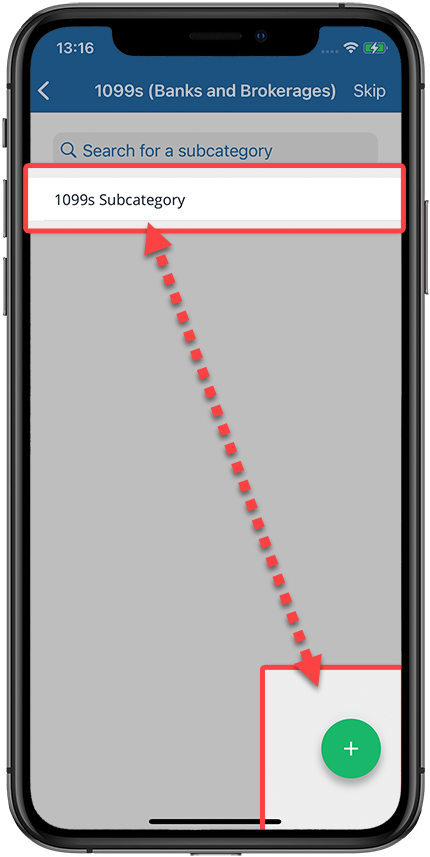
Sign documents
Select the
Tax Return
dropdown to select the tax return profile you are fulfilling a request for. Alternatively, you can select SELECT TAX RETURN
to select a tax return profile.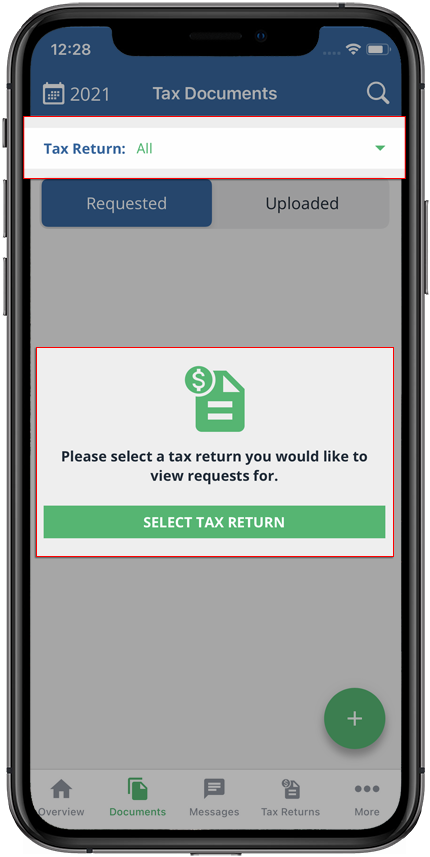
Select your 1041 tax return profile from the screen.
Select Tax Return
Select
Requested
to view requests from your tax professional.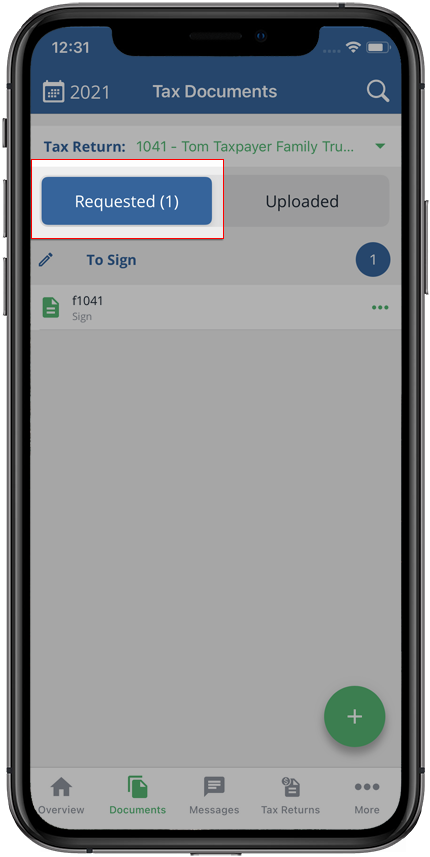
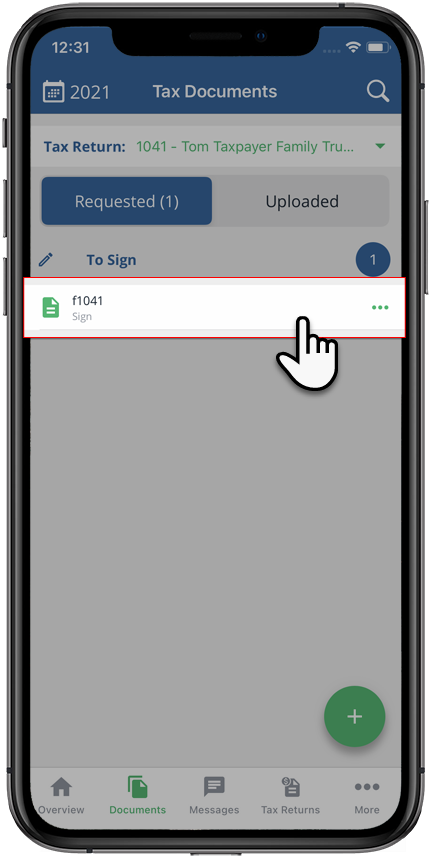
Select a request to open it in the Document Viewer.
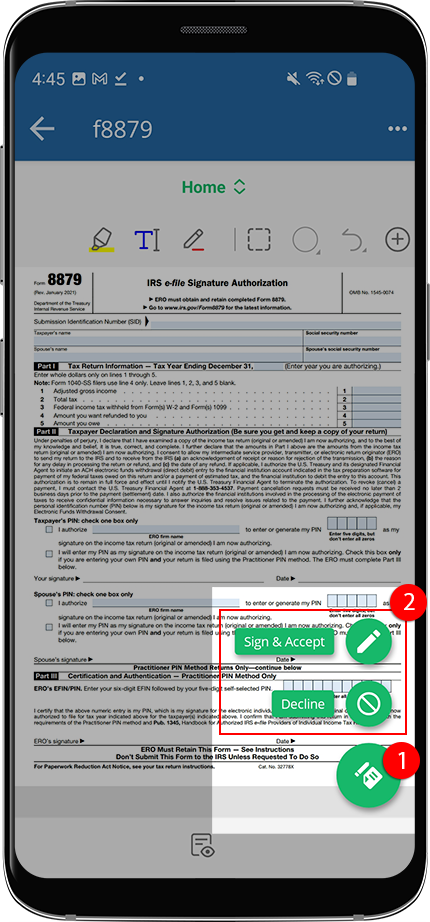
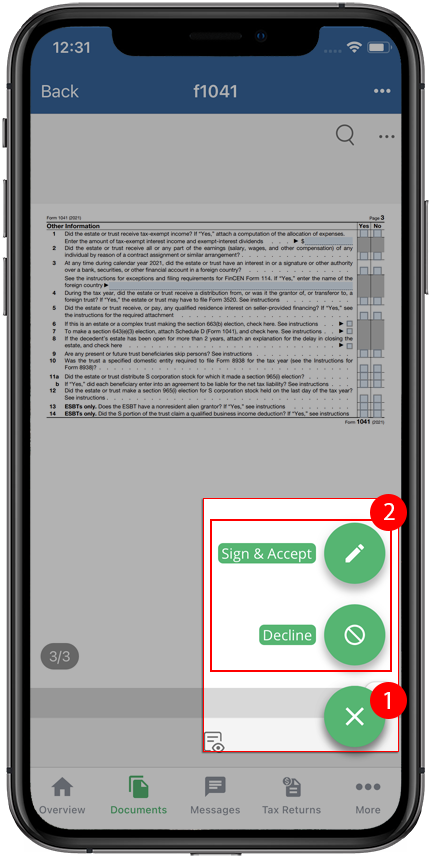
Select the
Sign
icon to open the signature menu.- SelectSign & Acceptto begin the signature process.
- SelectDeclineto decline signing the document.
Android mobile app
View your 1041 profile
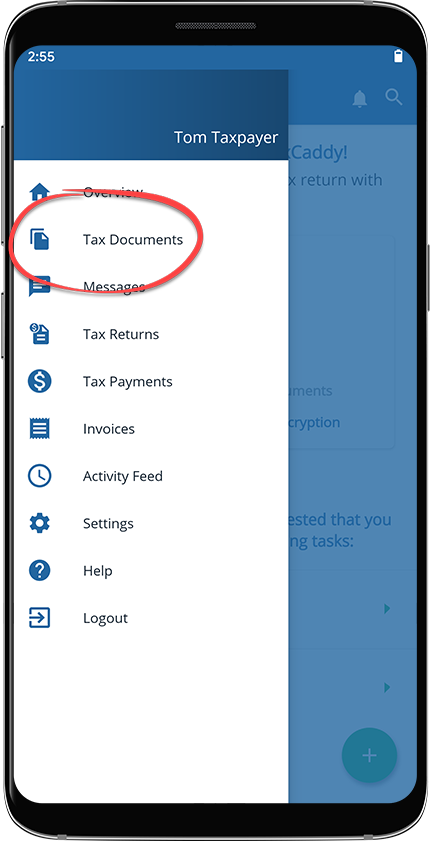
From the screen, select
Overview
Tax Documents
.
Select the
Tax Return
dropdown to view your available tax return profiles.note
The 1041
TAX RETURN
dropdown only appears when enabled by your tax professional. Use the Messages
feature to contact your tax professional if you want to upload trust or estate documents.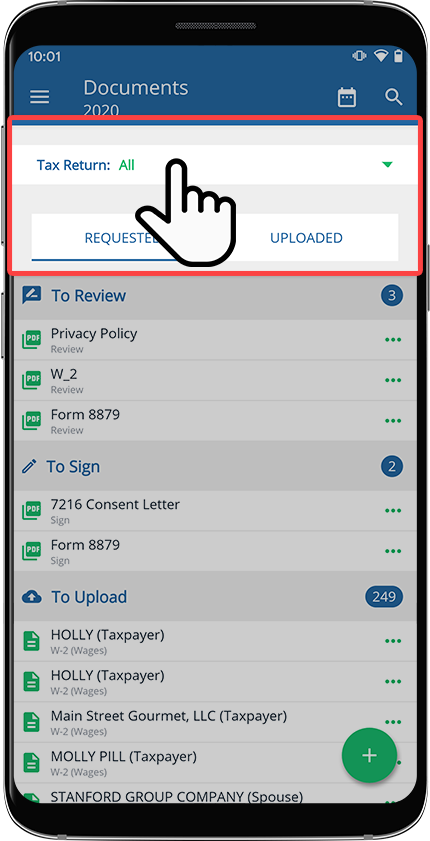
note
You can select
All
from the TAX RETURN
dropdown to display all documents from the selected tax year, regardless of tax return type.Select your 1041 tax return profile.
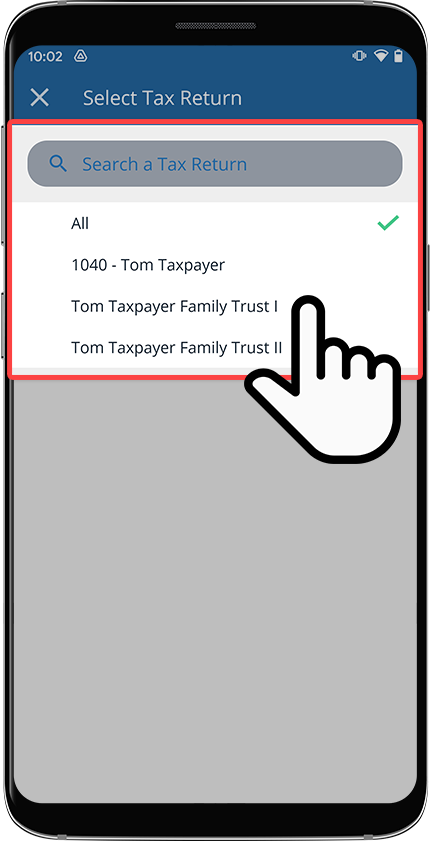
Your selected tax return profile will appear in the
Tax Return
menu.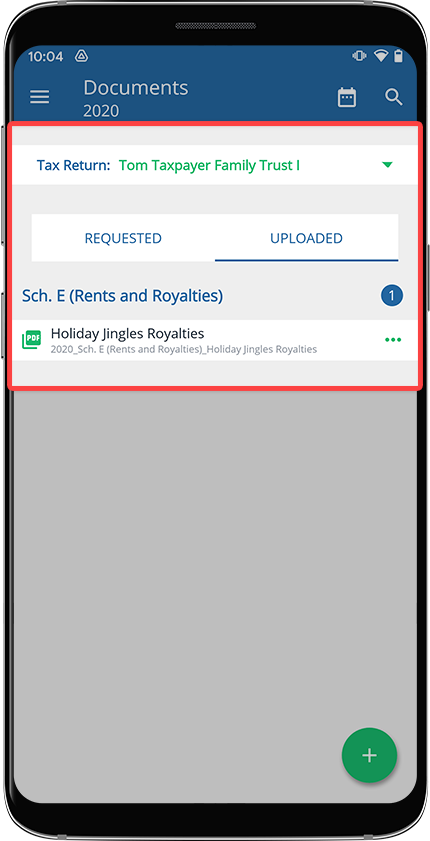
Upload and move your documents
Select
Tax Return
to select the tax return profile you are uploading or moving your documents to.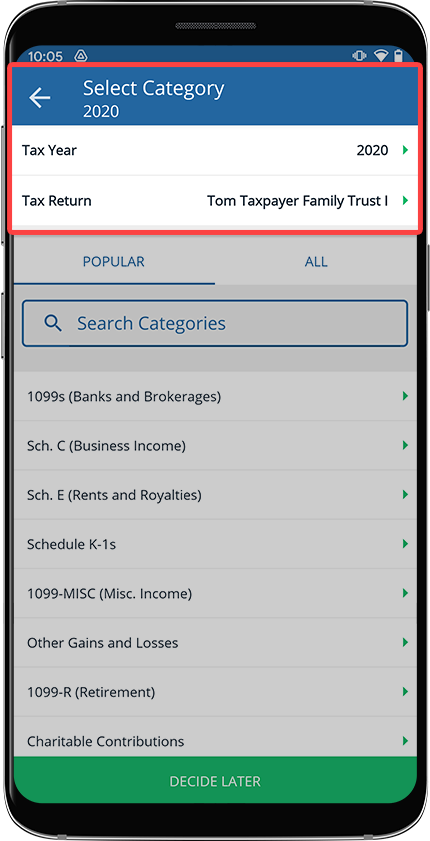
Select your 1041 tax return profile from the screen.
Select Tax Return
If necessary, select a subcategory or add a new subcategory. To add a new subcategory, select the
Add
icon.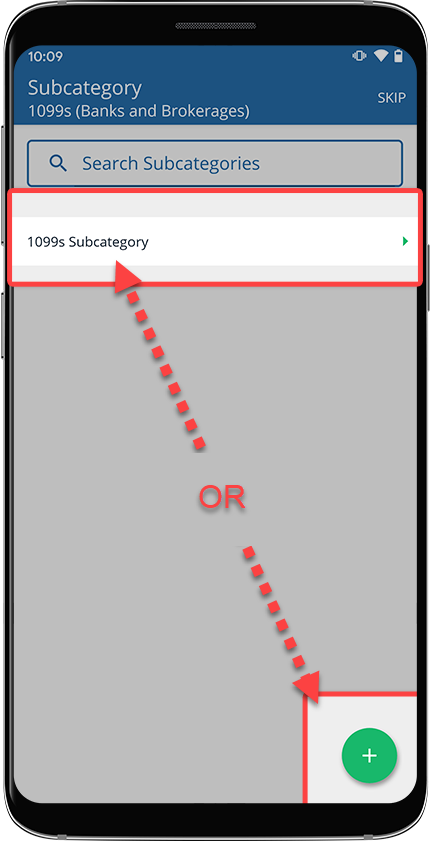
Sign documents
Select the
Tax Return
dropdown to select the tax return profile you are fulfilling a request for. Alternatively, you can select SELECT TAX RETURN
to select a tax return profile.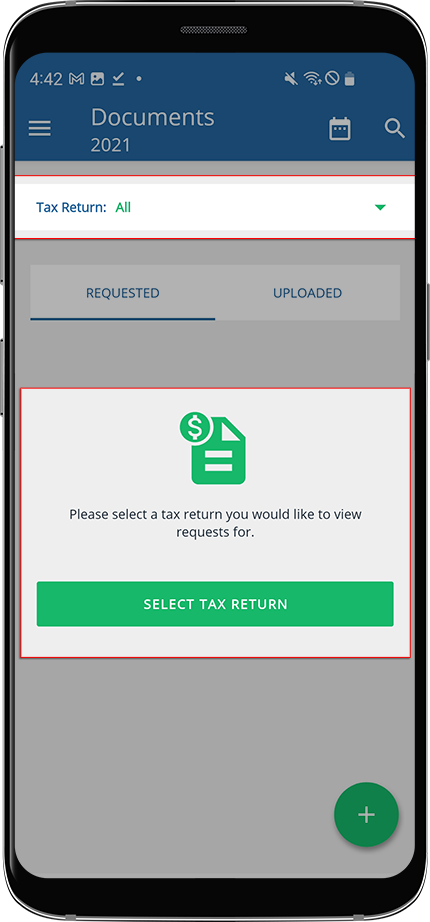
Select your 1041 tax return profile from the screen.
Select Tax Return
Select
REQUESTED
to view requests from your tax professional.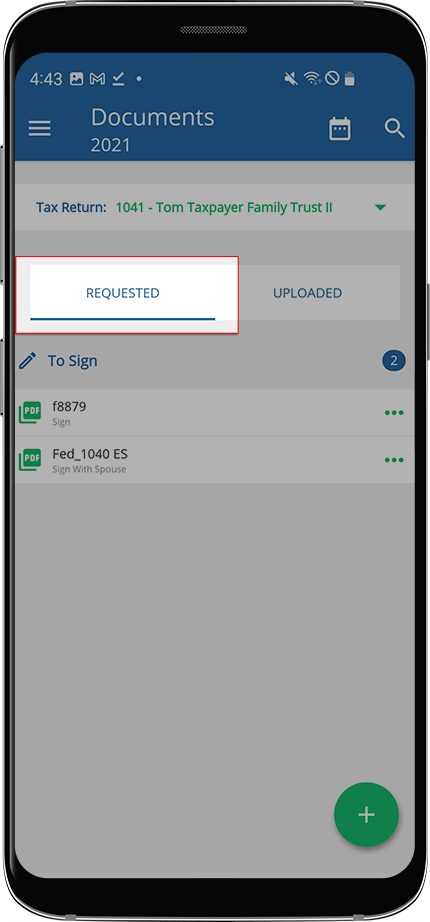
Select a request to open it in the Document Viewer.
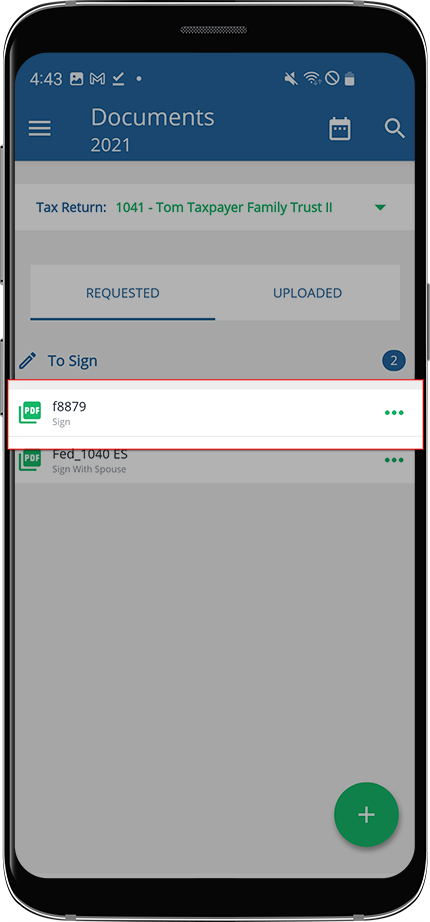
Select the
Sign
icon on to open the signature menu.- SelectSign & Acceptto begin the signature process.
- SelectDeclineto decline signing the document.