Connect with your tax professional
Show all hidden content
Your tax professional initiates a connection request in order to communicate with you and gain access to the tax documents in your TaxCaddy account. You can only be connected to a single tax firm or professional.
Here's what your tax professional can do once you accept their connection request:
- Send you messages and requests through TaxCaddy
- See documents uploaded to TaxCaddy by you or an additional user
- See documents retrieved from financial institutions you authorize
- Upload documents to your TaxCaddy account
TaxCaddy.com on PC, Mac or tablet
- Sign in to taxcaddy.com. If you were already signed in, ensure you are on theOverviewscreen. To view theOverviewscreen, selectOverviewon the main navigation bar.
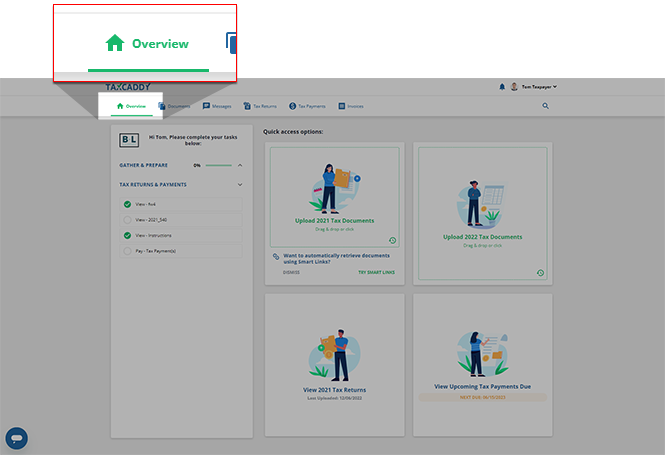
- A connection request from your tax professional firm will appear in the panel to the left. SelectAPPROVEto accept this connection request.noteIf you don't see a connection request from your tax professional, submit a support ticket or email taxcaddy.support@thomsonreuters.com for help.

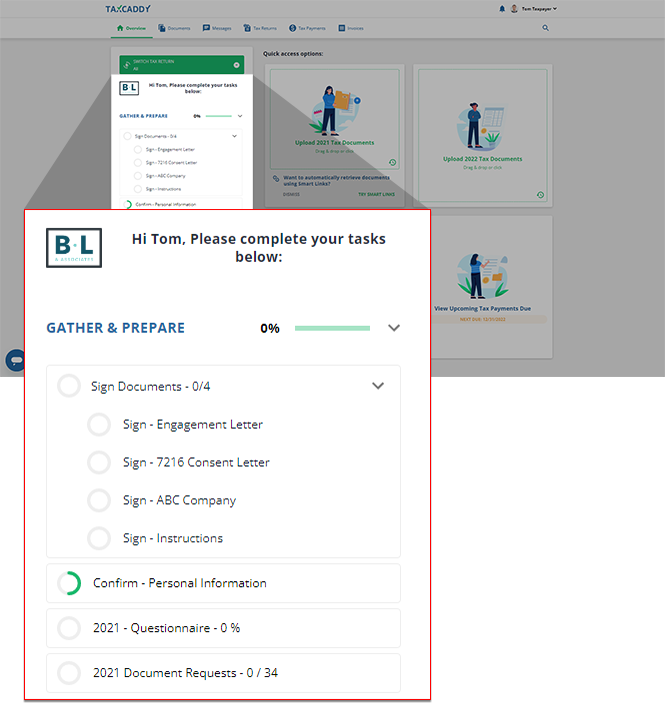
- Your tax professional is now connected to your TaxCaddy account. You'll receive requests from your tax professional in the task list. Example: [Your connected tax professional firm] has requested that you complete the following task.
 You can disconnect from your tax professional at any time.
Connection Request when logging in
You may also see a connection request from your tax professional when you sign in to TaxCaddy for the first time. Select the tax professional firm, then select
ACCEPT CONNECTION
.
iOS mobile app
Follow these steps to connect with your tax professional on your iPhone mobile phone app.
- Sign in to the TaxCaddy mobile app. If you were already signed in, make sure you are on theOverviewscreen. Select theOverviewicon on the navigation tab to view theOverviewscreen.

- Select the request indicating that your tax professional wants to connect with you.noteIf you don't see a connection request from your tax professional, submit a request or contact taxcaddy.support@thomsonreuters.com for help.

- To connect with your tax professional, selectACCEPT.

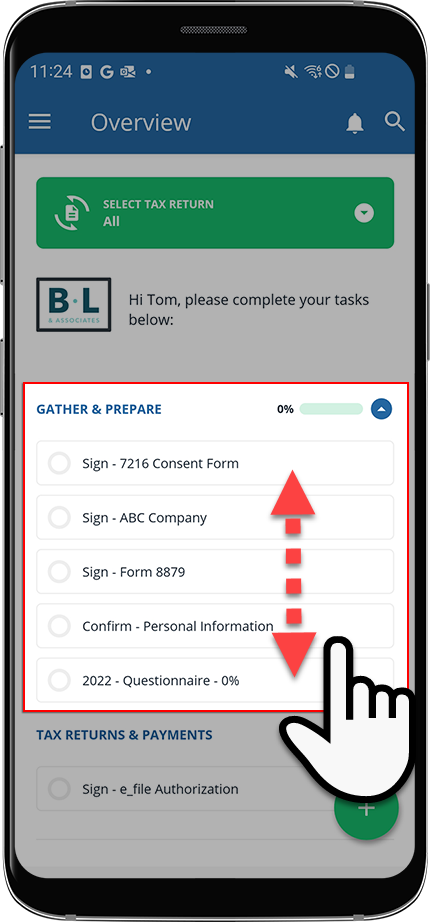
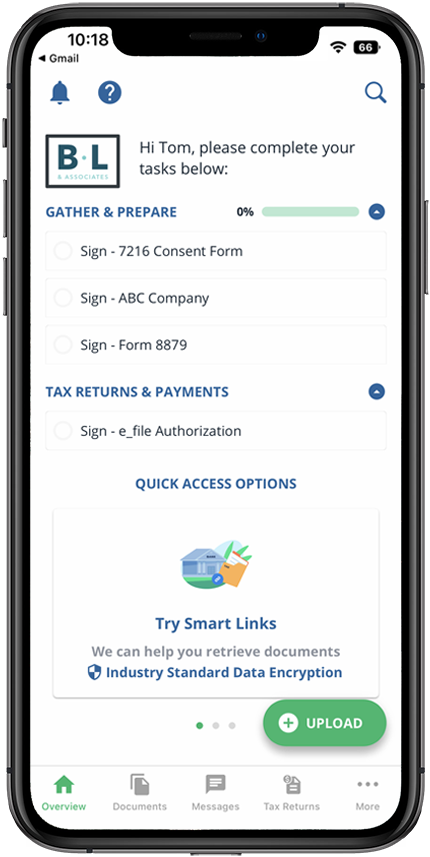
- After connecting with your tax professional, you will see requests from your tax professional in the task list. Swipe up/down to see all the requests/tasks. You can tap each item for additional information.
Android mobile app
Follow these steps to connect with your tax professional on your Android mobile phone app.
- Sign in to the TaxCaddy mobile app.
- Select the request indicating that your tax professional wants to connect with you.tipIf you don't see a connection request from your tax professional, submit a request or contact taxcaddy.support@thomsonreuters.com for help.

- To connect with your tax professional, selectAPPROVE.

- After connecting with your tax professional, you will see requests from your tax professional in the task list. Swipe up/down to see all the requests/tasks. You can select each item for additional information.