
Fill out the questionnaire
Show all hidden content
Your tax professional uses the questionnaire to get the information they need to prepare your taxes.
TaxCaddy.com on PC, Mac, or tablet
Follow these steps to fill out the questionnaire using TaxCaddy.com on your PC, Mac, or tablet.
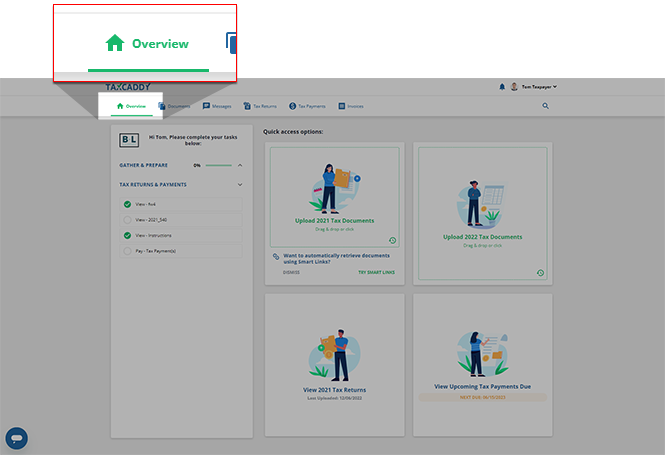
- Sign in to TaxCaddy.com. SelectOverviewon the main navigation bar to view theOverviewscreen.
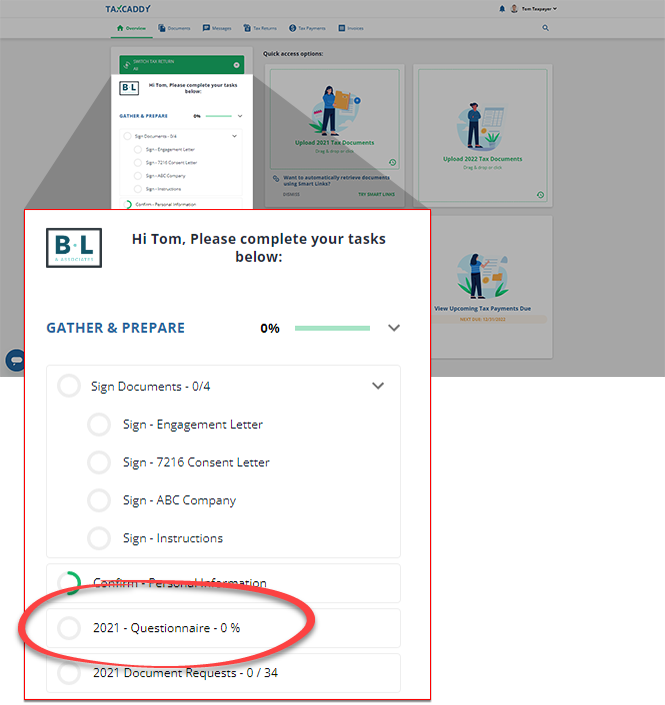
- Select the questionnaire request in theTask Listpanel.noteThePinicon will appear next to theQuestionnairerequest to indicate that you are currently viewing it.
 Your questionnaire will open next to yourTask List.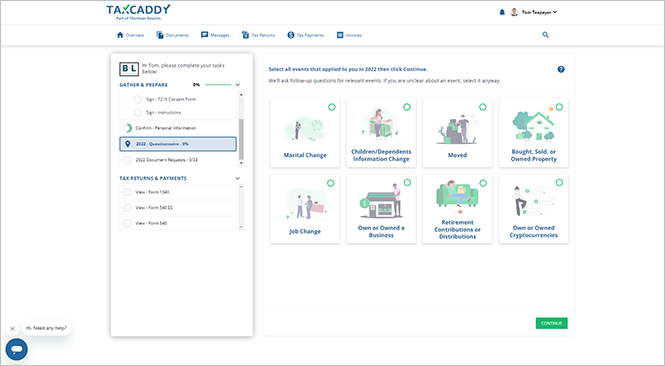
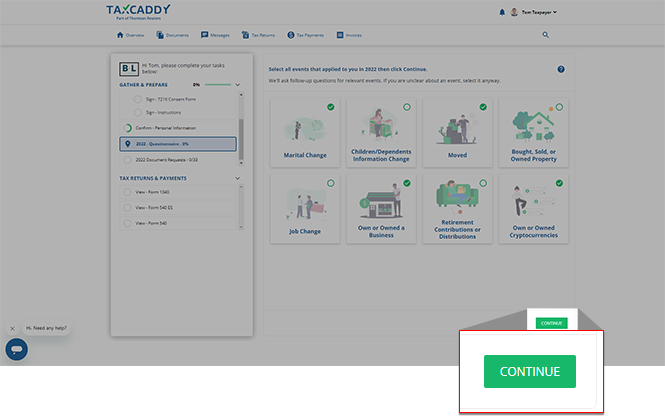
- To help your tax professional get you the best tax return possible, select all life-changing events that have happened to you over the tax year. Your tax professional will ask you questions based on the following life-changing events you select.
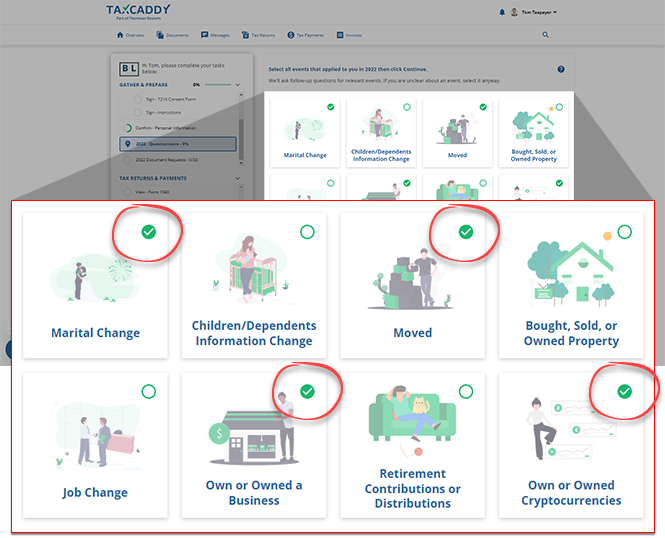 noteYou may need to scroll to see all listed life-changing events on your screen.Life-changing eventDescriptionMarital ChangeSelect this option if you are married or separated.Children/Dependent Information ChangeSelect this option if you have a child or a dependent.MovedSelect this option if you moved to a new location during the tax year.Bought, Sold, or Owned PropertySelect this option if you bought or sold a house or property.Job ChangeSelect this option if you changed jobs or were unemployed.Own or Owned a BusinessSelect this option if you started or owned a business during the tax year.Retirement Contributions or DistributionsSelect this option if you began or continued your retirement during the tax year.Own or Owned CryptocurrenciesSelect this if you bought or sold any cryptocurrencies (for example, bitcoin) during the tax year.To clear the selected life-changing event, select the life-changing event again, thenYESin the confirmation window.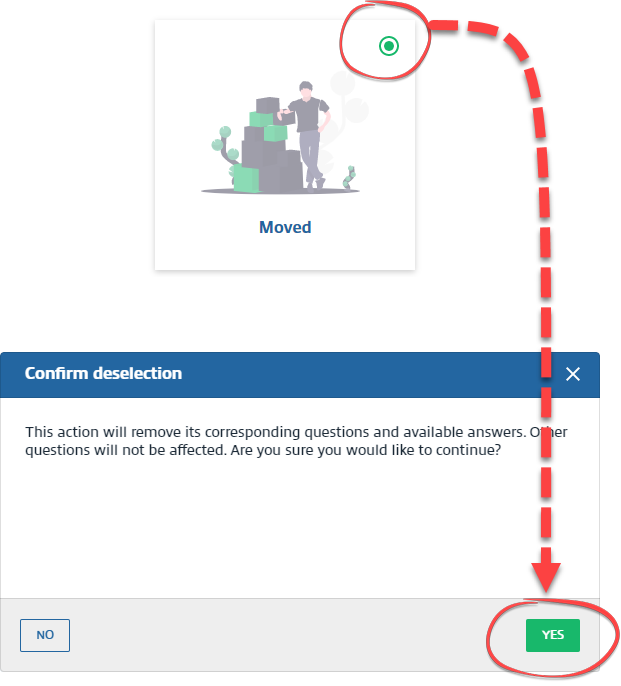
- SelectCONTINUE.
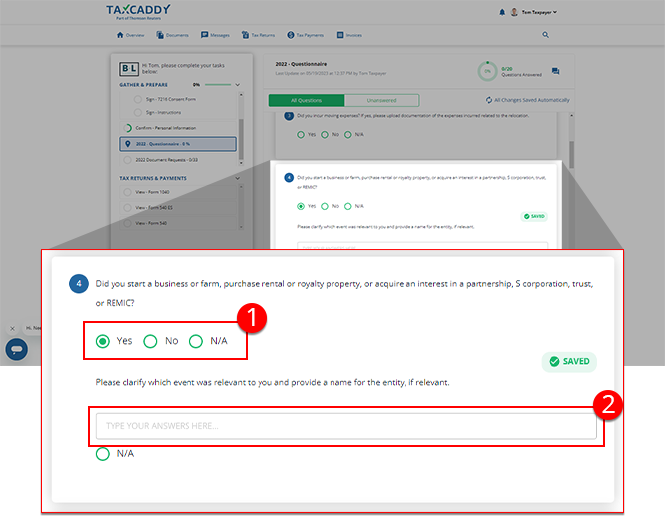
- You will now see a list of questions requested by your tax professional. For multiple-choice questions, you can answer by selectingYes,No, orN/A(Not Applicable).Some questions may trigger a follow-up question. In this case, answer the follow-up that appears following the initial question before proceeding.
- For questions with text fields, enter the answer in the field or selectN/Aif the question doesn't apply to you.
note
The questionnaire saves your answers automatically, so you can leave the page without losing your progress. You will see a
NEW
tag next to new/unanswered questions. You will also see a NEW
tag if your tax professional has updated your existing questionnaire with a new question. Your tax professional will be automatically notified when you complete the questionnaire.Your progress will be displayed in the questionnaire.
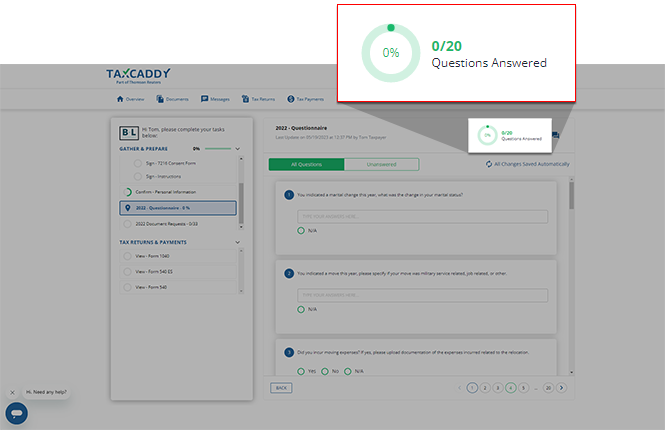
You can select the
Unanswered
tab to hide questions you've already answered.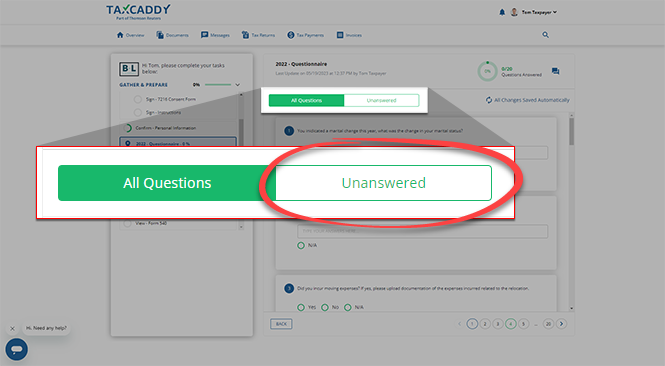
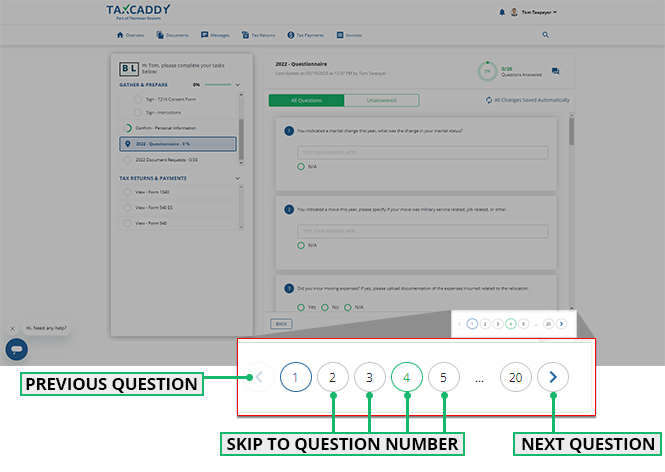
You can either scroll or use the buttons at the bottom to go directly to another question.
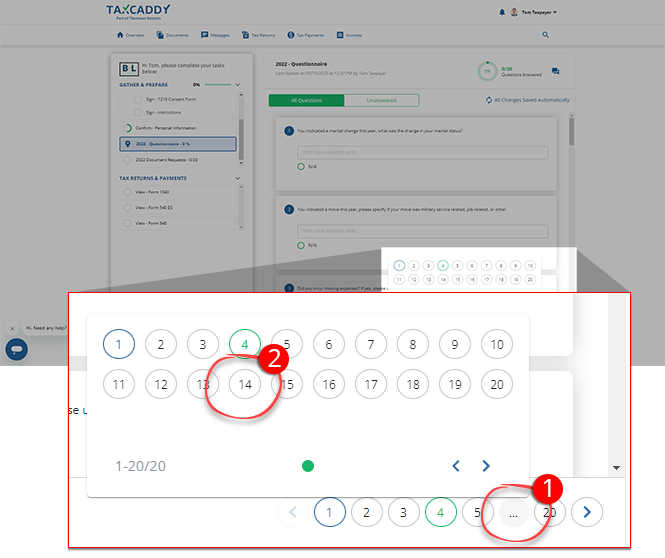
You can also select the ellipsis icon then select the question number to skip directly to the question.
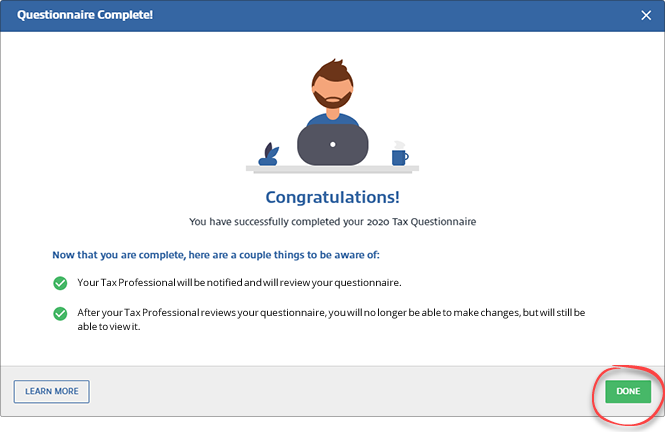
A confirmation message will appear after you answer all the questions. Select
DONE
.
Your tax professional will be notified that you have completed the questionnaire.
After your tax professional reviews and files your questionnaire, you will no longer be able to make changes. You can view a printed copy of your questionnaire by going to .
iOS mobile app
Follow these steps to fill out the questionnaire on the iPhone mobile phone app.
- Sign in to the TaxCaddy mobile app.
- Select theQuestionnaireitem in the task list.
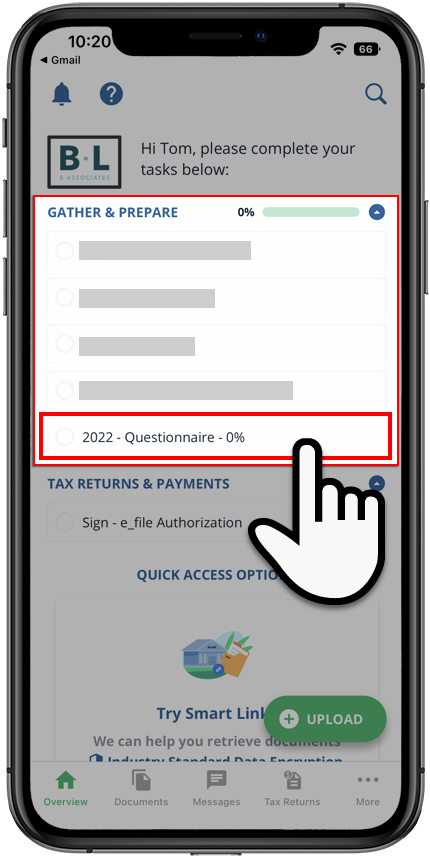
- To help your tax professional get you the best tax return possible, select all life-changing events that have happened to you over the tax year. Your tax professional will ask you questions based on the life-changing events you select.
 noteYou may need to swipe up/down to see all listed life-changing events on your screen.Life-changing eventDescriptionMarital ChangeSelect this option if you are married or separated.Child or DependentSelect this option if you have a child or a dependent.MovedSelect this option if you moved to a new location during the tax year.Bought or Sold PropertySelect this option if you bought or sold a house or property.Job ChangeSelect this option if you changed jobs or were unemployed.Owned a BusinessSelect this option if you started or owned a business during the tax year.RetirementSelect this option if you began or continued your retirement during the tax year.CryptocurrenciesSelect this if you bought or sold any cryptocurrencies (for example, bitcoin) during the tax year.To clear the selected life-changing event, select the life-changing event again, thenOKin the confirmation window.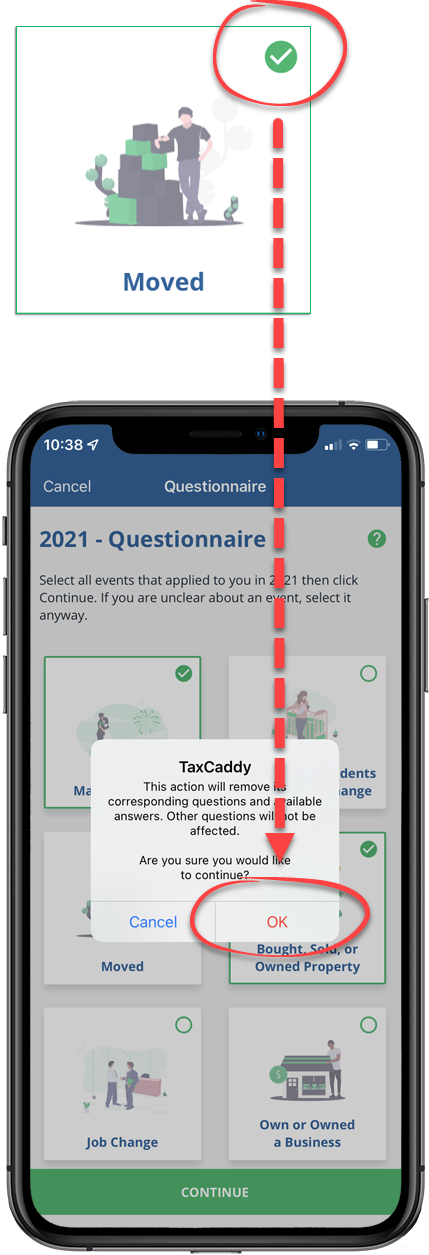
- Select answers, thenPREVIOUSorNEXTto move between questions.
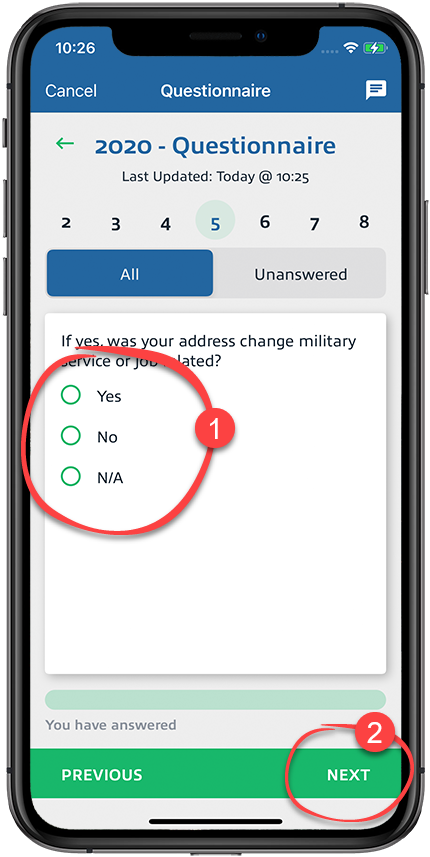 The Questionnaire saves your progress automatically, so you can leave the questionnaire without losing any progress.Some multiple-choice questions may trigger a follow-up question. In this case, answer the follow-up question before proceeding.
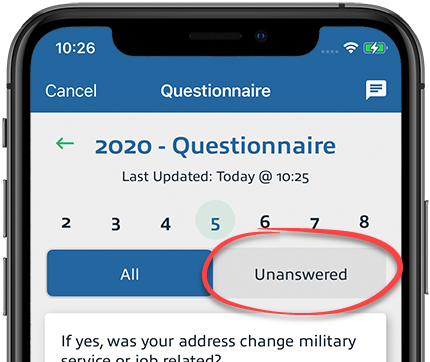
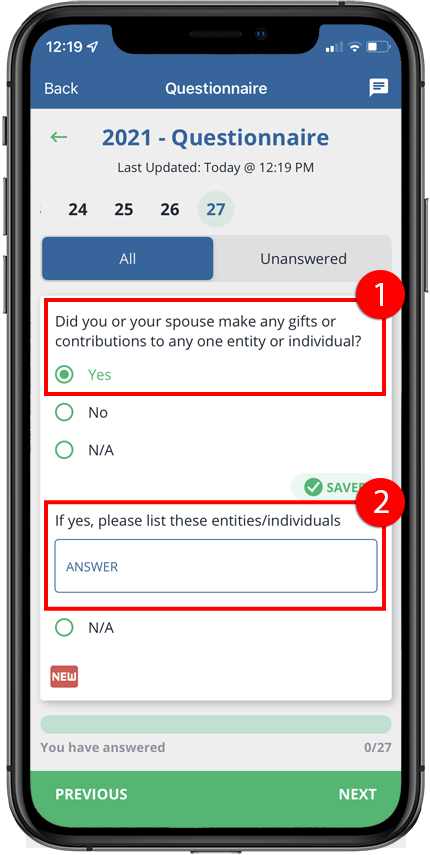 You can selectUnansweredto display only unanswered questions.
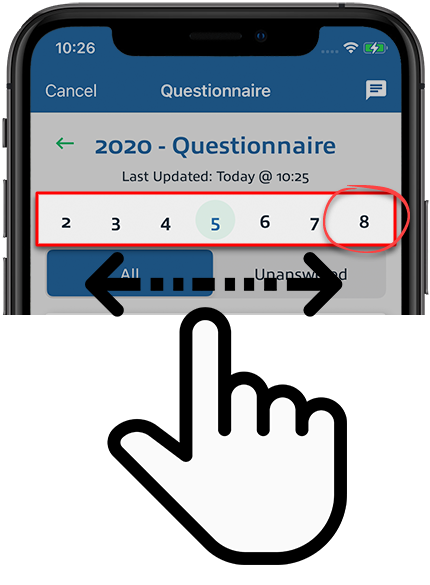
 Numbers on top show all available questions. Select the question number to view that specific question.
 noteYou can select theMessageicon to send your tax professional a message about the questionnaire.
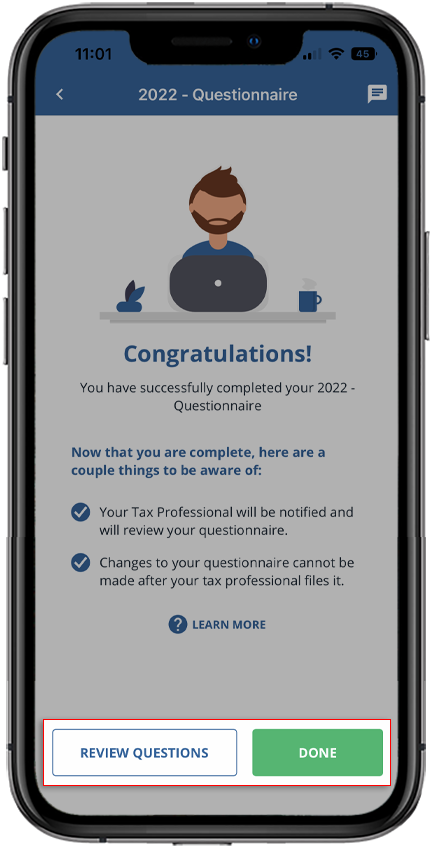
 - Once you've completed your questionnaire, you will see a screen indicating so. SelectREVIEW QUESTIONSto return to your questionnaire and make any necessary updates. SelectDONEto return to thescreen.Overview
 Your tax professional will be notified that you have completed the questionnaire. After your tax professional reviews and files your questionnaire, you will no longer be able to make changes. When this happens, you will notice a banner indicating that you can't update any of your questionnaire answers.noteYou can view a printed copy of your questionnaire by going to .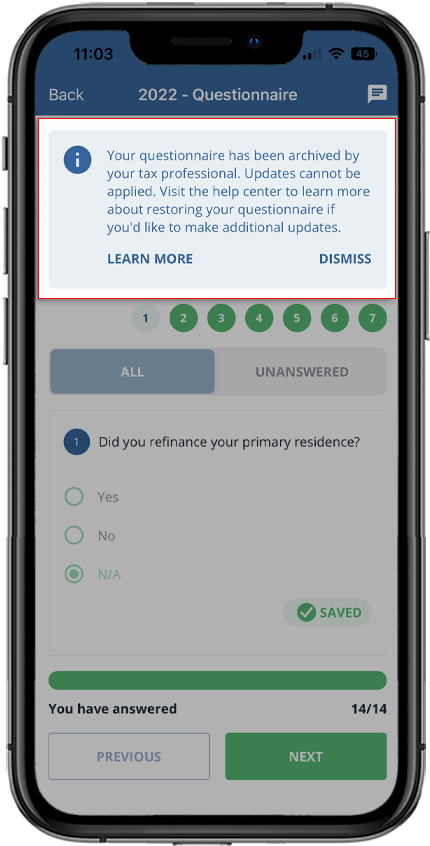
Android mobile app
Follow these steps to fill out the questionnaire on the Android mobile phone app.
- Sign in to the TaxCaddy mobile app.
- In the task list, select theQuestionnaireitem.
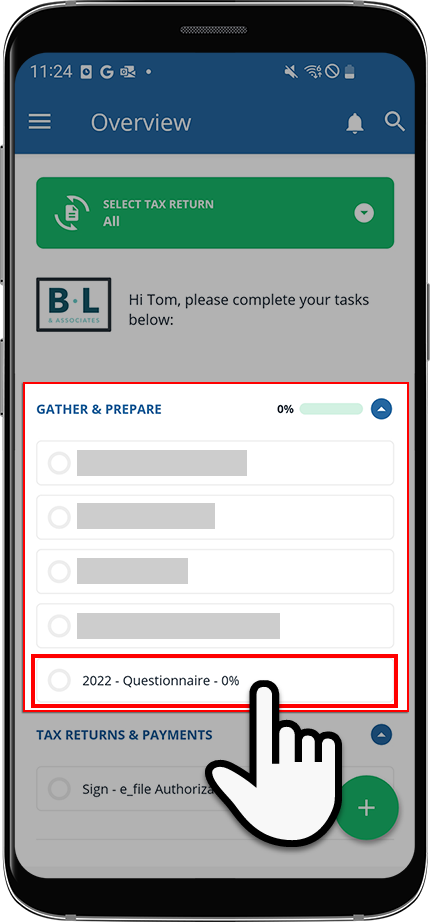
- To help your tax professional get you the best tax return possible, select all life-changing events that have happened to you over the tax year. Your tax professional will ask you questions based on the life-changing events you select.
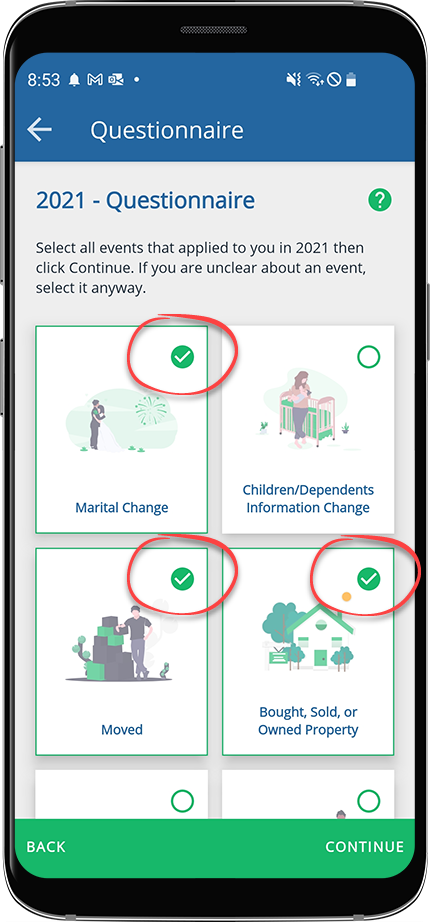 noteYou may need to swipe up/down to see all listed life-changing events on your screen.Life-changing eventDescriptionMarital ChangeSelect this option if you are married or separated.Child or DependentSelect this option if you have a child or a dependent.MovedSelect this option if you moved to a new location during the tax year.Bought or Sold PropertySelect this option if you bought or sold a house or property.Job ChangeSelect this option if you changed jobs or were unemployed.Owned a BusinessSelect this option if you started or owned a business during the tax year.RetirementSelect this option if you began or continued your retirement during the tax year.CryptocurrenciesSelect this if you bought or sold any cryptocurrencies (for example, bitcoin) during the tax year.To clear the selected life-changing event, select the life-changing event again, thenCONFIRMin the confirmation window.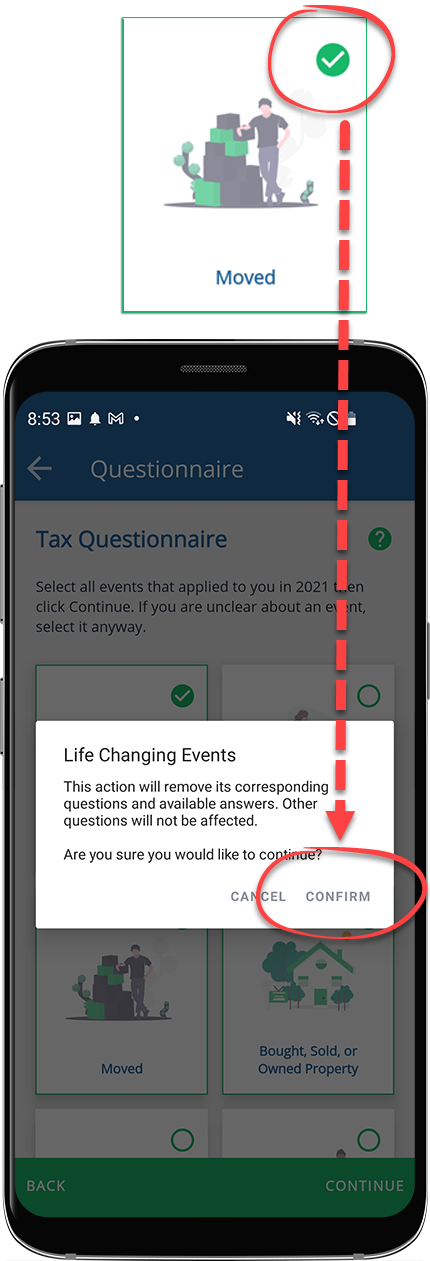
- Select an answer, thenPREVIOUSorNEXTto move between questions.noteThe questionnaire saves your progress automatically, so you can leave the questionnaire without losing any progress.
 Some multiple-choice questions may trigger a follow-up question. In this case, answer the follow-up question before proceeding.
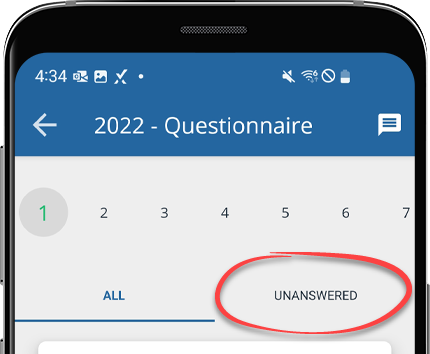
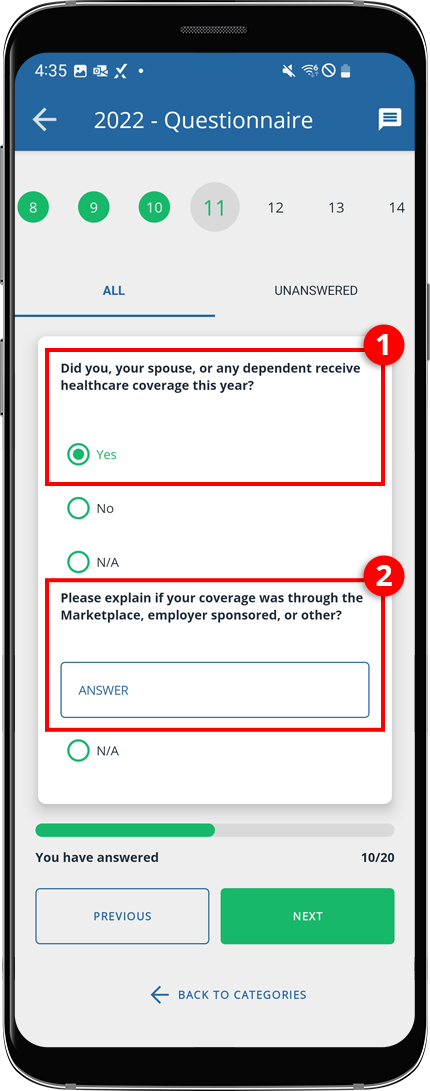 You can selectUNANSWEREDto display only unanswered questions.
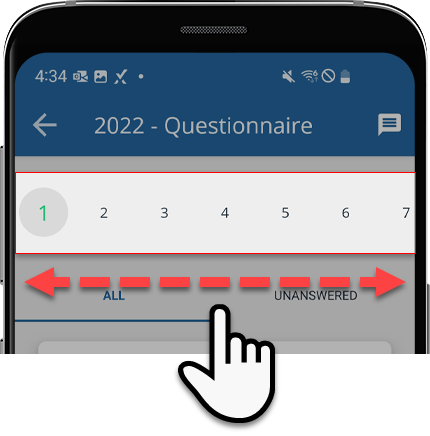
 Numbers on top show all available questions. Select a question number to view that specific question.
 noteYou can select theMessageicon to send your tax professional a message about the questionnaire.
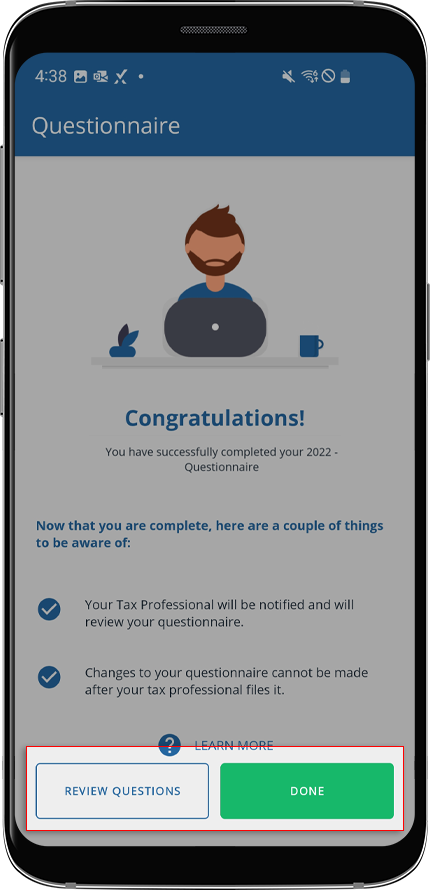
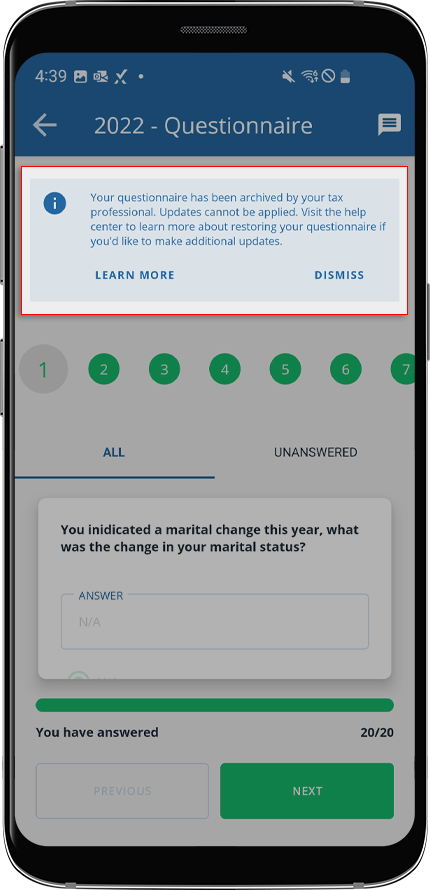
 - Once you've completed your questionnaire, you will see a screen indicating so. From here, you can either selectREVIEW QUESTIONSto return to your questionnaire and make any necessary updates, or you can selectDONEto return to thescreen.OverviewYour tax professional will be notified that you have completed the questionnaire. After your tax professional reviews and files your questionnaire, you will no longer be able to make changes. When this happens, you will notice a banner across the top of your questionnaire indicating that you can't update any of your questionnaire answers.
 noteYou can view a printed copy of your questionnaire by going to .
note
Once a new tax year is introduced in TaxCaddy, any unfinished questionnaire tasks from the previous tax year will automatically be filed to your account's
Questionnaire
documents under that tax year.Restore the Questionnaire
You can edit your questionnaire at any time until your tax professional archives it as an uploaded document. Once your tax professional archives the questionnaire, you can no longer make edits unless the archived questionnaire document is deleted.
TaxCaddy.com on PC, Mac, or tablet
Follow these steps to restore the questionnaire:
- Sign in to TaxCaddy.com.
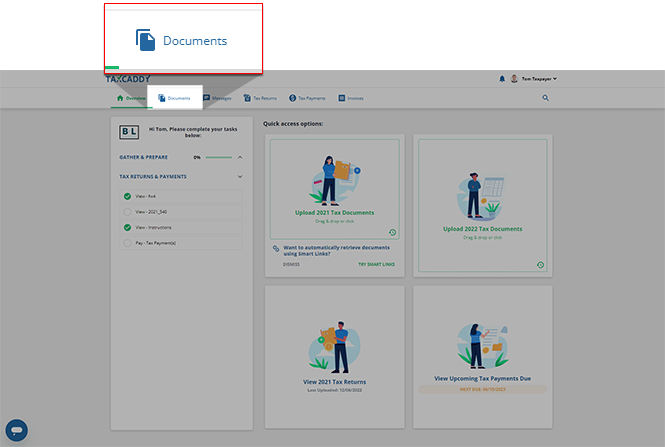
- SelectDocumentsfrom the navigation menu.
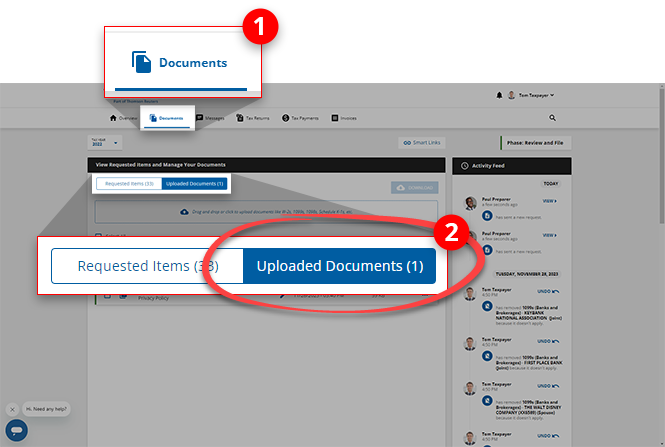
- SelectUploaded Documents.
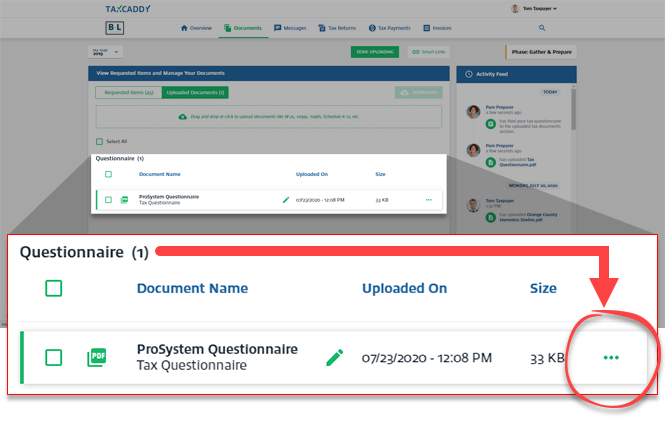
- Select theMenuicon in theQuestionnairecategory.
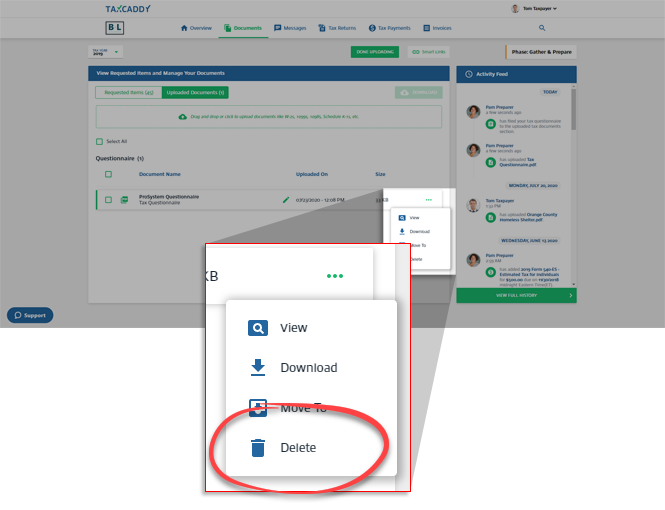
- SelectDeletefrom the document menu.
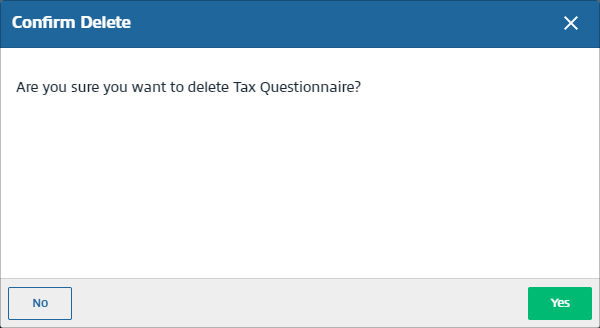
- In thewindow, selectConfirm DeleteYesto delete the questionnaire.
- Once the questionnaire has been deleted, select thescreen.Overview
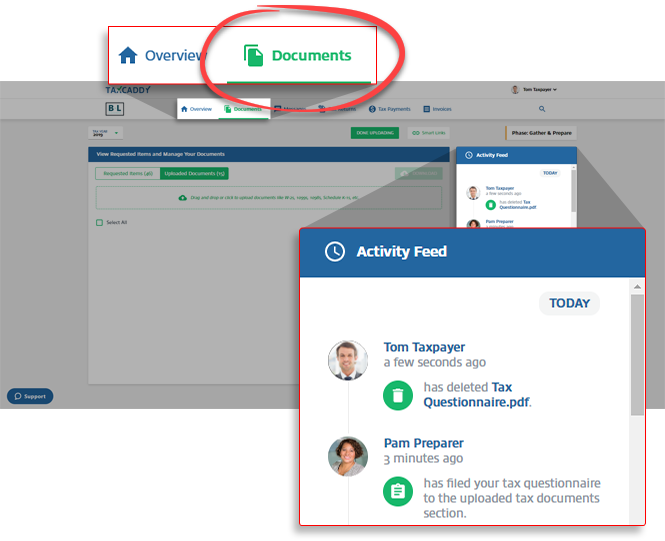
- The restored questionnaire will appear in thepanel. Select the questionnaire to make edits.Tax Pro RequestnoteOnce you have modified the questionnaire, message your tax professional to inform them that you have made changes to the questionnaire.
iOS mobile app
Follow these steps to restore the questionnaire:
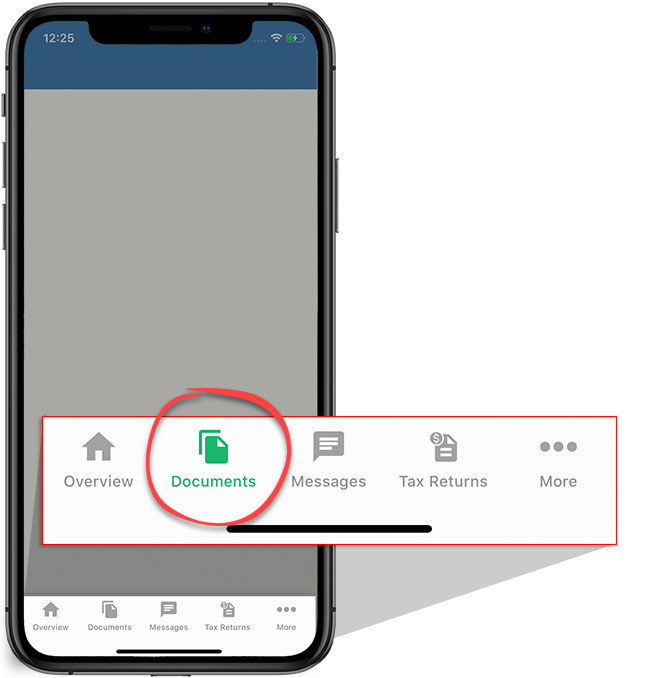
- Sign in to the TaxCaddy mobile app. Select theDocumentsicon.
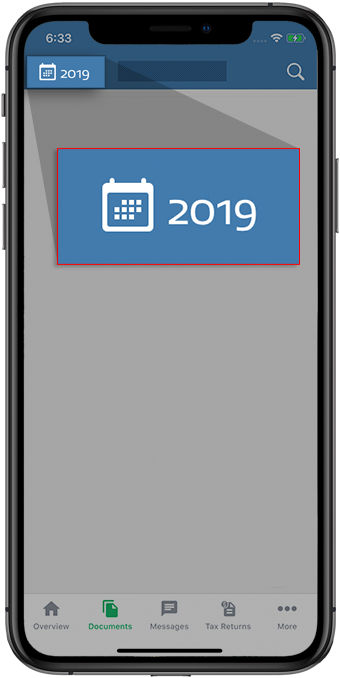
- On thescreen, select the tax year on the top left to select the tax year the questionnaire is assigned to.Tax Documents
- Go to theUploadedtab.
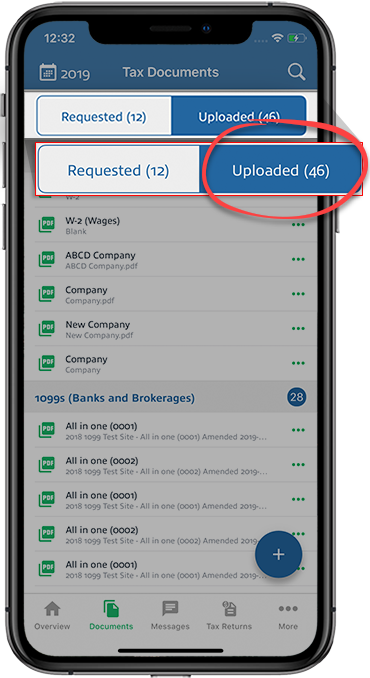
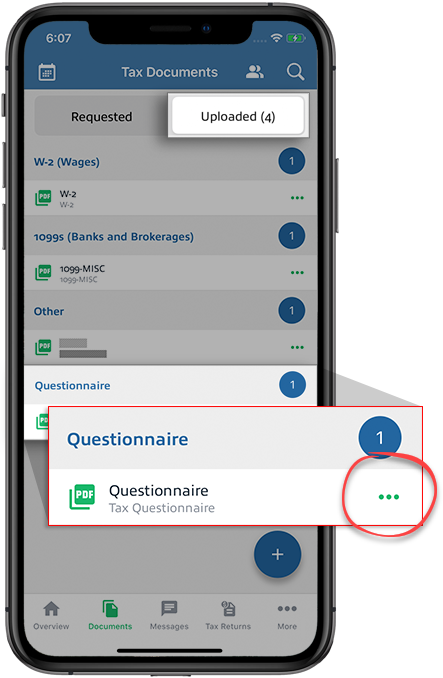
- In theQuestionnairecategory, select theMenuicon on the questionnaire document.
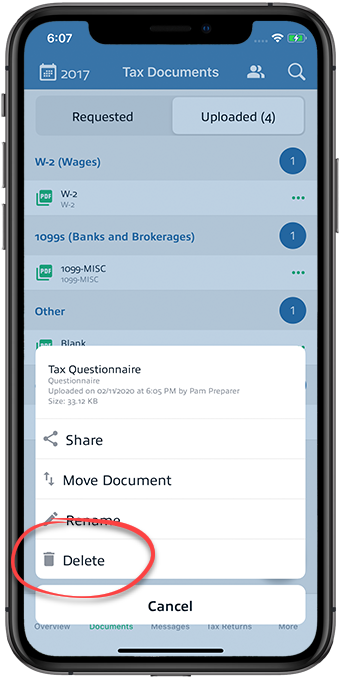
- electDelete.
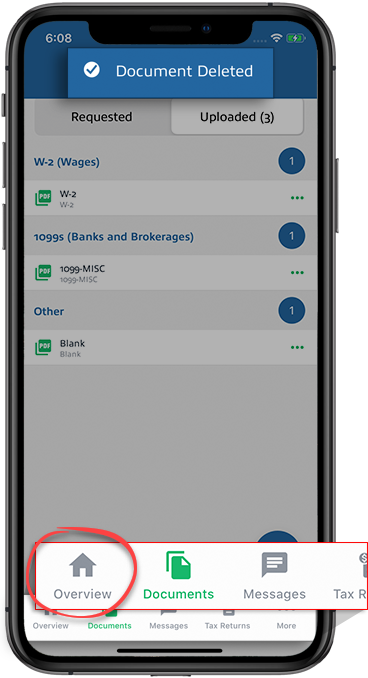
- Once the questionnaire has been deleted, select theOverviewicon.
- The restored questionnaire will appear under the task list. You can select the questionnaire to make edits.noteOnce you have modified the questionnaire, message your tax professional to inform them that you have made changes to the questionnaire.
Android mobile app
Follow these steps to restore the questionnaire:
- Sign in to the TaxCaddy mobile app. Select theMenuicon.

- SelectTax Documents.

- Select theUPLOADEDtab.

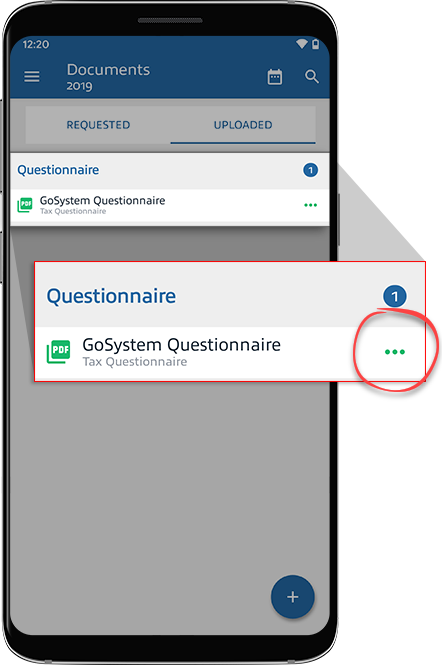
- In theQuestionnairecategory, select theMenuicon on the questionnaire document.
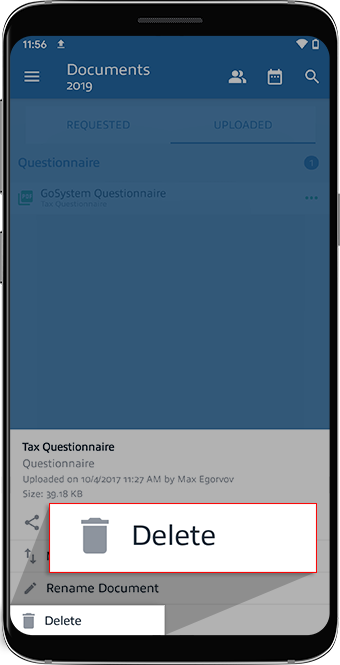
- SelectDelete.
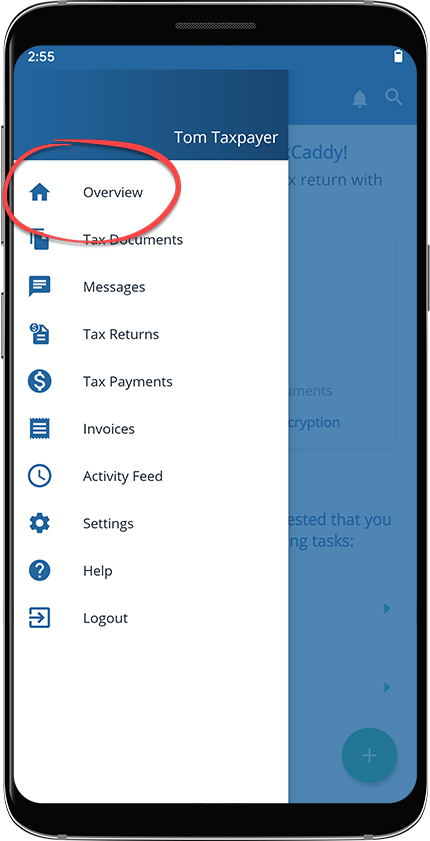
- Once the questionnaire has been deleted, go to thescreen.Overview
- The restored questionnaire will be in yourTask List. You can select the questionnaire to begin making edits.noteOnce you have modified the questionnaire, message your tax professional to inform them that you have made changes to the questionnaire.
note
Additional users connected to your account can also answer questions on your behalf.
Related Content
-
Send a message about the questionnaire
Format: Article,
4 min read
Article,
4 min read

