
Send a message about the questionnaire
Show all hidden content
Discuss the questionnaire with your tax professional by sending messages on the
Questionnaire
screen. This creates a new thread associated with the questionnaire in Messages
.TaxCaddy.com on PC, Mac, or tablet
Follow these steps to send a message about the questionnaire using TaxCaddy.com on your PC, Mac, or tablet.
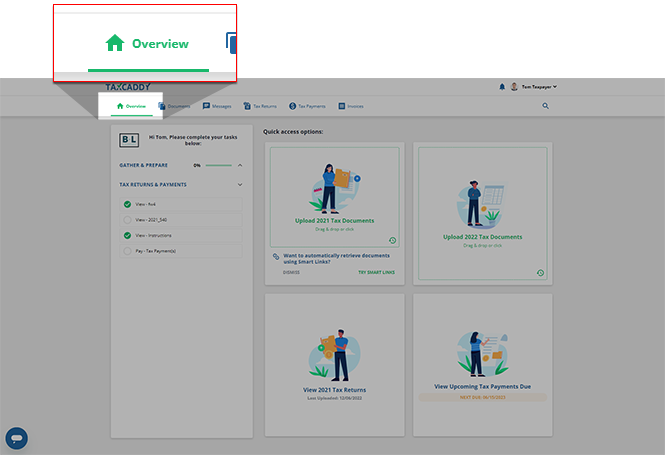
- Sign in to TaxCaddy.com. SelectOverviewon the main navigation bar to go to theOverviewscreen.
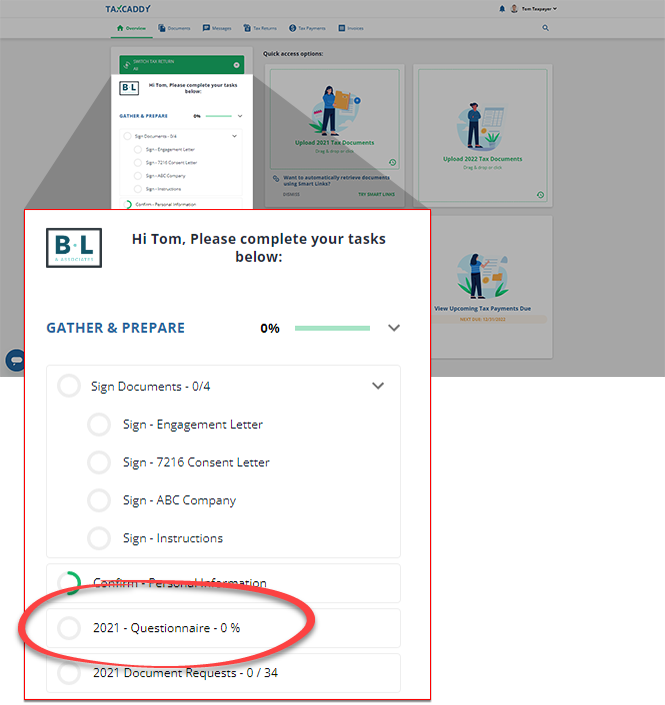
- In thepanel, select the questionnaire request.Tax Pro Requests
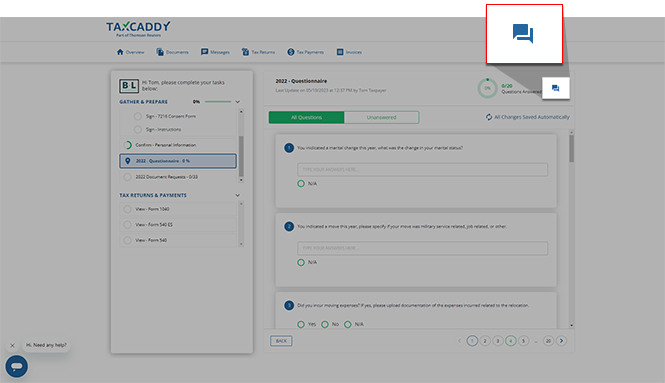
- The questionnaire opens next to the. Select theTask ListMessageicon in thepanel.[Tax Year] Questionnaire
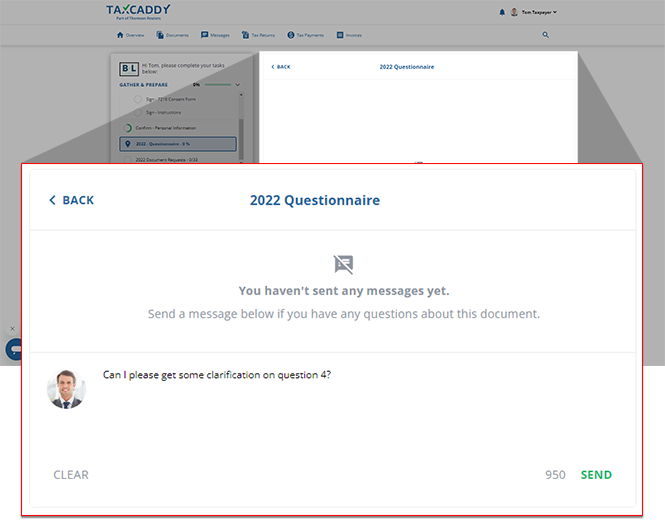
- Enter your message, then selectSEND. The number at the bottom indicates the number of characters remaining. Your tax professional's reply appears in the thread on this panel. This message thread will also be accessible in Messages.
iOS mobile app
Follow these steps to undo actions using Latest Activity on the iPhone mobile phone app.
- Sign in to the TaxCaddy mobile app.
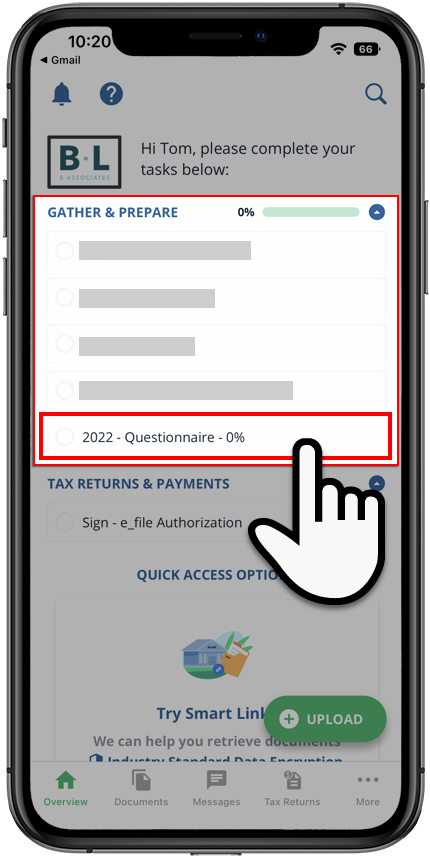
- Select theQuestionnaireunder the task list.
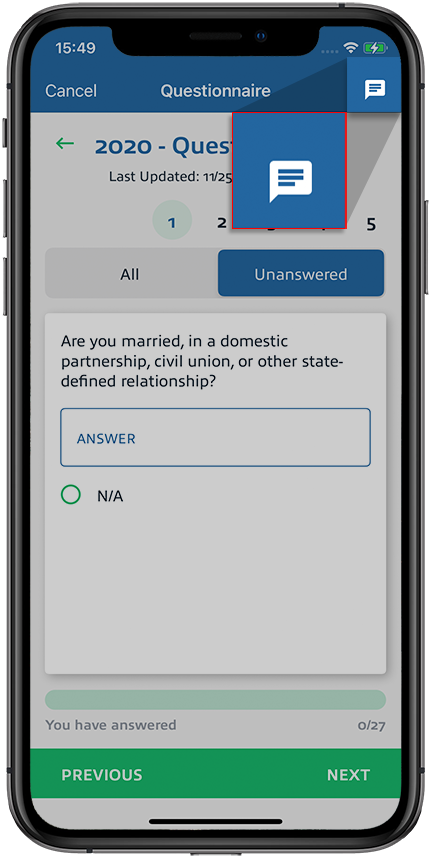
- Select theMessageicon.
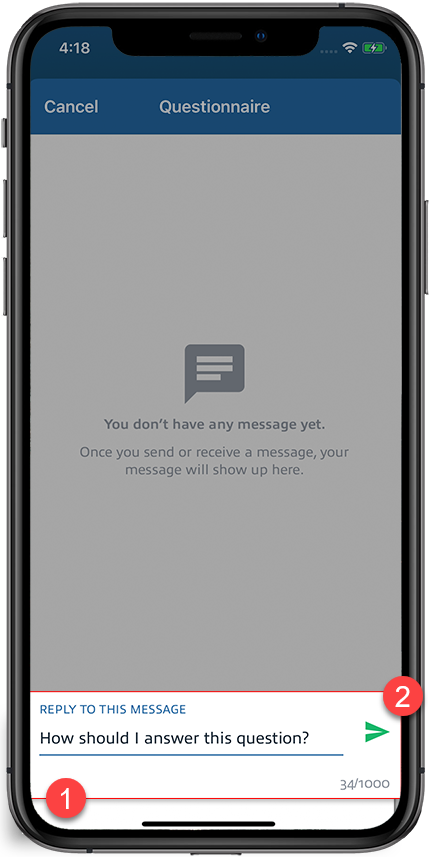
- Enter your message then select theSendicon when finished. You'll see the number of characters you can use.
Android mobile app
Follow these steps to send messages from the questionnaire on the Android mobile phone app.
- Sign in to the TaxCaddy mobile app.
- Select theQuestionnaireunder theGATHER & PREPARE.
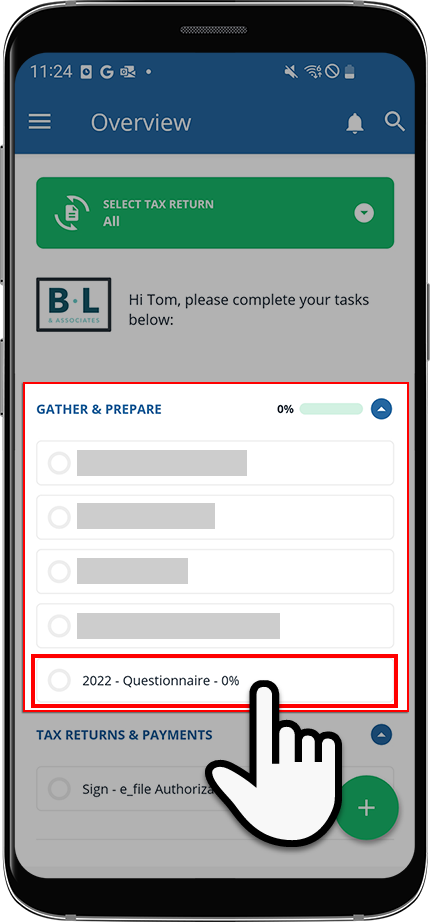
- Select theMessageicon.
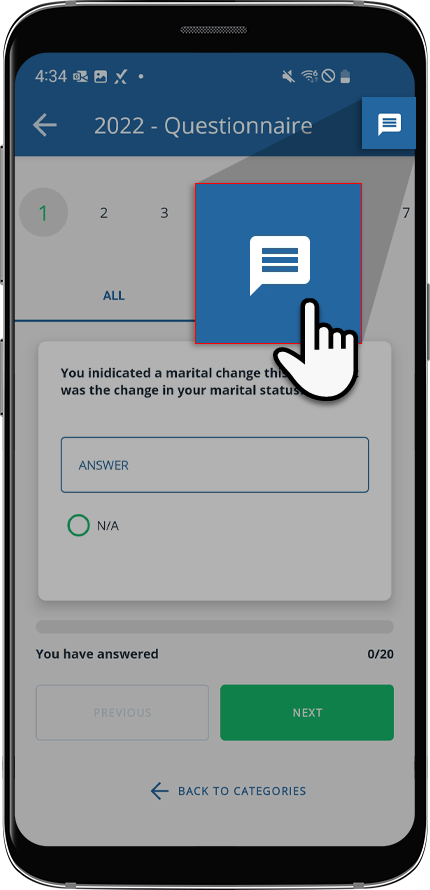
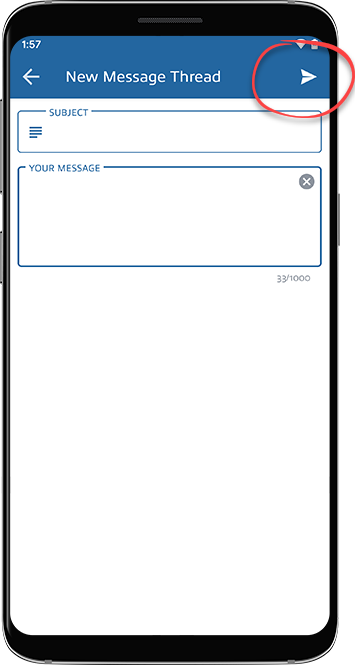
- Enter your message and select theSendicon when finished. You'll see the number of characters you can use.
Related Content
-
Fill out the questionnaire
Format: Article,
18 min read
Article,
18 min read

