Multi-Account Management
Show all hidden content
If one or more other users add you to their account, you'll be able to manage your own account as well as the other accounts. When you sign in to TaxCaddy, you'll see the Multi-Account Management Dashboard. You can use the dashboard to manage others' TaxCaddy accounts in most of the ways you can manage your own. However as an Admin user, you can't sign documents, mark documents as reviewed, and access your
Settings
(changing your name, email address, profile picture, password, security questions, or push notification settings).TaxCaddy.com on PC, Mac, or tablet
When you sign in, the
Select User
screen appears if other users have requested to add you as their additional user.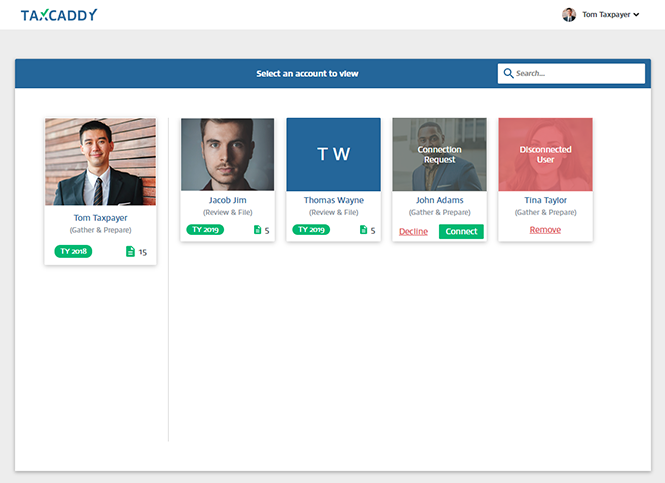
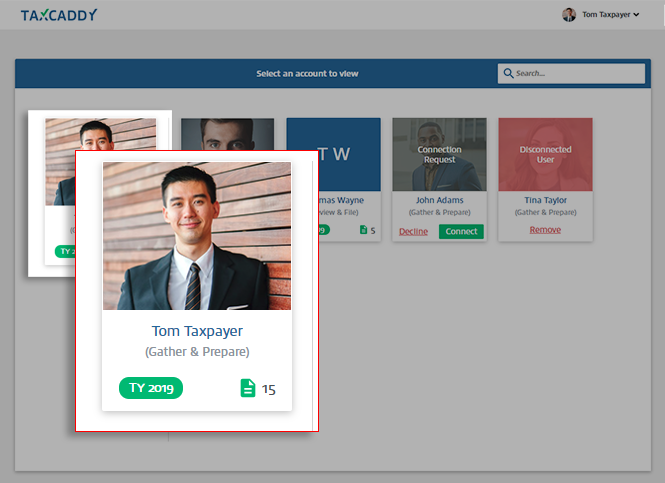
Tiles on the dashboard represent your own account as well as the accounts to which you have access. The tile representing your own account is on the left and larger than the others.
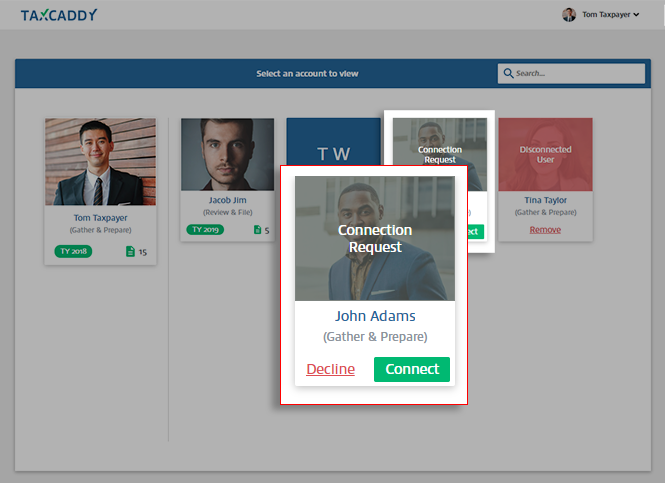
If a user has invited you to join their account and you have not yet accepted or declined the connection, you'll see
Decline
and Connect
options on their tile. To connect with them, select Connect
.
If you've already accepted a user's request, those links will not be present. Their tile will show their tax year as well as the number of Tax Pro Requests they have.
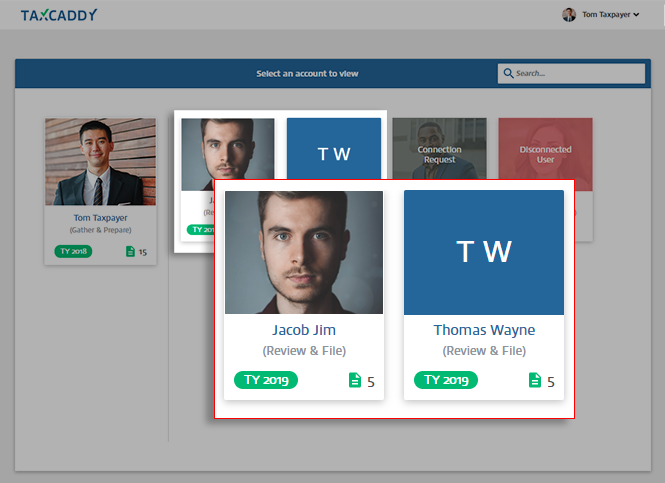
If a user has revoked your access, you'll see them appear as a
Disconnected User
. Select Remove
on the user's tile to remove them from your dashboard. Multi-Account management dashboard will not appear if all remaining users are removed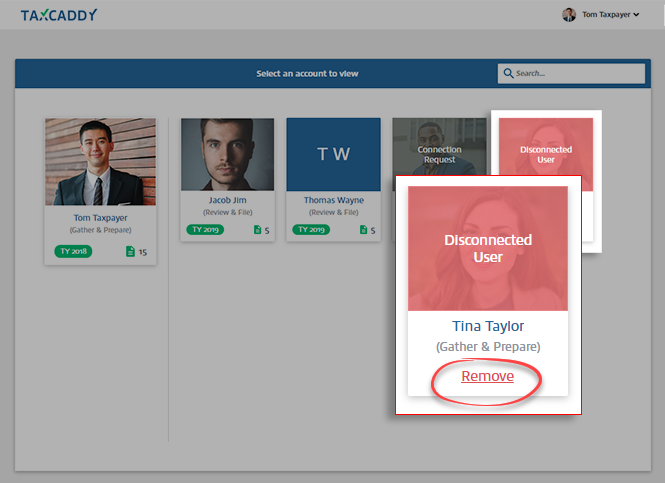
When you select on a connected client's tile, you'll see that person's TaxCaddy account. You will see the name of the person whose account you're currently managing.
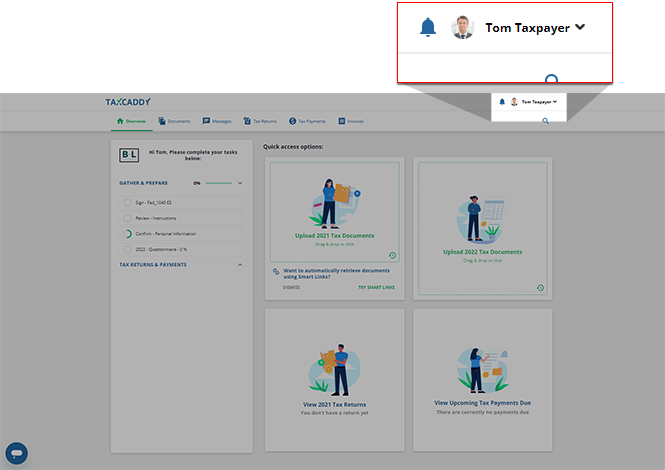
To switch the account to another user, select the user profile menu to see the dropdown, then select
Switch Account
.note
The
Switch Account
option is only visible if another user(s) has added you as an additional users.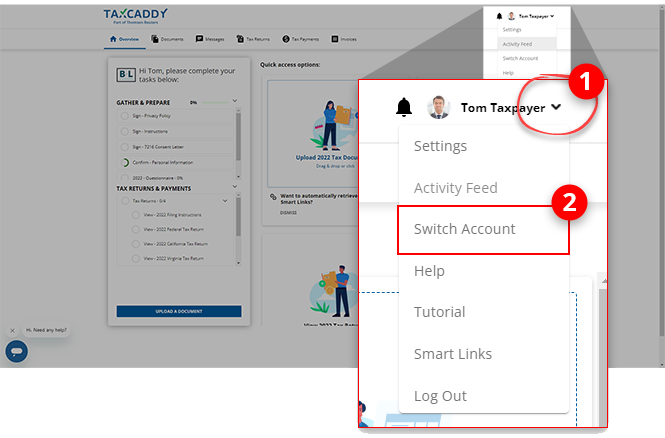
iOS mobile app
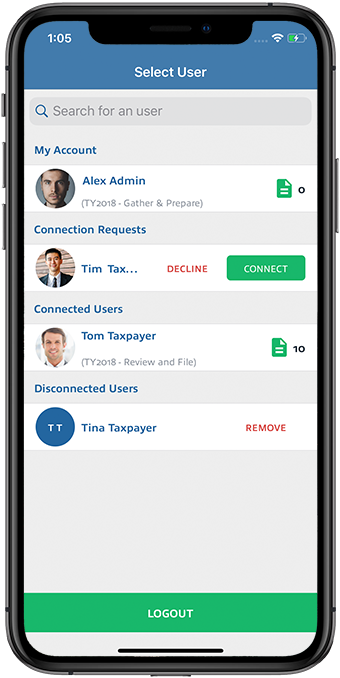
The screen only appears if other users have requested to add you as their additional user.
Select User
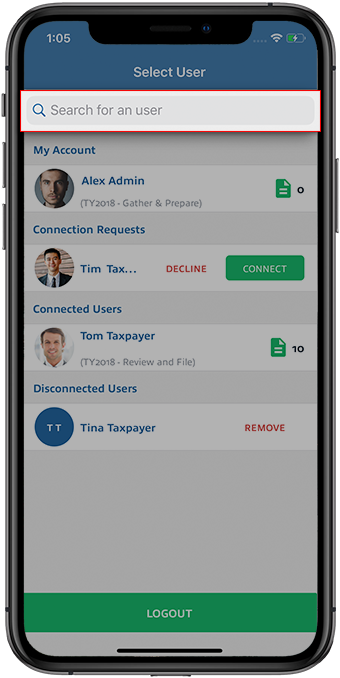
You can search for a user using the search field.
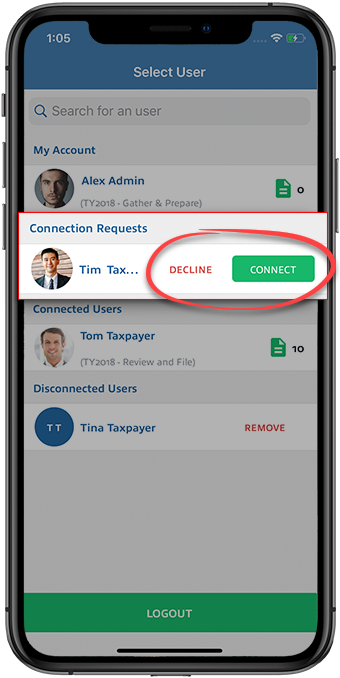
If a user has invited you to join their account and you have not yet accepted or declined the connection, you'll see
DECLINE
and COPNNECT
options. To connect with them, select CONNEC
.
If you've already accepted a user's request, those links will not be present. You can see their tax year as well as the number of Tax Pro Requests they have.
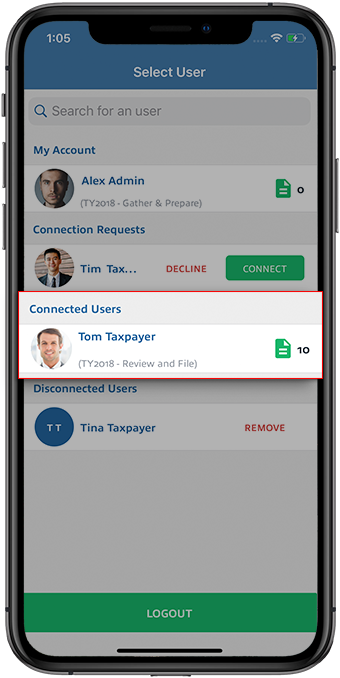
As an Admin user, you can select the
Admin
user icon to view the user selection screen. 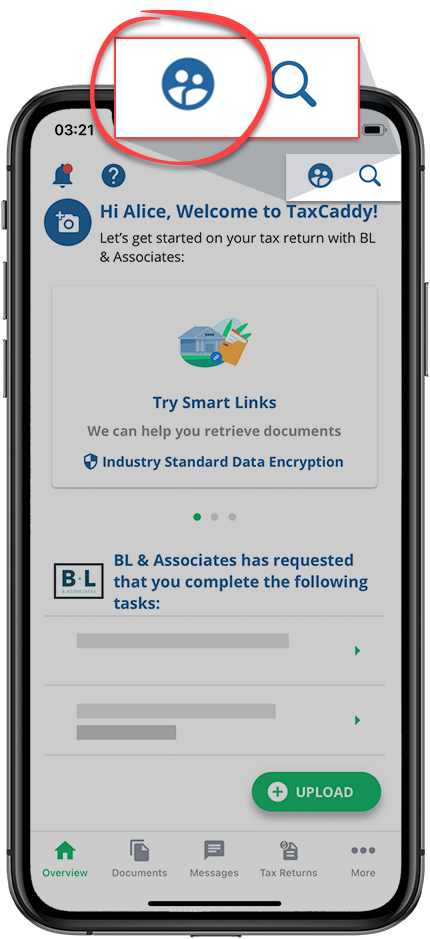
Android mobile app
The
Select User
screen only appears if other users have requested to add you as their additional user.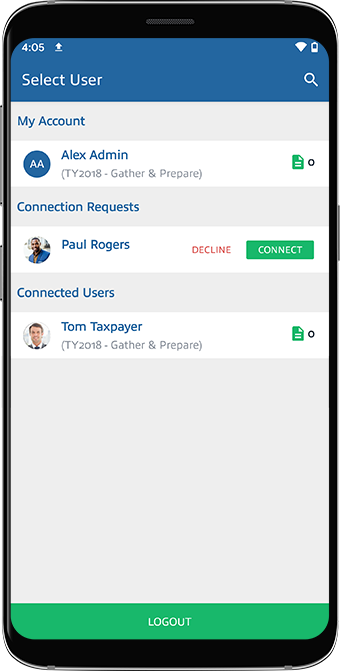
As an Admin user, you can select the
Admin
user icon to view the user selection screen. 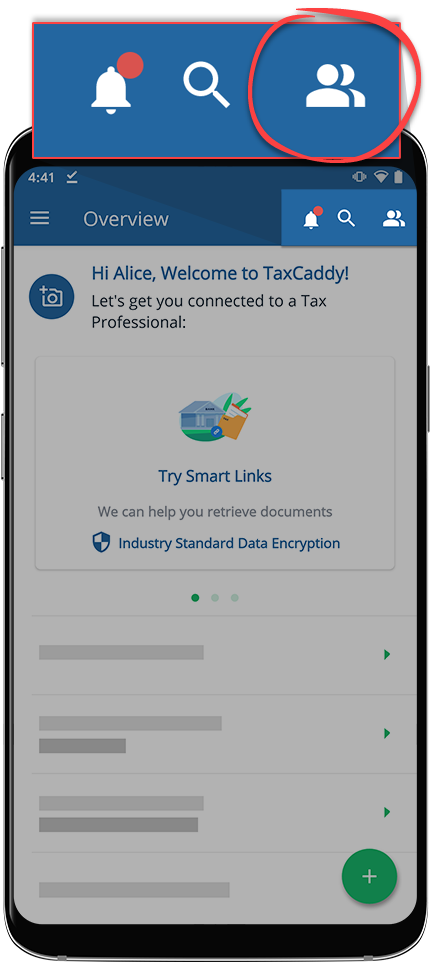
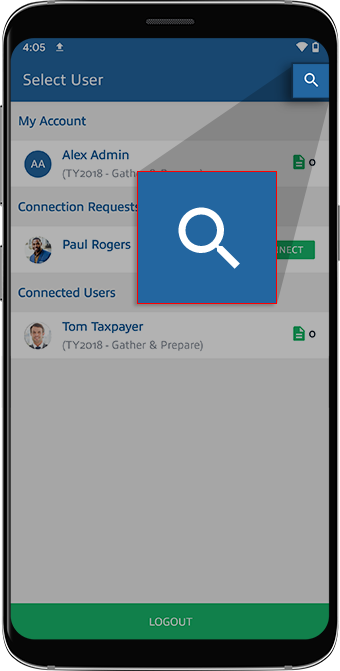
You can search for a user using the search button at the top.
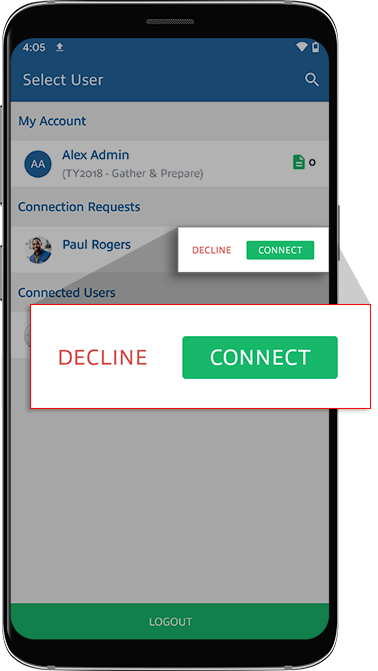
If a user has invited you to join their account and you have not yet accepted or declined the connection, you'll see
Decline
and Connect
options. To connect with them, select Connect
.
If you've already accepted a user's request, those links will not be present. You can see their tax year as well as the number of Tax Pro Requests they have.
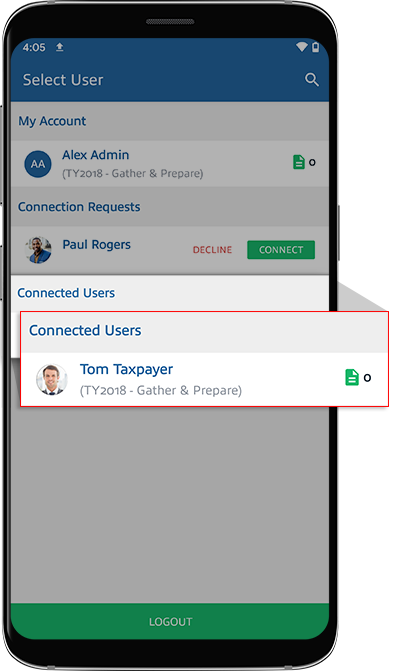
After tapping a user, you'll see that person's TaxCaddy account with their name on the top. Tap their name to go back to the user selection screen.