
Trouble signing in
Find answers to some common sign-in problems. If the following answers still don't help, contact TaxCaddy Support.
- Sign in to TaxCaddySign in to TaxCaddy by going to https://consumer.taxcaddy.com/#/login. Use your email address and password to sign in to TaxCaddy. (There is no separate username.)
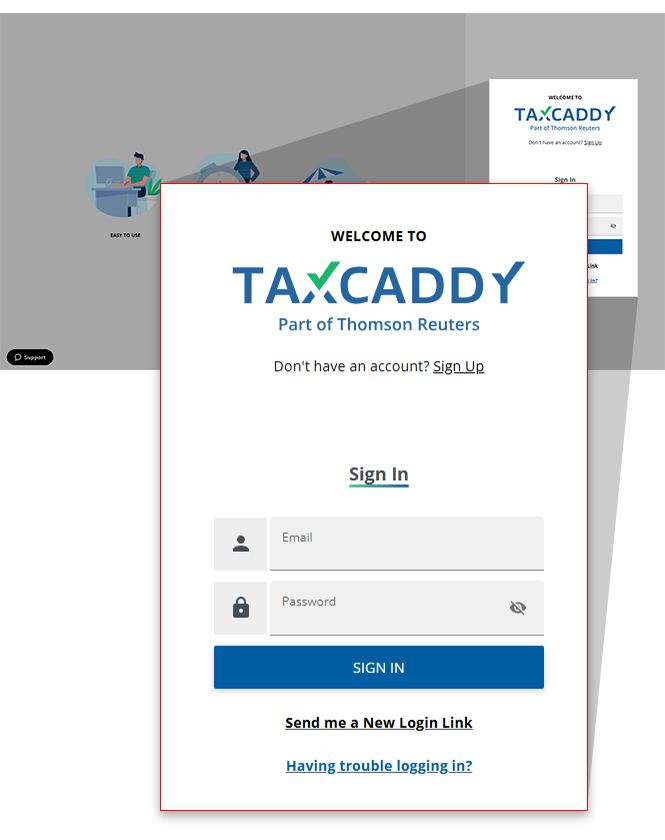
- Password requirementsPasswords must be 8 to 72 characters long, with both upper and lowercase letters, a number, and a special character. Passwords can't contain spaces, emojis ☻, symbols ♣, or other non-English characters.
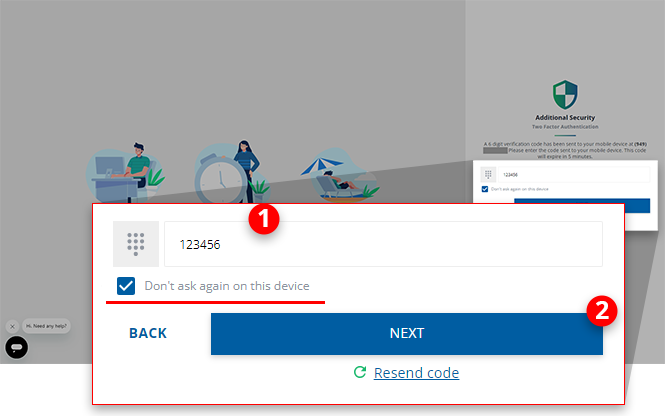
- Two-factor authenticationWhen signing in to your TaxCaddy account, you may be asked to provide an SMS verification code sent to the mobile number associated with your account. Providing this code bolsters your account security by preventing users from signing into your account from various devices.You can select theDon't ask again on this devicecheckbox for TaxCaddy to remember that future sign in attempts from your current device are made by you.
- The mobile number on record is incorrectIf the correct mobile number has been added to your record, you won’t be able to provide the two-factor authentication code that TaxCaddy employs to provide further security for the personal information found in your account. If you believe this to be the case, you can verify if the last 4 digits of the mobile number displayed underAdditional Securityare correct.
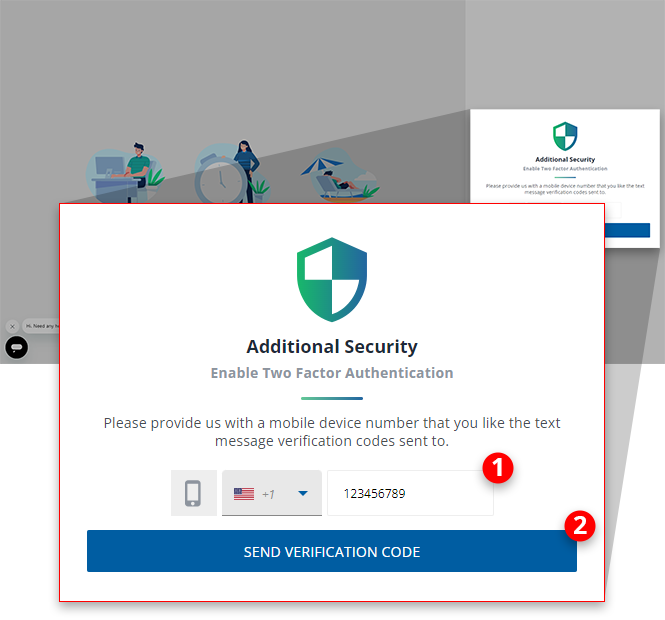 In the event that this is not correct, contact your tax professional to have your mobile number on record updated.
 - Not receiving a verification codeYou may not receive a verification code on your mobile phone in the following scenarios:
- An incorrect mobile number is on record.
- An old phone number is on record - you no longer have access to the phone number.
- A mobile number is saved to your record that belongs to a country to which TaxCaddy is restricted from sending SMS messages.
If you are experiencing difficulty receiving your verification code, contact your tax professional to update your mobile phone number. You can also contact TaxCaddy Support to update your mobile phone number with a new/correct mobile phone number, then try again. - Fail to sign inIf you fail 3 consecutive sign in attempts, that account will lock for 2 hours, and you will be unable to sign in even with the correct password. You can check your email to find out if your account has been temporarily locked.noteResetting a password successfully unlocks an account that has been temporarily locked out due to failed sign in attempts.
- Can't sign in to TaxCaddyFirst, ensure you're logging in to TaxCaddy with the email address and mobile number associated with your account. Make sure all fields are correctly filled out. The password is case-sensitive, so capital and lowercase letters must match exactly. If you forgot your password, you can reset it (See Question #8 on how to do this).
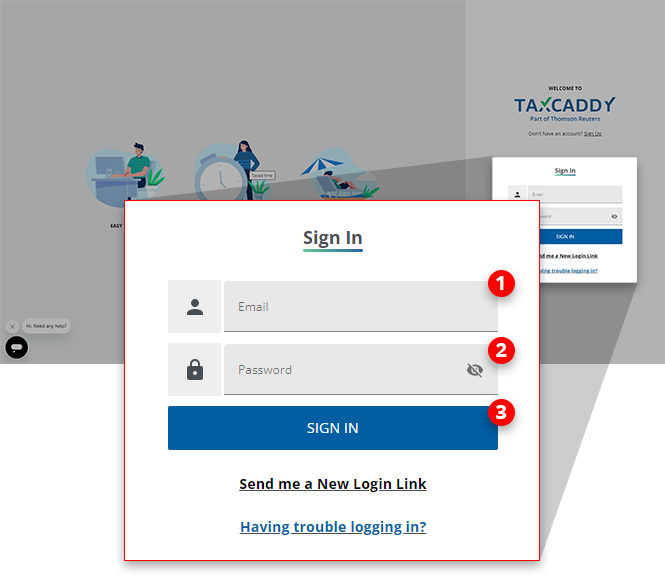 If you are unable to sign in due to not receiving your two-factor authentication code, be sure that the correct mobile number is listed underAdditional Security. If the incorrect phone number is listed, contact your tax professional to update your records before trying to sign in again.If you still can't sign in, check your email to find out if your account has been temporarily locked.
 - Reset your passwordSelectHaving trouble logging in?on the sign-in page, or go to https://consumer.taxcaddy.com/#/forgot-password.
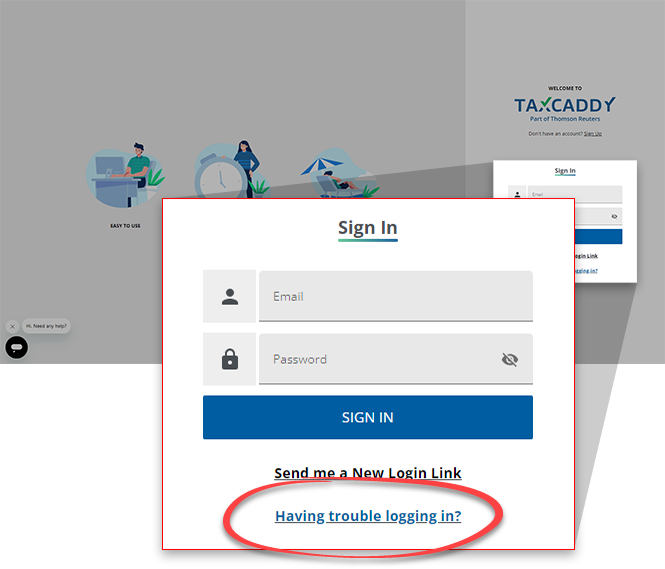 If you want to reset your password while you're logged into your TaxCaddy account, you'll be able to do so within thePasswordsection of theSettingstab in your account settings.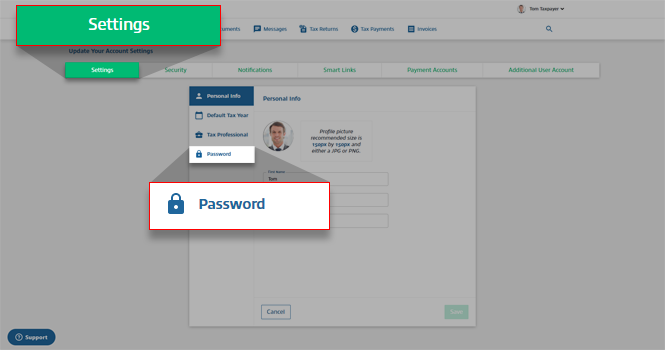
- Not receiving any password reset emailsIf you attempt to reset your password and fail 3 times, your account will be locked from resetting the password. Note that you can still sign in if you remember your password. If you successfully sign in, it will remove the password reset lock. If you're unable to reset your password yourself, contact TaxCaddy Support.
- Sign in email addressYou can attempt a password reset for any email address you believe may be associated with your TaxCaddy account. If the email address is valid, you will receive an email to reset your password. If you're unable to recall your sign in email address, contact TaxCaddy Support.
- Sign in to TaxCaddy without a passwordIf you haven’t yet created a password for your TaxCaddy account, and instead use an invite email that lets you sign in using the SMS code sent to your mobile phone number, then you can access TaxCaddy using a mobile number and email address.When you receive an invitation email from your tax professional, select theGet Startedlink found in the email to be directed to the TaxCaddy sign in page, while a one-time access code is sent to your mobile number. Enter this code into the sign in page to sign in to TaxCaddy.
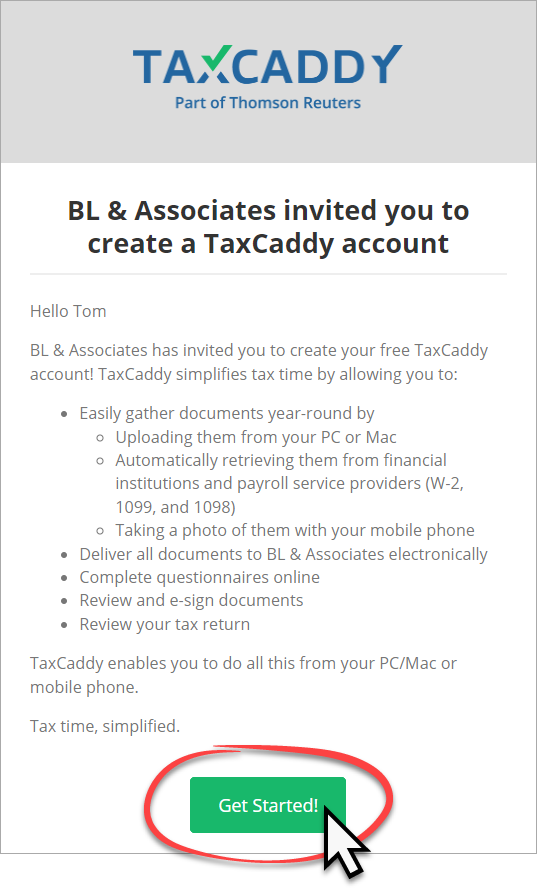 If your sign in link expired after 2 weeks or you misplaced the invite email, generate a new link to continue accessing TaxCaddy.noteYou can continue to use this method of sign in until you decide to add a password to your account.
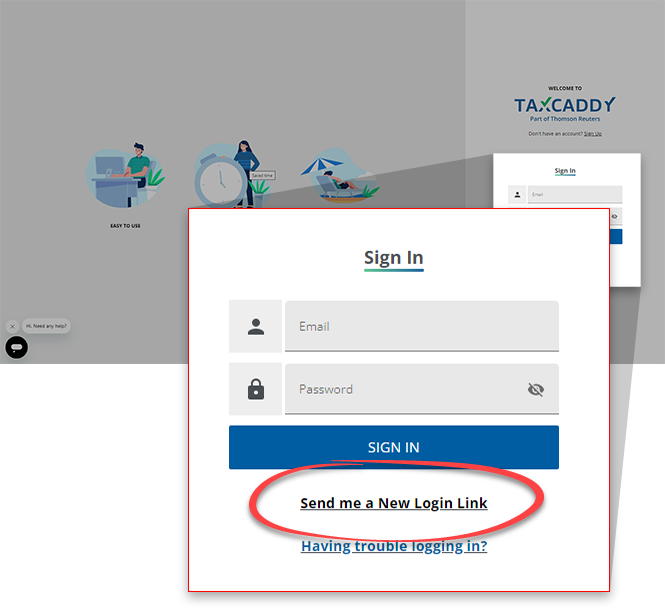
 - Can't sign in through the inviteIf the TaxCaddy access link from your tax professional has been misplaced or has expired, go to the TaxCaddy sign in page. Enter the email associated with your account to receive a new link to access TaxCaddy. This link will be valid for 2 weeks, at which point you will need to resend a new access link using theSend me a New Login Linkfeature.
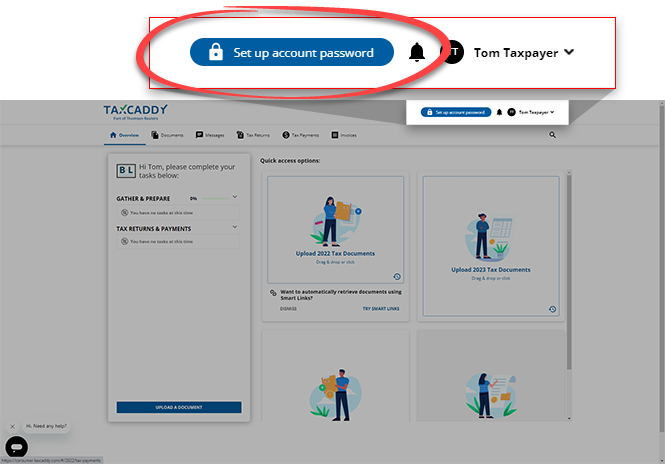
- Create a password after signing in through emailYes, you can set up a password for your TaxCaddy account at any time. To create a password, sign in to TaxCaddy as you normally would through email. From theOverviewscreen, selectSet up account password. From there you will be asked to provide your account's new password that you can use to sign in to TaxCaddy without the need for an email.
- Additional assistanceContact your tax professional if you have any other troubles logging in.

