View different tax years
Show all hidden content
You can change the tax year at any time while viewing documents, messages, tax returns, and invoices. You won't see any documents, returns, messages, or invoices if there has been no activity for that tax year. Documents and returns uploaded for previous tax years won't be removed, and you can still see them by changing the tax year from the menu. The tax year will revert back to the default tax year each time you log in.
TaxCaddy.com on PC, Mac, or tablet
Follow these steps to view a different tax year:
- Sign in to TaxCaddy.com.
- You can select different tax years from the, orDocuments,Messages,Tax Returns,Tax Paymentsscreen.Invoices

- To view a particular tax year, on the top left, select theTax Yearmenu to select the relevant tax year.noteDocuments, messages, returns, and invoices are only visible under the tax year they were created in by your Tax Professional. Your Tax Professional can place invoices due from a different tax year in a selected tax year. For example, your Tax Professional can make an invoice due the previous year under the current year.
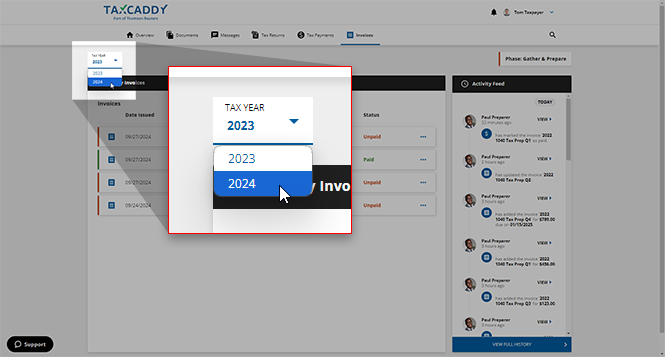 The tax year will revert back to the default tax year each time you log in.
note
New user will only be able to see the current tax year and the previous tax year.
Previous tax years are not available to tax professionals
When viewing a previous tax year, you may see a banner notification with the following message:
YOUR TAX PROFESSIONAL NO LONGER HAS ACCESS TO TAX YEAR
[Tax Year]. Once a previous tax year has passed a certain time period, tax professionals can choose not to have access to documents, messages, or any other information from that tax year. Actions you make on your account will only be visible to you and any additional user (spouse user, other additional users) connected to your connected.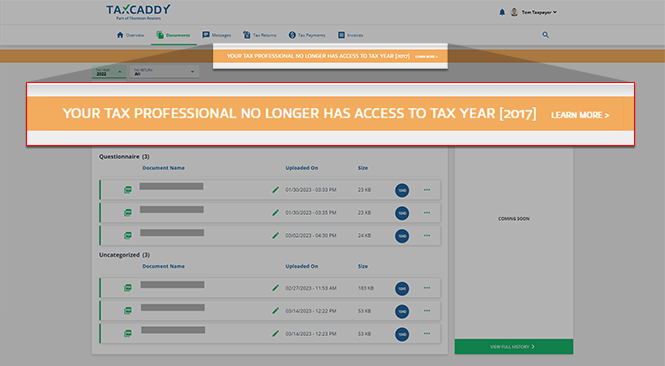
iOS mobile app
Follow these steps to reply with an amount on your iOS mobile phone app.
- Sign in to the TaxCaddy mobile app.
- On the bottom, select to go to your desired location (i.e.Documents,Messages,Tax Returns,Tax Payments, orInvoices).
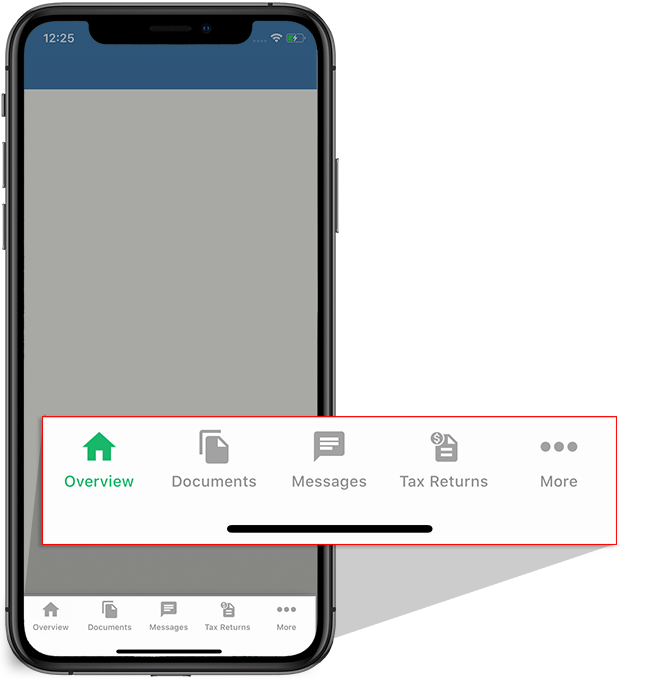
- To view documents, messages, tax returns, tax payments, or invoices for a particular tax year, select the tax year on the top left to select a different tax year.noteDocuments, messages, returns, and invoices are only visible under the tax year they were created in by your Tax Professional. Your Tax Professional can place invoices due from a different tax year in a selected tax year. For example, your Tax Professional can make an invoice due the previous year under the current year.
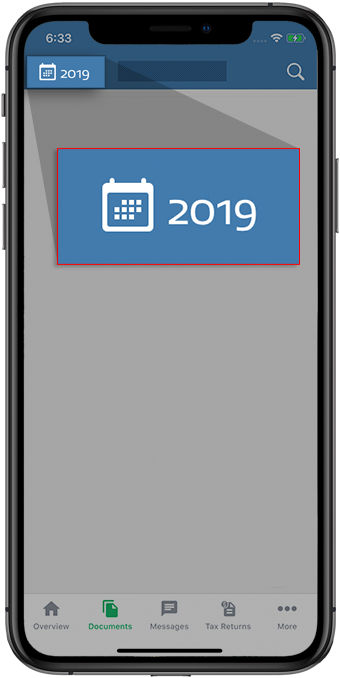
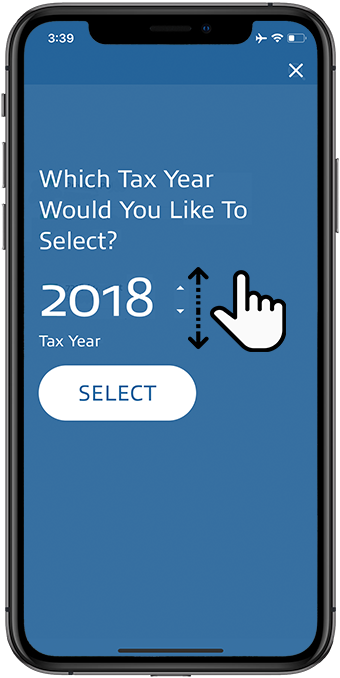
- Swipe up or down to select the applicable tax year then selectSELECT.
Previous tax years are not available to tax professionals
When viewing a previous tax year, you may see a banner notification with the following message:
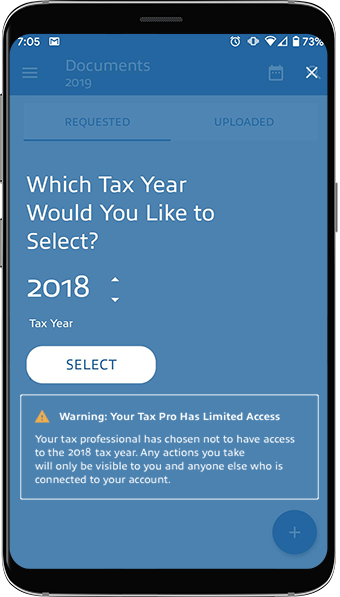
Warning: Your Tax Pro Has Limited Access
. Once a previous tax year has passed a certain time period, tax professionals can choose not to have access to documents, messages, or any other information from that tax year. Actions you make on your account will only be visible to you and any additional user (spouse user, other additional users) connected to your connected.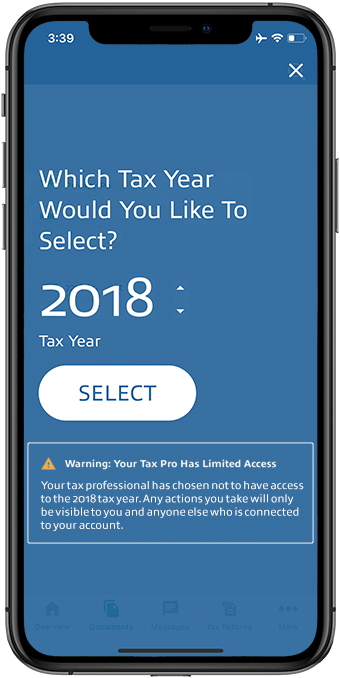
Android mobile app
Follow these steps to reply with an amount on your Android mobile phone app.
- Sign in to the TaxCaddy mobile app.
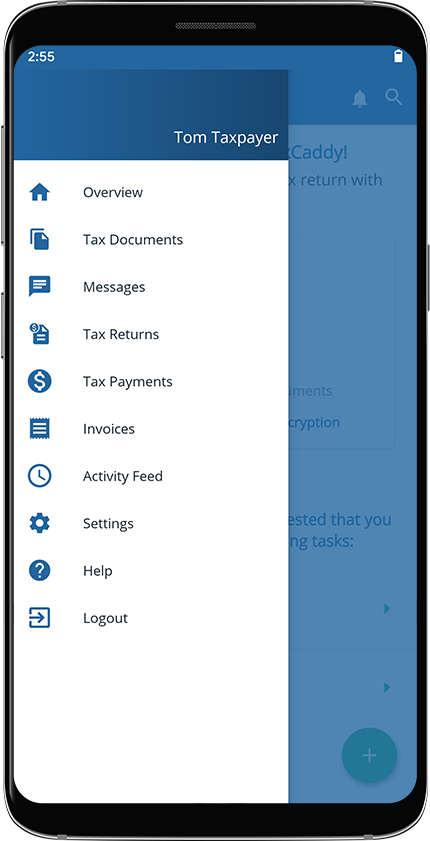
- Select theMenuicon.
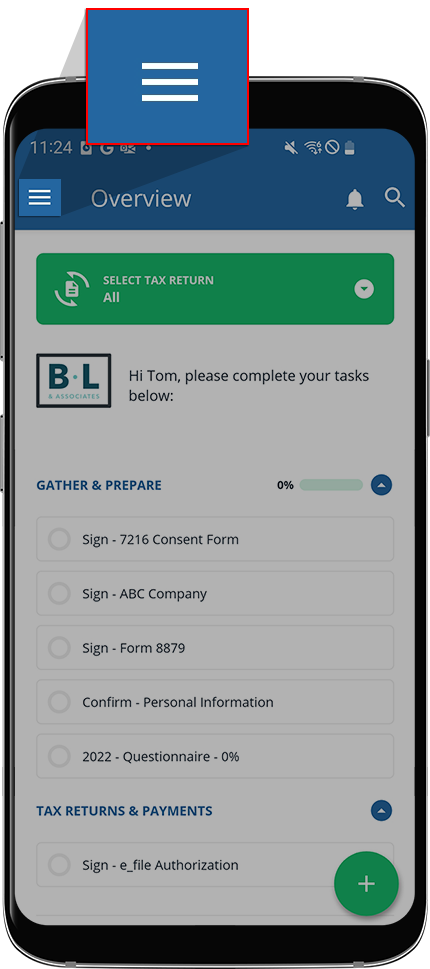
- On the menu panel, select to go to your desired location (i.e.Tax Documents,Messages,Tax Payments,Tax Returns, orInvoices).
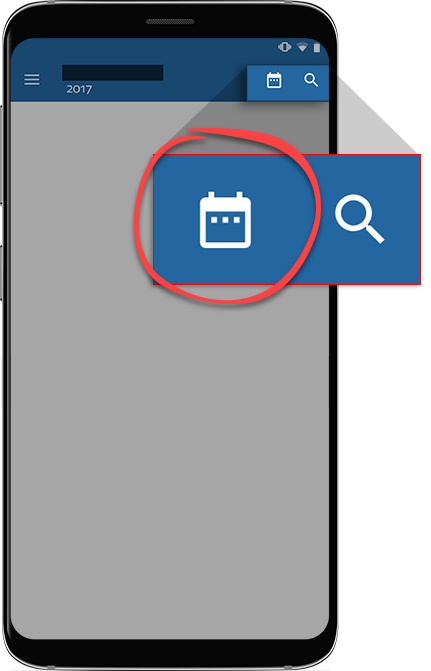
- Select theTax Yearicon.
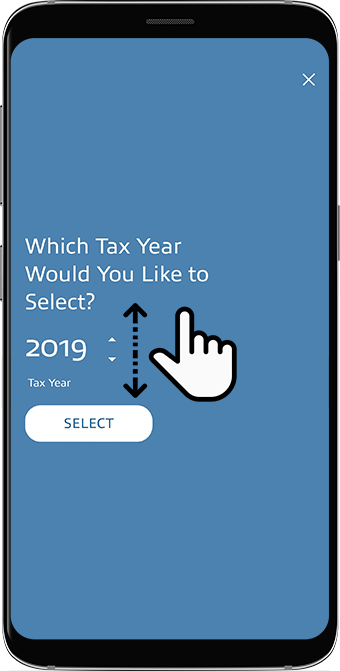
- Go to the tax year then selectSELECT.noteDocuments, messages, returns, and invoices are only visible under the tax year they were created in by your Tax Professional. Your Tax Professional can place invoices due from a different tax year in a selected tax year. For example, your Tax Professional can make an invoice due the previous year under the current year.
Previous tax years are not available to tax professionals
When viewing a previous tax year, you may see a banner notification with the following message:
Warning: Your Tax Pro Has Limited Access
. Once a previous tax year has passed a certain time period, tax professionals can choose not to have access to documents, messages, or any other information from that tax year. Actions you make on your account will only be visible to you and any additional user (spouse user, other additional users) connected to your connected.