
Delete a tax payment voucher
Show all hidden content
Unpaid tax payment vouchers can be deleted from the
Tax Payments
screen.TaxCaddy.com on PC, Mac, or tablet
Follow these steps to delete your tax payment voucher when using TaxCaddy.com on your PC, Mac, or tablet.
Tax Payments Screen
Follow these steps to delete a tax payment voucher from the
Tax Payments
screen.- Sign in to TaxCaddy.com
- SelectPay - Tax Payment(s)to view all tax payments that your tax professional has uploaded to your account.
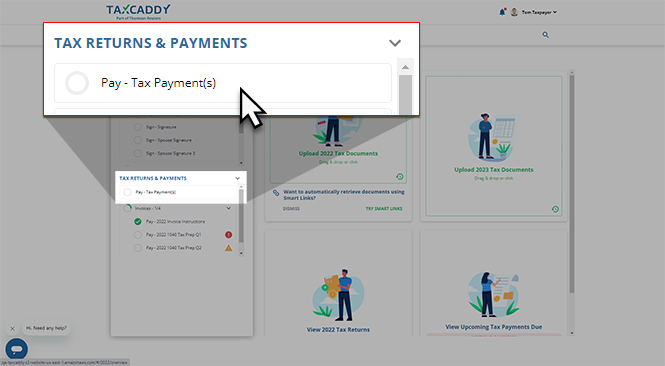
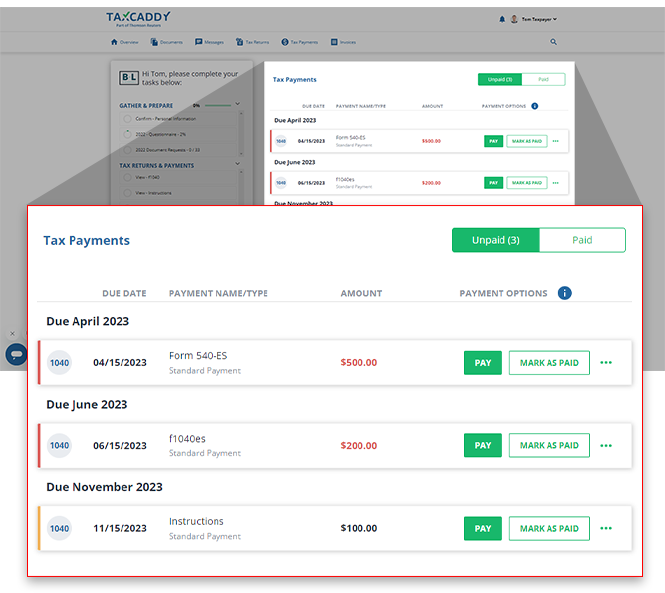
- Your current tax year's tax payments will appear beside yourTask Listin theTax Paymentspanel.noteIf you're looking for a specific tax payment, select theTax Paymentstab to view tax payments belonging to other tax years.
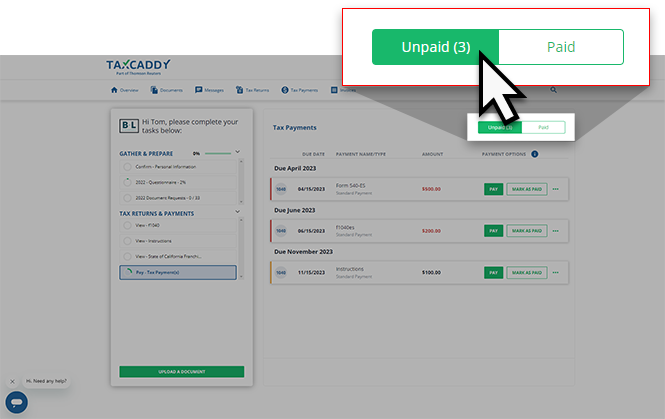
- By default, yourUNPAIDtax payments will be displayed first. SelectPaidto view tax payments that you've already paid or marked as paid.
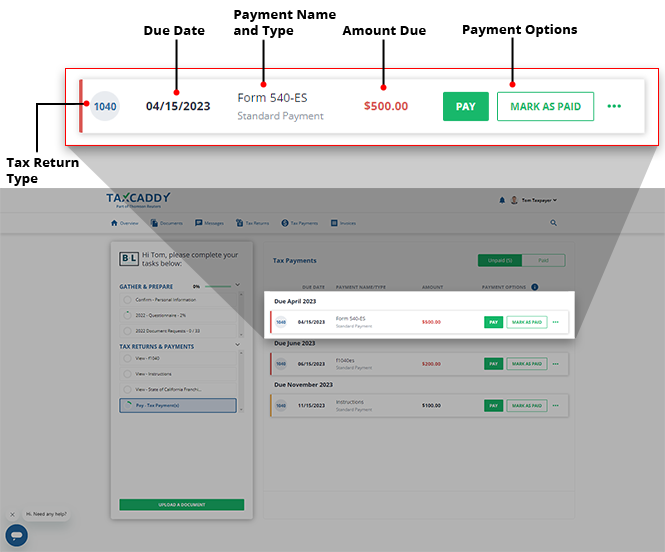
- Your tax payments will be sorted by due date. You will also see the tax return type, theDUE DATE,PAYMENT NAME/TYPE,AMOUNT, andPAYMENT OPTIONSinformation for each tax payment.
- Locate the tax payment voucher that you'd like to delete and select theMenu, then selectDelete.
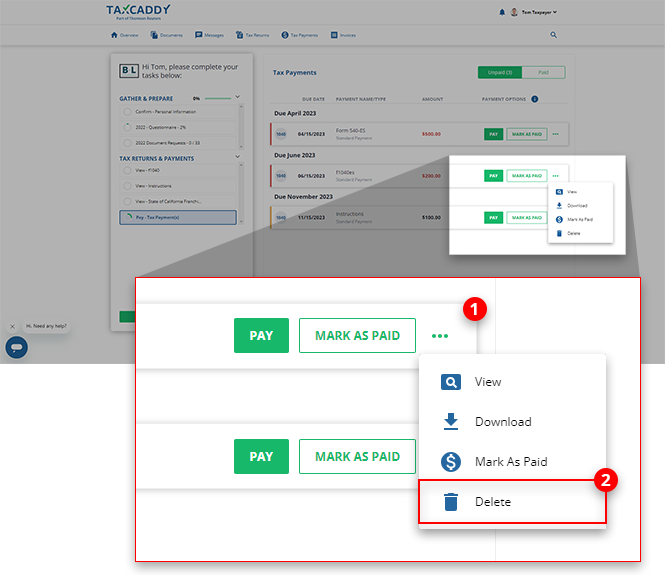 noteThe voucher can't be deleted once it has been marked as paid by you or your tax professional. The option toDeletewon’t be available for this voucher.
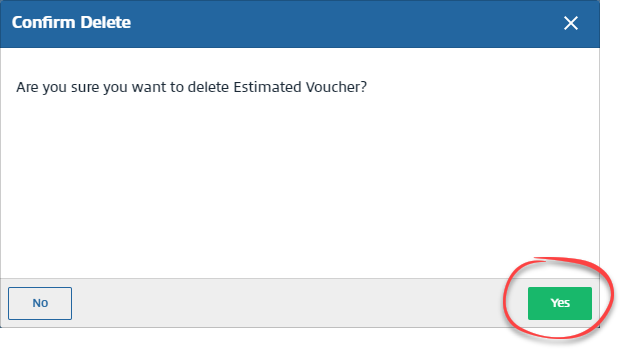
 - TheConfirm Deletewindow will appear. SelectYESto proceed with deletion.noteDeletion of vouchers from theTax Paymentlist can't be restored. If a voucher is accidentally deleted, contact your tax professional to resubmit a new voucher with the same document.
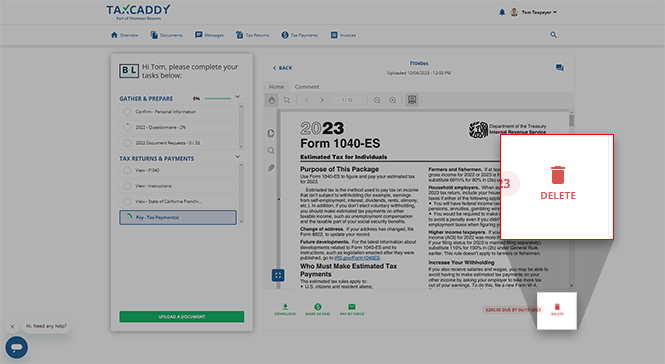
- Alternatively, you can also delete the document from the Document Viewer panel. When you have the file open for viewing, selectDELETEto delete the voucher.
iOS mobile app
Follow these steps to delete your tax payment voucher on your iOS mobile phone app.
- Sign in to the TaxCaddy mobile app.
- Tax payment vouchers that your tax professional has uploaded to your account will appear on theOverviewscreen. SelectPay - Tax Payment(s)to open your tax payments.
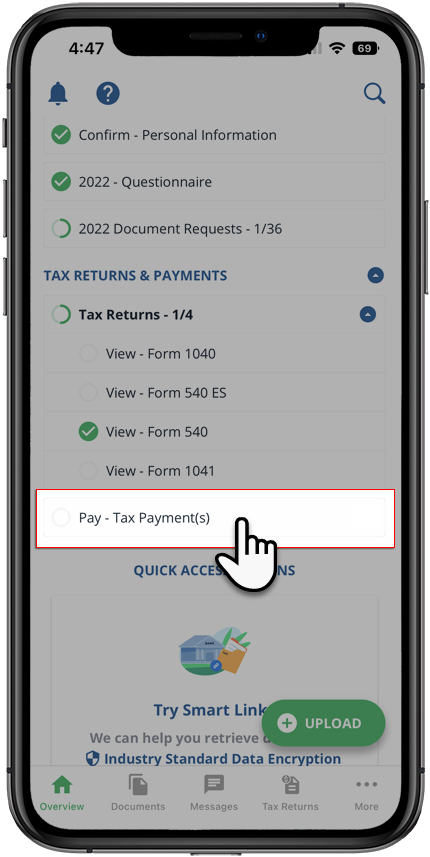 If your tax professional has enabled 1041 tax return profiles on your account, select theSELECT TAX RETURNSdropdown to view your available tax return profiles.
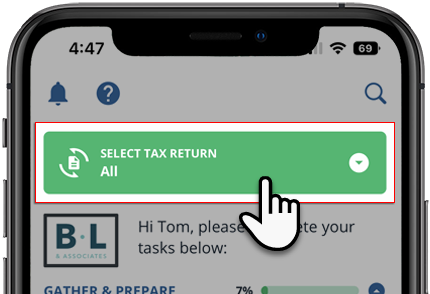 Alternatively, you can selectMore, then selectTax Payment.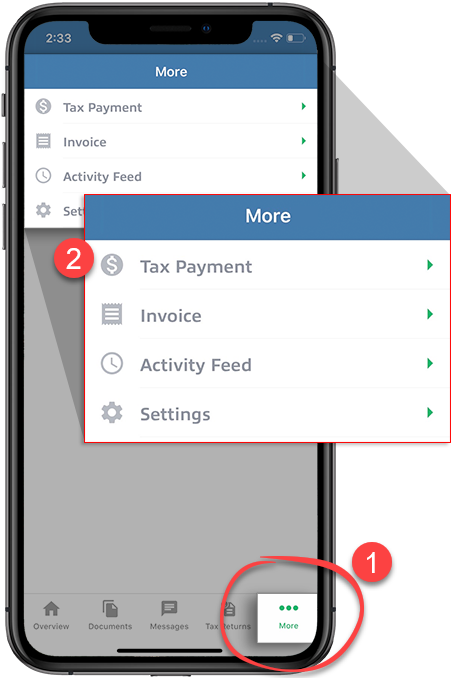
- TheAlltax year option will be selected by default, listing payments spanning all tax years.If you'd like to see tax payments belonging to a specific tax year, select it from the
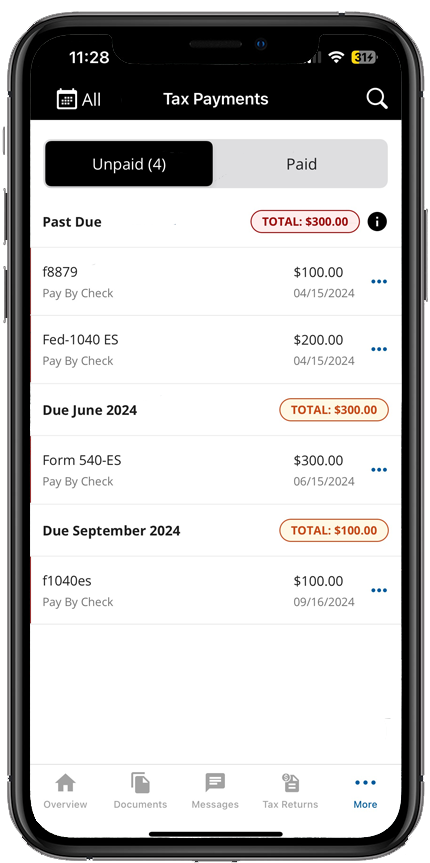 Tax yeardropdown.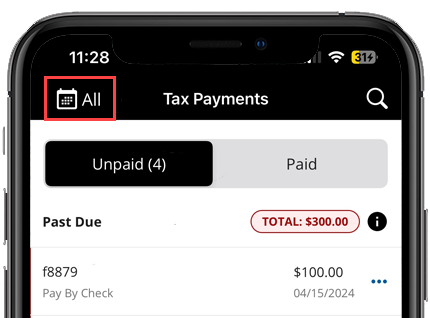
- By default, yourUnpaidtax payments will be displayed first. SelectPaidto view tax payments that you've already paid or marked as paid. Tax payment vouchers that have already been paid should be marked as paid.
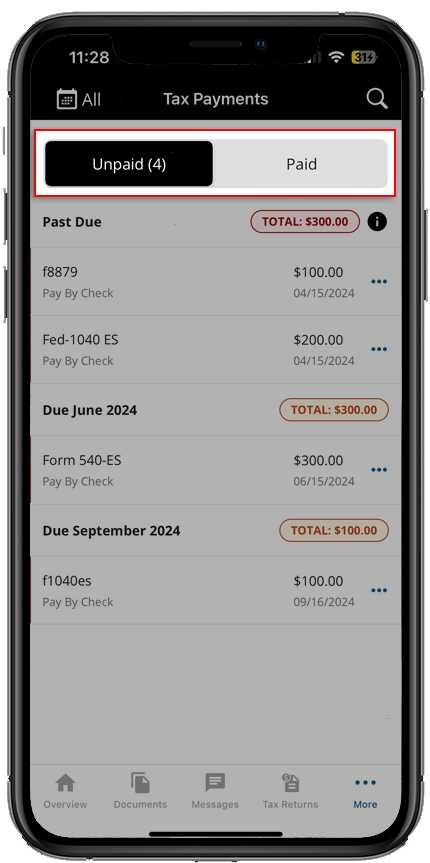
- Select theMenuof the tax payment voucher you want to delete, then selectDeleteon the action sheet.
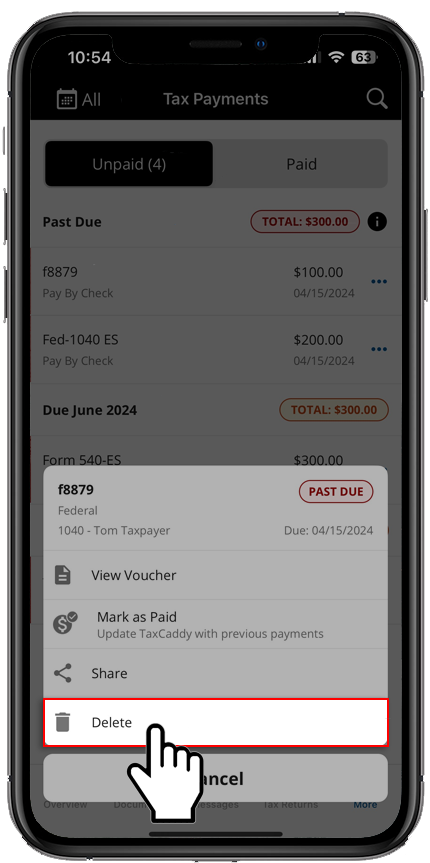 noteThe option toDeletewon’t be available for vouchers that have already been marked as paid.
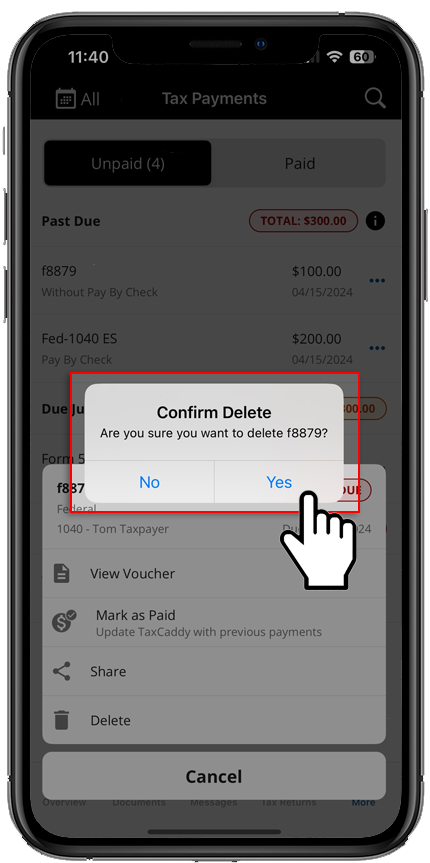
 - SelectYesto proceed with deletion.
Android mobile app
Follow these steps to delete your tax payment voucher on your Android mobile phone app.
- Sign in to the TaxCaddy mobile app.
- TheOverviewscreen will list the tax payment vouchers that your tax professional has uploaded to your account. SelectPay - Tax Payment(s)to open your tax payments.
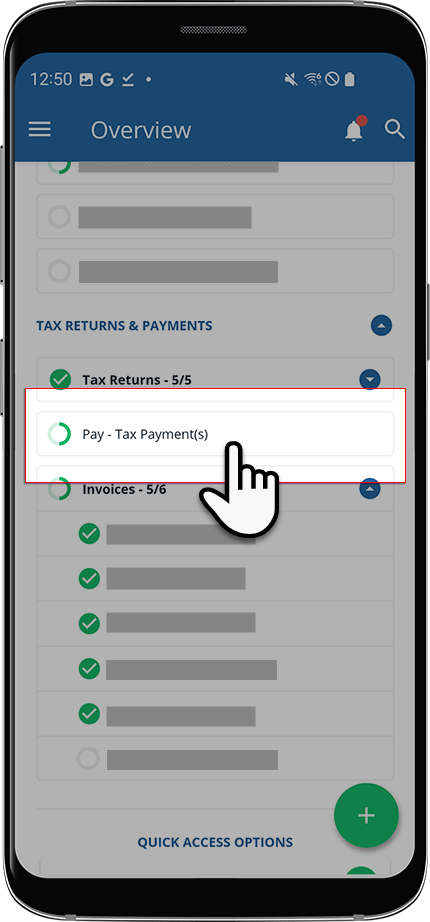 If your tax professional has enabled 1041 tax return profiles on your account, select theSELECT TAX RETURNSdropdown to view your available tax return profiles.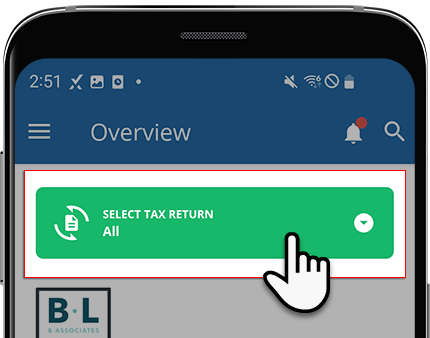
- Alternatively, you can selectMenu.
 SelectTax Payments.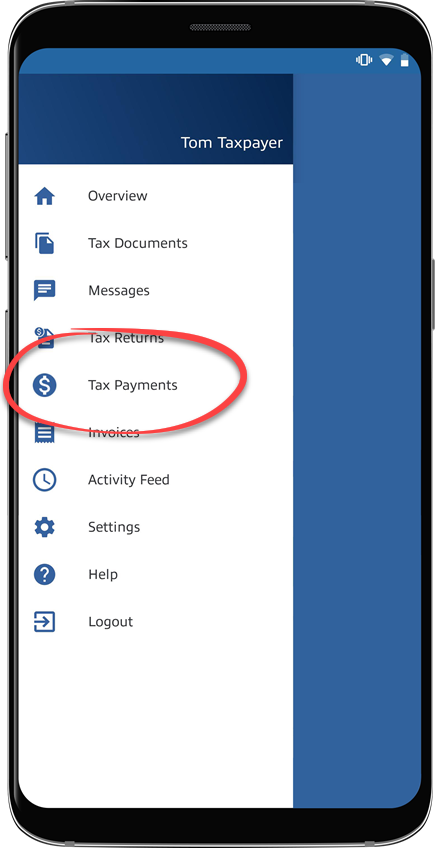
- TheAlltax year option will be selected by default, displaying payments spanning all tax years.You can select from the
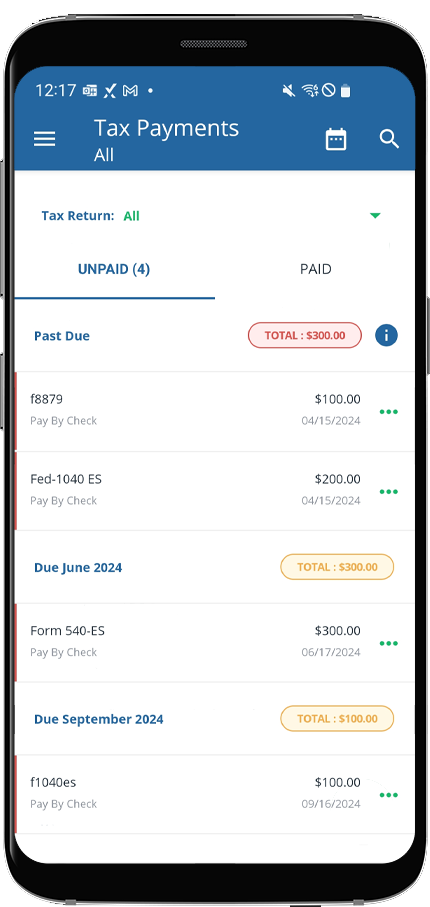 Tax yeardropdown to view payments for a specific year.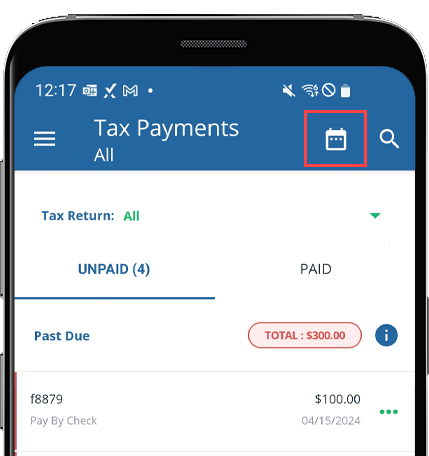
- By default, yourUnpaidtax payments will be displayed first. SelectPaidto view tax payments that you've already paid or marked as paid. Tax payment vouchers that have already been paid should be marked as paid.
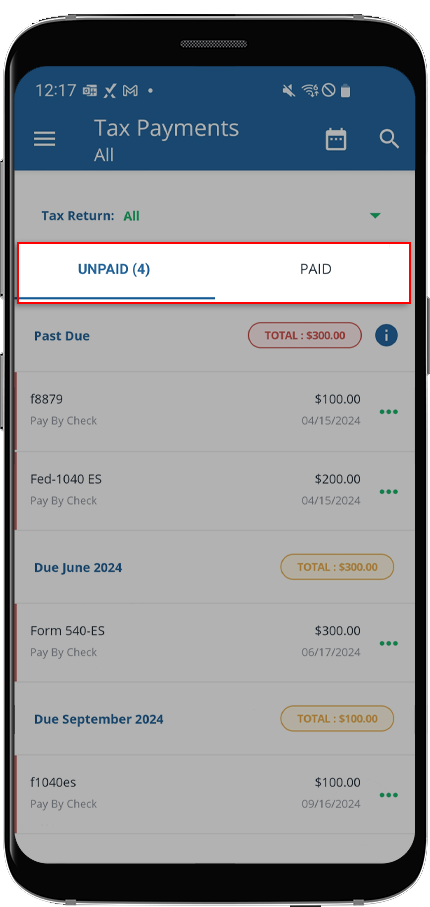
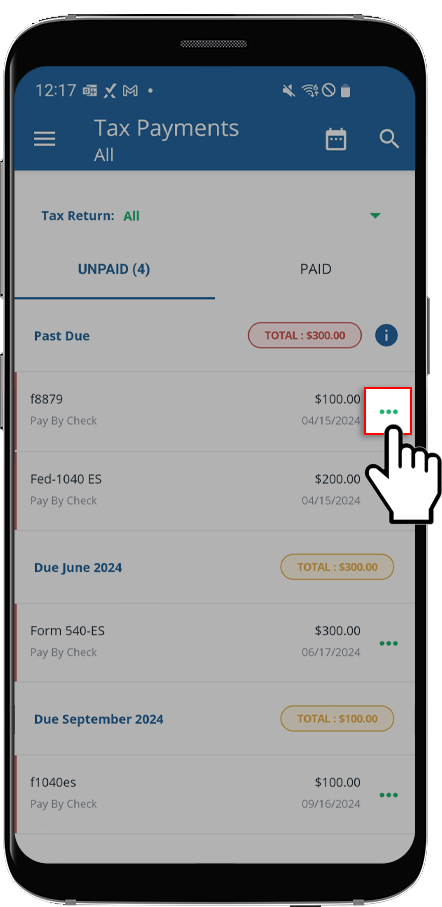
- Select theMenucorresponding to the tax payment voucher you want to download.
- SelectDeleteto proceed with deletion.
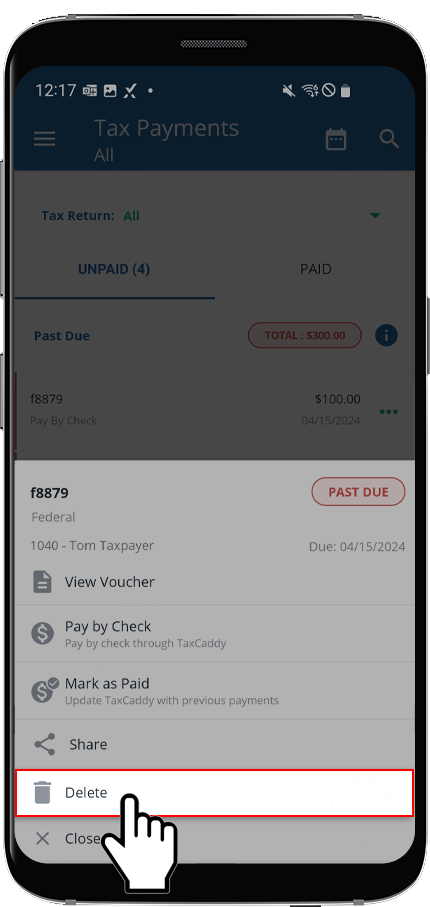 noteThe option toDeletewon’t be available for vouchers that have already been marked as paid.

