Mark paid on a tax payment voucher
Show all hidden content
You can inform your tax professional that you have fulfilled a tax payment by updating the tax payment voucher in the
Tax Payments
section.TaxCaddy.com on PC, Mac, or tablet
Follow these steps to mark your tax payment voucher as paid when using TaxCaddy.com on your PC, Mac, or tablet.
Tax Payments screen
Follow these steps to mark a tax payment voucher as paid from the
Tax Payments
screen.- Sign in to TaxCaddy.com
- SelectPay - Tax Payment(s)to view all tax payments that your tax professional has uploaded to your account.
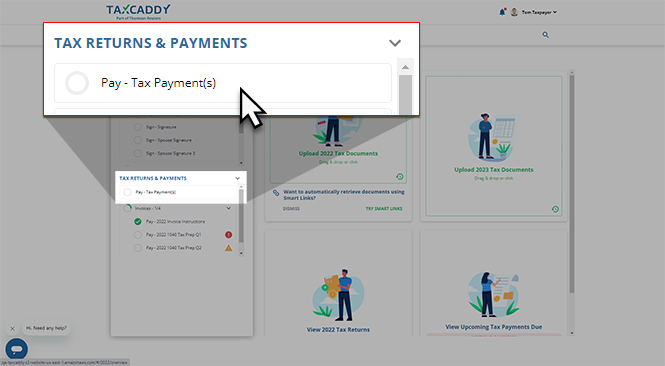 Your current tax year's tax payments will appear beside yourTask Listin theTax Paymentspanel.
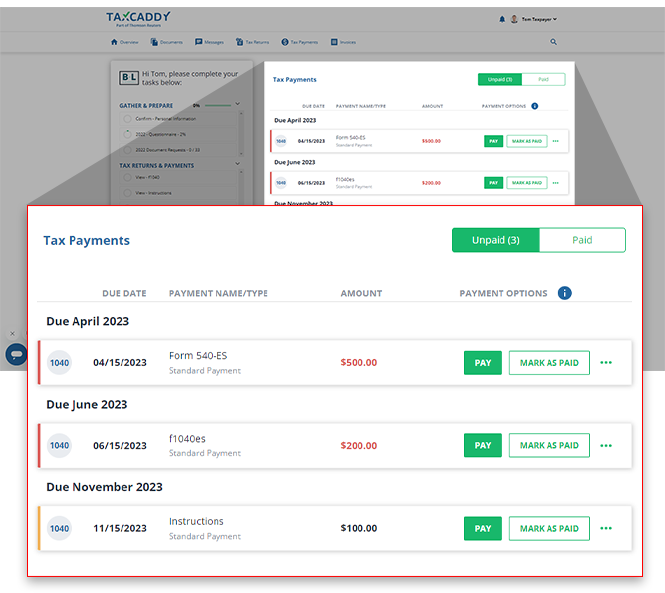 noteIf you're looking for a specific tax payment, select theTax Paymentstab to view tax payments belonging to other tax years.
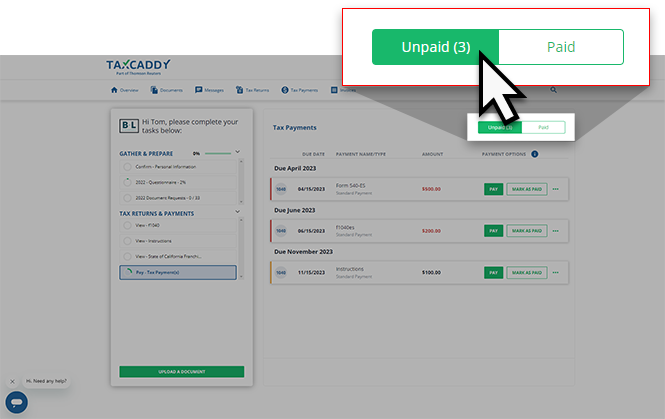
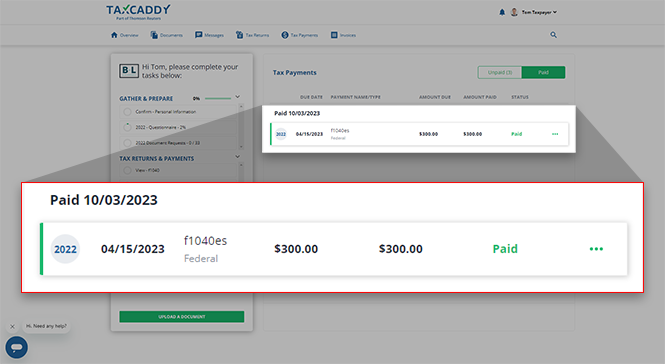
 - By default, yourUNPAIDtax payments will be displayed first. SelectPaidto view tax payments that you've already paid or marked as paid.
- Your tax payments will be sorted by due date. You will also see the tax return type, theDUE DATE,PAYMENT NAME/TYPE,AMOUNT, andPAYMENT OPTIONSinformation for each tax payment.
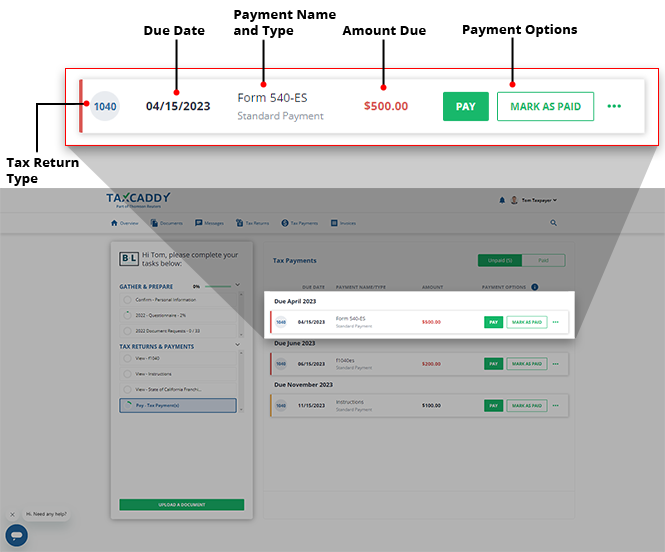
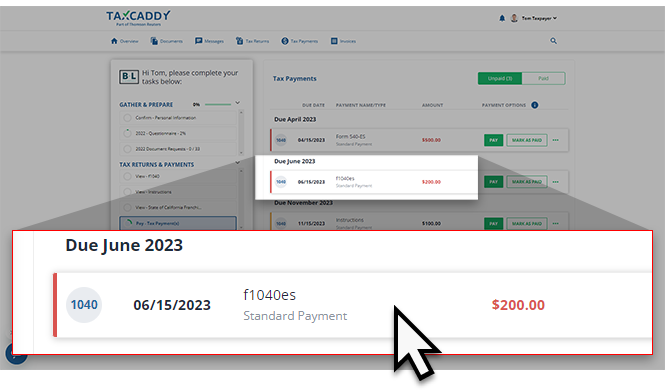
- Select the tax payment voucher that you would like to mark as paid to open it in the Document Viewer panel.
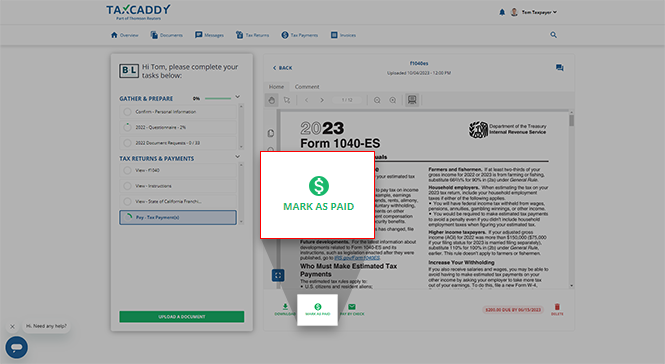
- After you review the document, selectMARK AS PAID.
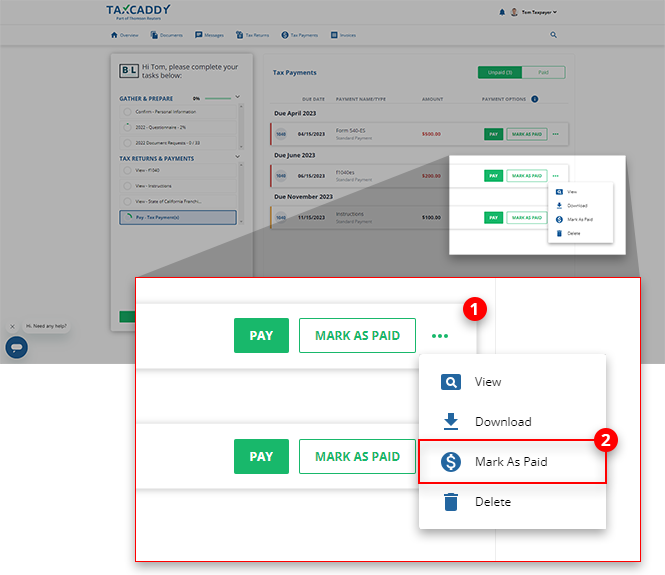
- You can select the document tile'sMenu, then selectMark as Paidto mark the tax payments vouchers paid without reviewing its content.
- You will go to theMark as Paidpanel where you can enter theAMOUNT PAIDandPAYMENT DATEinformation. Once these fields have been filled out, selectMARK AS PAID.noteAfter you selectMARK AS PAIDfor a voucher, it can't be deleted or edited in the future.
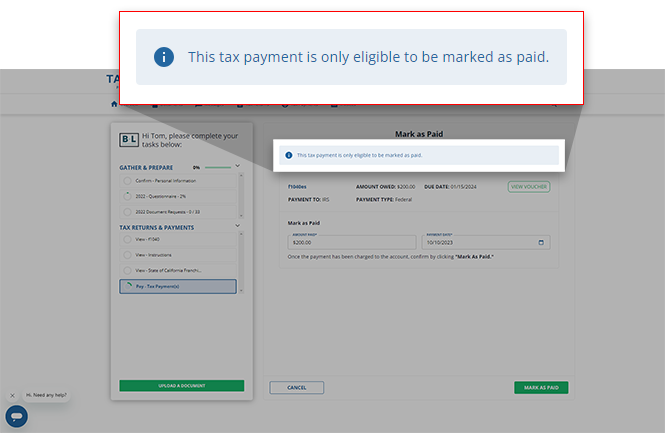
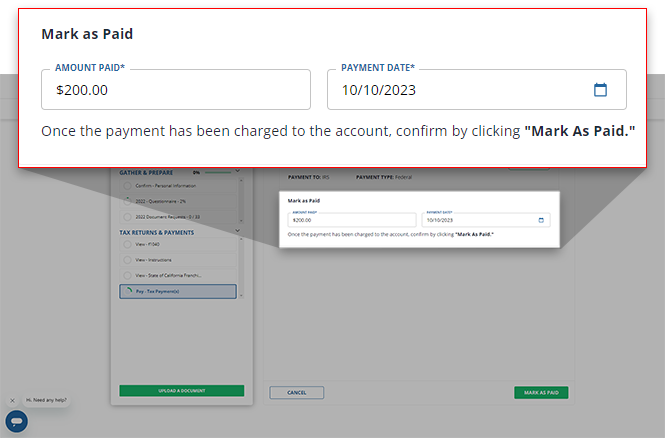 noteEstimated tax payment vouchers have voucher numbers next to theDue Date.If you see "This tax payment is only eligible to be marked as paid." above your payment voucher information, then you are required to make tax payments online to your taxing authority's website. After you make the tax payment, you can mark the tax payment as paid.
 If you see "This tax payment is only eligible to be marked as paid. An automatic payment has been scheduled to be withdrawn from your account." above your payment voucher information, then your tax payment has already been scheduled for automatic withdrawal or payment. Mark the tax payment as paid once you have verified the payment has been processed.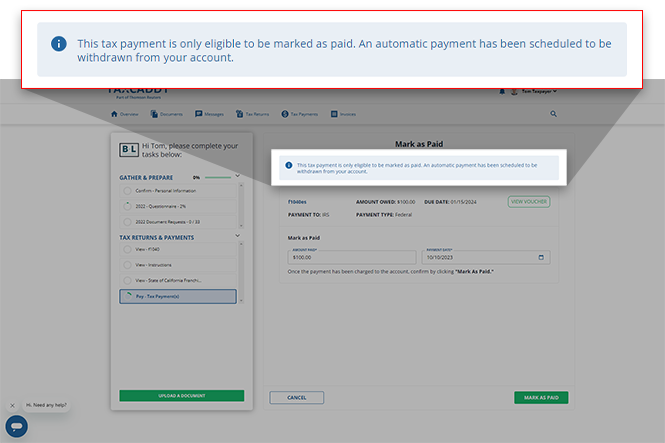
- A confirmation window will appear and the tax payment voucher will be moved to thePAIDsection. Your tax professional will automatically be notified that you have completed the tax payment voucher.
iOS mobile app
Follow these steps to mark your tax payment voucher as paid on your iOS mobile phone app.
- Sign in to the TaxCaddy mobile app.
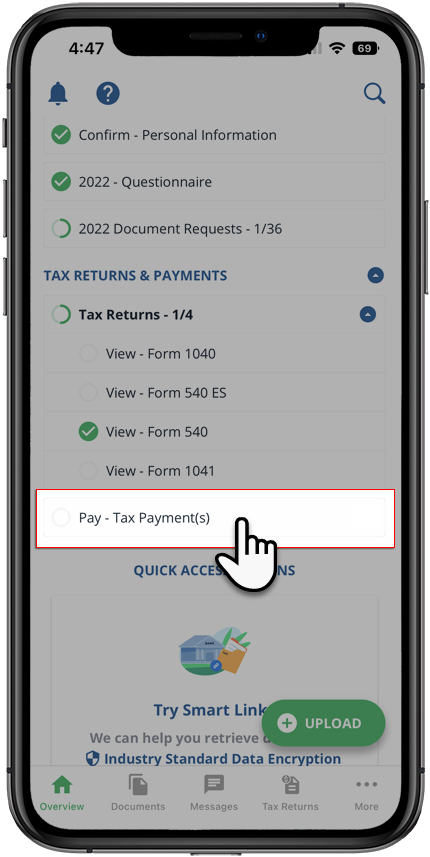
- Tax payment vouchers that your tax professional has uploaded to your account will appear on theOverviewscreen. SelectPay - Tax Payment(s)to open your tax payments.
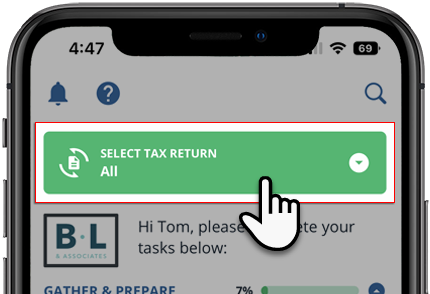
 If your tax professional has enabled 1041 tax return profiles on your account, select theSELECT TAX RETURNSdropdown to view your available tax return profiles.
 Alternatively, you can selectMore, then selectTax Payment.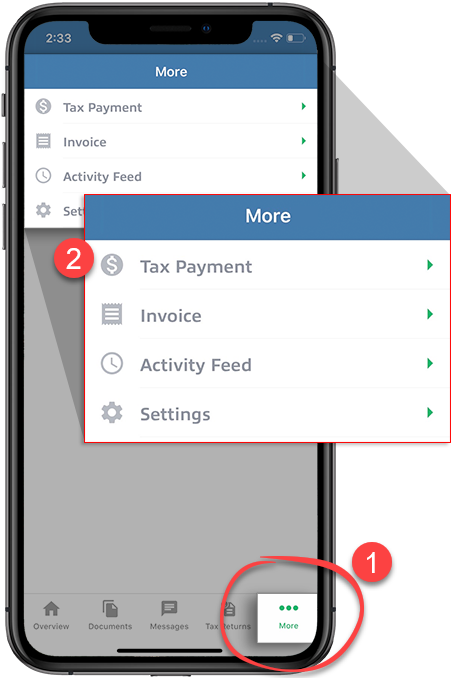
- TheAlltax year option will be selected by default, displaying payments spanning all tax years.You can select from the
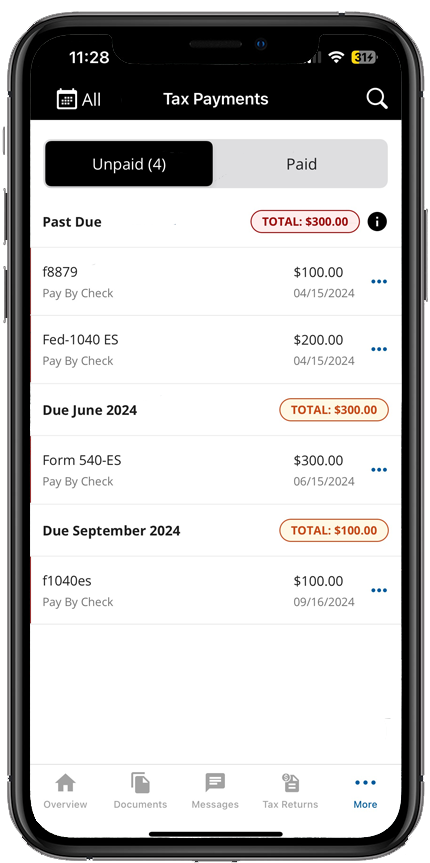 Tax yeardropdown to view payments for a specific year.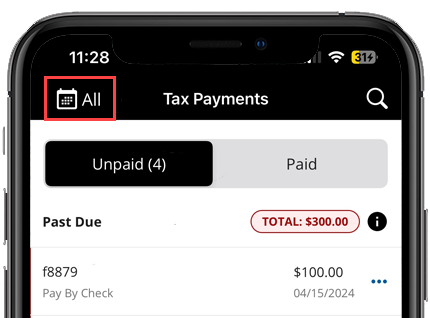
- SelectUnpaidto see tax payments that need to be paid (selected by default).
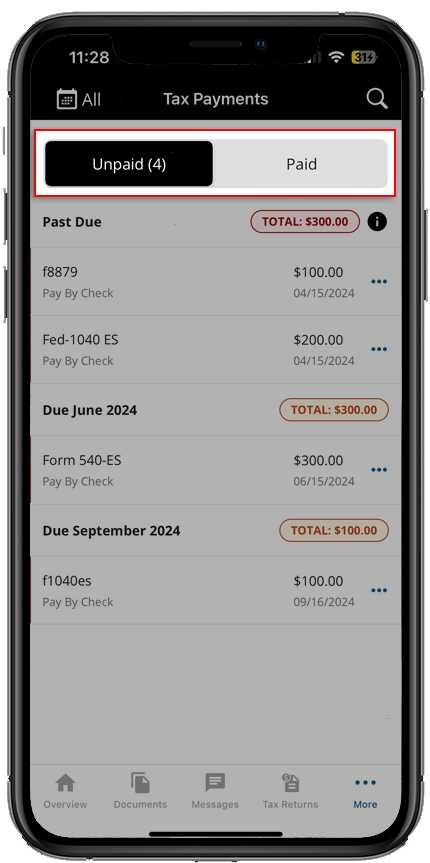
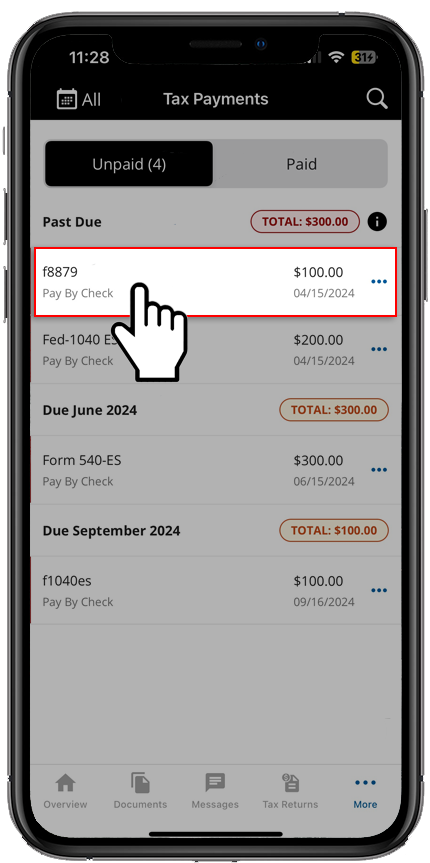
- Select the tax payment voucher you want to view from those listed.
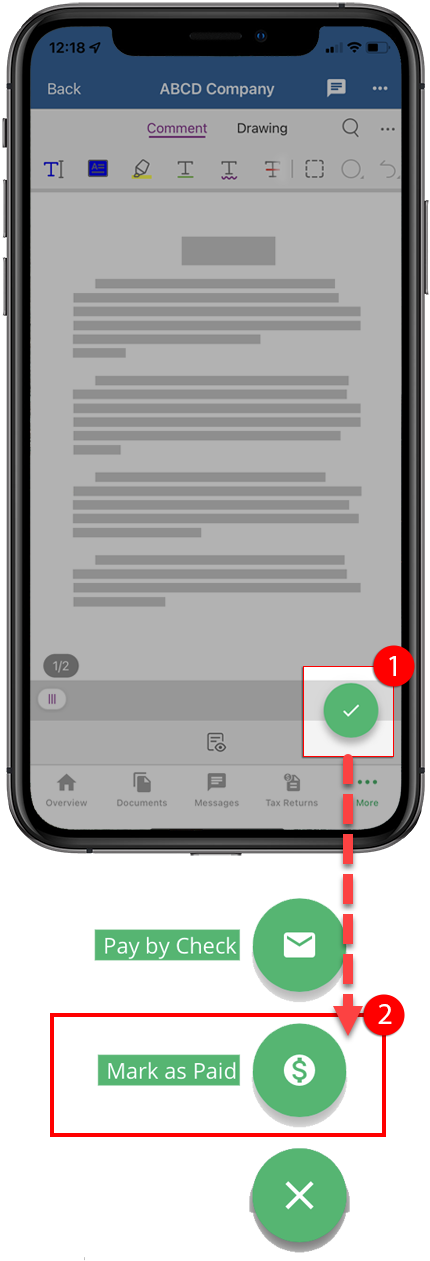
- After you review the document, select the floatingMenu, then selectMark as Paid.
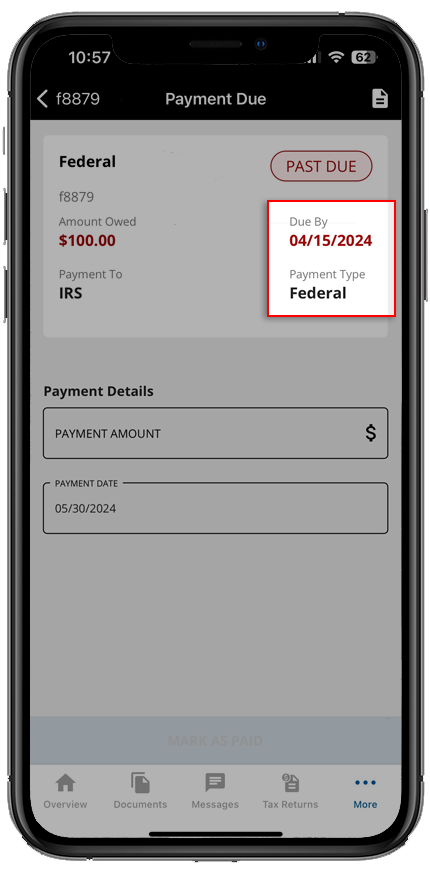
- Estimated tax payment vouchers will have a voucher number next toDue By(Due By) in thePayment Duescreen.
 SelectVoucherif you'd like to view the tax payment voucher before marking it as paid.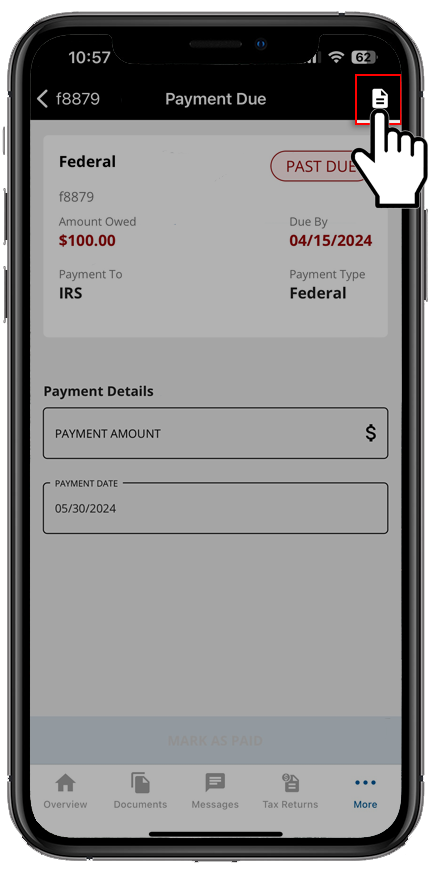
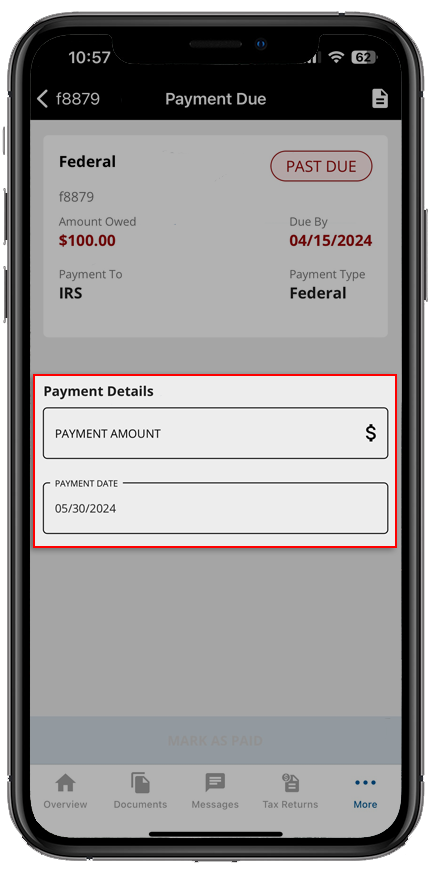
- Enter thePAYMENT AMOUNTandPAYMENT DATEinformation.
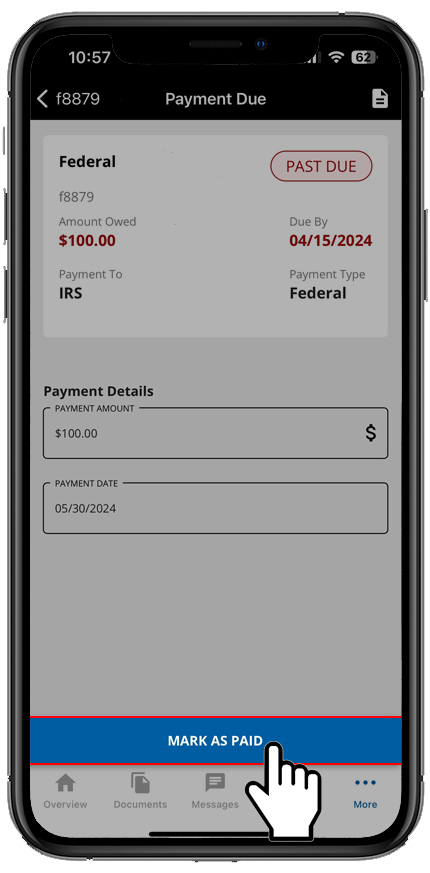
- SelectMARK AS PAID.
Android mobile app
Follow these steps to mark your tax payment voucher as paid on your Android mobile phone app.
- Sign in to the TaxCaddy mobile app.
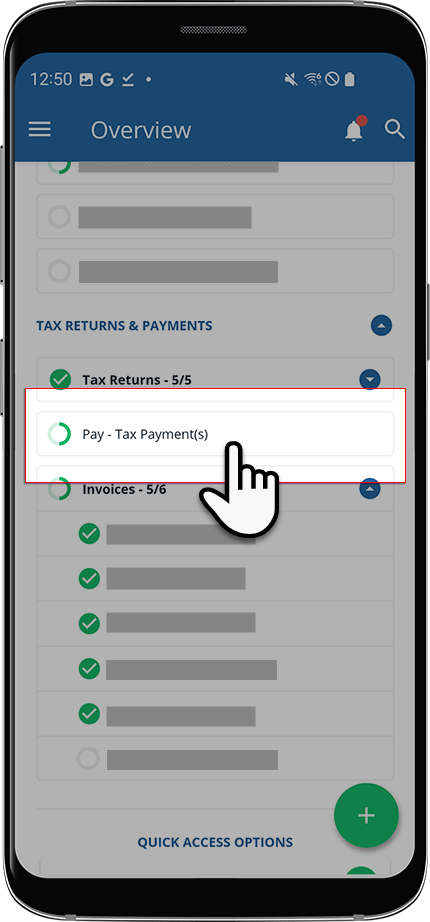
- TheOverviewscreen will list the tax payment vouchers that your tax professional has uploaded to your account. SelectPay - Tax Payment(s)to open your tax payments.
 If your tax professional has enabled 1041 tax return profiles on your account, select theSELECT TAX RETURNSdropdown to view your available tax return profiles.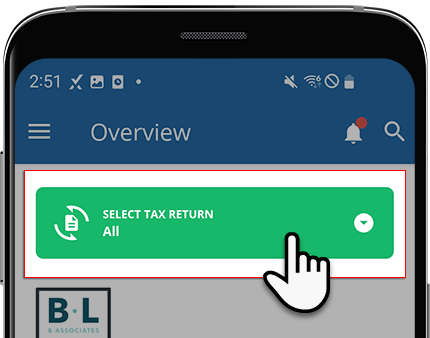
- Alternatively, you can selectMenu.
 SelectTax Payments.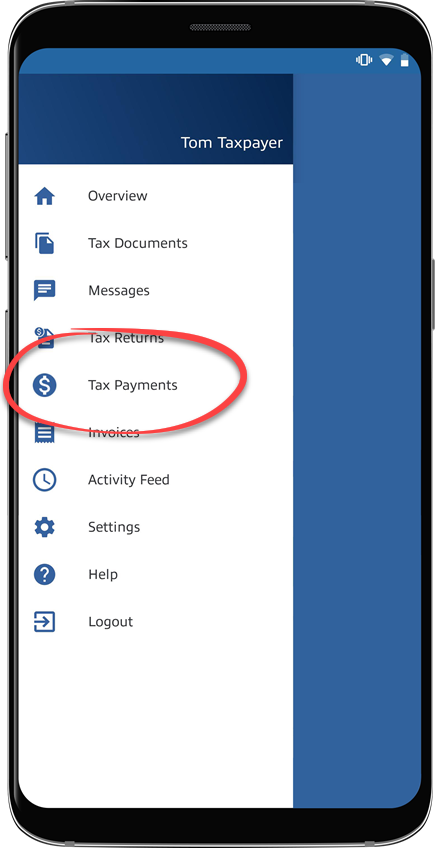
- TheAlltax year option will be selected by default, displaying payments spanning all tax years.You can select from the
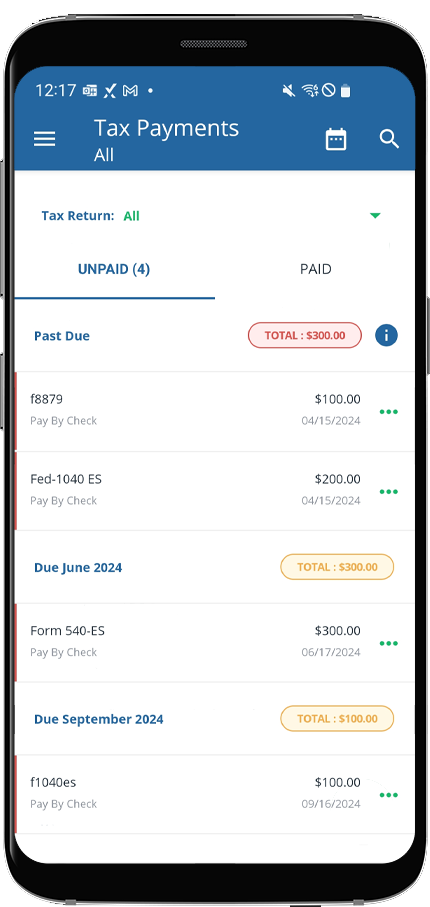 Tax yeardropdown to view payments for a specific year.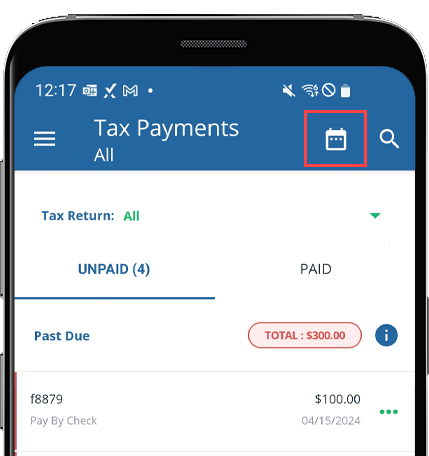
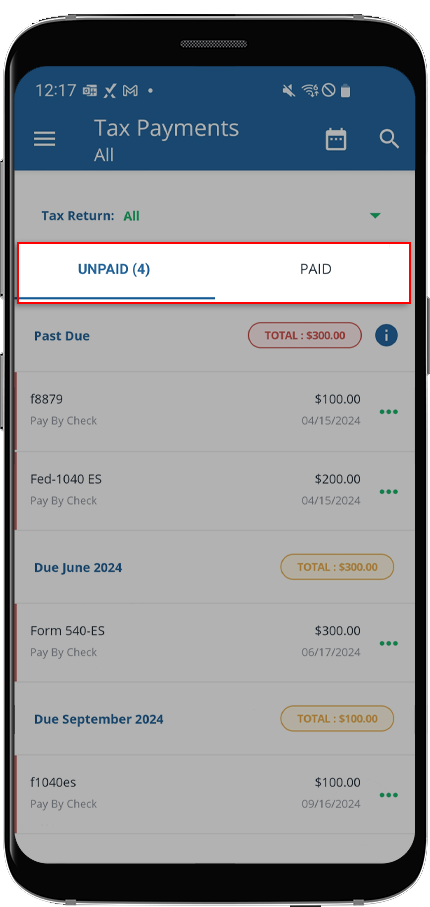
- SelectUNPAIDto see tax payments that need to be paid (selected by default).
- Select theMenucorresponding to the tax payment voucher you want to download.
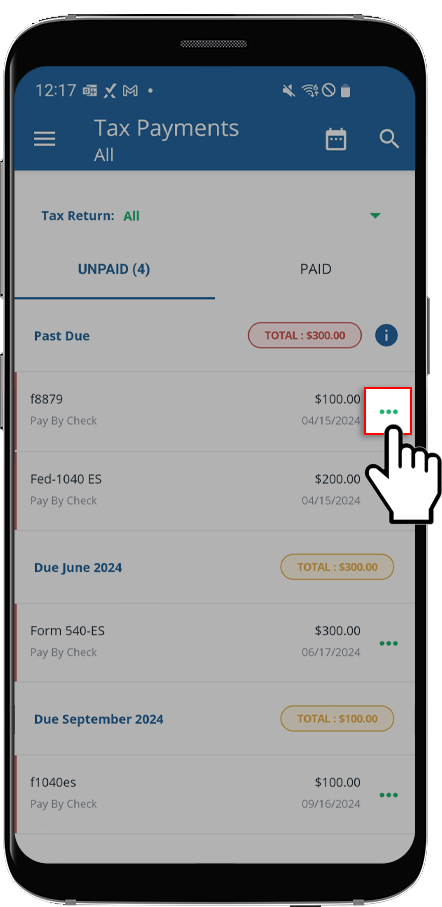
- SelectMark as Paid.
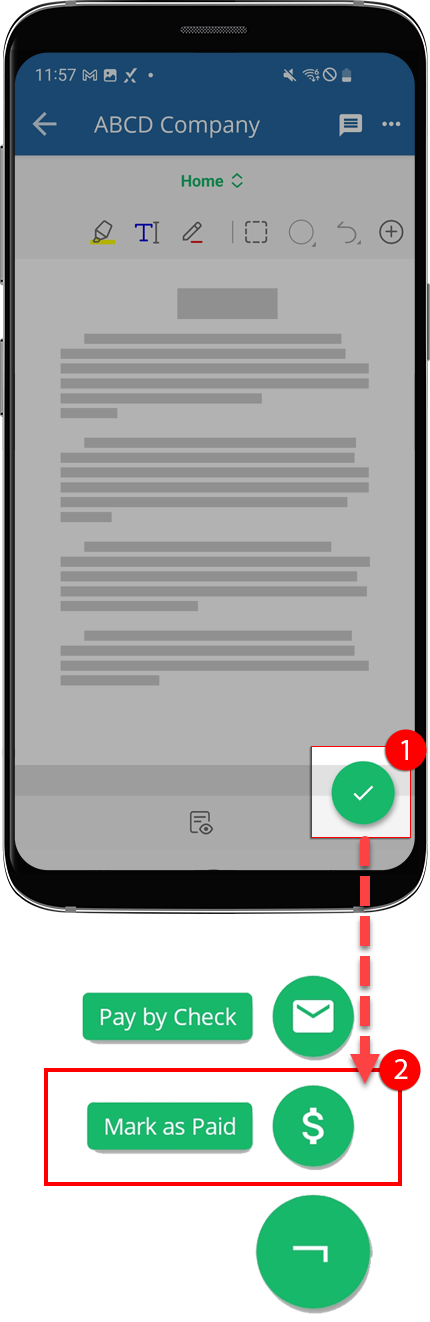
- Alternatively, you can select the tax payment voucher to view the document.
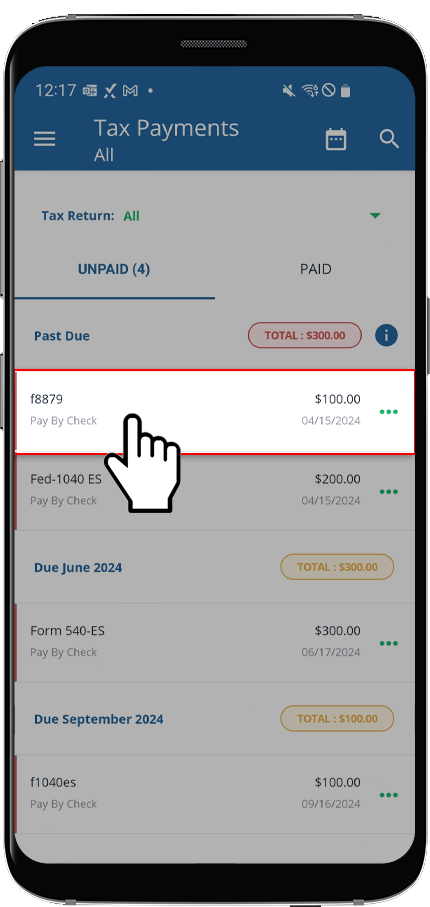
- After you review the document, select the floatingMenu, then selectMark as Paid.
- Estimated tax payment vouchers will have a voucher number next toDue Datein thePayment Duescreen.
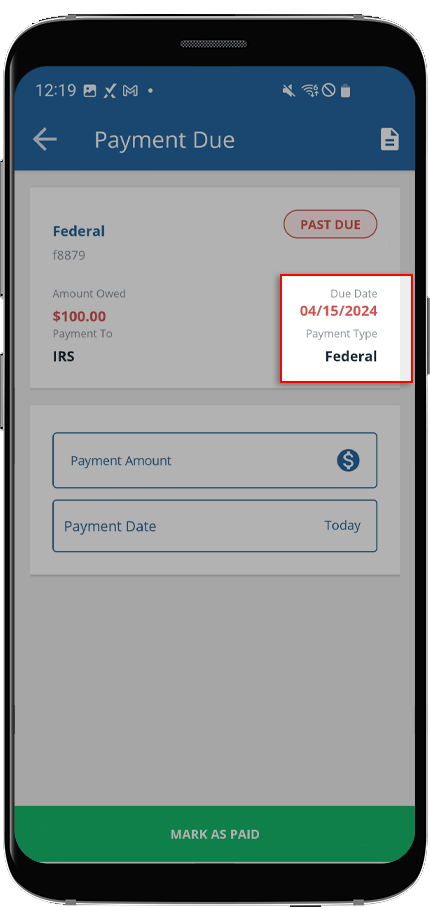 SelectVoucherif you'd like to view the tax payment voucher before marking it as paid.
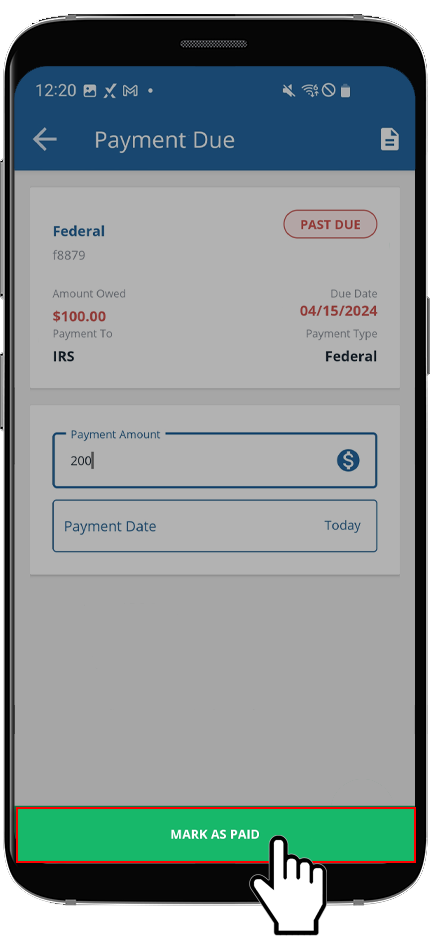
 - Enter thePaid AmountandPayment Dateinformation.
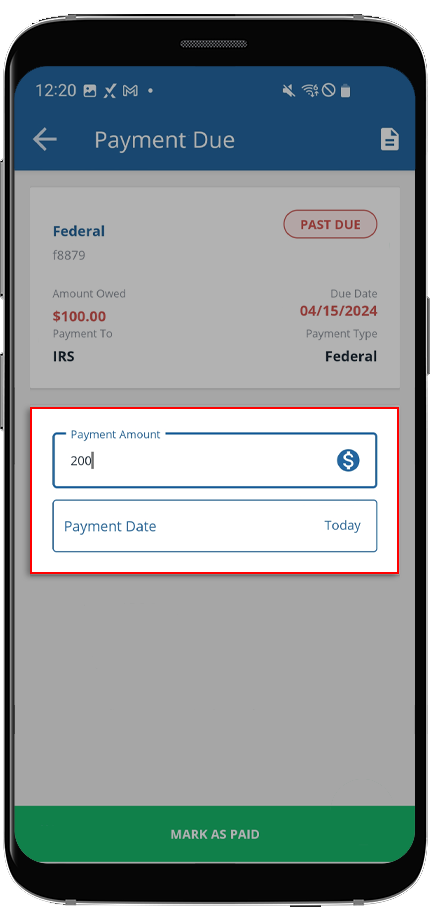
- SelectMARK AS PAID.