Message your tax professional about your tax payment voucher
Show all hidden content
You can use the messages panel when viewing a tax payment voucher to message your tax professional about the payment. Doing so will create a new thread associated with that document in
Messages
.TaxCaddy.com on PC, Mac, or tablet
Follow these steps to message your tax professional regarding your tax payment voucher using TaxCaddy.com on your PC, Mac, or tablet.
- Sign in to TaxCaddy.com
- If your tax professional has uploaded a tax payment voucher to your account, you can selectPay - Tax Payment(s)to view these payment vouchers.
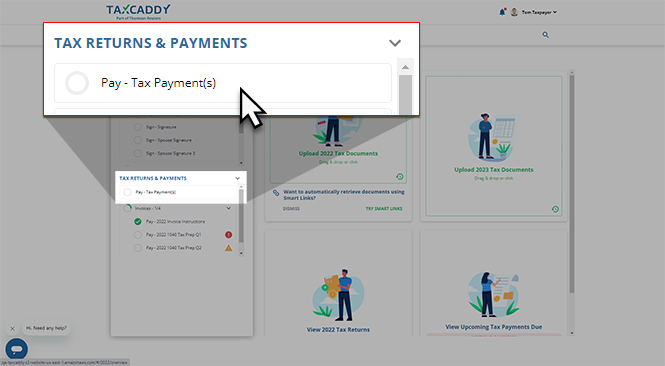
- Your tax payments for the current tax year will appear in theTax Paymentspanel beside yourTask List.noteIf you don't see a certain tax payment, select theTax Paymentstab (from the top navigation bar) to view tax payments belonging to other tax years.
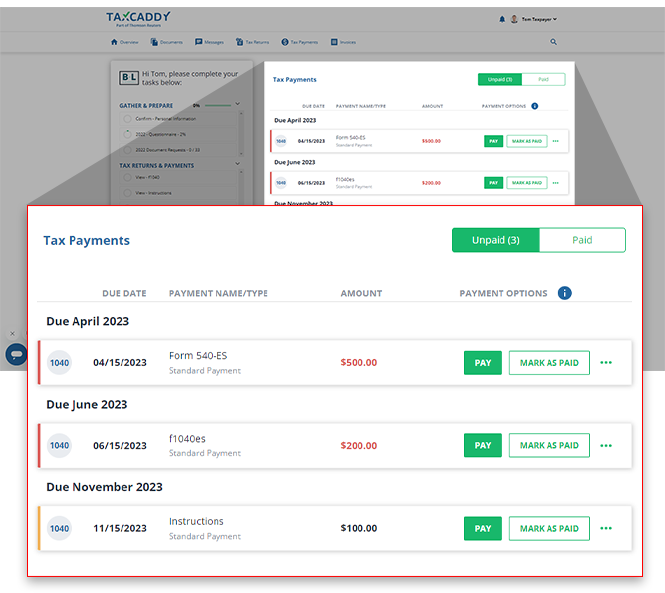
- Select a listed tax payment voucher to view the tax payment document attached.
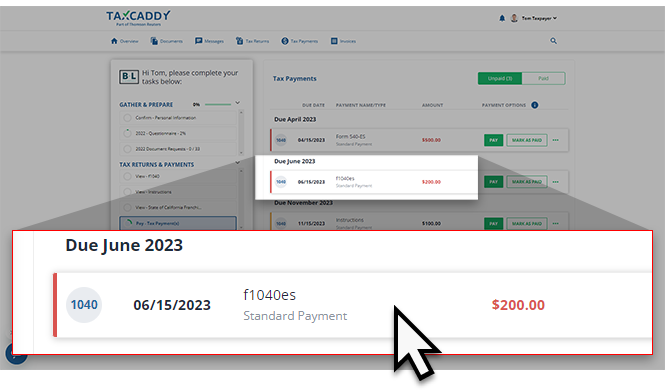
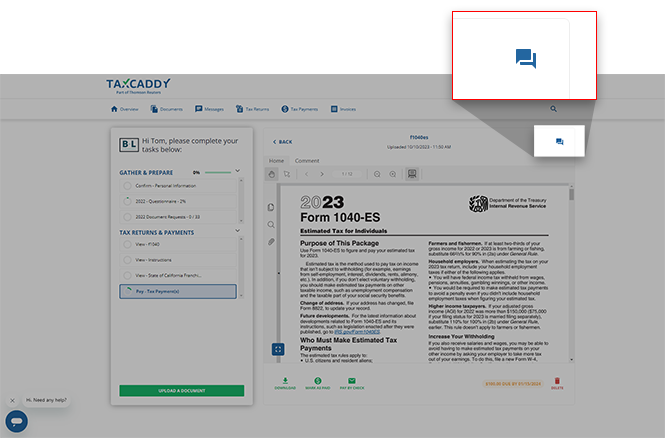
- SelectMessageto open theMessagespanel for the selected tax payment document.noteThe title of the selected tax payment will appear at the top of theMessagespanel.
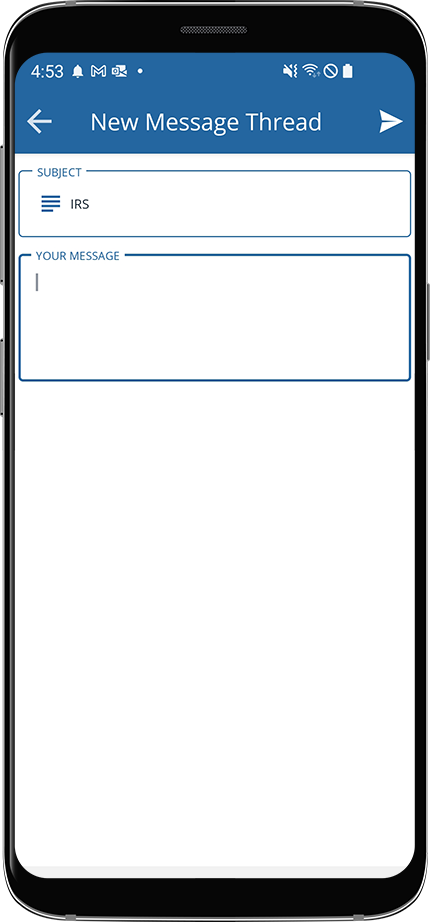
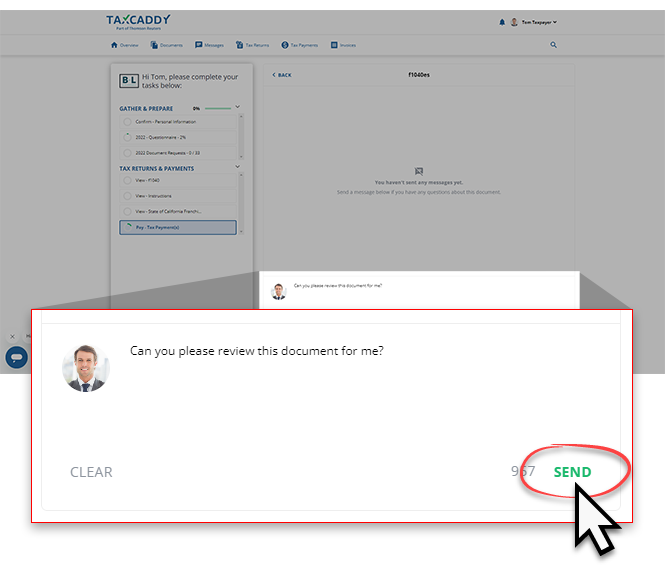
- On theMessagespanel, enter your message into the textbox, then selectSEND. Your tax professional's reply appears in the thread on this panel. The message thread is also accessible from theMessagespage on the navigation panel.
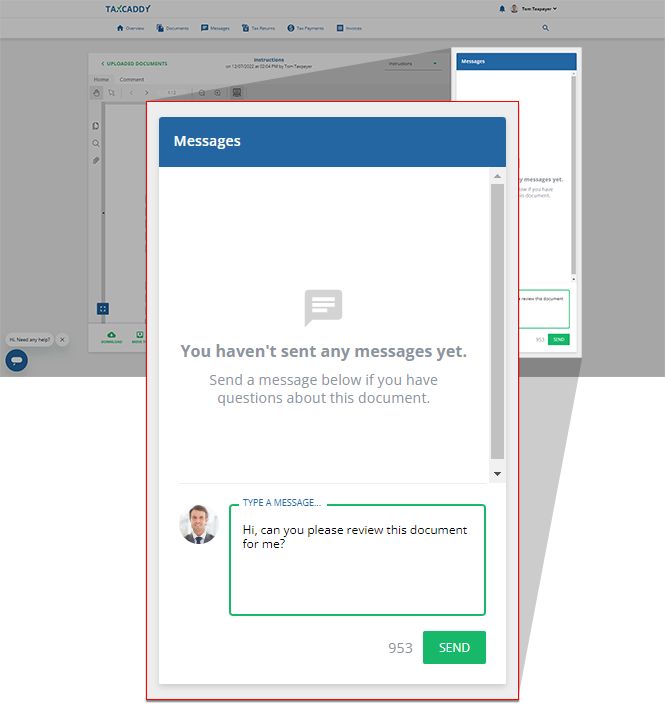
- Alternatively, when viewing a tax payment voucher in theTax Paymentstab you can use theMessagespanel.
iOS mobile app
Follow these steps to message your tax professional regarding your tax payment voucher on your iOS mobile phone app.
- Sign in to the TaxCaddy mobile app.
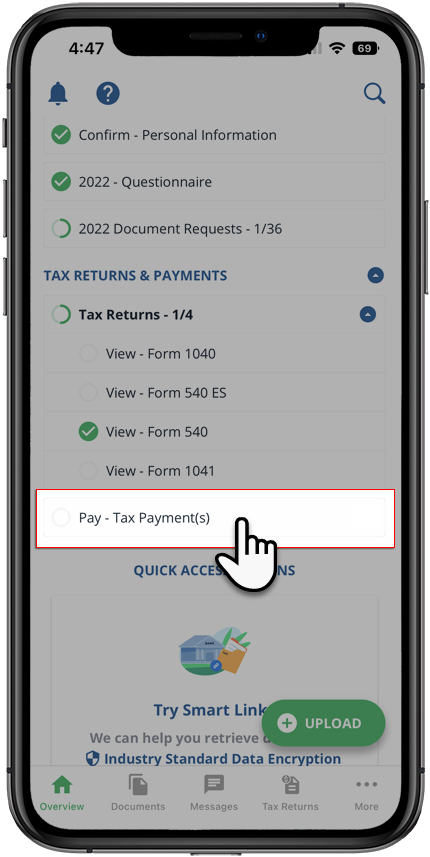
- Tax payment vouchers that have been uploaded to your account will appear on theOverviewscreen. SelectPay - Tax Payment(s)to open your tax payments.
 Alternatively, you can selectMoreon the navigation tab then selectTax Payments.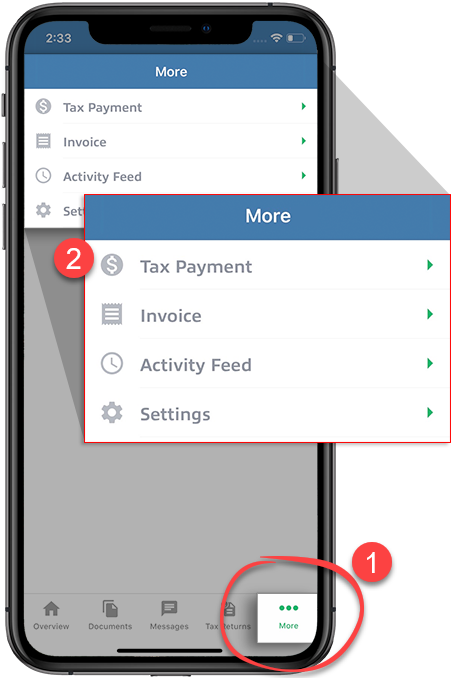
- You will see tax payments spanning all tax years.
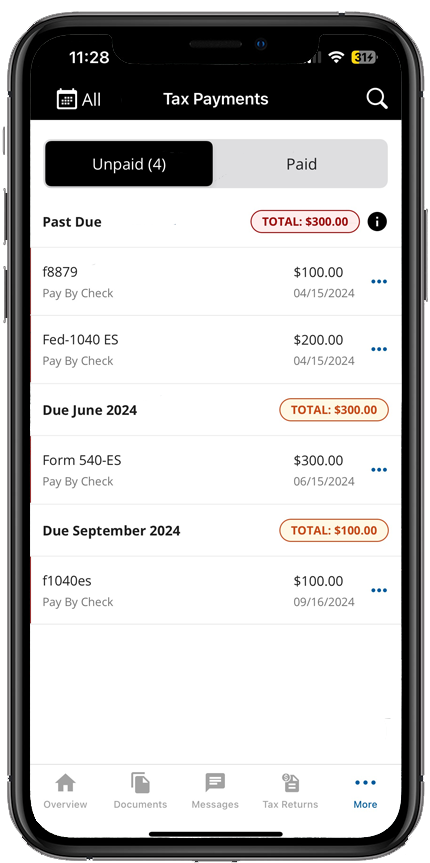 TheAlltax year option will be selected by default. If you'd prefer to see tax payments belonging to a specific tax year, select it from theTax yearmenu.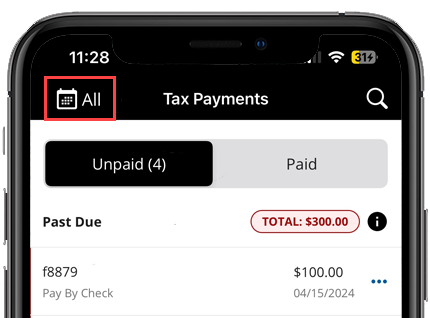
- SelectPAIDto see tax payments you've already paid. SelectUNPAIDto see tax payments that need to be paid (selected by default). If you have already paid a tax payment voucher, then you or your tax professional can mark the tax payment as paid.
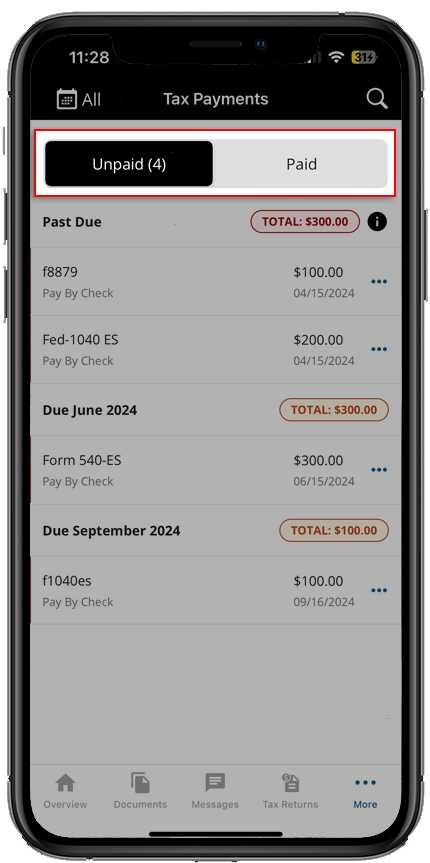
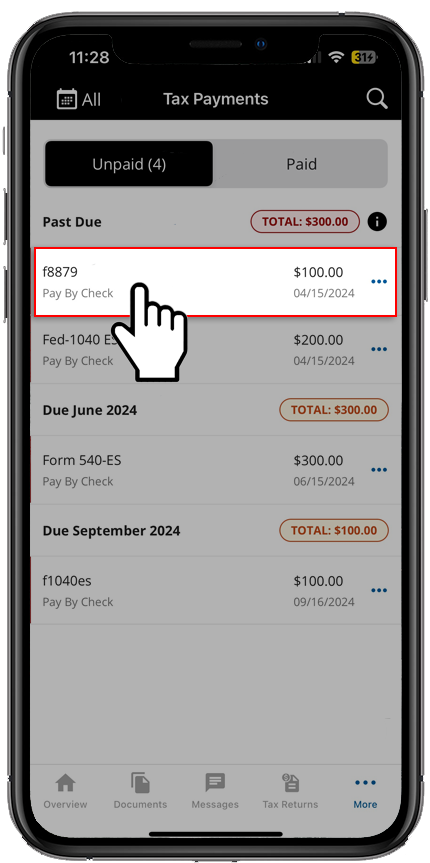
- You will see a list of tax payment vouchers that your tax professional has uploaded. Select the tax payment voucher you want to view.
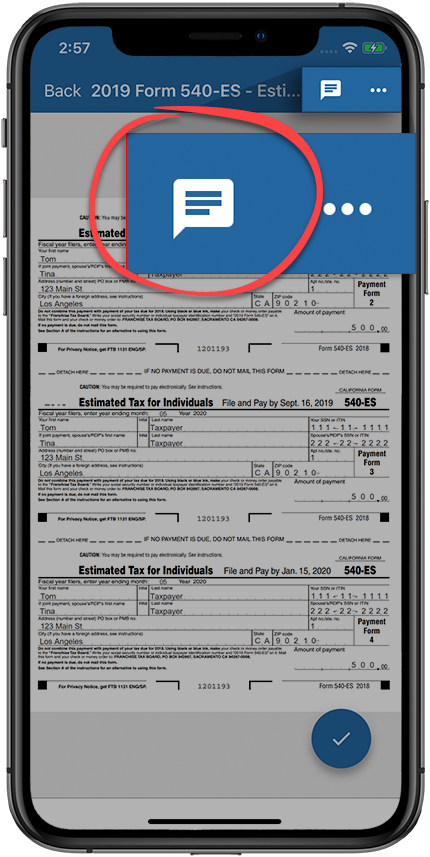
- The payment voucher will open in the viewer. SelectMessages.
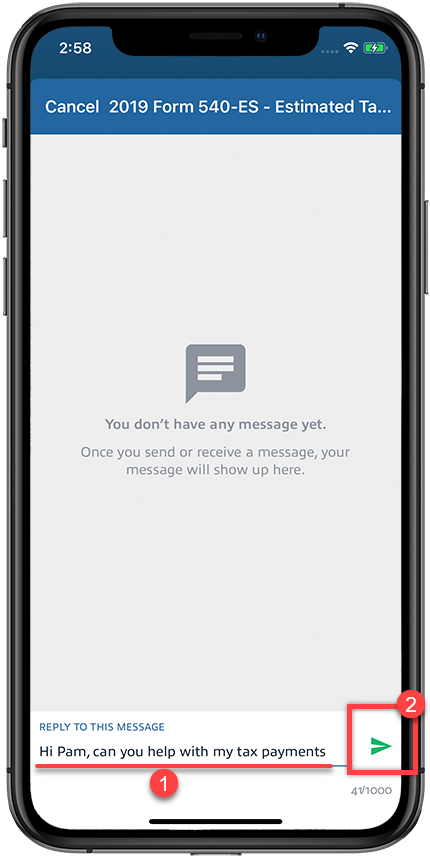
- Enter your message and selectSendto send your message.
Android mobile app
Follow these steps to message your tax professional regarding your tax payment voucher on your Android mobile phone app.
- Sign in to the TaxCaddy mobile app.
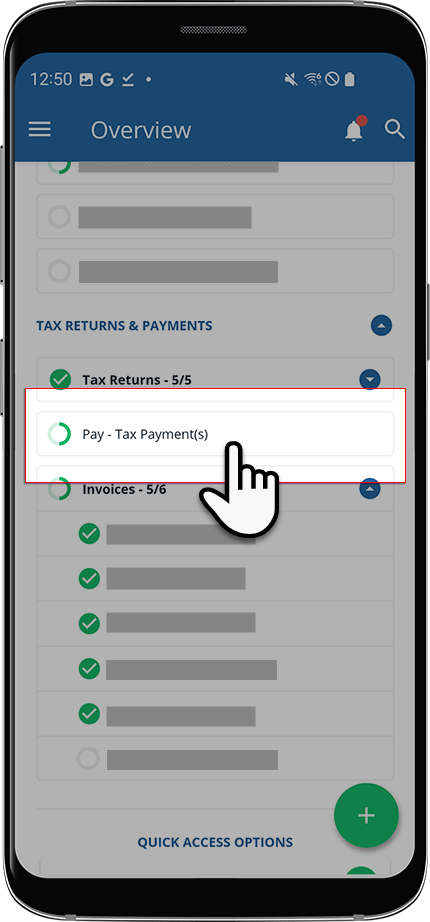
- Tax payment vouchers that have been uploaded to your account will appear on theOverviewscreen. SelectPay - Tax Payment(s)to open your tax payments.
 Alternatively, you can selectMenu.
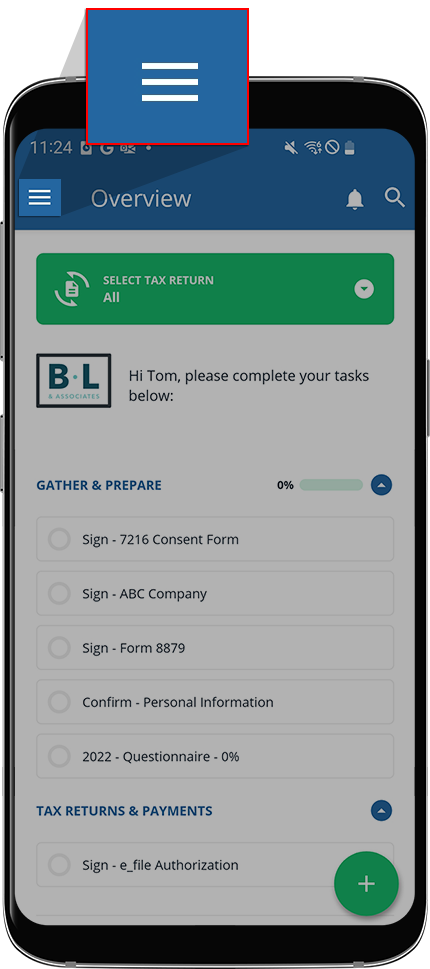 SelectTax Payments.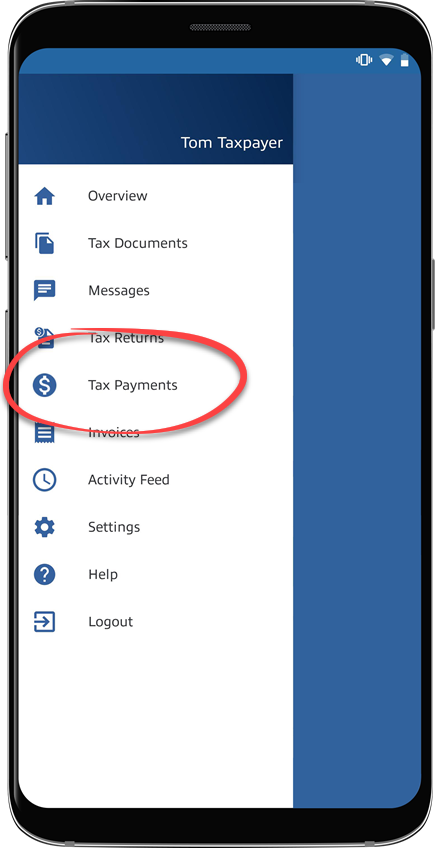
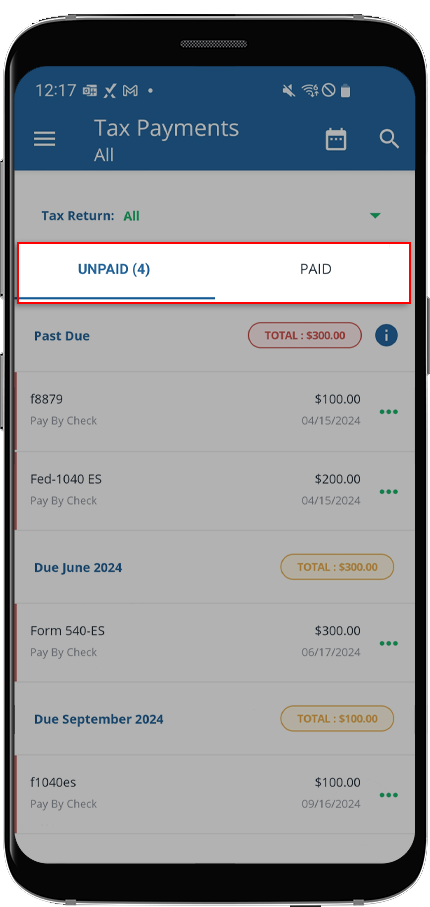
- You will see tax payments grouped by due date.The
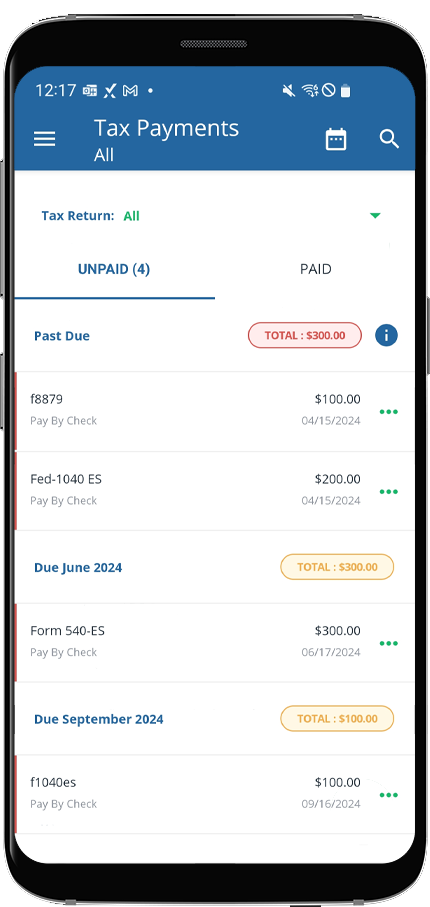 Alltax year option will be selected by default. If you'd like to see tax payments belonging to a specific tax year, select it from theTax yearmenu.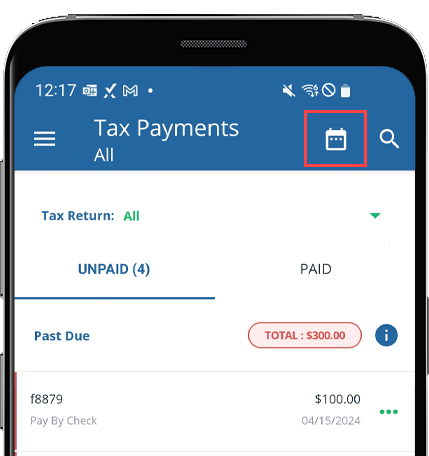
- SelectPAIDto see tax payments you've already paid. SelectUNPAIDto see tax payments that need to be paid (selected by default). If you have already paid a tax payment voucher, then you or your tax professional can mark the tax payment as paid.
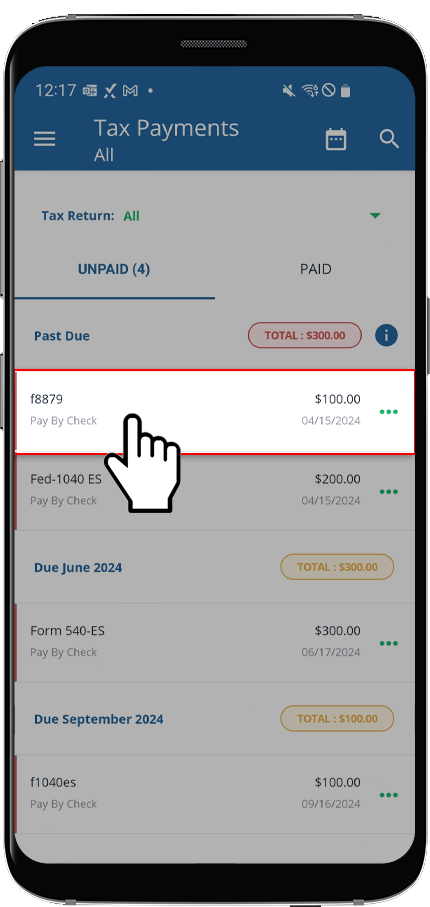
- Select the tax payment voucher you want to view.
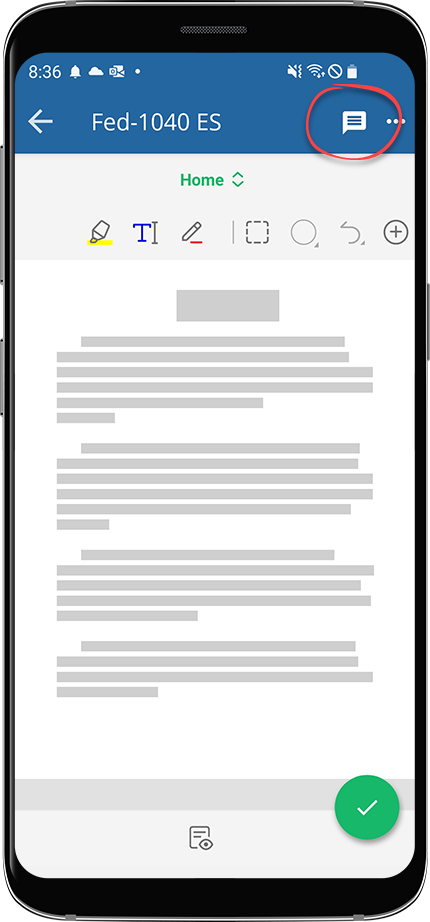
- Tax payment voucher will open in the viewer. SelectMessages.
- Enter your message and selectSendto send your message.