
Add a signature on a tax payment check
Show all hidden content
When making a tax payment through TaxCaddy, you'll be prompted to add a signature to your checks. You have the option to either upload a new signature that can be applied to future payments or apply a signature that you've previously uploaded.
TaxCaddy.com on PC, Mac, or tablet
Follow these steps to add a signature to a tax payment voucher when using TaxCaddy.com on your PC, Mac, or tablet.
- To add your signature, selectADD SIGNATUREon the check summary.
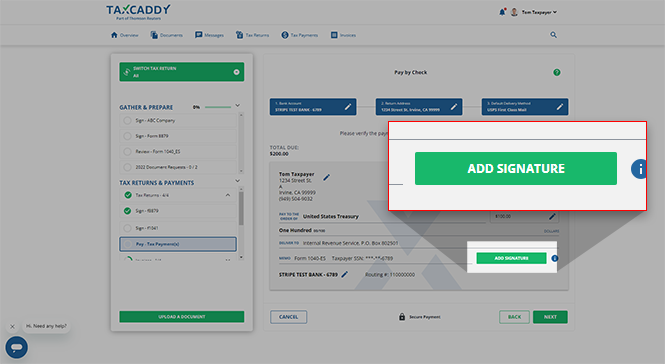
- TheAccount Signaturewindow will appear, giving you the option to either:
- Add new signature: Draw or upload a new signature to attach to your checks.
- Choose existing signature: Select a previously added signature to reuse.
noteYou will automatically be directed toAdd new signatureif you haven’t previously added a signature.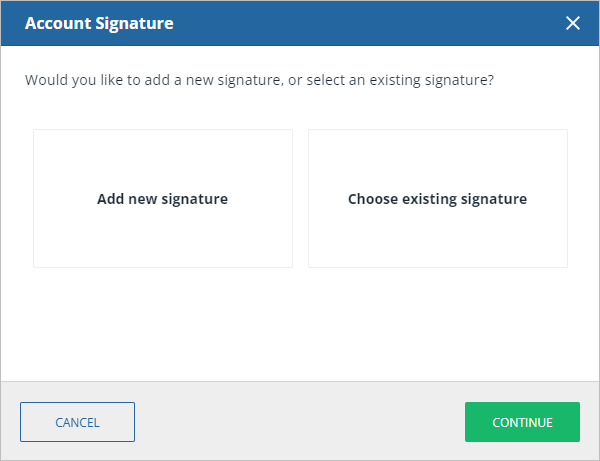
Add new signature
Using
Add new signature
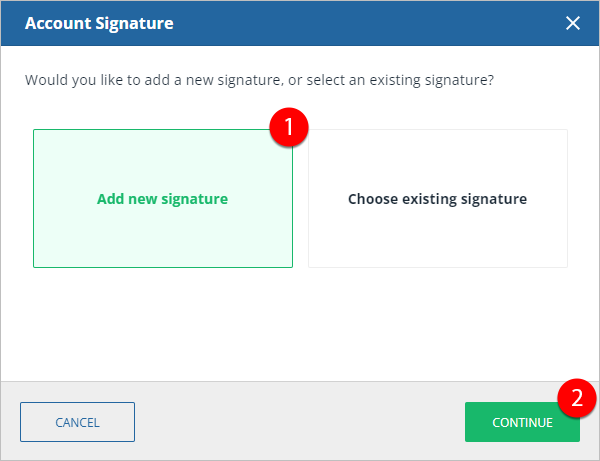
, you'll be able to add a new signature file. You will have the option to either draw your signature in TaxCaddy, or upload an existing file that already contains your signature. Once added, these signature files can be reused when needed at a later.To add a new signature, select
Add new signature
and select CONTINUE
.
Draw
- Select theDRAWtab of theAccount Signaturewindow.
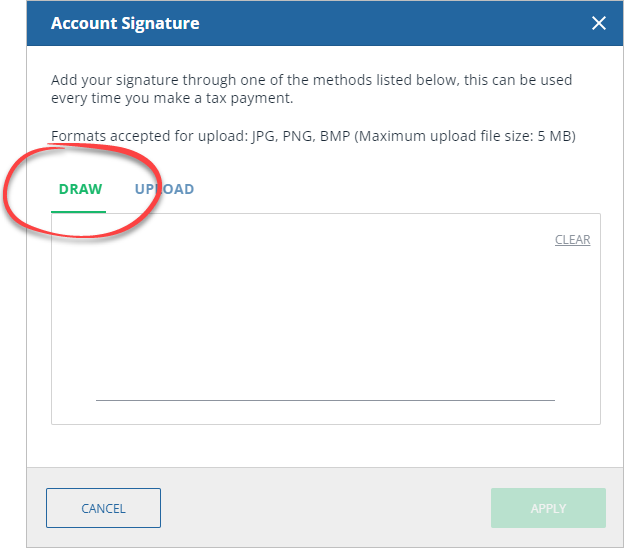
- Write your signature in the field provided.
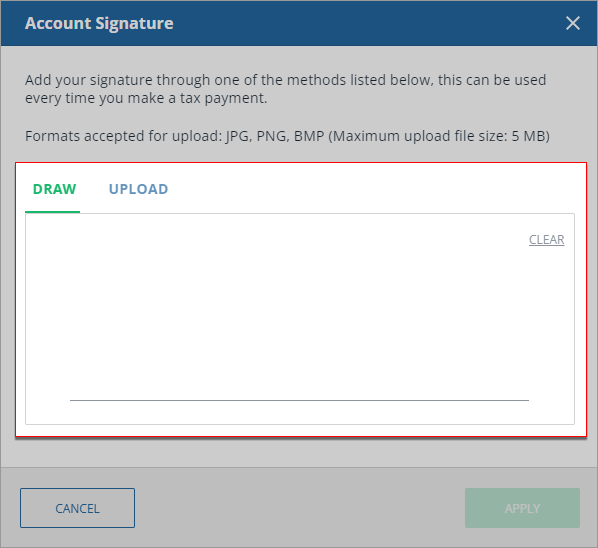 If the signature you write is unsatisfactory, you can selectCLEARto restart.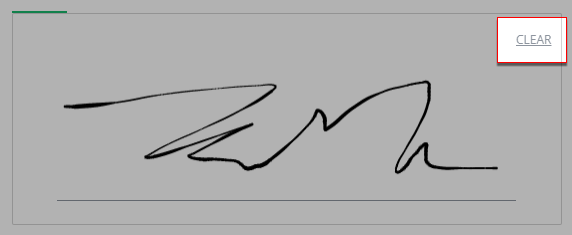
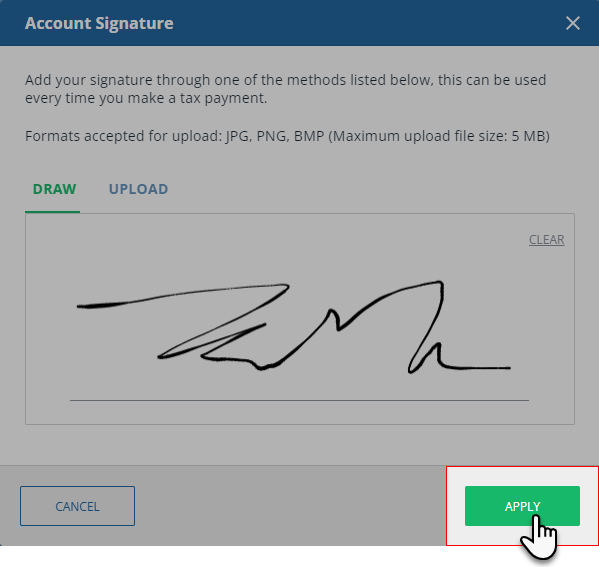
- Once you complete your signature, selectAPPLYto add it to your check.
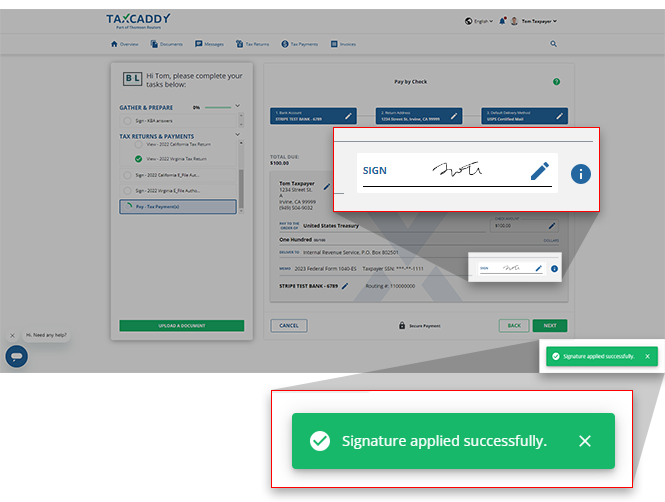
- You will see your drawn signature on the check summary along with a toast notification indicating that it's been successfully applied to your check. You can selectEditif you want to replace the current signature with another one.
Upload
- Select theUPLOADtab on theAccount Signaturewindow.
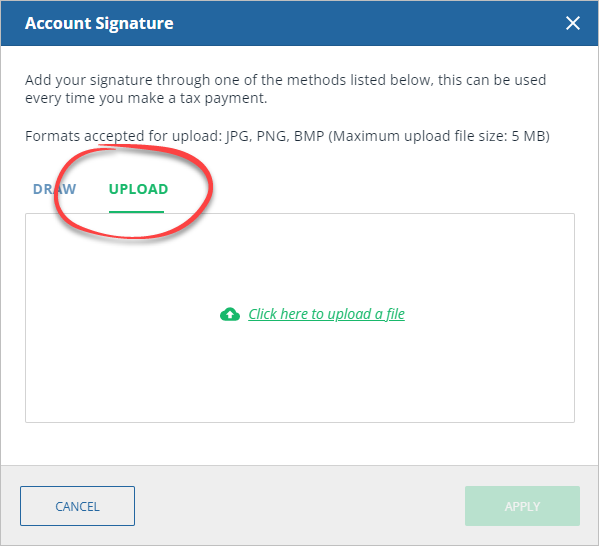
- SelectClick here to upload a fileto open your device's file explorer.
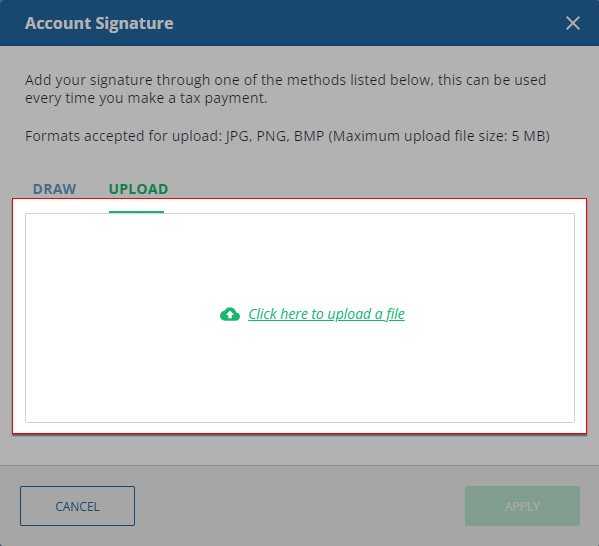
- Select the image file that contains your signature. Image files need be a JPEG, PNG, or BMP and under 5MB in size.
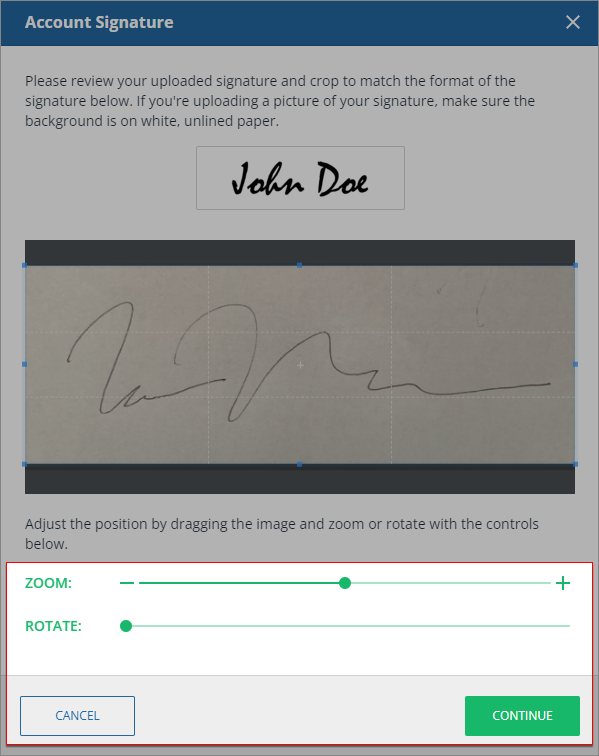
- You can use theROTATEandZOOMtools to adjust your signature image. Once you're satisfied, selectCONTINUE.
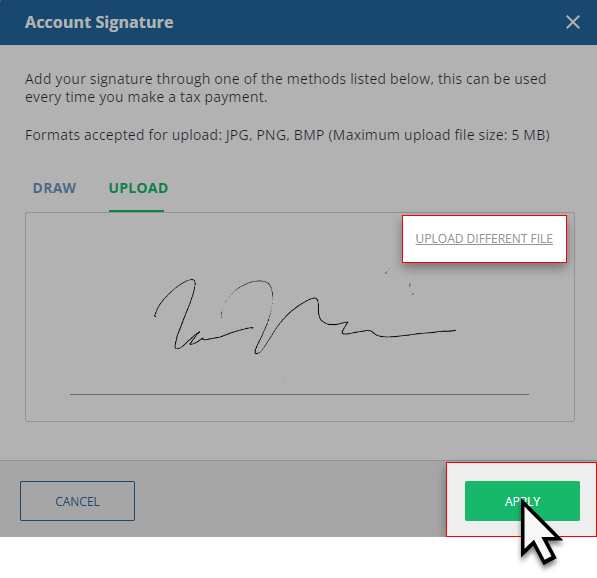
- Your signature image will appear in theUPLOADtab. SelectUPLOAD DIFFERENT FILEto select a different image, or selectAPPLYto add the signature to your check.
- Your selected signature will appear on the check summary and a toast notification will indicate that it's been successfully applied to your check.You can selectEditif you want to replace the current signature with another one.
Choose existing signature
Once you add a signature to a check, you can then reuse that signature file for later checks paid by mail. When selecting an existing signature, you can select from up to 6 previously added signatures to add to your checks.
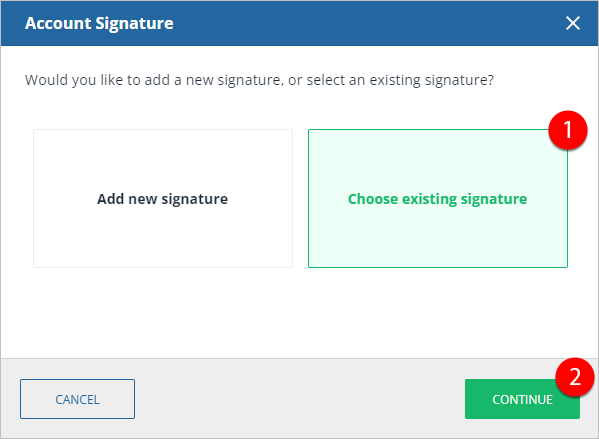
- To use a previously added signature, selectChoose existing signatureand selectCONTINUE.
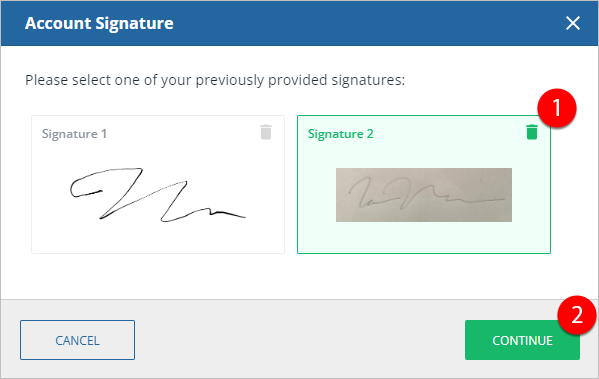
- Previously uploaded signatures will appear in theAccount Signaturewindow. Select the signature you want to upload to your check and selectCONTINUE.noteYou will be able to store 6 signatures at a time. To delete a signature, selectDeleteon a signature to make room for a new one.
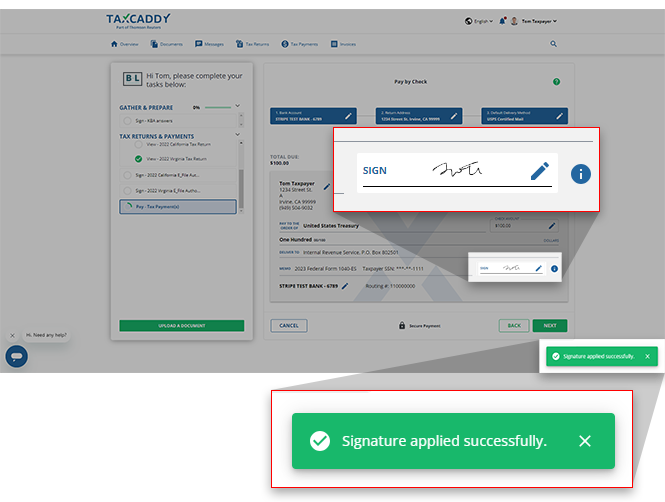
- Your selected signature will appear on the check summary and a toast notification will indicate that it's been successfully applied to your check.You can selectEditif you want to replace the current signature with another one.
iOS mobile app
Follow these steps to add a signature to a tax payment voucher on your iOS mobile phone app.
- From theConfirm Check Detailsscreen, selectADD SIGNATURE.
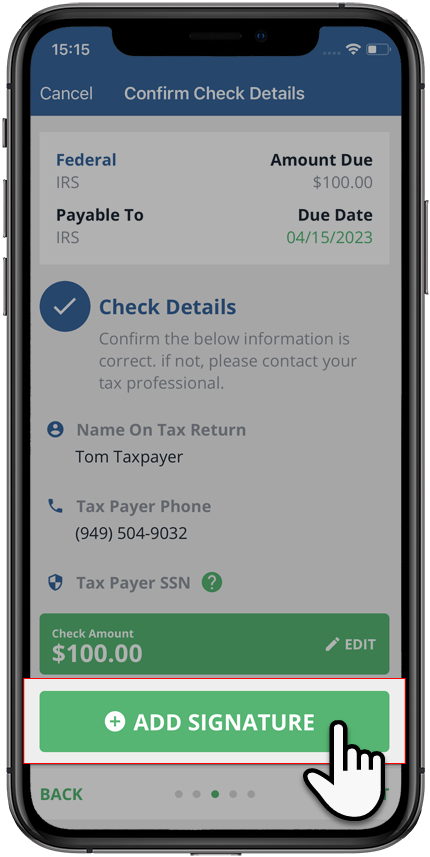
- TheAccount Signaturewindow will appear giving you the option to either:
- Add new signature: Create or upload a new signature to attach to your checks.
- Choose existing signature: Select a previously used signature to reuse.
noteIf you haven’t previously added a signature, you will automatically be directed to theAdd new signaturefeature.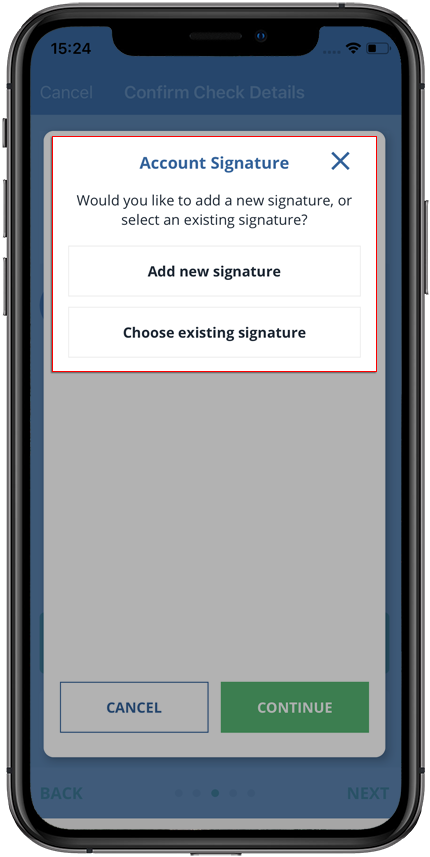
Add new signature
Using
Add new signature
, you'll be able to add a new signature file. You will have the option to either take a photo of a document containing your signature, or upload an existing file that already contains it. Once uploaded, these signature files can be reused when needed at a later .Select
Add new signature
, and select CONTINUE
to add a new signature.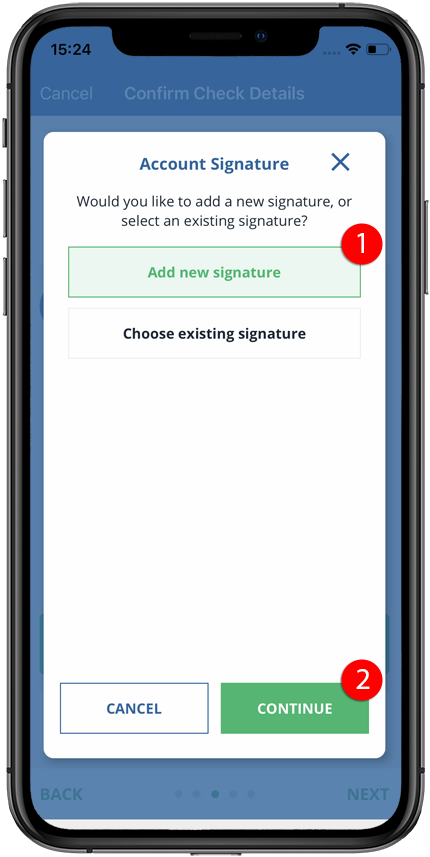
Take a photo
- SelectTake a Photo of Signature, and selectCONTINUE.
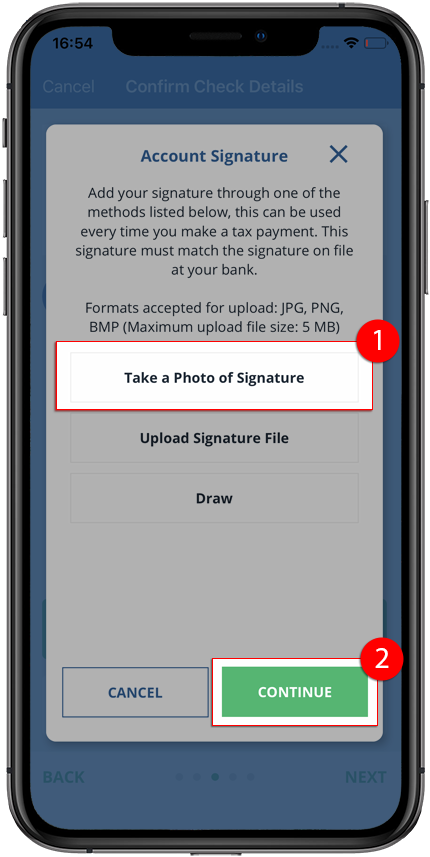
- You will be prompted to open your device's camera. You may have to grant the TaxCaddy Mobile App permission to access your device's camera to take your photo.
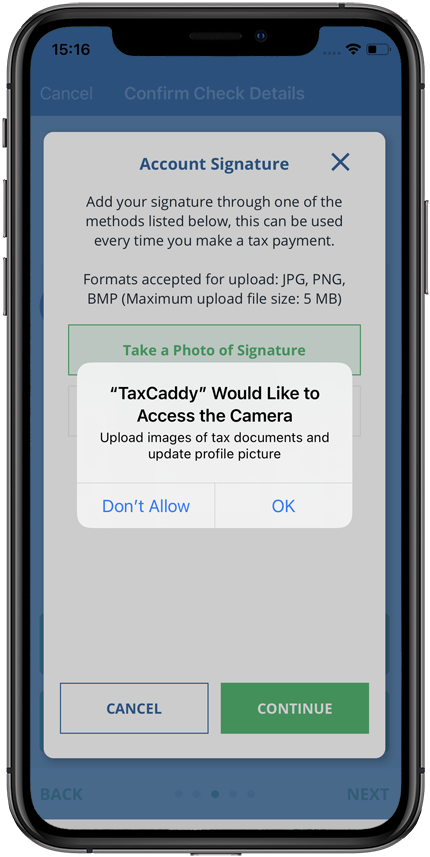
- Take a photo of your signature using your device. Be sure to include your entire signature in the image.
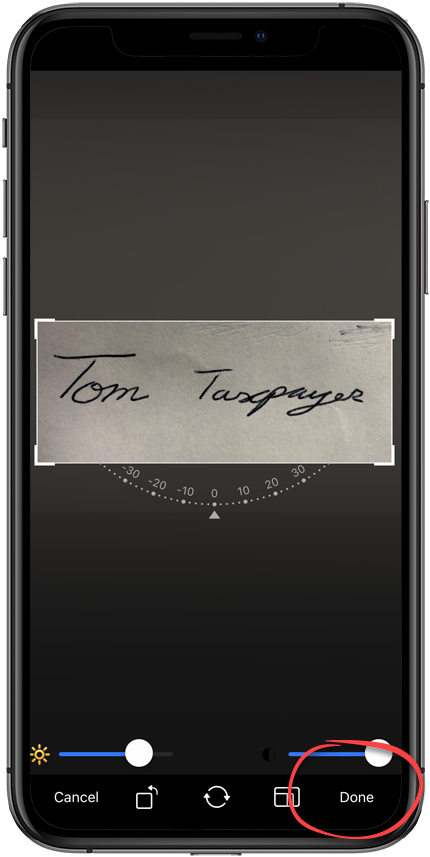
- Crop, zoom, and rotate inEdit Phototo perform any necessary edits to your image, then selectDoneto continue.
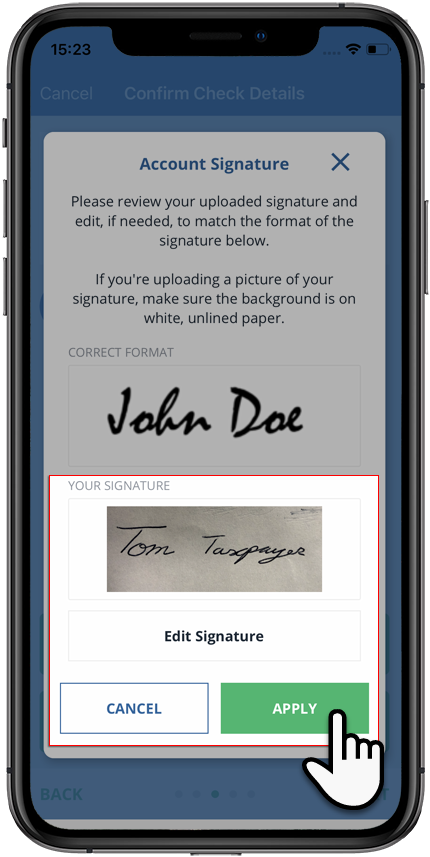
- Your signature will appear underYOUR SIGNATURE. If the image is not to your satisfaction, selectCANCELto cancel adding a signature, otherwise, selectAPPLYto add this to your check.
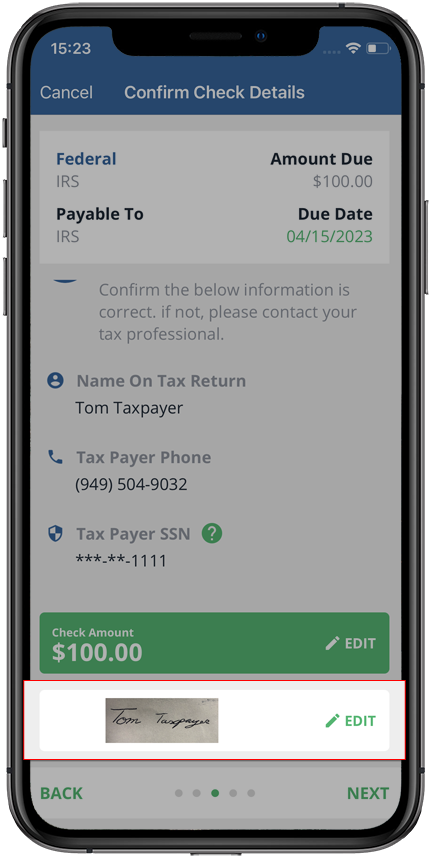
- Your signature will appear at the bottom of theConfirm Check Detailsscreen. You can selectEditif you want to replace the current signature with another one.
Upload signature file
- SelectUpload Signature File, then selectCONTINUE.
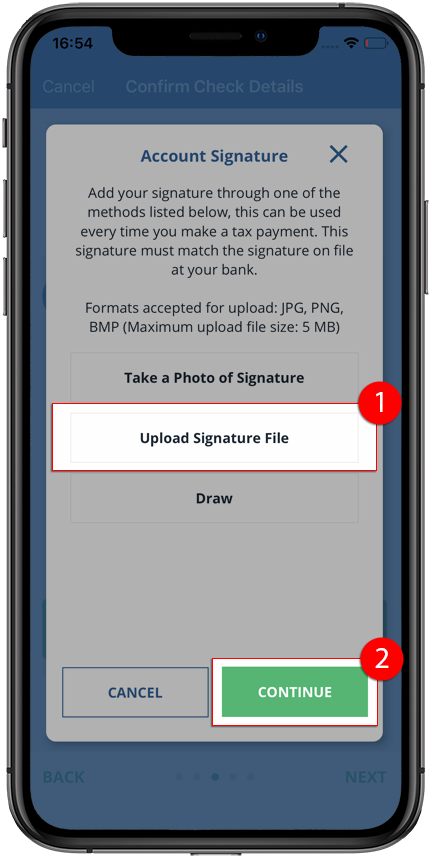
- Your device's file explorer will open. Select the signature photo you'd like to add to your check.noteImage file types need to be a JPEG, PNG, or BMP and under 5 megabytes in size.
- Crop, zoom, and rotate inEdit Phototo perform any necessary edits to your image, then selectDoneto continue.
- Your signature will appear underYOUR SIGNATURE.If the image is not to your satisfaction, selectCANCELto cancel adding a signature, otherwise, selectAPPLYto add this to your check.
- Your signature will appear at the bottom of theConfirm Check Detailsscreen. You can selectEditif you want to replace the current signature with another one.
Draw a signature
- SelectDraw, then selectCONTINUE.
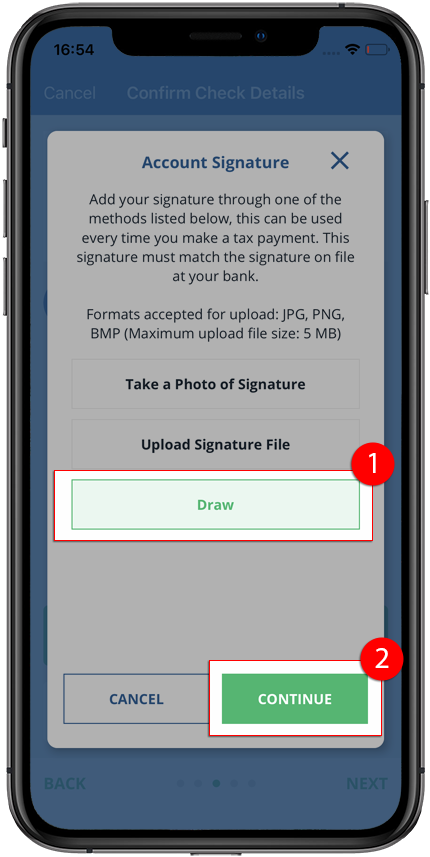
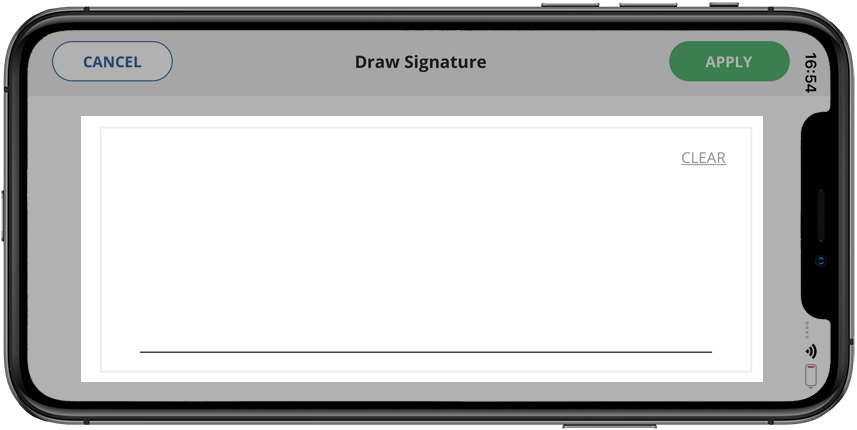
- TheDraw Signaturewindow will appear on your screen. Draw your signature in the field provided.If the signature you write is unsatisfactory, you can select
 CLEARto restart.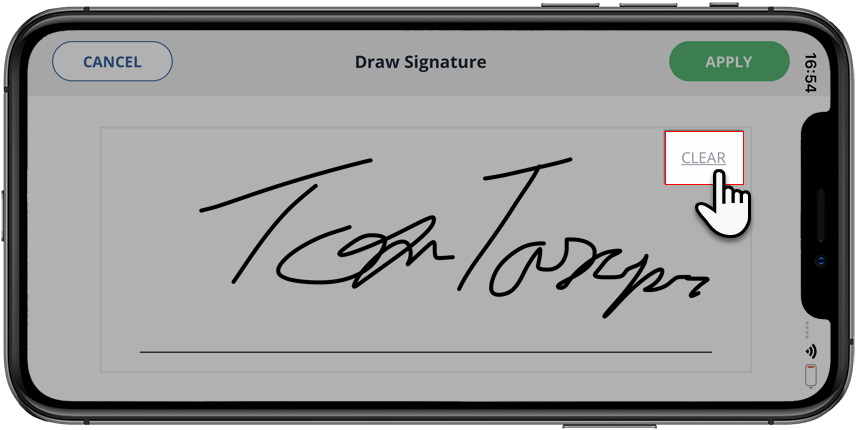
- Once you complete your signature, selectAPPLYto add it to your check.
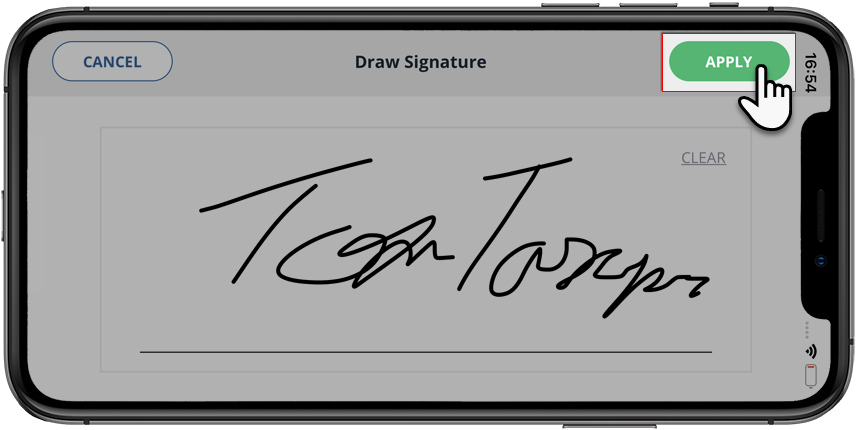
- Your signature will appear at the bottom of theConfirm Check Detailsscreen. You can selectEditif you want to replace the current signature with another one.
Choose existing
Once you add a signature to a check, you can then reuse that signature file for later checks paid by mail. When selecting an existing signature, you can select from up to 6 previously added signatures to add to your checks.
- To use a previously added signature, selectChoose existing signatureand selectCONTINUE.
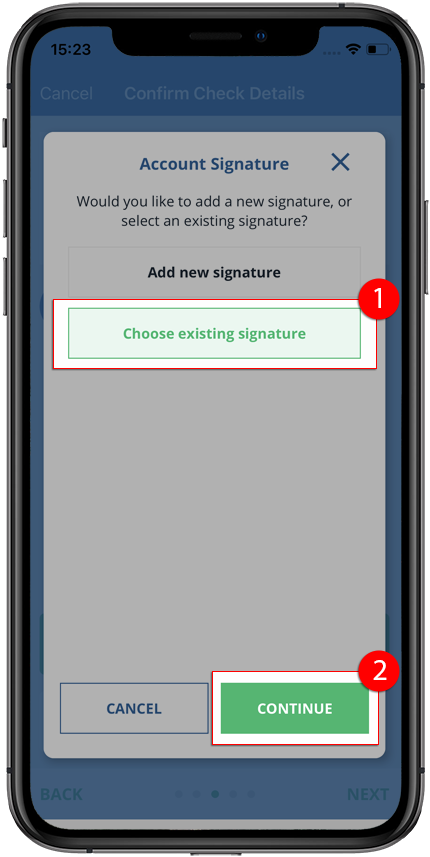
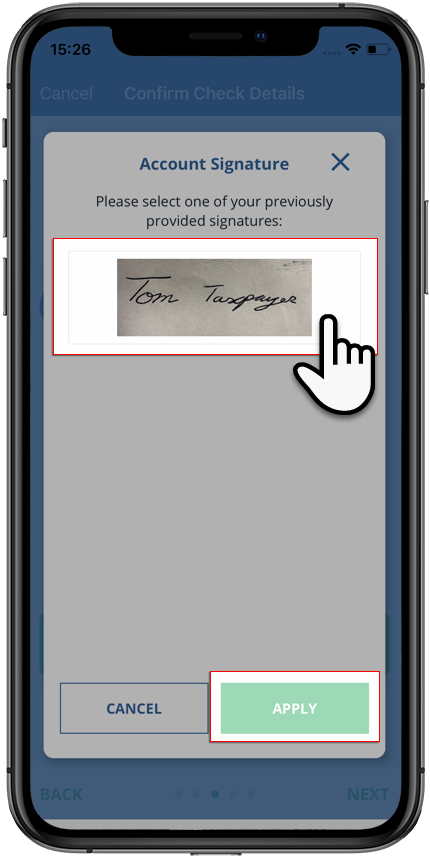
- Previously uploaded signatures will appear in theAccount Signaturewindow. Select the signature you want to upload to your check and selectAPPLY.noteYou'll be able to store 6 signatures at a time. To delete a signature, selectDeleteon the signature to make room for a new one.
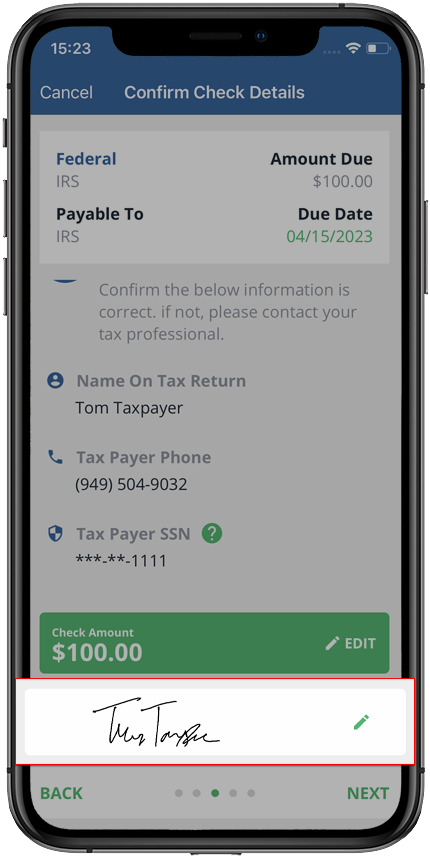
- Your signature will appear at the bottom of theConfirm Check Detailsscreen. You can selectEditif you want to replace the current signature with another one.
Android mobile app
Follow these steps to add a signature to a tax payment voucher on your Android mobile phone app.
- From theConfirm Check Detailsscreen, selectADD SIGNATURE.
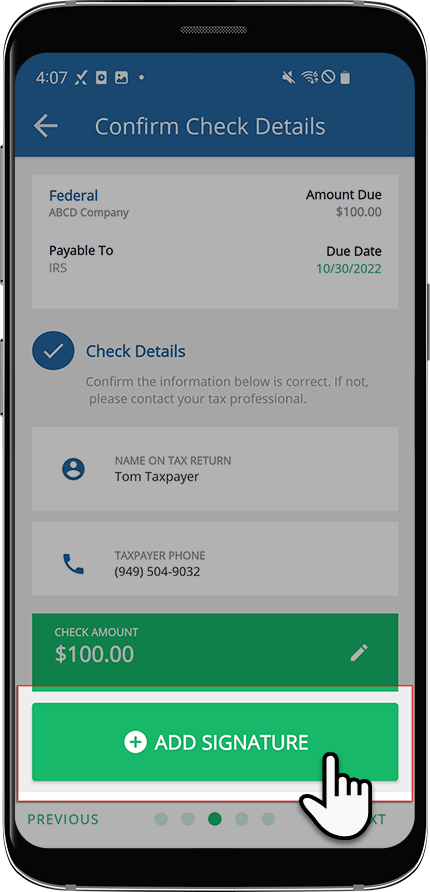
- TheAccount Signaturewindow will appear giving you the option to either:
- Add new signature: Create or upload a new signature to attach to your checks.
- Choose existing signature: Select a previously used signature to reuse.
noteIf you haven’t previously added a signature, you will be automatically directed toAdd new signature.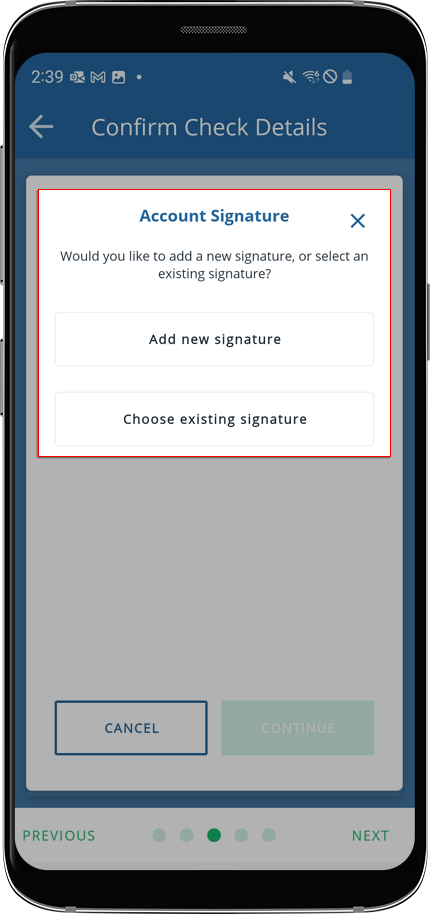
Add new signature
Using
Add new signature
, you'll be able to add a new signature. You will have the option to either take a photo of a document containing your signature, or upload an existing image file of it. Once uploaded, these signature files can be reused when needed at a later.Select
Add new signature
, and select CONTINUE
to add a new signature.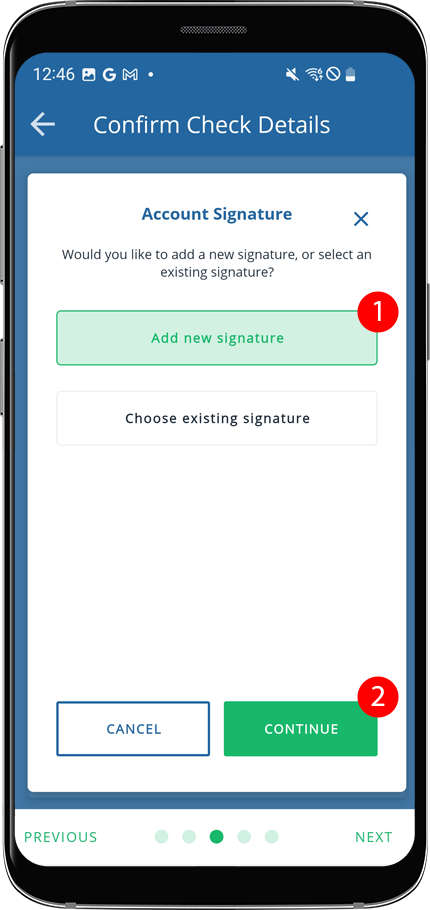
Take a Photo of Signature
- SelectTake a Photo of Signature, and selectCONTINUE.
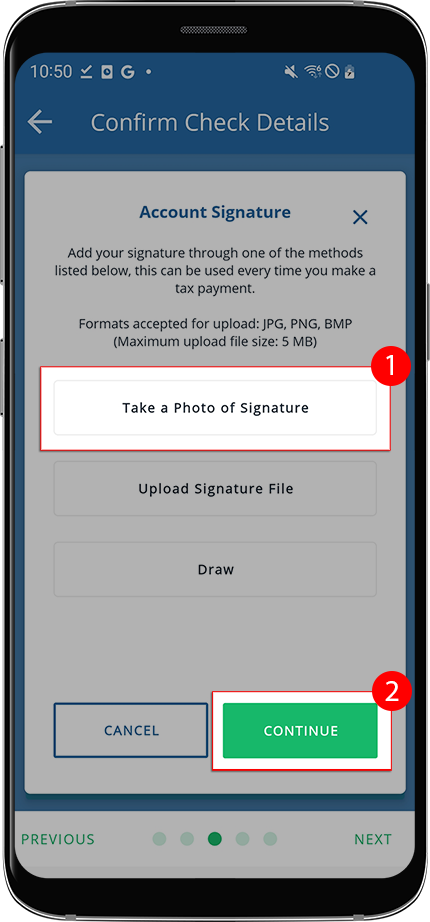
- You will be prompted to open your device's camera. You may have to grant the TaxCaddy Mobile App permission to access your device's camera to take your photo.
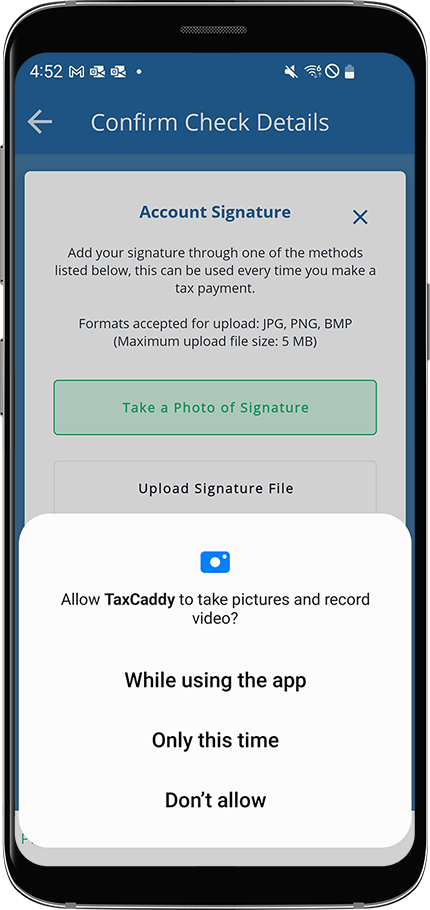
- Once your device's camera opens, take a photo of your signature. Be sure to include your entire signature in the image.
- Crop, zoom, and rotate inEdit Phototo perform any necessary edits to your image, then selectOKto continue.
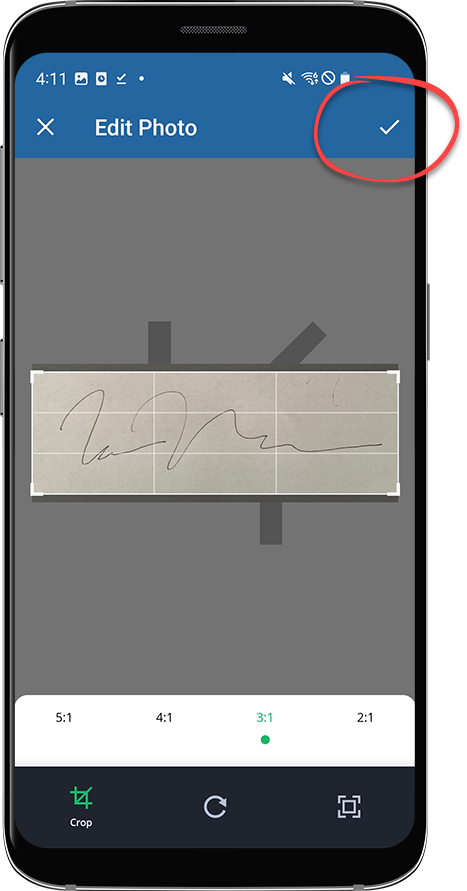
- Your signature will appear underYOUR SIGNATURE. If the image is not to your satisfaction, selectCANCELto cancel adding a signature, otherwise, selectAPPLYto add this to your check.
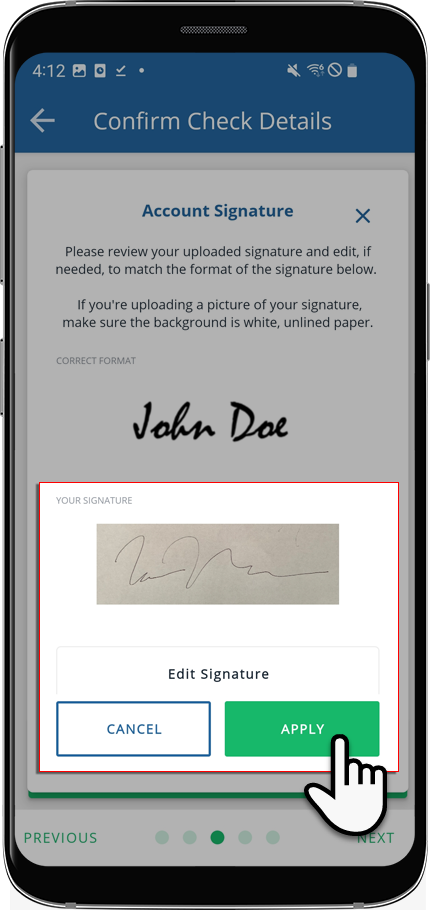
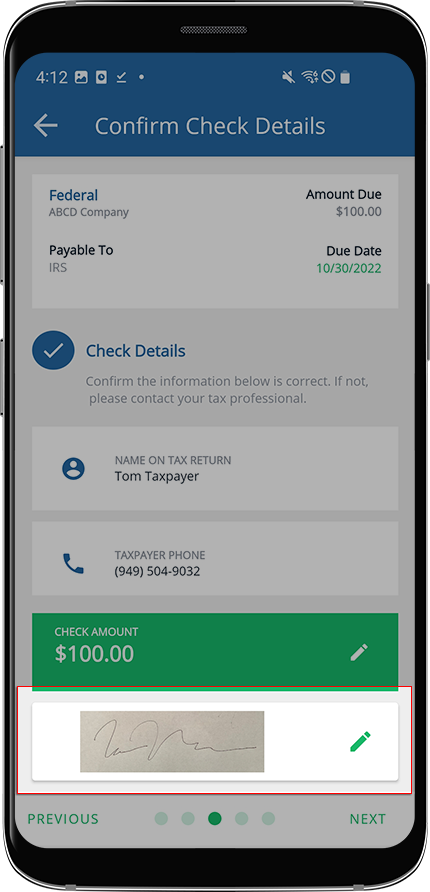
- Your signature will appear at the bottom of theConfirm Check Detailsscreen. You can selectEditif you want to replace the current signature with another one.
Upload Signature File
- SelectUpload Signature File, then selectCONTINUE.
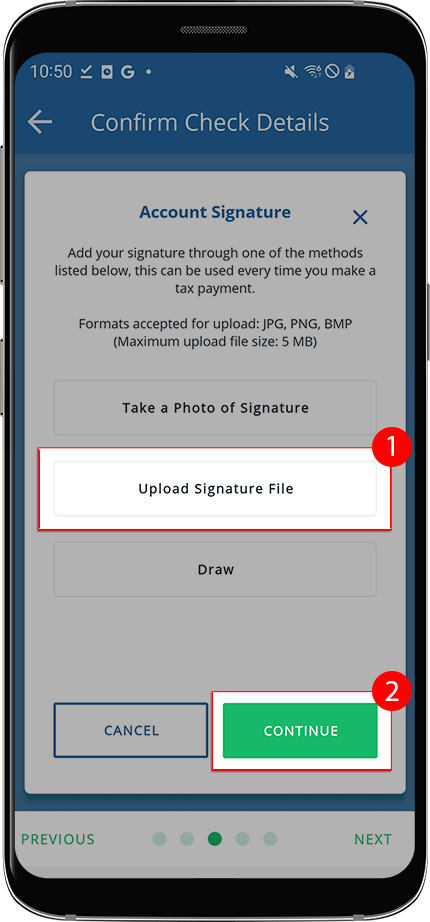
- Your device's file explorer will open. Select the signature photo you'd like to add to your check.noteImage file types need to be a JPEG, PNG, or BMP and under 5 megabytes in size.
- Crop, zoom, and rotate inEdit Phototo perform any necessary edits to your image, then selectOKto continue.
- Your signature will appear underYOUR SIGNATURE. If the image is not to your satisfaction, selectCANCELto cancel adding a signature, otherwise, selectAPPLYto add this to your check.
- Your signature will appear at the bottom of theConfirm Check Detailsscreen. You can selectEditif you want to replace the current signature with another one.
Draw a signature
- SelectDraw, then selectCONTINUE.
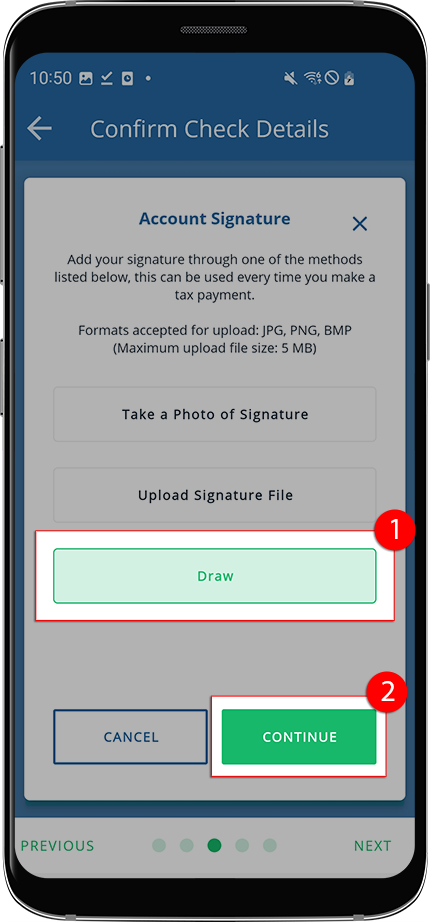
- TheDraw Signaturewindow will appear on your screen. Draw your signature in the field provided.If the signature you write is unsatisfactory, you can select
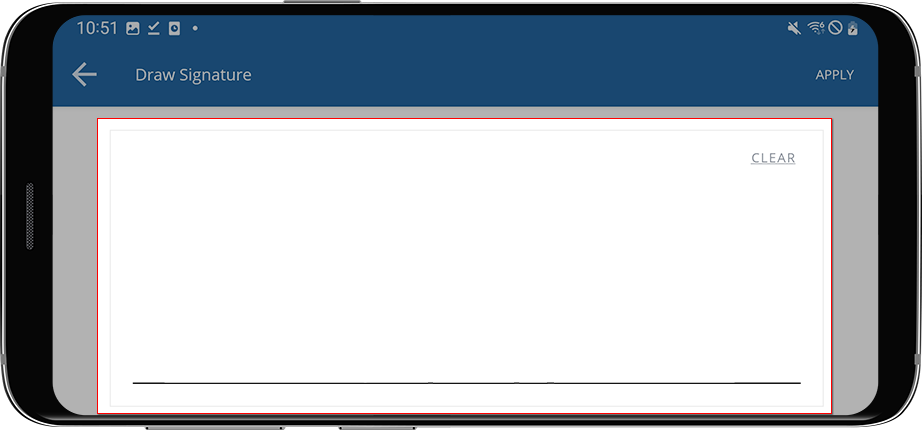 CLEARto restart.
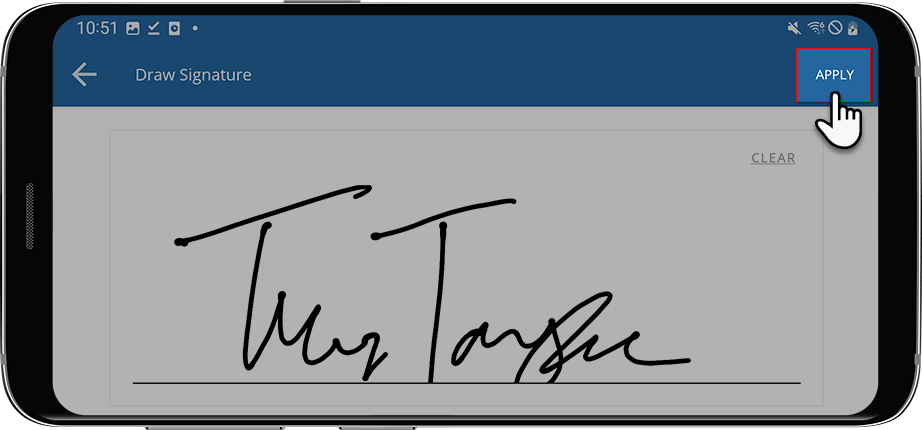
- Once you complete your signature, selectAPPLYto add it to your check.
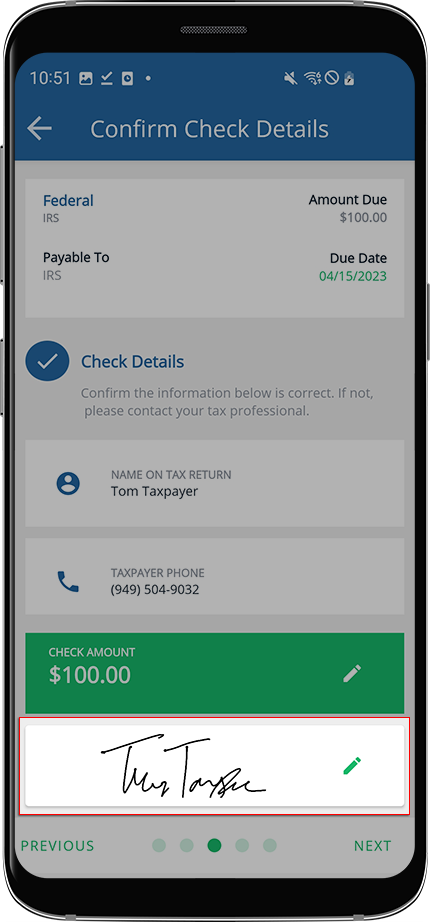
- Your signature will appear at the bottom of theConfirm Check Detailsscreen. You can selectEditif you want to replace the current signature with another one.
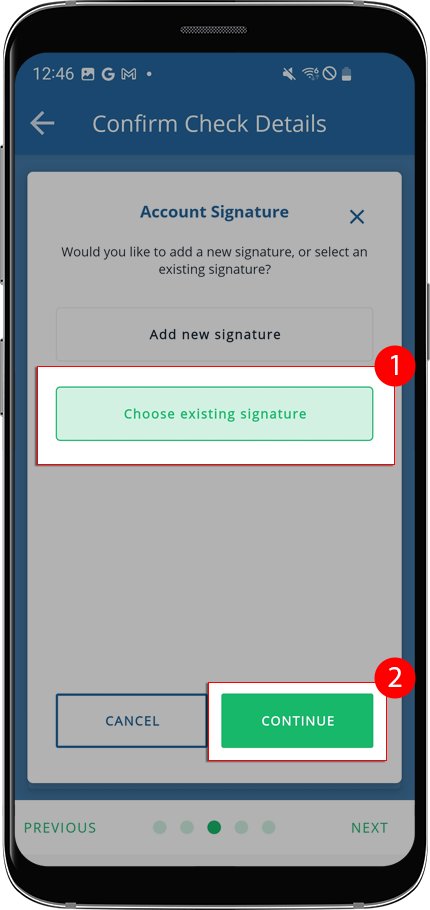
Choose Existing
Once you add a signature to a check, you can then reuse that signature file for later checks paid by mail. When selecting an existing signature, you can select from up to 6 previously added signatures to add to your checks.
- To use a previously added signature, selectChoose existing signatureand selectCONTINUE.
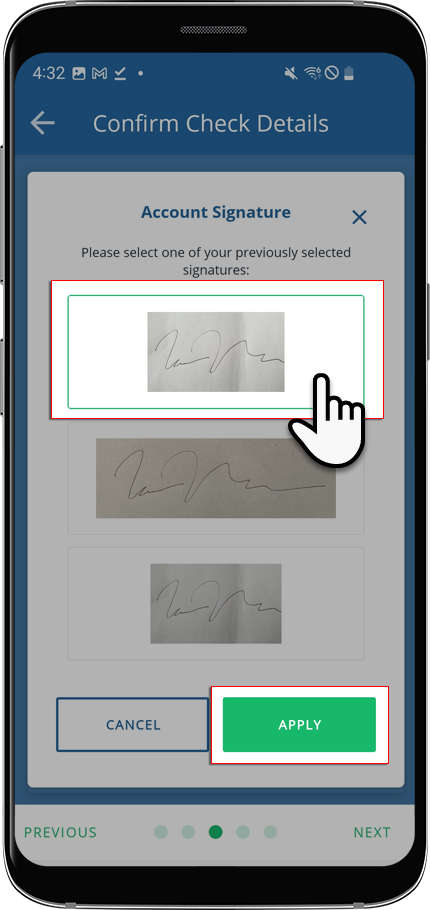
- Previously uploaded signatures will appear in theAccount Signaturewindow. Select the signature you want to upload to your check and selectAPPLY.noteYou will be able to store 6 signatures at a time. To delete a signature, selectDeleteon a signature to make room for a new one.
- Your signature will appear at the bottom of theConfirm Check Detailsscreen. You can selectEditif you want to replace the current signature with another one.
Related Content
-
Pay a tax payment by check
Format: Article,
29 min read
Article,
29 min read

