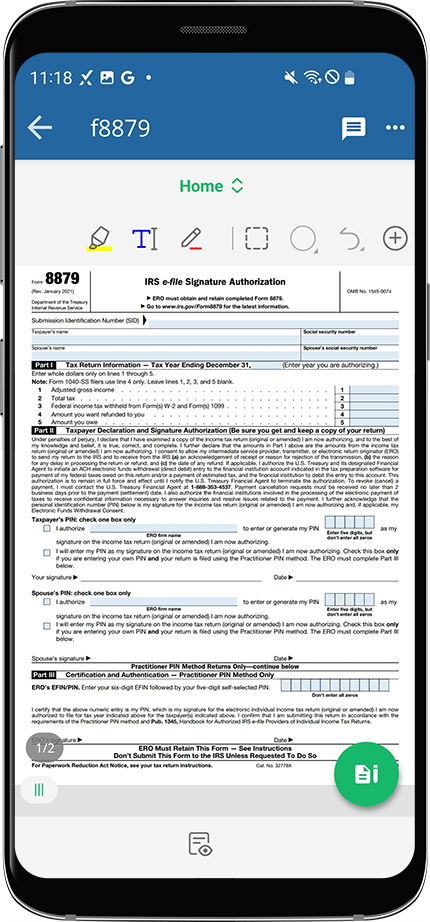
View a tax payment voucher
Show all hidden content
When your tax professional prepares a tax payment voucher, they’ll upload it to the
Tax Payments
section of your TaxCaddy account to help you keep track of any payments due. Additionally, you can also use TaxCaddy to pay your State
and City
tax payments by check.note
Federal tax payments need to be fulfilled digitally, not using
Pay By Check
.TaxCaddy.com on PC, Mac, or tablet
Follow these steps to view your tax payment voucher when using TaxCaddy.com on your PC, Mac, or tablet.
- Sign in to TaxCaddy.com
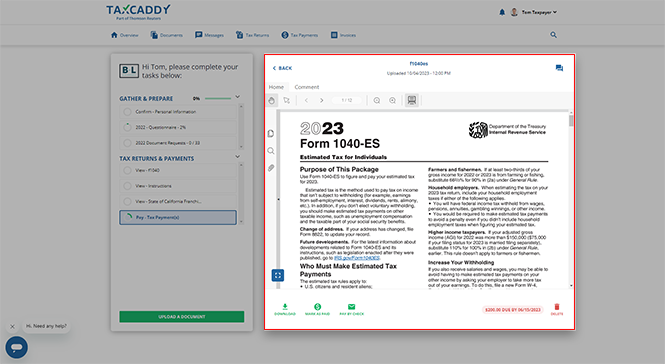
- SelectPay - Tax Payment(s)to view tax payment vouchers that your tax professional has uploaded to your account.
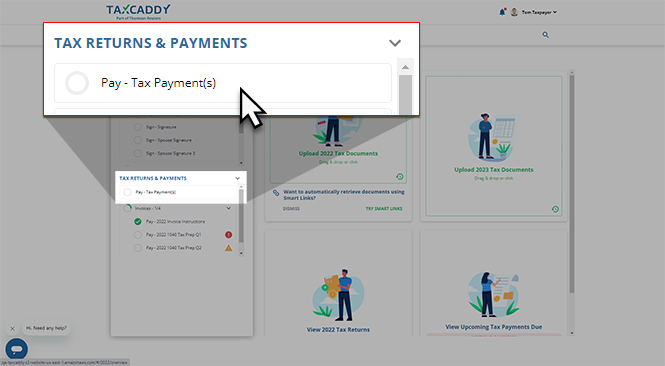 A list the current year's tax payments will appear beside yourTask Listin theTax Paymentspanel.noteIf you don't see a specific tax payment, select theTax Paymentstab to view tax payments from other tax years.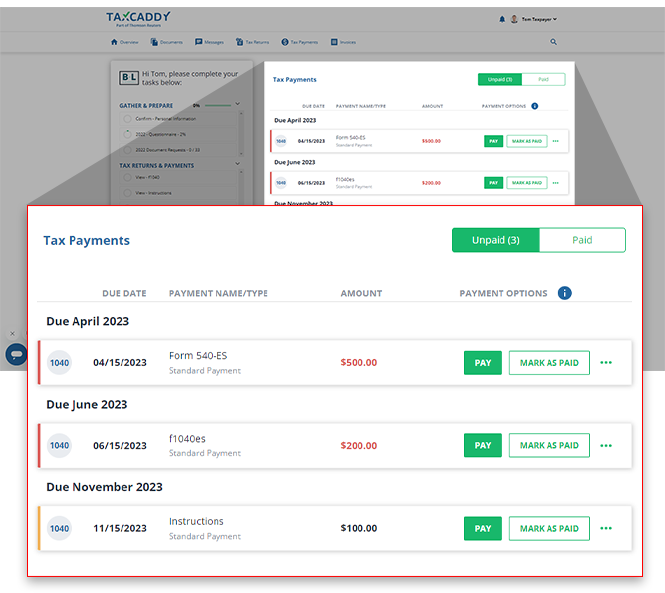
- Your unpaid tax payments will be shown by default. You can selectPaidto view tax payments that you've already paid or marked as paid.
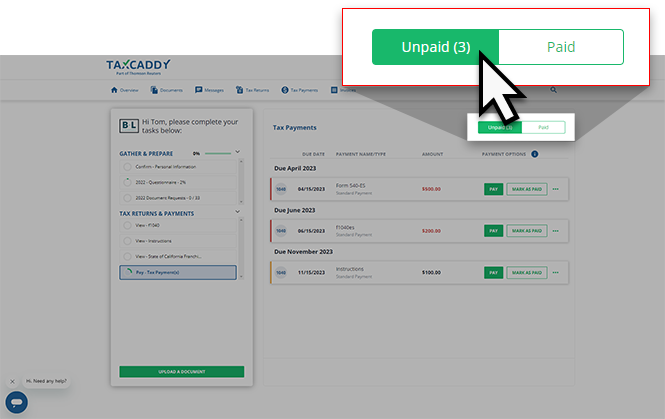
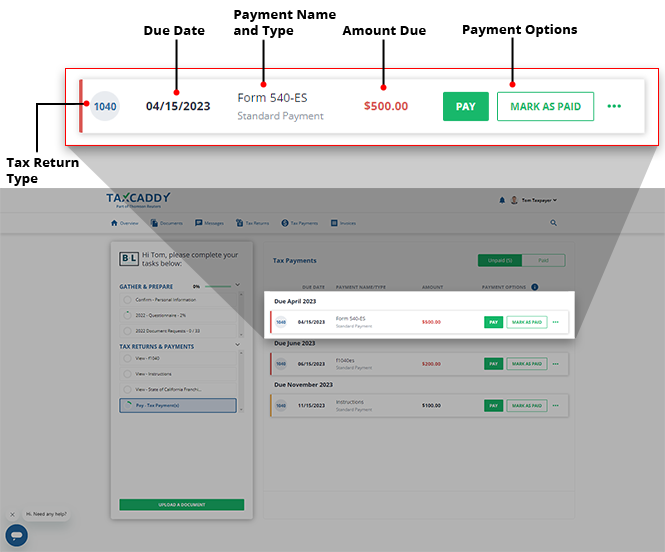
- Your tax payments will be sorted by due date. You will also see the tax return type, theDUE DATE,PAYMENT NAME/TYPE,AMOUNT, andPAYMENT OPTIONSinformation for each tax payment.
 noteIfDo Not Payis listed as thePAYMENT TYPEfor a tax payment andPAYnot available, then your tax professional will need to set up this payment to be payable by check and clear the tax payment for official use with the taxing authority. Contact your tax professional to address this.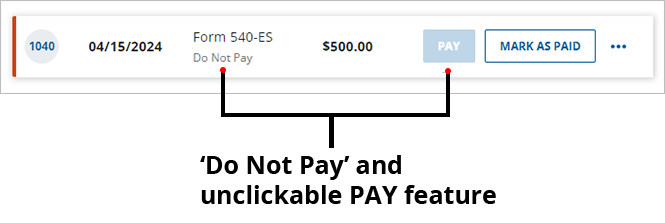
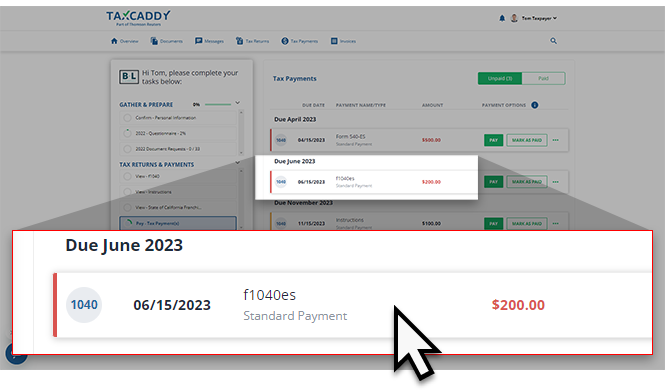
- Select a tax payment voucher to view the document attached.You can also open the tax payment voucher from the document's tile menu. Select the
 menu, then selectView.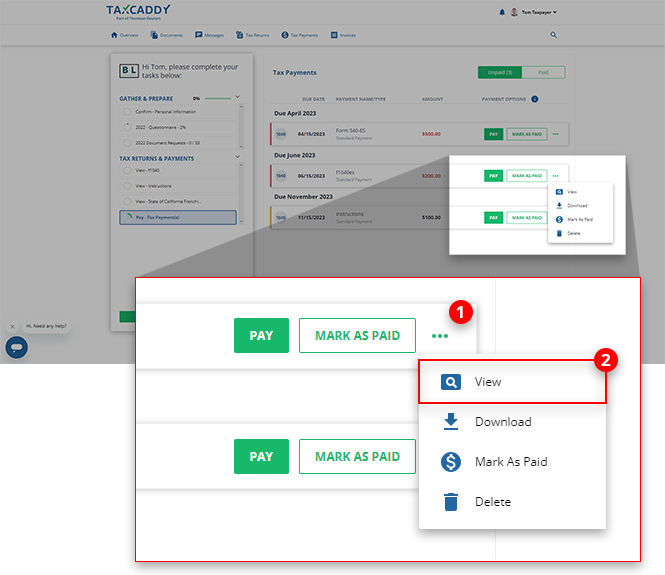
- The tax payment voucher that you selected will appear in theOverviewscreen's Document Viewer.Alternatively, you can select the
 Tax Paymentstab or theView Upcoming Tax Payments Duetile to view your tax payments.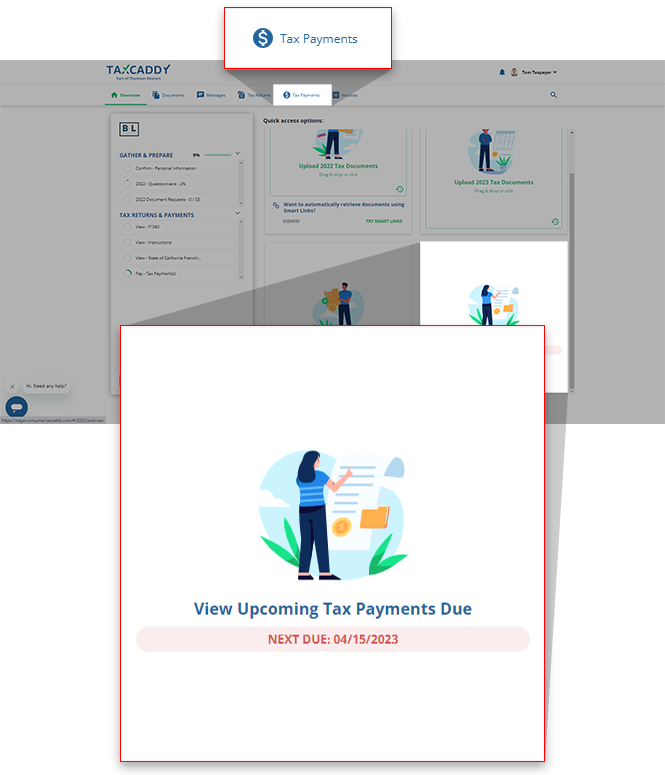
Tax Payment Status
When viewing your tax payments from the
Tax Payments
tab (not in the Overview
screen), the Status
column grants you and your tax professional the ability to track your tax payment's status.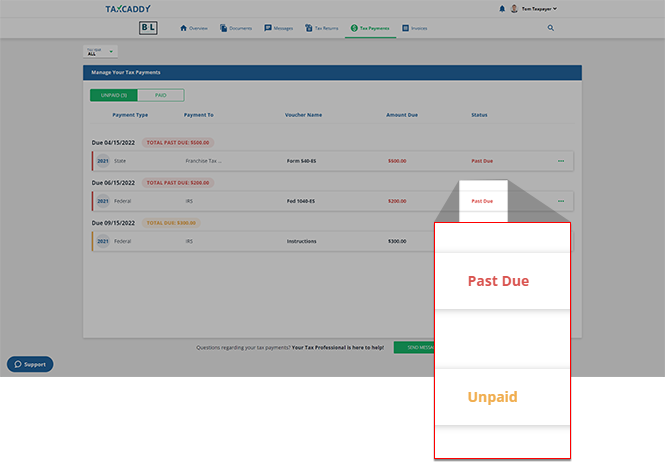
Status | Description |
|---|---|
Unpaid | The tax payment hasn’t been fulfilled (Marked as Paid/Pay by Check). |
Past Due | The tax payment hasn’t been paid and is now passed the due date. If you already made the tax payment, then select the tax payment voucher as paid. |
Paid | The tax payment voucher has been marked as paid by you or your tax professional. You can inform your tax professional that you made the tax payment by marking the tax payment as paid. |
Payment Sent | The tax payment check has been mailed to the taxing authority using Pay by Check . |
iOS mobile app
Follow these steps to view your tax payment voucher on your iOS mobile phone app.
- Sign in to the TaxCaddy mobile app.
- Tax payment vouchers that have been uploaded to your account will appear on theOverviewscreen. SelectPay - Tax Payment(s)to open your tax payments.
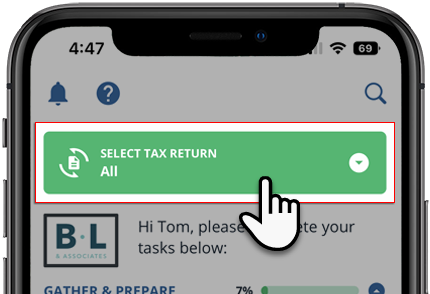
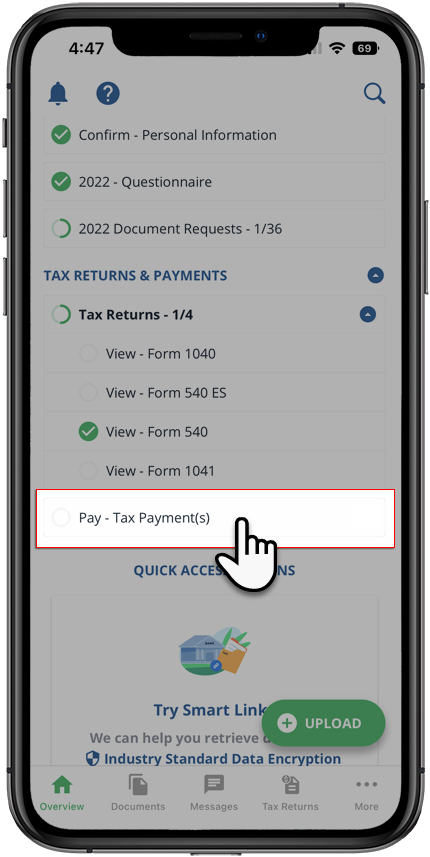 You can select theSELECT TAX RETURNSdropdown if your tax professional has enabled 1041 tax return profiles on your account
 Alternatively, you can selectMore, then selectTax Payment.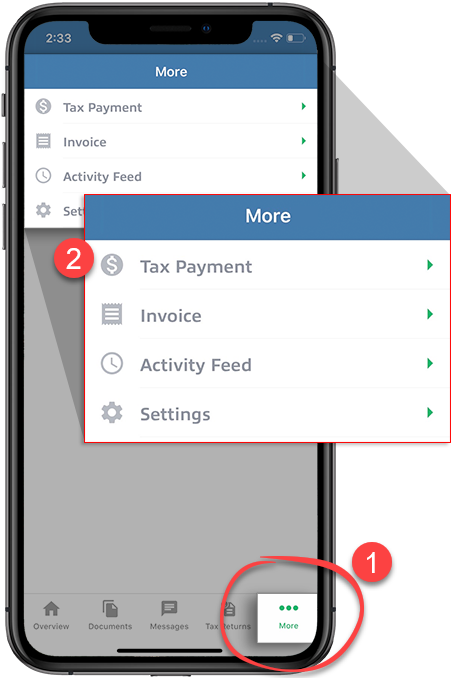
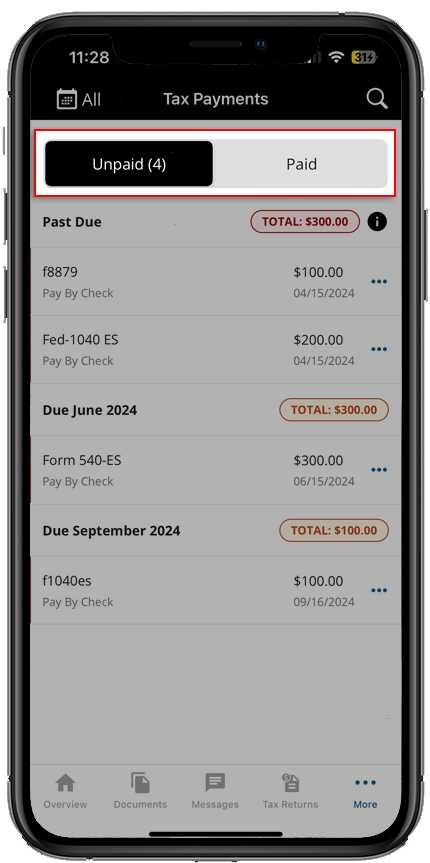
- You will see tax payments grouped by due date.
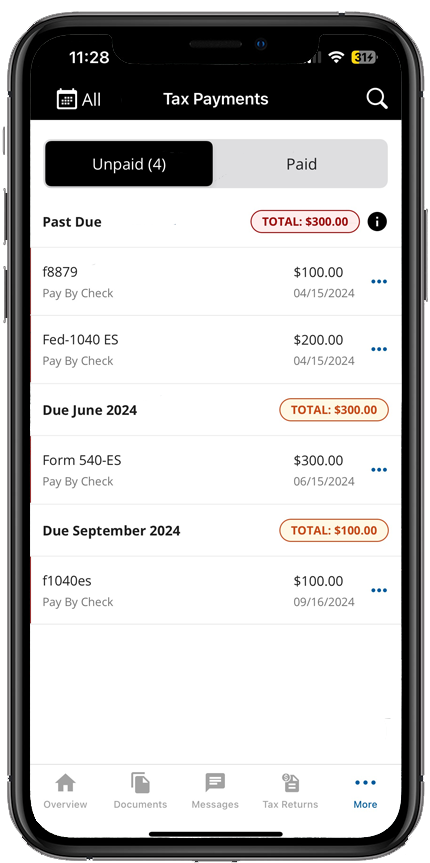 TheAlltax year option will be selected by default. If you'd like to see tax payments belonging to a specific tax year, select it fromTax year.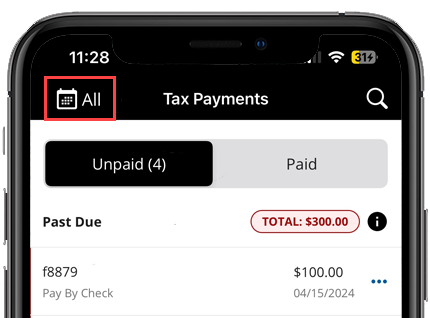
- SelectPaidto see tax payments you already paid. SelectUnpaidto see tax payments that need to be paid (selected by default). If you have already paid a tax payment voucher, then you or your tax professional can select the tax payment as paid.
 Status IconDescription
 The tax payment voucher has been marked as paid or paid by check.
 The tax payment hasn’t been paid (Marked as Paid/Pay by Check) and is now passed the due date.[No icon]The tax payment hasn’t been paid.
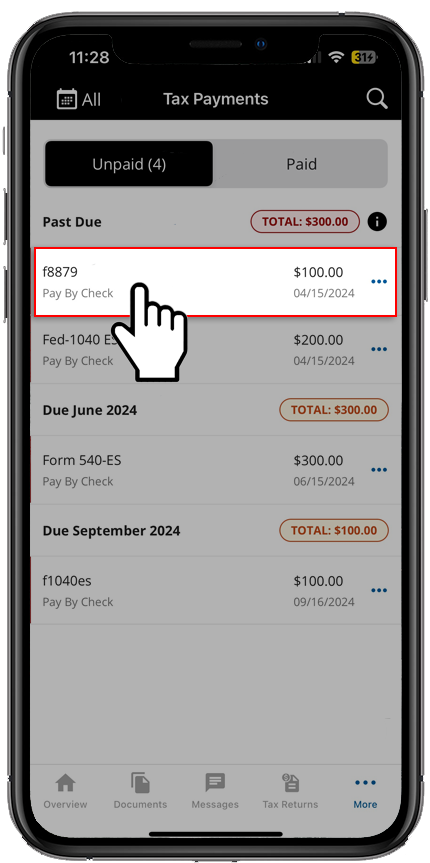
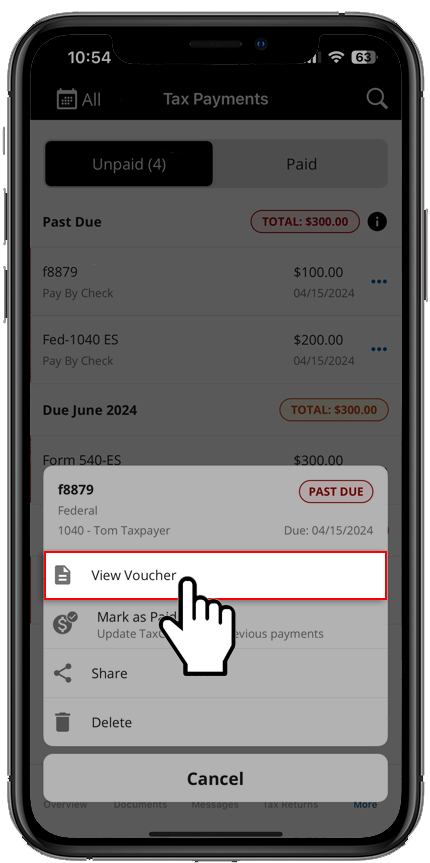
 - Select the tax payment voucher to view it. You can also view the tax payment voucher using theMenubeside the voucher. Select theMenu, then selectView Voucher.
- The tax payment voucher will open in the viewer.
Android mobile app
Follow these steps to view your tax payment voucher on your Android mobile phone app.
- Sign in to the TaxCaddy mobile app.
- Tax payment vouchers that have been uploaded to your account will appear on theOverviewscreen. SelectPay - Tax Payment(s)to open your tax payments.
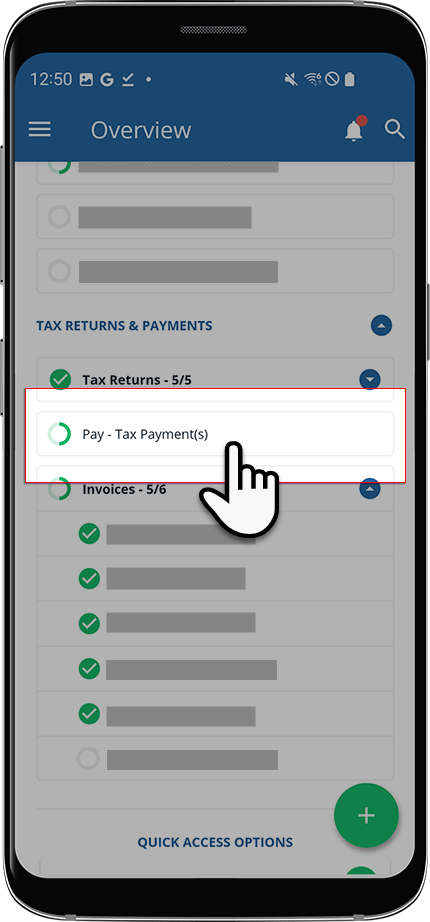 If your tax professional has enabled 1041 tax return profiles on your account, select theSELECT TAX RETURNSdropdown to view your available tax return profiles.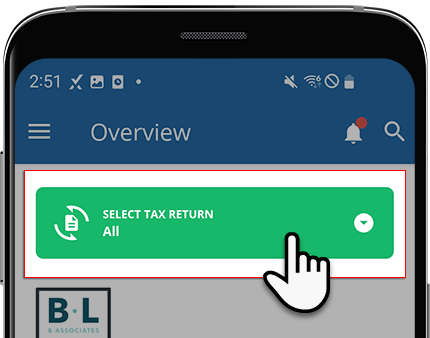
- Alternatively, you can selectMenu.
 SelectTax Payments.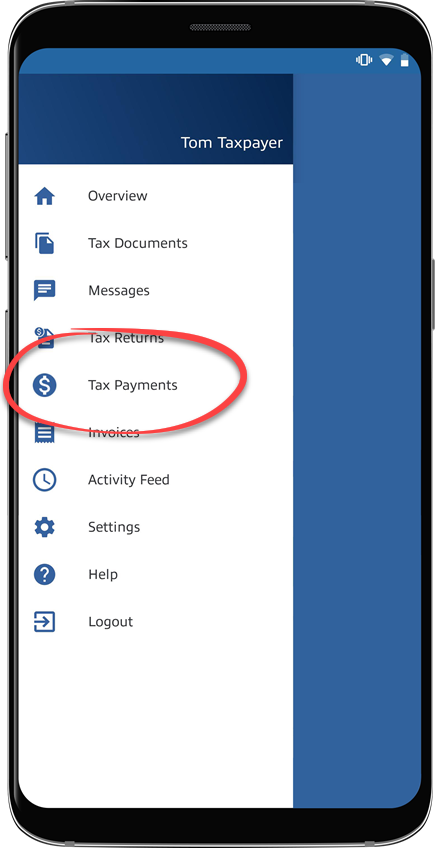
- You will see tax payments grouped by due date.
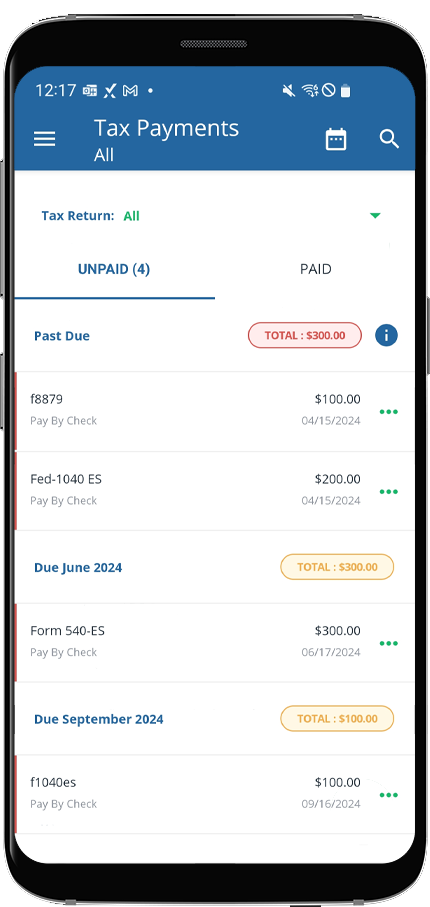 TheAlltax year option will be selected by default. Select a year from theTax Yearmenu if you'd like to view tax payments belonging to a specific tax year..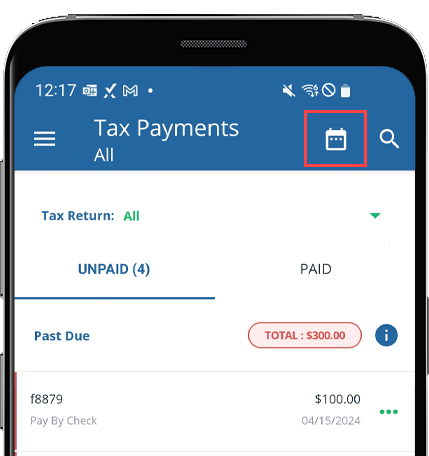
- SelectPaidto see tax payments you already paid. SelectUnpaidto see tax payments that need to be paid (selected by default). If you have already paid a tax payment voucher, then you or your tax professional can select the tax payment as paid.
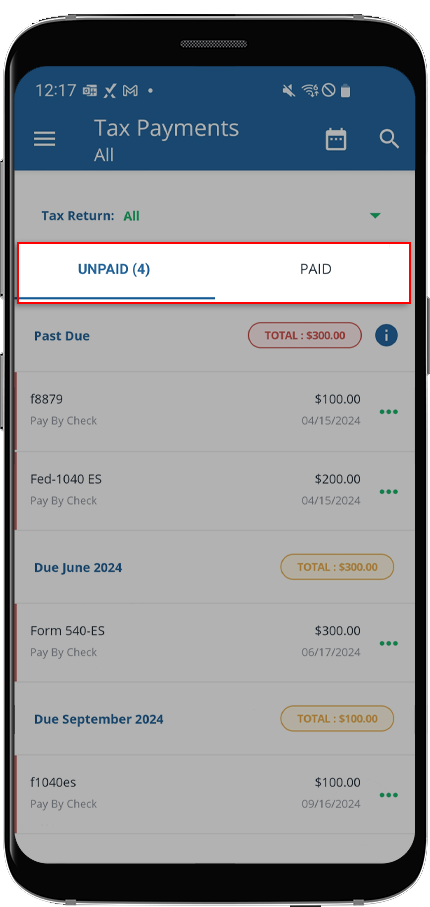
- A list of tax payment vouchers created by your tax professional will appear. Select the tax payment voucher you want to view.Status IconDescriptionThe tax payment voucher has been marked as paid or paid by check.The tax payment hasn’t been paid (Marked as Paid/Pay by Check) and is now passed the due date.[No icon]The tax payment hasn’t been paid.
- You can also selectMenu, then selectView.
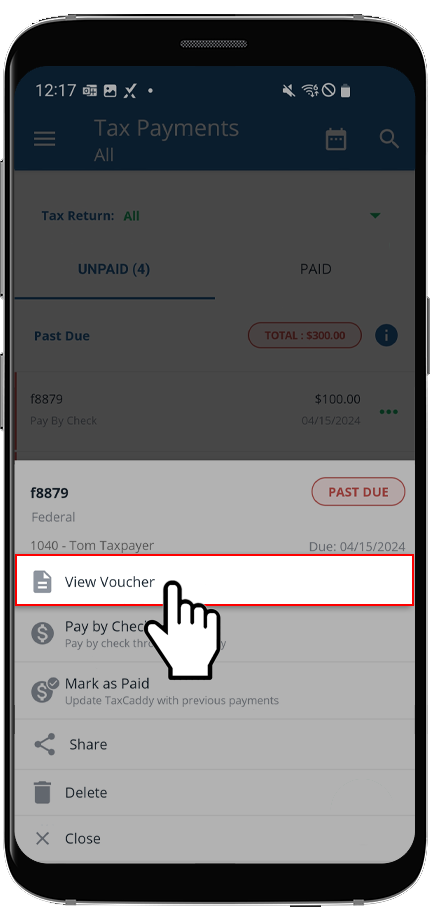
- The tax payment voucher will open in the viewer.