
Download your tax return
Show all hidden content
You can download a tax return document from your tax professional to your local device. Additionally, you can use the downloaded tax return to print a copy if necessary.
TaxCaddy.com on PC, Mac, or tablet
Follow these steps to download your tax return using TaxCaddy.com on your PC, Mac, or tablet.
- Sign in to TaxCaddy.com
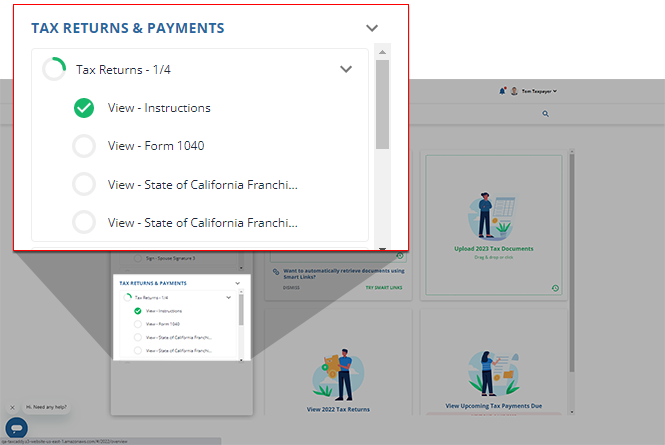
- On theOverviewscreen, you will see aTask Liston the left, with your tax returns listed underView - [Tax Return Name].noteA tax return document will be marked as completed once it is viewed. Your progress in completing yourTax Returntasks will be denoted with the number andProgress. Once you've completed all your tasks, it will be marked asCompleted.
 If your tax professional has enabled 1041 tax return profiles on your account for trust/estate, selectSWITCH TAX RETURNto select a differemt tax return profile.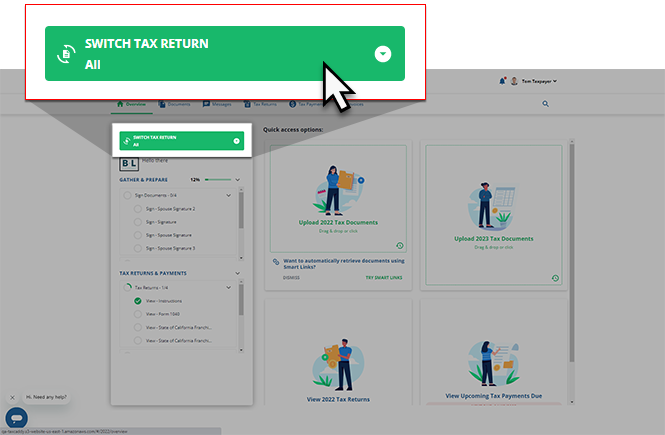
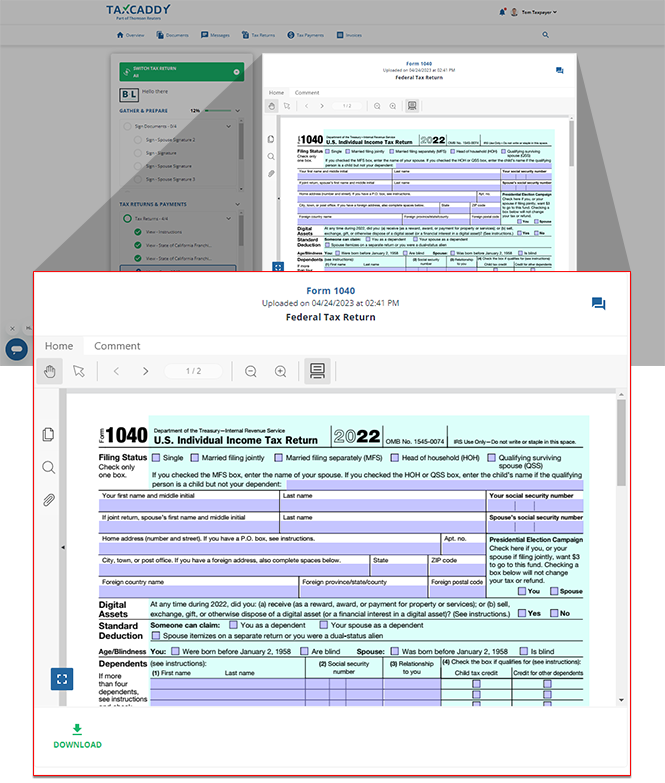
- Your selected tax return will appear in theOverviewscreen's document viewer.
 tipYou can message your tax professional regarding this tax return using theMessageicon.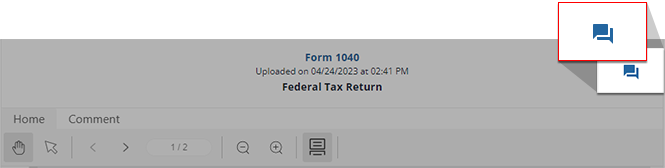
- SelectDOWNLOADand your browser will download your tax return document.noteOnce the tax return is downloaded on your device, you can open the tax return PDF file and print a copy if necessary.

- Alternatively, you can selectTax Returnsor use theQuick Accesstile to be directed to a comprehensive list of tax returns uploaded to your account in theTax Returnstab.
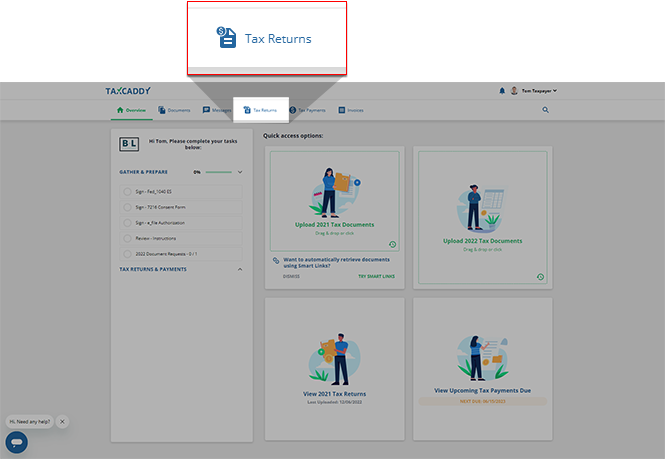
- Once you select a tax return from the list, selectDOWNLOADin the Document Viewer panel.

iOS mobile app
Follow these steps to download your return on the iPhone mobile phone app.
- Sign in to the TaxCaddy mobile app.
- Tax returns that have been uploaded to your account will appear on theOverviewscreen. Tap the tax return you'd like to view.
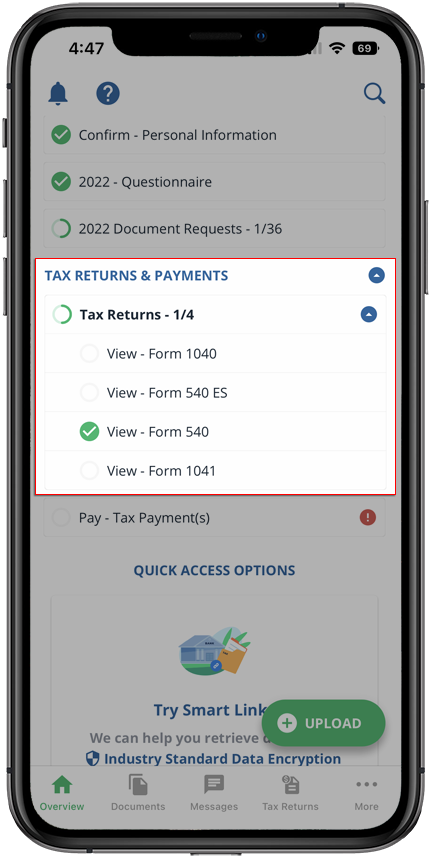 If your tax professional has enabled 1041 tax return profiles on your account, tap theSELECT TAX RETURNSdropdown to view your available tax return profiles.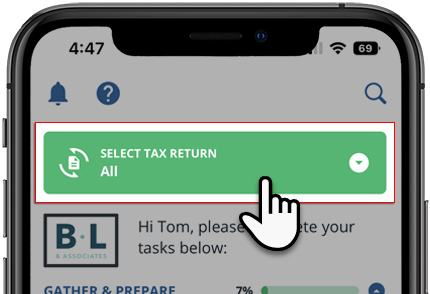
- The tax return you selected will open in theDocument Viewer.
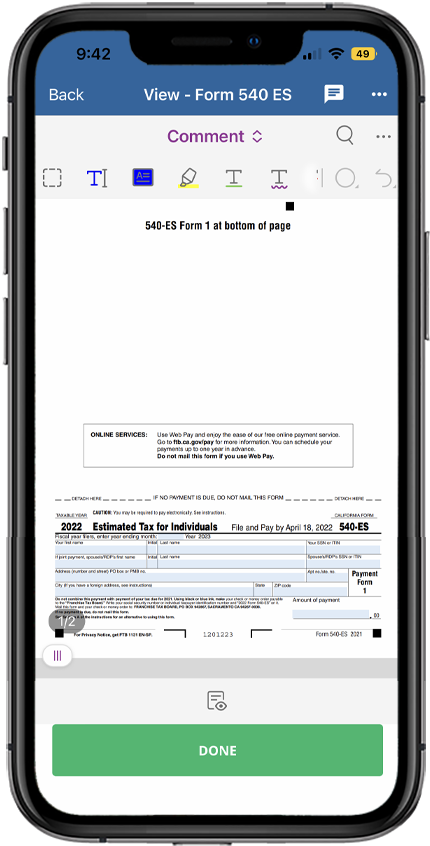
- Tap theMenuin the Document Viewer.

- SelectDownloadfrom the options presented in the menu to download this tax return document.

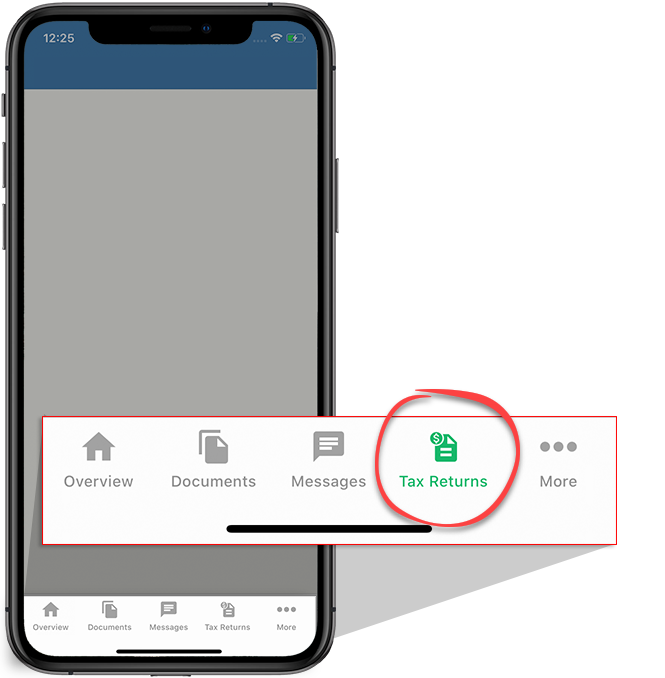
- Alternatively, you can tapTax Returnsfrom the tab bar to be directed to a comprehensive list of tax returns uploaded to your account.
Android mobile app
Follow these steps to download your return on the Android mobile phone app.
- Sign in to the TaxCaddy mobile app.
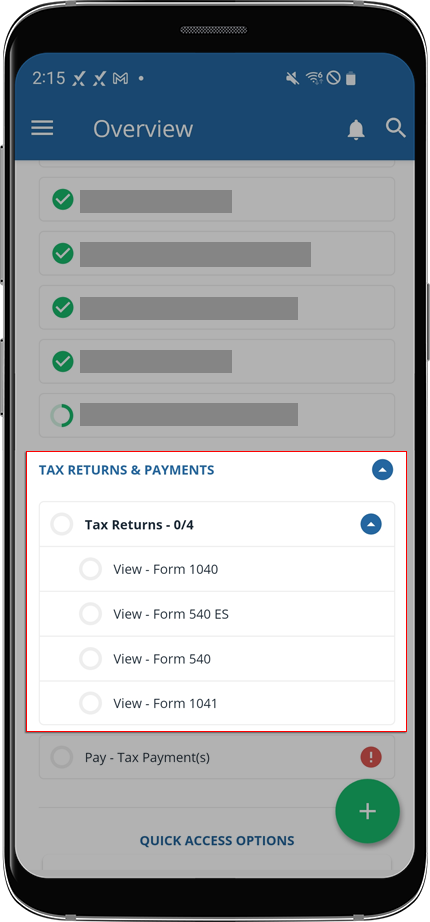
- Tax returns that have been uploaded to your account will appear on theOverviewscreen. Tap the tax return you'd like to view.
 If your tax professional has enabled 1041 tax return profiles on your account, tap theSELECT TAX RETURNSdropdown to view your available tax return profiles.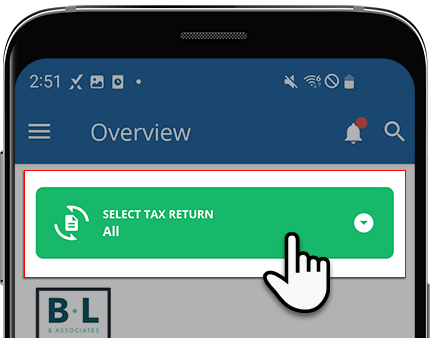
- The tax return you selected will open in theDocument Viewer.
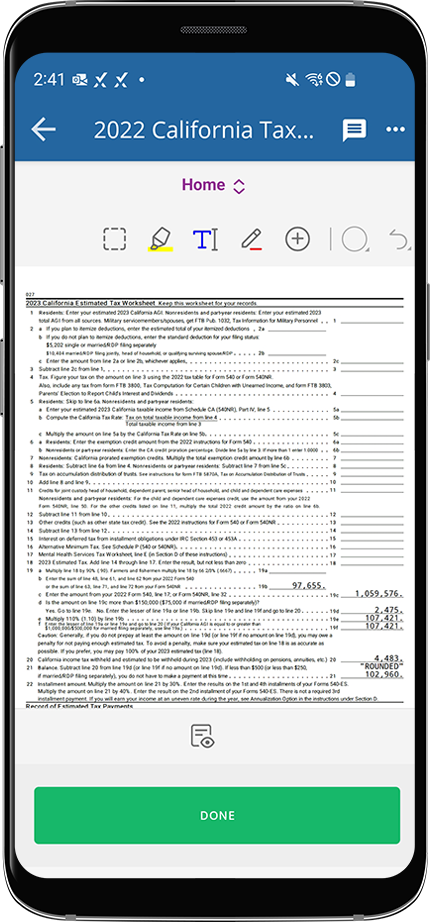
- Tap theMenuin the Document Viewer.

- SelectDownloadfrom the options presented in the menu.

- You'll see aDownload completenotification appear to indicate to you that you've successfully downloaded this document to your device.


