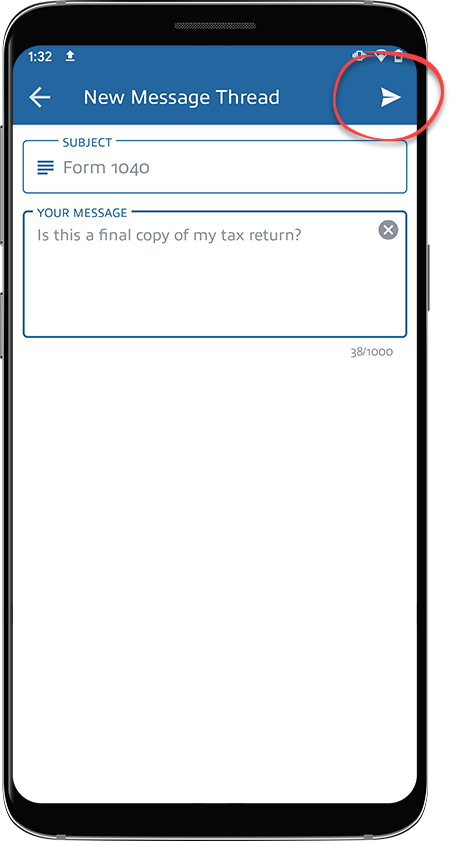
Message your tax professional about your return
Show all hidden content
You can discuss your return with your tax professional by sending messages from the message panel when viewing a tax return. Doing so creates a new thread associated with that document in
Messages
.note
Message panels also appear for documents, questionnaires, tax returns, tax payments, and invoices.
TaxCaddy.com on PC, Mac, or tablet
Follow these steps to message your tax professional regarding your return using TaxCaddy.com on your PC, Mac, or tablet.
- Sign in to TaxCaddy.com
- On theOverviewscreen, you will see aTask Liston the left, with your tax returns listed underView - [Tax Return Name].If your tax professional has enabled 1041 tax return profiles on your account for trust/estate, then select
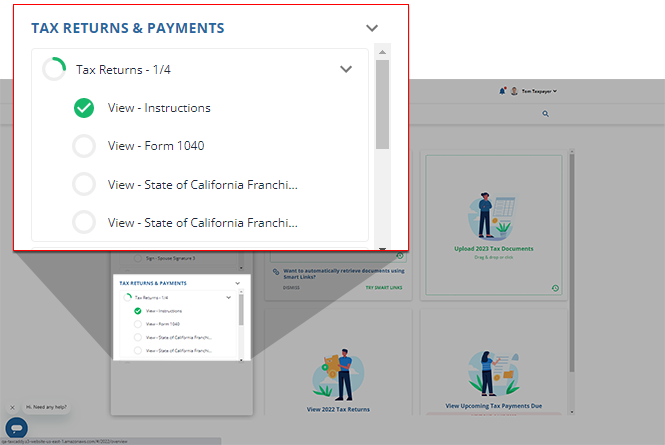 SWITCH TAX RETURNto select a different tax return profile.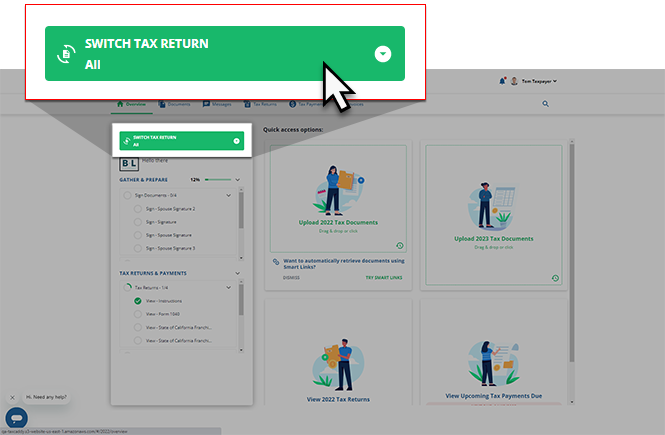
- Your selected tax return will appear in theOverviewscreen's document viewer.
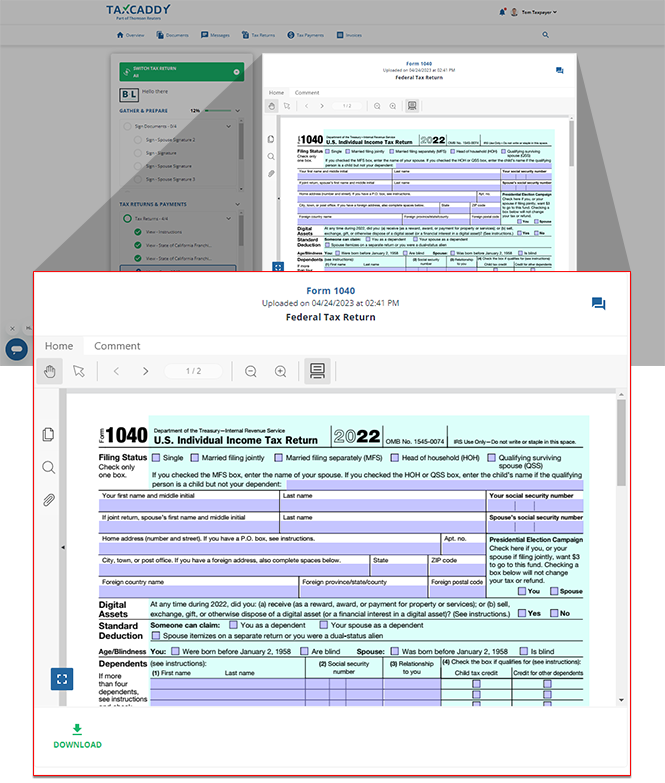
- SelectMessageto open theMessagespanel for the selected tax return document.noteThe title of the selected tax return will appear at the top of theMessagespanel.
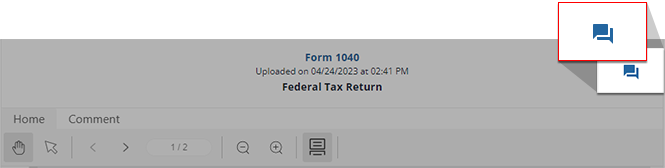
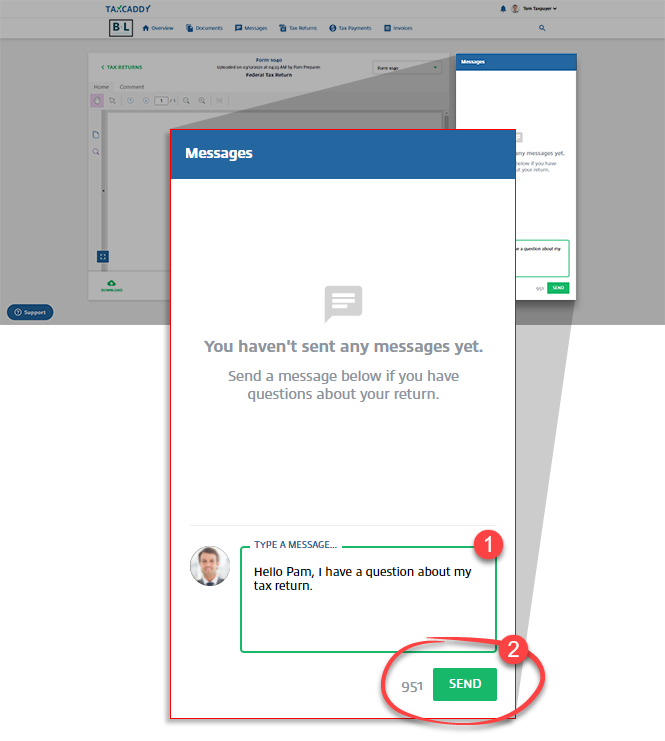
- On theMessagespanel, enter your message into the textbox, then selectSend. Your tax professional's reply appears in the thread on this panel. The message thread is also accessible from theMessagespage on the navigation panel.
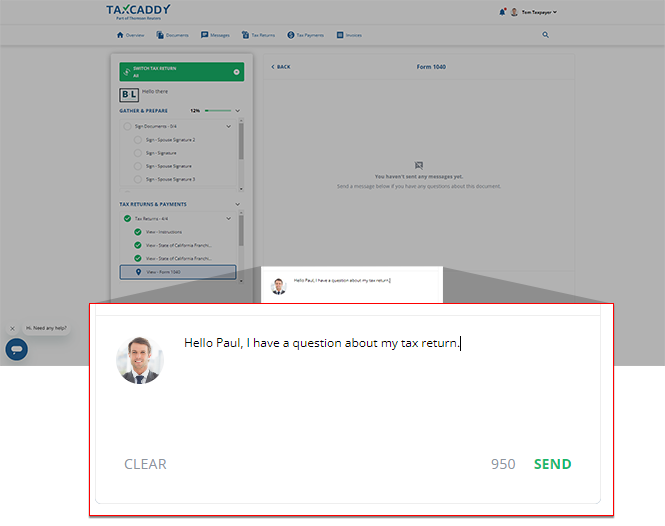
- Alternatively, when viewing a tax return in theTax Returntab you can use theMessagespanel.
iOS mobile app
Follow these steps to message your tax professional regarding your return on the iPhone mobile phone app.
- Sign in to the TaxCaddy mobile app.
- Tax returns that have been uploaded to your account will appear on theOverviewscreen. Select the tax return you'd like to view.
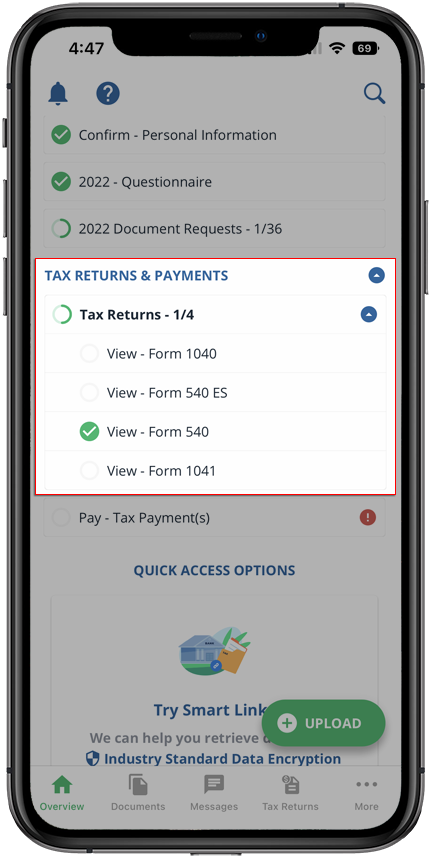 If your tax professional has enabled 1041 tax return profiles on your account, select theSELECT TAX RETURNSdropdown to view your available tax return profiles.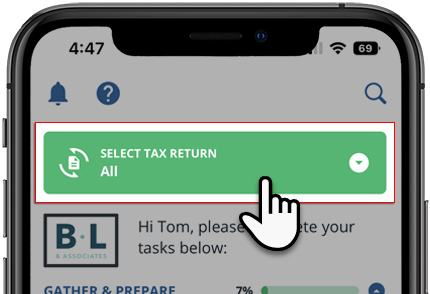
- The tax return you selected will open in theDocument Viewer.
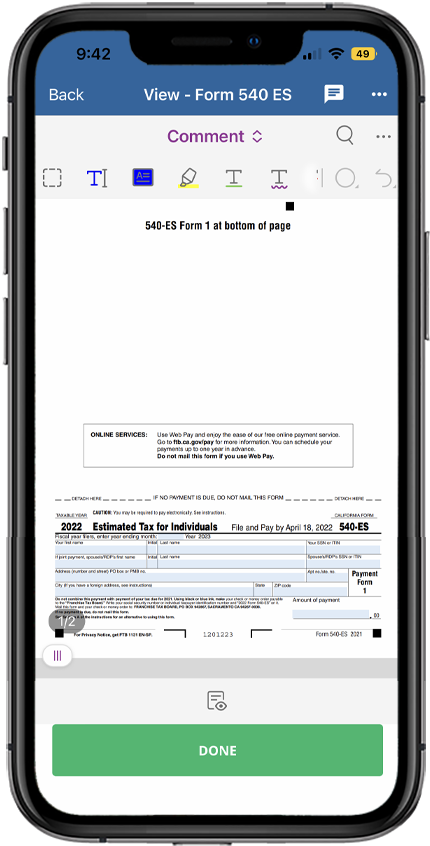
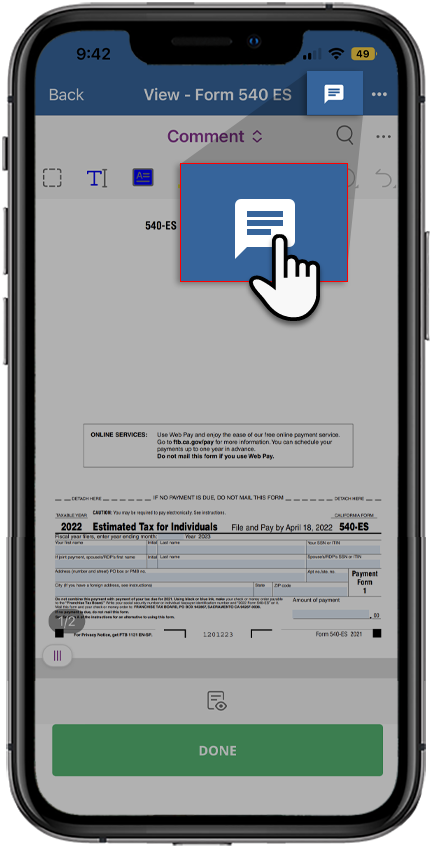
- SelectMessagefrom the Document Viewer.
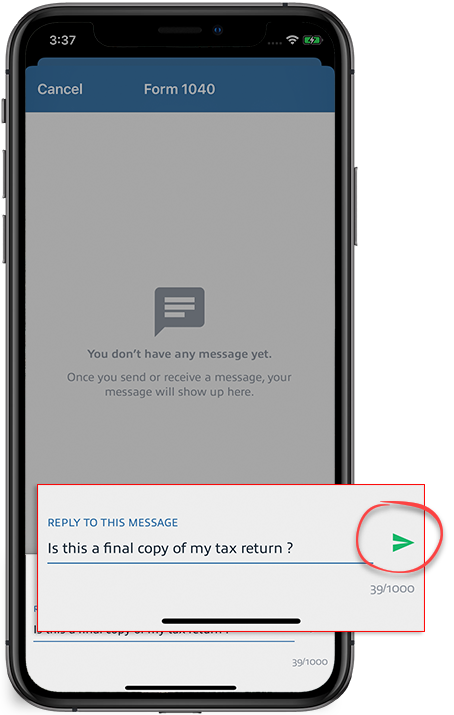
- Enter your message and selectSendto send your message.
Android mobile app
Follow these steps to message your tax professional regarding your return on the Android mobile phone app.
- Sign in to the TaxCaddy mobile app.
- Tax returns that have been uploaded to your account will appear on theOverviewscreen. Select the tax return you'd like to view.
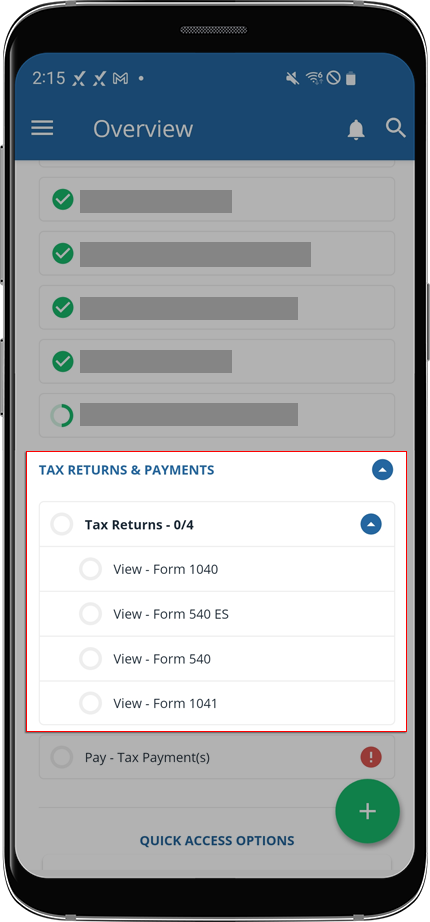 If your tax professional has enabled 1041 tax return profiles on your account, select theSELECT TAX RETURNSdropdown to view your available tax return profiles.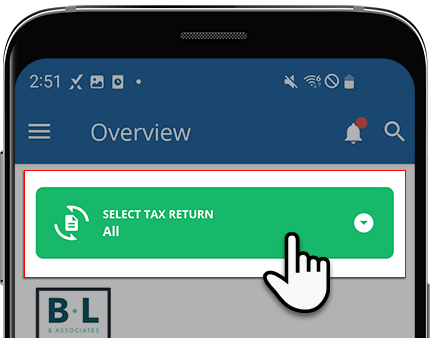
- The tax return you selected will open in theDocument Viewer.
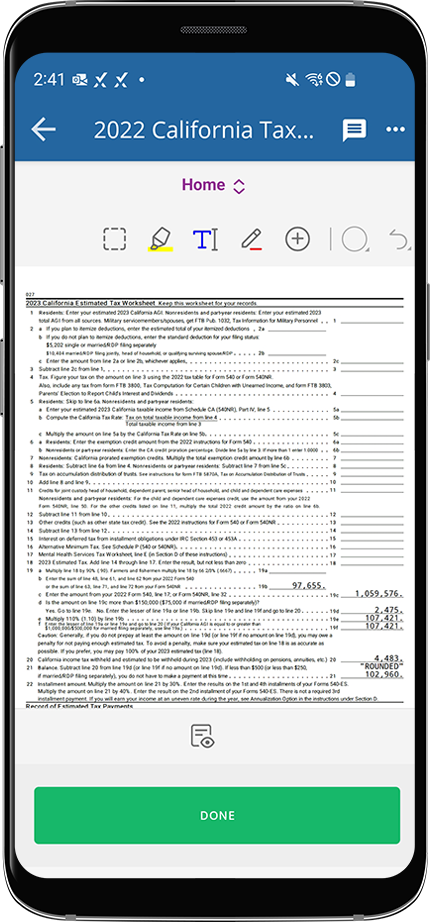
- SelectMessagefrom the Document Viewer.
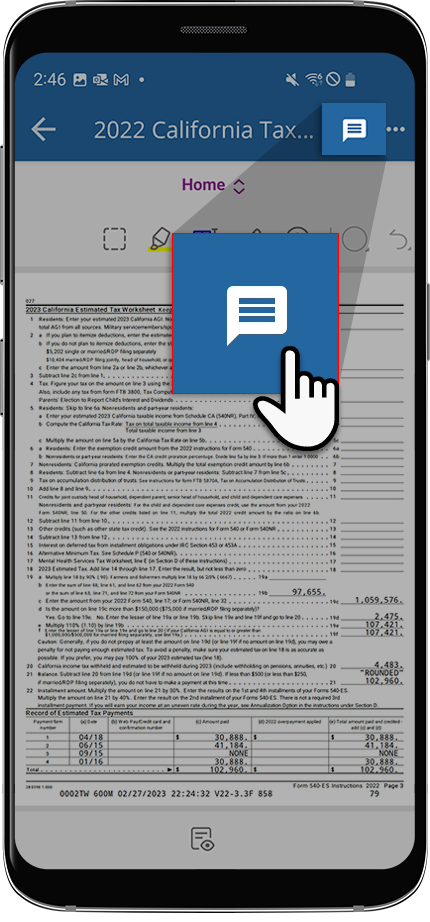
- Enter your message and selectSendto send your message.