Offline mode
Use Offline Mode to access CS Professional Suite applications without the internet using an authenticator app or temporary password.
Offline Mode lets you access CS Professional Suite desktop applications without an internet connection. Features that require an active internet connection (like web-based integrations, CS Connect, e-filing) are not available in Offline Mode.
To use offline mode, you need to either:
- Pair your desktop application with an app like Auth0 Guardian for offline access.important
- For UltraTax CS, this option is only available beginning in 2024.
- You can only have 1 app paired with Offline Mode at a time.
- Have another member of your firm generate a temporary password to use within 15 minutes.
- Contact Support and have them generate a temporary password to use within 15 minutes.
Set up offline mode
Option 1: Pair your device with an authenticator app.
- Open your application and sign in.
- In the application, go to:
- In Accounting CS or Workpapers CS, selectHelpthenActivate Offline Mobile Authenticator.
- In UltraTax CS, Fixed Assets CS, or FileCabinet CS, selectHelpthenRepair. Open theMisctab and selectMobile Authenticator.
- Follow the on-screen messages to pair with an authenticator app, such as Auth0 Guardian. Add a new account, then connect using a QR code or setup key.
- Enter the code generated by your authenticator in the field.
- SelectActivatewhen you finish pairing.
Option 2: Have another staff member generate a temporary password for you.
- In the application, go toTemporary Password for Offline Modeto generate a temporary password.
- In Accounting CS, Workpapers CS, or Practice CS, go toHelp, thenGenerate Offline Temporary Password.
- In UltraTax CS or FileCabinet CS, go toHelp, thenRepair. Open theMisctab and selectGenerate temp password.
- SelectGenerate Temporary Password.
- SelectCopy.
- Provide the password to another staff member of your firm.noteThe temporary password expires after 15 minutes.
Option 3: Have support generate a temporary password.
Contact our Support team to receive a temporary password.
note
The temporary password expires after 15 minutes.
Use offline mode with the paired app or temporary password
- Without an active internet connection, open a CS Professional Suite desktop application.
- At the Something Went Wrong page, selectWork offline.
- Enter the authenticator app code or temporary password provided by your colleague or support.
- SelectContinueto sign in.
Internal use only.
We recommend that customers ask a colleague in their firm to generate a temporary password for them. If this is not possible, they can contact Support to request a temporary password for Offline Mode. A consultant can create a temporary password for offline use. These passwords are handled like any other password reset:
Step 1: Confirm the contact role assigned in EMS.
For Thomson Reuters ID (TRID) accounts, an "L" means Licensee and a "Z" means Designee. If the user doesn't have either code in their contact role, stop and refer them to an Administrator.
We can also provide passwords to Onvio Primary Administrators.
Step 2: Confirm the identity of the caller.
To verify the caller's identity, choose one of the following:
- Confirm the License PIN and physical address of the firm in EMS
- Have the caller email the License PIN to you
note
If you are unable to complete the steps listed previous, the firm Admin or Licensee can send you a Letter of Consent. Per Thomson Reuters policy, due to the authority associated with this type of account, a letter must be obtained to validate the request for a password reset. Confirm the following elements defined are included in this communication. Obtain this letter before contacting the Resolver to receive a temporary code.
- The letter must come from the Firm Administrator, Licensee, or EMS/Flash Delegate requesting the temporary code.
- The letter must be on company letterhead.
- The letter must contain today's date.
- The letter must include the required password reset statement with name, role, Firm ID, user name, and log in.
- The letter must bear a signature of the requesting individual.
- Forward the letter to the Product Excellence team and current Resolver, then continue to step 3 of this article. The Product Excellence email address is internal-only. Don't share it with customers.
Step: 3 Request a temporary password.
- Enter a Resolver Queue request with the License PIN in the Topic field to reset the password.
- If generated, email the temporary password to the customer's email address on file. If we host the primary admin's email and they can't access it, provide an alternate email address.
note
There are 2 other options you can consider:
- If the licensee has the PIN but no internet, they may provide the PIN and physical address by phone.
- If the customer lacks the PIN and internet, use the card's last 4 digits and expiration date. You can check this information in EMS by viewing it as the customer.
- Verify Credit Card Information in EMS.
- EMS Toolbar: , and then confirm last 4 of account number matches last 4 of card number Licensee or Delegate (L/Z) provided.
Verify credit card information in MKT
- Access the Internal Tools page within Help and Support.
- Sign into Help and Support:https://www.thomsonreuters.com/en-us/help/sign-in.html
- Go to Internal Tools:https://www.thomsonreuters.com/en-us/help/internal-tools.html
- SelectQuick links for Tax & Accounting and Corporates.
- Search forMKT andopen the Internal: Manage Secure Data Exchange on MKT article and select the MKT link in step 1.
OR access the direct link to MKT.
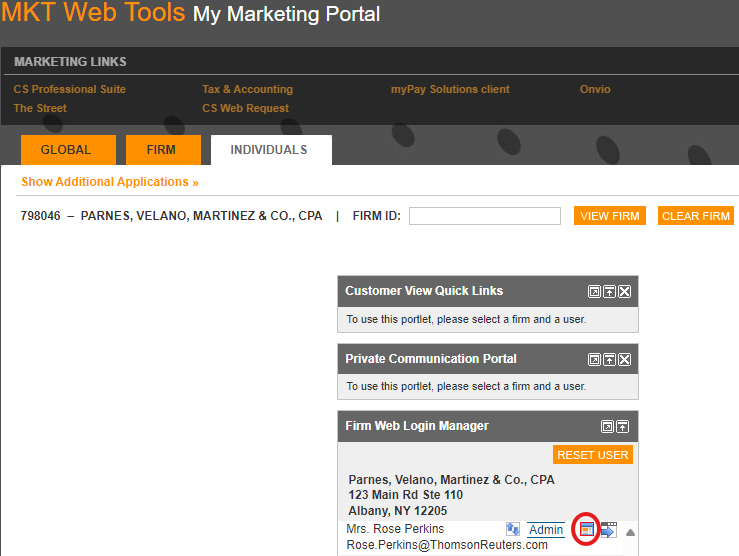
- Once in MKT, select theIndividualstab, enter the Firm ID, and selectVIEW FIRM.
- Find the name of the Licensee or Delegate, and select the customer view button next to them.
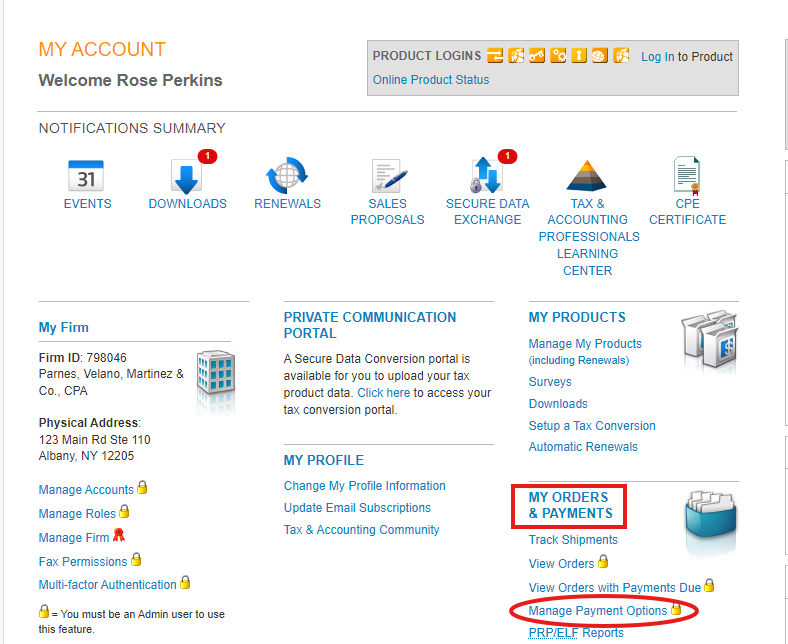
- This opens the MKT Web Tools page.
- In theMY ORDERS & PAYMENTSsection, selectManage Payment Options.
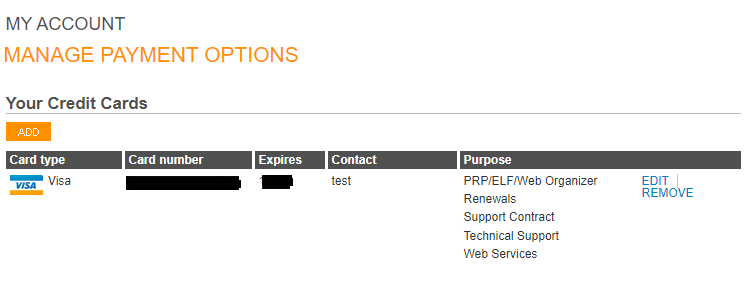
- In the Card number column, verify the last 4 digits match the customer's Payment Options information.