
Show total of multiple accounts
In the Report Designer, you are able to display the total amount for a subset of accounts as well as the detail for the other accounts. For example, you can display the total for all of the cash accounts and details for the other current asset accounts in the
Balance Sheet - Current Year
financial statement.The first image shows the
Balance Sheet - Current Year
without any modifications, where there are two cash accounts listed separately.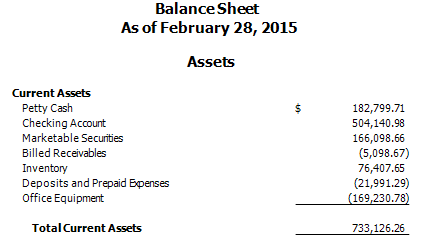
The following screen displays the modified
Balance Sheet - Current Year
with the two cash accounts shown together as one total. 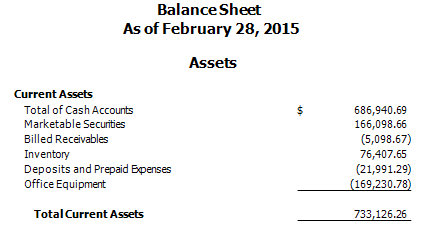
- SelectFile, thenReport Designer.
- SelectFinancial Statementsin the Reports frame.
- Double-clickBalance Sheet - Current Yearfinancial statement to open it in the design grid.
- Add two rows between rows 4 and 5.
- Row 5 should not be a repeating row. If you need to ungroup rows 5 and 6, right-click row 5 and selectUngroup from Repeating Levelfrom the context menu.
- Right-click row 5 and selectRow Heightfrom the context menu.
- Enter0.00and selectOK.
- Right-click cell A4 and selectDelete Cell Contentsfrom the context menu.
- EnterCash Accountsin cell A4.
- Select cell B4 and in the Cell Properties section of Design Tools:
- Change the cell's Grouping content toCA : CASH.
- Mark thePrint total amountcheckbox.
- Select cell A6 and insert the[ChartofAccountsActivity.Core.GLAccountDescription]variable.
- Select cell B6, and insert the[ChartofAccountsActivity.Core.Amount]variable.
- Select cell B6, and in the Cell Properties section of the Design Tools frame, select theAccount ClassificationGrouping type.
- Select theFormulabutton next to Grouping content field, then selectClear Formula.
- Select the following codes in the Account Classifications list and select the+operator after each:
- CA: No subcode (Current Assets: No subcode).
- CA: MS (Current Assets: Marketable Securities).
- CA: AR (Current Assets: Accounts Receivable).
- CA: INV (Current Assets: Inventory).
- CA: PE (Current Assets: Prepaid).
- CA: OCA (Current Assets: Other Current Accounts) .
- Select the appropriate Period, Amount type, and Basis in the Design Tools frame.noteThe Adjusted basis is used when the Basis field in the Row Properties section of the Design Tools frame is blank.
- Select cell B8. Adjust the formula in this cell to account for the new row. In our example, it should be [B4 + B6].noteYou may need to adjust the formatting of the inserted cells.The following image displays the applied changes in the appropriate sections of the design grid for theBalance Sheet - Current Yearstatement.
![Balance Sheet showing Current Assets. There are two categories of asset: Cash Accounts and a variable [ChartofAccountsActivity.Core.GL AccountDescription]. Instead of amounts there are variables for each of these categories, and the Total Current Assets is shown as [B4 + B6]](/content/dam/helpandsupp/en-us/Topics/accounting-cs-family/images/acs-modified-detail.png/_jcr_content/renditions/original)
Related Content
-
Show detail of accounts in place of total
Format: Article
-
Separate net income from retained earnings
Format:
Article