
Change or reset Workpapers CS passwords
Workpapers CS
passwordsFollow these steps to change or reset your
Workpapers CS
password.Change your password
- OpenWorkpapers CS.
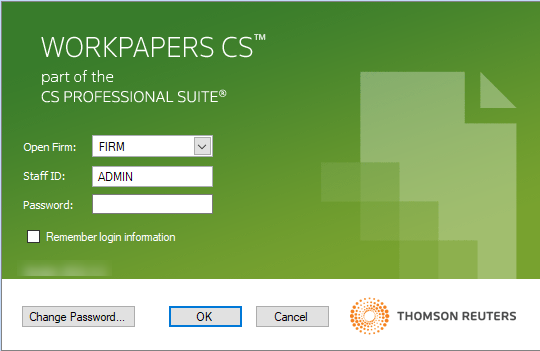
- SelectChange Password.
- Enter your old password, then enter and confirm your new password.
- SelectOKto go back to the sign in screen, thenOKagain to continue toWorkpapers CS.
note
These steps are for changing your password on the
Workpaper CS
sign in screen. There is another sign in screen before this one, which is for signing in to the CS Professional Suite. You can also change your Thomson Reuters Account password that's used on this other screen.Reset a lost or forgotten password
Follow these steps to reset your
Workpapers CS
password if you lost or forgot it. The firm administrator or a staff member with the appropriate permissions can also reset passwords.
- SelectSetup,Firm Information, thenStaff.
- Select theSecuritytab.
- Select your staff ID, thenEdit.
- SelectReset Password.
- SelectYesto confirm.
- SelectEnterto save.
The next time you open
Workpapers CS
, enter your staff ID and leave the password field blank on the sign in screen. After you select OK
, you'll have the option to enter and confirm a new password.