
Table Panel
The Table panel presents iSheet data in a grid-based view, offering users a structured, configurable way to interact with, filter, and manage records from a centralised location.
Creating a Table Panel
To create a Table panel, navigate to your custom page dashboard and select
Edit
and then choose Table
from the Interactive Data Visualization
panels selection. 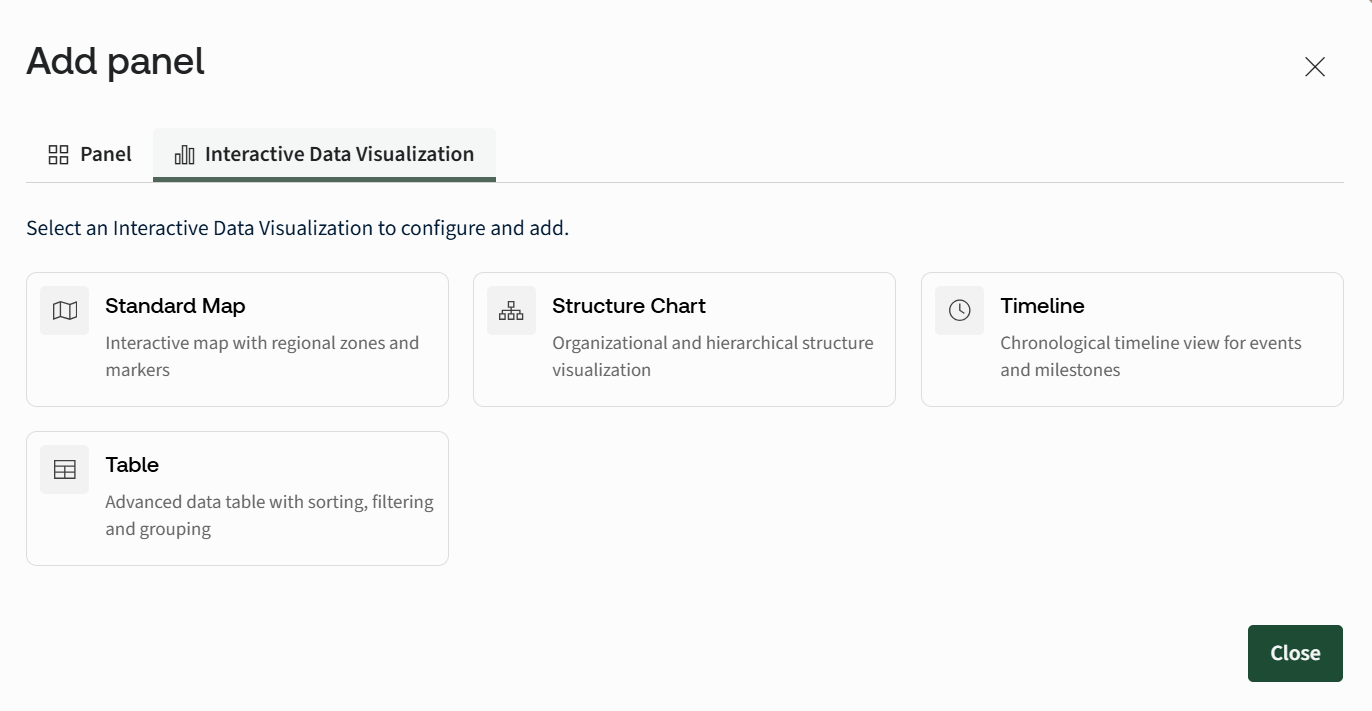
The Table configuration modal will open. Work through each tab to configure the panel.
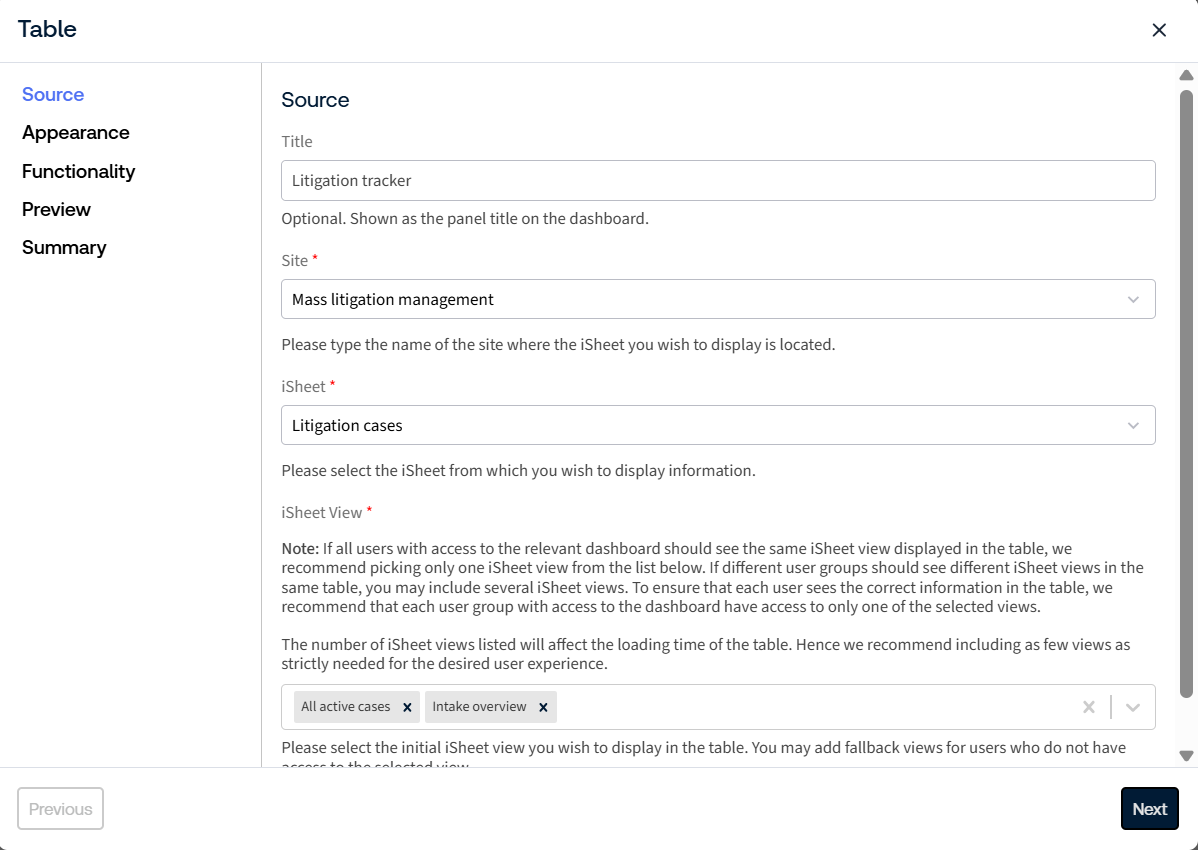
Source
note
Inline editing is not supported for all iSheet column types (such as Lookups, Joins, Calculations, and Rich text HTML in MLT). It is also important to note that, for large-scale iSheets or views with high record volumes, bulk editing and dashboard loading performance may be affected. As a best practice, limit iSheet views to 200 columns and 10,000 records. To optimise performance, create multiple iSheet views and use them within table panels to better manage the load.
- Title- Enter a title for the table. The title appears at the top of the panel. This field is optional.
- Site- Select a site from the list. Only sites that contain an iSheet are available.noteThe iSheet field is populated automatically once a site is selected.
- iSheet- Select the iSheet to use as the data source for the table.
- iSheet View- Select one or more views to display iSheet data in the table.
note
- If all users with access to the dashboard should see the same data, select only one iSheet view.
- If different user groups need to see different views within the same table, you may select multiple views. In this case, ensure each user group only has access to one of the selected views, so that each user sees the correct data.
- The number of selected views directly affects the loading time of the table. Select only the minimum number of views required for the desired user experience.
Click
Next
to continue to the Appearance settings.Appearance
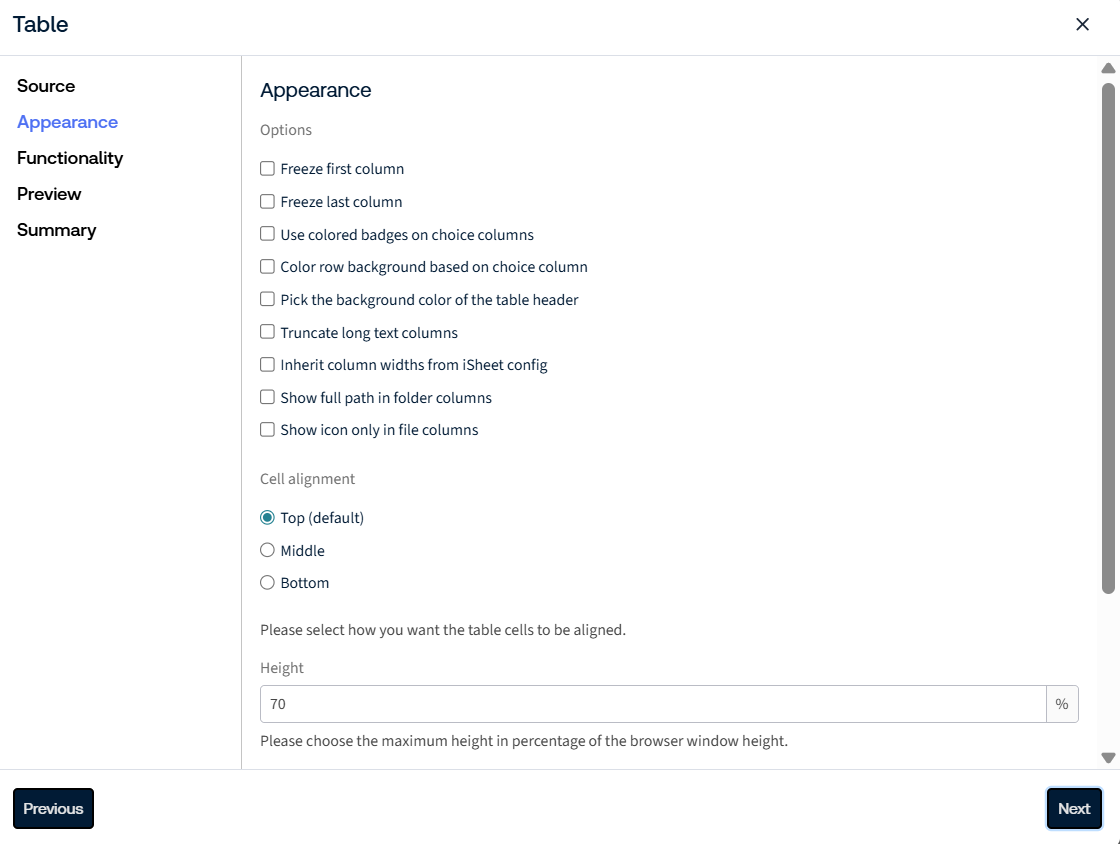
- Freeze first column- Keeps the first column visible while horizontally scrolling through the table. Useful for retaining key identifiers (e.g. matter name, document ID) when working with wide iSheets.
- Freeze last column- Locks the final column in place during scrolling. Commonly used for totals, status fields, or action icons that need to remain visible.
- Use coloured badges on choice columns- Displays choice field values as coloured badges instead of plain text, improving visual clarity for statuses such as Open, In Review, or Completed.When enabled, select the choice column to apply badges to. The badge colours are pulled from the text colours configured for that column in the iSheet.

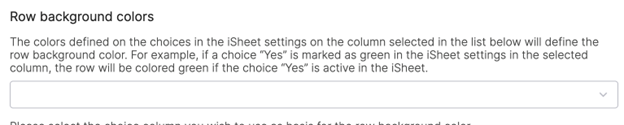
- Colour row background based on choice column- Applies a background colour to entire rows based on the value of a selected choice column. Helps users quickly scan and prioritise records, for example, highlighting high-risk items. When enabled, select the choice column that defines the row colours.
- Pick the background color of the table header- Allows customisation of the table header colour to match site branding or to distinguish different tables on a page visually. Enter a hex colour code (e.g.#2E41E4) in the field or click the colour icon to use the colour picker.
 noteText uses a white background by default. Black text is automatically applied when a white background colour is selected.
 - Truncate long text columns- Shortens long text values to keep rows compact and readable. Particularly useful for description or comments fields.
- Inherit column widths from iSheet config- Uses the column widths defined in the base iSheet configuration, ensuring consistent display between iSheet views and the embedded table. Use this option to ensure the table column sizes align with the iSheet configuration.
- Show full path in folder columns- Displays the full directory path for folder-type columns. Useful in document-heavy sites where folder context is important.When theShow Full Pathoption is enabled for a folder-type column, the full directory path is displayed rather than just the folder name (e.g./Case files/Case TLT - 001instead ofCase TLT - 001).
- Show icon only in file columns- Replaces file names with file-type icons, creating a cleaner, more compact table layout when file names are not essential.
- Cell Alignment- Controls how content is vertically aligned within table cells.
- Top (default):Aligns content to the top of the cell. Improves readability for multi-line text.
- Middle:Vertically centres content within the cell for a balanced appearance.
- Bottom:Aligns content to the bottom of the cell. Typically used for stylistic consistency in fixed-height rows.
- Height- Defines the fixed height of the table component on the page as a percentage, helping control page layout and scrolling behaviour.
- Rows per Page- Controls how many records are displayed per page.
- 50 rows: Reduces load time and improves performance for large datasets.
- 75 rows (default): Balances information density and usability for most standard iSheet tables.
- 100 rows: Useful for users reviewing large volumes of data at once.
For large iSheets, use the pagination selector at the top of the table to limit the number of records displayed. The pagination selector also shows the total record count.

Click
Next
to continue to the Functionality settings.Functionality
- Include filter functionality- Enables filtering on the table, allowing users to filter records based on column values. When enabled, the following filter settings become available:
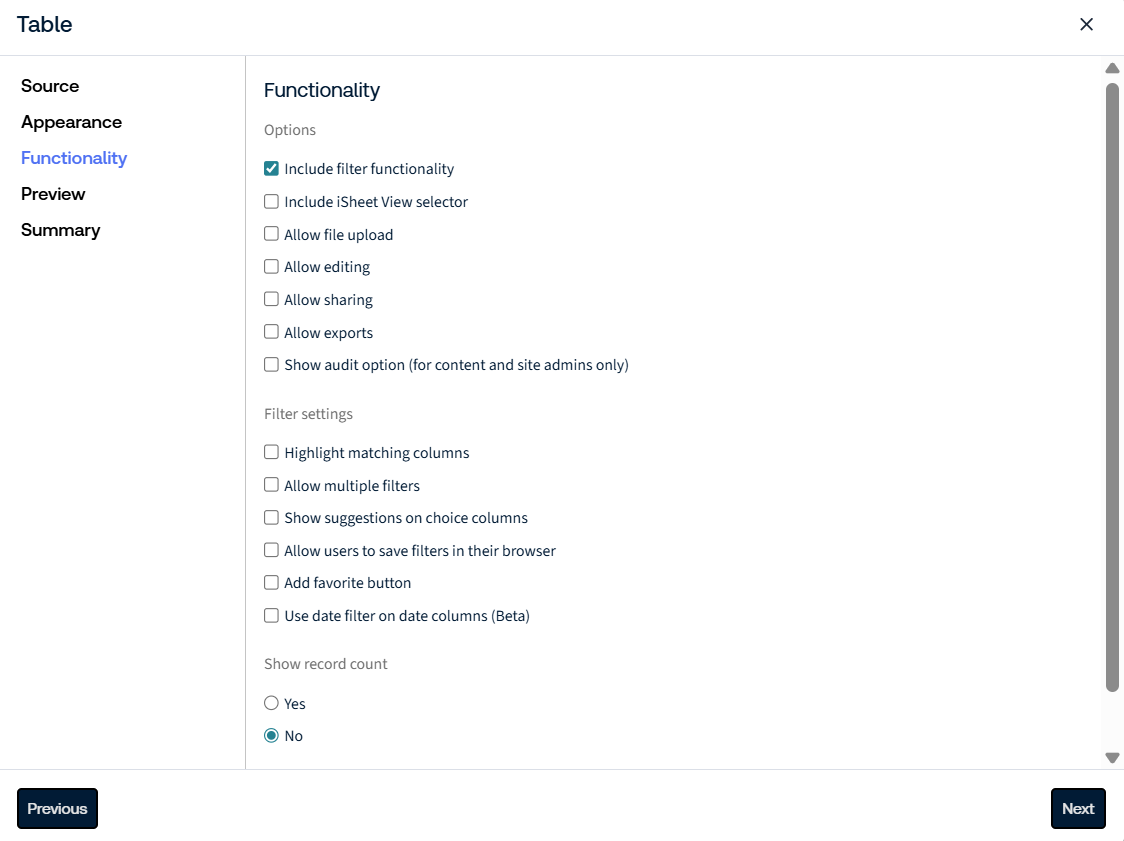
- Filter settings: Controls how users search, filter, and navigate records in the table, including highlighting matches, applying multiple filters, showing suggestions, and enabling saved filters and favourites.
- Highlight matching columns: Highlights relevant columns during a search to quickly surface matching results.
- Allow multiple filters: Allows users to apply more than one filter simultaneously.
- Show suggestions on choice columns: Displays suggested values when filtering columns that use predefined choice lists.
- Allow users to save filters in their browser: Allows users to save their filter selections locally in their browser for reuse in future sessions.
- Add favourite button: Adds a favourites option, allowing users to mark and quickly access preferred records.
- Use date filter on date columns (Beta): Enables enhanced date-based filtering for date-type columns.
- Show record count: Controls whether the number of records currently displayed in the table is shown. SelectYesto show the record count orNoto hide it.
- Include iSheet View selector- Displays the iSheet view selector, allowing users to switch between available views directly from the table.
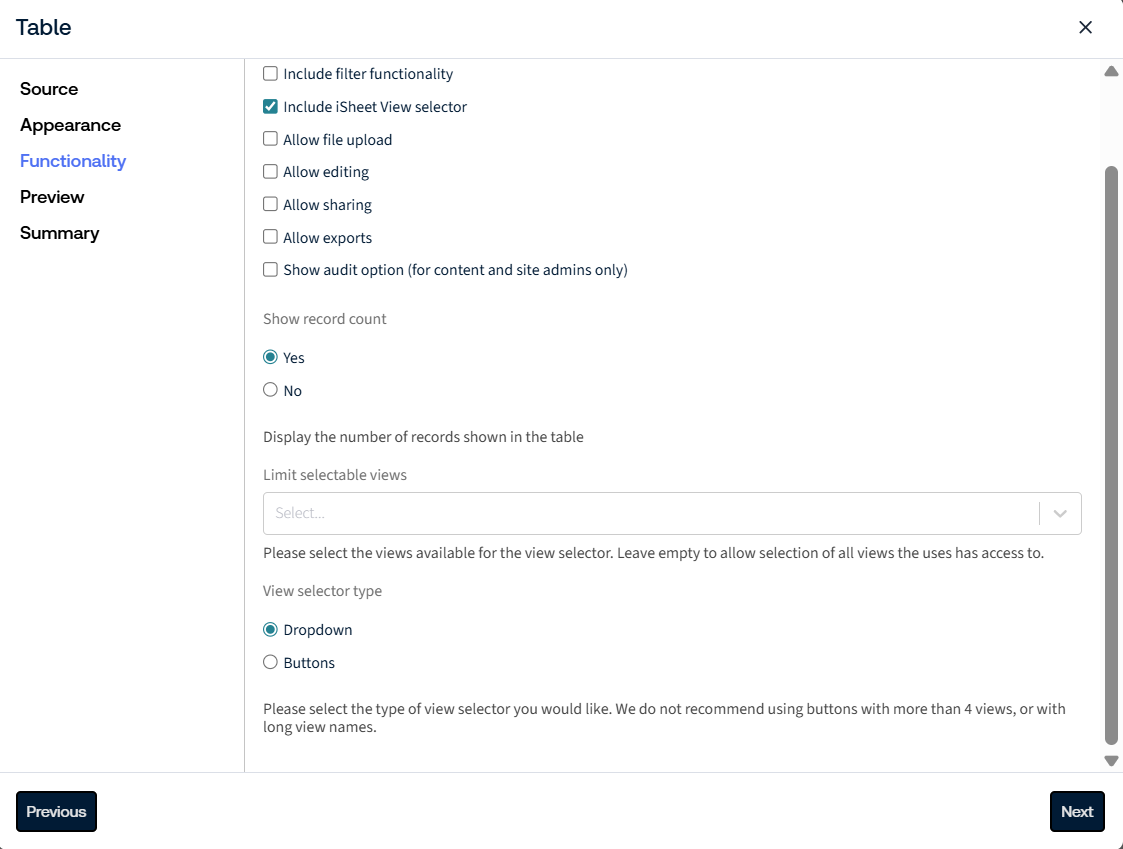
- Show record count: Controls whether the number of records currently displayed in the table is shown. SelectYesto show the record count orNoto hide it.
- Limit selectable views: Restricts which iSheet views are available in the view selector when searching or when you want to filter in the table.noteIf no value is specified, the user can access all available views.
- View selector type: Choose whether views are displayed as buttons or in a dropdown above the table to filter iSheet data.noteAvoid using buttons when there are more than four views or when view names are lengthy.
- Allow file upload- Allows users to upload files directly within the table for iSheet attachment columns. Two column types support file uploads:
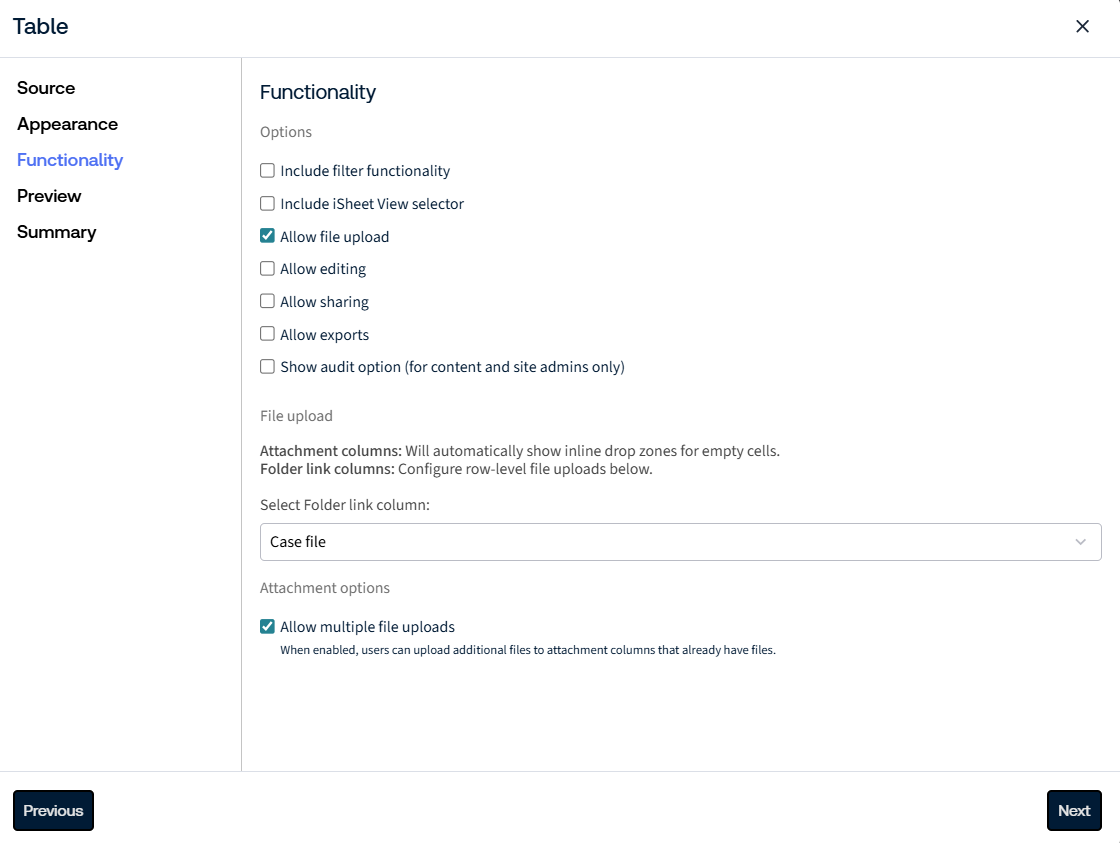
- Select Folder link columns: Support row-level uploads directly to folders in the Files module.noteSee iSheet Attachment columns and Folder Link columns for detailed information.
- Allow multiple file uploads: Allows users to upload additional files to attachment columns that already contain files.
- Allow editing- Allows users to edit records directly within the table using inline editing. When enabled, the following editing settings become available:noteNot all iSheet column types support inline editing. The following column types cannot be edited inline: Rich Text, Multiline Text, User Lookups, iSheet Links, iSheet Lookups, Joins, and Hyperlinks.
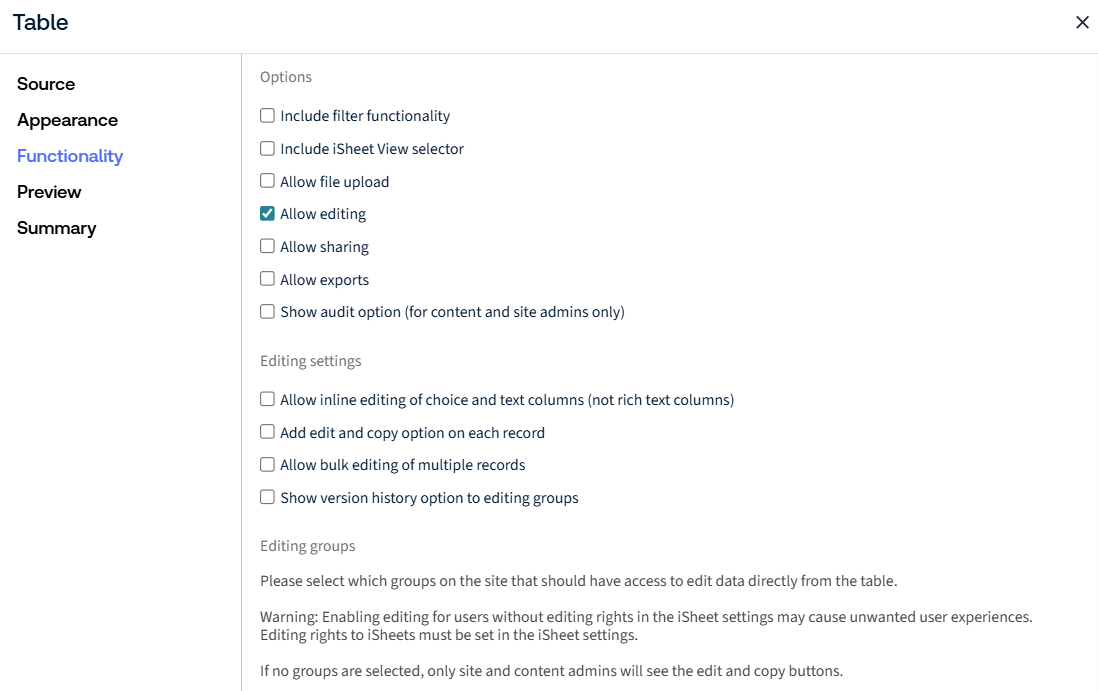
- Editing Settings: Controls how users edit records within the table, including enabling inline edits, record-level actions (edit/copy), bulk updates, and version history visibility.
- Allow inline editing of choice and text columns (not rich text columns): Allows users to edit supported column values directly within the table without opening the full record.
- Add edit and copy option on each record: Displays edit and copy action icons for each record in the table.
- Allow bulk editing of multiple records: Allows users to select and edit multiple records simultaneously.
- Show version history option to editing groups: Displays the version history option to users who have table editing rights.
- Editing groups: Defines which site groups can edit data directly within the table.note
- If no groups are selected, only Site Admins and Content Admins will see the edit and copy options.
- Editing rights must also be enabled at the iSheet level. Enabling table editing without the appropriate iSheet permissions may result in unexpected behaviour.
- Allow sharing- Enables sharing controls, allowing users to share iSheet records with other users using the iSheet share record options. When enabled, the following settings become available.
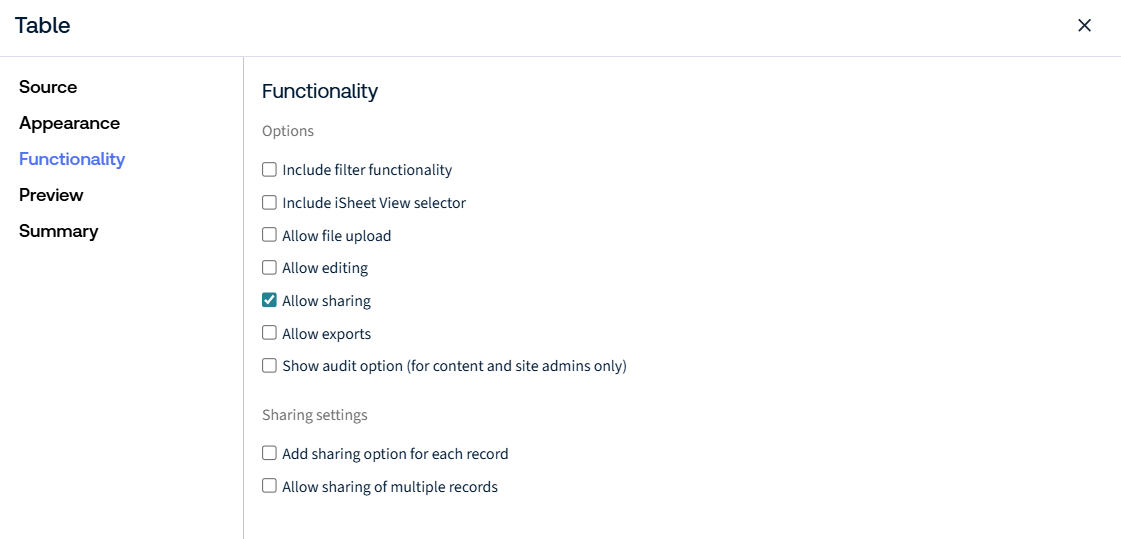
- Sharing settings: Controls how users can share records from the table.
- Add sharing option for each record: Displays the iSheet sharing option at the individual record level.
- Allow sharing of multiple records: Allows users to share multiple records simultaneously.noteBulk sharing supports up to 20 records per action.
- Allow exports- Allows users to export table data for use outside of HighQ. When enabled, the following settings become available.
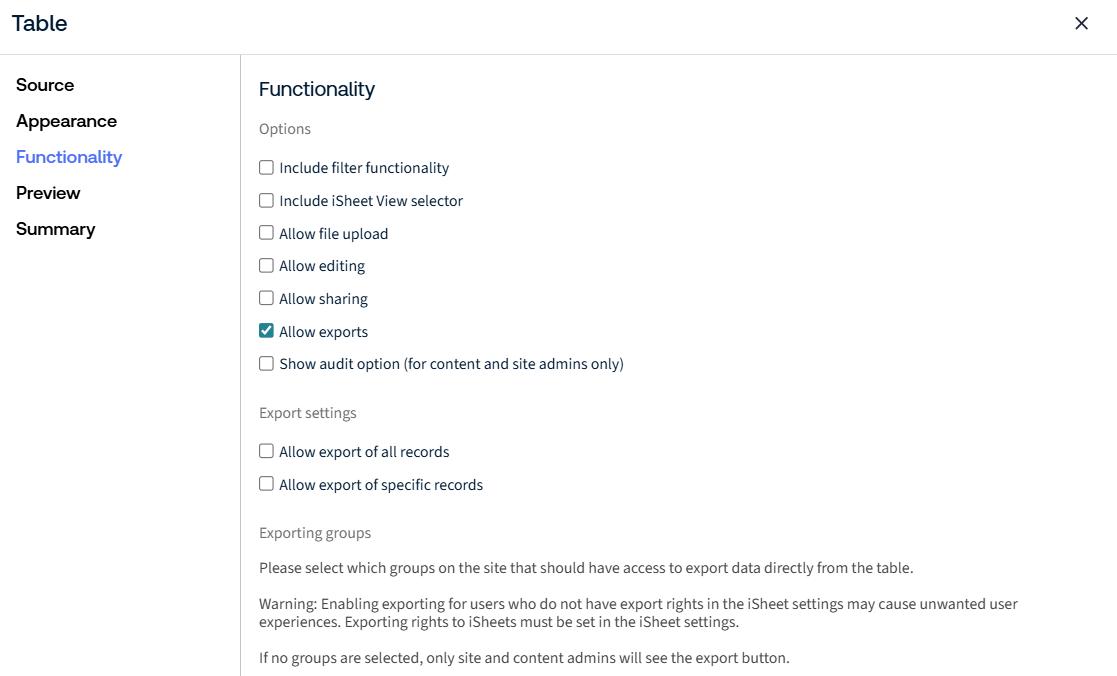
- Export settings: Controls how users can export iSheet data from the table.
- Allow export of all records: Allows users to export all iSheet records currently displayed in the table.
- Allow export of specific records: Allows users to export only selected iSheet records.
- Exporting groups: Defines which site groups can export data directly from the table. If no groups are selected, only Site Admins and Content Admins will see the export option.noteExport rights must also be enabled at the iSheet level. Enabling table exports without the appropriate iSheet permissions may result in unexpected behaviour for users.
- Show audit option- Displays the iSheet audit option for Site Admins and Content Admins only, providing access to audit history and change tracking for individual records.
Select
Next
to preview the table. A preview of the table is displayed based on the configuration settings defined. Preview
To preview the table in full-screen mode, select
Fullscreen
to maximise the available screen space.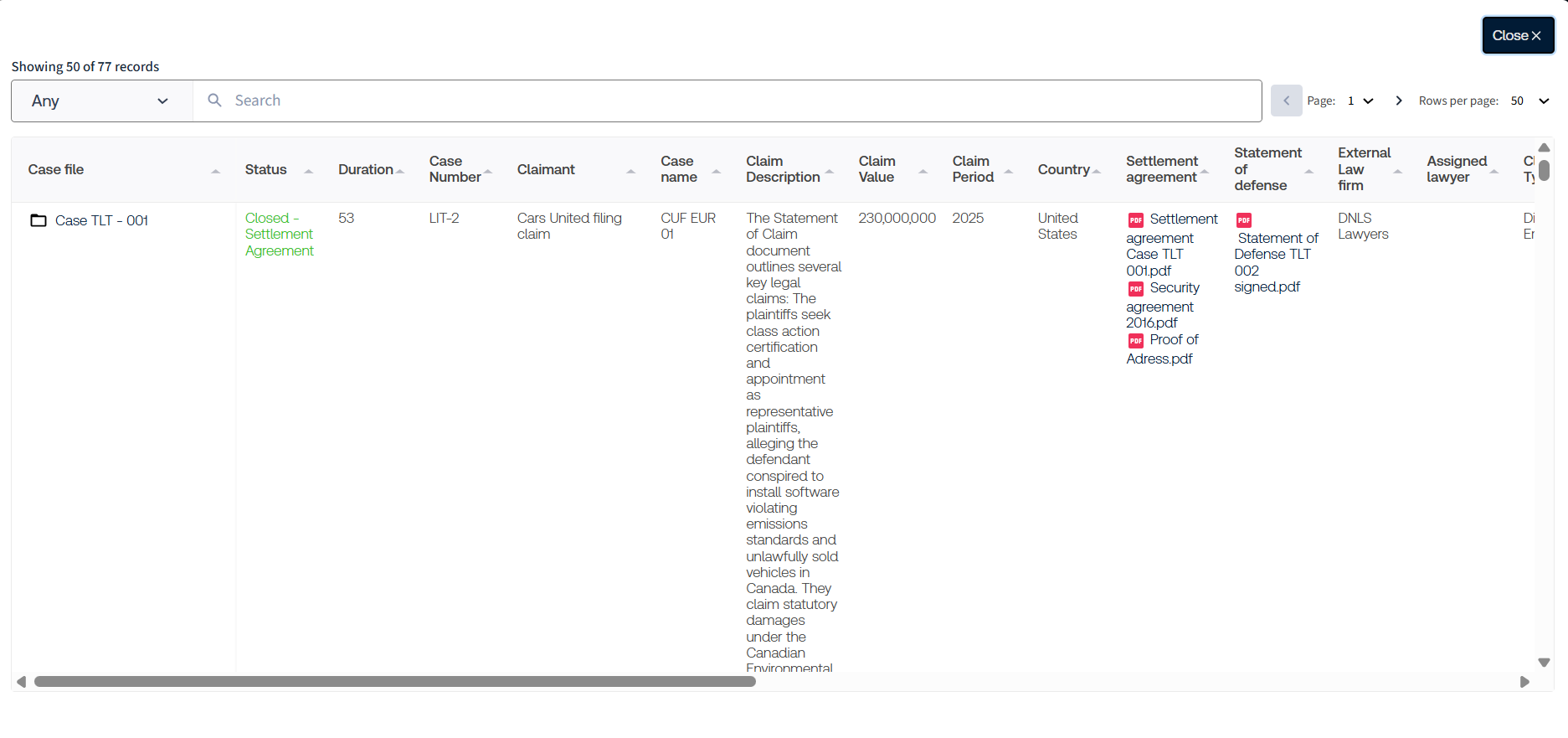
Click
Next
to view the configuration summary and verify all settings. 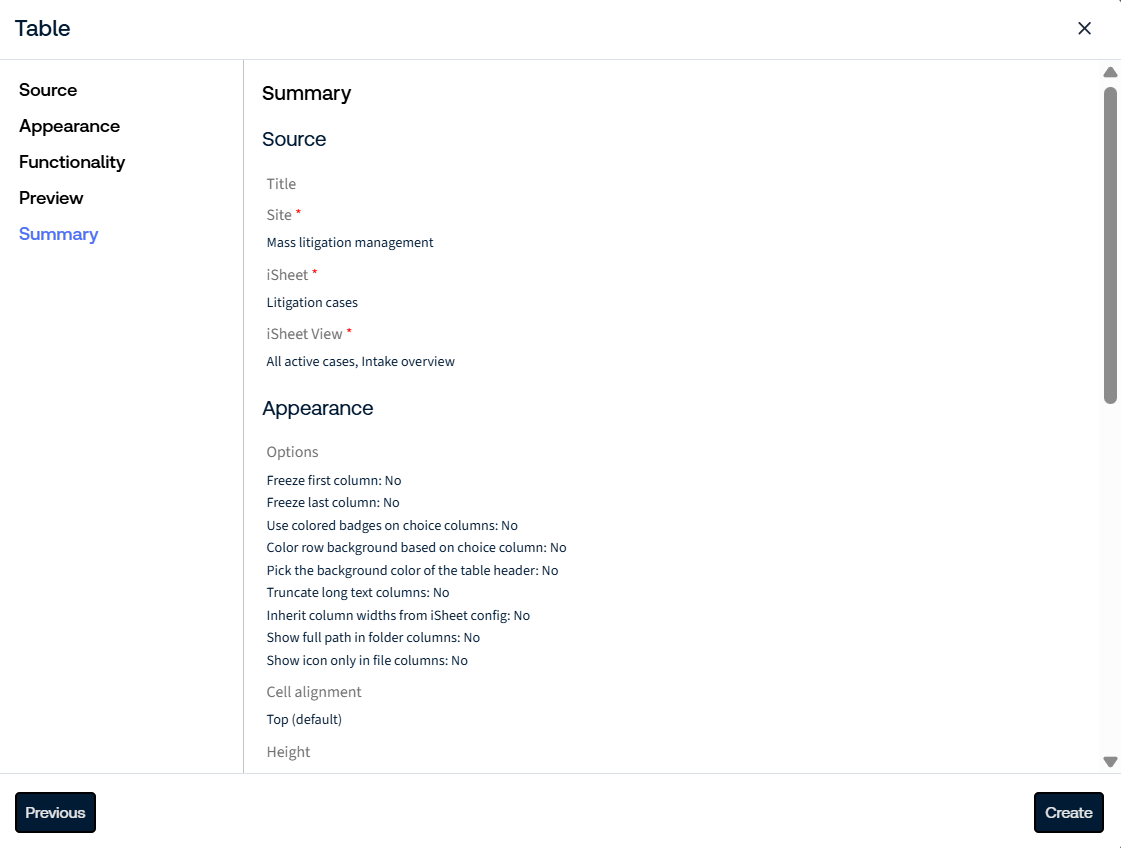
Click
Create
to generate the Table panel. The panel is automatically added to the dashboard and is immediately available for use. 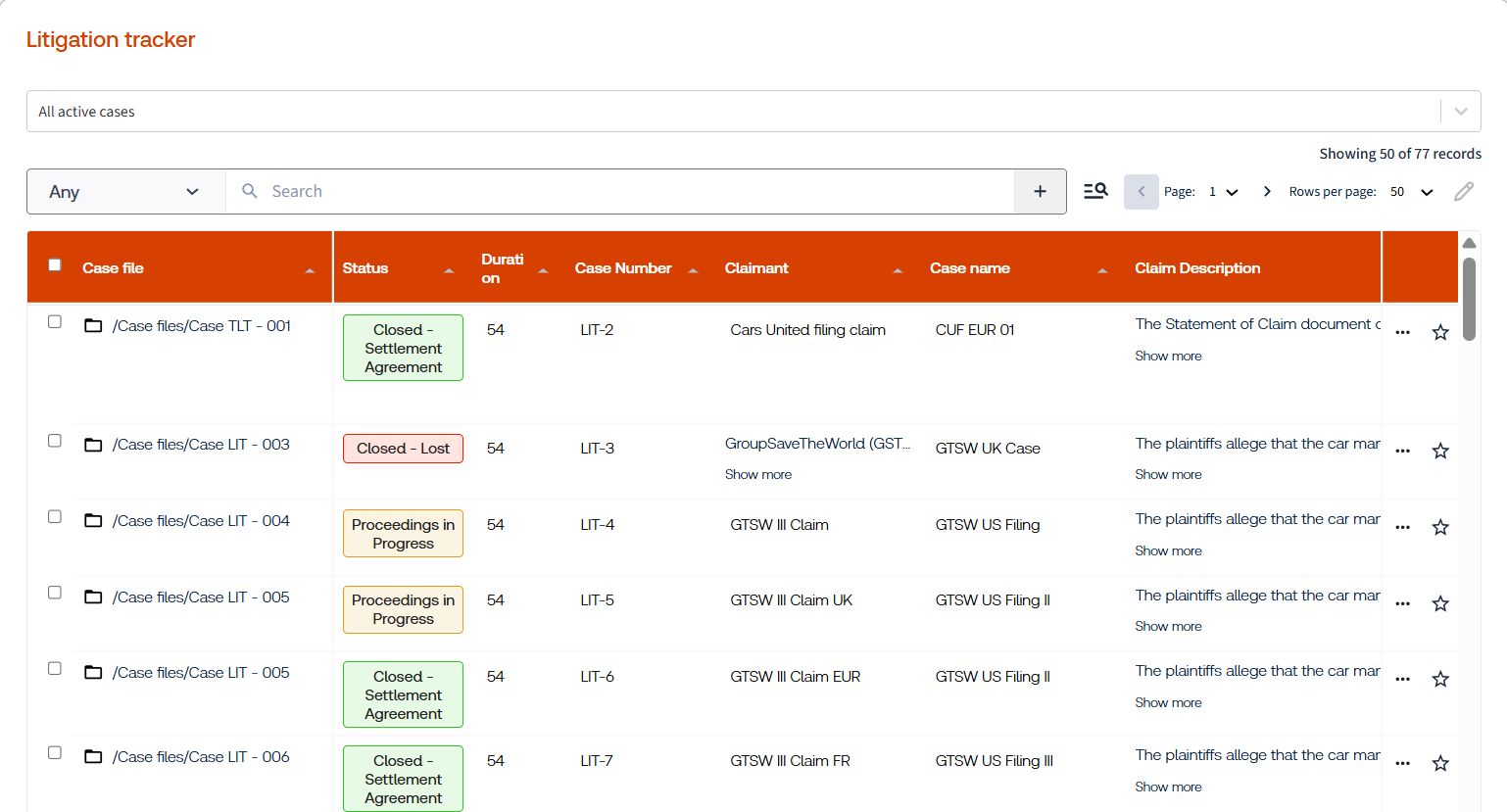
For details on managing data within Table panels, see Managing data with Tables.
Related Content
-
Manage data within a Table
Format: Article