Tax Automation workflow to process binders

Use the Tax Automation feature in UltraTax to automate workflows with SurePrep, from gathering documents to final review.
Tax Automation is a streamlined workflow that integrates your existing SurePrep services directly into UltraTax CS (starting 2025 tax year). If you're currently using SurePrep 1040SCAN PRO, 1040SCANverify Onshore, or 1040SCANverify Offshore, Tax Automation provides a unified interface to manage the entire tax preparation process, from document upload through final review, without leaving UltraTax CS while still benefiting from the 1040SCAN services.

Before you begin

Your firm needs to complete the following prerequisites before you can use Tax Automation.
  1. You need to turn on UltraTax and SurePrep integration using the new integration method introduced starting tax year 2025. See the "
    Activate UltraTax CS
    " article for details.
  2. Users using tax automation in UltraTax need to have the same email address account created in FileRoom.
  3. The user needs to also have the "
    Can be an Owner
    " permission in
    Admin
    settings.
  4. Your firm needs to have service units available to process that service (as in 1040SCAN PRO or 1040SCANverify).
  5. You are using UltraTax for 2025 or a later tax year.
  6. Skip this step if your firm doesn’t use Single Sign-On (SSO) to sign in. If your firm uses SurePrep's legacy SSO, then you need to switch to Thomson Reuters SSO.

Using Tax Automation

You can use Tax Automation to create binders and upload documents without leaving UltraTax.
Follow these steps on how to use Tax Automation:
  1. Open UltraTax CS, then select the
    Tax Automation
    button.
    Tax Automation button on the toolbar inside UltraTax
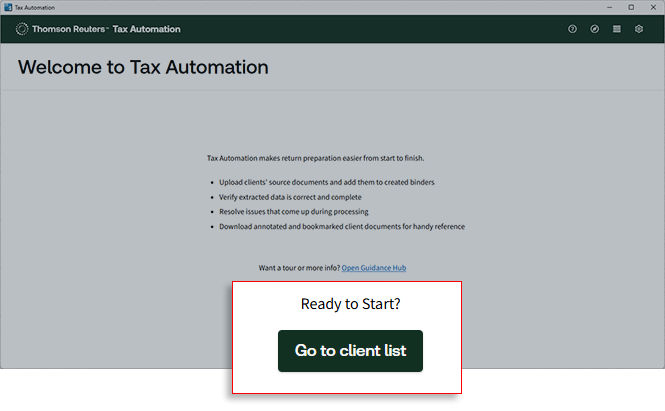
  2. Read the instructions on the Welcome window, select
    Go to client list
    .
    Tax Automation Welcome window with the Go to client list button highlighted
  3. Select the
    Upload documents
    button.
    Alternatively, you can locate the client in the client list, select
    Actions
    Upload Documents
     Upload documents button is highlighted, and on the client list
  4. Next, on the
    Upload documents
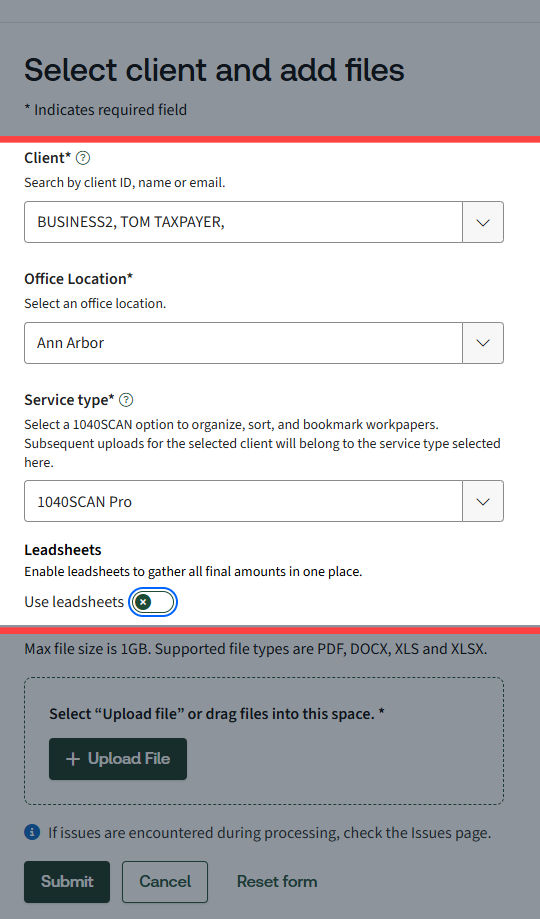
    page, complete the upload form:
    Select binder details
    Field
    Description
    Client
    Select the client from the dropdown menu (may be pre-filled)
    Office location
    Select the office location assigned to the client
    Service type
    Select how you want to verify the accuracy of the data captured:
    • 1040SCAN PRO (In-house verification)
    • 1040SCANverify Onshore (SurePrep verification)
    • 1040SCANverify Offshore (SurePrep verification) - Since this is an offshore service, you will need to get 7216 Consent from your client. Once the consent is received, select the
      Client consent confirmed
      checkbox to acknowledge that you've received consent to send documents offshore for verification.
    Note: A notification will appear on the Welcome screen if you don’t have enough units for a service type
    Leadsheet
    Toggle to turn on if you would like to create a binder with Leadsheets (must be set at initial upload)
    document upload form fields like client ID, office location
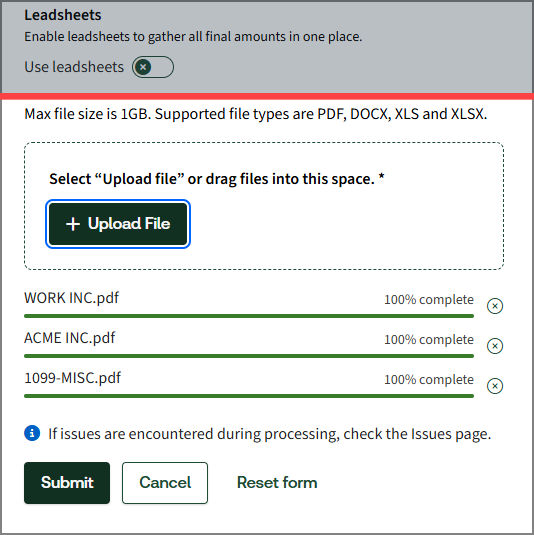
  5. Select
    Upload file
    to upload your documents.
    File Upload section
    • You can upload PDF, DOCX, XLS, or XLSX files (max 1GB per upload). However, we recommend converting Word documents to PDF for the best user experience in SPbinder.
  6. Select
    Submit
    .
  7. Select
    Back to Client List
    .

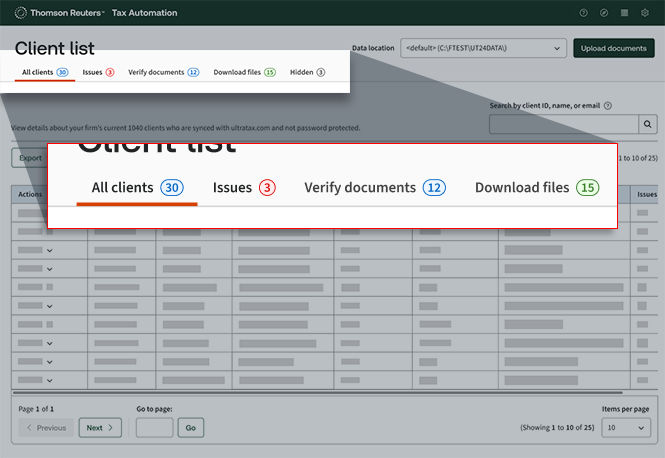
Client List screen overview

Each tab represents a different phase of the workflow.
Client list tabs
Back on the
All Clients
tab, as clients move through the workflow, their
Process stage
and
Description
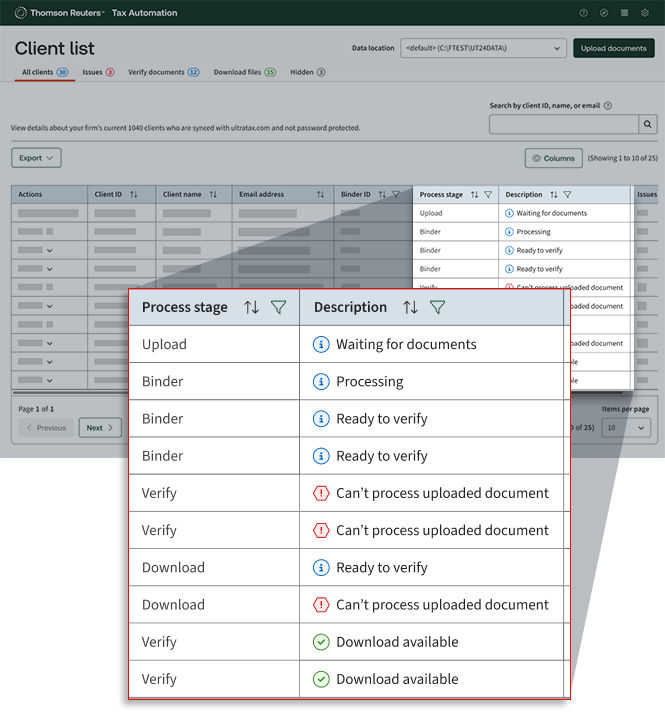
update to reflect their current status:
Client list showing the process stage status for each client
Process Stage
Description
What It Means
Upload
Waiting for documents
Client needs document upload to create binder.
Binder
Processing
The system is creating the binder and documents are being processed.
Verify
Ready to verify
Documents are ready for review in Review Wizard (applicable if you opted for In-house verification)
Issues
Various error messages
Problem occurred; check the
Issues
tab for details.
Download
Download available
Verified documents ready to download

Issues tab

If problems occur during binder creation, the client will appear in the
Issues
tab with a description of the problem. If there are no issues, go to the next tab (
Verify
or
Download files
).
Available actions:
  • Retry
    : Resubmit the binder to resolve the issue
  • Hide
    : Move the client to the Hidden tab until you're ready to address the issue

Verify documents tab

If you submitted a binder using 1040SCAN PRO service, then the client will appear in the
Verify
tab if there are pages that need your review. To review, select the select
Actions
Open Review Wizard
.
If you didn't submit a 1040SCAN PRO service binder, skip to the next step.

Download files tab

After the client is fully processed and verified, they will appear in the
Download files
tab. Select
Actions
Download PDF
to review the details (annotations, bookmarks, a 'Not Indexed Documents' section for any non-standard documents that may require manual entry).
UltraTax CS automatically imports the verified data from Tax Automation. You can review the imported data alongside the downloaded source documents and manually enter any additional information from nonstandard documents. Complete the return preparation as usual.

Additional notes

Important Limitations:
  • One-way data flow
    : SurePrep and UltraTax have a one-way data flow from SPbinder to UltraTax; UltraTax doesn't sync back to SPbinder
  • Deletion handling
    : If you delete something in SPbinder
    after
    you've already exported it into UltraTax CS, that information doesn't go away automatically in UltraTax CS when you export again next time. It may appear as a duplicate. You'll need to delete the data from both applications manually.
    Furthermore, if you need to delete proforma data in SPbinder, go to
    FORMS
    , add a reference on a page, then select Delete to remove the reference from the fields. Export the data and then delete it from UltraTax CS.
  • Manual comparison
    : For data comparisons, you'll need to manually enter information in Leadsheets

Common questions

  1. Q: Can I use Tax Automation for prior tax years?
    A:
    No, Tax Automation is only available for tax year 2025 and forward.
  2. Q: What if I can't find a client in Tax Automation?
    A:
    Ensure the client has a 1040 return created in UltraTax CS and has been synced to UltraTax.com. Only clients meeting these criteria will appear in Tax Automation.
  3. Q: Can I still create binders through FileRoom, API, TaxCaddy, etc?
    A:
    Yes, you can continue to create binders through your desired method.
  4. Q: Can I upload additional documents after creating the initial binder?
    A:
    Yes, you can upload additional documents at any time by selecting
    Upload documents
    for that client. The system will create a subsequent binder with its own Binder ID.

Related Content

error-icon

Triva isn't available right now.

Check out the support page for our phone number and hours

error-close