
Activate UltraTax CS
Follow these steps to activate UltraTax CS for tax years 2025 and onward
Starting with tax year 2025, SurePrep has introduced a new, simplified integration process for UltraTax CS customers (local desktop and Virtual Office/SaaS). This
mandatory one-time setup
replaces the previous integration method and significantly reduces the complexity of connecting SurePrep services with UltraTax CS. This is a mandatory, one-time integration that ALL firms using SurePrep and UltraTax CS must complete to create binders and Document Request Lists (DRLs) for the 2025 tax year.
Action Required: Complete New Integration Setup
note
New
mandatory
requirements for the upcoming 2025 tax year:- All firms using SurePrep with UltraTax CSmustcomplete this new integration setup oryou will not be able to create binders or Document Request Lists (DRL) for tax year 2025
- Firms using SurePrep Single Sign-On (legacy)mustmigrate to Thomson Reuters SSO as soon as possible. Your firm users will not be able to create binders or DRL for the 2025 tax year until you update your SSO connections. Contact SurePrep Support for more information.
Step 1: Main Integration Setup (Required for ALL UltraTax CS customers)
Follow these steps to complete the one-time integration setup:
- OpenUltraTax CS
- Navigate toSetup,System Configuration.
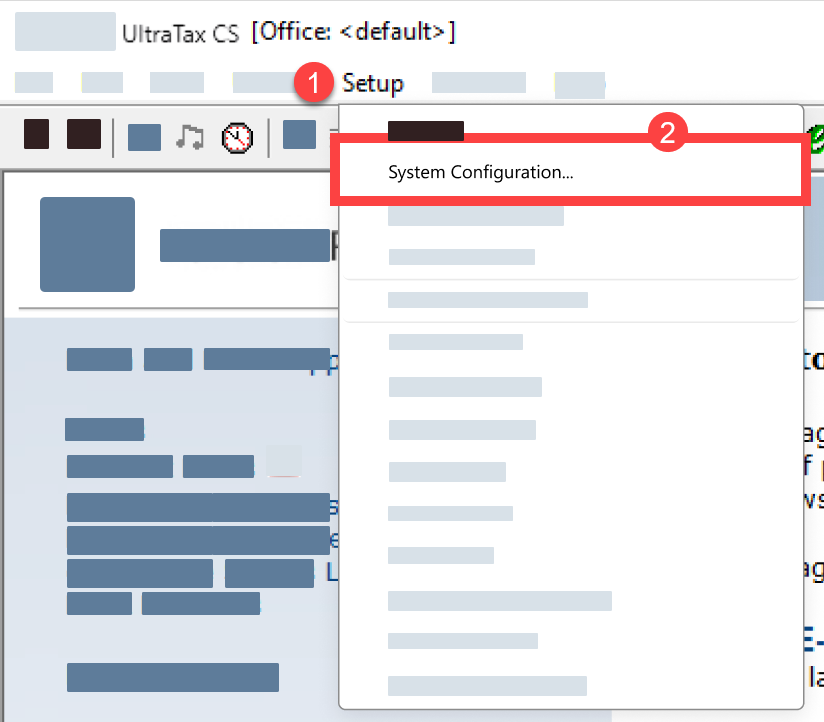
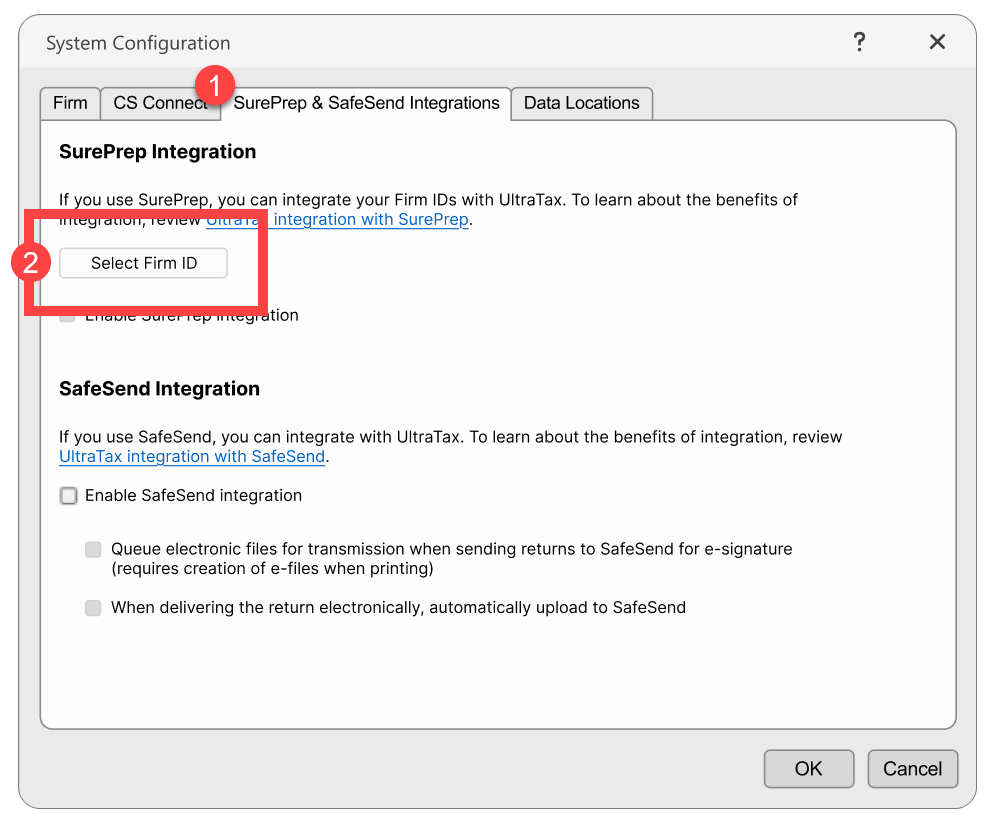
- Select theSurePrep & SafeSend Integrationstab, then theSelect Firm IDbutton.
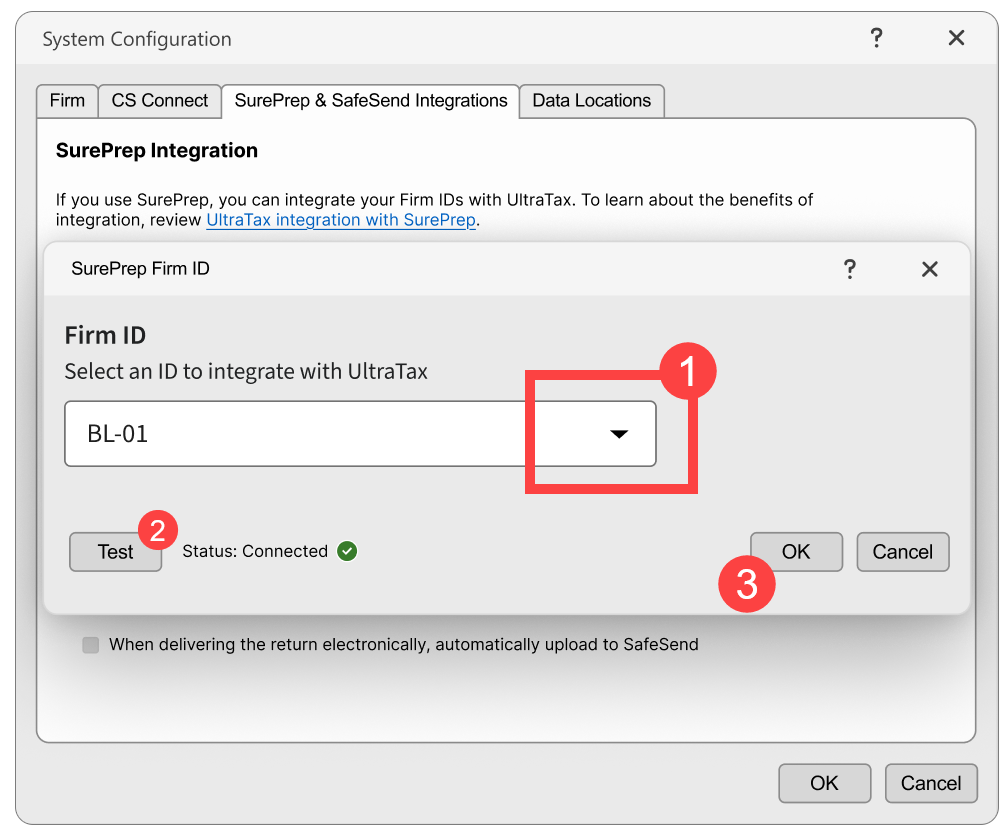
- Select yourFirm IDfrom the drop-down menu, thenOK.
- SelectEnable SurePrep Integration(if not already selected)
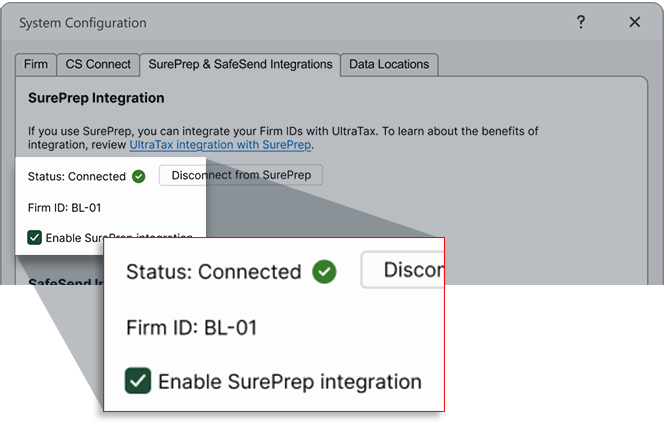
- SelectOKto save all settings.You're now set to create binders for tax year 2025!tipTo view your connection in SurePrep, navigate toFileRoom,Account Admin,Account Setup,Tax File Activation Web,UltraTax CS(tab). Your UltraTax account will appear in theUltraTax CS Firm Connection Detailssection.
Step 2: Additional Setup for TaxCaddy Customers (UltraTax CS Local Desktop Only)
note
Skip this step if you don't use both UltraTax CS
Local Desktop
AND TaxCaddy.Starting with tax year 2025, UltraTax CS Local Desktop users need to assign their UltraTax firm Account Number to clients:
- Go toTaxCaddy,Administrative,CLIENT MANAGEMENT.
- Select theEdit Multiple Clientsicon for bulk updates.
- In the Excel file, assign your firm's UltraTax Account Number to all clients.tipSelect the account number in the top cell, then drag down using the fill handle to apply to all clients
- Upload the updated Excel fileusing the Edit Multiple Clients feature.
- You can now create DRLs for tax year 2025!
If you are creating binders for a new tax year and choose to roll forward clients from the previous tax year:
- Select .
- Next, sync the clients to ultratax.com – you can either sync clients on thewindow (as in rolling forward previous year clients to the current tax year) or from the Utilities menuProformaProformawindow (recommended): Select the clients you want to roll forward to the current year, select the checkbox forSync client to ultratax.com on proforma, then selectProforma.
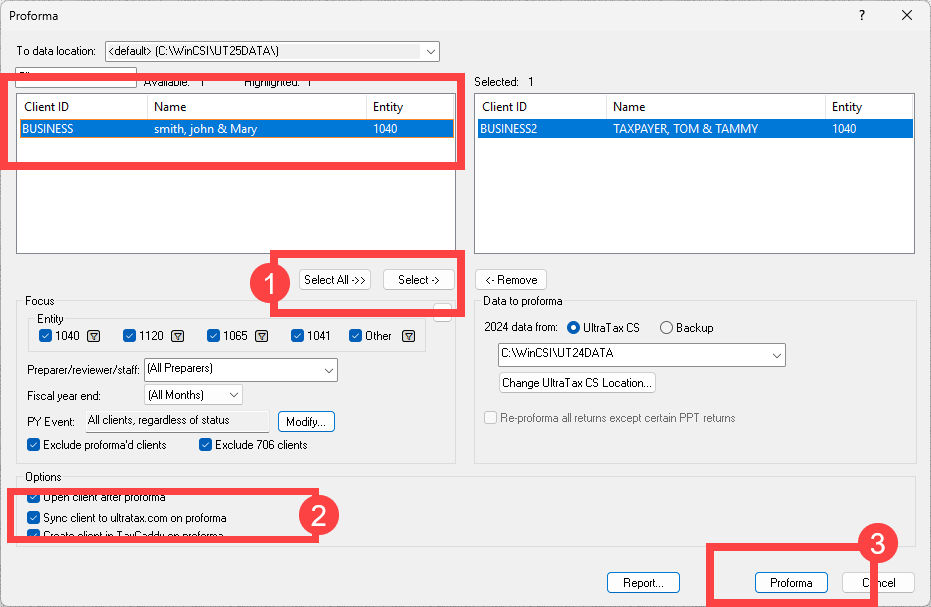 Sync clientswindow: If you already used theProformafeature without selecting the sync clients checkbox, then you can either redo the Proforma and start over, or go to to sync clients.
Important Reminders
One-Time Setup Per Firm
- Only one user per firm needs to complete this integration
- The user must have permissions to accessSystem Configurationin UltraTax CS
- Changes apply to the entire firm account
- The user completing this integration in UltraTax must also have the same email address account inFileRoom,Admin,Users, thenUser Management
- Ensure SurePrep API is enabled for your firm
Account Limitations
- One SurePrep firm account can connect to one UltraTax account (and vice versa)
- If you have multiple FileRoom accounts (for example, a training account), you'll need to disconnect and select the appropriate FileRoom account in UltraTax. Use caution when disconnecting - this change applies to your entire firm and may disrupt existing binders. We recommend you carefully manage disconnection/reconnection to avoid disrupting production workflows.
note
Disconnect with caution
- all pending binders (in processing) will be discontinued for all clients and can't be restarted.Tax Year Coverage
This integration applies to tax year 2025 onwards for binders and DRL. If you need to create binders for previous tax years (like 2024 and 2023), then follow the instructions on the legacy activation article. Both integrations can coexist for different tax years
Firms using SSO
- If your firm is using SurePrep's SSO (legacy), then you must switch over to Thomson Reuters SSO immediately. Your firm will not be able to create binders or TaxCaddy DRL until you migrate.
- SSO migration may take time to set up; we highly recommend initiating the process now.
- If you have any questions or need assistance, contact our Support team (Sureprep.Support@thomsonreuters.com).
Common questions
- Why am I not able to connect with SurePrep from UltraTax?Check if you have SurePrep API enabled inFileRoom,Account Admin, then check if the user attempting to complete the integration in UltraTax is also added as a user in FileRoom (with the same email address). If you are still not able to connect, please contact Support.
- Does this work for both Local Desktop and Virtual Office?Yes, this activation applies to both UltraTax CS Local Desktop and Virtual Office/SaaS in one unified process.
- What if I need to create binders for 2024 and earlier tax years?You must continue using the existing (legacy) UltraTax CS setup for 2024 and prior tax years.
- Does each user at my firm need to complete this integration?No, only one user per firm needs to complete the integration. The user must have UltraTax CS permissions to accessSetup,System Configuration
- What SurePrep services require this integration?The integration is required for TaxCaddy, 1040SCAN PRO, 1040SCANverify, 1040SCAN Organize, and SPbinder services. It does not apply to customers using only the SurePrep Outsource service.
- When should I complete this activation?You must complete the integration before creating any SurePrep binders or TaxCaddy DRL.
Related Content
-
Activate UltraTax CS for 2024 and Prior
Format: Article
-
Activate UltraTax CS (Virtual Office CS or SaaS) 2024 and Prior
Format:
Article
-
Tax Automation workflow to process binders
Format:
Article

