Add Smart Links (document retrieval accounts)

Smart Links with document retrieval accounts create a link between TaxCaddy and your client's financial institution, letting TaxCaddy retrieve documents (for example, W-2, 1098, 1099) directly from your client's financial institution the moment they're added (and once every 24 hrs after that) to save you and your client from uploading your documents yourself.
note
Don’t worry, we’ll only use this information to transfer your client's tax documents from their financial institution to their TaxCaddy account. We use the latest industry-standard 256-bit SSL data encryption to ensure the safety of your client's personal information. See our Smart Links Security page for information on the privacy and safety of your client's documents.
Follow these steps to add a Smart Link to a document retrieval account:
  1. On the
    Overview
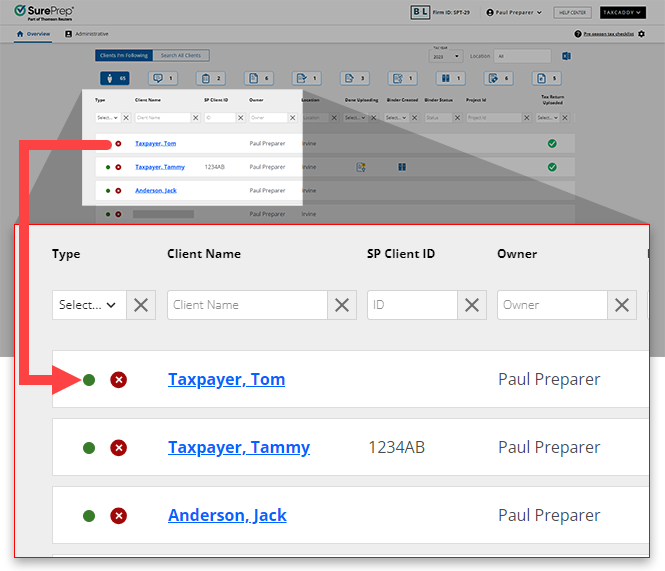
    screen, select a client tile to view the client profile. Search for a client, then select the client tile from the result.
    Select a client profile from the Overview screen
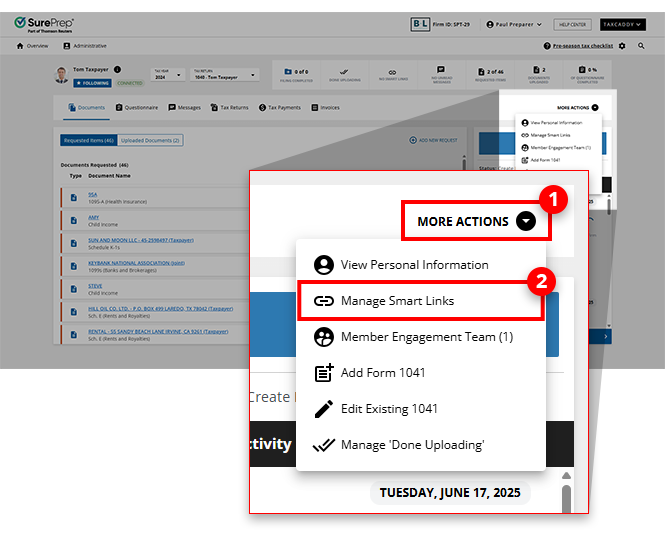
  2. On the Client Profile, select
    MORE ACTIONS
    on the navigation bar then select
    Manage Smart Links
    .
    Select Manage Smart Links from the MORE ACTIONS menu
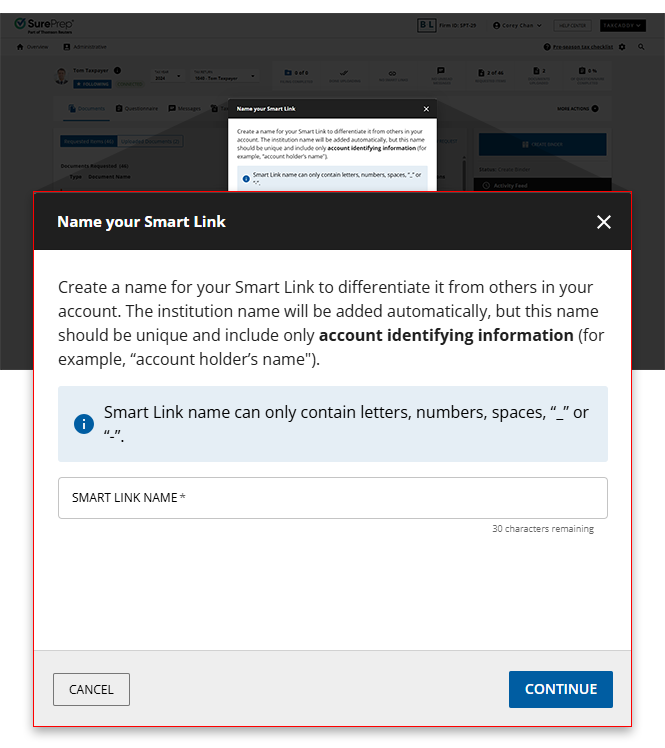
  3. Next, the
    Name your Smart Link
    window will appear asking you to give this Smart Link a name so you can easily differentiate it from others saved in this client's account.
    Name your Smart Link window
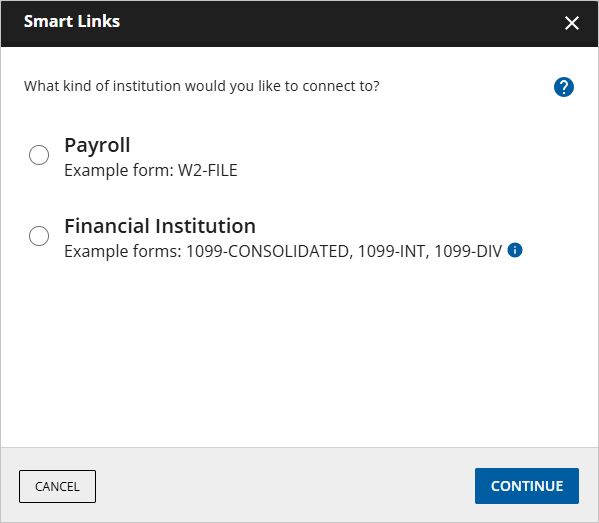
  4. The
    Smart Links
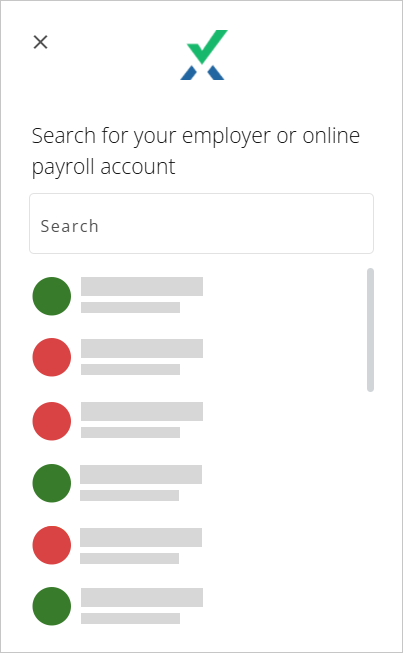
    window will appear. Use
    Search
    to find your financial institution, or select a selection from the list. Select one of the following institution types:
    • Payroll
      : W-2 form
    • Financial Institution
      : 1099-CONSOLIDATED, 1099-INT, 1099-DIV, 1099-B, 1099-OID, 1098
    Smart Links window
  5. Select your client's employer if you previously selected a
    Payroll
    account, or select your institution if you previously selected Financial Institution.
    If you do not see your client's institution listed, you can scroll to the bottom of the window to the
    Search all
    feature to find your specific institution.
    Select an employer
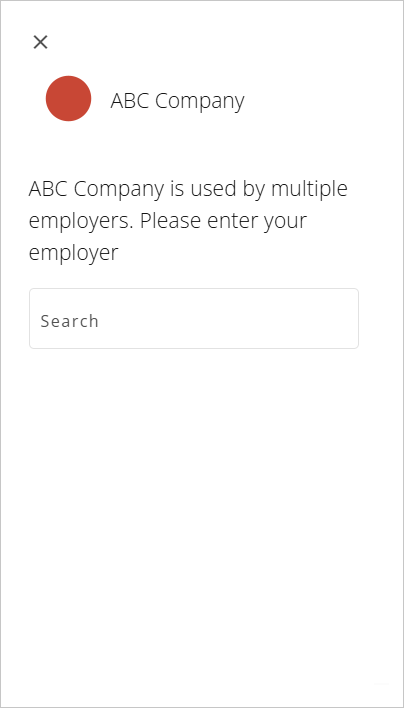
    Some employers/institutions may require additional searching to find your client's specific account.
    Specify further if necessary
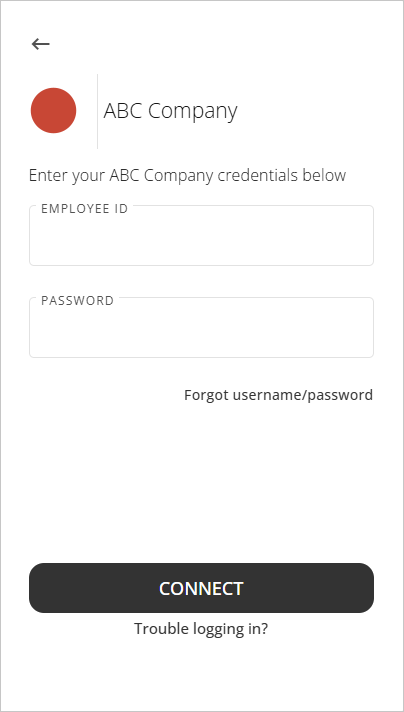
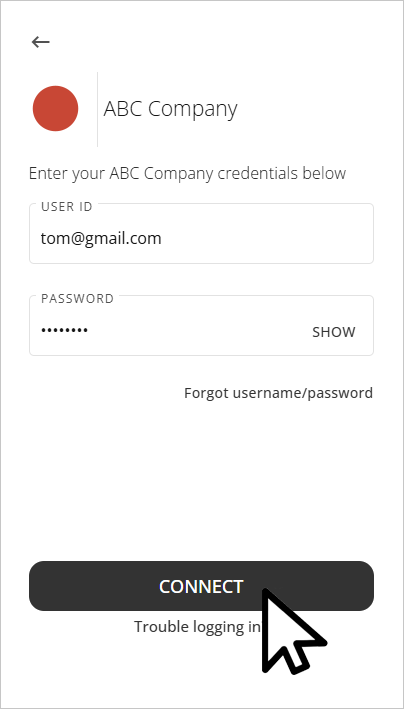
  6. Provide your client's sign in credentials in the
    USER ID
    and
    PASSWORD
    fields.
    Provide the requested credentials
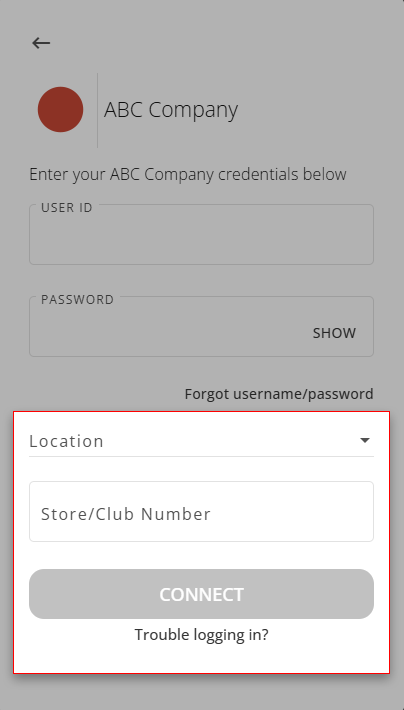
    Some employers/institutions may require additional searching (i.e.
    Location
    or
    Store Number
    ) to find your client's specific account.
    Enter further credentials if requested
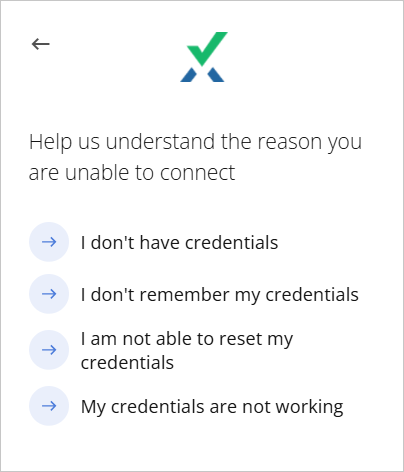
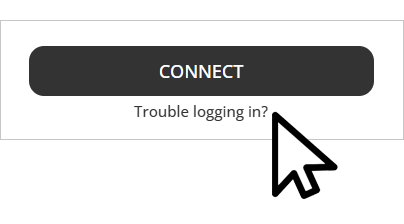
  7. If you are experiencing trouble logging into your account, you can select
    Trouble Logging In?
    and select from one of the following options:
    • I don't have credentials
    • I don't remember my credentials
    • I am not able to reset my credentials
    • My credentials are not working
    Trouble logging into your Smart Links institution
    If you've forgotten your password, select
    Forgot username/password
    to be redirected to your institution's sign in page.
    Select Trouble logging in?
  8. After you've provided your sign in credentials, select
    CONNECT
    to proceed.
    Select CONNECT
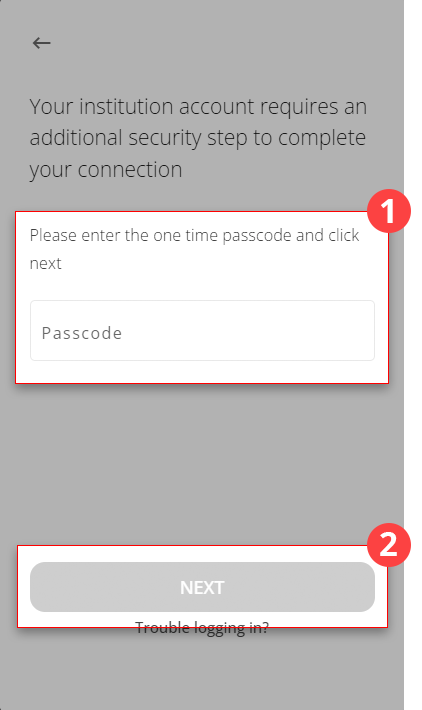
  9. Some institutions may require an additional multi-factor authentication code for further security. When prompted, provide the authentication code in the
    Passcode
    field, then select
    NEXT
    .
    Enter your passcode if requested
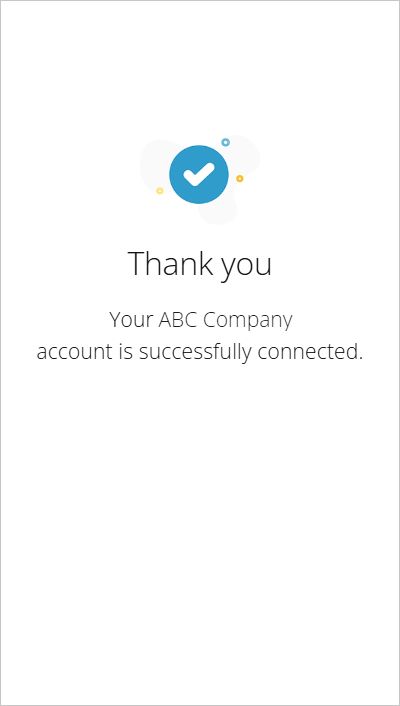
  10. Once the link has been established, the window will update to notify you of the successful link.
    note
    Connecting Smart Links with your financial institution may take 24 hours to process.
    Connected Smart Link
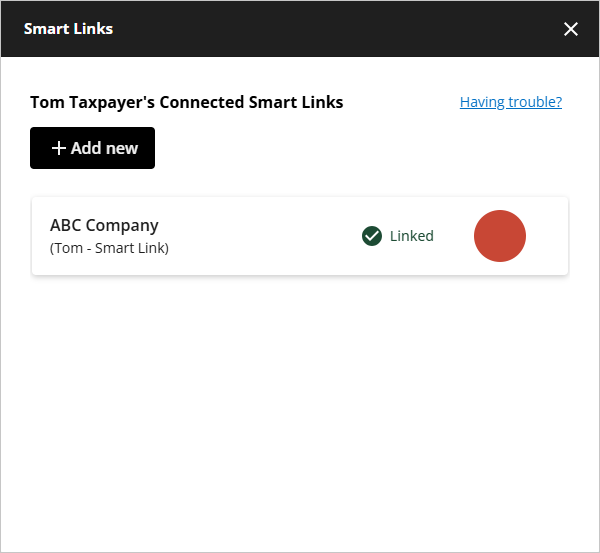
  11. The newly added Smart Link will be listed under the
    [Client Name]'s Connected Smart Links
    section of the
    Smart Links
    window.
    note
    Upon connection, the newly established Smart Links may take up to 2 days to appear in the
    Smart Links
    window panel and fetch your client's documents.
    Newly added Smart Link added in the Smart Links window
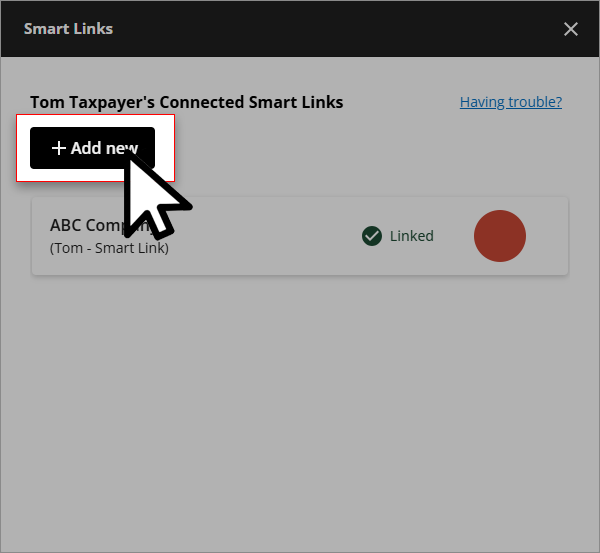
  12. You can select
    + Add new
    to add another Smart Link for a new institution.
    Select Add new
note
If your financial institution requires you to receive and verify a security code each time you sign in, then the Smart Link won’t be able to check and retrieve documents automatically every day.

error-icon

Triva isn't available right now.

Check out the support page for our phone number and hours

error-close