Review documents (mark reviewed)

Show all hidden content
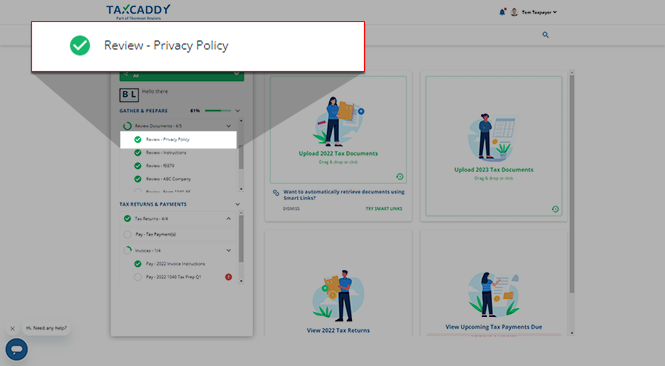
When your tax professional needs you to review a document, their request appears in your requested items under
To Review
.
TaxCaddy.com on PC, Mac, or tablet
Follow these steps to review a document using TaxCaddy.com on your PC, Mac, or tablet.
  1. Sign in to TaxCaddy.com.
  2. On the
    Overview
    screen, you will see a
    Task List
    on the left, with your
    Review
    requests listed under
    Review
    .
    note
    Your progress in completing your
    Review
    tasks will be denoted with the
    Progress
    icon. Once you've completed all your tasks, you will see the
    Completed
    icon.
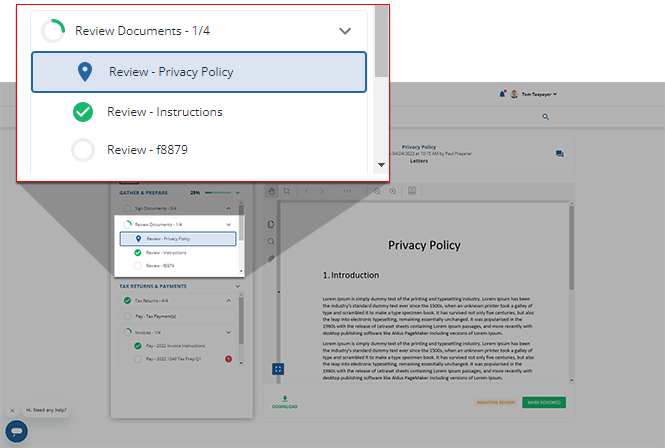
    Review tasks in the task list
    note
    The
    Pin
    icon appears next to the request you are currently viewing.
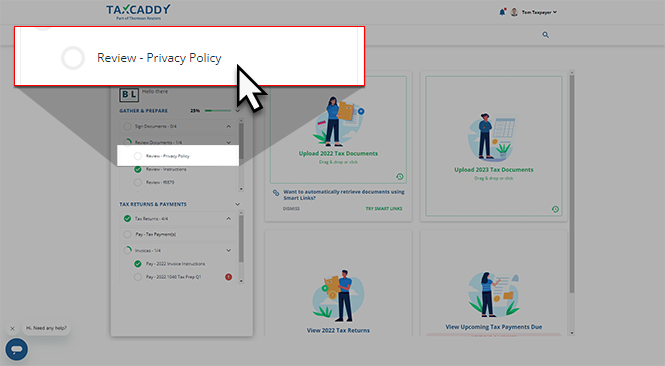
  3. Select a tile to view the
    Review
    request.
    Select a Review task
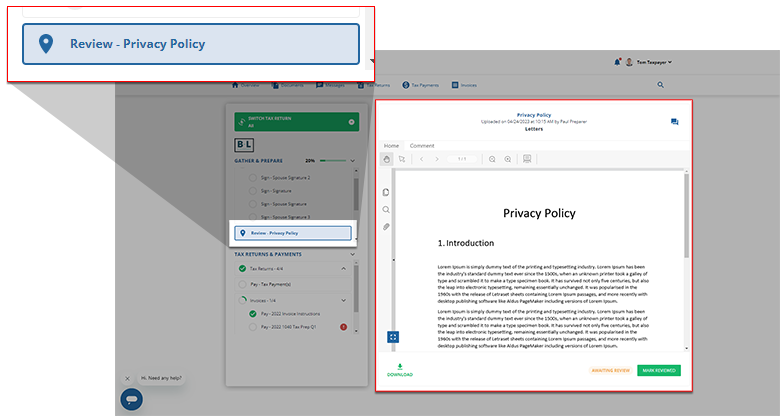
  4. Your
    Review
    request will appear in the
    Overview
    screen's document viewer.
    note
    If the document has fillable fields, select in a field and type to enter data. As soon as you select out of the field, the document will automatically save your data.
    Review request open on the Overview screen
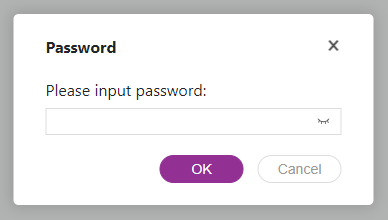
    If the document uploaded by your tax professional is password-protected then you will be requested to enter the password. Contact your tax professional if you don’t have the password.
    When prompted, enter the document password
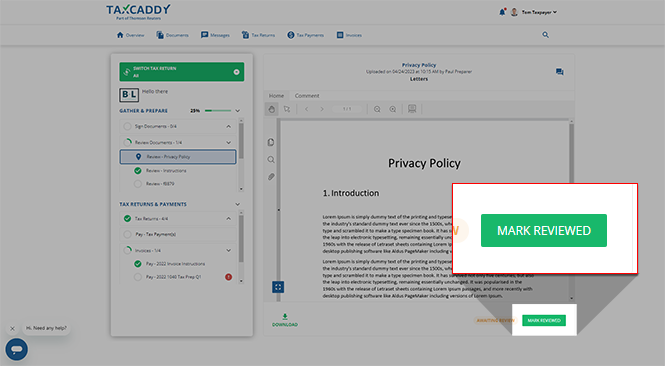
  5. If you are satisfied with the document, select
    MARK REVIEWED
    .
    note
    You can message your tax professional regarding this document using the
    Message
    icon.
    Select MARK REVIEWED
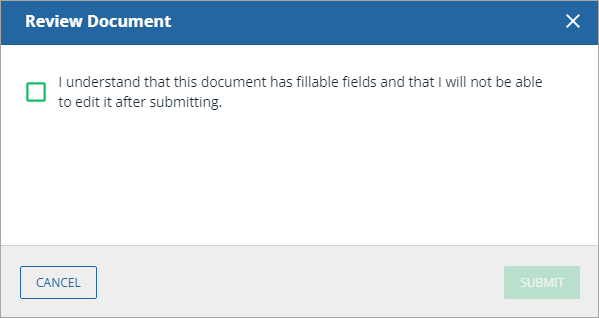
  6. A window will appear if the reviewed document has fillable fields. To confirm you have reviewed the fillable fields and will no longer need to edit them, select the checkbox for
    I understand that this document has fillable fields and that I will not be able to edit it after submitting
    .
    Review Document window
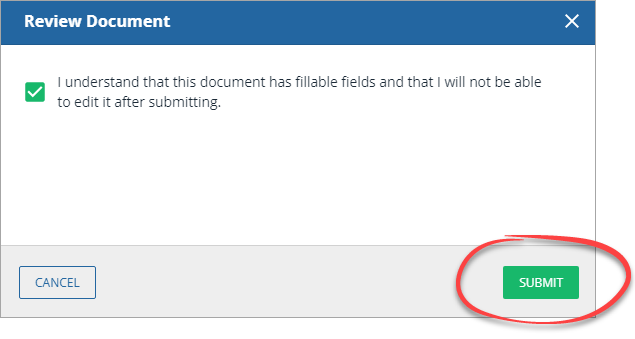
  7. Select
    SUBMIT
    to mark the document as reviewed, or select
    CANCEL
    to close without saving any changes.
    note
    Once you've fulfilled a review request, you will no longer be able to modify the contents of the reviewed document. Verify the information before completing your review.
    Select SUBMIT
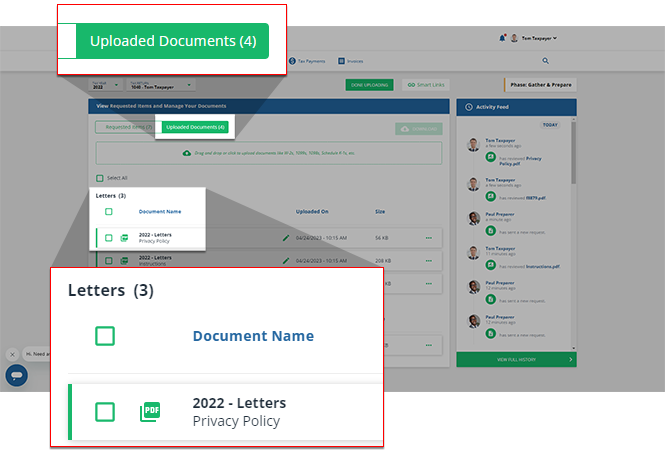
  8. You will see a confirmation message once the document has been reviewed. The reviewed document is moved to
    Uploaded Documents
    tab.
    Review request now in the Uploaded Documents tab
    A
    Completed
    icon will appear next to the fulfilled
    Review
    task in the
    Task List
    on the
    Overview
    screen.
    Completed Review request
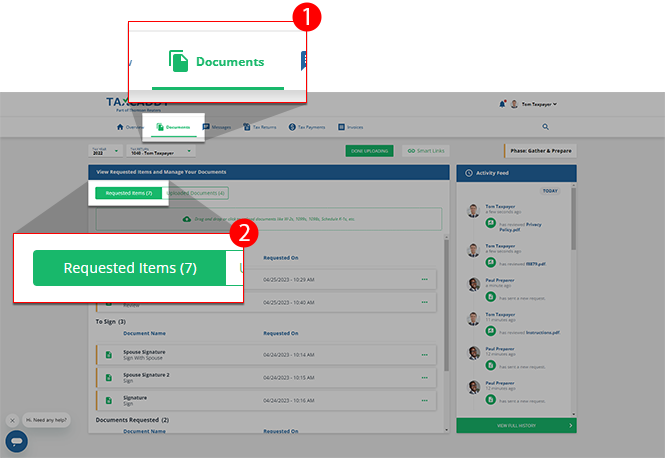
  9. Alternatively, you can select
    Documents
    to switch to the
    Documents
    tab.Open your
    Requested Items
    to view a list of items requested by your tax professional.
    Select Documents then Requested Items
iOS mobile app
Follow these steps to review a document using the iPhone mobile phone app.
  1. Sign in to the TaxCaddy mobile app.
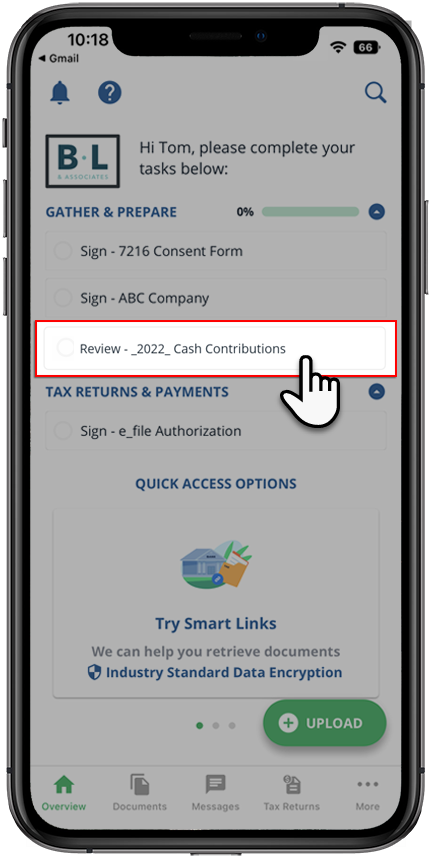
  2. Review
    requests that your tax professional has uploaded to your account will appear on the
    Overview
    screen. Tap the
    Review
    request you'd like to fulfill to view it.
    Review task in the task list
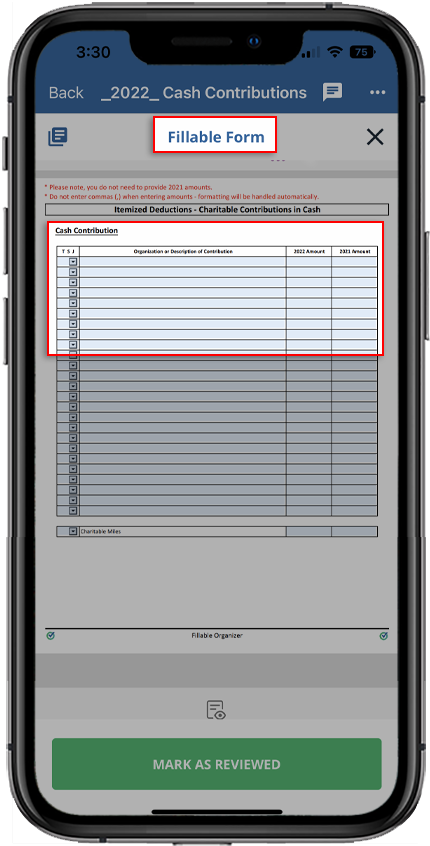
  3. The document opens in the viewer.
    If the document has fillable forms, tap on a field, then enter the data. As soon as you select out of the field, the document will automatically save your data.
    Fillable Form in the document viewer
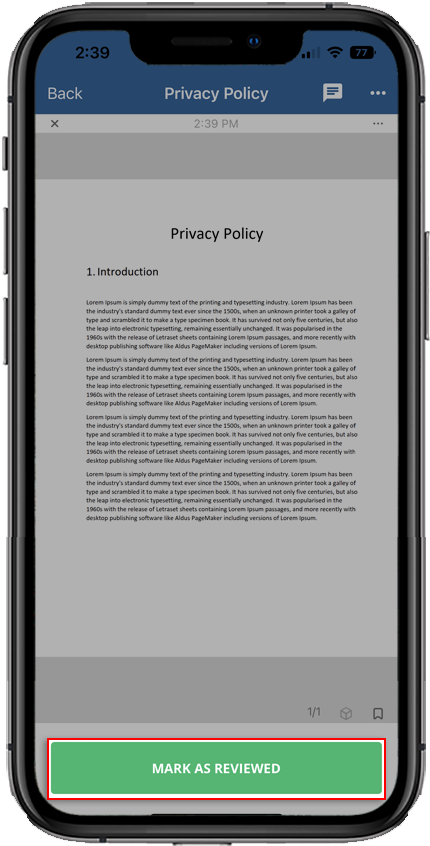
  4. Tap the
    MARK AS REVIEWED
    to mark the document as reviewed. Additionally, your tax professional is notified that you have reviewed the document.
    Select MARK AS REVIEWED
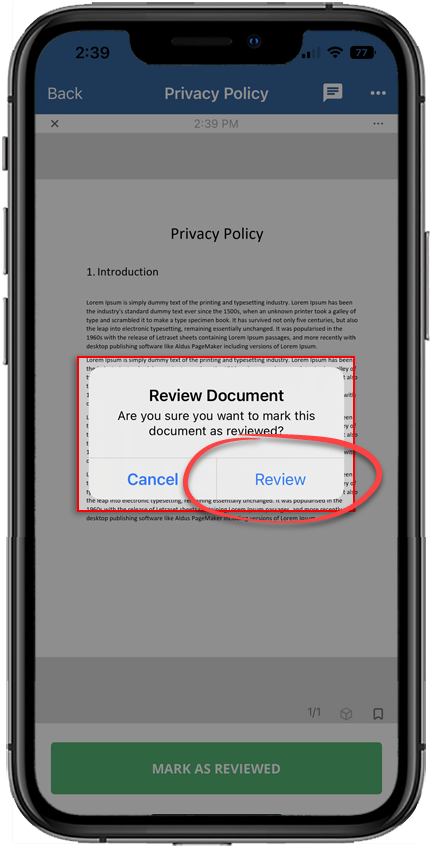
    A window will appear if the reviewed document has fillable fields. To confirm you have reviewed all fillable fields and will no longer need to edit them, tap
    Review
    .
    note
    Once you've fulfilled a review request, you will no longer be able to modify the contents of the reviewed document. Verify the information before completing your review.
    Select Review
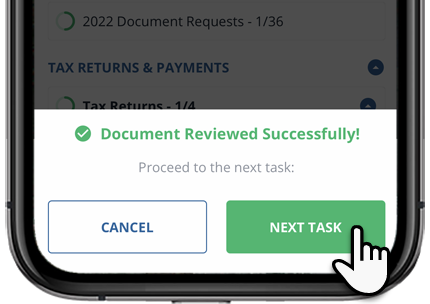
  5. Once you've completed your review request, you will be returned to the
    Overview
    screen where you may be prompted to go to the next pending review task (if one exists).
    • You can tap
      NEXT TASK
      to open your next review task in the
      Document Viewer
      to complete.
    • You can tap
      CANCEL
      to remain on the
      Overview
      screen.
    Select NEXT TASK
Android mobile app
Follow these steps to review a document using the Android mobile phone app.
  1. Sign in to the TaxCaddy mobile app.
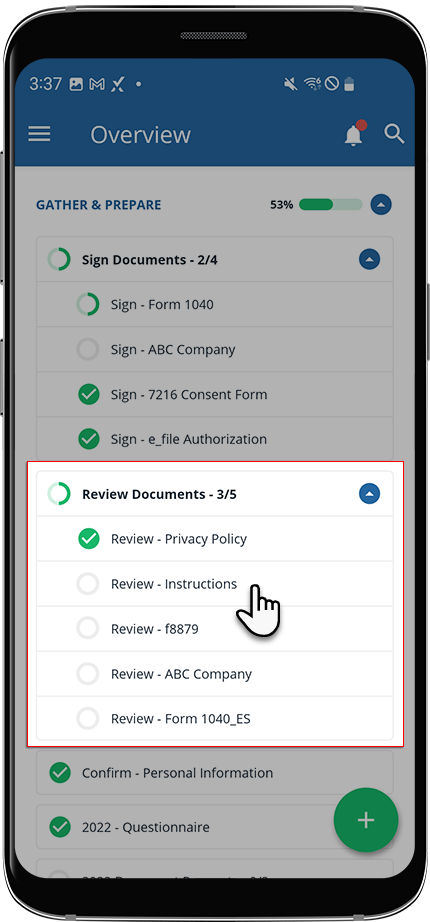
  2. Review
    requests that your tax professional has uploaded to your account will appear on the
    Overview
    screen. Tap the
    Review
    request you'd like to fulfill to view it.
    Select a review task from the Review Documents section of the task list
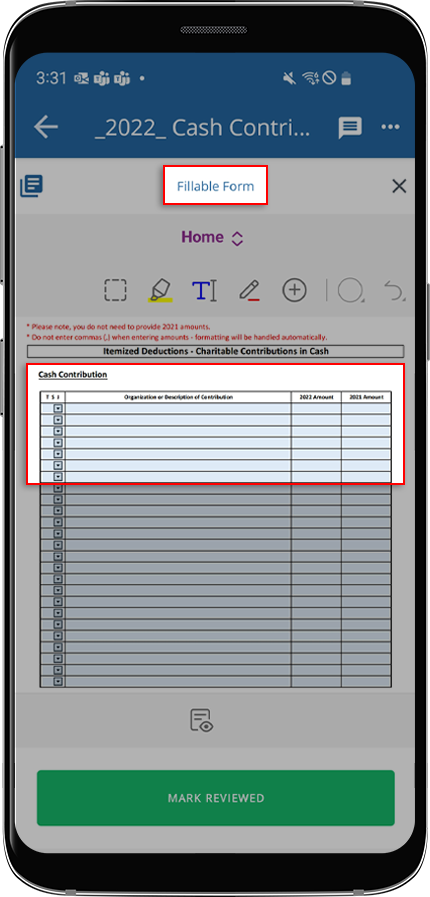
  3. The document opens in the viewer.
    If the document has fillable forms, tap on a field, then enter the data. As soon as you tap out of the field, the document will automatically save your data.
    Fillable form in the document viewer
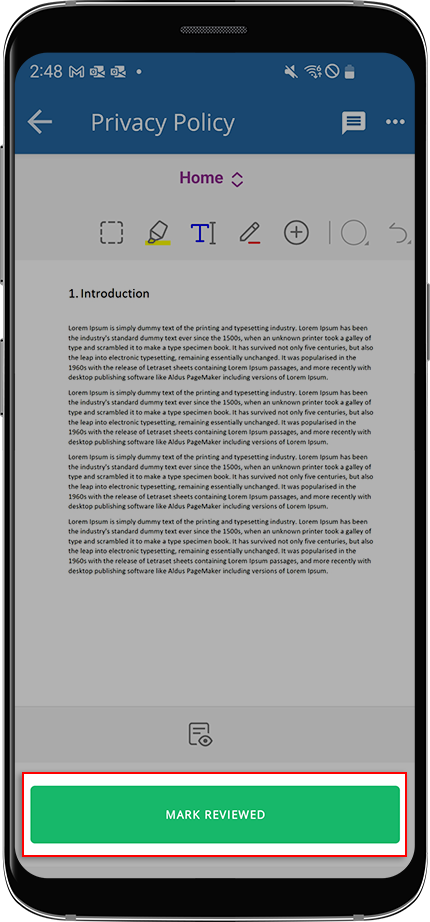
  4. Tap
    MARK AS REVIEWED
    to mark it as reviewed. When you mark a document as reviewed, your tax professional is notified that you have reviewed the document.
    Select MARK REVIEWED
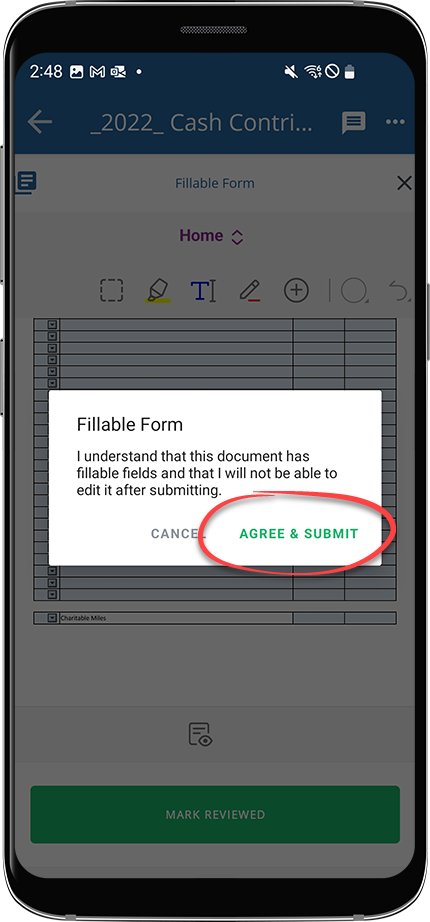
  5. A window will appear if the reviewed document has fillable fields. To confirm you have reviewed all fillable fields and will no longer need to edit them, tap
    AGREE & SUBMIT
    .
    note
    Once you've fulfilled a review request, you will no longer be able to modify the contents of the reviewed document. Verify the information before completing your review.
    Select AGREE & SUBMIT
  6. Once you've completed your review request, you will be returned to the
    Overview
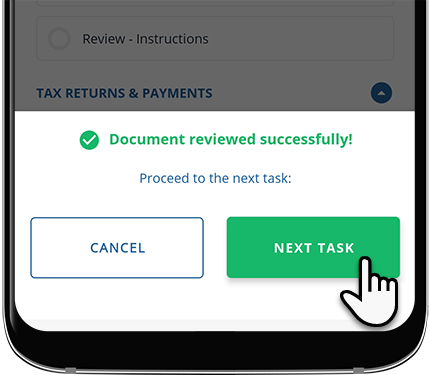
    screen where you may be prompted to go to the next pending review task (if one exists).
    • You can tap
      NEXT TASK
      to open your next review task in the
      Document Viewer
      to complete.
    • You can tap
      CANCEL
      to remain on the
      Overview
      screen.
    Select NEXT TASK
Additional Notes:
  • The IRS requires e-signed records to be tamper-proof once they’ve been signed and reviewed. To ensure a document is legally binding, TaxCaddy will secure the document in read-only mode. This is a cautionary measure to ensure that digitally signed/reviewed documents can't be tampered with or additional pages are not attached to the signed/reviewed document at. These signed/reviewed documents can still be viewed in read-only mode.

Related Content

error-icon

Triva isn't available right now.

Check out the support page for our phone number and hours

error-close