
View requested items
Show all hidden content
When your tax professional needs you to upload, review, or sign a document, their request appears on the
Requested Items
tab on the Documents
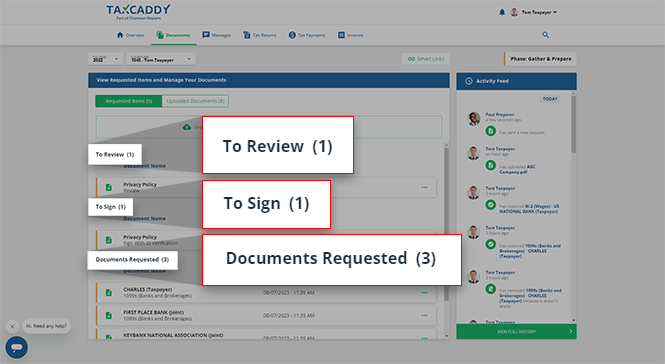
screen in sections corresponding to the required action.- To Review: These items need to be read and marked as reviewed.
- To Sign: These items need to be digitally signed. You may be required to validate your identity.
- Documents Requested: These items are documents that your tax professional is requesting you upload.
TaxCaddy.com on PC, Mac, or tablet
Follow these steps to view your requested items using TaxCaddy.com on your PC, Mac, or tablet.
- Sign in to TaxCaddy.com.
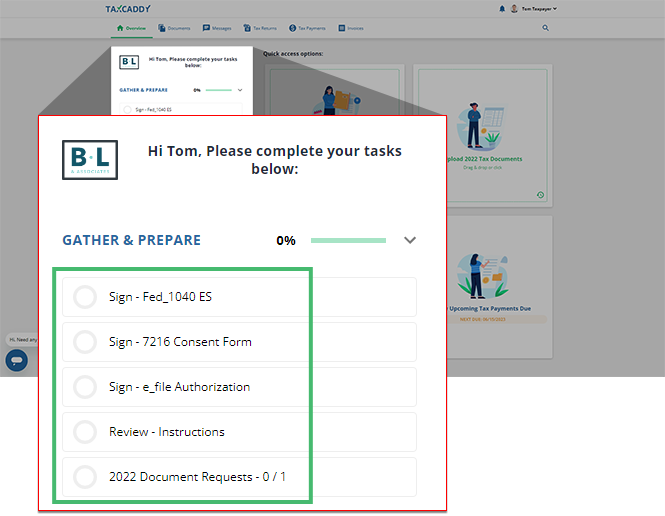
- On theTask Listpanel (left panel), select a request toSign,Review, or upload aDocument Requestto that year's requested items.
 If your tax professional has created a 1041 tax return profile and you'd like to view requests for a specific profile, you can select the correct tax return profile from theSWITCH TAX RETURNmenu.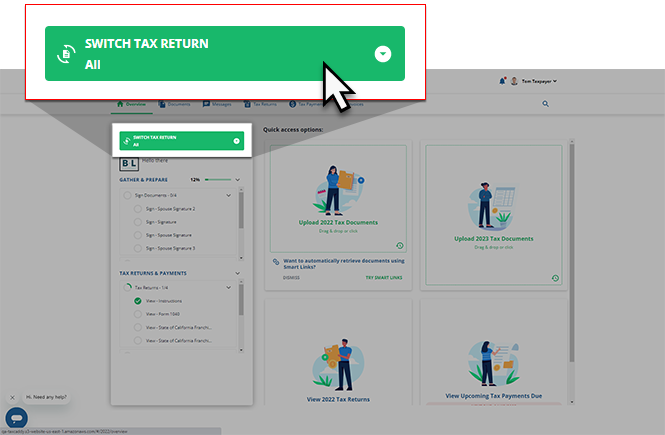
- Sign,Review, andUploadrequests will open in theOverviewscreen's document viewer window.
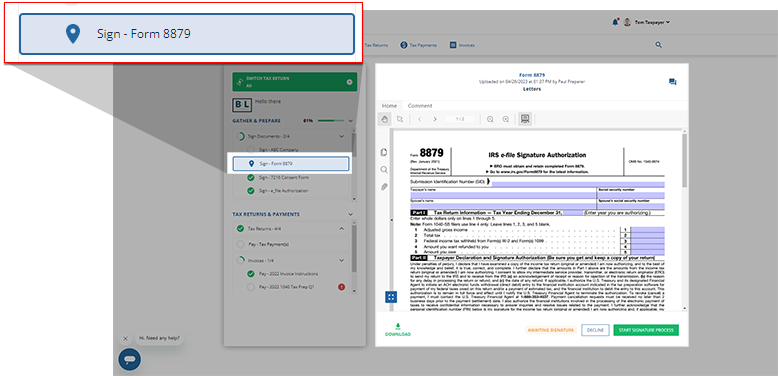 noteThePinicon appears next to the request you are currently viewing.
 - Alternatively, you can select theDocumentstab to view your requests.
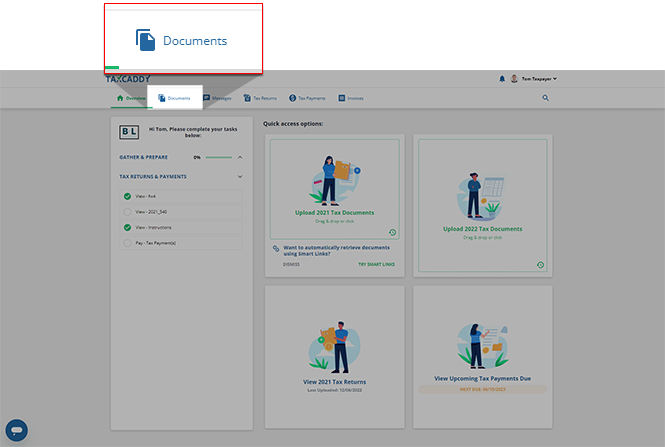 Requested Itemswill appear underTo Review,To Sign, andDocuments Requested.
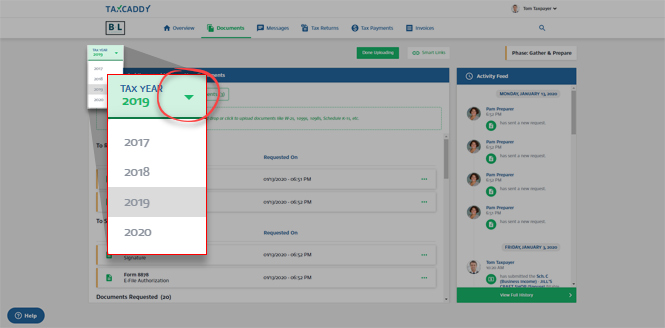
 Select the tax year to view requests uploaded for that tax year.
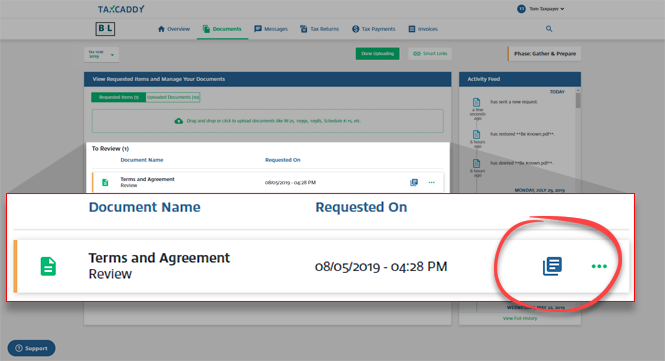
 If a requested item is fillable, the document tile will show theFillable Formicon.
 If theFillable Formicon appears underDocuments Requested, you can complete the form to fulfill that document request.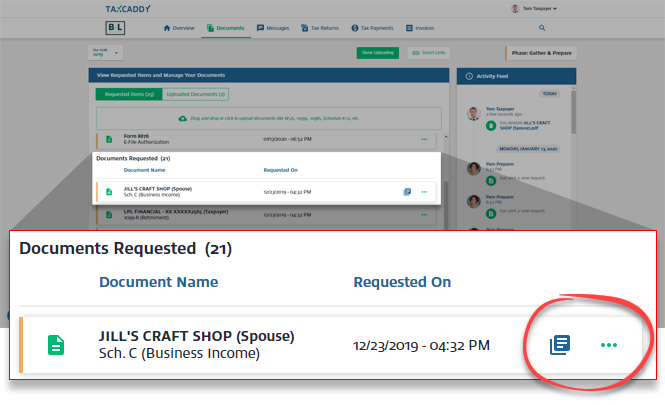
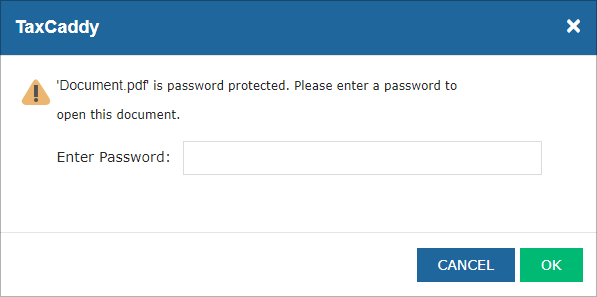
If the document uploaded by your tax professional is password-protected, you'll need to enter the password. Contact your tax professional if you don’t have the password.
iOS mobile app
Follow these steps to view your requested items using the iPhone mobile phone app.
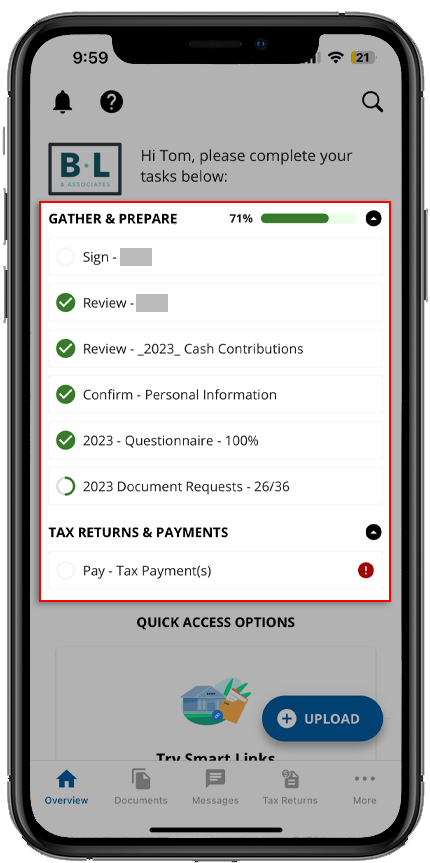
- Sign in to the TaxCaddy mobile app.
- In the task list, select a request to sign, review, or upload a document to go to that year's requested items.
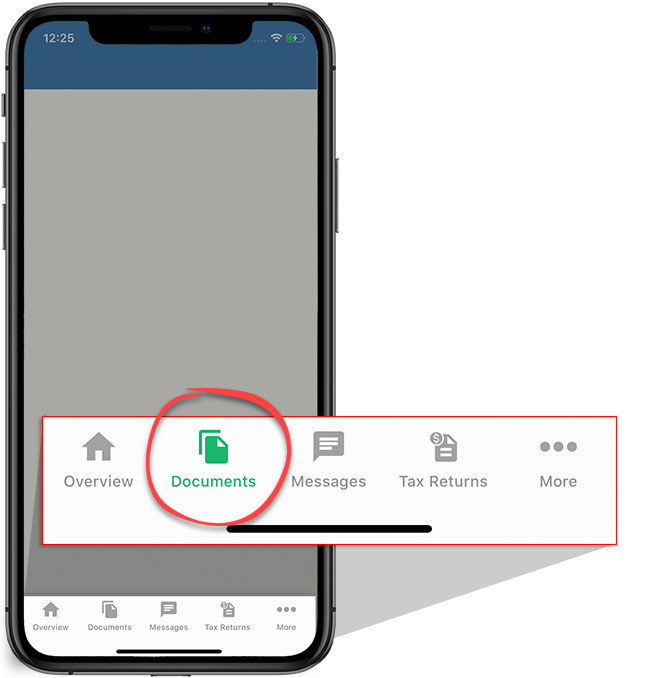
- Alternatively, you can select theDocumentsicon.
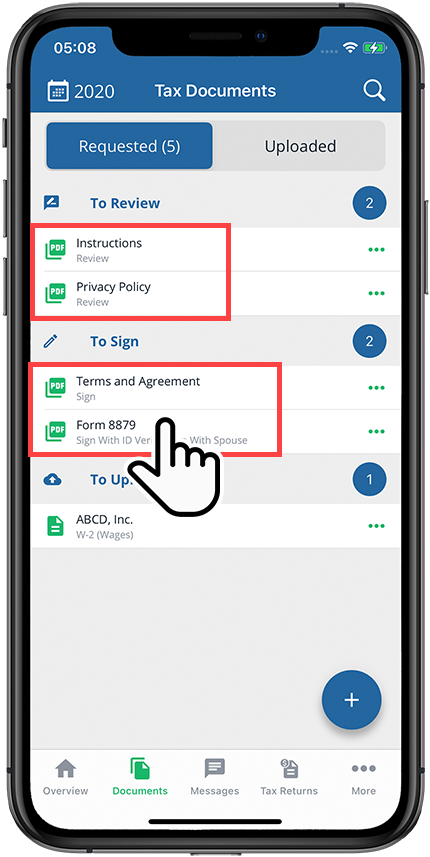
- You'll see theTax Documentsscreen with theRequestedtab selected by default.
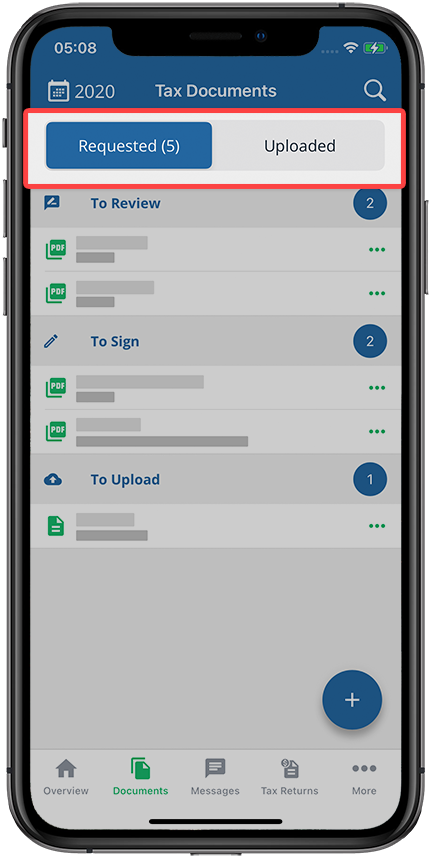 Your requested items appear underTo Review,To Sign, andTo Upload.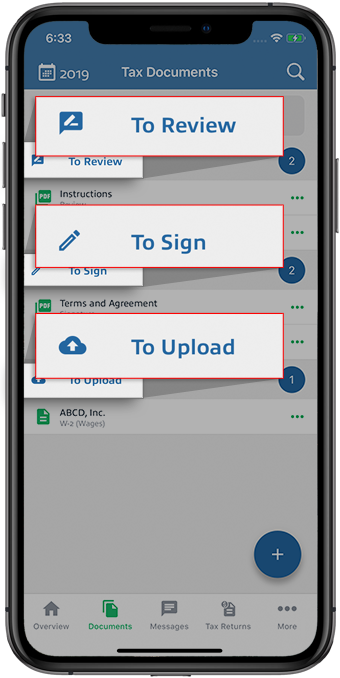
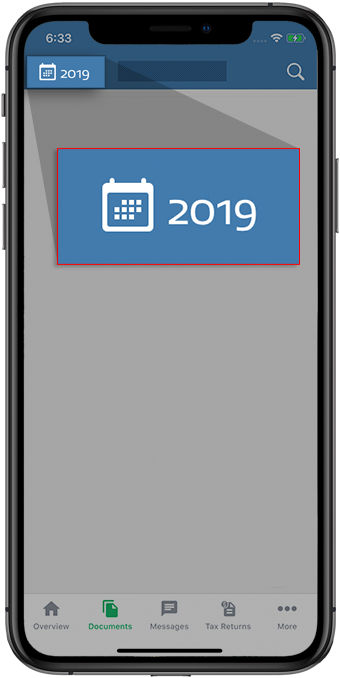
- Select a different year to view documents for a particular tax year.
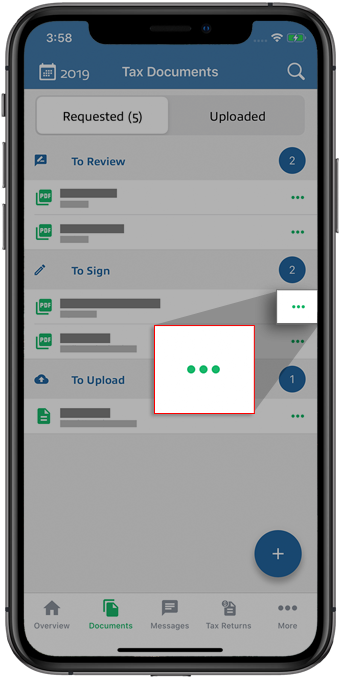
- To see if your document is a fillable form, select theMenuicon to open the Document menu.
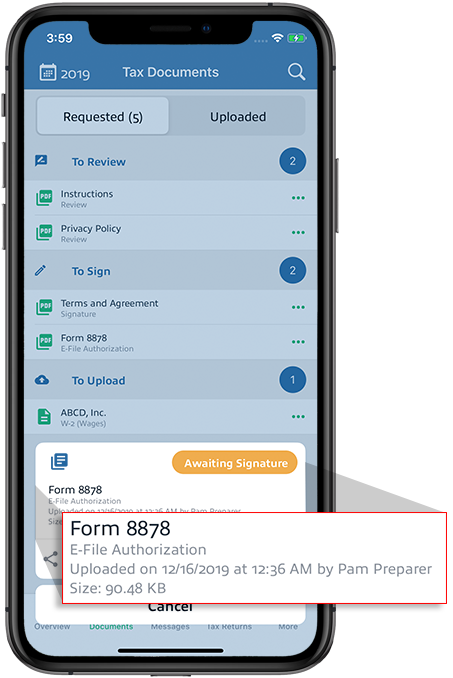
 The document menu displays the document name, uploaded date, uploaded by, and the document size.
 If a requested item is fillable, the document tile will show theFillable Formicon.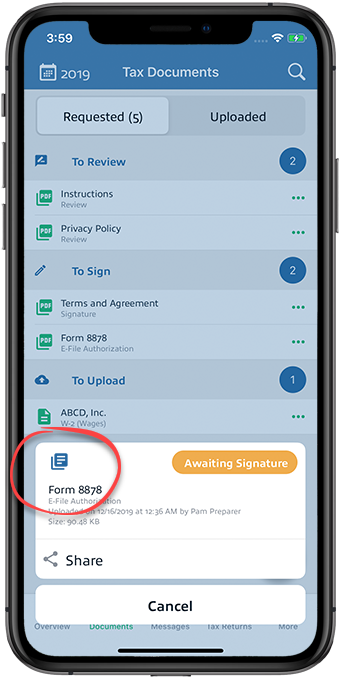
- You can select a requested item (To Review,To Sign) to view it in the PDF viewer.
 If the document uploaded by your tax professional is password-protected, you'll need to enter the password. Contact your tax professional if you don’t have the password.
Android mobile app
Follow these steps to view your requested items using the Android mobile phone app.
- Sign in to the TaxCaddy mobile app.
- In the task list, select a request to sign, review, or upload a document to go to that year's requested items.
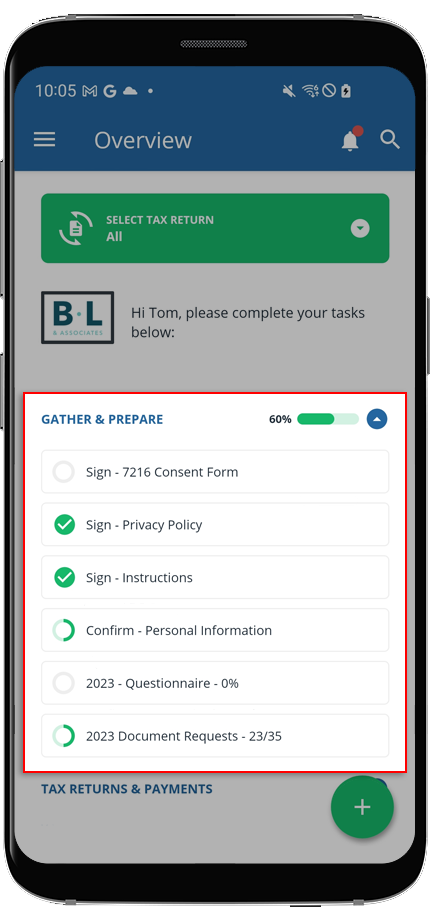
- You'll see theDocumentsscreen with theRequestedtab selected by default.
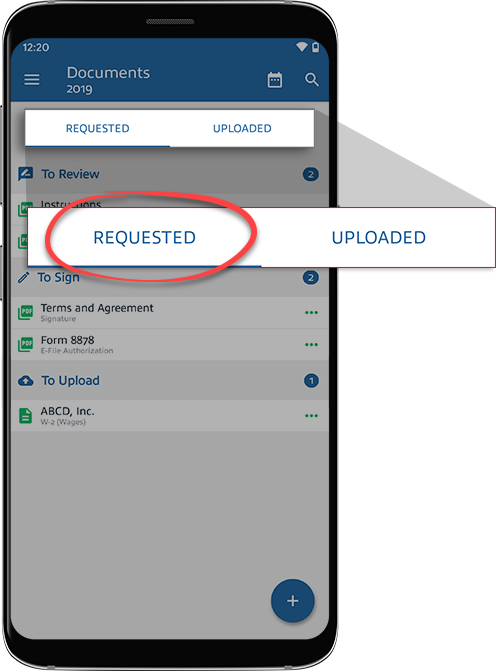 Your requested items appear underTo Review,To Sign, andTo Upload.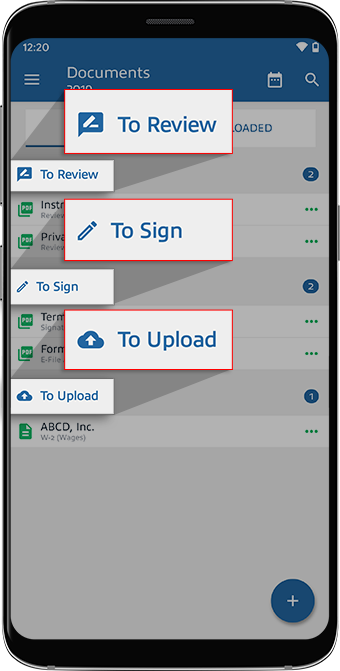
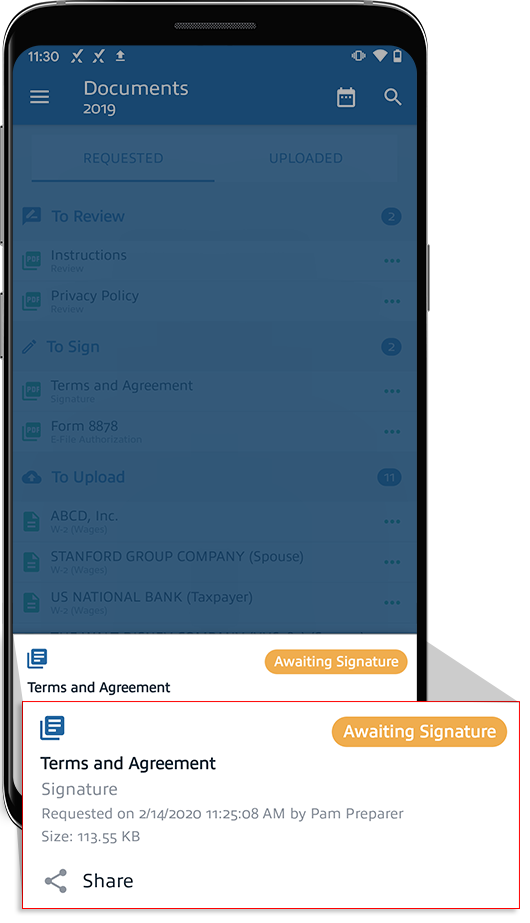
- To view document details, select theMenuicon to open the document menu.The bottom menu displays the document name, uploaded date, uploaded by, and the document size.
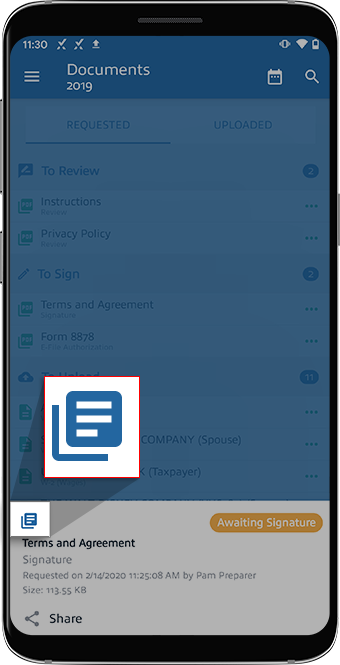
 If a requested item is fillable, the document tile will show theFillable Formicon
 If the document uploaded by your tax professional is password-protected, you'll need to enter the password. Contact your tax professional if you don’t have the password.
Related Content
-
Upload requested items
Format: Article
-
Review documents (mark reviewed)
Format:
Article
-
Reply with an amount
Format:
Article
-
Complete a form
Format:
Article
-
Indicate a requested item doesn't apply, was already provided, or was prepared by your firm
Format:
Article

