
Add a single folder
Site Administrators, Content Administrators, and users in groups with
Folder Admin
permissions can create folders in the Files
module.note
When using a smartphone, the
Add
button is not displayed and therefore folders cannot be created from smartphonesAdd a new folder
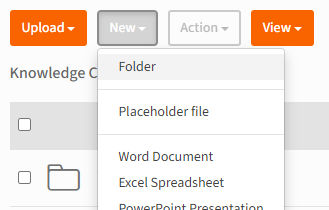
To add a new folder, select
New
then Folder
:
The
Add Folder
window opens.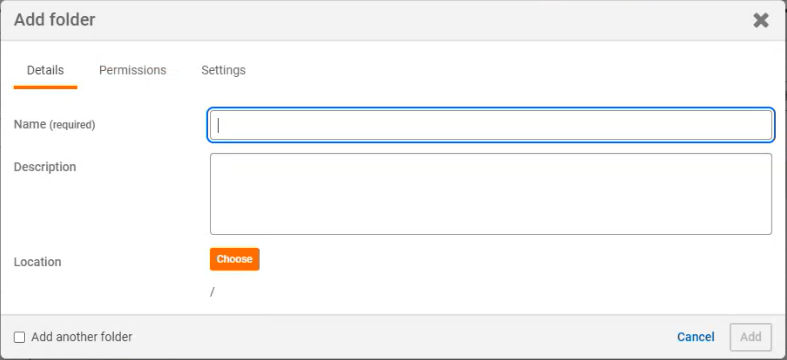
The
Add folder
page lets users enter details about the folder they are creating.note
The user creating the folder will be treated as the 'author' of the folder.
- Name (required)- Enter the name of the folder that will be displayed in the Files module. This name does not need to be unique, meaningtwo subfolders can share the same name in the same folder.
- Description- Add a description that may be useful to other users (i.e. Site and Content Administrators and users with Folder admin permissions).
- Location- Displays the parent folder in which this folder will be created. By default, this is the folder you were viewing when you selectedAdd>New folderbut you can clickChooseto select a different location.
- Permissions- In thePermissionstab, if a site is configured to use folder- or file-level security, you can change permissions.
- Add- SelectAddto create the new folder:

The new folder is added to the selected location. If you have access to the new folder, the folder opens.
note
If the Files module is configured to use
approval workflow
, it does not apply to the creation of folders.note
It is possible to create a folder where you do not have view permissions.
You will see a message that the folder has been added successfully, and the previous (parent) folder opens, but you
will not see the folder
in the contents of the current folder.Permissions for new folders
If folder- or file-level permissions are enabled on the site, and you have a folder or site admin role, you can select if a folder inherits permissions in the
Permissions
tab.note
The site default is set in Files admin settings, under
Default folder and file settings
.Select the
Permissions
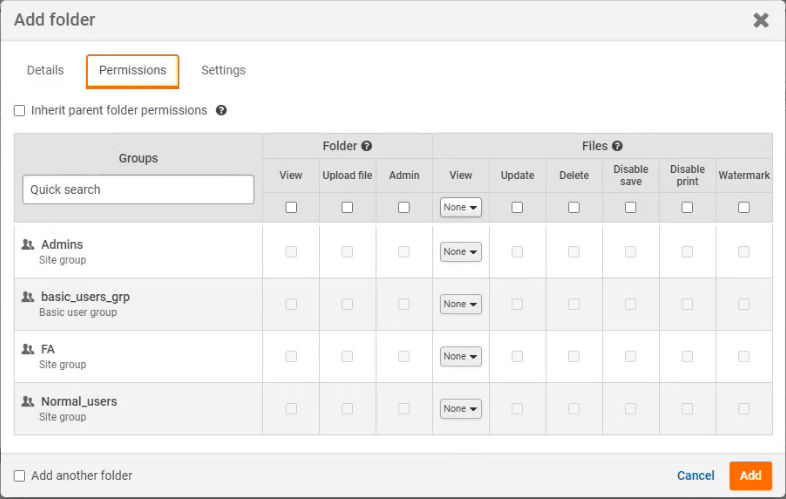
tab to see the permissions that currently apply.If
Inherit parent folder permissions
is selected, the folder automatically inherits the permissions of the parent folder - the folder in which it is created: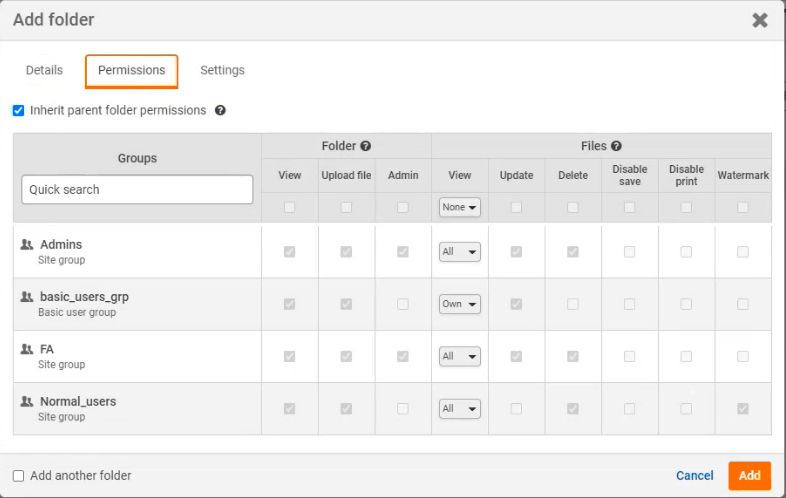
note
If you select, or deselect,
Inherit parent folder permissions
, you see a confirmation message:Inherit permissions? UnChecking the 'Inherit parent folder permissions' checkbox will cause the selected folder to lose the permissions of its parent folder. This change will affect EVERY group that has access to the selected folder, not just this group. Are you sure you want to continue?
Select
Continue
to apply the change.If
Inherit parent folder permissions
is NOT selected, you can adjust each permission for groups or users before you add the folder.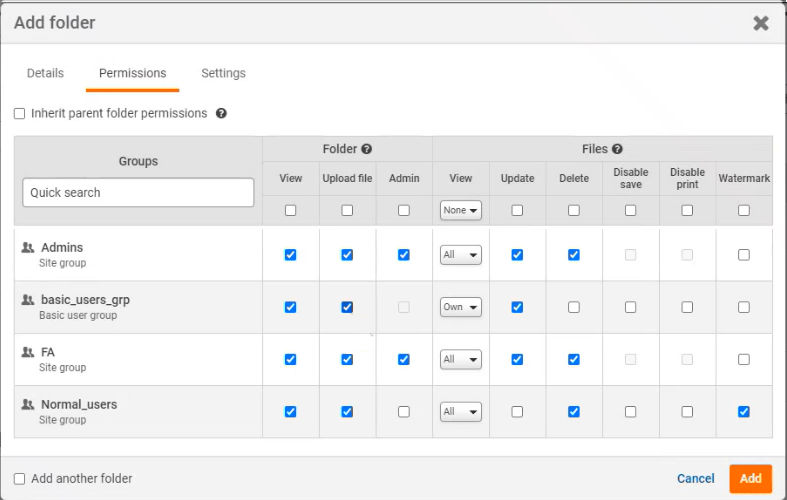
note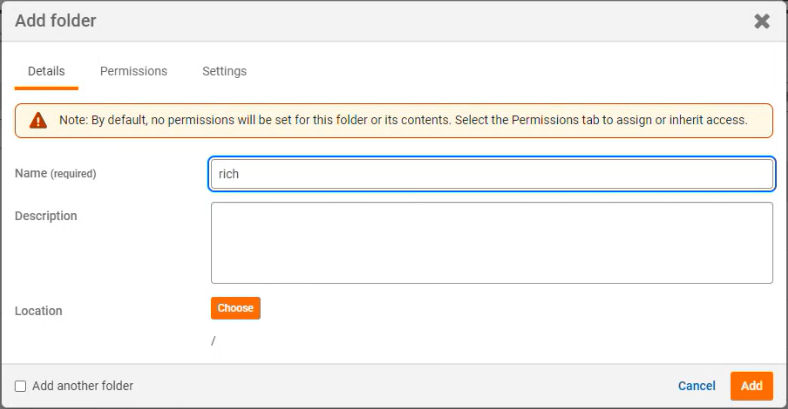
As of May 2024, if 'inherit permissions' is disabled by default, then a note in the
Details
tab highlights that no permissions will be set for the new folder and to select the Permissions
tab to assign or inherit access.Only users with permission to view the folder can see the new folder.
If the folder does not open
It is possible to create a folder where you do not have view permissions i.e. if the folder does not inherit the parent permissions and you do not have access to the default settings. This is possible if, for example, you are a Folder admin,
Inherit parent folder permissions
is NOT selected and
no custom group or user permissions were set.You will see a message that the folder has been added successfully, and the previous (parent) folder opens, but you
will not see the folder
in the contents of the current folder.