
My Site module - My files
Comparison with the Files module
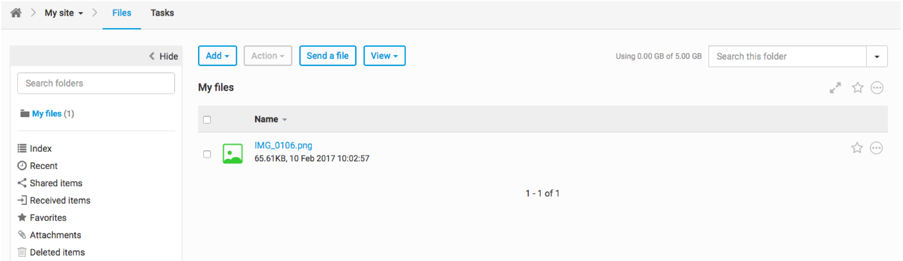
Some standard Files module features are not available in My files:
- There is no Inbox feature
- Only the List View is shown
- There is no way to configure My files
- It is not possible toLikefiles
In addition, some file and folder actions are not available in My files, including:
- Check In/Check Out
- Add comments
- Copy links
- Share via email
- Add tasks
- Who's Reviewed
With file sharing enabled, My files has additional features. Including:
- The Received Items tab and Shared Items tab.
- An indicator of the storage used compared to your storage quota
- Items that are being shared show up with aSharedflag and items that have been shared at any time include aShared infoaction
Shared and received items
Within
My files
you have access to the Shared items
and Received items
tabs, which allows you to view all items that you have shared, and all items that you have received.Password-protected files
A
Password
tag is shown with files sent to you that require a password.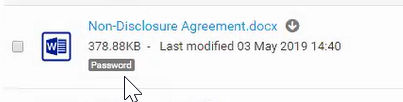
When you try to view or download these files, you'll get the following message:
The password should have been sent via a different route, so enter this and the document will open. If you do not have the password you should contact the sender to ask them to share the password with you so you can open the file.The file is password protected. To continue, please enter password.
If you try to open more than one file and one or more of these are password protected, you'll get the following message:
Password protected

Some of the files/folders you have selected are password protected and need to be downloaded separately.

To download the non-password protected files/folders click Continue.

Here is the list of password protected files/folders:
note
If you have already entered the password, the file will open; the password is only required the first time a file is accessed.
Deleted items
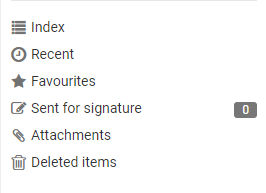
When files and folders are deleted, they are moved to
Deleted Items
.
note
Deleted Items
is only displayed if some files or folders have been provisionally, but not permanently, deleted from a site.Permanently deleting items
To permanently delete files and folders, select the checkboxes next to the appropriate items in Deleted Items. Click the
Delete items
button, then select OK
. at the top.note
The selected items will be permanently deleted and cannot be recovered.
Restoring Items
Select the items to restore then click the
Restore
button. Navigate to and select the folder where the selected items should be restored. Select Restore
. The selected items will be removed from Deleted Items and added to the selected location.Related Content
-
My site overview
Format: Article,
5 min read
Article,
5 min read
-
My files received items
Format:
Article,
2 min read
-
Transfer files from My files
Format:
Article,
18 min read
-
View and manage currently shared files
Format:
Article,
7 min read
-
My files settings
Format:
Article,
2 min read