Electronic signature with Adobe Acrobat Sign
eSign integration allows users to securely send a document for signature from the Files module.
note
Enable and Authorise Adobe Acrobat Sign
After the eSign service has been configured, you must authorise the service using your own eSign account credentials.
note
The DocuSign service is also available to sign documents.
note
Adobe Acrobat Sign enhancements that require the webhook
- As of January 2024, you can select multiple recipients for Adobe Acrobat Sign requests.
- As of July 2024, you can include multiple documents in a single request.
- As of September 2024, you can select a folder to send a request that includes all compatible documents in the folder, including documents in sub-folders.
Please watch
Adobe Acrobat Sign enhancements
for more information (external video link).Sending documents for signature
If at least one eSign service is enabled, the
Send to... Signature
or Send to Adobe Acrobat Sign
option is available. Select one or more files, or a folder, then open the Action
menu (either at the top of the page for one or more files or the More actions
menu for a single file or folder):

Select
Send to Adobe Acrobat Sign
to open eSign services (or select Signature
if more than one eSign service is enabled).note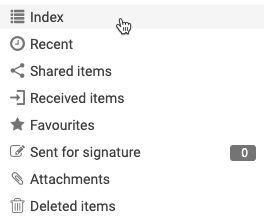
Sending files and folders from multiple folders via the Index view
In the
Files
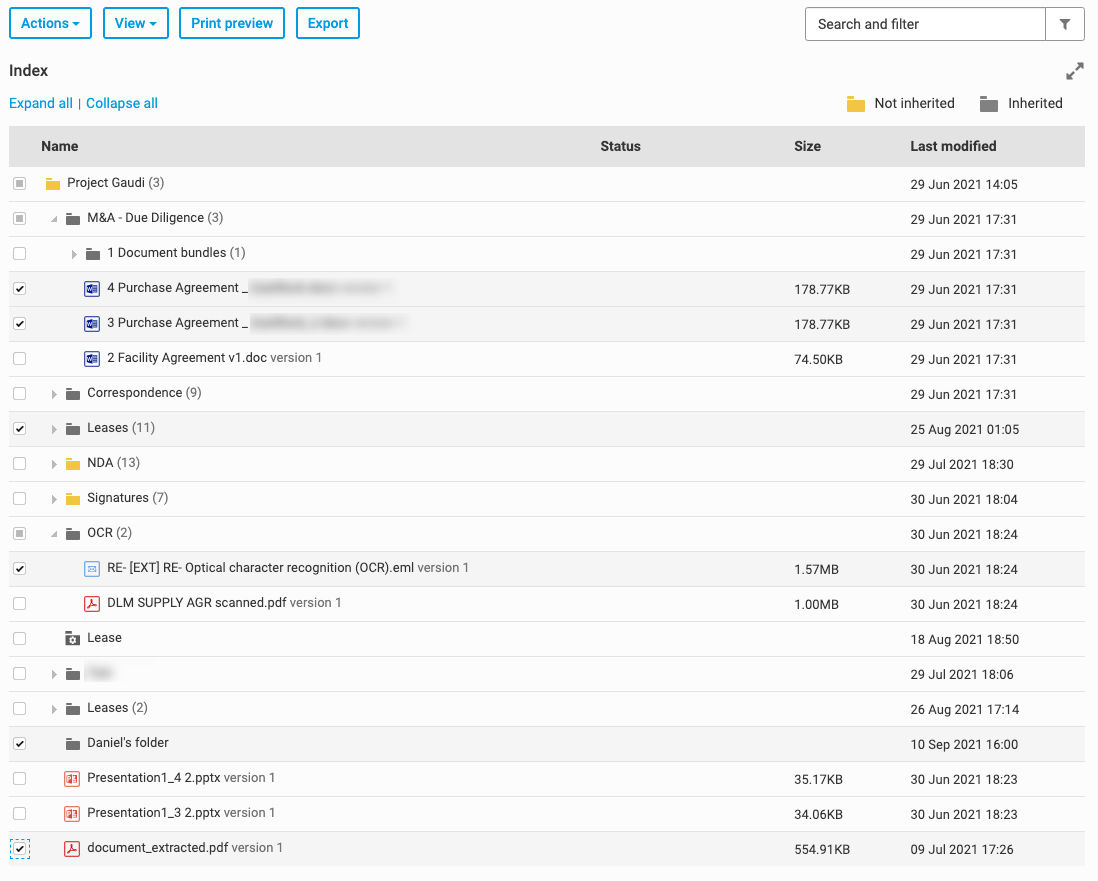
module index view you can select multiple files and folders, including files from separate folders, to send for signature.In the
Files
module, select Index view
:The
Files
module Index view
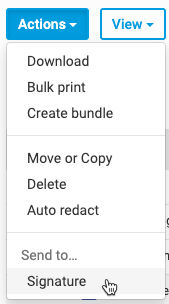
opens. Select multiple files and folders:Select all your files and folders, then click
Actions
> Send to... Signature
:Multiple eSign services - Send to Adobe Acrobat Sign
If more than one eSignature service has been configured, the
Send to
screen opens. This shows all the selected files, including all the files in the folders you selected, and allows you to select an eSignature service: 
note
If a file is not required, select the red
If
multiple items
were selected, the Send to
window shows all the selected files, including the contents of selected folders.x
to remove the file from the list.Select
Adobe Acrobat Sign
.Check file size
Before sending files to Adobe Acrobat Sign, the service checks the file size of each document.
note
Adobe Acrobat Sign does not support documents larger than 10 MB.
If only Adobe Acrobat Sign is enabled and one or more files exceed 10 MB, you'll receive a message.

If a document is larger than 10 MB and requires signature, check the document for contents that can be compressed or removed, then resave and send the file.
note
If more than one eSignature service is enabled, the file size of each document is checked when you select the Adobe Acrobat Sign service.
If any document is larger than 10 MB a message displays and a warning symbol is added next to large files. Click the red
x
to remove documents with a warning symbol, then select Adobe Acrobat Sign
.Select recipients
The main
Send to
screen opens.
Enter the name and email address of the first recipient.
After you add the first recipient, you have further options:
- ClickAdd recipientthen enter another name and email address to add additional recipients.
- Add a message for all recipients.
- SelectSend progress emails from Adobe Acrobat Sign to [your email address]to send progress emails to your HighQ account email address (see the note, below).
note To receive notifications, an Adobe Acrobat Sign account admin must add you to the 'Account Admin' usergroup or to any 'Group Admin' usergroup below that.

As of October 2023, you can ensure progress emails are sent to your HighQ account email address. Select
Send progress emails from Adobe Acrobat Sign to
[your email address]
Your HighQ account email address must be registered with your Adobe Acrobat Sign account. If it is not registered, you see a message asking you to add your address to receive emails.
After your account is registered, the
Send progress emails...
checkbox is selected by default in future requests.Confirm the recipient's information and select
Send
.note
- The recipient of the document doesNOTneed to be a member of the site or a user of HighQ to receive and sign a request.
- After a document is sent for signature, that document isLocked. This means that a new version of the file cannot be added without first revoking the sign request or waiting until the recipient completes the signature process.
Add signature fields
As of May 2024, the sender may add multiple signature fields at any location in the document.

note
Select
Enable webhook supported features
in System Settings
to allow multiple signature fields in any location.Multiple Signature fields are available.

For example, to add a signature field, scroll to the appropriate page of the document, then drag the
Signature
field to the page.
Position the
Signature
field as required.
You can also add additional required information from the
Signer Info
, Data
, More
and Transaction
fields. For example, select and drag a Company
field from Signer Info Fields
.
After you add all required fields, click  .
.
Send
.You see a confirmation message that the document has been sent.

The recipient will receive an email with a request to sign the document.
Notifications
Once the document is sent, you are notified in the top right corner of the page with a
Sent to Adobe Acrobat Sign
message.
The document is now labelled
Sent for signature
(if this setting has been enabled by an administrator, see below).note
If this is not enabled, you can view the status in the details pane on the right-hand viewer panel.
Document tracking and status
Check the file
eSignature tracking
to confirm the current status of the document. Select eSignature tracking
in the left navigation.
The status for each sent document is shown.

Click the
ⓘ
icon for the document to see the Agreement details
.
note
As of July 2024, the
Agreement details
includes the name of the eSign service used to facilitate the signatures.Select
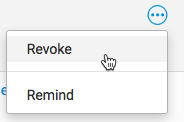
More actions
to Revoke
the signature, or send a reminder.
Signing a document
The recipient will receive an email from the eSign service and follow a custom Adobe Acrobat Sign process.
Example email:

Click
Review and sign
to open the document.
Click
Start
to see the first signature field.
The recipient must add their electronic signature then
Click to Sign
.Add signature.

Click to Sign.

Confirmation:

note
For more information on this process, please refer to the documentation for the
Adobe Acrobat Sign
service.After the document has been signed, it is sent back as a new PDF file.

The sender receives an email to confirm that the document has been signed, and can check the document
Audit history
.Select
More actions
for the document, then select Audit history
.
note
HighQ does not fetch a certificate of signature when using Adobe Acrobat Sign.
Email notifications from HighQ
As of October 2023, you can turn off the HighQ notification if, for instance, you receive duplicate signature notifications from both the eSign service and HighQ, Open
System notifications
from your Profile
, deselect the Email
option for Recipient has signed a document sent for e-signature
, then Save
.
note
A system admin can turn off HighQ signature notifications for the entire instance in
System Admin
> System notifications
. If this is turned off at the system level, users will not see the option in their profile.Revoking and reminders
You can revoke an individual file or send a reminder to the recipient. From the
Sent for Signature
page, select More Actions
> Revoke
or Remind
.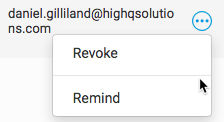
Revoking
Select
Revoke
to revoke the request to sign the document sent to the recipient. This also unlocks the document.Reminders
Select
Send
to send a reminder email to the recipient.Audit history
In the file's
Audit History
> Audits
tab there are audit entries for Sent to [service name]
, Signed in [service name]
, Sign request revoked
and Sign lock removed
.'Sent for signature' system audit
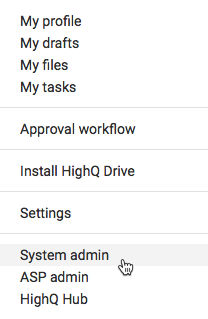
A system admin can access a reporting interface to show which documents have been sent for signature across the whole system. To access this panel, navigate to your profile menu >
System admin
.
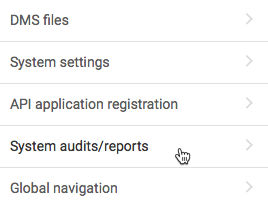
Navigate to
System audits/reports
.
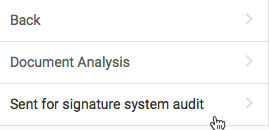
Then select
Sent for signature system audit
.
The
Sent for signature system
audit screen opens.
You can filter the results or scroll to find the results you need.
You can see the site, who the recipient is, the name of the document and the status of the document. Additionally, you can
Revoke
the request, or Remind
a user that you require an action; select More actions
> Revoke
or Remind
.