
Configure a new site for HighQ Doc Auto (powered by Contract Express)
Contract Express integration requires access to third-party services for system and site administrators. This allows admins to upload templates, set up access to the service for users, and allows users to access templates for document automation.
note
As described in the overview, first check you have purchased the HighQ Document Automation powered by Contract Express module via your HighQ representative and that it has been activated.
Also check that Contract Express is enabled at on your instance (at the system admin level).
As of the Sept 2022 release, a new
HighQ Doc Auto
site is automatically created when the HighQ Doc Auto (powered by Contract Express)
feature is enabled in system admin settings. This site automatically includes your published Contract Express templates and Contract Express system groups, ready for further configuration.note
If you do not need the automatically created HighQ Doc Auto site, you may
archive the site
.Contract Express system groups are optional, and can be removed, renamed or replaced as needed. Permissions include the
Own files
setting to simplify folder structures.All included templates are synced from your Contract Express licence space and may be archived if they are not needed.
Open the HighQ Doc Auto site
Once you have enabled Contract Express in your instance, you can open the automatically created
HighQ Doc Auto
site.
note
The site created by the system is labelled with a
HighQ Doc Auto
tag. This tag helps identify the Doc Auto site, even if the site is renamed.Site features
The new site includes the
Files
, iSheets
and Admin
modules.
Open the
Files
module to see created files and generate a document from a template. Select New
> Document from template
.
note
A destination folder is created for each synced Contract Express template.
Synced templates
Published Contract Express templates from the connected licence space are automatically available in the
Contract Express templates
screen.
note
The templates must be published in Contract Express, and you must have permission to access the template in Contract Express.
Select
Sync
to immediately sync the templates with Contract Express. In addition, templates are synced automatically every 24 hours.
note
Use manual sync to instantly map newly-published templates from Contract Express.
System groups and permissions
Contract Express system groups are also added to the site. Select
Admin
> Groups
under User management
.
The
Groups
screen opens.
In the
Groups
screen, you have access to automatically created system groups:- Contract Express admins and authors [System group]
- Contract Express basic users [System basic user group]
- Contract Express users [System group]
Add Contact Express users to the groups. These groups enable users to access the Contract Express integration, and also assign users to administrate the Contract Express integration. See System groups and roles for further information.
note
You can remove or rename groups, or add your own site groups.
System groups and roles
Users can use one of three roles in Contact Express,
User
, Author
or Admin
. These are defined by system groups that are created when the Contract Express integration is enabled.- Admin- a HighQ system admin added to theContract express admins and authorsgroup. An Admin has access to Contract Express templates. They may create, edit and manage Contract Express templates (and also have Author and User permissions, below).
- Author- a site admin or user added to theContract express admins and authorsgroup. An Author may create and use Contract Express templates (and also have User permissions, below)
- User- a site admin or user added to theContract express usersgroup. A User may use existing Contract Express templates to create automated documents from existing templates.
- Basic User- a basic user can only be added to theContract Express basic usersgroup. A Basic User may use existing Contract Express templates to create automated documents from existing templates.
Users who are not members of these System groups cannot use Contract Express templates.
note
External users (users without a dedicated HighQ account) may not be a member of the
Contract express admins and authors
group.Permissions
Group permissions are preconfigured on the
HighQ Doc Auto
site. Click the More actions
icon at the right of the group row, then select Set group permissions
.
note
The Files View permission is set to
Own
; this restricts users so they can only see the documents they created.You can adjust permissions if required.
Create documents
Members of the Contract Express groups can then see the
HighQ Doc Auto
site, and create documents from the Files
module.note
Users must have permission to use a Contract Express template, even if it was synced to the site.
Create output iSheets
The first time a user generates a document from a template, an Output iSheet is created to store data and documents. Open the
iSheet
module to see available iSheets.
Template admin
Open the
HighQ Doc Auto
site, then select Admin
.The
Site admin
screen is displayed. In the Site admin
screen, navigate to Document Automation
> Contract Express templates
.
The
Contract Express
templates screen is displayed.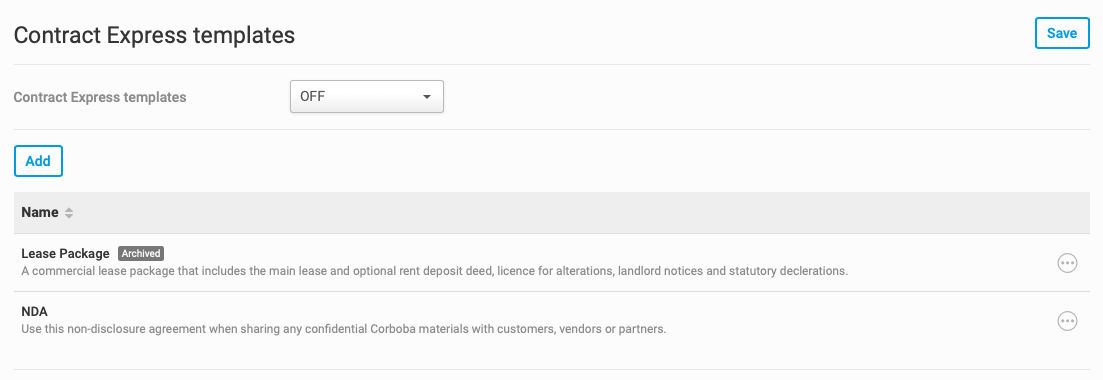
note
Syncing published Contract Express templates is covered here.
Click the
Contract Express templates
drop-down menu, to access the following options:- ON (Default) - this is automatically selected, if you selected to have Contract Express enabled by default in the system settings
- ON - enables Contract Express on your site
- OFF - disables Contract Express on your site
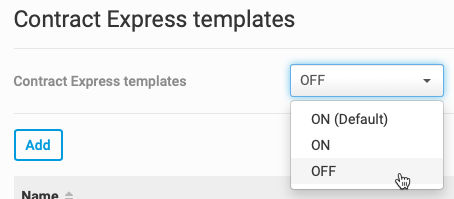
Select
ON
to turn on Contract Express and select Save
to save your changes.