Configuring Legal Tracker Matter intake iSheets
note
This article is intended for system administrators.
After Legal Tracker is enabled at the System administration level, you can configure the matter intake iSheet that is automatically created.
note
If you need to enable Legal Tracker at System Admin level, please click here.
iSheet configuration
Now the iSheet has been automatically created, you can add fields from Legal Tracker.
In your instance, select your
Profile
button, then System admin
from the dropdown menu.
The
System admin
screen opens. Select iSheet admin
from the navigation panel.
The
List of iSheet templates
opens.
Select
Matter management
to view 1 or more iSheets, depending on which options are enabled.The
List of sheets
screen opens.
Mark the
Legal Tracker - Matter intake
checkbox, then select Add / Edit
from the Columns
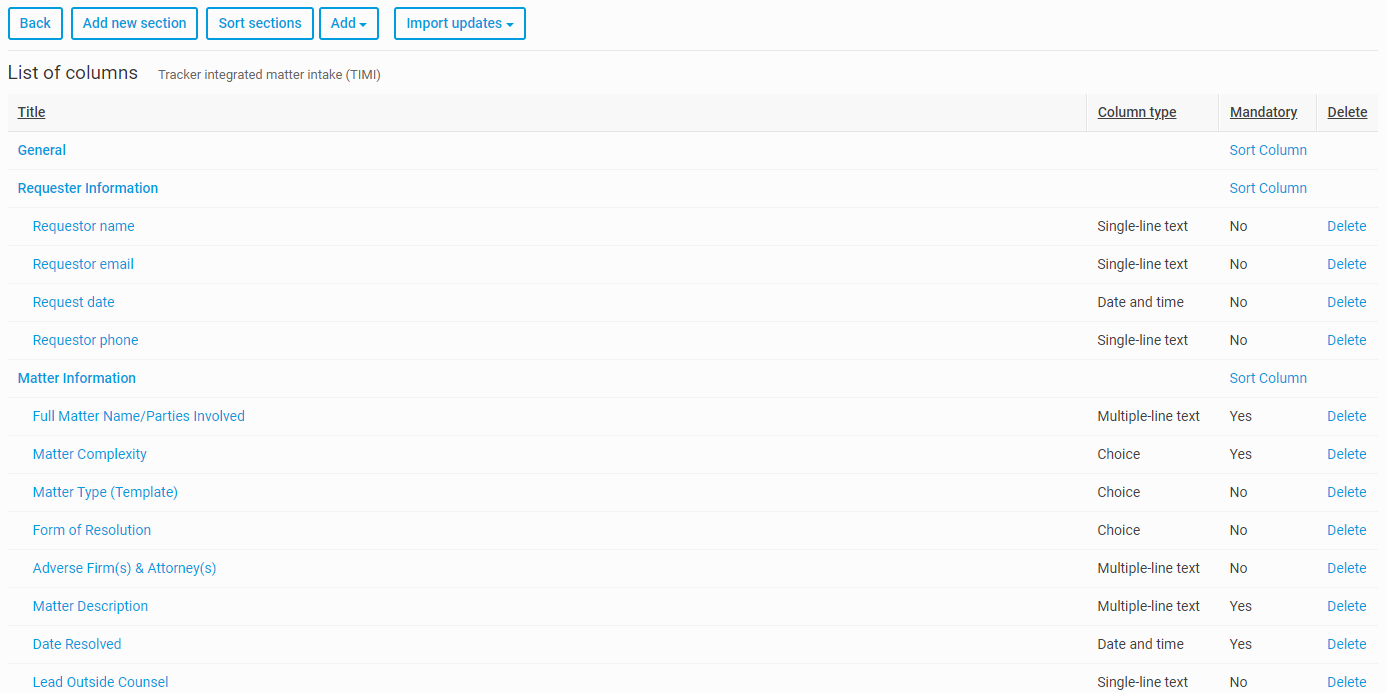
column to display a list of the default iSheet columns for that iSheet. The grid includes Title
, Column type
, Mandatory
, and Delete
.These columns are pre-defined and created when Legal Tracker is enabled.
note
For the Matter intake iSheet
The columns listed below are reserved for internal processing and must not be edited:
In the
Requester Information
section:- Requestor name
- Requestor email.
- Request date
- Requestor phone
In the
Matter Intake Management
section:- Matter ID.
- Intake Request ID.
- Intake Status.
- Intake Status Detail
You can move other columns to these sections, but they are treated as normal columns.
Select
Add
, then Import from Tracker
.
The
Select Tracker fields
screen opens, showing rows containing fields and columns for Fields
, Column type
, and Matter type
.Select up to twenty Tracker fields at a time. Selected fields are imported from the Legal Tracker instance to the iSheet.

note
Information is stored in the HighQ Database to ensure that future API calls are retrieved from the HighQ Database, and not from the Legal Tracker database.
After you have selected the fields you wish to import into the iSheet, select
Import
.
These fields are now shown in the list of columns.
note
If the field is already selected and imported, it is shown in the
Select Tracker fields
screen.In the
Select Tracker fields
screen, you can also Search and filter
with the Search
box and Filter
dropdown list options.
The
Show all selected
option in the filters section contains a list of your previous selections, even if they are removed by the filters. This ensures that if you select fields while filters are active, the selected fields are remembered when the filters are removed.The
Column type
is based on the information received from the Legal Tracker instance. For example, Single line text, Multiple line text, Number, Choice, and Date and time. It can be modified if needed.
note
Changing the selection can affect the performance of the iSheet and an incorrect selection may even prevent it from working.
After you have imported all of the fields that you require from Legal Tracker, you must now configure the template.
Import new or updated choice fields from Legal Tracker
If you add new fields to Legal Tracker or update existing choice fields, these are not automatically added to the HighQ iSheet intake form. To import new fields or updates to existing choice fields, open the iSheet as described earlier in the
iSheet configuration
section.With the
List of columns
screen open, select Import updates
, then Legal Tracker
.
The
Import updates
window opens. After a short delay, a summary of the new field or updated choice fields is displayed. Fields marked as "Linked" will be updated automatically in the sites where the Legal Tracker iSheet has been imported as linked iSheet.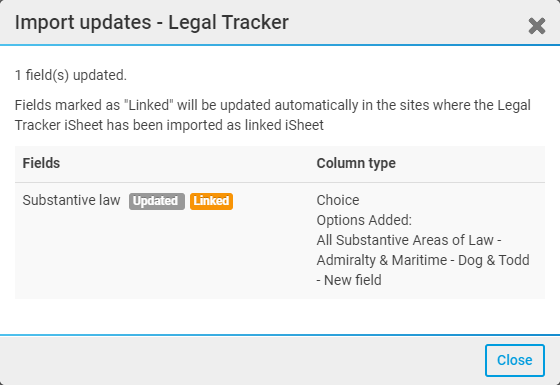
Select
Close
to finish.The labels next to the field names indicate the following:
- New- This is a new field, recently added in Legal Tracker and now available in HighQ.
- Updated- This field was already mapped to HighQ; however, an update is available for the choice field.
note
Please note that new values added to the choice fields are imported but changes to the existing choice values are not updated. This is because the choice values might have already been used in HighQ for certain workflows and might break existing implementations. Changes to other field types such as the field name are not imported for the same reason.
- Linked- This field is already used in an iSheet imported into a site. The choice field update is now available in the intake form.
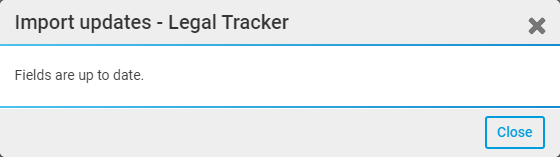
If no new fields are found, the
Import updates
window displays a 'Fields are up to date'
message: