
Relational Sync column
Sync data from other iSheets on your instance
Relational sync columns allow an iSheet to sync and display data from related columns in a
different
iSheet.The relational sync feature makes it easier to use a single source of information, reducing the need to create references in multiple locations.
restriction
The Relational Sync column is
only
available if your instance is hosted on Azure
(Azure includes the modernized iSheets experience). Please click here to check if 'Enable modernized iSheet = TRUE'. If it is FALSE, see 'Migration', below.
Migration
How do we access the Relational Sync column if the instance does not have the modernized iSheets backend?
A: Contact your Account Manager, who will conduct a feasibility check and guide you through the next steps. The Account Manager will also provide updates on the migration schedule.
important
Migration to Azure infrastructure does
NOT
automatically migrate iSheets to the modernised backend (B/E). These are separate processes
and must be handled independently.Examples
A site admin could create an iSheet that contains a list of the firm's clients (the 'secondary iSheet'), and another iSheet to track firm matters (the 'primary iSheet'). In the primary iSheet, a site admin creates a Relational Sync column where users can select one or more clients from the lookup source iSheet that have been invited to the event.
Lawyer contact details stored in a secondary iSheet can be synced with a primary iSheet that contains matter details, including the name of an assigned lawyer.
A secondary iSheet can contain a list of countries and related information, then sync that country data with one or more primary iSheets. The country information would be accessed directly in those other primary iSheets and updated whenever the secondary iSheet is revised.
note
This column is similar to a Lookup column, but with an additional sync service so that information is always current.
Each primary iSheet can sync with up to 100 columns from one or more secondary iSheets.
Benefits and limitations
note
The Relational Sync column is
only
available if your instance is hosted on Azure
. If you do not see the Relational Sync option, please contact your account manager for more information about migrating to Azure.If a site that has Terms and conditions, or passwords; it may be used as a source of Secondary iSheets
if
the site or system admin that configures the Relational Sync column first
accepts the terms and conditions on the restricted site. After the admin pulls the restricted data into the Primary site, all users of the Primary site can see data from the secondary site.The Relational Sync column adds columns to the primary iSheet based on common entries in selected 'Join columns' - one column in the primary and secondary iSheet (e.g. a name, matter number, or location).
Inserted columns are treated as if they are part of the primary iSheet. I.e. you can search or filter for content in the inserted columns, use them in Workflow, Contract Express templates, Data visualisation, etc.
Relational sync can be configured across multiple sites on an instance. A system admin can select source iSheets from multiple sites for data sync. It is possible to link multiple columns from multiple sites to a single site for consolidated reporting.
The sync applies immediately after values are changed in the secondary iSheet, and the primary iSheet is refreshed. However, there may be a slight delay when updating values in an iSheet with a large number of records or columns.
Supported Data Types
Only Single-line text or Number columns may be used as the join condition for a Relational Sync column.
note
Each iSheet (the primary and secondary) must contain a pair of columns with identical data to identify and 'join' related data.
Permissions
Permissions from the secondary iSheet are
not
applied when they are synced with the primary iSheet. By default, users with access to the primary iSheet can see all
synced records. However, an admin can restrict access to the synced columns in the permissions for the primary iSheet, exactly as if the columns were contained in the primary iSheet. Configure a Relational Sync column
You can add a Relational sync column to any normal iSheet (not a metadata iSheet). The main Sheet that contains the synced columns is the 'primary' iSheet; iSheets that contain the source columns are 'secondary' iSheets.
note
If necessary, create the secondary iSheets as normal iSheets, they may contain any types of column, but only single-line text and number columns may be selected as the join condition for relational sync.
Many primary iSheets can reference columns from the same source/secondary iSheet.
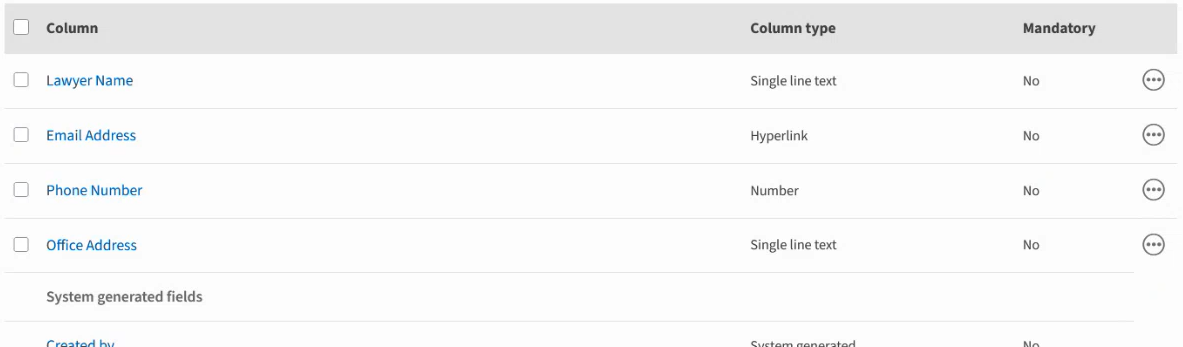
Example columns in a secondary iSheet:
Open the primary iSheet
Open
Admin
and then choose Active iSheets
.Select the
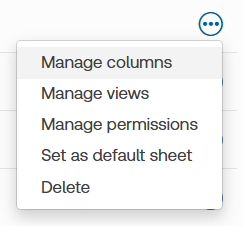
More actions
button for the primary iSheet and select Manage columns
. 
Add a Relational Sync column
Select
Add column
, then add a descriptive Column name
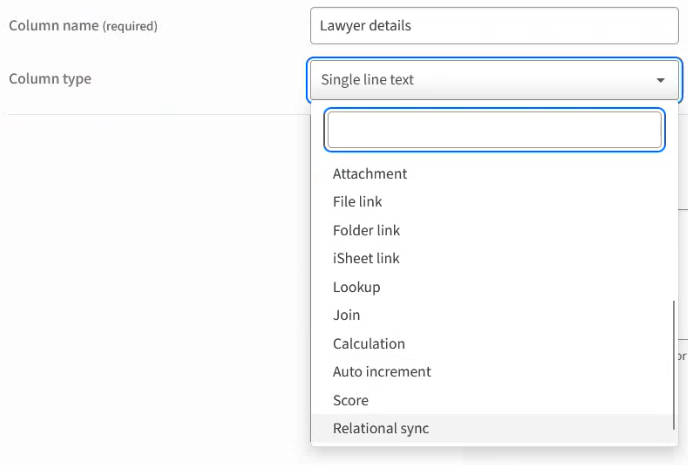
.Open the
Column type
menu and select Relational sync
:
A
Permission Behaviour
window opens: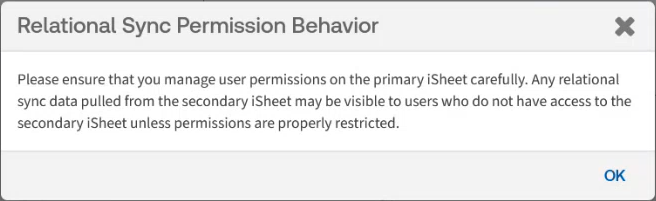
Click
OK
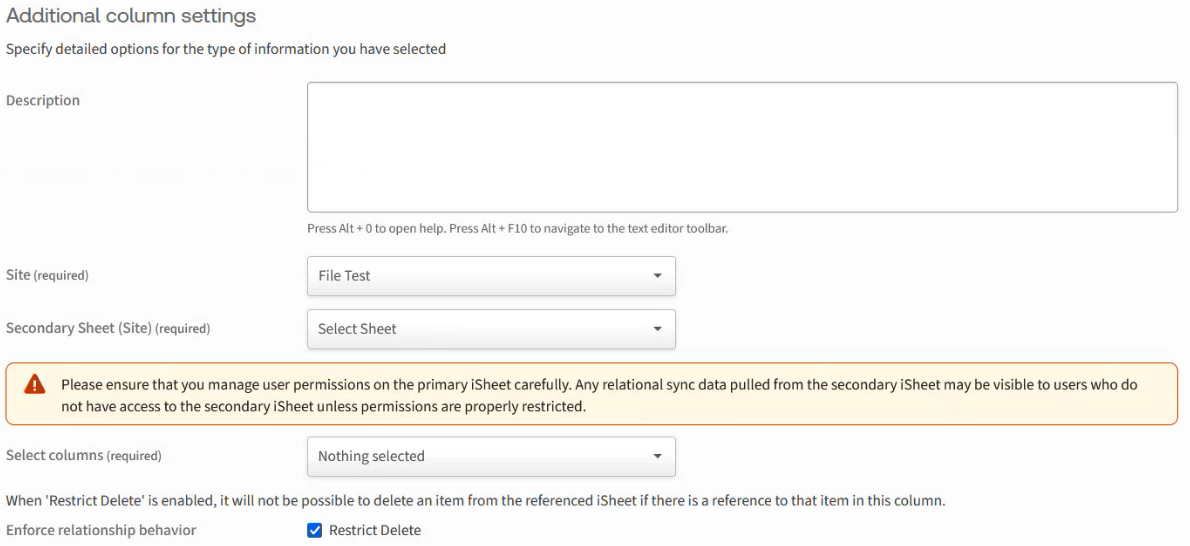
.Enter a description if needed:
Select columns to sync
Select the
site
that contains the Secondary iSheet
, then the iSheet: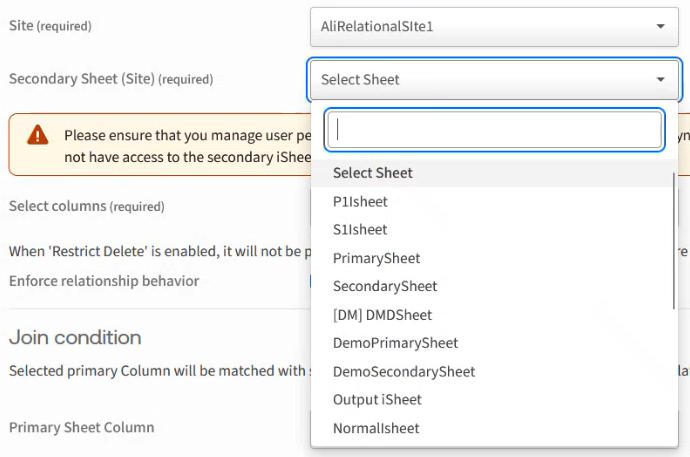
In
Select columns
, add the columns to sync with the primary iSheet: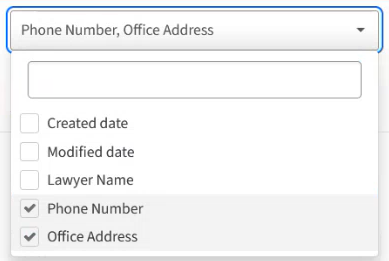
note
Do not select the column that is used to identify the record to sync.
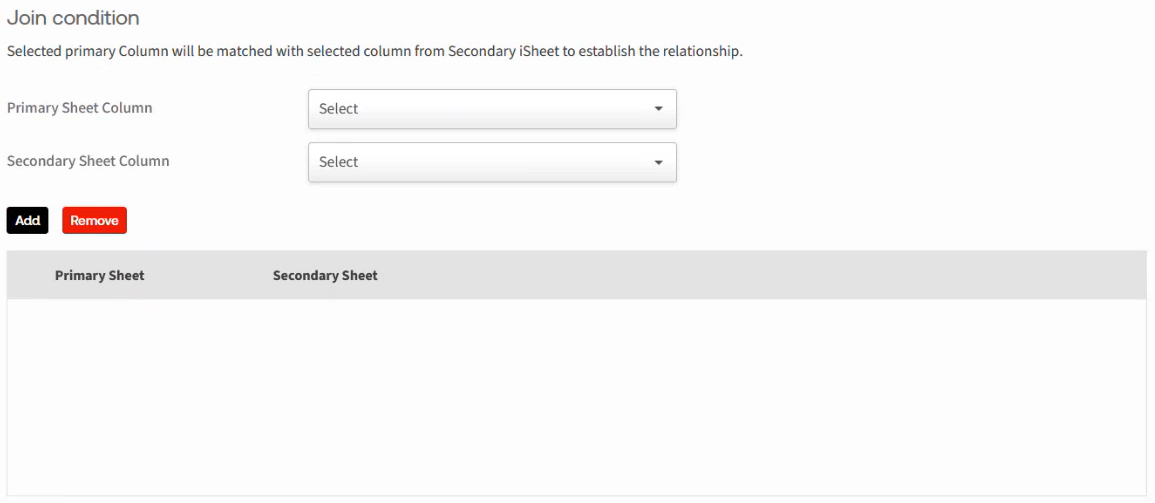
Set the Join condition
Select the columns that contain the matching text or number:
note
The columns do not need to use the same name.
Open the
Primary iSheet column
list and select the column that identifies the data to sync: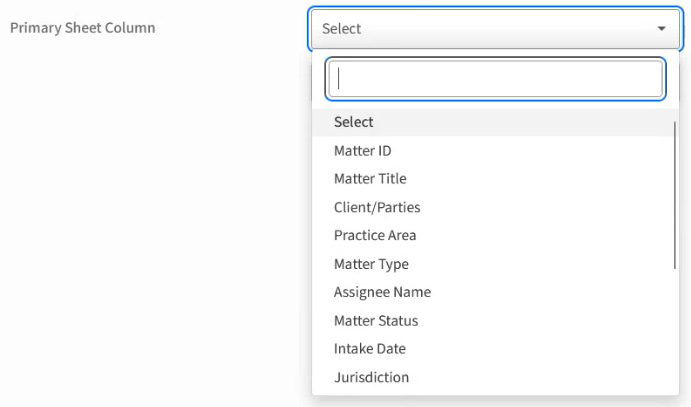
Open the
Secondary iSheet column
list and select the column with matching data: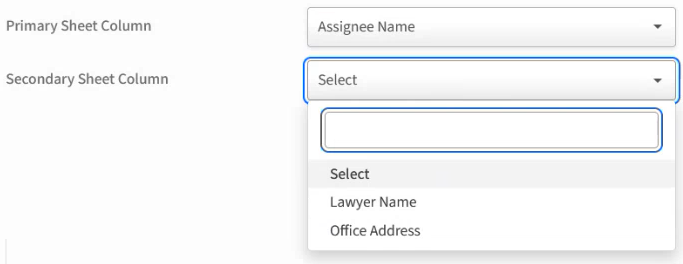
Click
Add
to add the pair of columns to the table: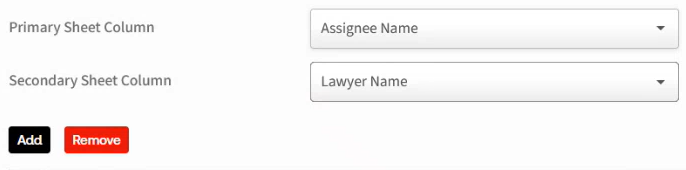
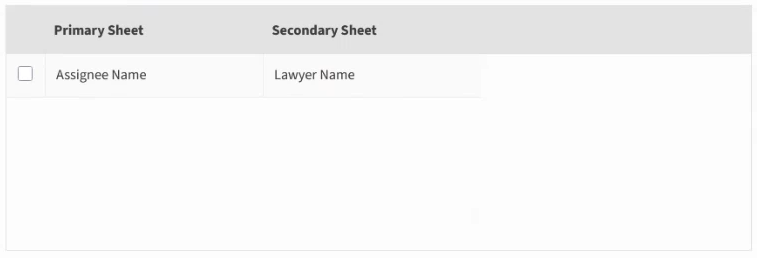
note
To delete a pair of columns, select the checkbox on the left of the columns and click
Delete
.Join condition options
By default,
Add to the default view
is selected: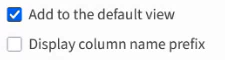
This adds the synced data to the default view in the Primary iSheet. Deselect this to select a different view.
The
Display column name prefix
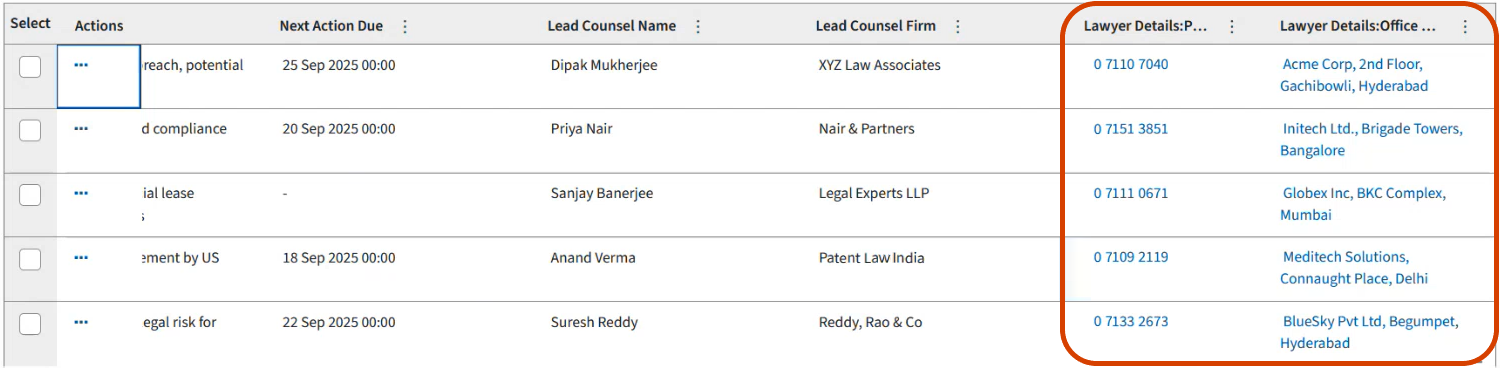
makes it easier to identify synced columns. 
If this is selected, the column header in the primary iSheet is prefixed with the name of the column used for the join condition:
Related Content
-
Column types
Format: Article