
Set up employee to receive direct deposit payroll checks
If you offer a direct deposit option for employee payroll checks, you'll need to set up direct deposit information for the employee bank accounts. First, you'll need to set up direct deposit information for the
firm bank and the client
bank accounts, then take the following steps. This will make employee direct deposit and allocation information available for payroll check printing.- SelectSetup, thenEmployees.
- Select theEmployee.
- If the employee will use International ACH Transations (IAT), you'll need to complete all of theAddressessection of theMaintab.
- Select theDirect Deposittab.
- Under Net Pay Distribution, use theDepositdropdown to choose how much employee's pay should be by direct deposit. You can choose from the following:
- All
- All except fixed amount
- Fixed amount
- None
- Percentage
Example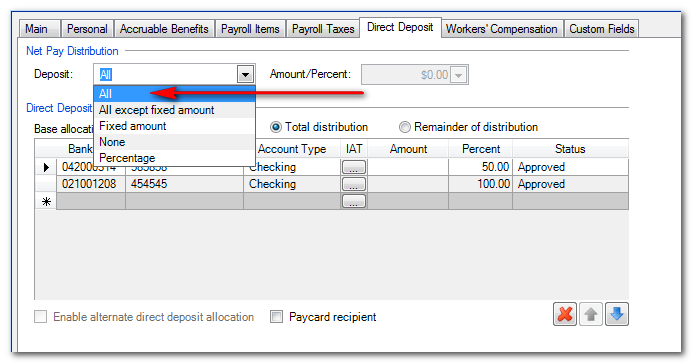
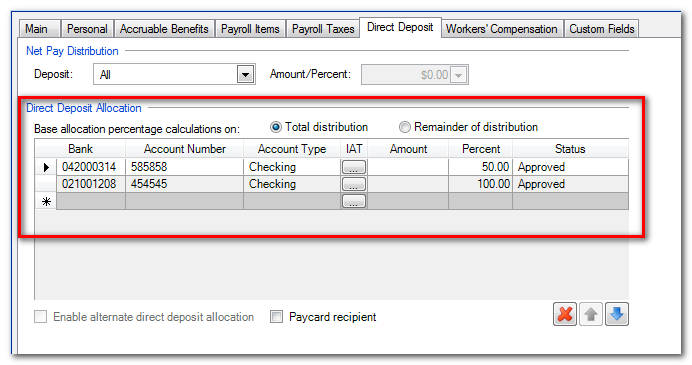
- UnderDirect Deposit Allocation, specify how the direct deposit amount should allocate to the employee's bank accounts. You can also chooseTotal distributionorRemainer of distributionto base the allocation percentage on.noteAn employee can have several bank accounts set up. You can base allocation percentage calculations on the total distribution or remainder of the distribution.
- If this employee will use IAT:
- Select the ellipsis button in the IAT column.
- Specify that this direct deposit allocation usesinternational format.
- Set up theUS gateway operatoranddestination countryinformation.
- Enter information for one or more bank accounts and specify an amount or percent to allocate to each.noteThere are some examples at the end of this help topic.
- For new employees or new direct deposit bank account information, selectPrenotein theStatuscolumn.noteAfter the bank has prenoted the account, change the bank account status toApproved. This will enable the application to create direct deposit files.TheStatusoptions are:
- Approved: you've set everything up and this vendor's bank account is ready for direct deposit.
- Needs authorization: you've set everything up, but this vendor needs authorization before you can process direct deposit.
- Prenote: you've set everything up, but this vendor's bank account information will be prenoted before live processing.
- Suspend: you've set everything up, but this vendor doesn't currently use direct deposit. This option saves the information for when the vendor uses direct deposit again.
- Waiting: The bank account information has been prenoted. We are waiting for the prenote to be approved.
- If you want to set up alternate direct deposit allocation information for an employee:
- Mark theEnable alternate direct deposit allocationcheckbox.
- Enter information in the grid.
- If you want to use the alternate direct deposit allocation, take the following steps:
- Go toActions, thenEnter Batch Payroll Checks.
- SelectEdit, thenOptions.
- Mark theUse alternate direct deposit allocationcheckbox for the selected payroll schedule.
- If the employee is a paycard recipient, mark thePaycard recipientcheckbox.
- SelectEnter.
Setup example: Scenario 1
An employee always wants $100 deposited into a savings account, and 100% of the balance deposited into a checking account. They would select
All
from the deposit dropdown, select Total distribution
, then enter 100.00 in the Amount column for the savings account and 100.00 in the percent column for the checking account.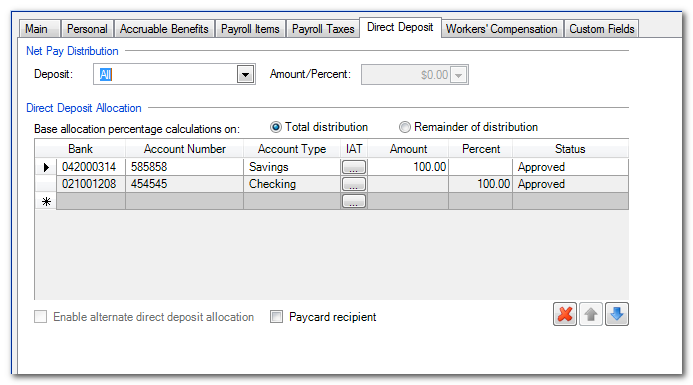
note
In this scenario, it doesn't matter if
Base allocation percentage calculations on
is set to Total distribution
or Remainder of distribution
. This is because the application can't allocate more than is left over as a result of allocations in previous rows.In this example, if net pay is $1000, and $100 is deposited into savings, then $900 remains. Even though the second row indicates 100% of the total distribution, it will only take 100% of what is left over (in this example, $900).
Setup example: Scenario 2
An employee always wants $100 deposited into a savings account. They also want 50% of the remaining amount deposited into a different savings account. Whatever is left, they want deposited into a checking account. The employee would set the following:
In the Net Pay Distribution section, the Deposit field is set to
All
and the Amount/Percent field is inactive. In the Direct Deposit Allocation section, Remainder of distribution
is selected. In the grid, they'd go to their accounts. They'd enter 100.00 in the Amount column for the 1st checking account, they'd enter 50.00 in the Percent column for the 2nd savings account, then they'd enter 100.00 in the Percent column for the checking account.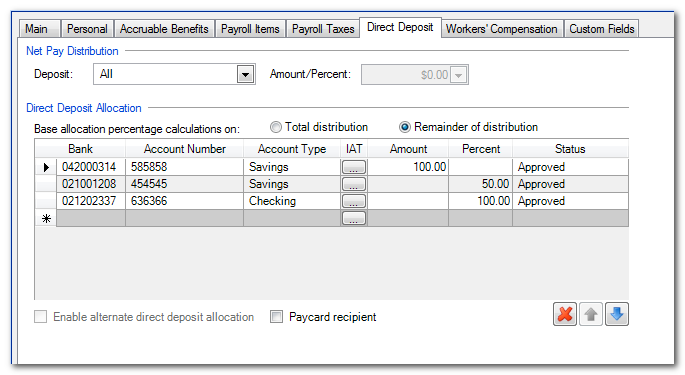
note
In this scenario,
Base allocation percentage calculations on
needs to be set to Remainder of distribution
. This is because it's possible that more than 50% of the total distribution is left after the fixed $100 dollars is allocated. So, if the net pay was $1,000, then $900 remains after the $100 fixed amount. Because Remainder of distribution
is marked, the application allocates $450 (half of what's left). If the Total distribution
checkbox is marked, then $500 is allocated to the second savings account.Setup example: Scenario 3
An employee wants half their check direct deposited in a savings account, and the other half on a paper check. They'd choose
Percentage
from the Deposit dropdown then 50.00%
from the Amount/Percentage dropdown. In the Direct Deposit Allocation section, they'd select Total distribution
and choose 100.00 from the dropdown in the Percent column for the savings account.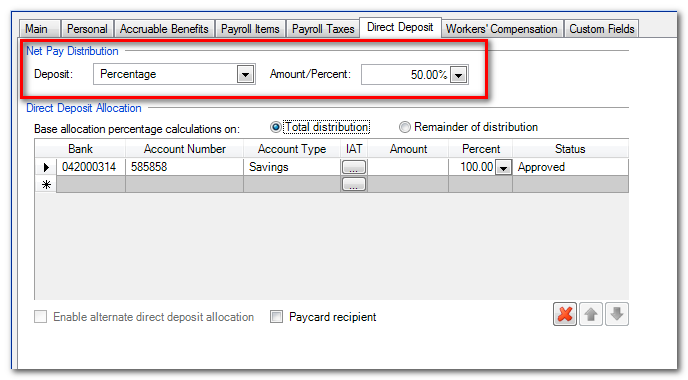
note
The Net Pay Distribution section is where you specify how much of the check should be direct deposited (in this example, only 50%). The percentage in the Direct Deposit Allocation section is set to 100%. This is because 100% of the amount to be direct deposited needs to go in the one savings account.
In this scenario, if you go to
File
, Print Checks
, there will be a payroll check with a partial direct deposit allocation to print. You'll need to print the check to send the check information to the Process Direct Deposit
screen of the Actions
menu. Related Content
-
Set up a direct deposit bank account
Format: Article

