
Receipt ID for electronically corrected 1099 forms
Complete these steps to locate the Receipt ID for electronically correct 1099 forms.
Forms filed electronically after the v.2024.2.0 should use the steps here to obtain the information necessary for correcting 1099 forms.
note
For 1099 forms filed using the Electronic filing method prior to Accounting CS v.2024.2.0, you need to contact our Accounting CS support team to get the Receipt ID so you can file a corrected 1099 form.
Definitions:
- Receipt IDis the confirmation that the form was sent to the IRS.This is called the SubID on CS Connect.
- Submission IDis the incremental number for each client (issuer) in the file. This will always be 1 from Accounting CS. If you filed the form outside of Accounting CS, this could be a different number.
- Record IDis the incremental number for each recipient in the file. You can find this number from the last accepted file for the recipient you're trying to correct.
Do the following to find the receipt ID for electronically corrected 1099 forms:
- SelectActions,Process Electronic Forms, thenManage Electronic Forms.
- Find the file that needs to be corrected.
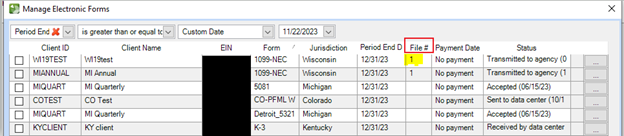 noteThe file number is important so you can know which ReceiptID/SubID is correct. The customer may have filed the client multiple times (adding additional vendors/independent contractors), but the files will start with 1 for each client and increase by 1. In CS Connect, the file number shows after the period date.For corrected files, the file number will start with 101 and go to 102 for the next one. For example, if it were an already corrected file, the period date would look like 2023/1231101 or 2023/1231102.
 noteIf you're unsure which file the vendor or independent contractor is in, you'll need to preview each file for that client and time period to find them.
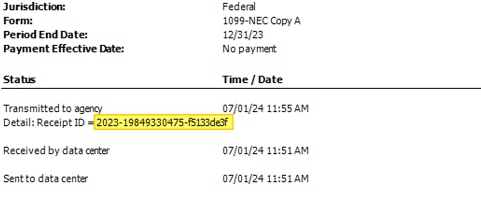
 - Select the ellipsis at the end of the row to preview the Electronic File Status report. The Receipt ID is part of the Transmitted to agency line detail.
 noteIf the return was filed prior to Accounting CS v.2024.2.0, you'll need to provide the following information to our support team so they can provide you with the Receipt ID:
- The 1099 form type that's being corrected (1099-MISC, 1099-NEC).
- The tax period end date for the form being corrected. Example, December 31, 23.
- The client ID in Accounting CS.
- The File number if multiple 1099 files have been transmitted for that client.
- Mark the checkbox for the file being corrected, then selectPreview Selected.noteIf you're unsure which file the vendor or independent contractor is in, you'll need to preview each file for that client and period end date.
- In the preview, go to the Header information section to get theSubmission ID, then go to the Recipient Detail section to get theRecord ID.noteYou can use the find icon (binoculars) or press ctrl + F on your keyboard to find a vendor or independent contractor by name.
- Open CS Connect then go to the ELF quick navigation section in the side pane. Enter theFirm IDand theClient ID filter, then selectGo.
- Look for the file type/period they're correcting and verify if it showsAccepted.
- If it showsRejected, they'll be able to re-send the file without doing a corrected form. If the latest status isn't an acknowledgment, you won't be able to give them the Receipt ID yet.
- If it showsAccepted, look for the newest SubID (remember SubID = Receipt ID).
noteIf you don't have permission to view the information in CS Connect, visit an Accounting CS Consultant and they can provide it for you. - Email the customer the Receipt ID using the following template:Here is the requested information: Client ID: 1099-type: File number: Receipt ID:note
- You might need to ask the customer the best address to use to get them this information.
- Only include the information in the preceding template. Don't include the EIN/TIN in the email.
- SelectActionsthenEdit Payroll Tax Forms. Choose the form type you need then selectRefresh.
- Go to theRecipient Selectiontab and select the recipients.
- Go to theOriginal - Recipient Datatab and selectOriginal E-file Information.
- Fill in the following information:
- The Receipt ID
- The Submission ID
- The Record ID
note- The Submission ID will always be 1 if you filed the original form through Accounting CS. If you filed with another program, it could be different.
- The Receipt ID field won’t accept the ID without the dashes; include the dashes when entering the ID. For example: 2023-19849330475-f5133de3f.
- Each 1099 return that was generated because theOne 1099 per transactioncheckbox was marked inEnter Transactionswill appear as a separate row in this screen.
- SelectSave.
- Follow the standard steps to process the corrected form.
Related Content
-
Process corrected 1099 forms
Format: Article

