
Conversations: Calculations and complex tasks
CoCounsel 3.0 runs code, analyzes structured documents, and creates verified calculations and formatted Excel outputs.
Review the following workflow example to understand how to upload a document, instruct CoCounsel to calculate and reason through a task, and generate a spreadsheet output. You can follow along by entering the example prompts into Conversations.
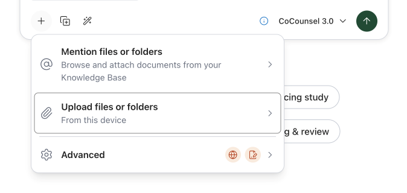
Step 1: Upload a Document
Drag and drop a supporting document for CoCounsel to analyze. For this example, use a sample vendor invoice listing purchased assets, such as Invoice INV-2026-0418.xlsx.
tip
If you have your own document you prefer to use, such as an invoice, fixed asset listing, or purchase record, you may upload that instead.

Step 2: Ask a question
Once the document is uploaded, prompt CoCounsel to build a schedule based on the contained information.
Example prompt:
"Create a depreciation schedule for the uploaded invoice. Computers and their parts have a useful life of 3 years, and the printer has a useful life of 5 years. Keyboards, toner, and similar consumables should just be expensed. Give me a spreadsheet, and find supporting information from Checkpoint if needed. Outline your assumptions."
CoCounsel reads your invoice as structured data instead of plain text. It sorts each line item into the correct category. Then, it runs a code to calculate the exact depreciation schedule rather than guessing the numbers. Where relevant, it references Checkpoint to support the tax or accounting treatment of specific items.

Step 3: Review the output
CoCounsel creates an Excel spreadsheet with your depreciation schedule. It also includes a summary of the assumptions it used, like asset categories and useful lives. You can check out the results inside the app's spreadsheet viewer, or download the file to open in Excel.

Iterating in Conversations:
- Follow-up prompts:Because CoCounsel 3.0 supports conversational iteration, you can refine outputs in the same thread without starting over.Example prompt:"Can you add a tab summarizing which items were expensed versus depreciated, with the reasoning for each?"
- Cell-level inquiry:Select any cell in the in-app spreadsheet viewer and selectAsk CoCounselto ask follow-up questions referencing that specific data point.

Other capabilities and custom templates
CoCounsel 3.0 supports a wide range of calculation-heavy and document-heavy workflows:
- Custom templates:Upload firm templates (such as working papers or amortization schedules) alongside source documents. CoCounsel will populate your template directly, preserving its existing tabs, formulas, and styling.
- Structured table reading:Reads spreadsheets with multiple tabs, merged cells, and irregular formatting as structured tables rather than flat text.
- Dynamic formulas:Produces workbooks with live formulas and multiple tabs so calculations automatically refresh when values change.
- Automated cross-checking:Reconciles totals, cross-foots figures, and flags potential calculation errors.
- Trusted source research:Restricts supporting research to Checkpoint and authoritative sources (for example, IRS.gov, FASB) rather than the unverified public web.
- Persistent context:Retains conversation history so you can continuously refine calculations and add sheets without losing context.
Conclusion
CoCounsel 3.0 runs real code and reads structured files to build accurate, formula-driven spreadsheets. You can use this same process for all kinds of complex tasks. Try it out with other documents like loan agreements, brokerage statements, or financial statements.