
Get started with Ready to Advise V2
This guide provides a comprehensive overview of Ready to Advise V2.0, designed to enhance tax advisory services with advanced features available for projects starting after November 11, 2025.
Purpose of this guide
Use this guide to learn Ready to Advise V2.0, explore its key features, and share feedback or report issues. By the end, you'll be able to use it confidently and deliver stronger advisory services.
What's new in V2.0
Projects created on or after November 11, 2025, will automatically use V2.0 features and improvements.
important
Some V2.0 features are not available for projects created before November 11, 2025 due to framework differences. V1 projects remain fully functional, and we can help you find them successfully. For help, refer to the Ready to Advise V1.0 guide.
All new projects will use V2.0, ensuring access to the latest capabilities.
If you have questions, need assistance, or would like to share feedback, contact our support team at CoCounselTaxAudSup@thomsonreuters.com.
For help with navigating V1 Advisory projects, refer to the Ready to Advise V1.0 guide linked here.
Get started
Go to https://accounting.cocounsel.thomsonreuters.com/ in your browser. You'll be redirected to the CoCounsel sign-in page. Ready to Advise will be available inside the CoCounsel platform.
Ready to advise walkthrough
If you aren't automatically taken to the Ready to Advise Welcome Page, select the
Ready to Advise
tab within the CoCounsel platform.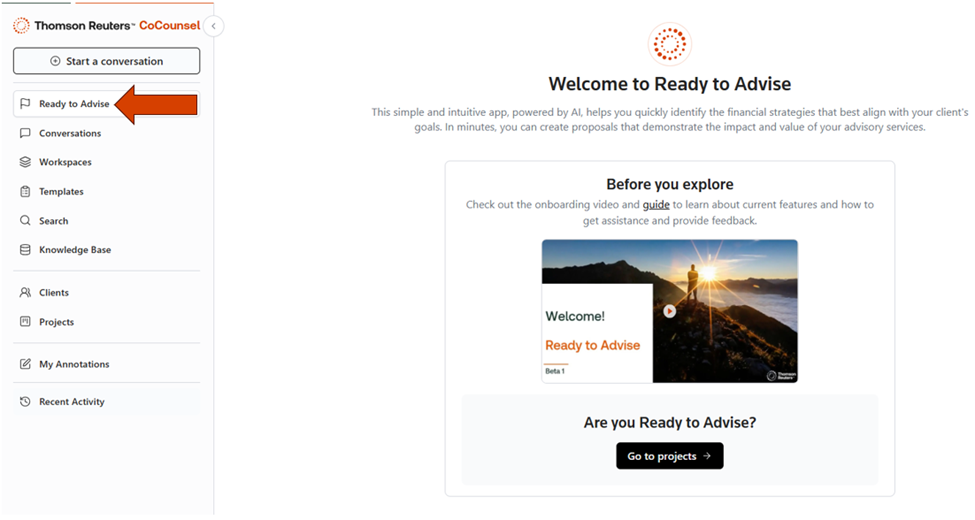
This is where you will get started creating your first Advisory project.
Select
Create new project
or Go to Projects
if you've already created one.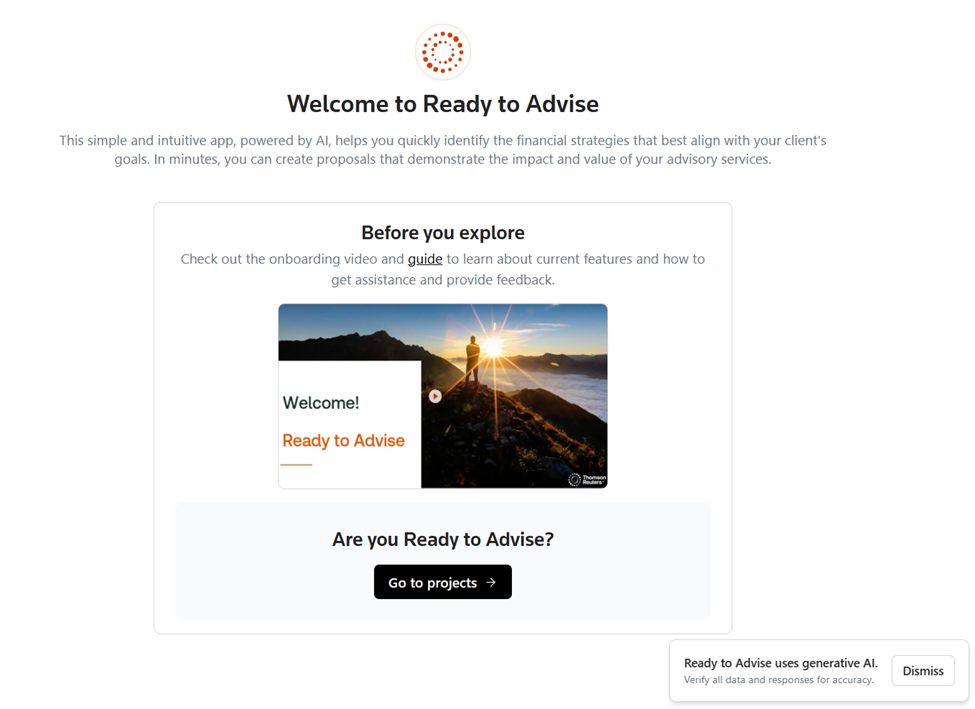
You'll be taken to the
Create a tax advisory project
page to add client details. Provide:- 1st and last
- Email address (optional)
- Valid phone number (optional)
Select
Create and continue
after entering the required fields.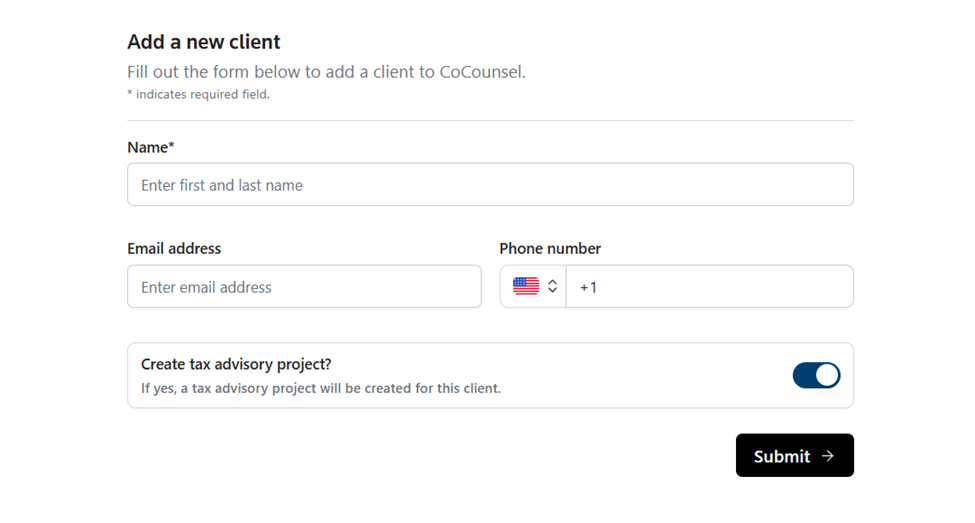
After creating the client, you'll be directed to the
Add Tax Returns
page, upload the client’s most recent tax return as a PDF (max 100 MB).Supported form types:
- 1040 Individual Tax Returns
- 1040 + Schedule C
- 1120-S
Drag and drop a file or select
upload a file
.
note
If uploading a 1040 + Schedule C, select
Yes
to indicate the return includes Schedule C. If also uploading a 1120-S, select that checkbox and enter business details.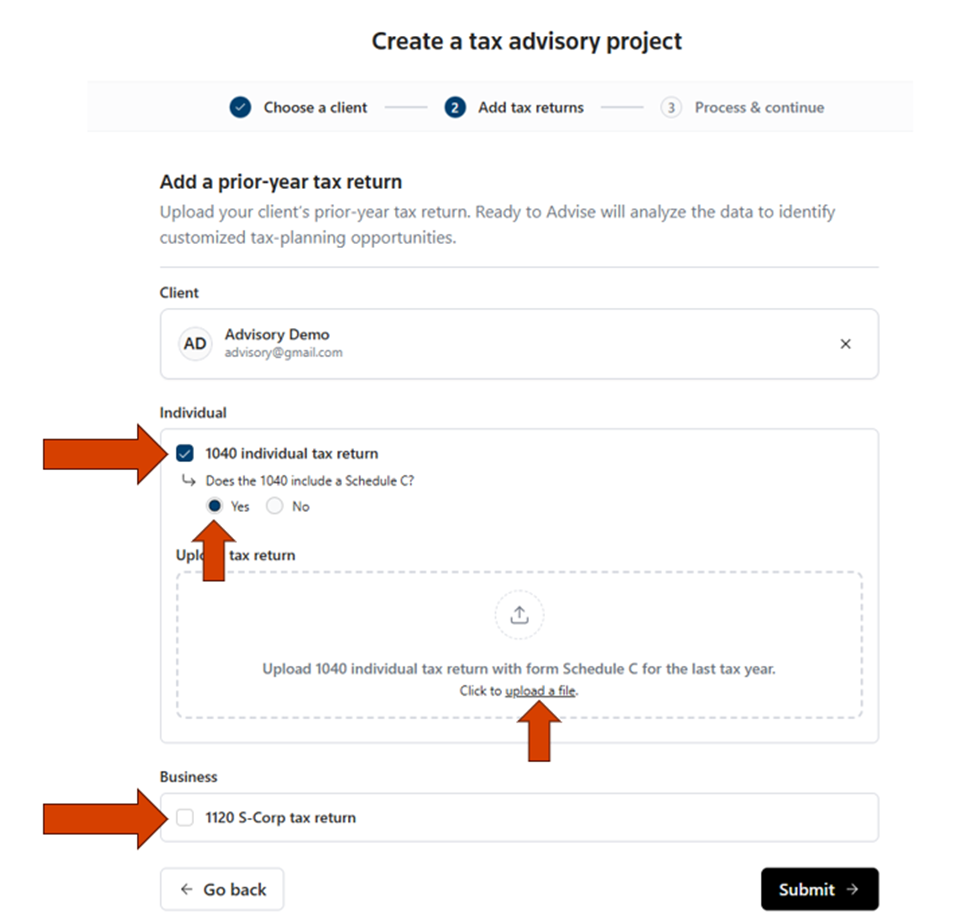
For purposes of this walkthrough, we'll upload a 1040 + Schedule C. Select
Submit
after uploading the tax returns and populating the required fields.Once the extraction is completed, you'll have collaborative AI chat support available to help you and your team members working on the same project with you.
The chat helps you:
- Search through the advisory journey to perform relevant actions at each step.
- Research topics using Thomson Reuters Checkpoint content and web results. The chat includes citations so you can review sources and learn more, and it suggests the next actions for the current step.
- Review, edit, or add additional client information through document upload, manually entered text, or voice input.
For example, you can review and edit any extracted data as needed by selecting
Review extracted data
in the chat window.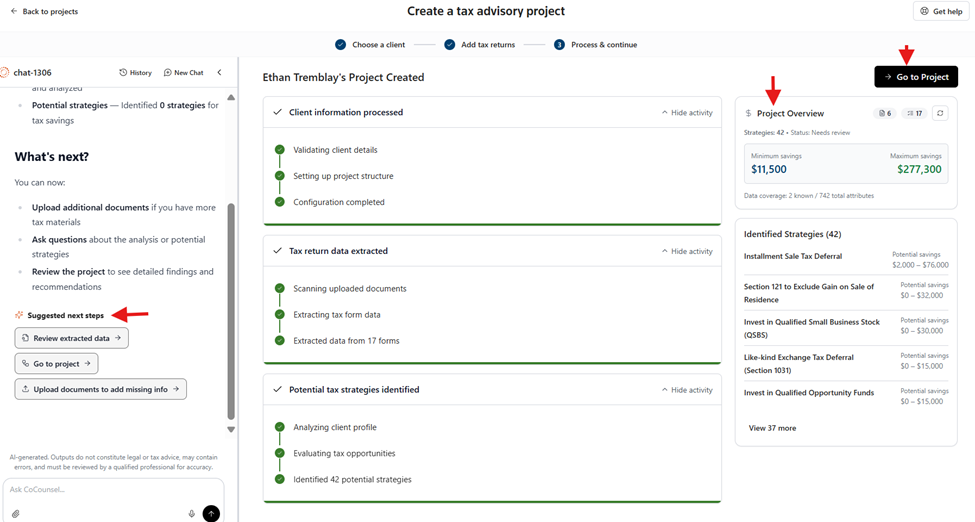
After selecting
Review extracted data
, you'll be able to search through any forms that the AI has extracted data from and review or edit the information. Select Save
after making edits to the extracted data.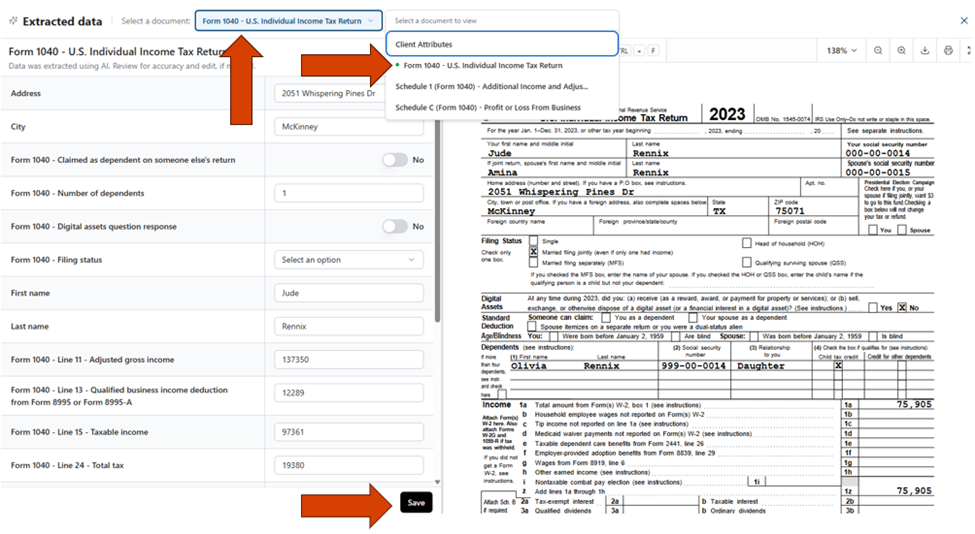
You'll also be able to get a brief sample about how many potential strategies have been identified and can progress by selecting, Go to project.
After submitting it, you will then be taken to an advisory workflow view:
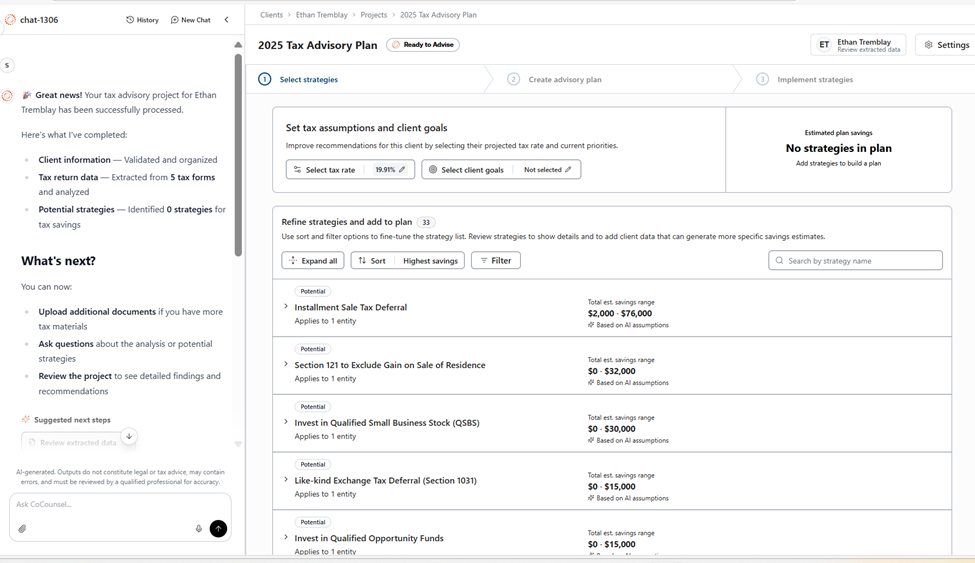
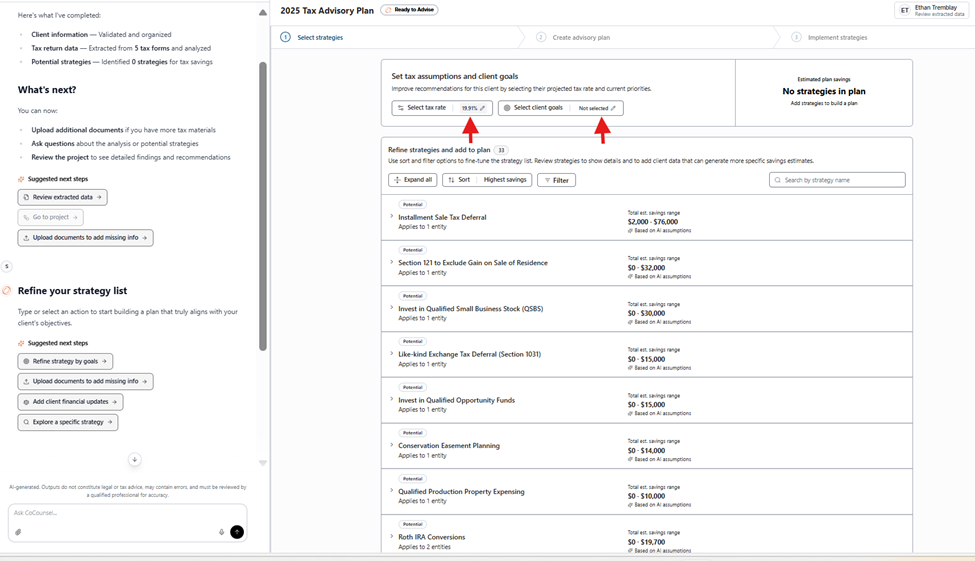
In this 1st step of the advisory process, you can review potential tax strategies for your client (by household, spouse, business) and assess whether they could benefit from your services.
Ready to Advise
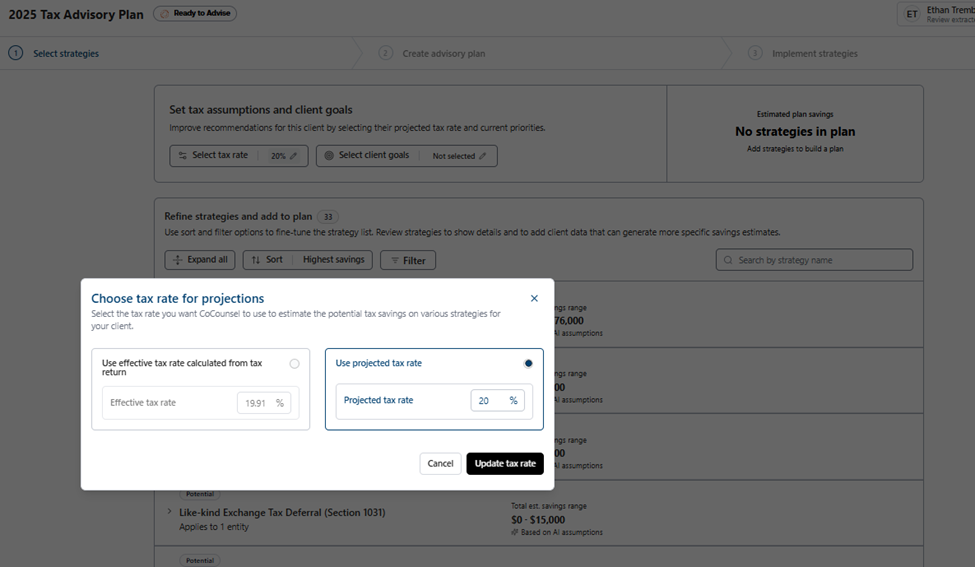
generates an initial list of strategies by analyzing the uploaded tax return and identifying potential savings opportunities. You can refine these recommendations by:- Selecting a tax rate:Ready to Advisecalculates potential savings using either the return's effective tax rate or a projected rate you specify.
- Adding client goals:Provide information about the client's objectives so the AI refines the strategy list and savings estimates before you finalize recommendations.
The AI Chat assistance also helps suggest next actions to help you search through the journey such as adding goals for your clients.
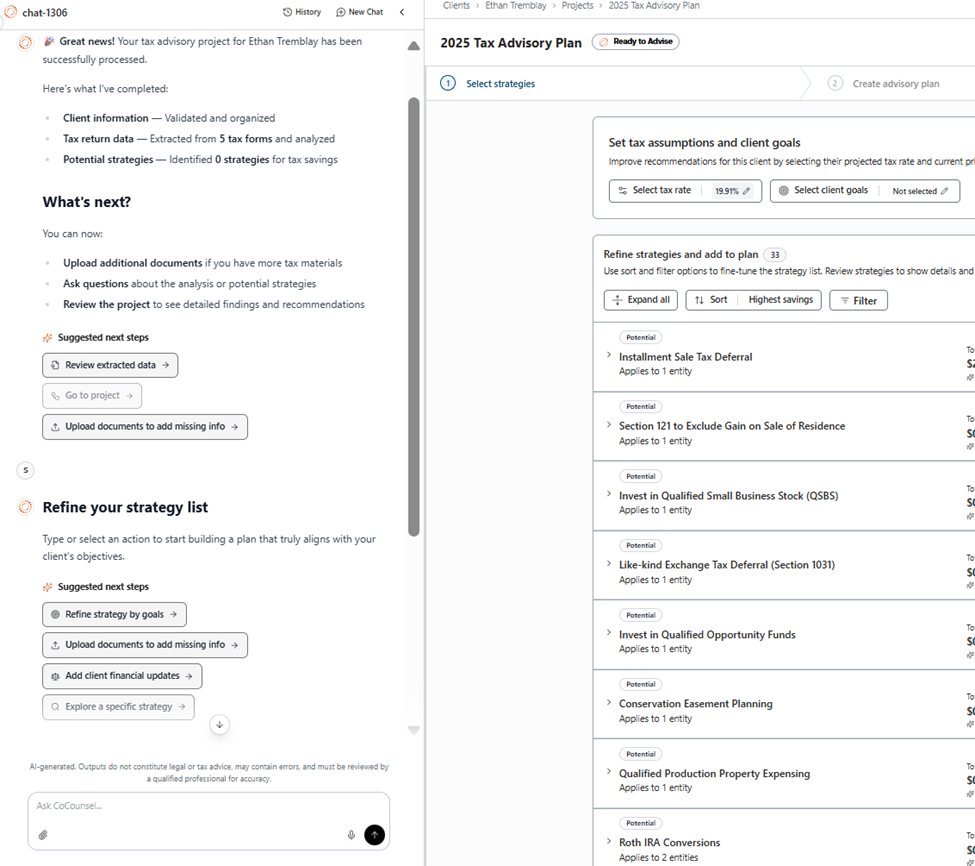
Begin by selecting the
Select tax rate
section. Afterwards, you can then select Select client goals
.note
Selecting client goals isn't a requirement.
For the purposes of this walkthrough, we'll be using a projected tax rate of 20%.
From the
Select client goals
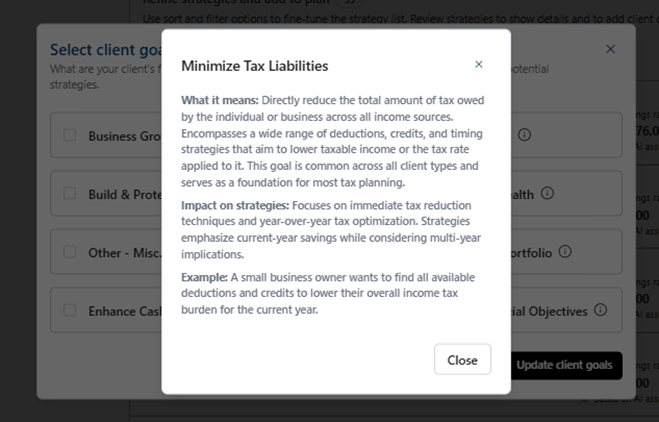
modal, you can select the goals and objectives that are most meaningful to your client. Once completed, you'll be able to see which strategies align with your clients' goals. Selecting the i
icon on the goals page will provide additional insights about the goal; what it means, impact on strategies and an example.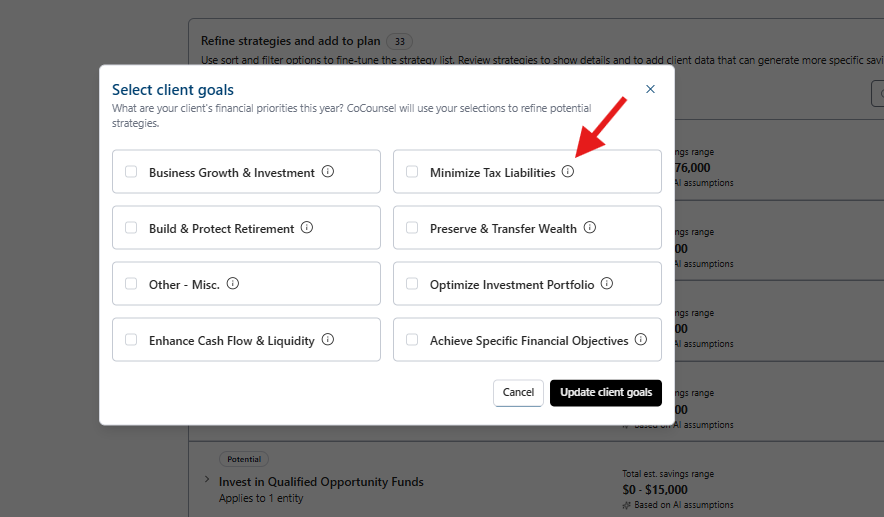
After selecting a tax rate and selecting client goals, you can review all potential, relevant strategies, and those that are not currently relevant.
note
While some strategies are not relevant today, it doesn't mean that they'll always be irrelevant to our client. As a client's situation changes, so can the relevancy of strategies.
Some of the strategies might not directly help the Tax saving and for those you will see the benefit description instead of a saving range or number.
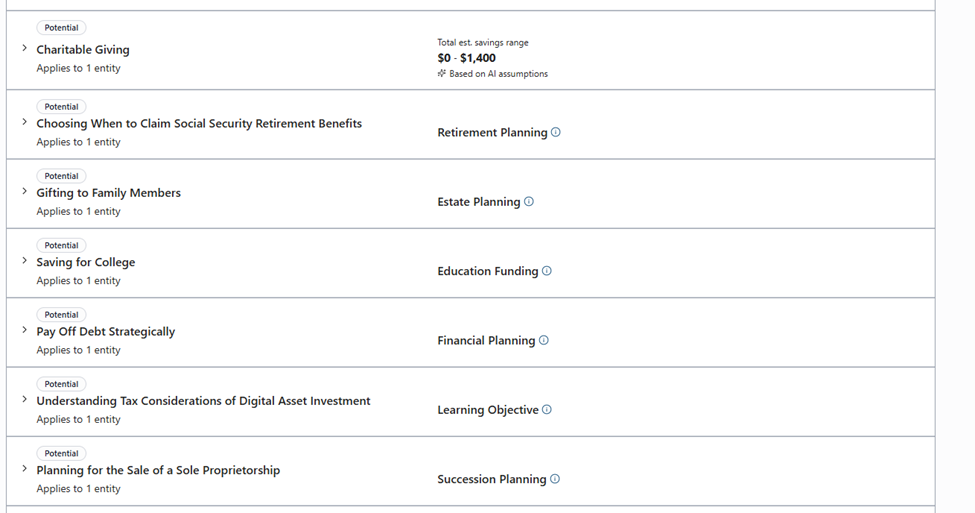
Ready to Advise
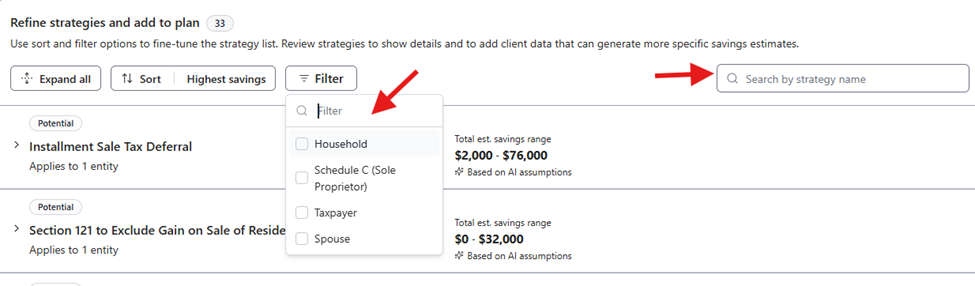
has a growing library of supported strategies.To find the strategy recommendations, you can use the available filters, sort, and search options that are available at the top of the strategy list:
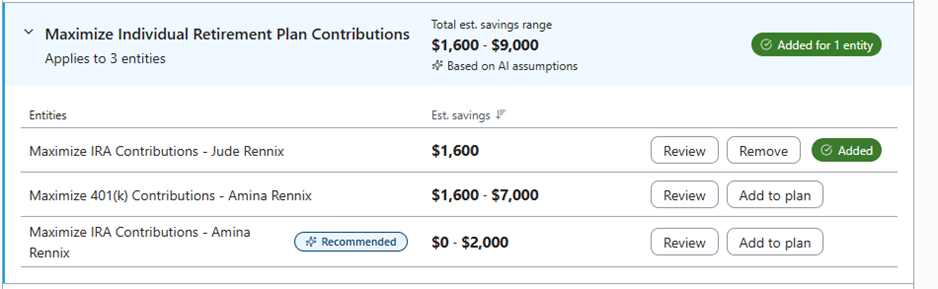
The strategy list lets you review the strategy by entity type as well, so you can better understand which entity the strategy is recommended for and the potential benefits.
The strategy can be implemented using different scenarios for different entities:
Select
Review
next to the strategy name for further details of the strategy, the eligibility criteria, and reasoning.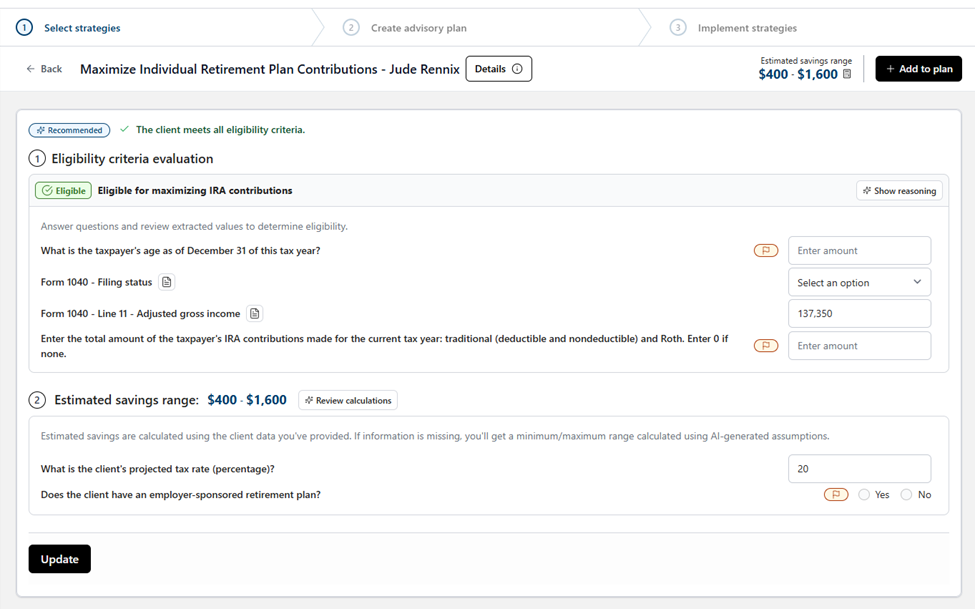
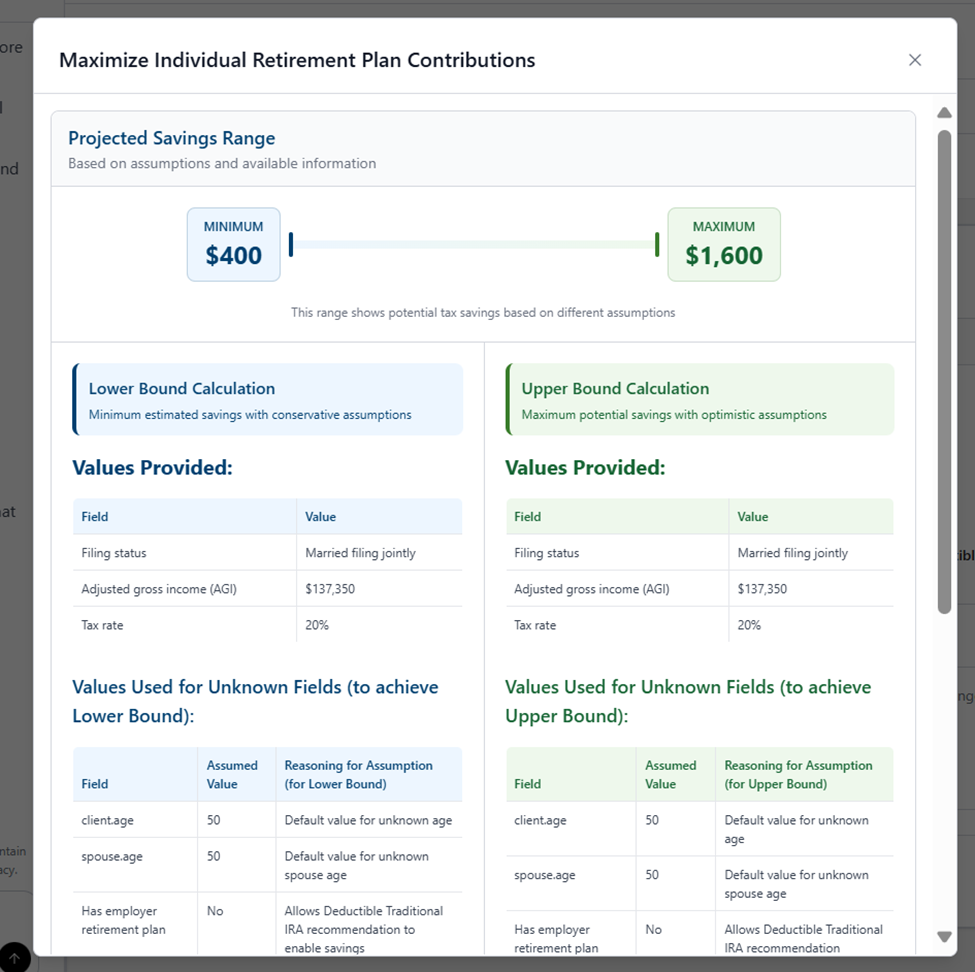
You can select the estimated savings range to view the calculation and assumption behind the lower and upper bounds of the range.
The AI will generate upper and lower bound ranges by reviewing the information that it knows and then entering several other assumptions. As you add more unknown details, the AI will continue to refine these projections.
The AI is using the 20% that was added earlier and then creating some assumptions.
After you add missing details in the Client information tab or the AI chat, verify the client's eligibility and calculate estimated savings. In this scenario, the additional client information enables Ready to Advise to produce a final estimated savings amount.
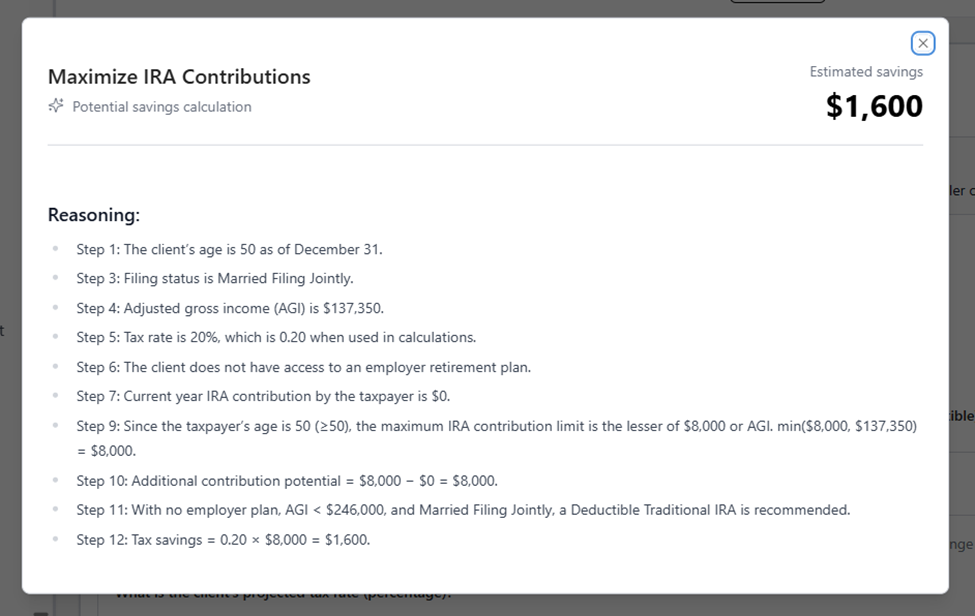
You can review the eligibility reasoning by selecting
Show reasoning
as well and the savings calculation by selecting Savings calculation
.note
If you don't know the answers to all these questions, you may also need to have a follow-up conversation with your client.
Remember to select
Update
as you add further client information for the strategy so the AI can use the details to further refine its response.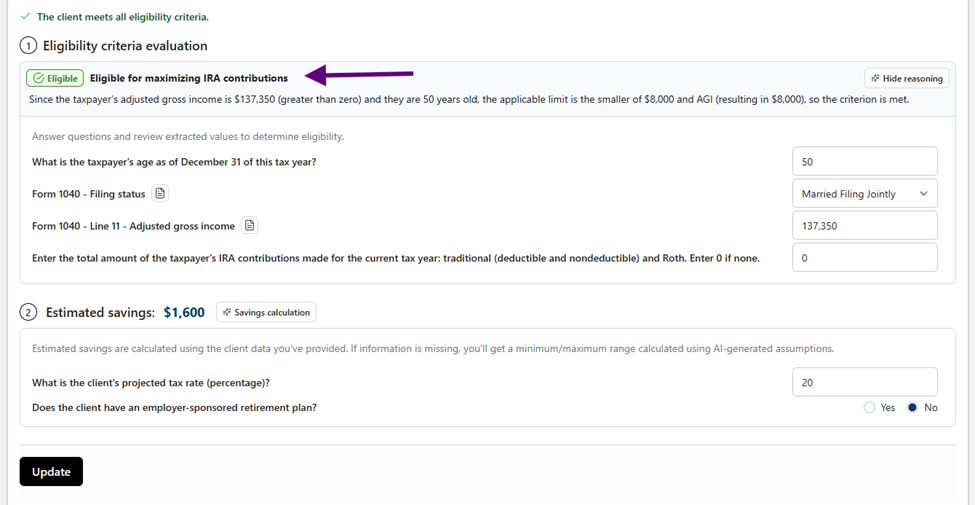
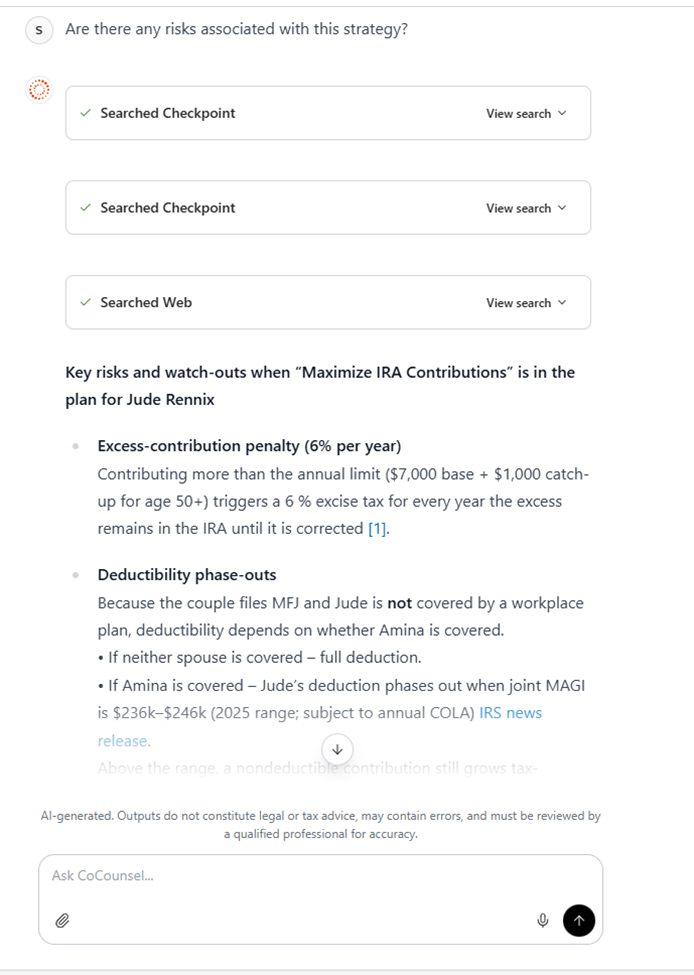
Furthermore, you can add a strategy to your plan, which will begin to populate the tax savings that your client could experience from all the curated strategies. These in-plan strategies will form the basis for the
Advisory Plan
.You can use the AI chat to add this strategy to your Advisory plan.
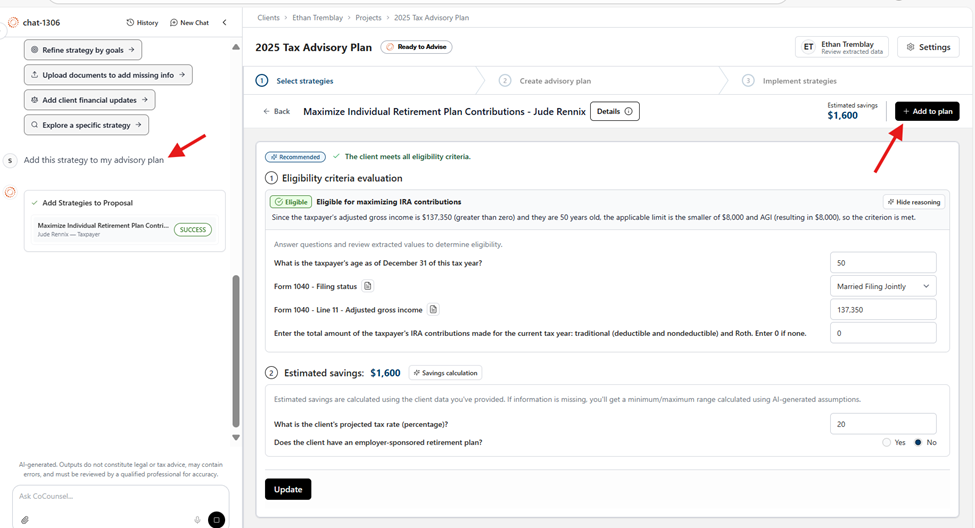
You could also ask further questions using the chat to understand the strategy better.
Advisory plan
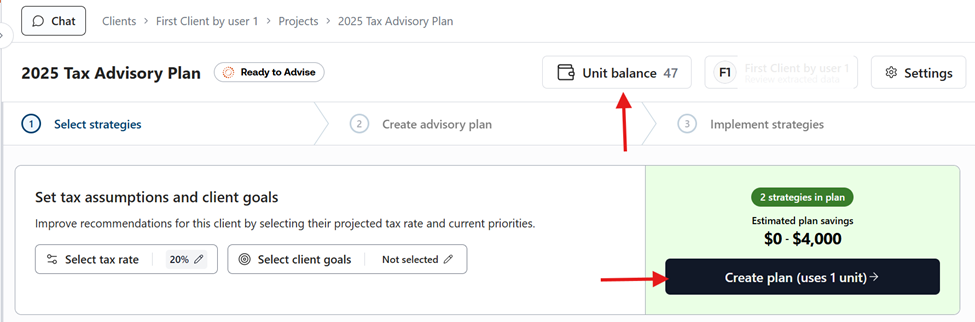
Once the required strategies are added to the plan and you see the potential to support the client using your advisory services, you can create an
Advisory plan
.The
Advisory plan
is a client‑facing document summarizing selected strategies, potential benefits, steps to implement, and estimated tax savings. You can download the plan as Word or PDF and customize branding (images/logo) and text where supported.note
The advisory plan creation consumes a unit. You can prospect the client fully at no cost and decide later whether to generate the plan.
On the
Create advisory plan
step, build your client's plan summary. Use it as a proposal, a discussion aid for recommended strategies, or a summary to support an official proposal.The AI chat with all the supported actions is found in the left pane.
The editable version of the plan’s preview will be in the center pane. This document can be downloaded at any time in the Word and PDF version.
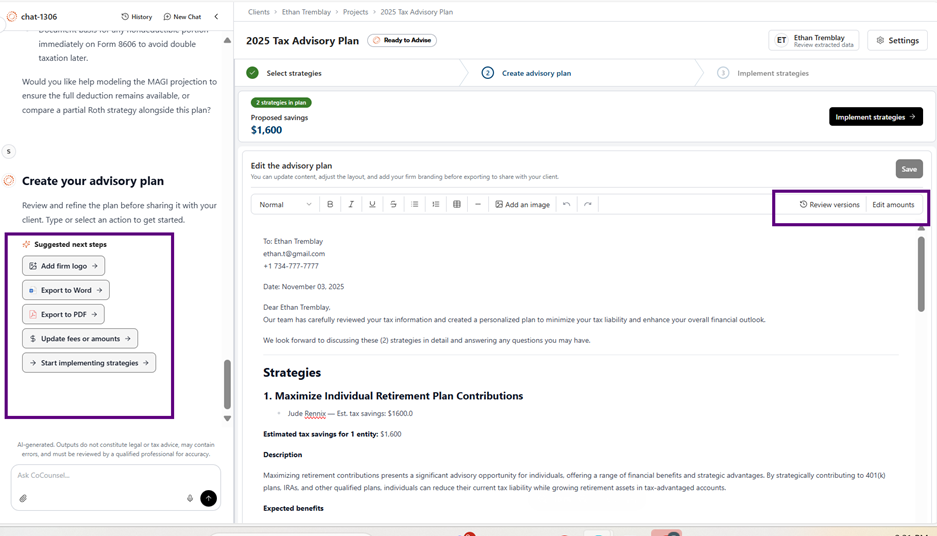
Go down the proposal to see a larger view of the center pane, you'll notice that each strategy will include the following information:
- Strategy name
- Brief description of the strategy
- Expected benefits of moving forward with the strategy
- A high view into what steps would need to be taken to implement the strategy
- Estimated tax savings
You'll have the ability to enter in an implementation fee that will transfer to the plan Summary that you can print, download, and send to your client.
note
We define the implementation fee as the cost that the client would pay to implement the strategy. To reiterate, this would be your firm's fee and other associated costs with setting up and implementing a specific strategy or set of strategies.
In this walkthrough, use the AI chat's suggested action to update the implementation fee and edit the estimated savings for the
Augusta 14-Day rule strategy
.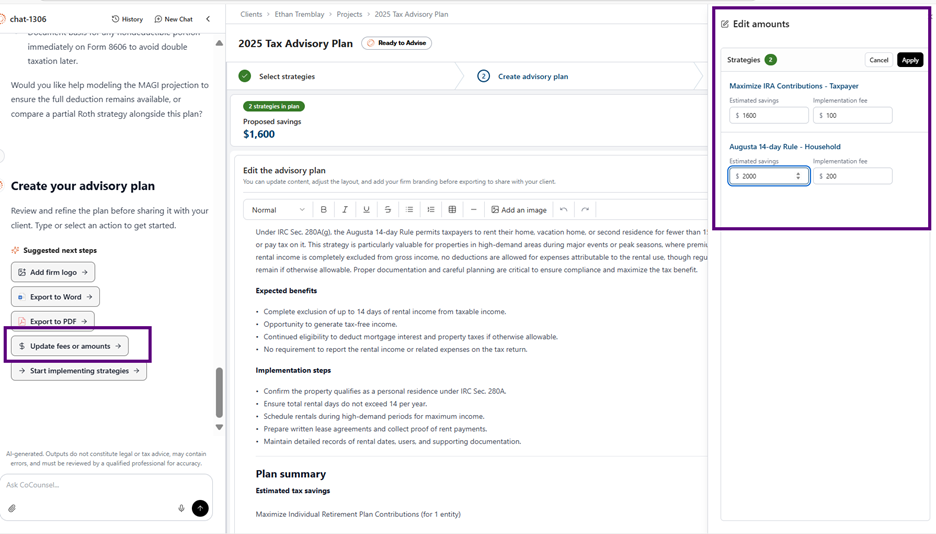 .
.Once you apply the changes, you'll see that the plan document is updated with the fee details.
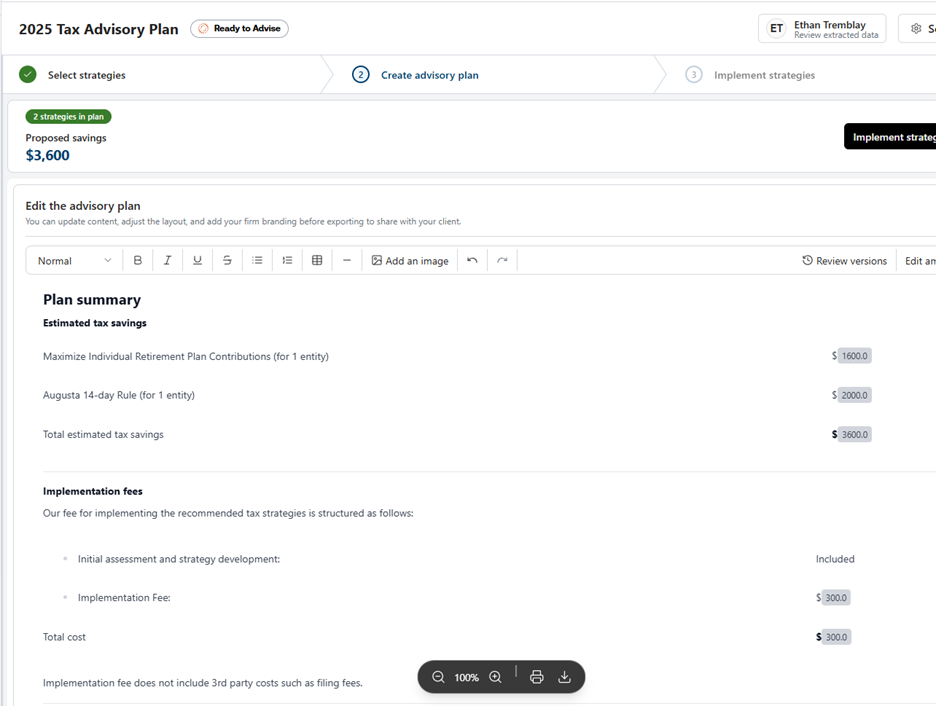
Review plan versions at any time to see when changes were made and by which team member. Revert to any previous version when needed.
Strategy implementation
You'll need to implement the agreed strategies. This phase provides guided support to go through each implementation step, use the AI to determine required actions and client requests, research-related topics, and generate client deliverables.
note
Proceed to this step after verifying the client is ready to implement one or more strategies. Select
Implement strategies
or use the AI chat's suggested action to begin.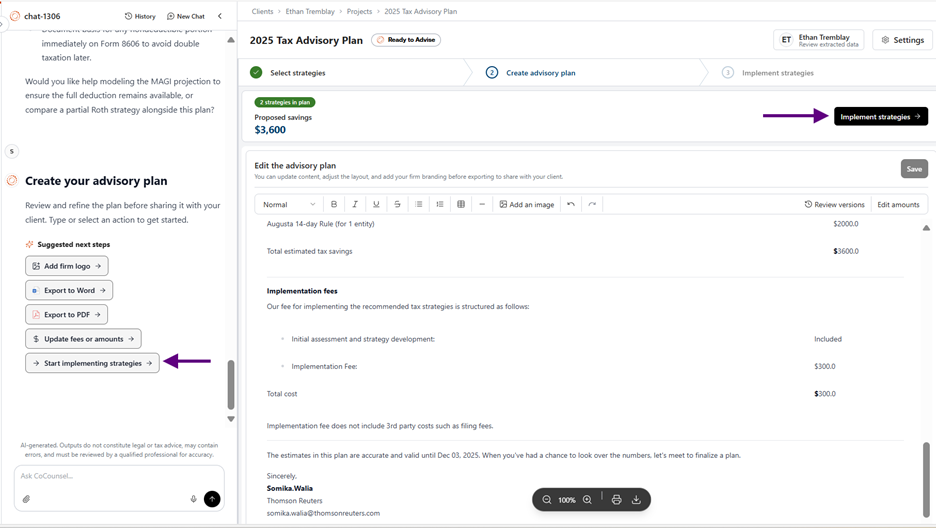
The board shows the status of each strategy. In this example, the strategy has been added but not started. As you complete implementation steps, the strategy advance through phases and the board updates its progress. Use the
List
or Grid
view to switch layouts. 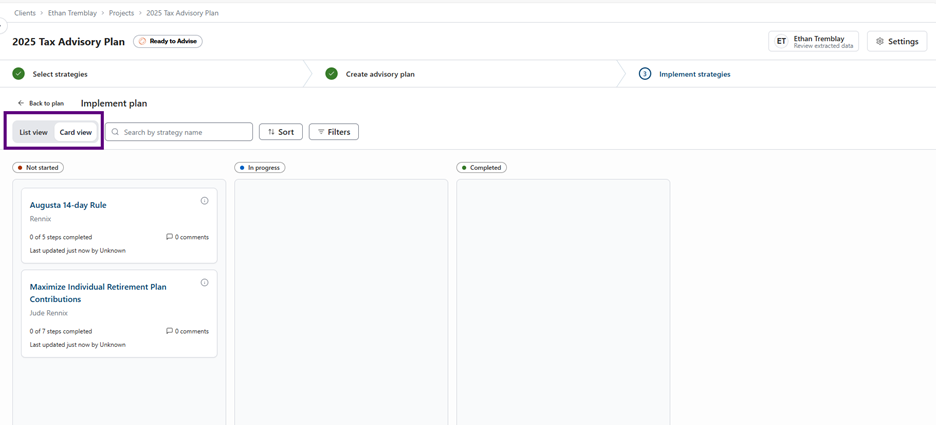
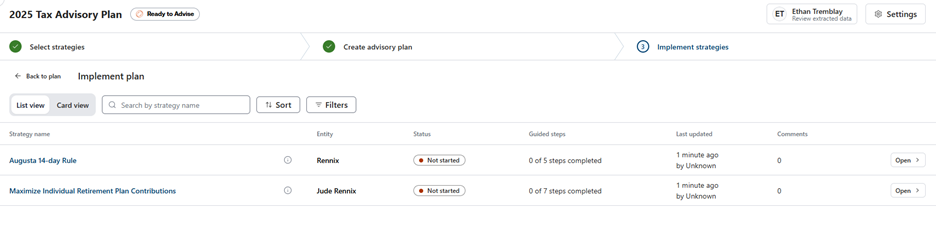
Select the strategy card to open the AI Guided Workflow. Use the center pane to chat with the AI expert, and use the pane on the right to view the step checklist, client deliverables, and the audit log for team tracking.
Let's walk through a couple steps.
Select
Get started
in the center pane.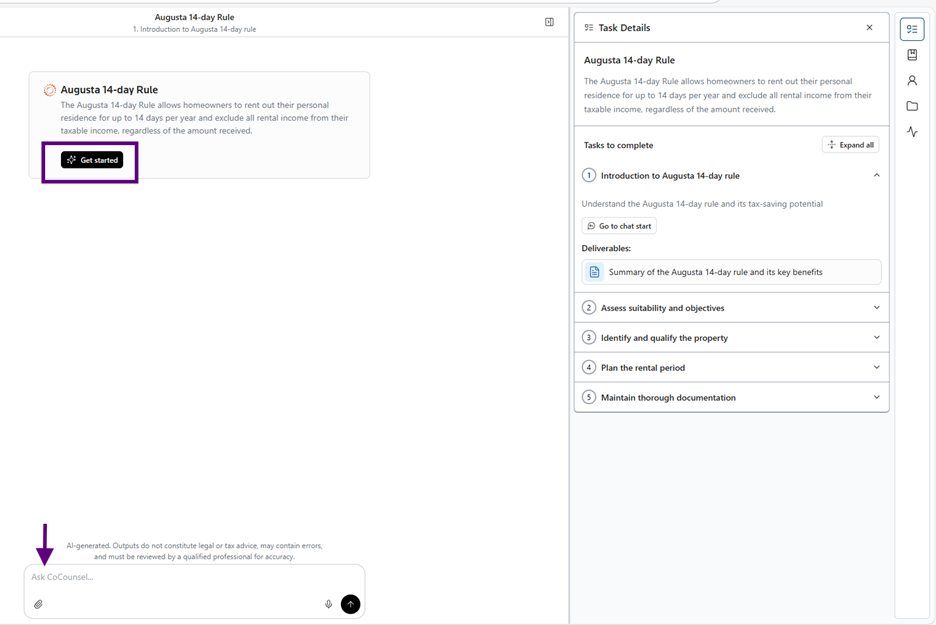
The AI chat guides the next steps to implement the strategy, deepen understanding, and generate client‑facing deliverables. The right‑hand pane displays the overall implementation plan and the current implementation status.
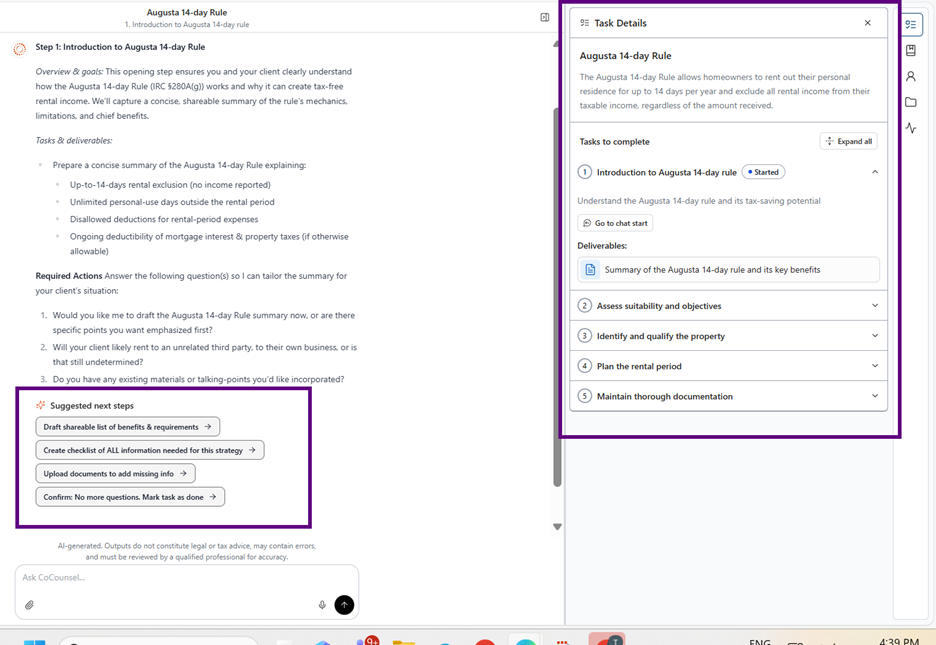
Ask additional questions in the AI chat before proceeding. The AI expert responds using Checkpoint as the source of truth. On request, the chat can also search the web. Citations appear in each response, and you can view the full source list from the Sources dropdown in the right‑most pane.
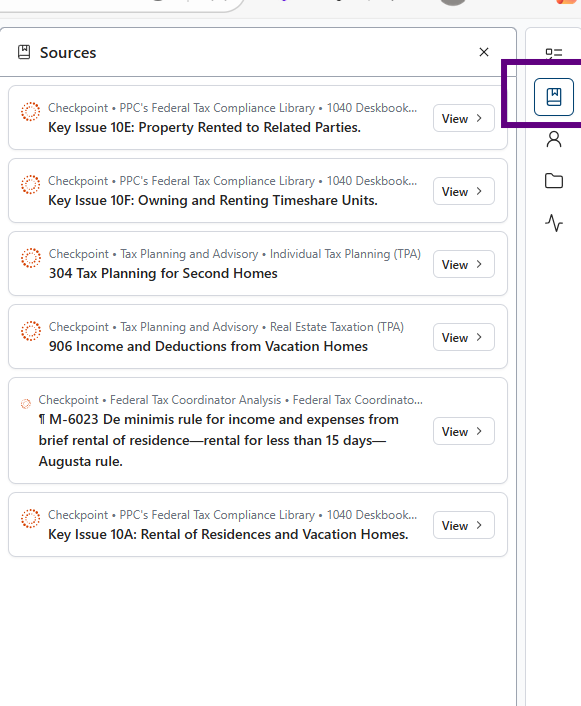
Select
View
to display the complete details for learning and research. In the same pane, open Deliverables
to see all items for the strategy in implementation. After the AI generates deliverables via chat, open them to review or edit. 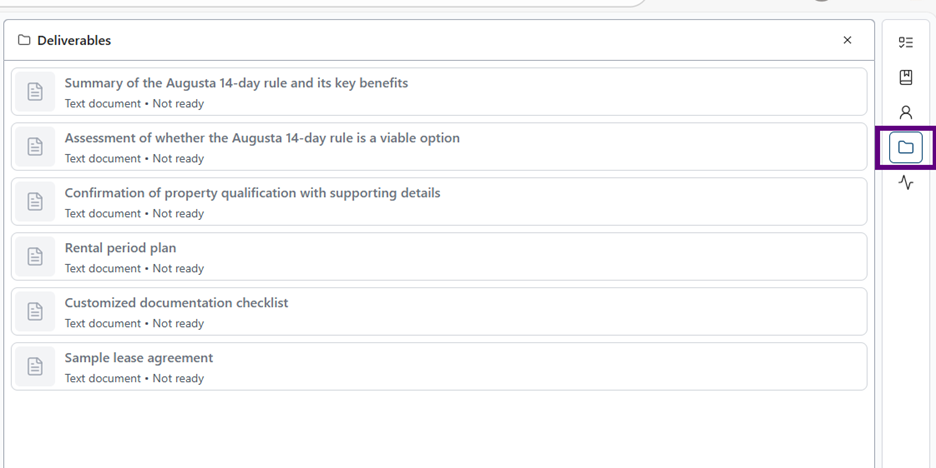
You can perform various actions directly in the chat. To share required client details, ask the AI chat to generate a checklist of information. Use the suggested next‑step buttons to begin.
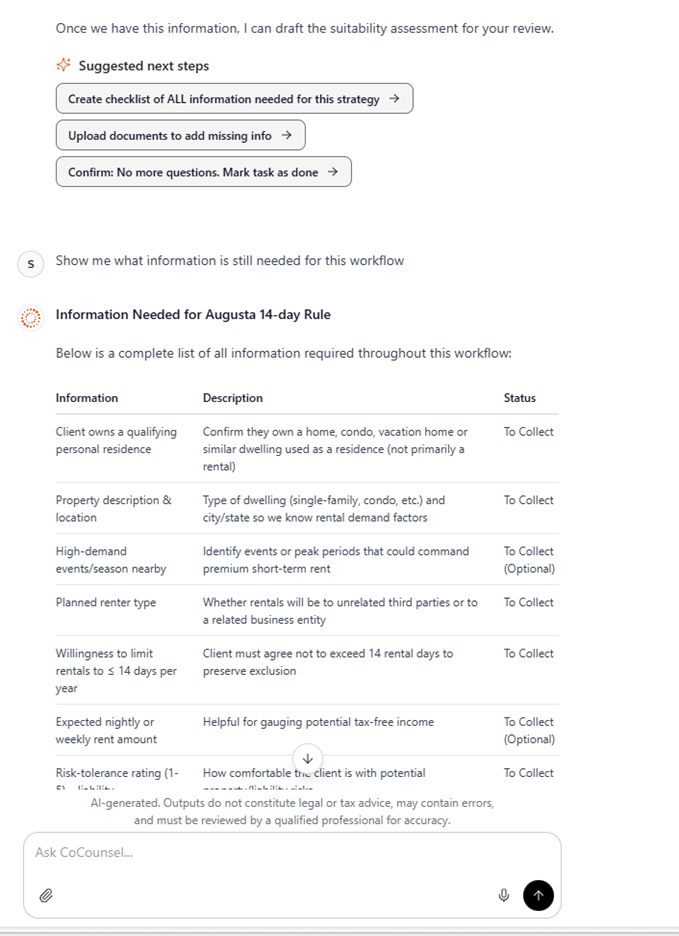
When you're ready to move forward, let the expert know and select
Go to the next step
.This will auto-mark step 1 as being complete and then you can move to step 2. You can continue going through each of the steps to implement a strategy.
You can leave and return to a project at any time. When you return, the system restores your last working state. Review the AI interaction history to see activity across team members, track implementation status, and verify due diligence.
note
Each time you sign in, Ready to Advise opens the Welcome page. If you have at least 1 advisory project, the app can take you directly to the Projects page.
On the
Projects
page, you can create a new project or return to an existing one. View each project's status and use filters or search to find specific projects.This concludes our high-level walkthrough of Ready to Advise for any V2.0 Advisory project (created after November 11, 2025). For the projects created before that day, refer to the guide for the V1 version here.
Feedback and support
For questions or issues, email CoCounselTaxAudSup@thomsonreuters.com with your sign‑in email and a screenshot.
For immediate help, call 800‑431‑9025, say
tech support
then CoCounsel
. Support hours: Monday–Friday, 9 am–6 pm EST.Additional information
System requirements
- Operating systems: Windows 8.1, Windows 11; Mac OS 10.5 or later
- Browsers: Chrome (current), Safari (current), Mozilla Firefox (current or ESR), Microsoft Edge (current)
- Other requirements: 1024×768 or higher resolution recommended; Adobe Acrobat Reader 9.0 or later
Number of tax returns for a client
At this time, users can upload only a single 1040 or a 1040 with Schedule C at a time. If the client has a business, you can also upload the corresponding 1120‑S form.