
Run AI Markup Suggestions
When you start working on a new template, we recommend using
Suggest markup
to identify the fields and spans automatically and create variables for them. In a matter of minutes, you will have the first draft of your template ready for review. This feature can be run on filled-in documents or model documents that already have some placeholders for the dynamic elements.
note
Spans are detected only in model documents where optional text is indicated using notation, typically brackets. When creating a new template, add placeholders in any bracket style (for example, [square], (round), or {curly}) so the AI can suggest appropriate markup.
To get started, select
Suggest markup
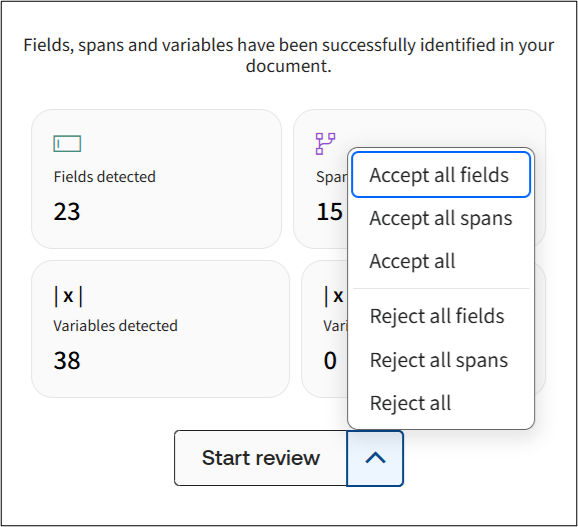
. The system will display a summary screen showing:- The number of fields and variables detected
- Any reused variables imported from iSheet or external dictionary.

note
The
Suggest markup
feature does not work with documents that already contain automation markup and requires Advanced AI features which can be enabled in the admin tab of your Contract Express account. On this screen, you can choose to accept or reject the detected suggestions in bulk, or click
Start review
to review each suggestion individually. Use the arrow next to Start review to select options such as Accept all
, Reject all
, or apply these actions only to fields or spans.- Accept All- applies all detected fields and variables to your template.
- Reject All- dismisses all suggestions.
- Start Review- steps through each suggestion individually so you can inspect and decide on each one.
You can always return to the summary screen on the Markup home page by clicking outside of content controls in your document.
During the review, accept suggestions that are correctly placed and reject any that should not be marked up as fields or spans. Check the proposed variable's data type and question, and update them as required before accepting. If the field is correctly positioned but the suggested variable is not appropriate, you can replace it with an existing variable or create a new variable with a different name.
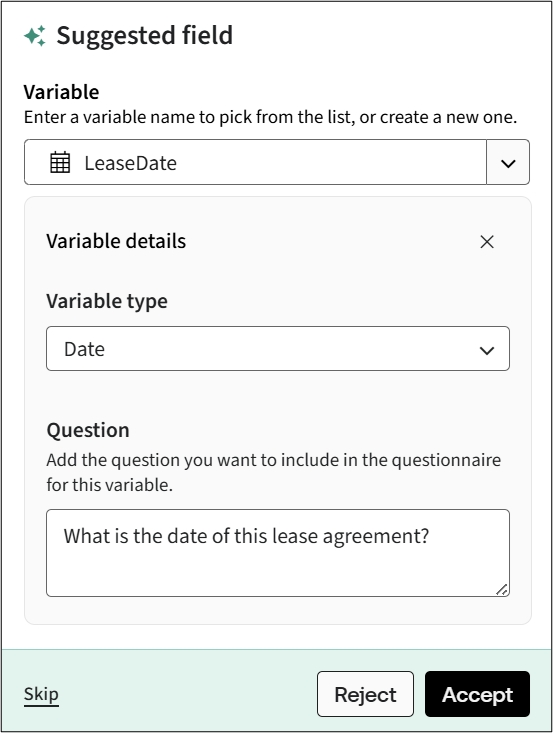
If you later need to revisit an accepted field or span, click the markup content control in the document to reopen it in the work pane. Click between the lozenges to review the variable details, make updates as required, or select the delete icon to remove it from the document. After completing the review, check the template for any additional fields or spans that may be required and add them manually if needed.
Variable Reuse Indicators
Variables imported from an external dictionary or an iSheet will be automatically assigned a visual
Reused
label. This label appears next to the variable header in the AI markup suggestions, indicating that the variable was sourced from an existing external source rather than created newly.When you hover over the
Reused
label, a tooltip displaying the text Variable reused from the Dictionary
will be shown.
Related Content
-
Add markup with Author Online
Format: Article