
Insert Span
A
Span
is conditional logic applied to document text and can cover anything from a few letters to one or more paragraphs. The most common type is a show/hide span
, where the text inside the span is included in the document only if the specified condition is met, and hidden if it is not. Another useful type is a
repeat span
, which is used when information must be repeated for multiple entities or units. For example, if a contract includes one or more tenants, you can use a repeat span to duplicate the section that lists their names and details.How to insert a span
To insert a span, highlight the text that requires conditional logic and click
Insert span
. A content control is inserted into the document, and the work pane displays the condition builder screen.
The simplest show/hide spans use a
Yes/No
question. Add a variable that determines whether the conditional text is required. When you create a new variable, it defaults to the Yes/No type, and a rule is created so that an answer of Yes
shows the text and an answer of No
hides it.For example, the question might be "
Is a guarantor needed?
". If the answer is Yes
, the relevant paragraph appears in the generated document. If the answer is No
, the paragraph is excluded.
Show/hide spans can also use other types of questions, such as contract value or jurisdiction. For example, conditions such as
ContractValue is more than 1000
or Jurisdiction is England and Wales
are valid span rules, where ContractValue
is a number variable and Jurisdiction
is a text selection variable. These conditions are evaluated as true or false to control whether the text is included or excluded.Use the
variable – operator – value
structure to create basic spans. To combine multiple rules, use more advanced expressions, or work with a different type of span, switch to Advanced mode
.
Unlike fields, spans often contain other fields or spans within them. For example, a guarantor clause controlled by a span might include fields for the guarantor's name and details. These questions are shown in the questionnaire only if the span‑controlling question is answered
Yes
.To insert a span around an existing span, highlight the entire span, including the lozenges. The work pane displays the Markup home screen, where you can click
Insert span
. You can also insert a field or span inside an existing span. To do this, click within the span text to display the span expression in the work pane, then select the three‑dot menu at the bottom left and choose Insert field
or Insert span
.Content Control Focus and Markup
Clicking inside a field (for example,
TenantRegisteredOffice
) highlights the content and displays the automation details for that field.
Similarly, clicking inside a span (for example,
GuarantorName
) highlights the content control and displays the automation details for the closest (innermost) span.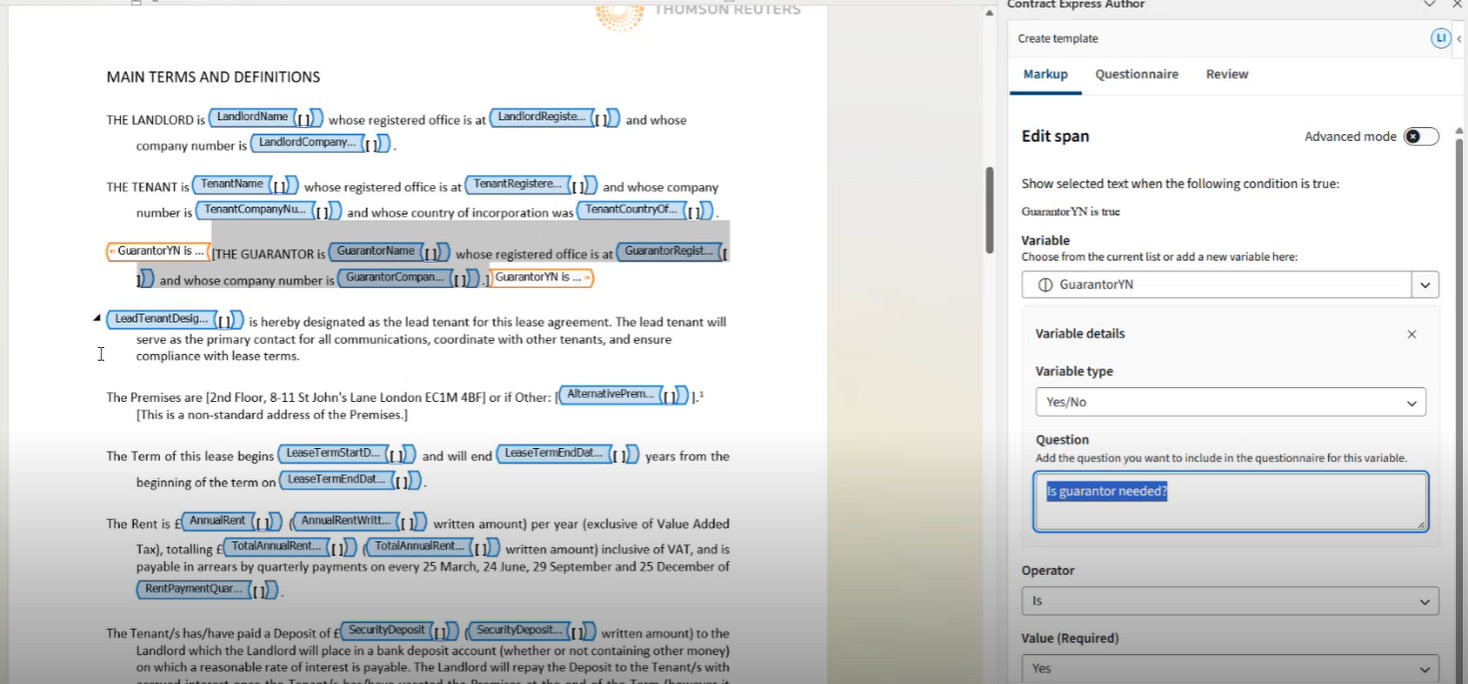
If you click outside a content control, the system shifts focus and displays the markup for the nearest applicable span.
Add and manage multiple conditions
Authors can also add multiple conditions to a Span from the Show/Hide Span screen to build more complex logic. When you open the Show/Hide span screen, you will see the first condition card labelled "Condition #1" and an
Add condition
button below it.
Clicking
Add condition
creates a new condition card labelled with the next number in sequence. Between each condition, an And/Or
toggle appears, defaulting to "And", which lets you control how the conditions work together.Once all the conditions are applied, click
Apply
to save conditions. In Basic mode
, all conditions must be valid before you can apply changes; errors prevent the Span from being applied. In Advanced mode
, you can still apply the expression even if validation errors exist in Basic mode. The Span appears in the questionnaire only when all conditions are met.Expanding and collapsing conditions
Each condition card can be expanded or collapsed using the arrow button on the right side of the card header. When you have multiple conditions, they will all appear collapsed by default when you open the screen. If there is only one condition, it will appear expanded. Any condition with a validation error will always appear expanded so you can address it.
When a condition is collapsed, a summary is shown in the format; Variable, Operator, Value. For example, "GuarantorAddressIncluded is true", providing authors a quick overview of the condition at a glance.

Deleting conditions
You can delete a condition by clicking the Delete icon on the condition card. The Delete button is only available when more than one condition exists. After a deletion, the remaining conditions are renumbered automatically, and the associated And/Or operator is removed along with the deleted condition.
Editing variables in a condition
If you open the Edit Variable form within a condition, it will remain open until you collapse the condition card, close the form manually, or leave the page. The Edit Variable form works independently for each condition, so changes in one condition do not affect the others.
Related Content
-
Add markup with Author Online
Format: Article